Introdução

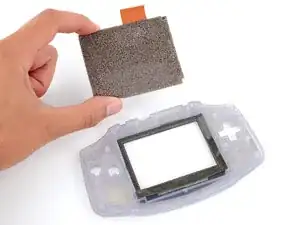
Follow this guide to replace the LCD screen on your Nintendo Game Boy Advance model AGB-001.

You may need to replace your Game Boy Advance screen if it's dead, unresponsive, discolored, has dead pixels or lines, or no longer displays an image.

If you think your screen is cracked, double-check that it’s not the plastic screen lens (the clear cover on the front shell). If it's just the lens that's cracked, follow this guide to replace it.

The Game Boy Advance uses JIS screws. If you use a non-iFixit Phillips driver in JIS screws, you'll risk stripping them. iFixit's Phillips bits are designed to be compatible with JIS screws.

Note: This guide only covers replacing the screen with an original LCD one, not an IPS upgrade. Most IPS upgrades require soldering, modifications, or using a new shell. If you're upgrading the screen, you may still find this guide helpful to get you to the point of soldering or modifications. From there, you can reference any instructions included with your upgraded screen, or find more help on the website you purchased from.

  1. 2cYB63PN1uNIqGSi
    2cYB63PN1uNIqGSi
    sQLHMsNXISQspZDV
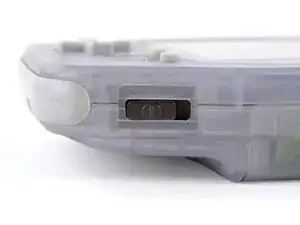
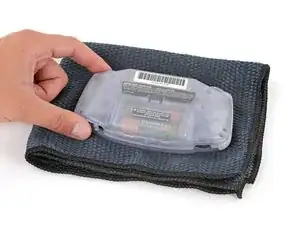
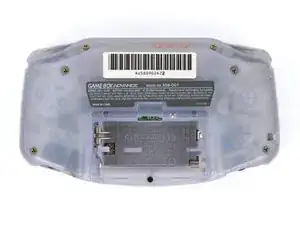
    • Before working on your Game Boy, turn the power switch to the OFF position and unplug any cables.

    • If you have a game cartridge installed, remove it.

    • Since your Game Boy will be laying screen‑side down for most of your repair, consider placing it on a clean cloth for protection.

  2. W5xHDkFFxsZPAfqJ
    W5xHDkFFxsZPAfqJ
    YLRFrpXTUJnvKIMt
    sVYy54cZhr1yVDYY
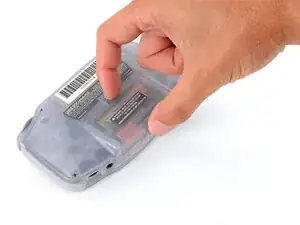
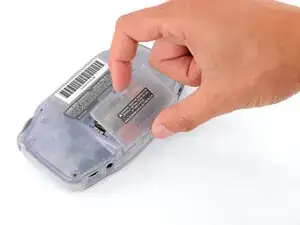
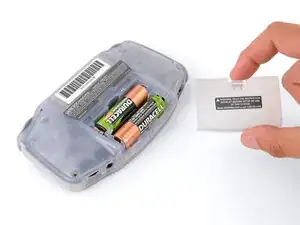
    • Release the battery cover tab with your finger and swing the cover away from your Game Boy to remove it.

    • During reassembly, insert the tabs on the bottom edge of the cover into their cutouts and press the cover into place.

  3. maxmprfVqllPKMpO
    maxmprfVqllPKMpO
    IWHASUO3UyEVPZNr
    lLsZLi2bYgQJgD5N
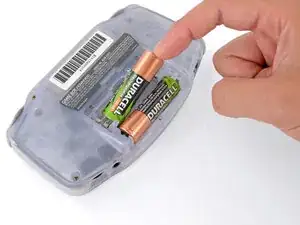
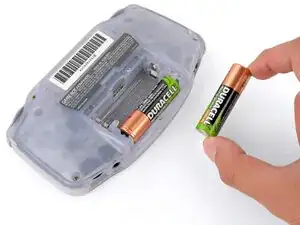
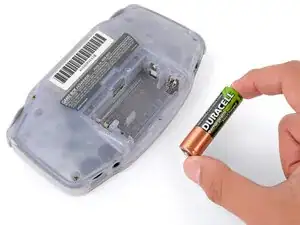
    • Remove the two AA batteries.

    • If the metal terminals are corroded, follow this guide to clean them.

    • When installing batteries, use the diagram in the battery well to properly orient them.

  4. h2MTNWGvbhaMV3al
    h2MTNWGvbhaMV3al
    ADgFcLpctBX6Itv2
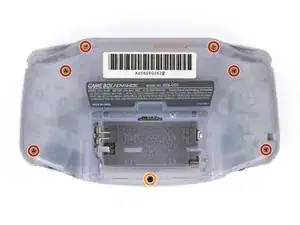
    • Remove the seven screws securing the back shell:

    • Six 9.4 mm‑long tri‑point Y0 screws

    • One 8.5 mm‑long JIS 1 screw

    • You can try to use a non-iFixit Phillips driver in a pinch, but you risk damaging or stripping screws. Push down firmly on the driver and twist slowly.

  5. VETTuXWgjPcRKRfw
    VETTuXWgjPcRKRfw
    4QEfBiByXkhUWxru
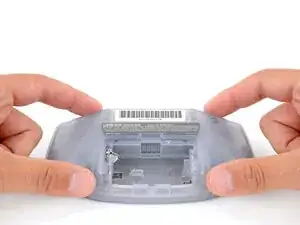
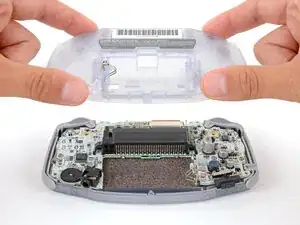
    • Lift the back shell straight up and remove it.

    • During reassembly, squeeze the shell firmly around the edges and ensure the shoulder buttons and bumpers are properly seated with no large gaps. Gently test the buttons to make sure everything feels correct.

  6. Y5WFeNDPWxBtpXt2
    Y5WFeNDPWxBtpXt2
    LxlqlNkJLmBQcdE2
    lfMfVUBt5GjWI6n2
    • Lift the shoulder buttons (aka L and R buttons) straight up to remove them.

    • During reassembly:

    • Since your Game Boy is laying upside down, the L button will go on your right‑hand side, and the R button will go on your left‑hand side.

    • Slide the buttons into place, making sure the peg on the button goes into its circular cutout and the button itself is over the actual button mechanism.

    • The shoulder buttons will sit on the inside edge of the side bumpers.

    • Gently test the buttons to make sure they feel correct. If they don't, reposition them and make sure the metal arms aren't stuck in a weird position under the board.

  7. xN3iiIYkJVNenrCN
    xN3iiIYkJVNenrCN
    xG5GhJXloMFJlyZc
    PALxBj6f4Qbx3NDc
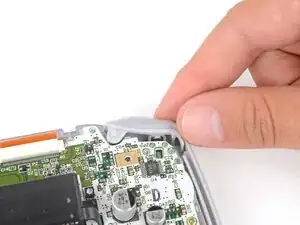
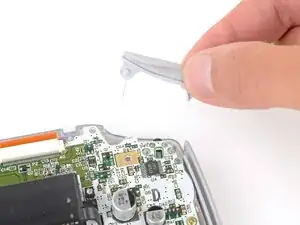
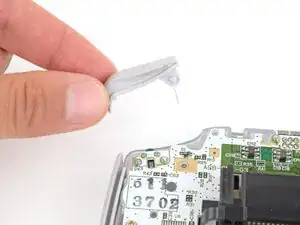
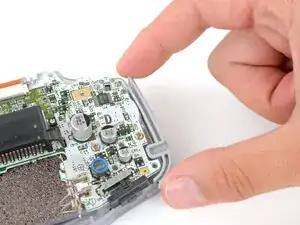
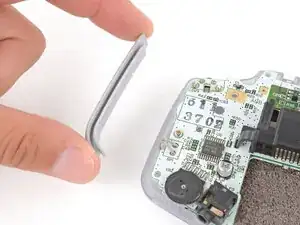
    • Remove the side bumpers.

  8. ZD5nS3XZbV3yfrZE
    ZD5nS3XZbV3yfrZE
    YIyyRruJpVDdjEpa
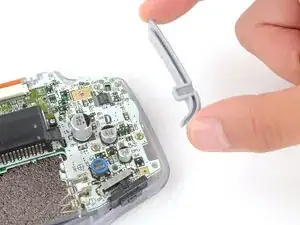
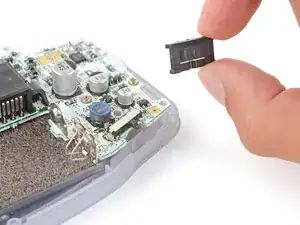
    • Remove the power switch cover.

    • During reassembly, make sure the switch cover is properly slotted around the arm on the switch mechanism.

  9. mqioEeVYsEgqHhpD
    mqioEeVYsEgqHhpD
    WqEc6TiRjMcicXj3
    y2SsGgeLbJE6TfpI
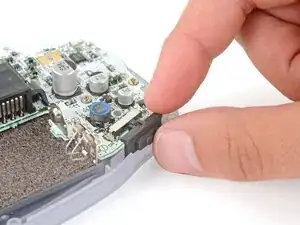
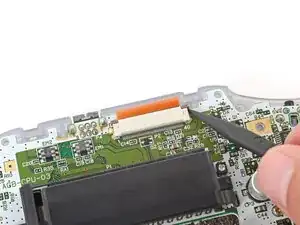
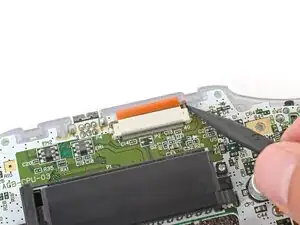
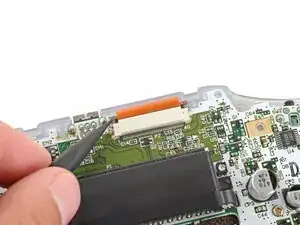
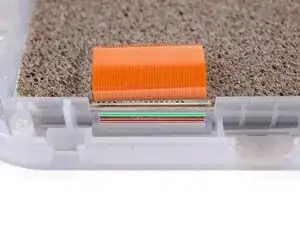
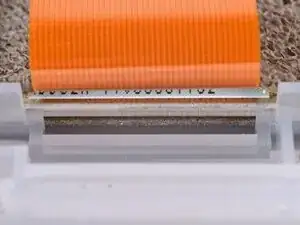
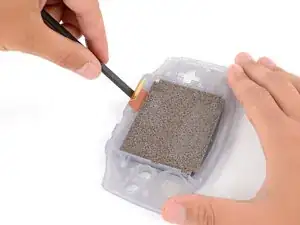
    • Use the point of a spudger to fully push up both locking tabs on either side of the screen cable connector.

    • You should feel the tab click into its unlocked position. Don't push too far, or the tab may slide completely out of the connector.

  10. bkB5ZJaBImgO52Rx
    bkB5ZJaBImgO52Rx
    C3FQGQPUXD4ehllt
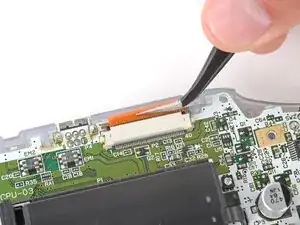
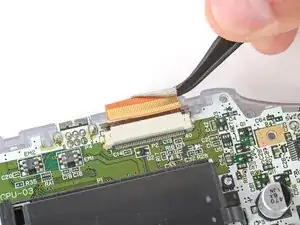
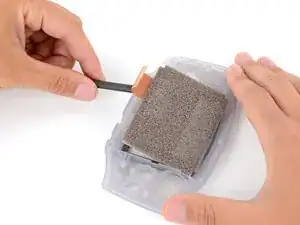
    • Use tweezers to slide the cable straight out of its socket.

    • The cable should come out with little to no force. If you feel resistance, the tab may not be fully unlocked.

  11. rFQnihNDYRRNKXWU
    rFQnihNDYRRNKXWU
    gEHGXfBjEAAVAdTh
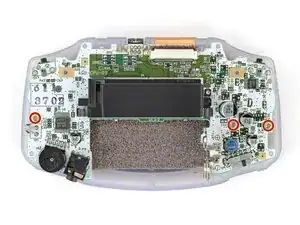
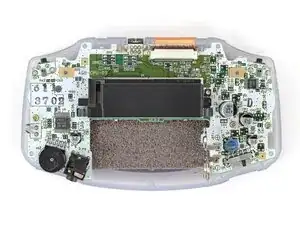
    • Use a JIS 1 screwdriver to remove the three 7 mm‑long screws securing the motherboard.

  12. 126BDe1AMHWmwKyL
    126BDe1AMHWmwKyL
    FAgLSOMoHRdwcmFX
    IqodWyqoyeta3t6V
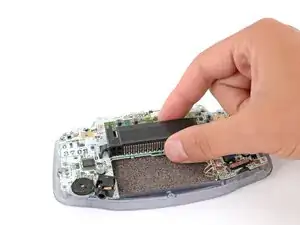
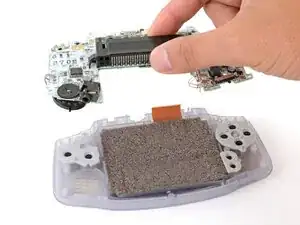
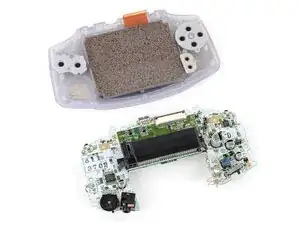
    • Use your fingers to grip the cartridge reader and lift the motherboard straight up to remove it.

    • During reassembly, make sure the speaker gets correctly slotted into its circular cutout (including a small tab on the bottom) when lowering the motherboard into place.

  13. QTrUQXuHhTuDAC3g
    QTrUQXuHhTuDAC3g
    onhmGulBFsn2ySsn
    TbLLGPMVyheoB4v4
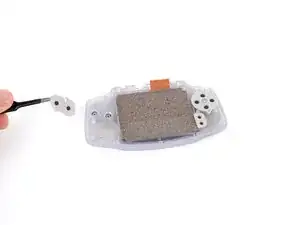
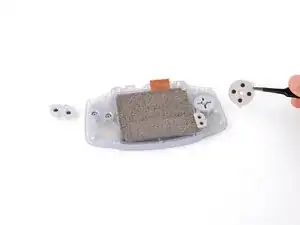
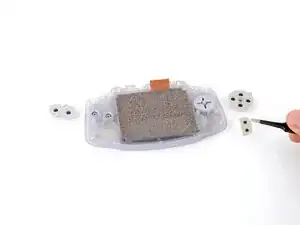
    • While removing the silicone pads and buttons isn't strictly necessary, it helps prevent the possibility of losing them when removing the screen. If you don't want to remove the buttons, skip ahead two steps.

    • Use tweezers or your fingers to remove the three silicone pads covering the buttons (A and B, the D‑pad, and Start/Select ).

    • If any of the pads are missing, they may be stuck to their corresponding spot on the motherboard.

    • During reassembly, use your fingers to firmly press each pad into place, using the alignment pegs to properly orient them.

  14. EL4j2vWyYEDdYxTQ
    EL4j2vWyYEDdYxTQ
    NIDQisHaJuuJQo3A
    HUZjvqM1cmvbsbpL
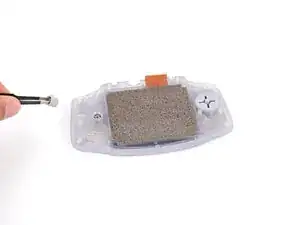
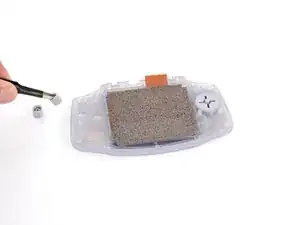
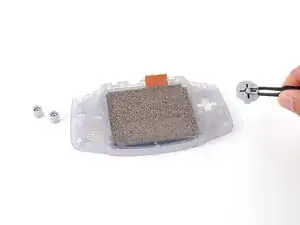
    • Use tweezers or your fingers to remove the buttons (A and B as well as the D‑pad).

    • The Start/Select buttons are part of the silicone pad—there are no other buttons to remove.

    • When re‑inserting the action buttons, note that each one is keyed specifically for its recess and proper orientation.

  15. lLGNXlXHnyD4raks
    lLGNXlXHnyD4raks
    hSSLQZAJqQqBKyTg
    lKyuZekqT1aCbENb
    • Before prying up the screen, note where you need to pry:

    • There's a seam between the screen and its gasket. Insert your tool here (under the screen) to give yourself the best chance of preserving the gasket.

    • There's a seam between the gasket and the shell. Don't insert your tool here, or you may damage the gasket.

  16. waiDLLJoNIV1Km56
    waiDLLJoNIV1Km56
    BLsRJ1dqwLTRSwXN
    onIMKShNx3W1XTaH
    • When removing the screen, be careful not to damage or stretch the adhesive gasket that secures it to the shell.

    • Insert the flat end of a spudger under the screen and pry the screen up. Apply constant, steady pressure to allow the adhesive to separate.

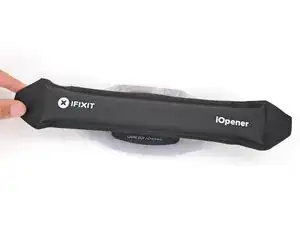
    • If the screen isn't budging, flip your Game Boy over and lay a heated iOpener on the screen for two minutes to soften the adhesive. Alternatively, you can use a hair dryer on the Low heat setting—be careful not to overheat your device, or you may warp the plastic.

  17. wvMxhSWkJGjxcGrC
    wvMxhSWkJGjxcGrC
    4iNcVVxg3NbIdWTK
    • Remove the screen.

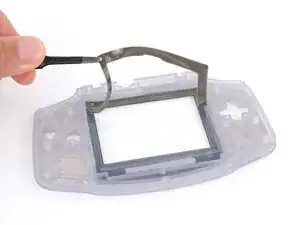
    • If the gasket stuck to the screen, carefully remove it and put it back on the shell.

    • During reassembly:

    • If you're upgrading the screen to an IPS one, you'll likely need to solder or modify the motherboard. Read any instructions included with your replacement part, and check the website you bought the part from for more information. If it's your first time soldering, check out our helpful soldering guide!

    • Compare your replacement screen to the original part—you may need to remove adhesive backings or protective liners from the new part before you install it.

    • If you damaged the gasket, remove all of it from the shell and use high‑concentration (>90%) isopropyl alcohol and coffee filters or a lint‑free cloth to remove any remaining residue. Then, replace the gasket with a new one, or apply strips of double‑sided tape where the old one was.

Conclusão

To reassemble your device, follow these instructions in reverse order.

Take your e-waste to an R2 or e-Stewards certified recycler.

Repair didn’t go as planned? Try some basic troubleshooting, or ask our Answers Community for troubleshooting help.

Spencer Day

Membro desde: 14/09/22

165242 Reputação

2 comentários

Do this with the Game Boy Advance SP please!

Santi12008 -
We got around to it. Better late than never I guess: Nintendo Game Boy Advance SP Screen Replacement

Evan Gattuso -