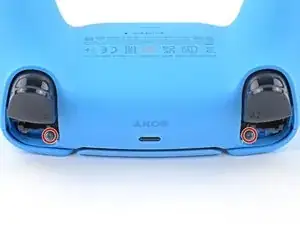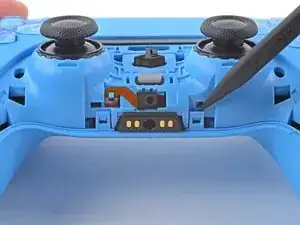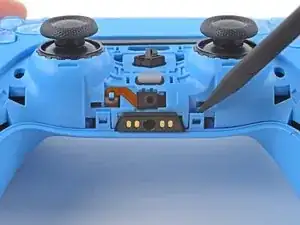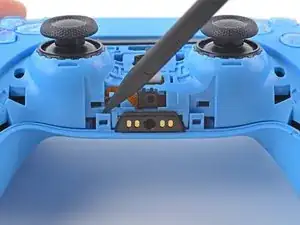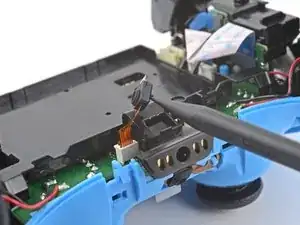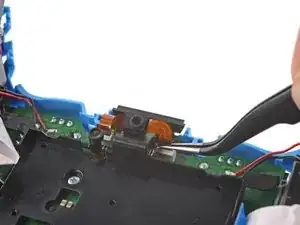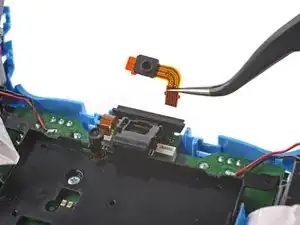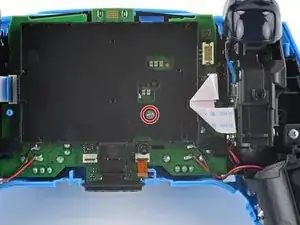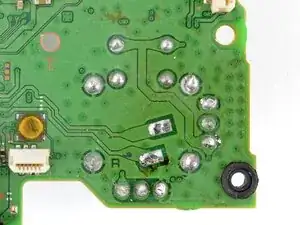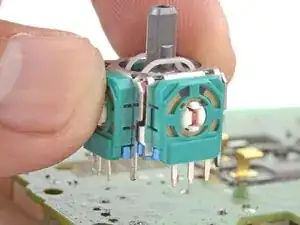
Introdução

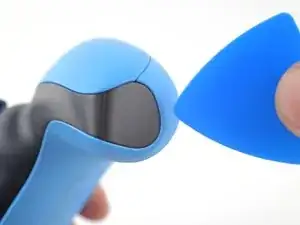
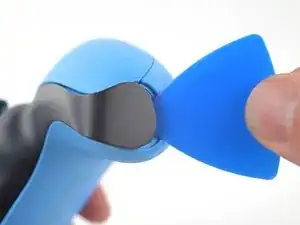
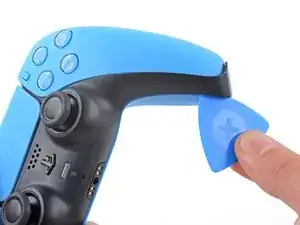
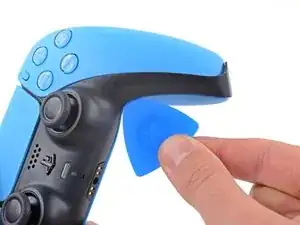
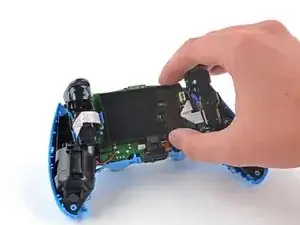
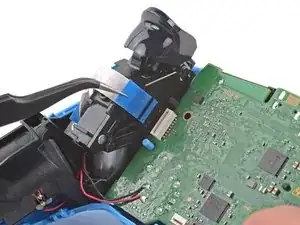
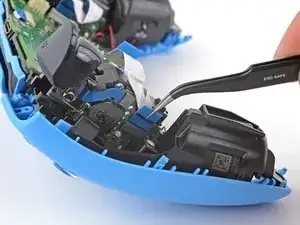
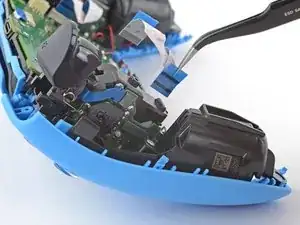
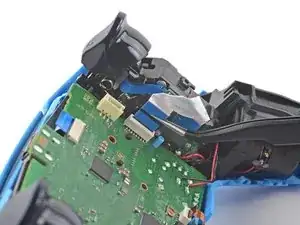
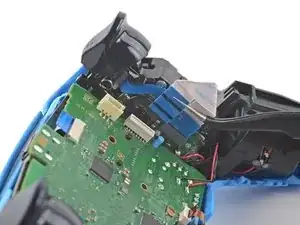
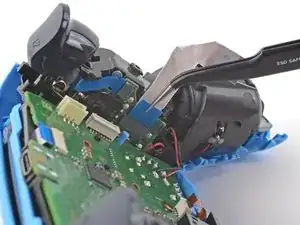
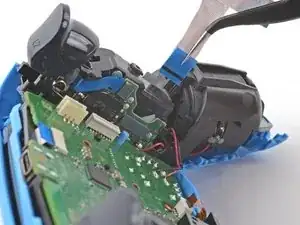
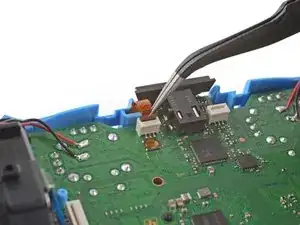
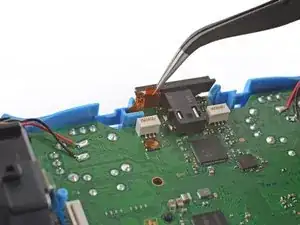
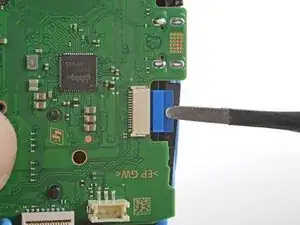
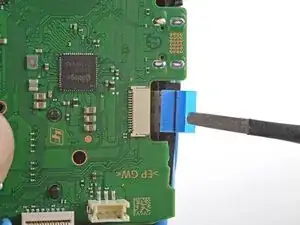
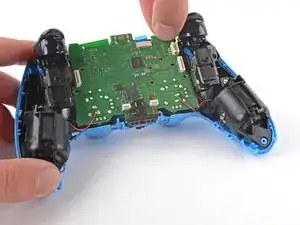
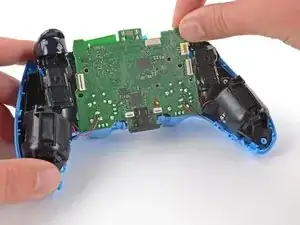
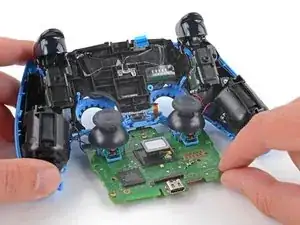
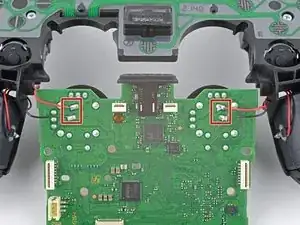
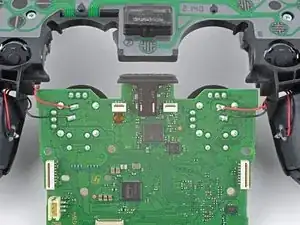
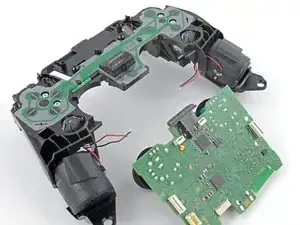
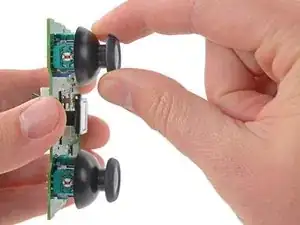
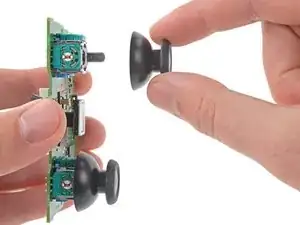
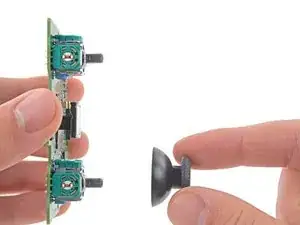
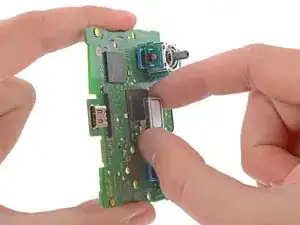
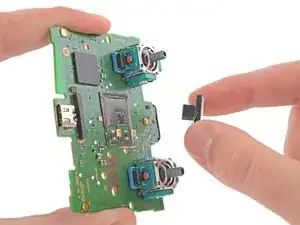
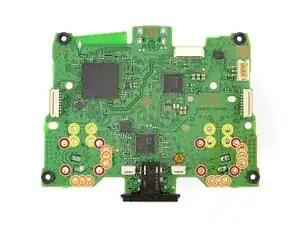
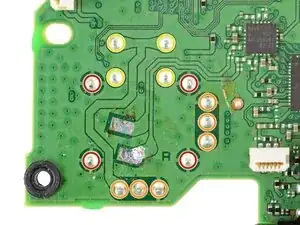
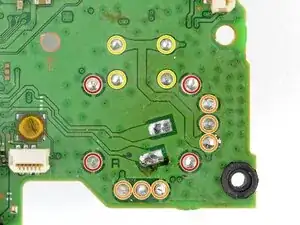
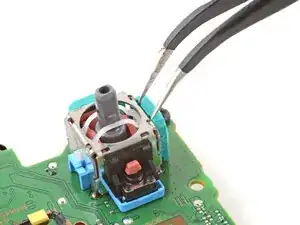
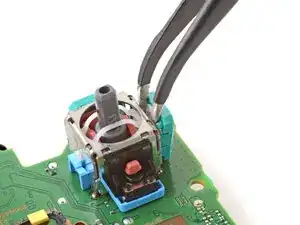
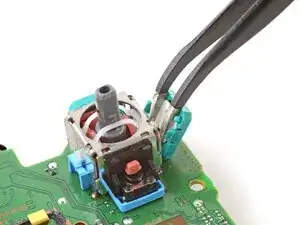
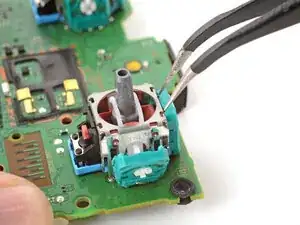
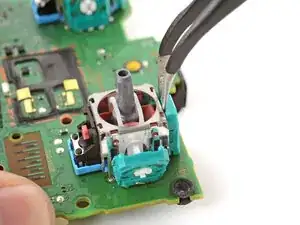
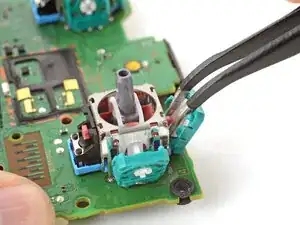
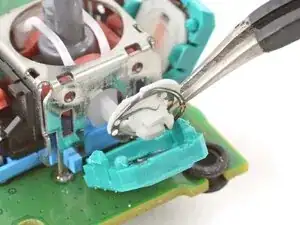
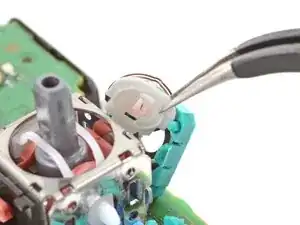
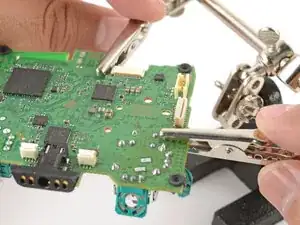
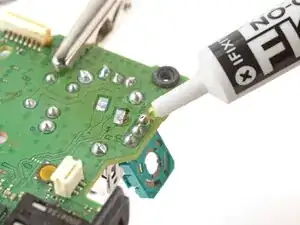
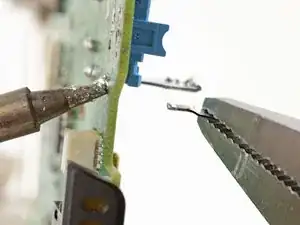
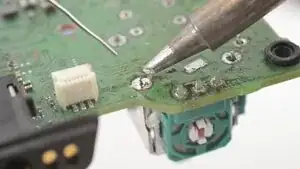
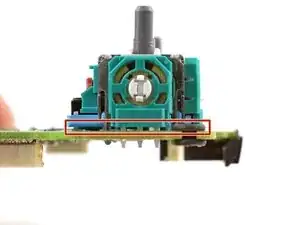
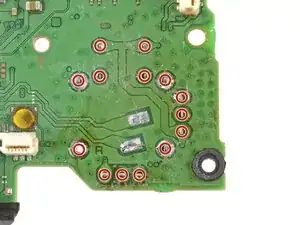
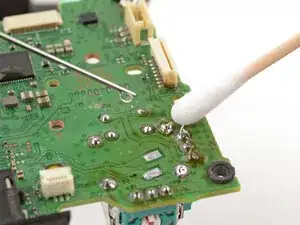
Follow this guide to replace a broken or drifting joystick (aka thumbstick or analog stick) for the PlayStation DualSense v2 controller. If you experience persistent stick drift, it's likely due to a worn out joystick module.

This repair requires intermediate soldering skills. Desoldering the joystick module is difficult, but can be done with some patience.

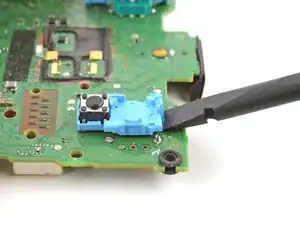
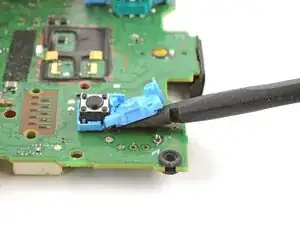
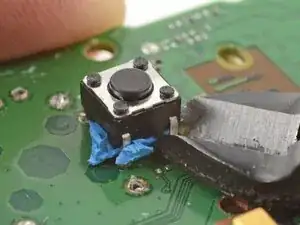
This guide shows you how to cut apart the joystick module so you can desolder the pieces individually with a soldering iron. The procedure will destroy the existing joystick module. If you have a hot air station, you'll have an easier time desoldering the joysticks.

Consider replacing the drifting joystick with a TMR joystick module to fix stick wear and drift permanently.

  1. guhDdaTLO4Lx2TSt
    guhDdaTLO4Lx2TSt
    lRfON2tMHbYtvv3T
    • Disconnect and power down the controller before you begin.

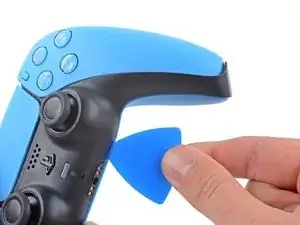
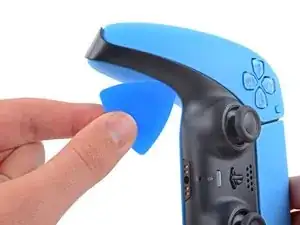
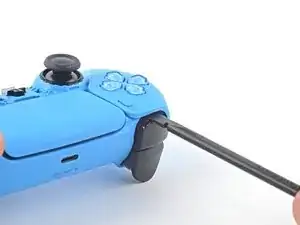
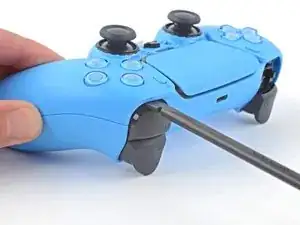
    • Insert an opening pick underneath the middle trim at the bottom-right corner of the controller to release the clips securing it to the case.

  2. KH36rgc41xkkIxEt
    KH36rgc41xkkIxEt
    UHgHxxDZK6uAadgL
    YCZY4rdKhkAMTZ62
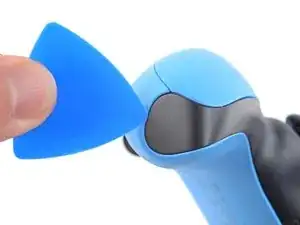
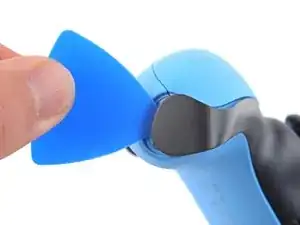
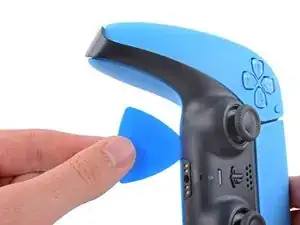
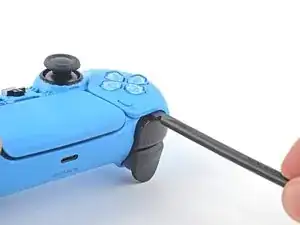
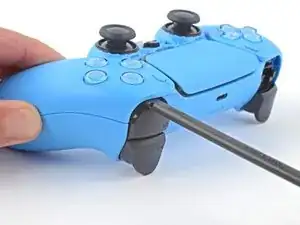
    • Slide the opening pick along the lower-right edge of the middle trim to release the clips securing it to the case.

  3. POGlGjVFG32wJM2y
    POGlGjVFG32wJM2y
    PwStjKyYwXi1TP5q
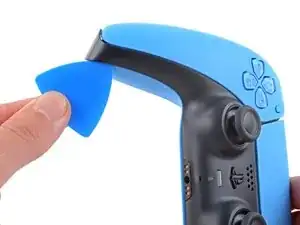
    • Insert an opening pick underneath the middle trim at the bottom-left corner of the controller to release the clips securing it to the case.

  4. pXLCWFnCEuauqlKC
    pXLCWFnCEuauqlKC
    qdiJcNkOKbKphjJd
    gkLGOOWGftSaTGuV
    • Slide the opening pick along the lower-left edge of the middle trim to release the clips securing it to the case.

  5. AB2xCYOXsbgPYry2
    AB2xCYOXsbgPYry2
    3Khr4r3J6arnKYaV
    CgyN41nIJb3FiQSj
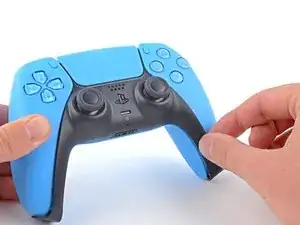
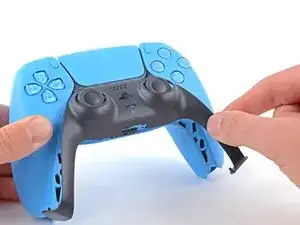
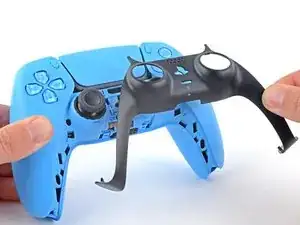
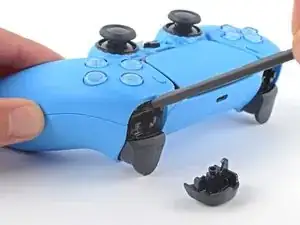
    • Use your fingers to lift up the bottom edge of the middle trim to release the remaining clips.

    • Lift the middle trim over the joysticks to remove it.

    • During reassembly, position the middle trim into place and press along all edges to engage the clips securing it to the controller.

  6. UTnysFXrcZOXyN6b
    UTnysFXrcZOXyN6b
    gCEpcBW2RIqwfE3g
    UfskjjRq6Xc5sN2T
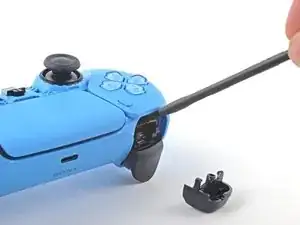
    • Insert the flat end of a spudger into the gap above the L1 button.

    • Cover the button with your thumb to prevent it from ejecting across the room.

    • Pry the spudger upward to remove the L1 button.

  7. DOGoFB2gdmebKksg
    DOGoFB2gdmebKksg
    a2OZYntXvJ5jEqwl
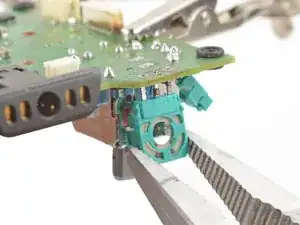
    XZM6oSOTggRpulT6
    • Insert the flat end of a spudger into the gap above the R1 button.

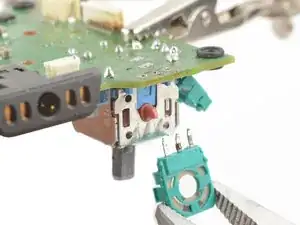
    • Cover the button with your thumb to prevent it from ejecting across the room.

    • Pry the spudger upward to remove the R1 button.

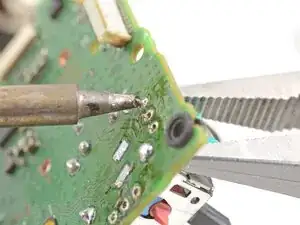
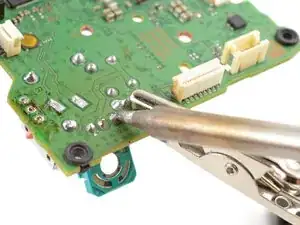
  8. NZyynHfafAxnDJyk
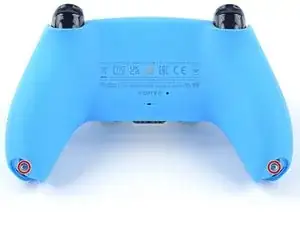
    • Use a Phillips screwdriver to remove the two 6.5 mm screws securing the bottom corners of the lower case.

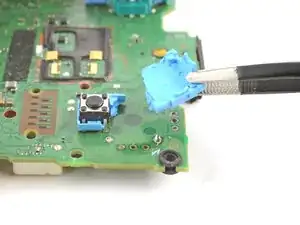
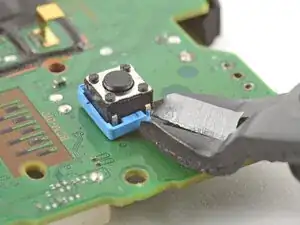
  9. smAEGEk5WFdOafDe
    • Use a Phillips screwdriver to remove the two 6.5 mm screws behind the L1 and R1 buttons.

  10. KlxNTlBTTfFMuoPL
    KlxNTlBTTfFMuoPL
    euRWr4gYHKkFKvkN
    YGhW3IgpAKVBmarb
    • Use the pointed edge of a spudger to unclip the two clips on either side of the headset jack.

  11. xjWsqFGNDLDLMbkS
    xjWsqFGNDLDLMbkS
    R43JFU2tjntM3GOJ
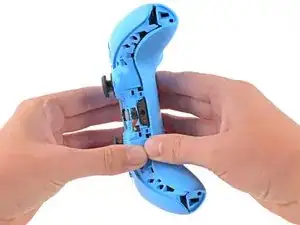
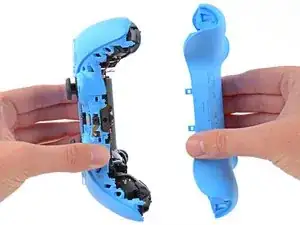
    • Use your hands to carefully pull the rear case off of the controller.

    • During reassembly, make sure the red and black vibration motor wires are not pinched between the front and rear case.

    You can´t just grab both ends and expect it to open flawlessly, first you gotta travel the spudger around the seam at the outer edges of the controller, there are multiples clips in that area, there a couple really hard to get out at the outer edges of the R1 and L1 buttons, for those you need to insert the spudger bending outwards the bottom piece of the controller (a fairly amount, like 1.5mm) and while bending outwards use the same inserted spudger to lever them apart carefully, the plastic will bend quite a bit so be very careful with the motion of the spudger.

    Yet again, that was my personal experience opening it up, try first as the guide says, if you feel the upper and bottom pieces glued around the R1 and L1, then try this.

    Carlos Santana -
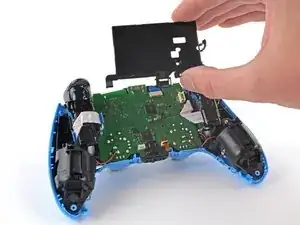
    I had the same experience, the best way to reach these for me was to place the spunger from L1 R1 side whilst using a spunger to press outwards from the side like in Carlos's comment. Thank you Carlos I was struggling with this!

    Remco geuze -
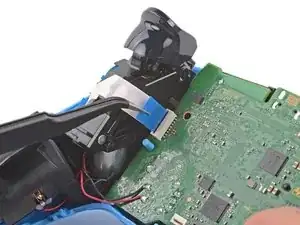
    This did not work for me. Finally I just pulled the two parts apart at the bottom side, carefully twisting and manipulating until the parts clicked loose at the top side

    Gilian Mischker -
    This is the biggest hassle in the whole process. It seems that all controllers now come with those extra clips that other people mentioned here. I, however, didn't have the same success with their steps of running a spudger on the sides to undo the clip. Looking around, I found this Youtube video showing that you can undo the clips simply by twisting up from the bottom. Do it carefully because it pops off easily using this method - when I did, I used some force and the back just flew from my table.
    I found it easier like that and was able to continue the process.

    Rodrigo Castro -

    +1 to this. None of the suggestions worked well enough for me, but this video clip got this step done for me nearly instantly. note the position of the tech's fingers and thumbs - I copied that exactly and had no issue.

    Nathan K -

  12. MUHdthfOoyldBVFr
    MUHdthfOoyldBVFr
    BQpL6myW2JRojkMo
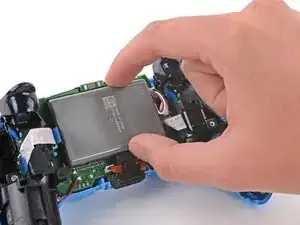
    • Lift the battery out of its bracket and reposition it to the right for better access to the battery connector.

    • Don't strain the battery cables.

  13. WfRwBl31EDPRpSGo
    WfRwBl31EDPRpSGo
    NxOiZWbvbAOk6Q64
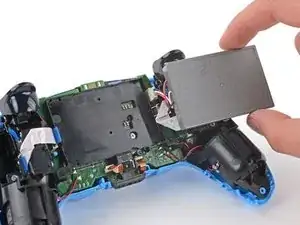
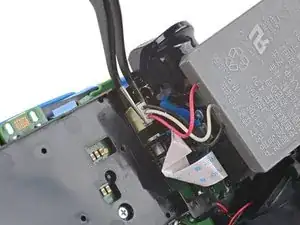
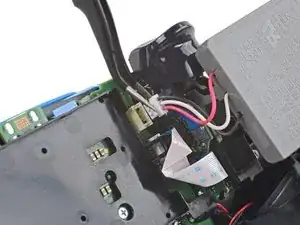
    • Use a pair of tweezers or your fingers to disconnect the battery from the motherboard.

    • Don't pull on the wires to disconnect the battery.

  14. DLcICSfOGofUvx6a
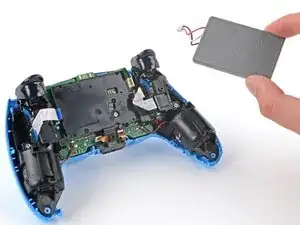
    • Remove the battery.

  15. SauAEOZxj4FCS6NM
    SauAEOZxj4FCS6NM
    KDoPLAYcFsP5ueyb
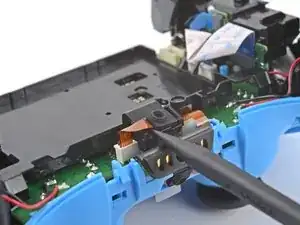
    • Use the pointed end of a spudger to remove the lower microphone from its bracket next to the battery.

    • During reassembly, make sure the end of the microphone's ribbon cable is slotted into the bracket.

  16. v4nWXxvIlhysHlLy
    v4nWXxvIlhysHlLy
    43K5VZLmUlUGTBXM
    • Grab the lower microphone ribbon cable pull tab with your fingers or a pair of tweezers and disconnect it from the motherboard.

  17. TYxs5oRu2B5aAtxp
    • Use a Phillips screwdriver to remove the 6.5 mm screw securing the battery bracket.

  18. xlXMna1BPmWLfKCA
    xlXMna1BPmWLfKCA
    TaW3YP1JZthaEuCN
    • Lift the battery bracket off of the motherboard.

    The bottom left and right tabs of the battery bracket are meant to protect and retain the motor wires. In this guide step, you can see the wires are wound around the bracket. Move the wires behind this bracket and you won't have to worry about pinching the wires while reassembling the rear case.

    Lone -

  19. hlS5jSTJlyd21Dux
    hlS5jSTJlyd21Dux
    1u6l2dySSGgK1fPi
    • Grip the right trigger assembly cable with a pair of tweezers or your fingers and disconnect it from the motherboard.

    • Use the pull tab to disconnect the cable. Don't pull on the cable itself.

    • Don't completely remove the ribbon cable yet.

    I think the cable you see here is put in backwards. The "Double Line" pull tab should connect to the motherboard.

    Lone -

    TRADUCCION:

    Creo que el cable que se ve aquí está puesto al revés. La lengüeta de tiro "Doble línea" debe conectarse a la placa base.

    Carlos López (España - Spain) -

  20. HNXlyG2tTg3BpVBA
    HNXlyG2tTg3BpVBA
    HLH5oEnH5vWTCfY6
    • Grip the right trigger assembly cable with a pair of tweezers or your fingers, and disconnect it from the trigger assembly.

    • Use the pull tab to disconnect the cable. Don't pull on the cable itself.

    • Depending on the controller's model, the ribbon cable may block the motherboard from coming loose. If so, remove the cable from the trigger assembly.

  21. HDWPjnXLgdqSMQor
    HDWPjnXLgdqSMQor
    laXRqreMTfEVUj4y
    • Grip the left trigger assembly cable with a pair of tweezers or your fingers to disconnect it from the motherboard.

    • Use the pull tab to disconnect the cable. Don't pull on the cable itself.

    • Don't completely remove the ribbon cable yet.

  22. ybMtetJ23SIypkFk
    ybMtetJ23SIypkFk
    UPBCTR4HNO6g4Aym
    • Grip the left trigger assembly cable with a pair of tweezers or your fingers to disconnect it from the trigger assembly.

    • Use the pull tab to disconnect the cable. Don't pull on the cable itself.

    • Depending on the controller's model, the ribbon cable may block the motherboard from coming loose. If so, remove the cable from the trigger assembly.

  23. aHgoOpyh14SgWJML
    aHgoOpyh14SgWJML
    Co4QFEZsSk5HmTSN
    • Use a pair of tweezers or your fingers to disconnect the upper microphone from the motherboard.

    • Use the pull tab to disconnect the cable. Don't pull on the cable itself.

    • If you're not replacing this microphone, don't remove it from the frame.

    per sbaglio ho tirato forte la linguetta arancione in basso a destra e non so più dove inserirla

    xXGabriele Massaro7Xx -

  24. 6yoTmH3DGDjJN1T5
    6yoTmH3DGDjJN1T5
    YWwUpnVcRcpnoIm2
    • Use a pair of tweezers or your fingers to disconnect the touchpad cable from the motherboard.

    • Use the pull tab to disconnect the cable. Don't pull on the cable itself.

  25. IB3IHd151RUPhUqV
    IB3IHd151RUPhUqV
    TccAbvZvIpLAERIJ
    2xHcMnrLJn3PS5fu
    • Carefully guide the joysticks through the front case and lift the motherboard out.

    • Don't strain the four soldered wires tethering the motherboard to the vibration motors.

    There's small tabs holding the board in place along the side.

    Roger Perez -

  26. WAPKMFuxwlrESlTE
    WAPKMFuxwlrESlTE
    PBTiKVp2BxxQqpDY
    mNDrUI61ihdxNItT
    • Flip the motherboard and midframe over to access the red and black vibration motor wires.

    • Use a soldering iron to disconnect the vibration motor wires from the motherboard.

    • To learn how to solder, or to get some helpful tips and tricks, check out our soldering guide.

    • During reassembly, refer to this photo to ensure the wires are soldered back to their correct positions.

    Where's the step for removing the front shell from the inner frame?

    twayneguy -

  27. ayyNPZEHFGl2CaEg
    ayyNPZEHFGl2CaEg
    jiHNt6RM1wdJ13Yf
    vNvIdatdUlxwxiib
    • Use your fingers to remove the left and right joystick covers from the motherboard.

  28. jCBHwYIOPSnqdATB
    jCBHwYIOPSnqdATB
    Y5RPE2My6QNG4roS
    • Use your fingers to remove the speaker and foam pad from the motherboard.

    • Only the motherboard remains.

    • During reassembly, make sure the gold contacts on the speaker are aligned with the gold contacts on the motherboard.

    удалять динамик не стоит. потом обратно уже на клей сажать надо будет. пункт лишний

    FaceID -

  29. jysPsArbeK1OSTem
    jysPsArbeK1OSTem
    UFoAm4LvMsReew4R
    lY13uTcf4NSRwCS1
    • Your DualSense motherboard may look slightly different than the images in this guide, but you can still follow the procedure to replace it.

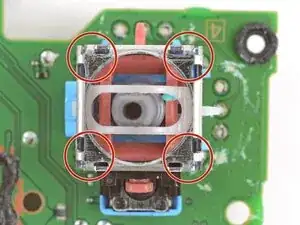
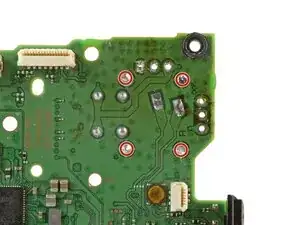
    • Each joystick module is secured with 14 solder joints:

    • Four anchor joints

    • Six joints connecting the two potentiometers

    • Four joystick push-button joints

    • The remaining steps will show how to replace the left joystick (with the controller facing you). You can follow the same procedure to replace the right joystick.

  30. Vo5G51dhFBGPCeiP
    Vo5G51dhFBGPCeiP
    RiNNCK3Gn2dwKxIi
    n5FfXV6cgv6bi4dD
    • Each joystick module has two potentiometers—they're the colored square blocks along two sides of the joystick.

    • Insert the tips of a pair of angled tweezers between the top edge of a potentiometer and the joystick frame.

    • Pivot the tweezers down to bend the top edge of the potentiometer away from the joystick frame.

  31. feEmZGpjGa4S3YUD
    feEmZGpjGa4S3YUD
    fUcwrdvEQmOdBnV4
    BeRwRCLHYbyvPJhb
    • Repeat the procedure on the second potentiometer.

  32. DVJHiv6NGVaoqdlZ
    DVJHiv6NGVaoqdlZ
    aaaGDmOCRraXEAjc
    • Use tweezers to remove the wiper mechanisms out of both potentiometers.

  33. gGSILbYX3oEtoqhF
    • Secure the motherboard with helping hands or a similar tool so that the potentiometer solder joints face up.

    • Attach clips to the clear areas on the board to prevent damaging the surface-mounted components.

  34. ZWvPTPSOLYOmt3F1
    • Apply flux to the three solder joints securing one of the potentiometers.

    • Flux improves the flow of molten solder, which makes it easier to work with. If you're having trouble with goopy or sticky solder, apply more flux.

  35. htnRSvDDpH5GCKPu
    • Set the soldering iron to 375–400 °C (~700–750 °F).

    • The DualSense controller has lead-free solder, which requires a higher working temperature than leaded solder.

  36. For full instructions on how to desolder through-hole solder joints, <a href="../../Guide/Como%2Bsoldar%2Be%2Bdessoldar%2Bcontatos/750" target="_blank">follow this guide</a>.
    • For full instructions on how to desolder through-hole solder joints, follow this guide.

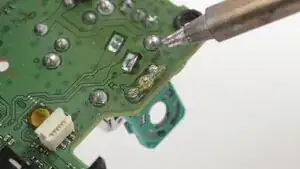
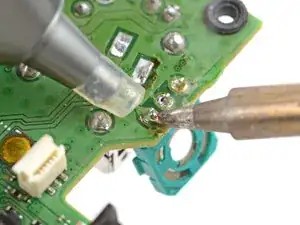
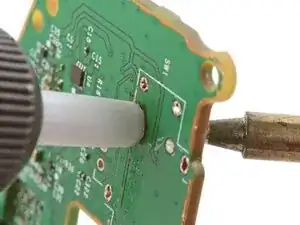
    • Press the soldering iron tip against a potentiometer joint to heat it.

    • Don't heat the joint longer than 15 seconds at a time, or you risk damaging the solder pad.

    • If you're having trouble melting the solder joint, apply some leaded solder onto the soldering iron tip and try again. The leaded solder helps with heat transfer while lowering the melting temperature of the existing lead-free solder joint.

    • Once the joint's molten, use a desoldering pump to suck away the solder.

    • Repeat the heating and sucking procedure a few times on the same joint to remove as much solder as possible. Be sure not to heat the joint longer than 15 seconds at a time.

  37. PVCY55TlUZn2Cuxj
    • Repeat the procedure on the remaining two potentiometer joints.

  38. Z4PCdYMtODV65SMN
    • This step shows how to remove residual solder with a solder wick. If the potentiometer feels loose, skip this step.

    • Apply flux to the solder joint.

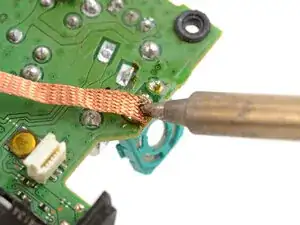
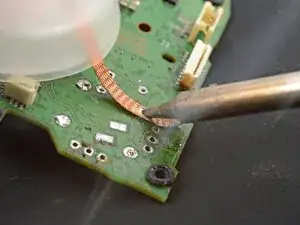
    • Lay a piece of clean solder wick over the solder joint.

    • Press the tip of the soldering iron over the wick so that the residual solder melts and transfers into the wick.

    • Repeat the process with the remaining two solder joints.

  39. 21XwjYjmL3XMToNv
    21XwjYjmL3XMToNv
    NVdBX2Xp3LG2qWku
    sL6OilUIXUlg3Wbk
    • Use tweezers or pliers to gently pull the potentiometer away from the board.

    • If the potentiometer feels stuck, repeat the previous three steps to try to remove the residual solder holding the potentiometer in place.

    • You can also try heating each joint as you wiggle the potentiometer out of the board. This is best accomplished with help from a friend.

  40. SOqKNLnLLlweGKeU
    SOqKNLnLLlweGKeU
    fsG6lcKo4MNbPaqq
    fCbFR1ZT61c6slqo
    • Repeat the desoldering procedure to desolder and remove the second potentiometer.

  41. TltL5ZXcAN2kL3MC
    TltL5ZXcAN2kL3MC
    UHtCiVN2EqN2Qiti
    uLtaQnZnqnpx3Njr
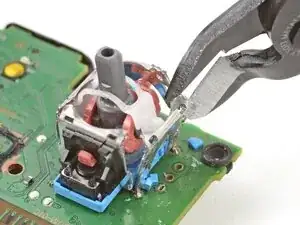
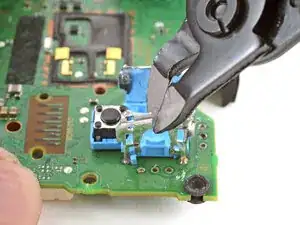
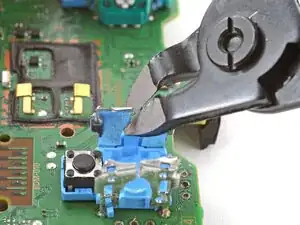
    • The next few steps show how to break apart and desolder the joystick frame.

    • Use flush cutters to cut the top corners of the joystick frame.

    • Be very careful not to cut yourself on the sharp edges. Bend any sharp edges down with pliers.

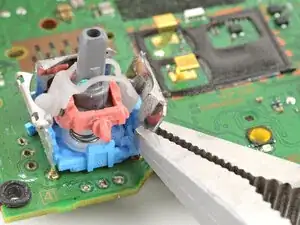
  42. EIDSS6TIhZYv4dEc
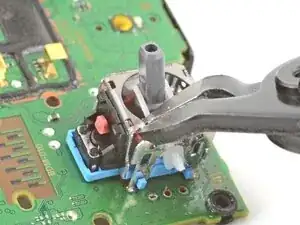
    • Use pliers to bend the metal frame outwards from the module.

  43. fEjrVsAViUZB4MsW
    fEjrVsAViUZB4MsW
    igFRMtQJJICVPZIU
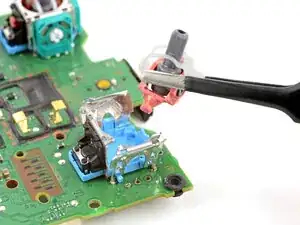
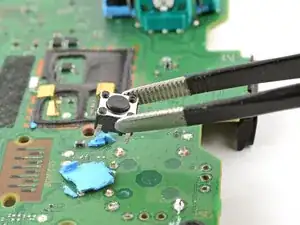
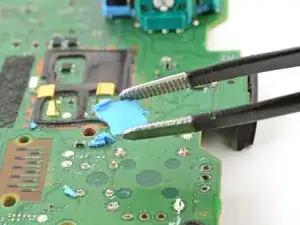
    • Remove the plastic components from the center of the joystick module.

    • Remove any loose pieces from the joystick module.

  44. S1FqfrsDyLs3KKXd
    S1FqfrsDyLs3KKXd
    gWFUQT3QyLu2ECk6
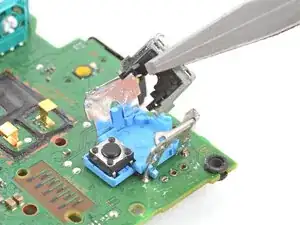
    • Use flush cutters to cut apart the top sections of the remaining frame walls, separating each wall into two pieces.

  45. wZRomEZD2HswrFBp
    wZRomEZD2HswrFBp
    2AKJlRUnFhLTUcj3
    gthhHOZeLQwDJOVp
    • Secure the motherboard so that the solder joints face upward.

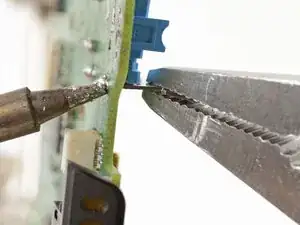
    • Use the soldering iron to heat a solder joint securing one of the frame anchors.

    • Once the solder is molten, use pliers to grab and pull the frame anchor out of its through-hole.

    • If you're having trouble melting the solder joint, apply some leaded solder onto the soldering iron tip and try again.

    • Repeat the procedure to remove all four anchor joints.

  46. UUEQ1kA4C1VKyvy1
    UUEQ1kA4C1VKyvy1
    BsMWyoWJtAPuvSui
    Zi2YYQVI1EmouoJs
    • Slide the flat end of a spudger under the joystick module's plastic base.

    • Slowly pry up the base to bend and break it away from the motherboard.

    • Remove the plastic base.

  47. qkWhNv4ATQxUaU1d
    qkWhNv4ATQxUaU1d
    6TOwUWpLsOLxCQ2P
    • Use flush cutters and pliers to break and remove the plastic base remnants from the push-button.

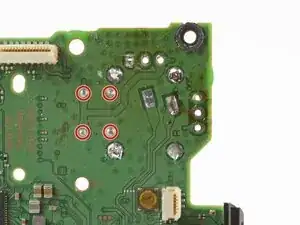
    • Use flush cutters to cut the four push-button pins securing it to the motherboard.

    This is kind of a dumb step. Probably better to just unsolder it from the back instead of cutting the pins... I wasn't really thinking/paying attention when I did this step and accidentally scratched the traces..

    Alex -

  48. 4xOHfy1iTsEDPZAK
    4xOHfy1iTsEDPZAK
    beZMjhfbKqkaVSiY
    • Remove the push-button.

    • Remove any plastic base remnants.

    Hi friend why not disorder all at once instead of ripping apart the joy stick ??? ?

    Victor -

    It makes it easier removing each piece one by one rather than the whole thing. I kind of wish I did this rather than removing the whole stick at once. Such a pain

    Brando Lopez -

  49. sKCdILZLy3mcxCiT
    sKCdILZLy3mcxCiT
    OnBATFtuUhRMeZnc
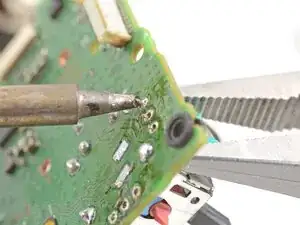
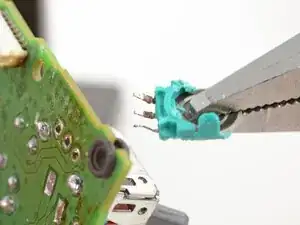
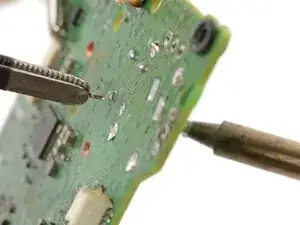
    • Use the soldering iron to heat a solder joint securing one of the push-button pins.

    • Once the solder is molten, use tweezers to grab the pin and pull it out of its through-hole.

    • Repeat the procedure to remove all four push-button pins.

  50. ioqSLFAmUPurfsQT
    ioqSLFAmUPurfsQT
    tp3OWkYKWhOkgROs
    • Secure the motherboard so you can access both sides of it.

    • Use the soldering iron to heat one side of a through-hole.

    • Use a desoldering pump on the opposite side of the through-hole to suck up any remaining solder.

    • Don't heat the through-hole continuously for longer than 15 seconds at a time to avoid damaging the pad.

    • If needed, use solder wick to remove any residual solder.

    • Repeat this for all through-holes and both sides of the motherboard.

  51. QDEKjSo1ZmKxNIGE
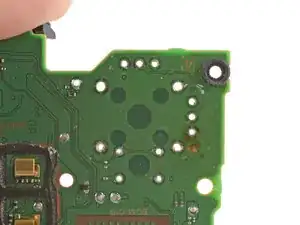
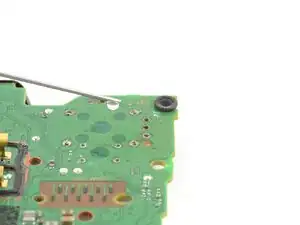
    • Visually inspect each through-hole and make sure they're not blocked by residual solder. If some holes look blocked, repeat the previous step to clear the blockage.

  52. dvycFaaaIioDjOZt
    dvycFaaaIioDjOZt
    ME2DEaw4YZlFFDSE
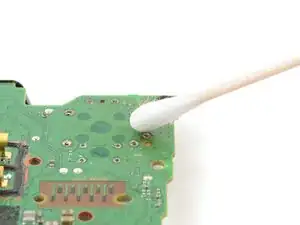
    • Apply a few drops of high concentration (>90%) isopropyl alcohol to the top side of the motherboard, where the new joystick module will sit.

    • Use a cotton swab or a soft brush and cloth to wipe away the flux residue.

  53. wdMRu33oakEXJkWS
    wdMRu33oakEXJkWS
    e5CYjwVYkdJAxUJq
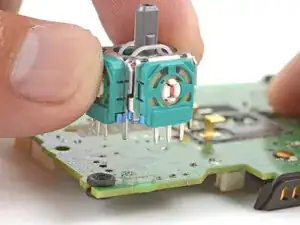
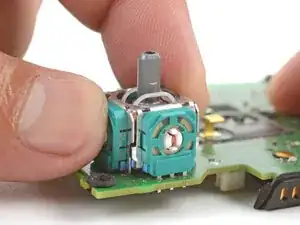
    • Place the replacement joystick module onto the motherboard so that all the pins thread through the through-holes.

    • Gently press the joystick onto the board so that the joystick sits flush with the board surface.

  54. TIqasIJQQUQos2YP
    • Flip the motherboard over and secure it so that you can solder the joystick module pins.

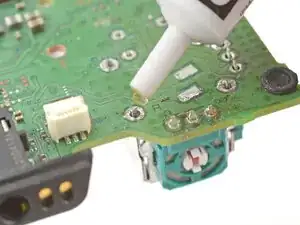
    • Apply flux to one of the frame anchors to prep it for soldering.

  55. For full instructions on how to solder through-hole solder joints, <a href="../../Guide/Como%2Bsoldar%2Be%2Bdessoldar%2Bcontatos/750" target="_blank">follow this guide</a>.
    • For full instructions on how to solder through-hole solder joints, follow this guide.

    • Solder one of the frame anchors to the motherboard.

  56. 6xqhRORd1yRsRGIM
    • Check that the joystick module is still sitting flush on top of the motherboard (as shown). If it isn't, reheat the soldered pin and reposition the module.

  57. OmrGDFBKuWXlEhus
    • Solder the remaining joystick module pins (14 total) to the motherboard. Apply flux as you solder to help create good bonds.

  58. cMtt6c45oPuOuhCy
    cMtt6c45oPuOuhCy
    fwC4ExwTjASuFeeG
    • Apply a few drops of high concentration (>90%) isopropyl alcohol to the motherboard wherever you can see flux residue.

    • Use a cotton swab or a soft brush and cloth to wipe away the flux residue.

    • Visually inspect your work:

    • Make sure each solder joint looks well-formed.

    • Make sure no solder joints are shorting each other.

    Awesome guide, easy to follow and made a time consuming task come out just a little better! Loving my new Hall Effect joysticks. Absolutely no drift after using the calibration tool. I appreciate the authors hard work and step by step pics! Thanks again!

    Nicholas Fleming -

Conclusão

Congratulations! You've replaced the controller's joystick and, in the process, leveled up your soldering skills.

To reassemble the controller, go to this step and follow the instructions in reverse order.

You'll need to run the calibration tool to calibrate the new joystick.

Take your e-waste to an R2 or e-Stewards certified recycler.

Repair didn’t go as planned? Try some basic troubleshooting, or ask our Answers community for help.

Arthur Shi

Membro desde: 03/01/18

326111 Reputação

Um comentário

Is there a calibration element post install of the new modules?

iDoctor Cell Phone Repair -