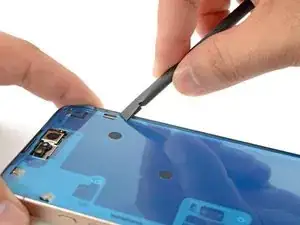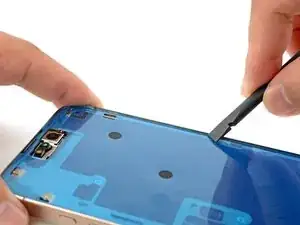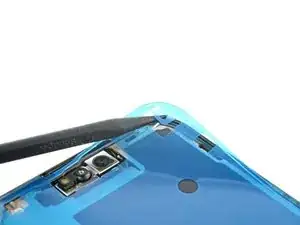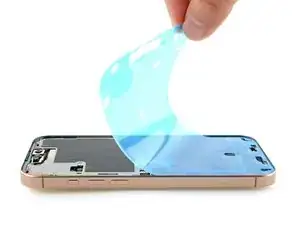
Introdução

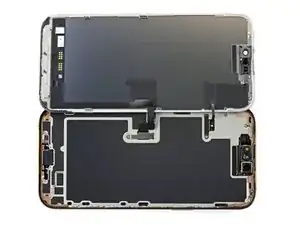
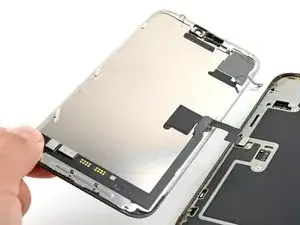
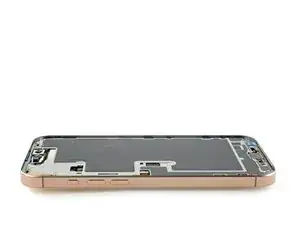
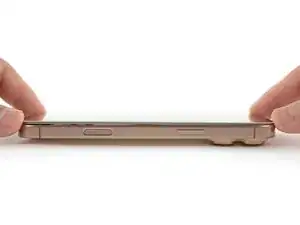
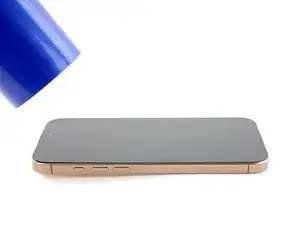
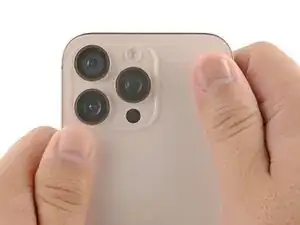
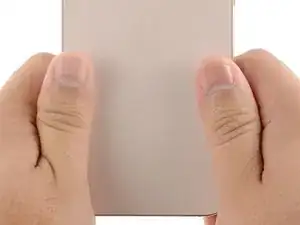
Use this guide to replace a broken, cracked, or non‑responsive screen in your iPhone 16 Pro Max.

You'll need replacement screen adhesive to complete this repair.

Note: Since you can't disconnect the battery during this repair, be especially careful not to use metal prying tools or touch any exposed contacts in your iPhone.

After your repair, calibrate an authentic screen using Apple's Repair Assistant.

  1. EQ6V3NbcxXDY1KZ2
    EQ6V3NbcxXDY1KZ2
    NI2bBITCkKJytfoL
    RHtYtMhykdm1sElH
    • Allow your iPhone's battery to drain below 25%, as a charged lithium-ion battery is a potential safety hazard.

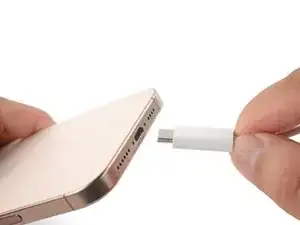
    • Unplug any cables from your iPhone.

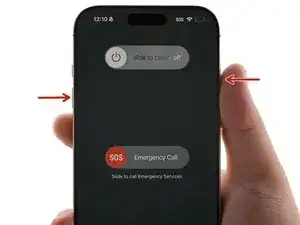
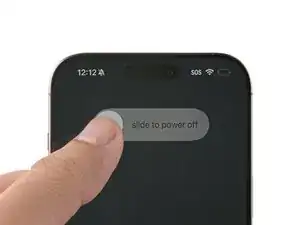
    • Hold the power and either volume buttons, and slide to power off your iPhone.

  2. JoFlV5aglHEVVt55
    JoFlV5aglHEVVt55
    oLtTIbXed4eEHRMD
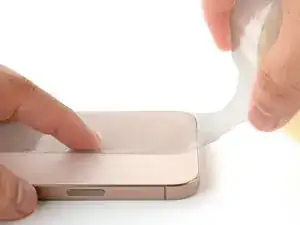
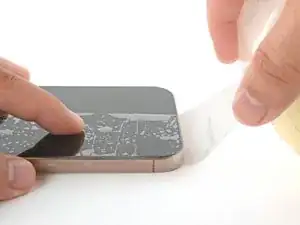
    • If your screen or back glass is badly cracked, lay overlapping strips of packing tape over the glass to protect yourself and make disassembly easier.

    • Make sure there's a smooth area near the bottom edge that's big enough for a suction cup to stick to.

  3. 5INSdODr1jIMTOAT
    5INSdODr1jIMTOAT
    Nks3xV3FOwdgkAf2
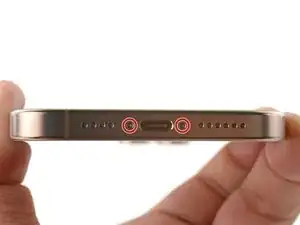
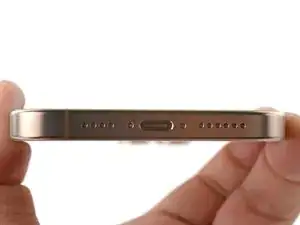
    • Use a P2 pentalobe driver to remove the two 7.4 mm-long screws on either side of the charge port.

  4. 6UPwoloGBO4tmVoS
    6UPwoloGBO4tmVoS
    BmSYPJmOy6dbHipF
    3EOdQPAGOmiuhoKU
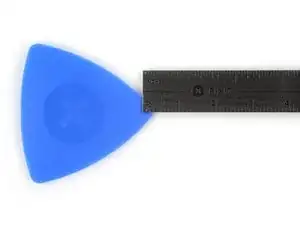
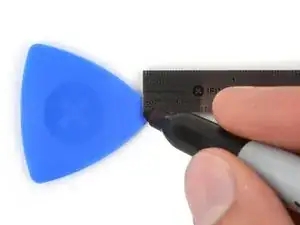
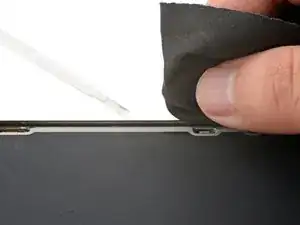
    • If inserted too far, an opening pick can damage your device. Follow this step to mark your pick and prevent damage.

    • Measure 3 mm from the tip and mark the opening pick with a permanent marker.

    • You can also mark the other corners of the pick with different measurements.

    • Alternatively, tape a coin to a pick 3 mm from the tip.

    • Apple sells an Adhesive Cutter tool for cutting the display adhesive safely in their Self Repair Store.

    Got to step 2 and realized the fix kit doesn't include an opening pick! Looks like a guitar pick, and I have those lying around. Is that expected? Looks like the pick is used in many steps below. There's a little blue crowbar that isn't mentioned in the instructions. Perhaps that replaces the opening pick?

    Sloan Looney -
    Hi! I can't see which guide you were using when writing this comment. Can you reply here with which guide and fix kit you used?

    Clay Eickemeyer -
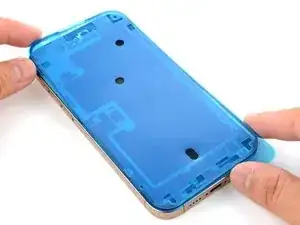
    I see you posted this in Meta. I hope it's resolved soon! In the meantime, a guitar pick may work well enough for your repair.

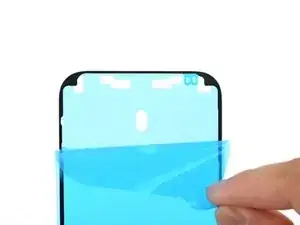
    Clay Eickemeyer -

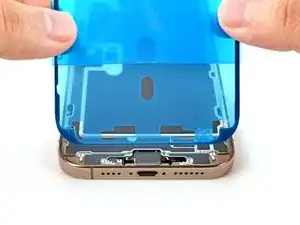
    what fix kit?

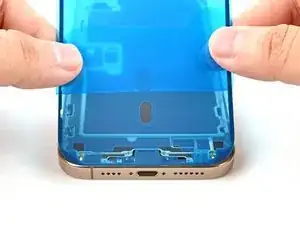
    Meow Purr -

    Super late reply to original post but my pick was with the replacement screen and not the tools kit.

    Nichol Augustus -

    My fix kit didn't include an opening pick either

    WILLIAM HARRIS -

    Make sure you check inside the black boxes after emptying them. My pick was stuck inside one of the boxes.

    AndyF -

    My AliExpress refurbished screen came with a pick that has a coin-like circle that pops out, so no modification was necessary

    Gijs Leegwater -

    the picture shows 3 cm but the description says 3 mm's. Which one is it?

    John Pena -

    That is a misunderstanding. It is a ruler with a scale for cm, it shows 0.3 cm, i.e. 3 mm.

    VauWeh -

    Oh, come ON!

    Big Ed -

    It will ALWAYS be millimeters on a phone, but this step is ridiculous, skip it!

    Leif DeWolf -

    @leifdewolf I wouldn't skip it for a first repair.

    Gabriel-Science -

    It's not an Ifixit KIT if it doesn't include everything. You'll need to order the opening pic separately. Or head to Walmart like myself and look for guitar pics. Hopefully, this will work just as well.

    Jaleeljb97@icloud.com -

    No pick in mine as well. It’s really not clear that you have to order this separately when ordering an IPhone SE 202/2022 screen repair kit. Is this the case?

    Jackson Castiglione -

    Frustrated, I ordered a compact package where everything was encapsulated. Useless suction tools could not separate the screen. If it is unable to decouple the screen, then why sucking suction tools you have provided.

    Shourob Datta -

    For my kit the triangle pick was stuck inside the box with the screen not with the other tools maybe it's also there for you

    Henry Scheibehenne -

    Y’all are getting far, FAR too detailed with some of this stuff…. Measuring and marking the pick that you won’t actually use to open the device?!? lol that’s kinda funny. Just heat it up, grab a spudger, and the back just pops right off! The iFixit tech need to stick to the KISS method more often, you know KEEP IT SIMPLE STUPID!!! Like l, for reals, I’ve been doing this stuff for YEARS and using iFixit guides regularly and this is just ridiculous at this point!

    Leif DeWolf -

    Will the phone still work if the sensor assembly on the back of the screen is damaged?

    Mutshidzi Rambau -

    I don't have a pick, but how much better are these picks than an old credit card for opening an iPhone 13 mini?

    mike eng -

    an old credit card will do that job, although you'll have to pull a little bit more if the credit card is thicker than the picks, just again, be careful and don't insert it that far

    Russ Torrez -

    The pick in my iFixIt kit was packed with the battery, not with the rest of the toolkit.

    Tony Houlihan -

    Many of these comments are PURE GOLD. Seriously y’all, if you’re not sure if it should be 3mm or 3cm or whether you could find and use an alternative pick, mending an IPhone really isn’t for you. Find a responsible adult and get back to doing something simpler…

    Alasdair Cameron -

    indeed!!!! I agreee!!!

    Lonnie -

    I bought the kit of five just in case. I used two and marking them at 3mm was definitely helpful.

    Megolina -

    Funktioniert super. Habe vorher sicherheitshalber den Akku abgesteckt.

    Lukas D -

  5. MMYDqGU1NfKkfR4G
    • The next two steps show how to create an initial gap using a suction handle.

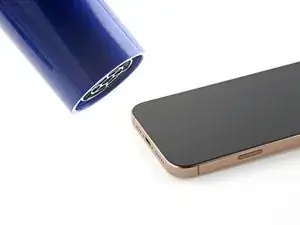
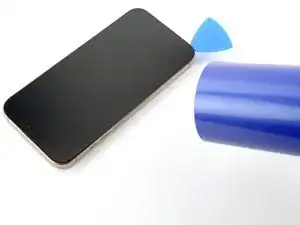
    • Use a hair dryer or heat gun to heat the bottom edge of the screen until it's hot to the touch.

    • You can also use an iOpener to heat the screen. Follow these instructions to heat and apply the iOpener properly.

  6. nYI5oESJQYCOHYPY
    nYI5oESJQYCOHYPY
    yvUAC4hOrPioEBXx
    GKYtABGZkrfXBrOp
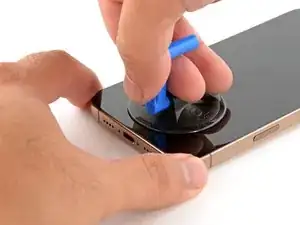
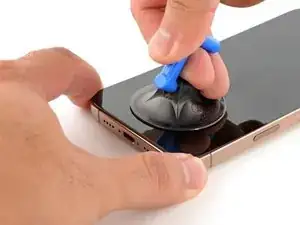
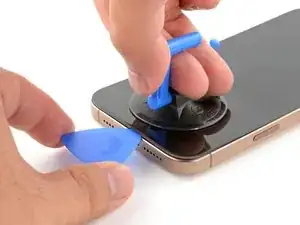
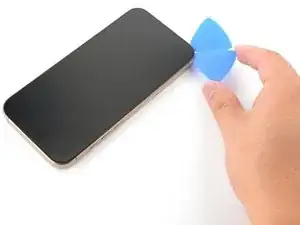
    • Apply a suction handle to the bottom edge of the screen.

    • While supporting the frame with one hand, pull up on the handle with a strong, steady force to create a gap between the screen and the frame.

    • If you can't create a gap, apply more heat to the edge and try again.

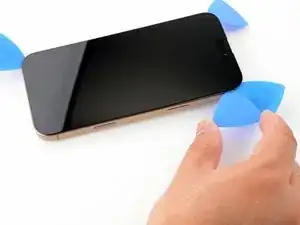
    • Insert the tip of an opening pick into the gap.

  7. lQQFw5DWTuBPeAuc
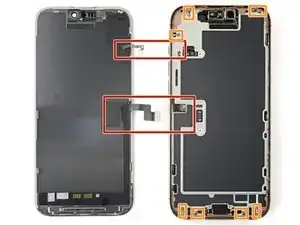
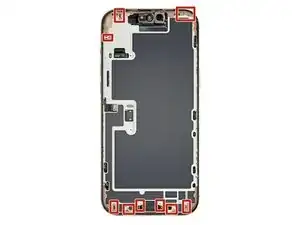
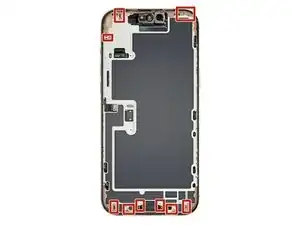
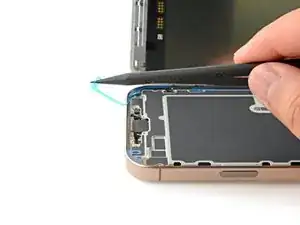
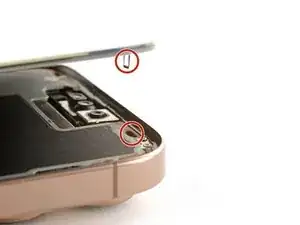
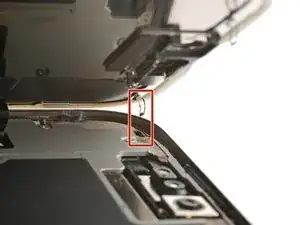
    • As you slice the adhesive securing the screen in the following steps, don't insert your pick deeper than 3 mm to avoid damaging the following areas:

    • Two delicate cables connecting the screen to the iPhone—one just above the Action button and the other about halfway along the left edge of the iPhone

    • Multiple spring contacts around the perimeter of the iPhone

  8. RQMgKdBpmlIKQSWy
    RQMgKdBpmlIKQSWy
    BJxpLvqZ2bdkImIm
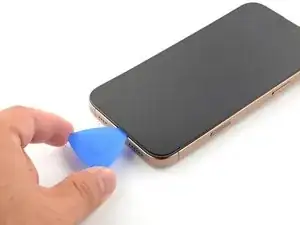
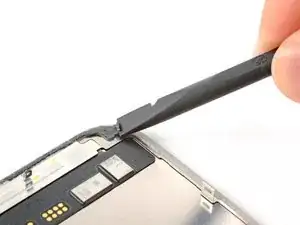
    • Slide the opening pick along the bottom edge to release the adhesive.

    • Don't insert the pick deeper than 3 mm to avoid damaging the spring contacts.

    • If the adhesive feels difficult to slice, reheat the edge for a minute.

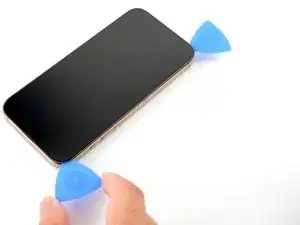
    • Leave the opening pick in the bottom-left corner to prevent the adhesive from resealing.

  9. bOifCnjxsEpR5mKO
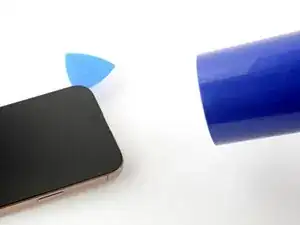
    • Use a hair dryer or heat gun to heat the left edge of the screen until it's hot to the touch.

  10. NeGMlkZbS3luvPqy
    NeGMlkZbS3luvPqy
    cZfZWB6QLJOBaSkQ
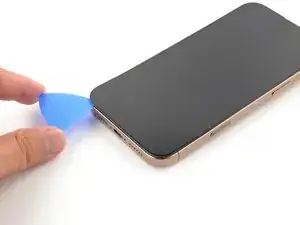
    • Don't insert your pick deeper than 3 mm to avoid damaging the spring contacts and cables.

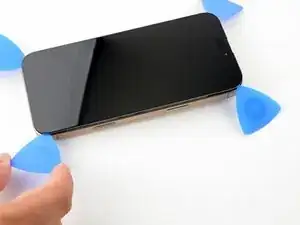
    • Insert a second opening pick in the bottom-left corner, close to the existing pick.

    • Slide the opening pick along the left edge of the screen to separate the adhesive and release the metal clips.

    • You'll hear and feel the metal clips release as you pass them.

    • Leave the opening pick in the top-left corner to prevent the adhesive from resealing.

  11. SrTKTbIGUN41ZJvC
    SrTKTbIGUN41ZJvC
    1FsDRuEKTXvEBktM
    XGhtXYOoBIpYNUIe
    • Repeat the heating and slicing procedure along the remaining screen edges.

  12. IoyTkn6KuUZIUHFl
    IoyTkn6KuUZIUHFl
    YSoVBryicba2UyhS
    P4svmRgEKyAKpCvG
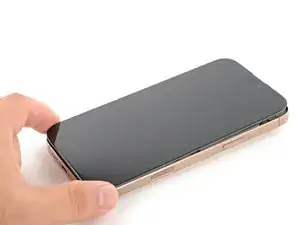
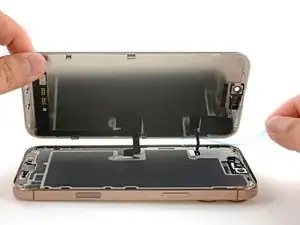
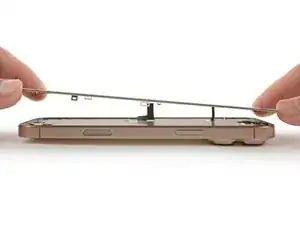
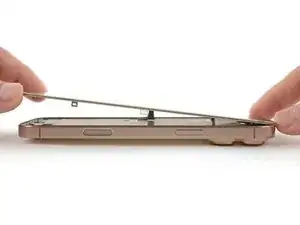
    • At this point, the screen should be free from the frame. If the screen feels stuck, go back around the perimeter with your pick and carefully check for missed sections of adhesive or stuck clips.

    • Carefully lift the screen upwards until the clips along the long edges clear the frame.

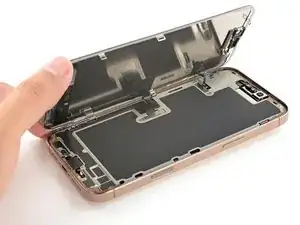
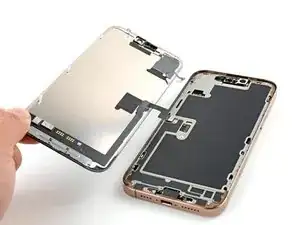
    • Swing open the screen over the left edge of the iPhone and lay it flat on your work surface.

  13. bpgV5MGsGBy65Gv4
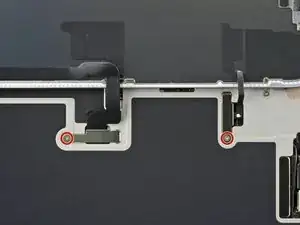
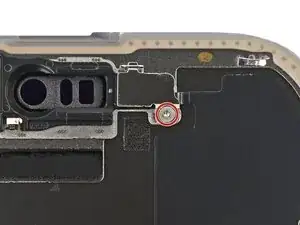
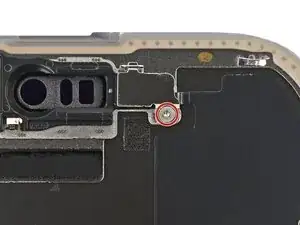
    • Use a tri-point Y000 driver to remove the two 1.3 mm‑long screws securing the front sensor and display connector covers.

  14. BDfULBFxm2pvCNoT
    BDfULBFxm2pvCNoT
    HpnCOdZrxDUjTZAF
    gAkQZLfNSsqFQmZY
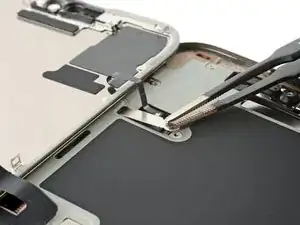
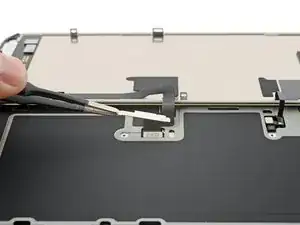
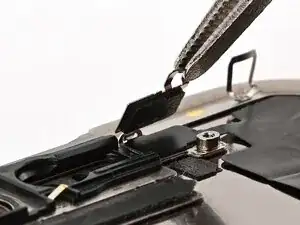
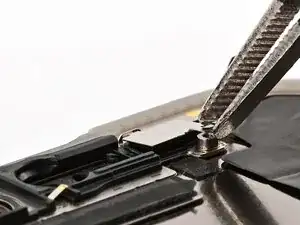
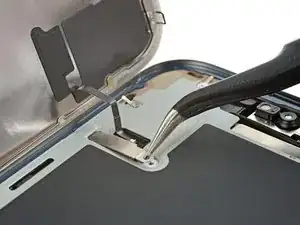
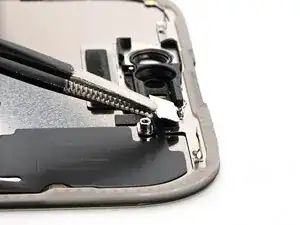
    • Use tweezers to grasp the front sensor connector cover near the screw hole.

    • Lift and remove the cover.

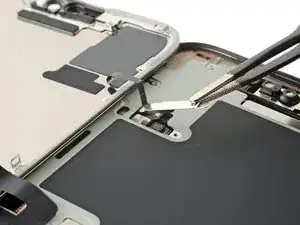
    • Repeat the procedure to remove the display connector cover.

  15. B1VeNAvdrv3JU6g1
    B1VeNAvdrv3JU6g1
    SBXwNeqOHSlu4Vyw
    QkZBugY6sQxC5HuP
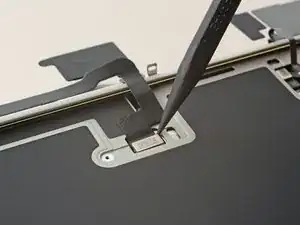
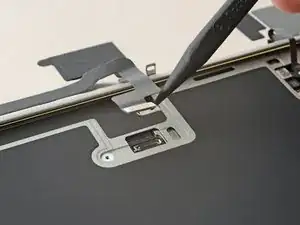
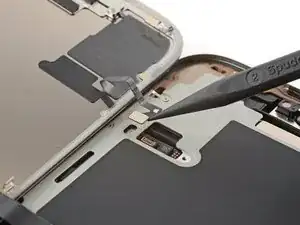
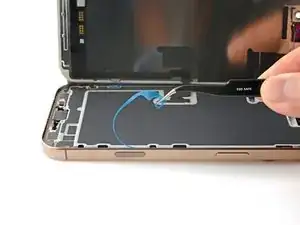
    • Use the tip of a spudger to pry up and disconnect the display press connector.

    • Repeat for the front sensor press connector.

  16. bg3DLsybTQrjkvOr
    • Lift the screen and remove it.

  17. JPdEyEuvUZL4BSQM
    • Congratulations on completing disassembly! The remaining steps will show how to reassemble your iPhone.

    • Depending on your iPhone model, some reassembly photos may have minor visual discrepancies. The procedure, however, will be correct for your iPhone.

  18. G3lZHQ5QO6S4OCxK
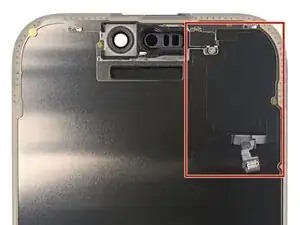
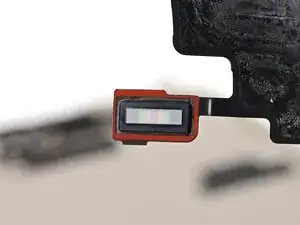
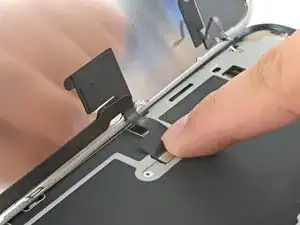
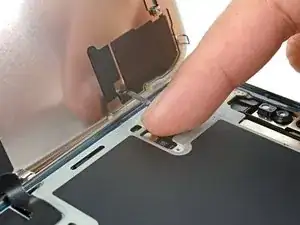
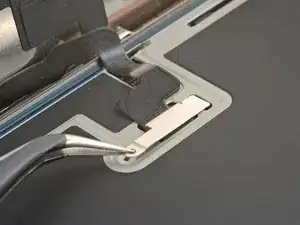
    • The ambient light sensor is located behind the screen, next to the cut‑out for the Face ID sensors.

    • Check if the replacement screen comes with one installed. If it does, click here to skip the next twelve steps.

  19. MSAFPVUtdZEOgBgp
    MSAFPVUtdZEOgBgp
    gMTcZufkooKHd2eh
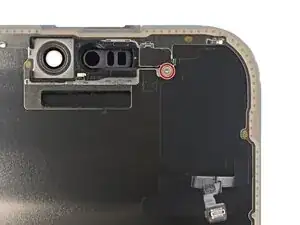
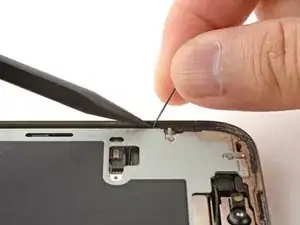
    • Use a tri‑point Y000 driver to remove the 1 mm‑long screw securing the bracket on the ambient light sensor.

    This is not a Phillips head screw, but another Y000.

    Dustin Hanson -

  20. VZYJcl2bxOUVbUAj
    VZYJcl2bxOUVbUAj
    QPuJjBjRtLqwKsnV
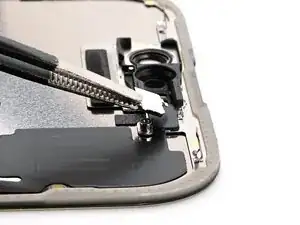
    • Use a pair of tweezers or your fingers to lift and remove the ambient light sensor bracket.

  21. ZIYU5uGFjTTI6dIe
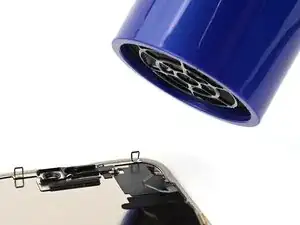
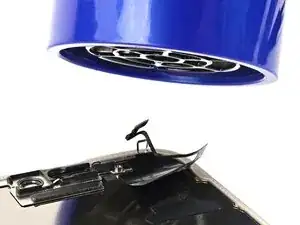
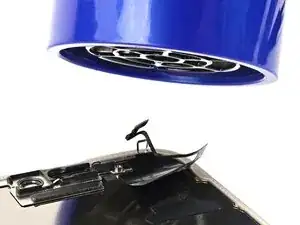
    • Use a hair dryer, heat gun, or iOpener to soften the adhesive under the ambient light sensor and ambient light sensor cable.

  22. ZOBUHIyIiuhf5wkV
    ZOBUHIyIiuhf5wkV
    eDGX4KnG6W4aPRo1
    5AwePfbxRWfIRwPr
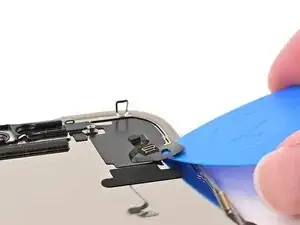
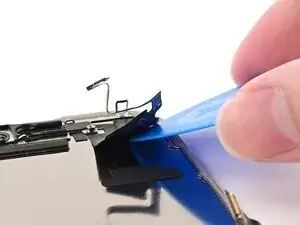
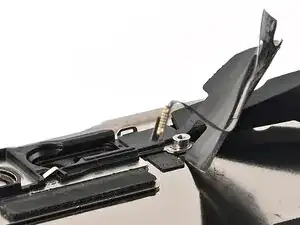
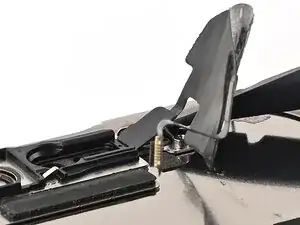
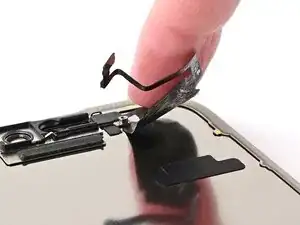
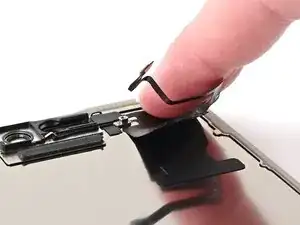
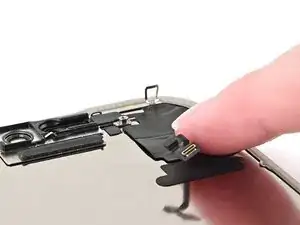
    • Be careful and work slowly—the cable is extremely delicate, especially near the sensor. Don't try to lift the sensor itself yet.

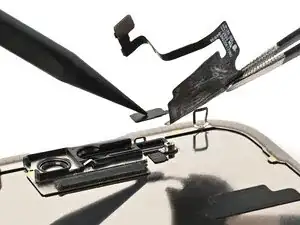
    • Slowly slide an opening pick under the ambient light sensor cable, starting under the connector at the bottom and working upwards until the cable is free from the screen.

    • If the adhesive doesn't peel up easily, apply more heat.

  23. ygTD3EcTVC1FNuP2
  24. VKsrjMEAOiLZOmCE
    VKsrjMEAOiLZOmCE
    EBmWCBFHqGhmqYTU
    tKKSQOBdeKrj4KOH
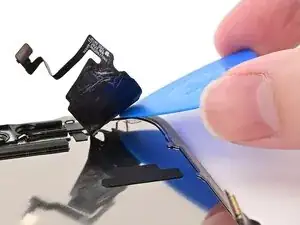
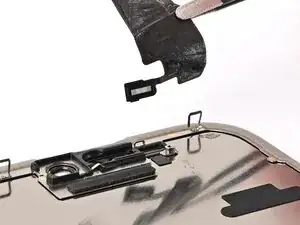
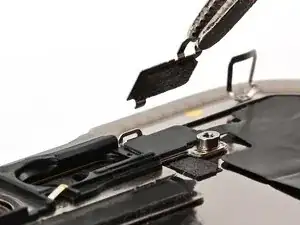
    • Work slowly to avoid tearing the thin cable attached to the ambient light sensor. If it feels stubborn, apply more heat instead of using more force.

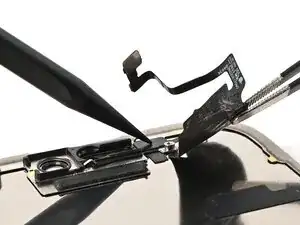
    • Use the flat end of a spudger to slowly pry up the ambient light sensor from the side with the protruding cable.

    • Remove the ambient light sensor.

  25. 54skDeDwke6IWZHV
    • Use tweezers to reposition any adhesive that may have covered the ambient light sensor during removal. The adhesive should form a border around the raised rectangle.

    • If the adhesive was damaged or stayed with the old screen, replace it with a 1 mm wide strip of thin, double-sided tape along its top border.

  26. pklatwsnxYKENaiU
    pklatwsnxYKENaiU
    teiZHcZCsaJI15XA
    • Align the ambient light sensor with its recess in the back of the screen.

    • Use a spudger or your finger to press the ambient light sensor into its recess.

  27. pMr6QkkcqeFmUARI
    • Use a hair dryer, heat gun, or iOpener to soften the adhesive under the ambient light sensor and its cable. It only needs to be warm—not hot.

  28. MTGDIUXG3SBVkM3S
    MTGDIUXG3SBVkM3S
    IQfJ2oB4cLxJagt3
    eKbtNeOnJbsmodf6
    • Use your finger to press down the ambient light sensor cable.

    • If the ambient light sensor cable isn't sticking, apply a few small pieces of thin, double‑sided tape, like Tesa tape, to the back of the sensor cable.

  29. JcEVbOJIgBxKqvgM
    JcEVbOJIgBxKqvgM
    6EAvSlCG2TBOOLpL
    ESJU4yHDU53UrJbZ
    • Use tweezers or your fingers to hook the ambient light sensor bracket over the back of the sensor and set it into place.

  30. tTTrTsykvPSqmOQp
    • Use a tri‑point Y000 driver to install the 1 mm‑long screw securing the bracket on the ambient light sensor.

    Same as my comment above, the screw is a Y000.

    Dustin Hanson -

    Thank you, the relevant steps have been updated.

    Nick Schultz -

  31. DLtg6Dl2jnnSO3lW
    DLtg6Dl2jnnSO3lW
    TKDqELpHEBf3bPHI
    • Use a spudger or tweezers to remove the adhesive chunks from the iPhone's frame.

    • Work around the fragile grounding clips. If you bend one out of place, gently bend it back with your fingers or tweezers.

  32. G1PVQZUjD6qIg4iv
    • If you're reinstalling your existing screen, be sure to remove any remaining adhesive from the back of your screen as well.

  33. bZLgo2NWsROBHeau
    bZLgo2NWsROBHeau
    eIoCNK3RwBLxEoOl
    • Using a lint-free cloth (or coffee filter) and some high concentration (>90%) isopropyl alcohol, clean the areas of the frame and screen where you removed the old adhesive.

    • For best results, swipe your cleaning cloth in one direction, not back and forth.

    • Work around the fragile grounding clips. If you bend one out of place, gently bend it back with your fingers or tweezers.

    • Take your time doing this. A clean frame allows replacement adhesive to lay evenly, ensuring a better bond.

  34. yKsG5nFElVijnsGP
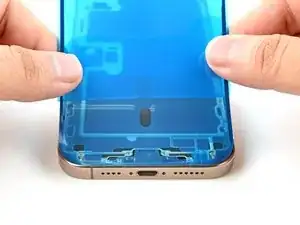
    • Lay the adhesive sheet over the frame to determine its proper orientation.

    • Use features such as the camera cutout to visualize how the adhesive will lay in the frame.

  35. FF4vPSww2VAMSGAi
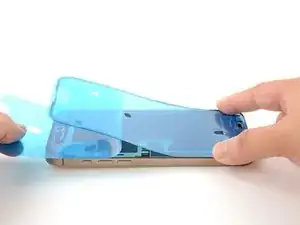
    • Grasp the tab in the corner of the adhesive sheet and peel the liner to expose a third of the adhesive.

    • The exposed adhesive is very sticky. Don't let it touch anything until you're ready to apply it to the frame.

    • If your adhesive has multiple liners, peel the liner that exposes the side that sticks to the frame.

  36. 31ZvnyG1jVSfRjWD
    31ZvnyG1jVSfRjWD
    QAEhrfqOi2UesK1K
    JElKPevedqLkGwjG
    • Carefully align the exposed edge of the adhesive strip with the corresponding edge of your iPhone's frame.

    • Once the adhesive is pressed into place, you can't reposition it—you'll have to remove it and start over with new adhesive.

    • When it's correctly aligned, gently press the exposed adhesive strip into place.

  37. IYxHfKcfTZ1OYes3
    IYxHfKcfTZ1OYes3
    u6HsWgPajJVypc6t
    MBIB4B1l1ARGBMXt
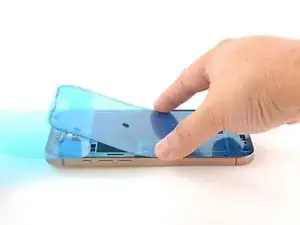
    • Continue peeling away the liner from the adhesive, gently pressing the adhesive into place.

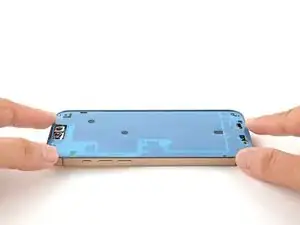
    • If you've correctly aligned the adhesive, the edges will fall perfectly into place.

    • If your adhesive is slightly misaligned, pull the long edges into alignment with the frame.

    • If the adhesive begins to crease or wrinkle, remove it and start over with fresh adhesive.

    • If you don't have another set of adhesive strips handy, it's okay to temporarily put your iPhone back together and use it normally without any adhesive. Just keep in mind that your iPhone's water resistance will be compromised until you replace the adhesive.

  38. PrTBE4i2Xr5QxCqH
    PrTBE4i2Xr5QxCqH
    QunPJ1VZ1QTBUDtv
    • Use a spudger to press the adhesive around the entire perimeter of your iPhone.

    • Work around the fragile grounding clips. If you bend one out of place, gently bend it back with your fingers or tweezers.

    • Don't press too hard, or you'll stretch and deform the adhesive.

  39. RA6LIBnQfRLoeDnn
    RA6LIBnQfRLoeDnn
    I1MLVORUEUsPEXaN
    BuN4l23dV2pYHZUm
    • Use a spudger or your fingers to lift the pull tab connected to the large front liner—the pull tab is often in a corner of the liner.

    • Use the pull tab to peel off the large front liner from the adhesive.

    • At this point, you may still have liners covering the perimeter, which prevent the adhesive from accidentally sticking to anything while you're reassembling your iPhone. Don't remove these small release liners just yet.

  40. IPA4bkcO2Xu5Zl23
    IPA4bkcO2Xu5Zl23
    1IbVuIqARdQfboL4
    • Use your finger to press down and connect the display connector.

    • To re-attach wide press connectors like this one, carefully align and press down on one side until it clicks into place, then repeat on the other side. Don't press down in the middle. If the connector is misaligned, the pins can bend, causing permanent damage.

    • Press down and connect the front sensor connector.

    • Align the connector carefully over its socket and press down with your fingertip until it clicks into place. Don't try to force the connector into place. If you're having trouble, reposition it and try again.

    • This is a good time to power on your iPhone and test all functions before you seal it up. Be sure to power your iPhone back down completely before you continue.

    • If your iPhone doesn't turn on, connect it to a power source and try again.

  41. RNyTZHUFYITIoIQN
    RNyTZHUFYITIoIQN
    yRCSK1F3OCCF45RI
    • Tuck the display connector cover's tab into its frame cutout and lay the cover in place.

    • Repeat with the front sensor connector cover.

  42. bpgV5MGsGBy65Gv4
    • Use a tri-point Y000 driver to install the two 1.3 mm‑long screws securing the two connector covers.

  43. UsRabkM2SFeQ45Tc
    UsRabkM2SFeQ45Tc
    ZrdB3BXTyDSTZL1y
    SUgmRtLRRrOjnjBi
    • While supporting the screen, use your fingers or a spudger to peel away all perimeter liners, exposing the adhesive.

    • Be careful not to touch the exposed adhesive.

    • Check the frame and screen for any stray liners and remove them. There should be no liners remaining.

  44. cQyTPW3xDcNA5Hxm
    cQyTPW3xDcNA5Hxm
    lXRMcVJlaV4dCacN
    • Carefully align the screen's top clips with their frame cutouts.

  45. WP61mYsGma3Sj6YY
    WP61mYsGma3Sj6YY
    PqriJdZROwyQ1atK
    TQSahq4cLcHEGZ1M
    • Lower the screen onto the frame, beginning with the top edge.

    • If you feel resistance, a perimeter clip may have bent out of place and is being crushed by the frame. Look at the point of resistance and gently straighten any bent clips.

    • Make sure the screen edge isn't pinching any cables.

  46. rRCek6qVFyjQQFOW
    • Use a hair dryer, heat gun, or an iOpener to heat the screen perimeter until it's slightly too hot to touch.

    • The heat softens the adhesive and helps create a better bond.

  47. AsgQEGCYUVjThFkS
    AsgQEGCYUVjThFkS
    VGlvDepjIGCaFCvl
    • Use your fingers to firmly squeeze around the perimeter of the iPhone.

  48. 3rTnQilHbLEwG1KJ
    3rTnQilHbLEwG1KJ
    edStNaensJ2KQgsP
    • Place your iPhone screen-side down on a clean, flat work surface.

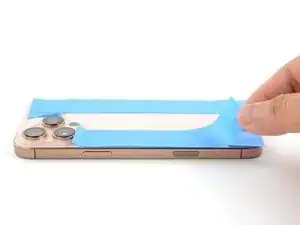
    • Lay a strip of tape around the perimeter of the back glass to protect the finish.

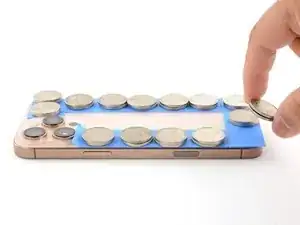
    • Stack coins around the perimeter of the back glass until you create a wall that's as tall as the rear camera protrusions.

    • Alternatively, you can use vise clamps around the perimeter of your device to set the new adhesive.

  49. Gbahi6pjtJUgg4lt
    Gbahi6pjtJUgg4lt
    qL6iF6ShEJ4FcfEw
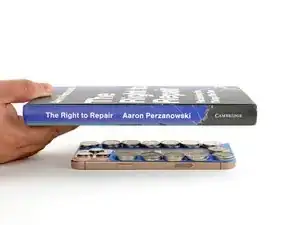
    • Place 3-4 heavy books squarely on top of your iPhone.

    • The coins may leave a slight impression on the bottom book cover, so don't use anything valuable.

    • Leave the books in place for about 30 minutes.

    • The pressure will help activate the adhesive.

  50. 5INSdODr1jIMTOAT
    5INSdODr1jIMTOAT
    Nks3xV3FOwdgkAf2
    • Use a P2 pentalobe driver to install the two 7.4 mm-long screws on either side of the charge port.

Conclusão

After your repair, calibrate a genuine replacement screen using Apple's Repair Assistant. Navigate to Settings General About Parts & Service History, tap Restart & Finish Repair, and follow the onscreen prompts.

Take your e-waste to an R2 or e-Stewards certified recycler.

Repair didn’t go as planned? Try some basic troubleshooting, or ask our Answers community for help.

Arthur Shi

Membro desde: 03/01/18

326111 Reputação

5 comentários

Greetings. Is it true that viewing with a magnifying glass under the light of the house ruins the screen? On the iPhone 16 Pro Max

Ss Vv -

That's a good question! I would say that under normal house lights, you're very unlikely to damage the screen with a magnifying glass.

I haven't tried it, but it's theoretically possible to damage the screen with a magnifying glass if you're in direct sunlight.

Arthur Shi -

Hello, if we put a thin paper into the groove between the screen and the iPhone frame and pull it left and right. Does the waterproof glue get damaged? I did this out of curiosity. I'm a little worried that I may have damaged the device.

AMG78 -

Isn’t it necessary to transplant the ambient light sensor on the back of the old screen to the new screen?

Ld44hbxhkhr -

If the replacement screen doesn't include one, it'll need to be transferred. Those steps have been added to this guide.

Nick Schultz -