Introdução

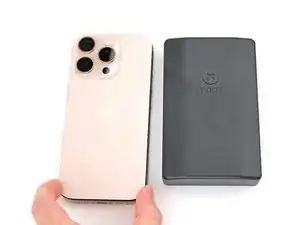
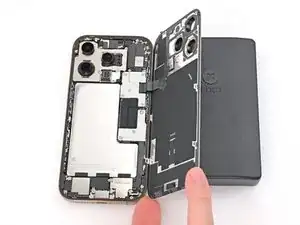
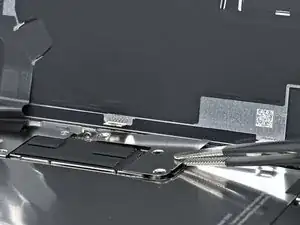
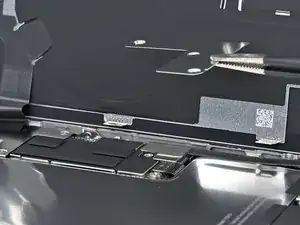
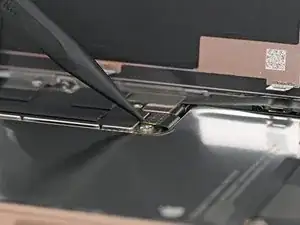
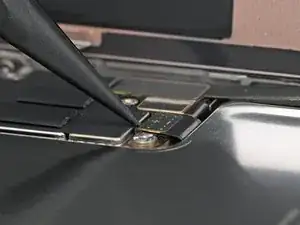
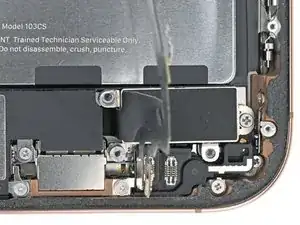
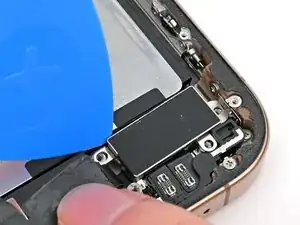
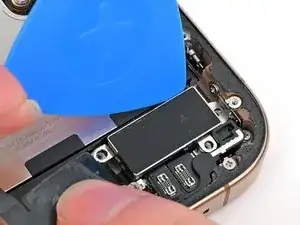
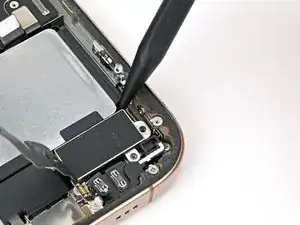
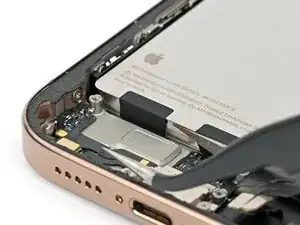
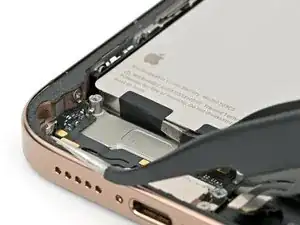
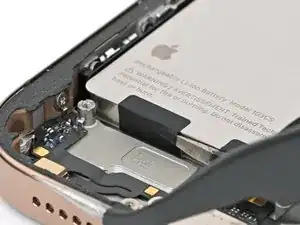
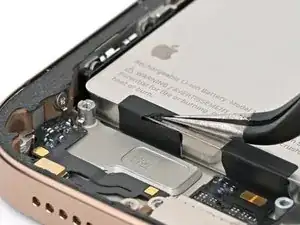
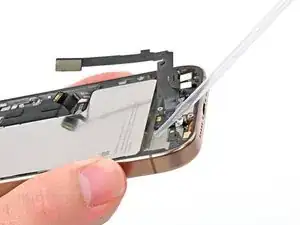
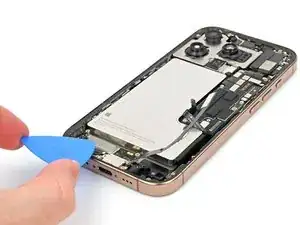
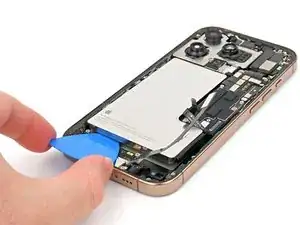
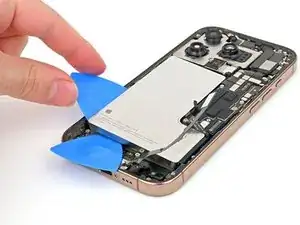
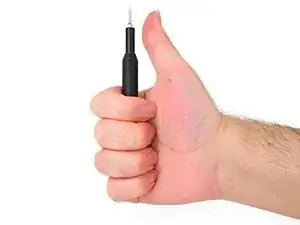
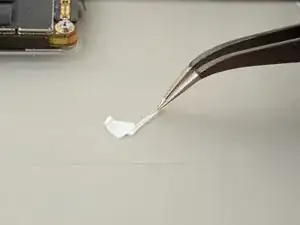
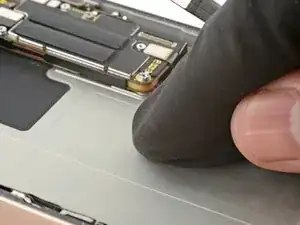
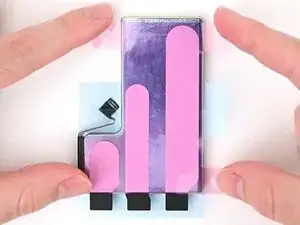
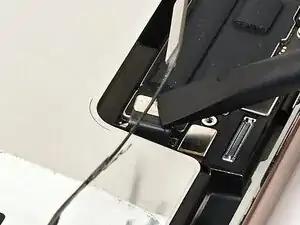
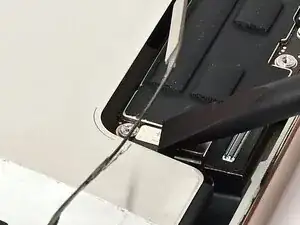
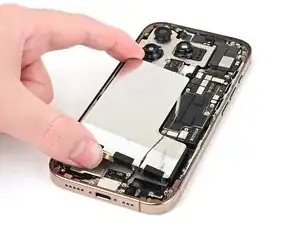
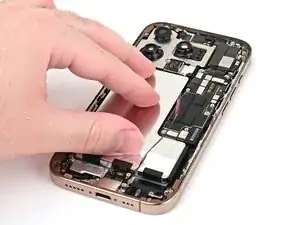
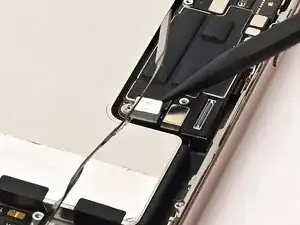
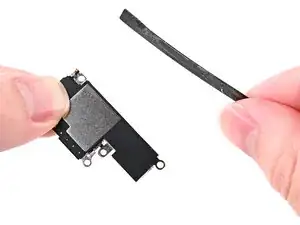
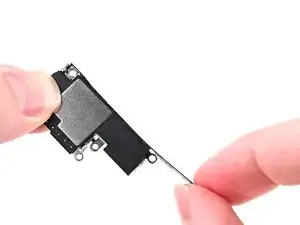
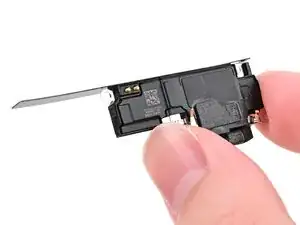
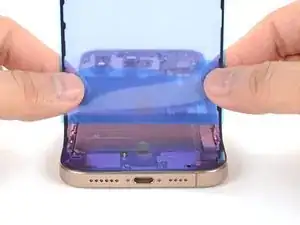
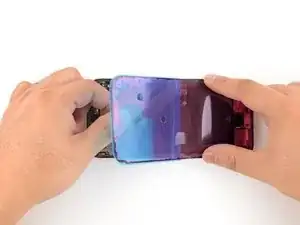
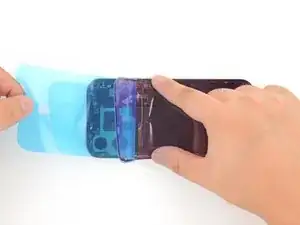
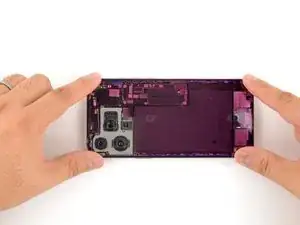
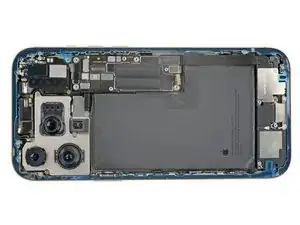
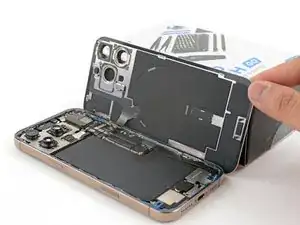
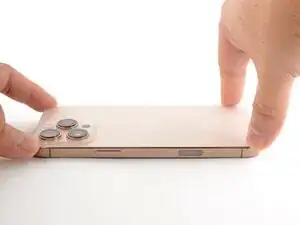
Follow this guide to replace the battery in your iPhone 16 Pro.

iPhone batteries are rated to hold 80% of their capacity for up to 500 charge cycles, or roughly 18–24 months. If your iPhone needs to be charged more often or runs slower, it might be time to replace the battery.

If your battery is swollen, take appropriate precautions.

You'll need replacement battery and back glass adhesive to complete this repair.

As of iOS 18.1, battery health should work with both genuine and aftermarket replacement batteries. If you're running an older version of iOS, you'll need a genuine Apple battery to retain battery health functionality.

After your repair, run Repair Assistant to reset the battery metrics.

  1. K4AWsftcl4n5BtIp
    K4AWsftcl4n5BtIp
    aFo1CdHnjZVIyeaI
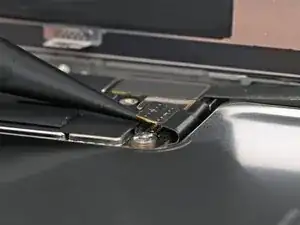
    • Allow the phone's battery to drain below 25%, as a charged lithium-ion battery is a potential safety hazard.

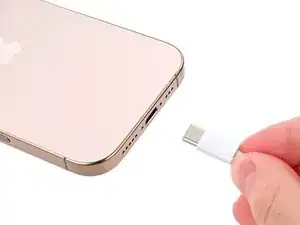
    • Unplug any cables from the phone.

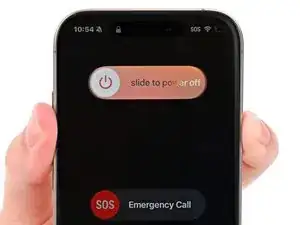
    • Hold the power and either volume buttons and slide to power off the phone.

    Wilson Demosthène

    Demosthène Wilson -
  2. EmBlBsGeBABlcwlv
    EmBlBsGeBABlcwlv
    ptNWZaLIy4EsKrcf
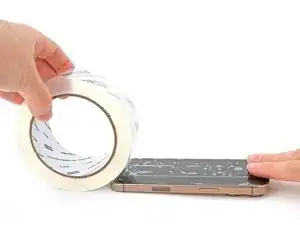
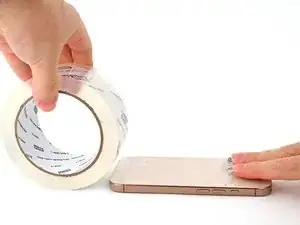
    • If the screen or back glass is badly cracked, lay overlapping strips of packing tape over the glass to protect yourself and make disassembly easier.

    • Make sure there's a smooth area near the bottom edge that's big enough for a suction cup to stick to.

  3. 2L1xyPNHbxcHDGo2
    2L1xyPNHbxcHDGo2
    pHlXkMHcKaCfppXs
    UyUfMfOFG1QtVZl1
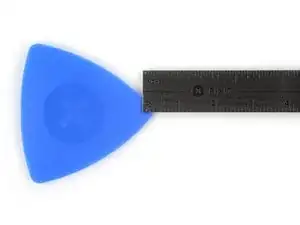
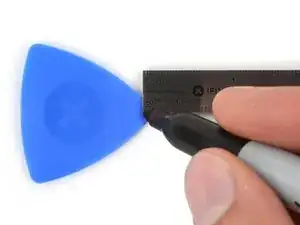
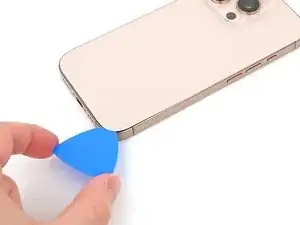
    • If inserted too far, an opening pick can damage your device. Follow this step to mark your pick and prevent damage.

    • Measure 3 mm from the tip and mark the opening pick with a permanent marker.

    • You can also mark the other corners of the pick with different measurements.

    • Alternatively, tape a coin to a pick 3 mm from the tip.

  4. 4wwMsFG3yVDMQZim
    4wwMsFG3yVDMQZim
    jXnDR5btQ4VuGNTl
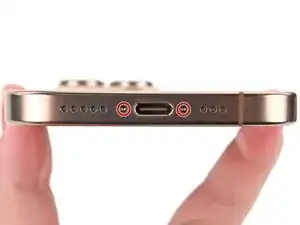
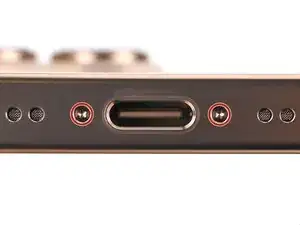
    • Use a P2 pentalobe screwdriver to remove the two 7.4 mm‑long screws on either side of the USB-C port.

  5. PkjP4QyDQ1ElZjyA
    PkjP4QyDQ1ElZjyA
    tdVVktKhnFvKVIjD
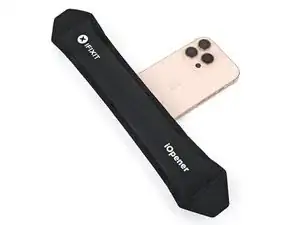
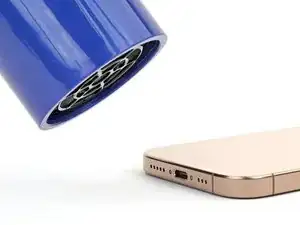
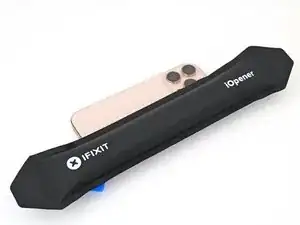
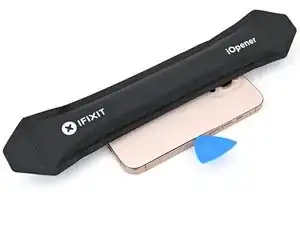
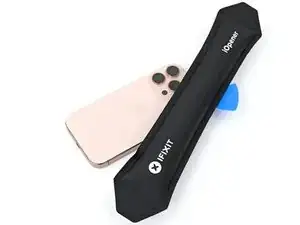
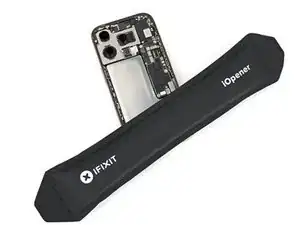
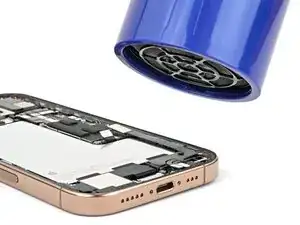
    • Apply a heated iOpener to the bottom edge of the back glass for two minutes.

    • Alternatively, you can use a hair dryer or heat gun to heat the bottom edge of the back glass until it's hot to the touch.

    • Be careful not to heat the phone hotter than this—the battery is susceptible to heat damage.

  6. lBEmkD6NJhtkxkW5
    lBEmkD6NJhtkxkW5
    UROSoplXmxMyKBBs
    oGngHBGS4k4mI2Uw
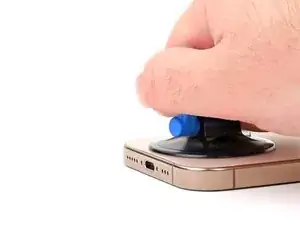
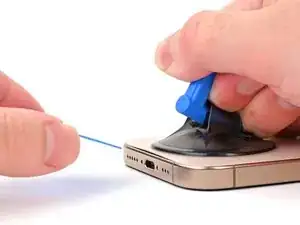
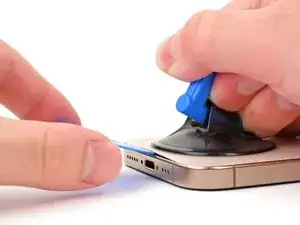
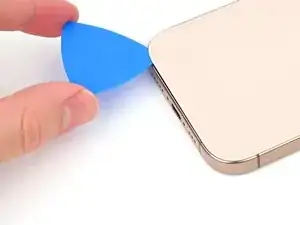
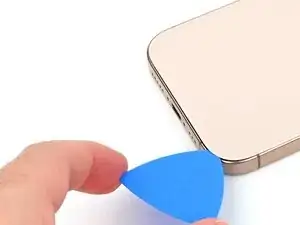
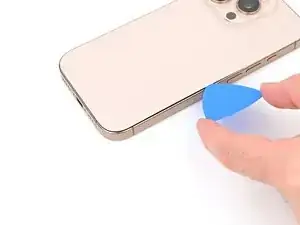
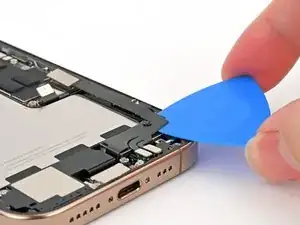
    • Apply a suction handle to the bottom edge of the back glass, above the USB-C port.

    • Pull up on the handle with a strong, steady force to create a gap between the back glass and the frame.

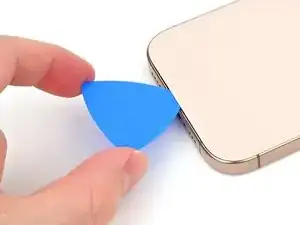
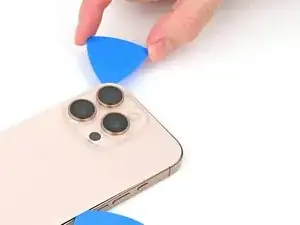
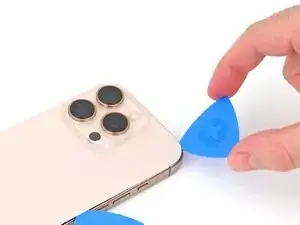
    • Insert the tip of an opening pick into the gap.

  7. ULCMCIRVcZeNxqtC
    ULCMCIRVcZeNxqtC
    NYdfkKbvBtUuG3dF
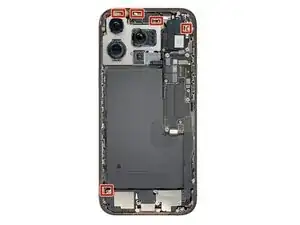
    • As you slice the adhesive securing the back glass in the next steps, be careful of the following areas:

    • There's a delicate cable connecting the back glass to the phone, right next to the volume up button. Don't insert your pick here to avoid slicing the cable.

    • There are multiple spring contacts around the perimeter of the phone. Be extra careful not to insert your pick deeper than suggested in each step to avoid bending these contacts.

    • If you damage the spring contacts, gently bend them back with a spudger or opening pick so they align with their gold contact pads on the back glass.

  8. MSP4gLCYTExRaQf1
    MSP4gLCYTExRaQf1
    iJTyS2NhNWGOdGIw
    Ld42oP5IGwVvfPD2
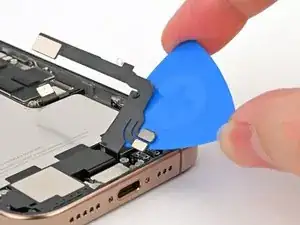
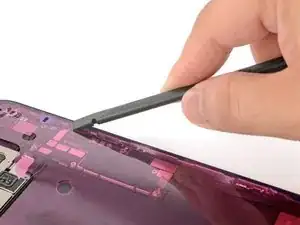
    • Don't insert your pick deeper than 5 mm on the bottom edge to avoid damaging the spring contact.

    • Slide your pick back and forth along the bottom edge to separate the adhesive.

    • Leave your pick inserted in the bottom right corner to prevent the adhesive from resealing.

  9. m2qc15FGP2gHir3s
    • Heat the right edge of the back glass until it's hot to the touch.

  10. Rf6WVIXrZBFXmMVZ
    Rf6WVIXrZBFXmMVZ
    ILIQGaTRSbg2LpNI
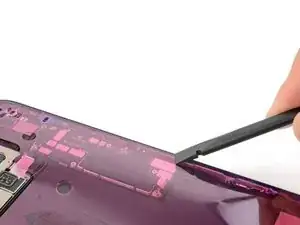
    • Slide your pick around the bottom right corner and halfway up the right edge, or until you feel a hard stop at a clip securing the back glass.

    • Don't slice near the volume buttons to avoid damaging the wireless charging/flash cable.

    • Leave this pick inserted to prevent the adhesive from resealing.

  11. uddoC4XqLagpbJNm
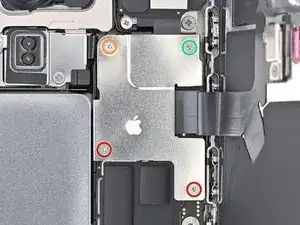
    • Heat the left edge of the back glass until it's hot to the touch.

    You already did the right side. This should say heat the left side until it is hot to the touch.

    DB1 -
  12. NXhQMBD3F635INQX
    NXhQMBD3F635INQX
    OwYBcapAZB4Q1owo
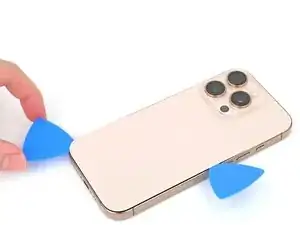
    • Insert a second opening pick at the bottom edge.

    • Slide the second pick around the bottom left corner and along the left edge of the screen to separate the adhesive and release the metal clips.

    • You'll hear and feel the metal clips release as you pass them.

    • Leave this pick inserted at the top left corner to prevent the adhesive from resealing.

  13. ipPw6NkP54XjFjue
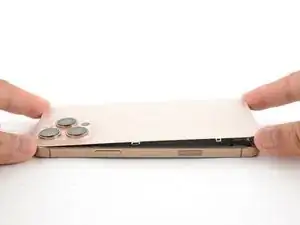
    • Heat the top edge of the back glass, including the area around the volume buttons, until it's hot to the touch.

  14. mg1jVAJvGCAnMise
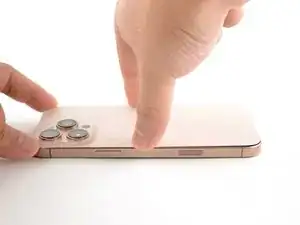
    mg1jVAJvGCAnMise
    fJ3F6e5mBvPbgXfC
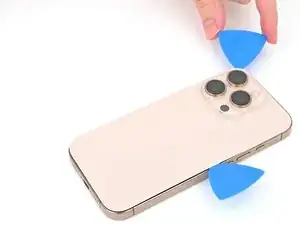
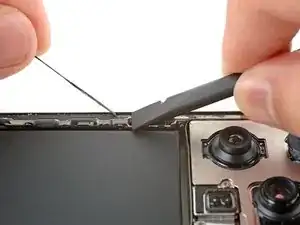
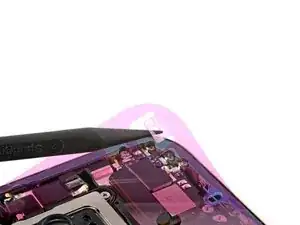
    • Don't insert your pick deeper than 3 mm along the top edge to avoid damaging the spring contacts.

    • Slide your opening pick across the top edge and around the top right corner to the volume up button to separate the adhesive.

    • You'll hear and feel clicks as the top two clips release.

  15. JtEaWd2EjhGq1TCp
    JtEaWd2EjhGq1TCp
    w3SicT6ZIFx6BZg6
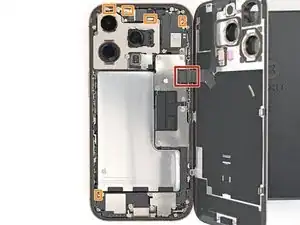
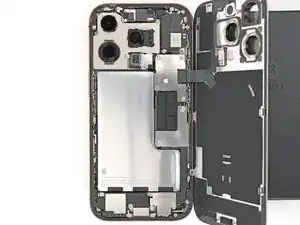
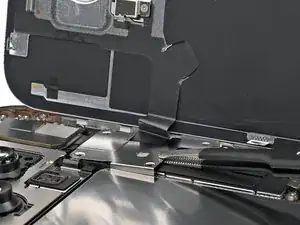
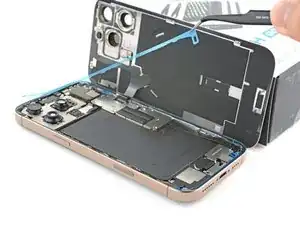
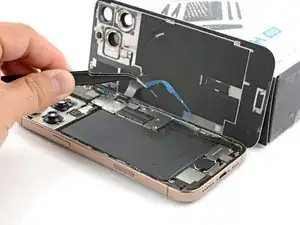
    • Don't try to fully remove the back glass just yet—it's still attached with a delicate ribbon cable. Follow the next few steps to remove it safely.

    • If the back glass doesn't swing open easily, don't force it—go back around the perimeter with your pick to check for missed sections of adhesive or stuck clips.

    • You may need to lift the back glass up slightly before swinging it open to fully disengage the clips.

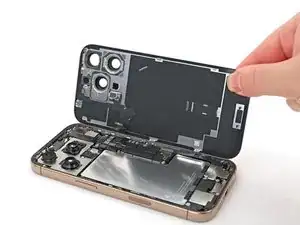
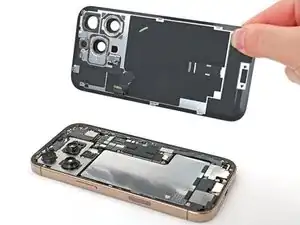
    • Gently swing open the back glass towards the volume buttons.

    • Support the back glass with a clean, sturdy object like a small box to avoid straining the cable.

    • Remove the opening picks.

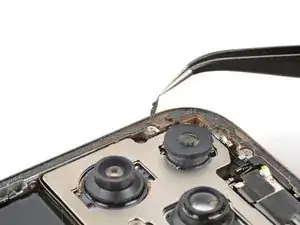
    • Consider using polyimide tape to protect the rear camera lenses while you're working inside the phone. Don't push against the lenses to avoid damaging the delicate stabilizers.

  16. yTqPZRx1jCFRBUTa
    yTqPZRx1jCFRBUTa
    axZUGVjUyqU4xCGF
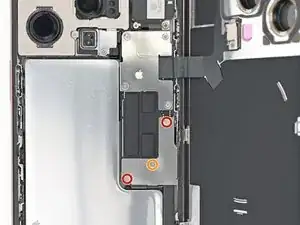
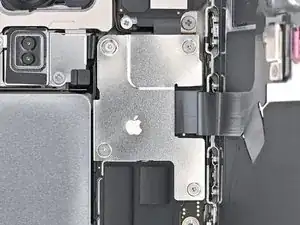
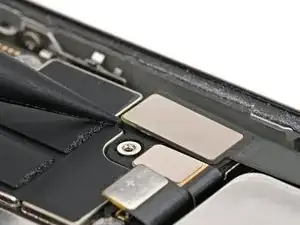
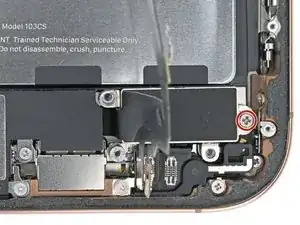
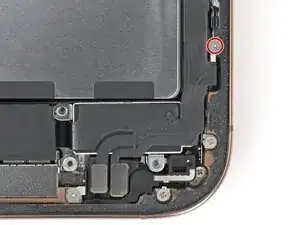
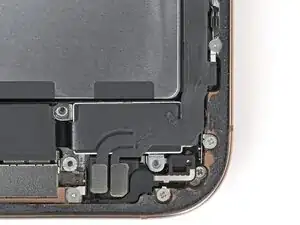
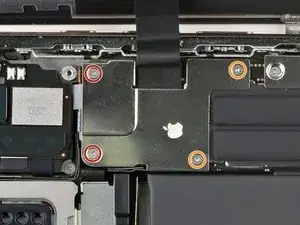
    • Use a tri-point Y000 screwdriver to remove the three screws securing the lower connector cover:

    • Two 1.2 mm‑long screws

    • One 1.0 mm‑long screw

  17. IyLG3ofvMTkkxPLN
    IyLG3ofvMTkkxPLN
    3m6AmRhmAhkwC2of
    LqWEAtqwov4J1uvW
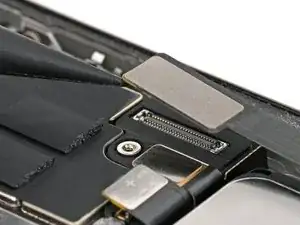
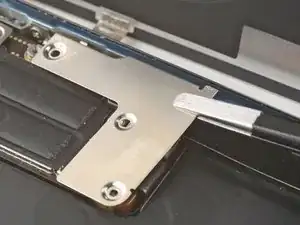
    • Use tweezers or your fingers to pick up and remove the lower connector cover.

  18. qYKPJLY5VbHG6lCi
    qYKPJLY5VbHG6lCi
    4CqhFeZkuBGauQuN
    1AlQhTiBEnoXoGTk
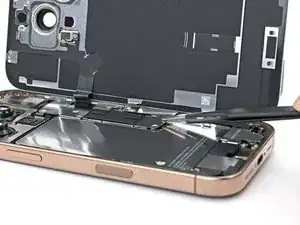
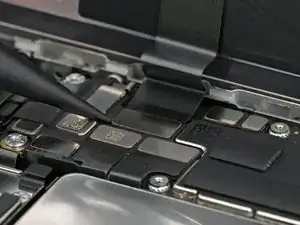
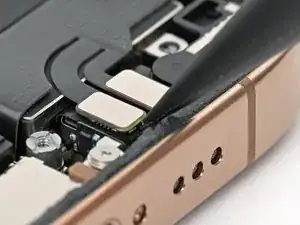
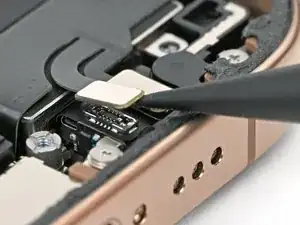
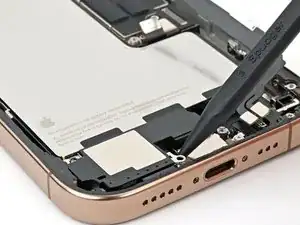
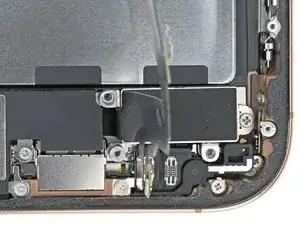
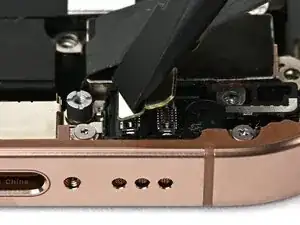
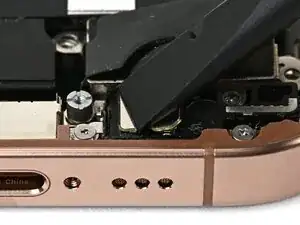
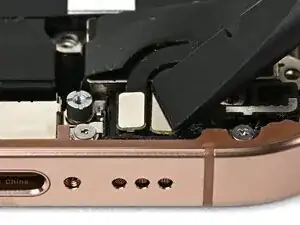
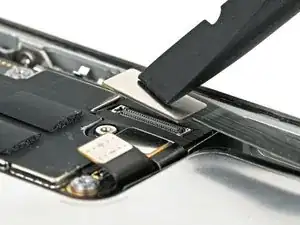
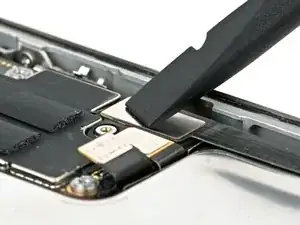
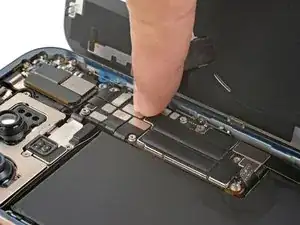
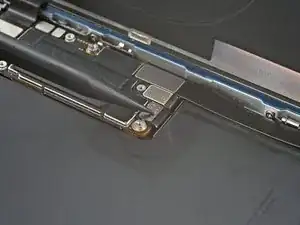
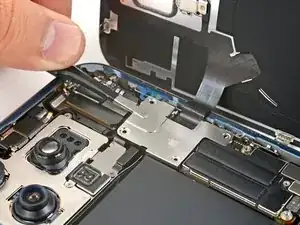
    • Use the point of a spudger to pry up and disconnect the battery press connector.

  19. 4ItSlWJnGGbDXwbI
    4ItSlWJnGGbDXwbI
    c4u5GYOCvBlRIFZM
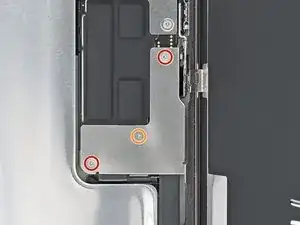
    • Use a tri-point Y000 screwdriver to remove the four screws securing the upper connector cover:

    • Two 1.0 mm‑long screws

    • One 1.2 mm‑long screw

    • One 1.6 mm‑long screw

  20. JZURmmFj1ipqm62A
    JZURmmFj1ipqm62A
    BFm3tYmT4SdvwBdk
    • Use tweezers or your fingers to pick up and remove the upper connector cover.

  21. 2kR2rags5eRfSMyR
    2kR2rags5eRfSMyR
    EYFMMsxtWa11UxZy
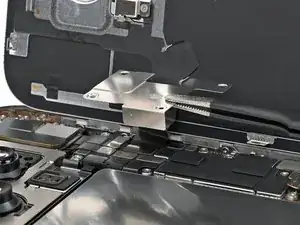
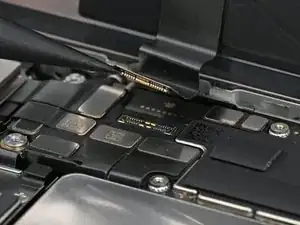
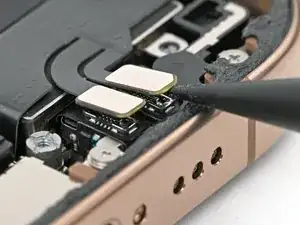
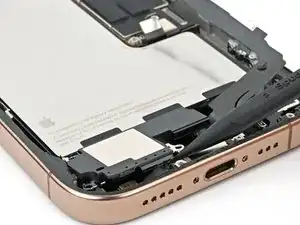
    • Use the point of a spudger to pry up and disconnect the back glass press connector.

  22. GeLxB6XH4QjsrCYG
    GeLxB6XH4QjsrCYG
    XvcbctHRNtuG6yOl
    • Lift the back glass off the frame and remove it.

  23. MvVOeBvDBHDxcIVB
    MvVOeBvDBHDxcIVB
    eJPZVTAFRfnAMExr
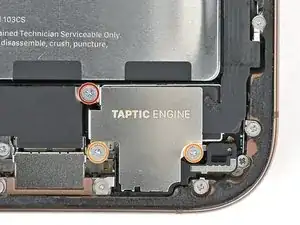
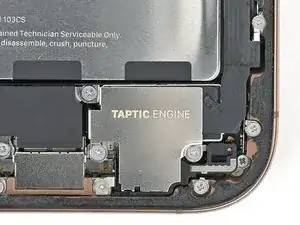
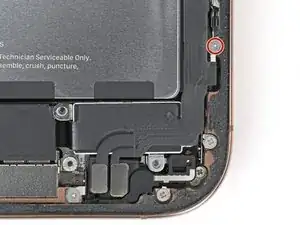
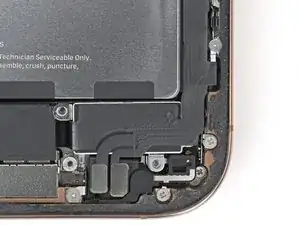
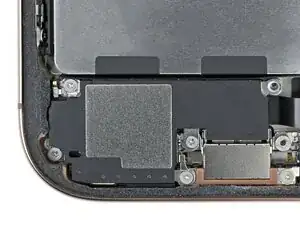
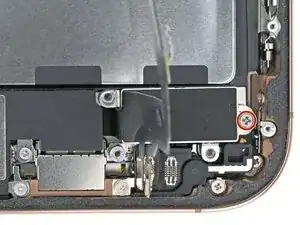
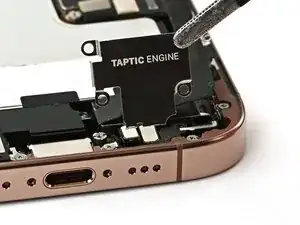
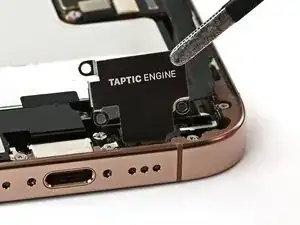
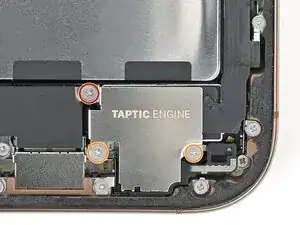
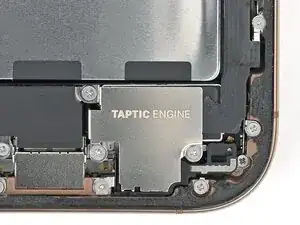
    • Use a Phillips screwdriver to remove the three screws securing the Taptic Engine cover:

    • One 3.0 mm‑long screw

    • Two 1.7 mm‑long screws

  24. HN644ZKkWG4grQcy
    HN644ZKkWG4grQcy
    MMAyNbQuNpmKZkNV
    LUpUIbbLqRNQESUO
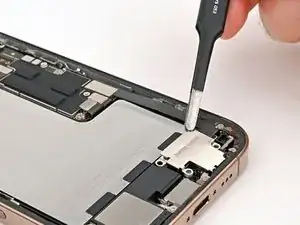
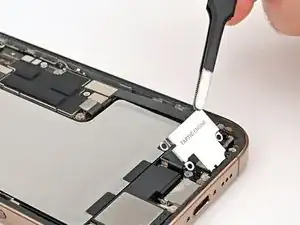
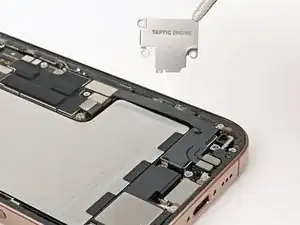
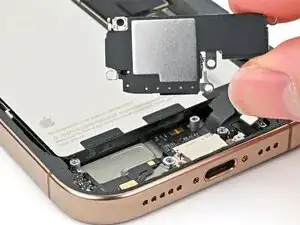
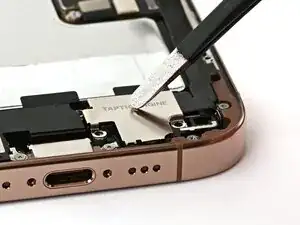
    • Use tweezers or your fingers to lift the top edge of the Taptic Engine cover.

    • Once the bottom edge unlatches from the frame, remove the Taptic Engine cover.

  25. bAXG1dhwgFc1vXXB
    bAXG1dhwgFc1vXXB
    1rptIRcfcQ6hYtCG
    • Use the point of a spudger to pry up and disconnect the lower assembly cable press connector from the logic board.

  26. 1YRIToJ2CWvMgUCn
    1YRIToJ2CWvMgUCn
    RevmHy2lXIphxLTX
    TqaXReFcgBbEHxMs
    • Use the point of a spudger to pry up and disconnect the two press connectors near the bottom right edge of the frame.

  27. QeFWZNrWqmteGGvG
    QeFWZNrWqmteGGvG
    tJF5aSiPBe25nblm
    • Use a tri-point Y000 screwdriver to remove the 1.0 mm‑long screw securing the lower assembly cable.

  28. EXIRQi4s4acZMLkk
    EXIRQi4s4acZMLkk
    TMwRH3lt6vUiGhbi
    • Use an iOpener or hair dryer to heat up the lower assembly cable section on top of the Taptic Engine until it's hot to the touch.

  29. byBCMWSWGM3E1LOb
    byBCMWSWGM3E1LOb
    caEuAAOPOeNoQsPw
    • Slide an opening pick under the lower assembly cable to separate it from the Taptic Engine.

    • Carefully bend the cable out of the way so you can access the Taptic Engine.

  30. dEJXWRUpXWNGGlwK
    dEJXWRUpXWNGGlwK
    GN1bp1gD5mmBuxJw
    • Use a Phillips screwdriver to remove the 1.9 mm‑long screw securing the Taptic Engine.

  31. HfflaDQmf3BFjpPC
    HfflaDQmf3BFjpPC
    OuGkRedRZDFcUaJU
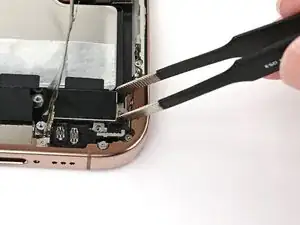
    • Slide the tip of an opening pick along the top edge of the Taptic Engine to separate the plastic buffer strip adhered to it.

  32. mnKhJifFGWrlcITp
    mnKhJifFGWrlcITp
    4UkXfwFmwRebEjN6
    5WxrJLqqxsLoySdY
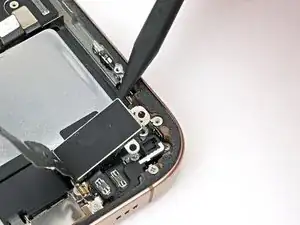
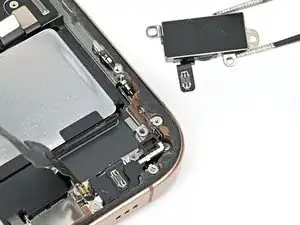
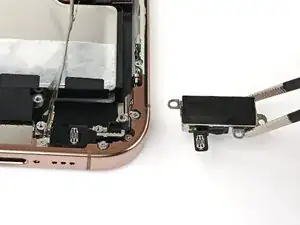
    • Use the point of a spudger to pry up the Taptic Engine from its top-right corner.

    • Be careful not to pry against the battery.

    • Remove the Taptic Engine.

  33. 4TiDJlGfsZ1EDBSO
    4TiDJlGfsZ1EDBSO
    6cKASY1D4RxOX25f
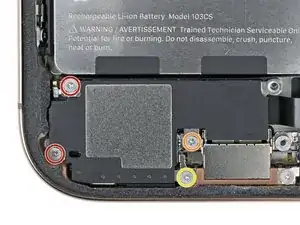
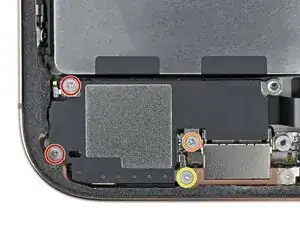
    • Remove the four screws securing the loudspeaker:

    • Two 1.6 mm‑long Phillips screws

    • One 2.0 mm‑long Phillips screw

    • One 1.3 mm‑long tri-point Y000 screw

  34. xtjtUKnPw1HNqaFE
    xtjtUKnPw1HNqaFE
    MlJ4UJBwmo3DUuFn
    12s13m2TZiiKmMe3
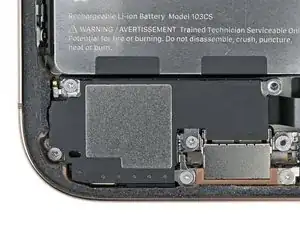
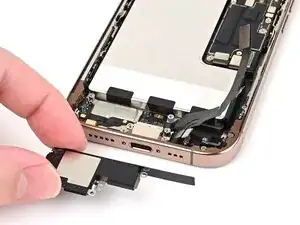
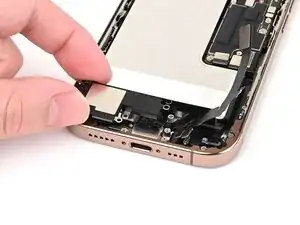
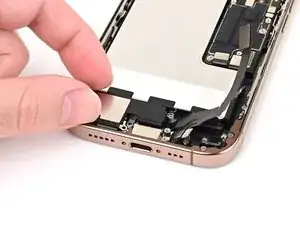
    • Insert the point of a spudger underneath the loudspeaker's bottom-right screw hole.

    • Pry up and remove the loudspeaker.

  35. E1cfbrwxSXeVNNGm
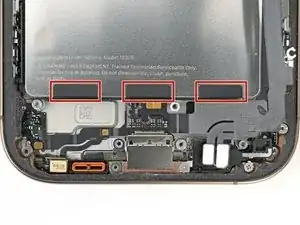
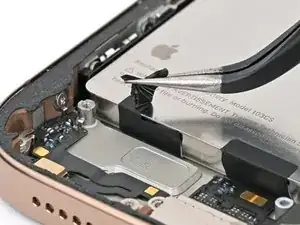
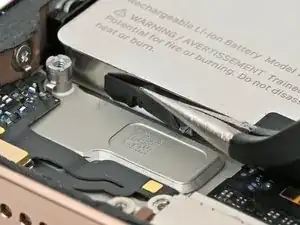
    • The battery is secured with three stretch release adhesive strips. The next four steps show how to remove them and free the battery.

    • Be careful not to dent or puncture the battery. Even with its metal enclosure, the battery can catch fire if damaged.

  36. LrS3TBHvW3hkcKxJ
    LrS3TBHvW3hkcKxJ
    iYLMGBYdkqygKlQM
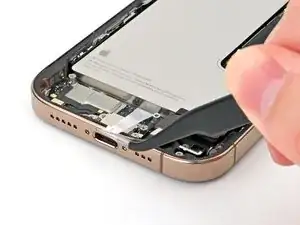
    • Insert the tip of angled tweezers under one of the black pull tabs.

  37. rJXGBFNuRwm2SmTE
    rJXGBFNuRwm2SmTE
    3Dw2uJ3tv1TqoFWq
    UOtwEd6mPpo1IGYI
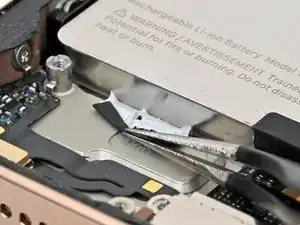
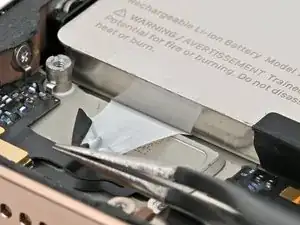
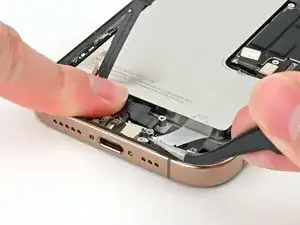
    • Use your tweezers to slice through the black tab and peel the tab off the top of the battery.

    • Don't try to pull the tab out from under the battery just yet.

  38. NJIRhyyOR3UpUEM3
    NJIRhyyOR3UpUEM3
    teGntAwrsQM1ncmC
    hEFyxPSjeOWFucCI
    • Use tweezers or your fingers to grab the pull tab and pull it down so it's flat against the frame.

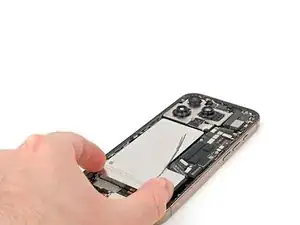
    • Slowly pull the adhesive out from under the battery at as low of an angle as possible.

    • Give the strip plenty of time to stretch and re-grip it as necessary. When the strip becomes too long, wrap it around your tweezers and continue pulling.

    • If the strip breaks off, try to retrieve it from under the battery. If you can't retrieve it, move onto the next strip.

  39. iZ2YykDtx4hHuubA
    iZ2YykDtx4hHuubA
    xdE2qlE4URSpV1WR
    • Repeat the procedure with the two remaining adhesive strips.

    • Carefully bend the lower assembly cable out of the way as needed to access the adhesive strips.

  40. AwxRF45AZJ6N3XIv
    AwxRF45AZJ6N3XIv
    ya3EiQk6YZjixXiT
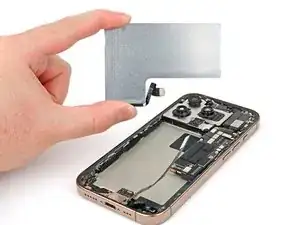
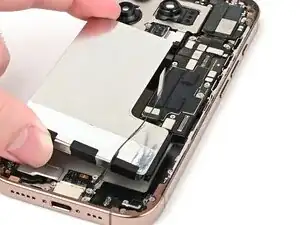
    • If you removed all three stretch release adhesive strips, congratulations! Lift and remove the battery.

    • If one or more adhesive strips broke, skip to the next step to remove them with isopropyl alcohol.

  41. wVejeZBUxQGiV4xY
    • The next two steps show how to remove the battery if the adhesive strips broke.

    • Lift the bottom edge of the frame to tilt the phone.

    • Use a pipette or a syringe to apply 2–3 drops of high concentration (>90%) isopropyl alcohol along the bottom edge of the battery, close to where each broken adhesive strip came out.

    • Wait one minute for the isopropyl alcohol to flow under the battery and soften the adhesive.

  42. Il5cBnsP2MEGEXZR
    Il5cBnsP2MEGEXZR
    P2EZ1PAJ1O3kFrDq
    LjRQOxAtoDU3snpA
    • Insert the tip of an opening pick between the bottom of the battery and the frame.

    • Insert a second opening pick between the left edge of the battery and the frame. Use this pick to pry the battery upwards slowly with steady force. Work your way up the edge of the battery, giving the adhesive time to release.

    • Don't bend or crease the battery. If it feels stubborn, apply a few more drops of isopropyl alcohol and try again.

    • Once the adhesive loosens, grab and remove the battery.

  43. WOHne2XJAocviVkd
    • Congratulations on completing disassembly! The remaining steps will show how to reassemble your iPhone. Some of the reassembly photos show the Pro Max model, but the procedure is correct for the Pro.

  44. Ew3TSs2ROrObwV2q
    Ew3TSs2ROrObwV2q
    PgaDjrFYQe6LfkWV
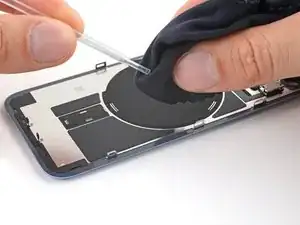
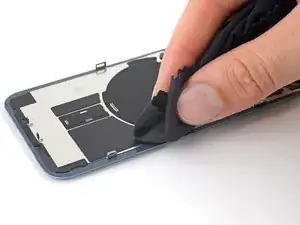
    • Remove any remaining adhesive from the battery recess.

    • Wipe the frame surface with a lint-free cloth and a few drops of isopropyl alcohol. Wait for the alcohol to fully evaporate before installing the new battery.

    • Before removing any liners on the adhesive, place the battery in its recess to check that it fits and that its cable reaches its socket on the logic board. Don't connect the battery yet!

  45. XbMLXJscfEPPsR6I
    XbMLXJscfEPPsR6I
    K2t4lDCfCpUAWmYS
    eMtDsCtycbXdEQOe
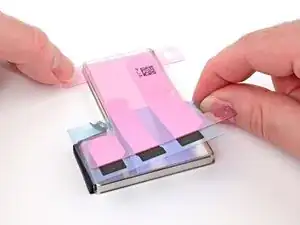
    • The next four steps show how to apply custom-cut adhesive to the battery. If your battery comes with adhesive pre-installed, skip the next four steps.

    • If needed, follow this guide to apply generic stretch release adhesive strips instead. Ensure the position of these strips lines up with the adhesive wells in the phone's frame. Use this photo as a reference.

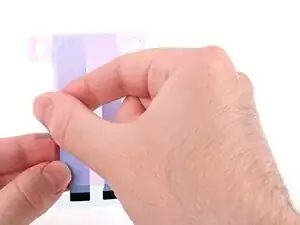
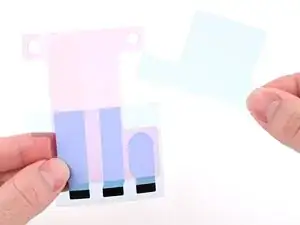
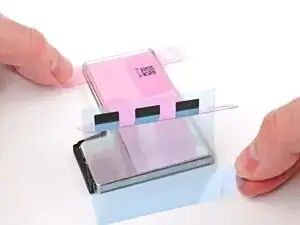
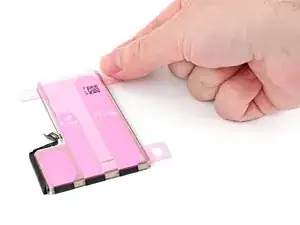
    • Align the new adhesive with your battery to see how it needs to be applied. Set all strips fully on the battery, and align the top edges of the black pull tabs with the bottom edge of the battery.

    • Your adhesive may look slightly different or have different liners.

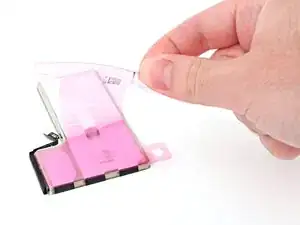
    • If the battery‑side of your adhesive has two liners, remove the top liner.

    • If the battery‑side of your adhesive has one liner, remove it.

  46. uqQLlFSbQRKZqLNf
    uqQLlFSbQRKZqLNf
    QHKsQEEjyBmlYCNx
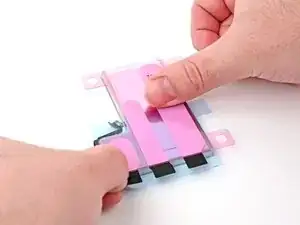
    • Lay the adhesive onto the battery and press each strip firmly into place.

  47. QFyevI4J3aKcpyaV
    QFyevI4J3aKcpyaV
    qQsmEf5oXWhgfGqN
    kWHA6SSguPt11rxS
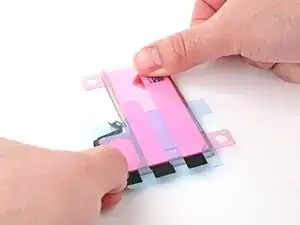
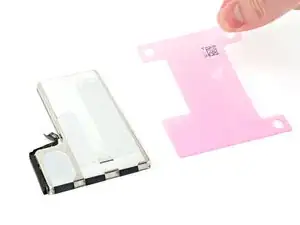
    • If the battery‑side of your adhesive still has a bottom liner on it, remove it now, and press each strip firmly into place.

  48. 1dRWYlWsKtTwZ2L1
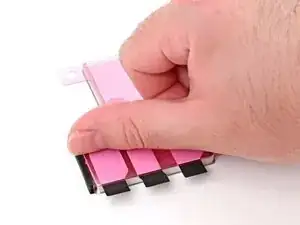
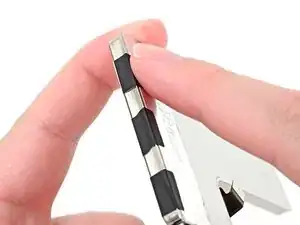
    • Use your finger to fold each black pull tab around the bottom edge of the battery and press it into place.

  49. mCYUaqZMskwm2byX
    mCYUaqZMskwm2byX
    5BtvlgZFAoZ33KEK
    tCLYXXgYxRXXf4M1
    • Remove the iPhone‑side liner off of the battery adhesive.

  50. wAqGL1W5TbmXbAXy
    wAqGL1W5TbmXbAXy
    DgJ2NWwXU5MMAjWJ
    FWg2laoY4E6gKGsg
    • The battery adhesive is very sticky! Be careful as you align the battery in its recess—once it sticks, you won't be able to realign it.

    • Lower the battery partially into its recess, making sure the adhesive doesn't touch the frame.

    • Use a spudger or your finger to connect the battery cable's press connector to ensure that the cable reaches.

  51. QN2r5B2ZrhsX4WdV
    QN2r5B2ZrhsX4WdV
    Vren2rdqOJvmp5bQ
    y61JNrcawvXYAcCp
    • Push the battery towards the top of the iPhone, and lay it in its recess.

    • Use your fingers to press firmly against the battery for ten seconds to bond it to the frame.

    • Use a spudger or your finger to disconnect the battery from the logic board.

  52. EjIkjs5fhKo2BkXo
    EjIkjs5fhKo2BkXo
    we6gnNTAPr6Wp2ZE
    W1vORyYqBjmRfXda
    • If the black plastic shim beneath the battery didn't come out with the loudspeaker, skip this step.

    • Align the battery shim so it's flush with the new loudspeaker's left edge and underside. Press it onto the loudspeaker to adhere it.

    • If the shim isn't sticky, set it into the phone alongside the loudspeaker in the next step.

  53. A4Jc2WLUpH6ZmkKx
    A4Jc2WLUpH6ZmkKx
    sHO2wEinAvaGTUKB
    T1O5mCABF6JIHQDV
    • Align the bottom edge of the loudspeaker with the frame.

    • Set the loudspeaker into its recess.

  54. jmFsBySO3XblsCNw
    jmFsBySO3XblsCNw
    R1lyPUBh2t1D4LX4
    • Install the four screws securing the loudspeaker:

    • Two 1.6 mm‑long Phillips screws

    • One 2.0 mm‑long Phillips screw

    • One 1.3 mm‑long tri-point Y000 screw

  55. BqEQNZMTwDSFB5YT
    BqEQNZMTwDSFB5YT
    DQOMSHEcNEVeglnX
    • Use blunt-nose tweezers or your fingers to align the Taptic Engine with its screw posts and place it in the frame.

  56. iZCJDo2TBmXnyjEe
    iZCJDo2TBmXnyjEe
    HZlgrjoPayUSC5xj
    • Use a Phillips screwdriver to install the 1.9 mm‑long screw securing the Taptic Engine, located on its right edge.

  57. YZjgRSYYKW6HsAUP
    YZjgRSYYKW6HsAUP
    Tkv2gt4QpfcKBSPJ
    eFEmCxJiTxyJGWGk
    • Use your finger or a spudger to connect the two lower assembly press connectors.

    • These press connectors can be tricky. Align each connector over its socket and press down—first on one side, then the other—until it clicks into place. Don't try to force them. If you're having trouble, reposition them and try again.

  58. TtKLHCB3BFVF1jOY
    TtKLHCB3BFVF1jOY
    iw3AJwiBwMO1wHwh
    • Use a tri-point Y000 screwdriver to install the 1.0 mm‑long screw securing the lower assembly cable.

  59. MQ2KVDL34IjC1CJr
    MQ2KVDL34IjC1CJr
    nM3vVKiZRMhDaHk1
    • Use your finger or a spudger to connect the lower assembly cable press connector, located in the bottom-right corner of the logic board.

  60. W3rZKONf5xAdi2TV
    W3rZKONf5xAdi2TV
    xx5ZUQtZFUOFh1iB
    lsGrOsmkRJnMKj1D
  61. LQfpRT3Zy6jjpdE4
    LQfpRT3Zy6jjpdE4
    MtACinFwHsoYNU5y
    • Use a Phillips screwdriver to install the three screws securing the Taptic Engine cover:

    • One 3.0 mm‑long screw

    • Two 1.7 mm‑long screws

  62. G11EIC5kXMkC3WVY
    G11EIC5kXMkC3WVY
    UypEI6nYYBnqm6cy
    KA3JennaLQmbf2DA
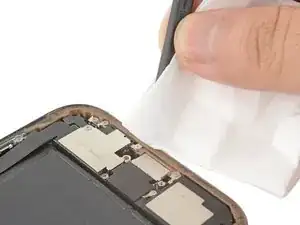
    • Work around the fragile grounding clips as you're cleaning the frame. If you bend one out of place, gently bend it back with your fingers or tweezers.

    • Use blunt nose tweezers or your fingers to remove large pieces of adhesive from the frame perimeter.

    • Use a spudger to scrape the adhesive residue off of the frame.

    • If the adhesive feels stubborn, apply some heat using a hair dryer or heat gun and try again.

  63. UehHJ3emCJAhkgYi
    UehHJ3emCJAhkgYi
    mmelEfmRgdCskQWO
    • If you're reusing your back glass, apply a few drops of highly-concentrated isopropyl alcohol (over 90%) to a microfiber or lint-free cloth and wipe around the perimeter to prepare the surface for new adhesive.

  64. RqxSQ2LX3i4OrSY2
    • Wrap a lint-free cloth or a coffee filter over the point of a spudger and apply a few drops of highly-concentrated isopropyl alcohol (over 90%) to it.

    • Wipe in one direction along the perimeter of the frame to clean the adhesive residue.

    • Take your time doing this. A clean frame allows replacement adhesive to lay evenly, ensuring a better bond.

  65. XDNERJkJ3MONPrlC
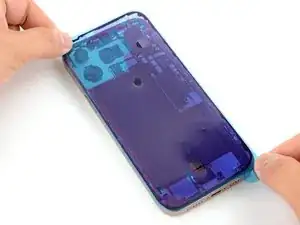
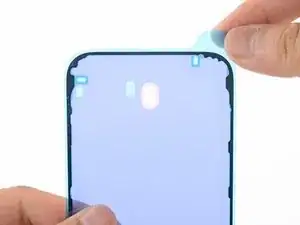
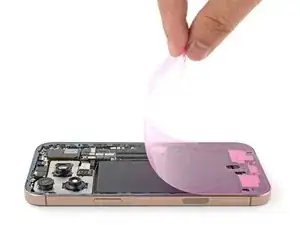
    • Lay the adhesive sheet over the frame to determine its proper orientation.

    • Use features such as the camera cutout and notches along the top and bottom edges to visualize how the adhesive will lay in the frame.

  66. nWxfQEe2YclLysmZ
    nWxfQEe2YclLysmZ
    fHOF5SsiFmGYNepv
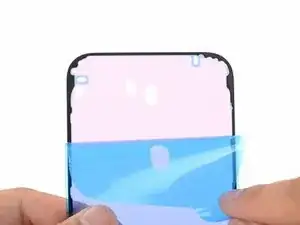
    • Grab the tab in the corner of the adhesive sheet and peel the liner to expose a third of the adhesive.

    • The exposed adhesive is very sticky. Don't let it touch anything until you're ready to apply it to the frame.

    • If your adhesive has multiple liners, peel the liner that exposes the side that sticks to the frame.

  67. jjejh2P66hhtW1iB
    jjejh2P66hhtW1iB
    GCO4Qdqwg6axaNuZ
    ratdQGFeJaVIO33Z
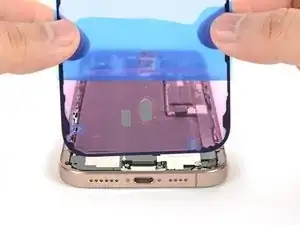
    • Carefully align the exposed edge of the adhesive strip with the corresponding edge of the iPhone's frame.

    • Once the adhesive is pressed into place, you can't reposition it—you'll have to remove it and start over with new adhesive.

    • When it's correctly aligned, gently press the exposed adhesive strip onto the frame.

  68. 1NdEetlt6ad5A2vH
    1NdEetlt6ad5A2vH
    OCVVoq542sXrkCiR
    UbTfk4LDxiLBP5Q2
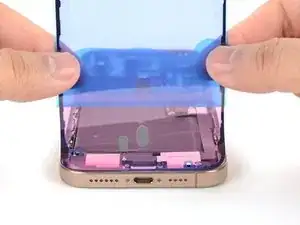
    • Continue peeling away the liner from the adhesive, gently pressing the adhesive into place.

    • If you've correctly aligned the adhesive, the edges will fall perfectly into place.

    • If your adhesive is slightly misaligned, gently pull the long edges into alignment with the frame.

    • If the adhesive begins to crease or wrinkle, remove it and start over with fresh adhesive.

    • If you don't have another set of adhesive strips handy, it's okay to temporarily put your iPhone back together and use it normally without any adhesive. Just keep in mind that your iPhone's water resistance will be compromised until you replace the adhesive.

  69. OYW2lPaWeIEZp6Hi
    OYW2lPaWeIEZp6Hi
    nuIP3MSTJYnfJNXH
    • Use a spudger to press the adhesive around the entire perimeter of your iPhone.

    • Work around the fragile grounding clips. If you bend one out of place, gently bend it back with your fingers or tweezers.

    • Don't press too hard, or you'll stretch and deform the adhesive.

  70. KYKNIIwEX2IZF6Db
    KYKNIIwEX2IZF6Db
    fZPesPBDaeLan1aQ
    5QKx1vaQxODmbLap
    • Use a spudger or your fingers to lift the pull tab connected to the large front liner. The pull tab is often in a corner of the liner.

    • Use the pull tab to peel off the large front liner from the adhesive.

    • At this point, you may still have a liner covering the perimeter, which prevents the adhesive from accidentally sticking to anything while you're reassembling your iPhone. Don't remove these small release liners just yet.

  71. hhhm2YNMoGVNgWKm
    • Prop up the back glass along the right edge of your iPhone.

  72. 2TXDSDxhCuRiJfgy
    • Use your finger or the flat end of a spudger to press and connect the back glass connector onto the logic board.

  73. tAZYQOdEKvXtuNAr
    • Use your finger or a spudger to press and connect the battery press connector onto the logic board.

    • This is a good point to test your repair before sealing up your iPhone. Power on your iPhone and make sure it works as expected. Power it back down and continue reassembly.

    • If your iPhone doesn't turn on, connect it to a power source and try again.

    • If you've replaced the logic board and the screen fails to turn on, you'll need to follow the screen guide to manually connect the display connector.

  74. eEjEYuIa1OilWwQB
    • Align the back glass connector cover by its screw holes and lay it in place.

  75. J3dGhqULtB4caZPB
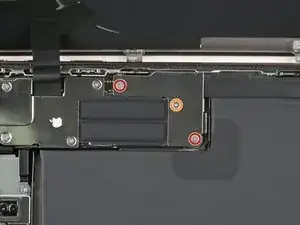
    • Use a tri-point Y000 driver to install the four screws securing the back glass connector cover:

    • Two 1.3 mm‑long screws

    • Two 1.0 mm‑long screws

  76. 5LGgPkWnNgecQgPc
    • Align the battery connector cover by its screw holes and lay it in place.

  77. ds5VBgVbnQyGPrB4
    • Use a tri-point Y000 driver to install the three screws securing the battery connector cover:

    • Two 1.3 mm‑long screws

    • One 1.0 mm‑long screw

  78. TOKZSNJdglCrCeMd
    TOKZSNJdglCrCeMd
    kQLalaji64gE3ZER
    • Use your fingers or a spudger to peel away all perimeter liners, exposing the adhesive.

    • As you remove the liners, make sure nothing touches the exposed adhesive.

    • Check the frame and back glass for any stray liners and remove them. There should be no liners remaining.

  79. Jgxmu4jG2EdZsHsk
    Jgxmu4jG2EdZsHsk
    kNalw2xiBbdU453K
    WwnZtDo2SJJjoAI4
    • Lower the back glass onto the frame, beginning with the top edge.

    • If you feel resistance, a perimeter clip may have bent out of place and is being crushed by the frame. Look at the point of resistance and gently straighten any bent clips.

    • Press along the edges of the iPhone until the back glass sits flush against the frame.

  80. nXCKwaiCCHx2quJs
    • Use a hair dryer, heat gun, or an iOpener to heat the back glass perimeter until it's slightly too hot to touch.

    • The heat softens the adhesive and helps create a better bond.

  81. AsgQEGCYUVjThFkS
    AsgQEGCYUVjThFkS
    VGlvDepjIGCaFCvl
    • Use your fingers to firmly squeeze around the perimeter of the iPhone.

  82. 3rTnQilHbLEwG1KJ
    3rTnQilHbLEwG1KJ
    edStNaensJ2KQgsP
    • Place your iPhone screen-side down on a clean, flat work surface.

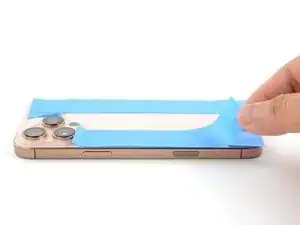
    • Lay a strip of tape around the perimeter of the back glass to protect the finish.

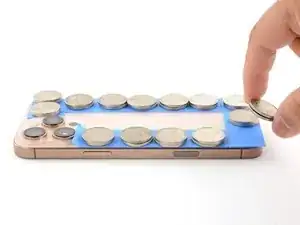
    • Stack coins around the perimeter of the back glass until you create a wall that's as tall as the rear camera protrusions.

    • Alternatively, you can use vise clamps around the perimeter of your device to set the new adhesive.

  83. Gbahi6pjtJUgg4lt
    Gbahi6pjtJUgg4lt
    qL6iF6ShEJ4FcfEw
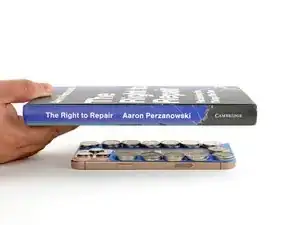
    • Place 3-4 heavy books squarely on top of your iPhone.

    • The coins may leave a slight impression on the bottom book cover, so don't use anything valuable.

    • Leave the books in place for about 30 minutes.

    • The pressure will help activate the adhesive.

  84. 4wwMsFG3yVDMQZim
    4wwMsFG3yVDMQZim
    jXnDR5btQ4VuGNTl
    • Use a P2 pentalobe screwdriver to install the two 7.4 mm‑long screws on either side of the USB-C port.

Conclusão

After your repair, run Apple's Repair Assistant. Navigate to Settings General About Parts & Service History, tap Restart & Finish Repair, and follow the onscreen prompts.

Calibrate your newly installed battery after completing this guide.

Take your e-waste to an R2 or e-Stewards certified recycler.

Repair didn’t go as planned? Try some basic troubleshooting, or ask our iPhone 16 Pro Answers community for help.

Nick Schultz

Membro desde: 24/03/24

45909 Reputação

0 comentários