Introdução


-
-
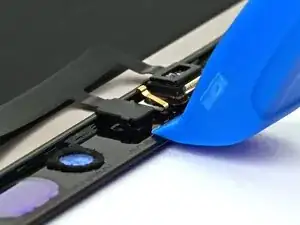
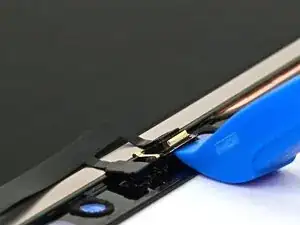
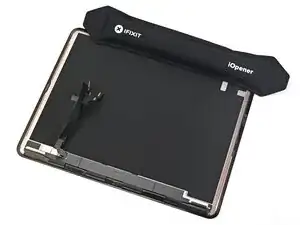
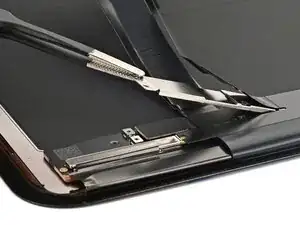
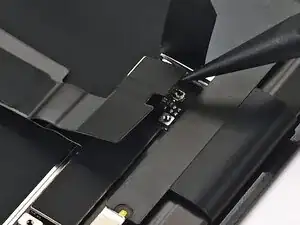
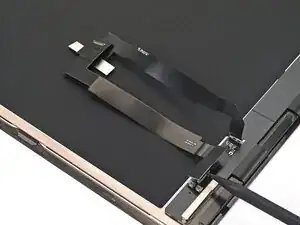
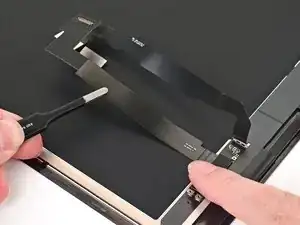
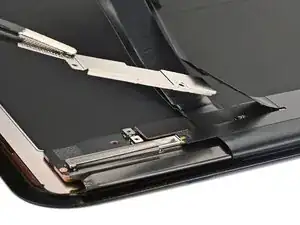
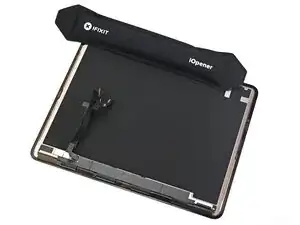
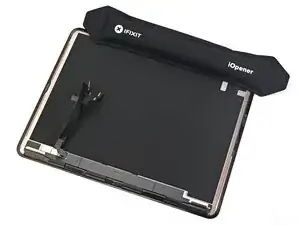
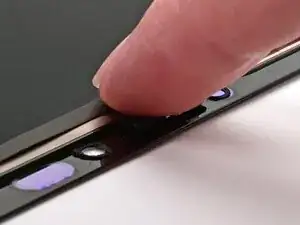
Slide an opening tool between the ambient light sensor and the screen.
-
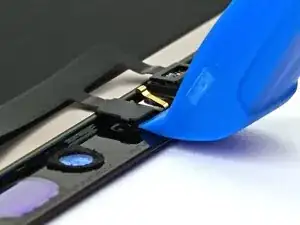
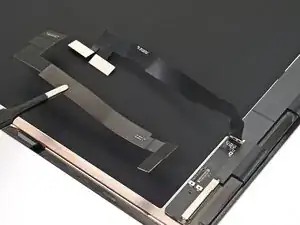
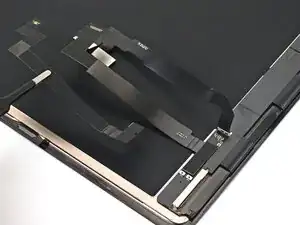
Pry it up slowly to separate its adhesive. If it doesn't budge, apply more heat and try again.
-
-
-
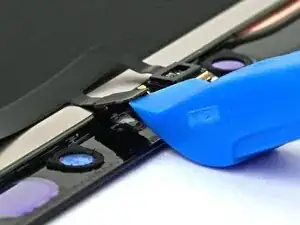
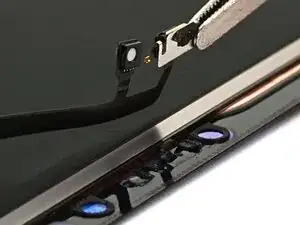
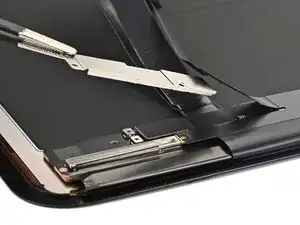
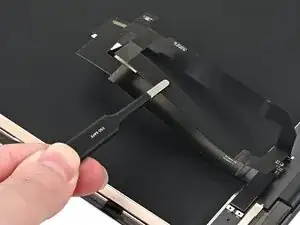
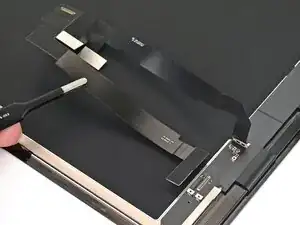
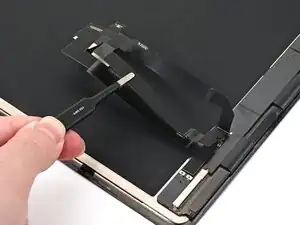
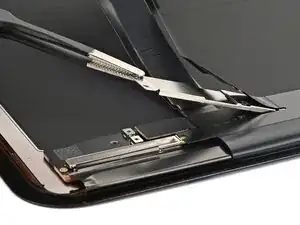
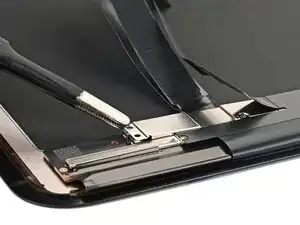
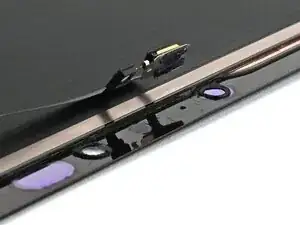
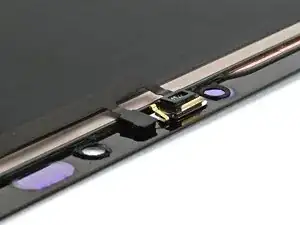
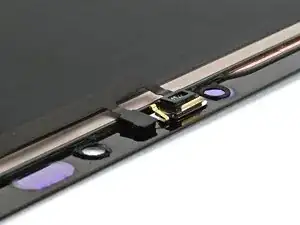
Use an opening tool to lift the microphone and separate the adhesive securing it to the screen.
-
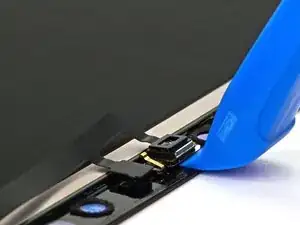
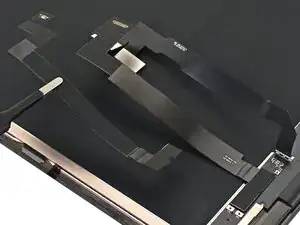
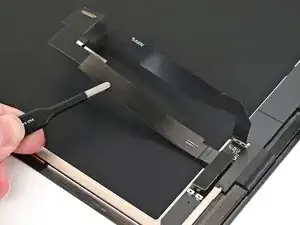
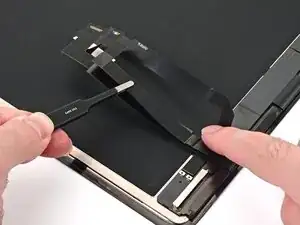
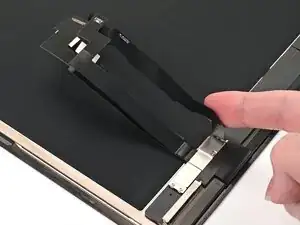
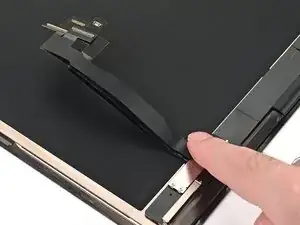
Lift the entire top sensor assembly to separate it from the screen.
-
-
-
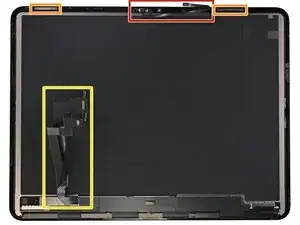
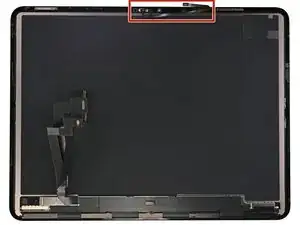
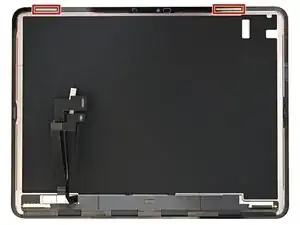
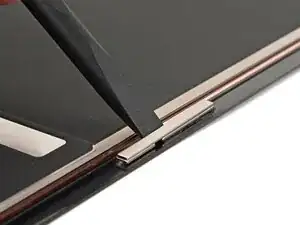
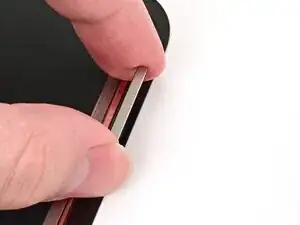
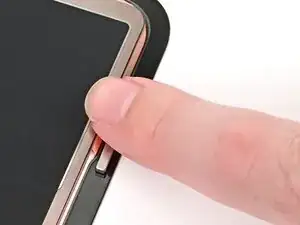
The iPad screen has two magnets along the top edge. These are used for accessories like cases.
-
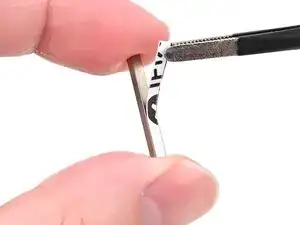
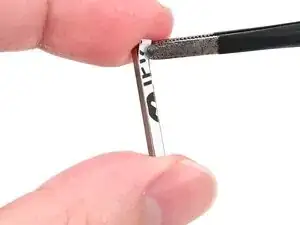
Mark the magnets with a marker so you know which orientation to install them in on the replacement screen—they won't work if installed incorrectly.
-
-
-
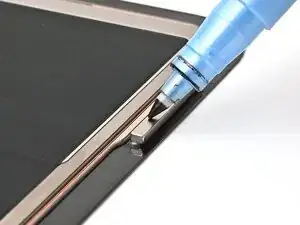
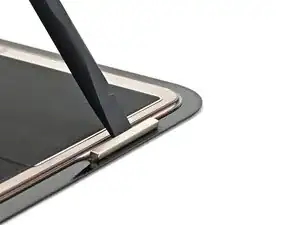
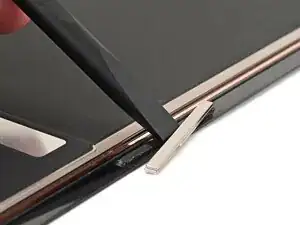
Insert the flat end of a spudger between the raised portion of the screen and the magnet.
-
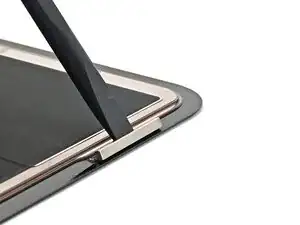
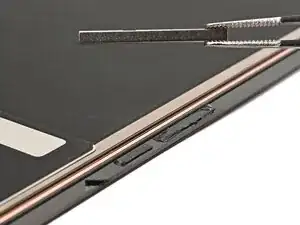
Push the magnet towards the top edge of the screen using slow, steady force until it's free.
-
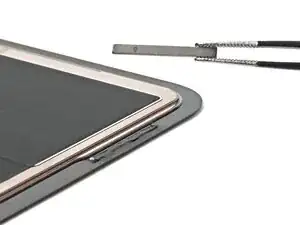
Set the first magnet to the side, ensuring it remains in the same orientation.
-
-
-
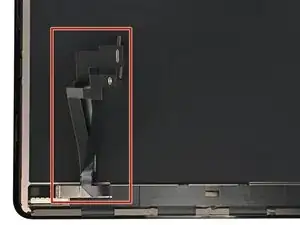
The screen contains three cables on the back: one for touch, one for display, and one for power (with two press connectors).
-
The touch and display cables are modular, and need to be transferred to the replacement screen in the following steps.
-
-
-
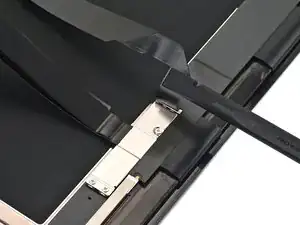
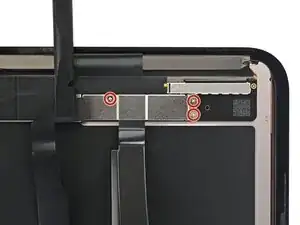
Use your finger or a spudger to lift the screen's power cable off the screen cable cover.
-
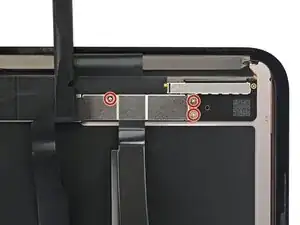
Use a JCIS or JIS 00 screwdriver to remove the three 1.2 mm‑long screws screws securing the screen cable cover.
-
-
-
Fold the screen's power cable out of the way.
-
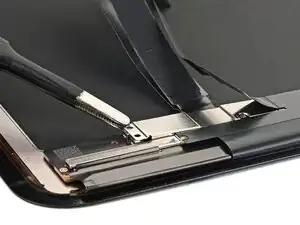
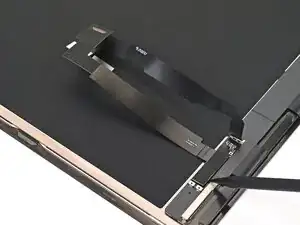
Use the point of a spudger to disconnect the screen's touch cable press connector.
-
-
-
Use the point of a spudger to pry up and disconnect the display cable press connector.
-
Remove the display cable.
-
-
-
Align the display cable press connector over its socket on the replacement screen.
-
Use your finger or the flat end of a spudger to press the connector into place.
-
-
-
Use a JCIS or JIS 00 screwdriver to install the three 1.2 mm‑long screws screws securing the screen cable cover.
-
-
-
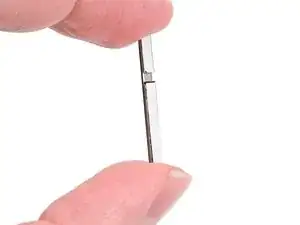
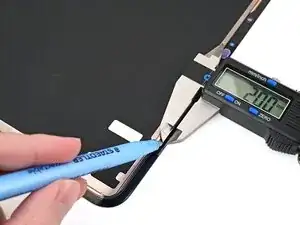
Install 2 mm‑wide strips of thin, double‑sided tape to the underside of both magnets.
-
Leave the adhesive backing in place for now.
-
-
-
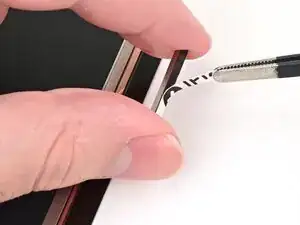
Remove the adhesive backing from the first magnet.
-
Align the first magnet with the marks you made in the last step, and set it into place.
-
Press on the magnet with your finger to help the adhesive bond.
-
-
-
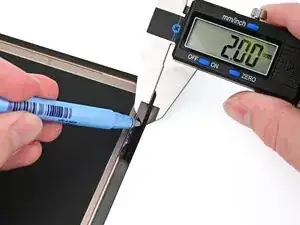
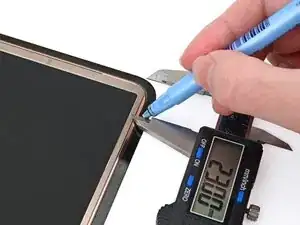
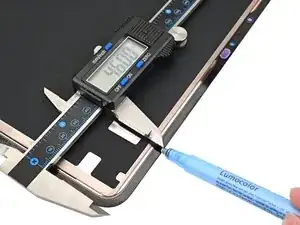
Repeat this process to install the second magnet 46 mm from the right edge and 2 mm from the top edge of the screen.
-
-
-
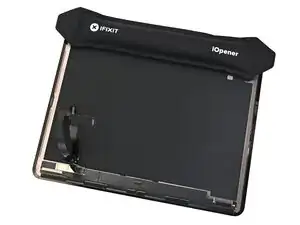
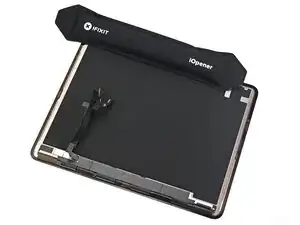
Heat an iOpener and set it on top of both magnets for two minutes. This will help the adhesive bond.
-
-
-
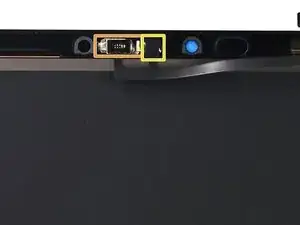
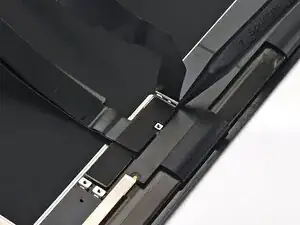
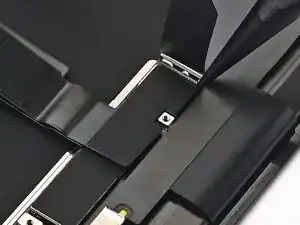
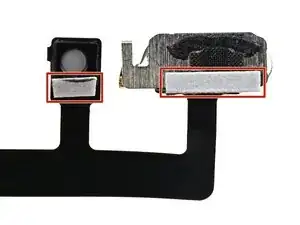
Use tweezers to reposition any adhesive that may have covered the ambient light sensor (white circle) or microphone (black mesh). The adhesive should go around the sensors, not cover them.
-
If the adhesive was damaged or stayed with the old screen, replace it with a 1 mm wide strip of thin, double-sided tape along the sensor's bottom border.
-
-
-
If you applied fresh adhesive, or if your part came with new adhesive, remove the liners now.
-
Align the microphone and ambient light sensor with their cutouts in the screen.
-
Press the microphone and ambient light sensor down for 10 seconds each to give the adhesive time to bond.
-