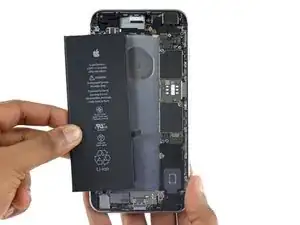
Introdução
Use este guia para dar novamente vida a seu iPhone 6s Plus com uma bateria nova. Para alcançar um ótimo desempenho, calibre sua bateria recém instalada: drene-a até abaixo de 10% e, então, carregue-a ininterruptamente até 100%.
Este guia irá instruí-lo sobre como remover o conjunto painel dianteiro; o propósito disso é prevenir danos aos cabos do display. Se você se sente bem segurando o display cuidadosamente enquanto extrai a bateria de seu iPhone, você pode pular a remoção do display e seguir diretamente aos passos de remoção da bateria.
Você também pode usar este guia para substituir o suporte do conector da bateria.


-
-
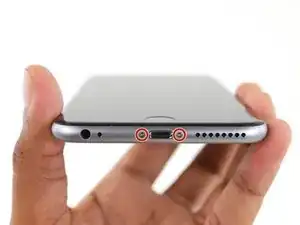
Remova os dois parafusos Pentalobe de 3,4 mm dispostos em ambos os lados do conector Lightning.
-
-
-
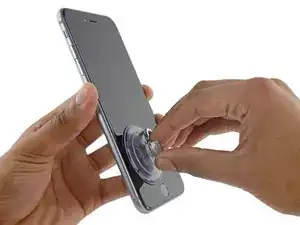
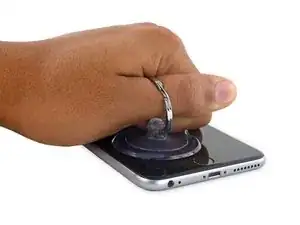
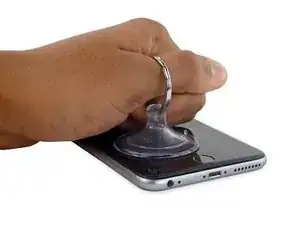
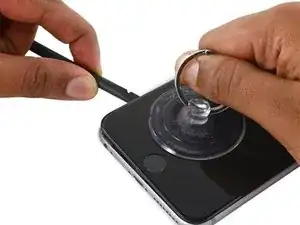
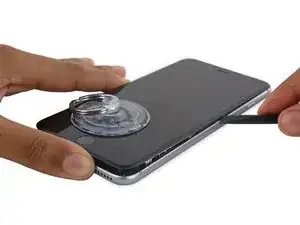
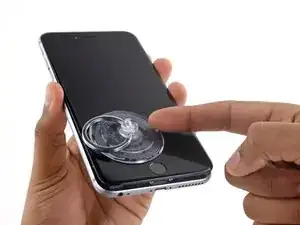
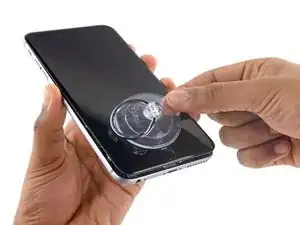
Puxe para cima a ventosa de sucção empregando força firme e constante, a fim de deixar uma pequena fenda entre o painel dianteiro e a estrutura traseira.
-
-
-
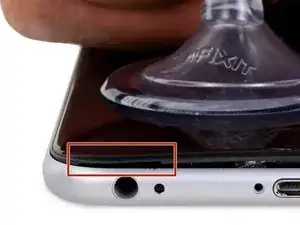
O local mais apropriado para desprender é o entalhe no painel dianteiro, que se encontra acima da entrada do fone de ouvido.
-
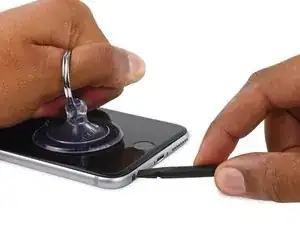
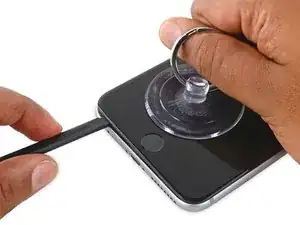
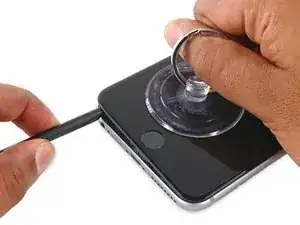
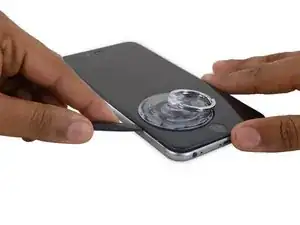
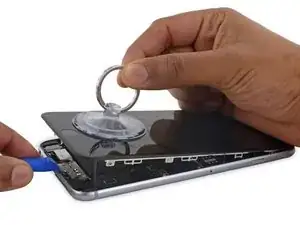
Enquanto exerce força com a ventosa de sucção, insira a ponta plana de uma espátula na fenda, diretamente acima da entrada do fone de ouvido.
-
-
-
Gire a espátula para abrir a fenda entre o conjunto do painel dianteiro e a estrutura traseira.
-
-
-
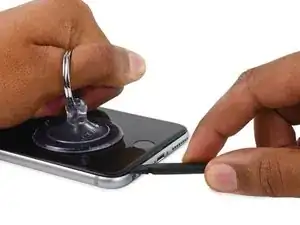
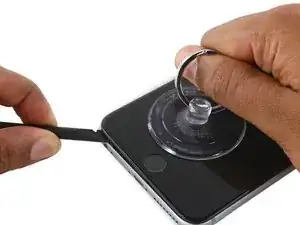
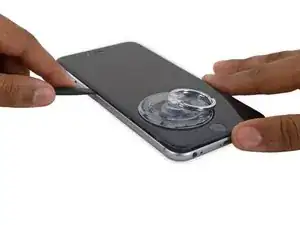
Enquanto puxa a ventosa de sucção para cima com firmeza, deslize a ponta da espátula por baixo da borda esquerda inferior do display.
-
-
-
Deslize a ponta da espátula para cima ao longo da lateral esquerda do telefone, entre o painel dianteiro e a estrutura traseira.
-
-
-
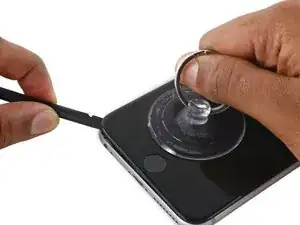
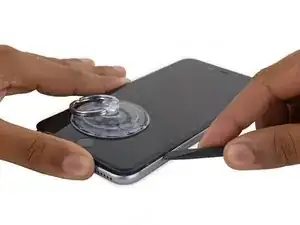
Insira a ponta plana da espátula por baixo da borda direita do display.
-
Deslize a espátula para cima ao longo da lateral direita.
-
-
-
Use uma ferramenta de abertura de plástico para manter a estrutura traseira abaixada enquanto puxa para cima a ventosa de sucção para abrir o telefone.
-
-
-
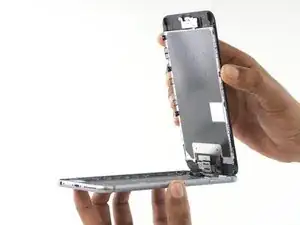
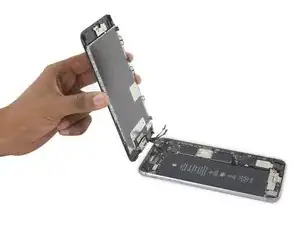
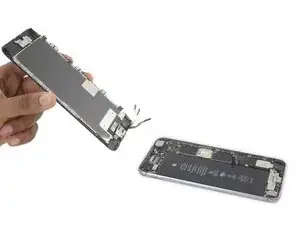
Segure com cuidado o conjunto do display e eleve-o para abrir o telefone, usando os clipes na parte superior do painel dianteiro como uma dobradiça.
-
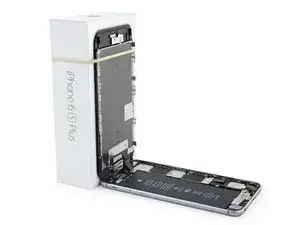
Abra o display a um ângulo de cerca de 90º e apoie-o em algo que o sustente enquanto você está trabalhando no telefone.
-
Engate uma faixa de elástico para fixar seguramente o display enquanto você trabalha. Isso previne uma tensão indevida nos cabos do display.
-
-
-
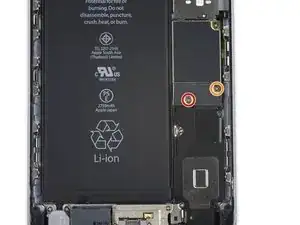
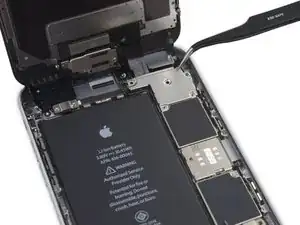
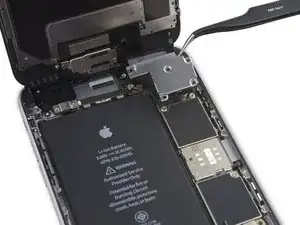
Remova os seguintes parafusos Phillips que seguram o suporte do conector da bateria à placa lógica:
-
Um parafuso de 2,9 mm
-
Um parafuso de 2,3 mm
-
-
-
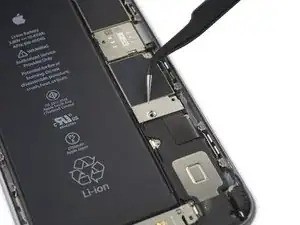
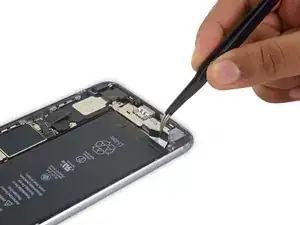
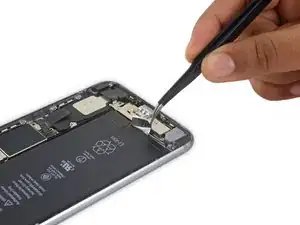
Incline o conector para trás para garantir que não haja contato involuntário e que o iPhone não ligue enquanto você está trabalhando nele.
-
-
-
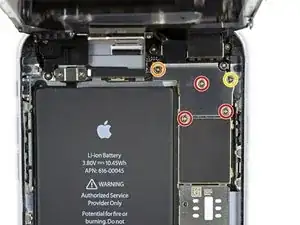
Remova os seguintes parafusos Phillips:
-
Três parafusos de 1,3 mm
-
Um parafuso de 1,6 mm
-
Um parafuso de 3,0 mm
-
-
-
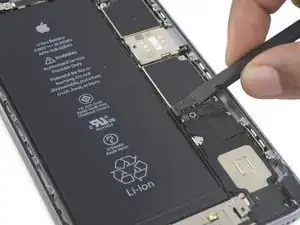
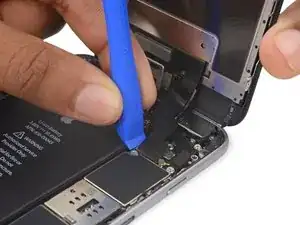
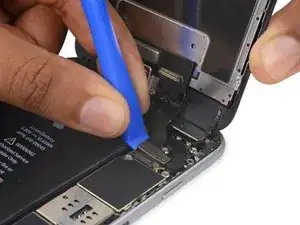
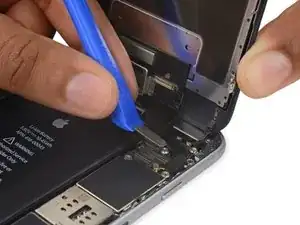
Use uma ferramente de abertura de plástico para desconectar o conector da câmera frontal e sensores.
-
-
-
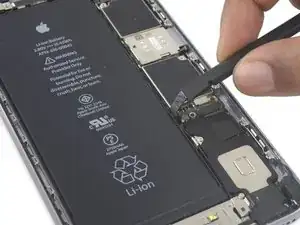
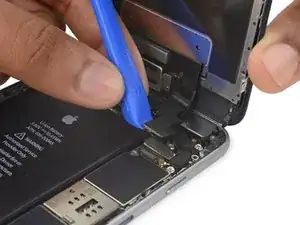
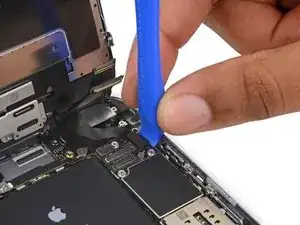
Use uma ferramenta de abertura de plástico para desconectar o cabo do digitalizador, levantando-o em sentido vertical de seu soquete localizado sobre a placa lógica.
-
-
-
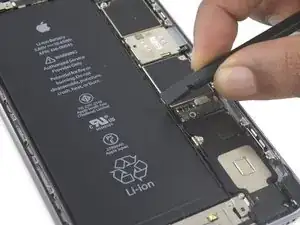
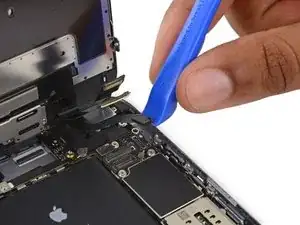
Use uma ferramenta de abertura de plástico para desconectar o cabo de dados do display levantando-o em sentido vertical de seu soquete localizado na placa lógica.
-
-
-
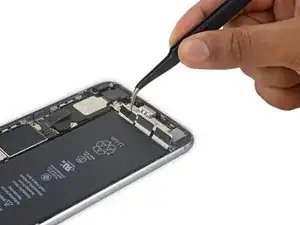
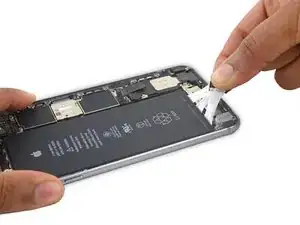
Descole as pontas das três faixas adesivas da bateria localizadas ao longo da borda inferior da bateria.
-
-
-
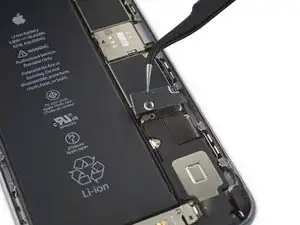
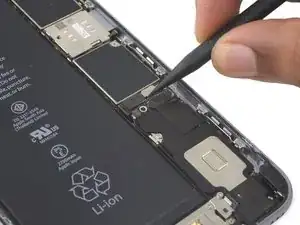
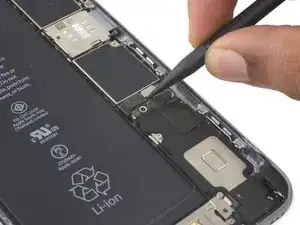
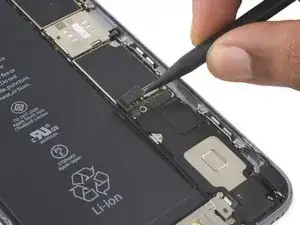
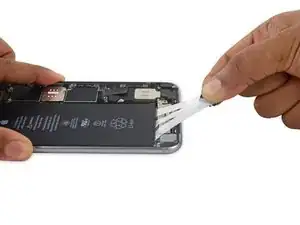
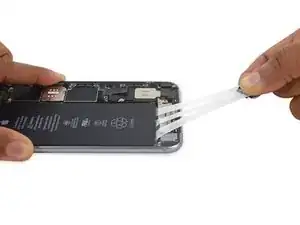
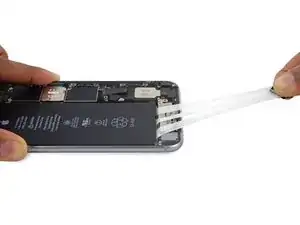
Puxe cuidadosamente as abas adesivas da bateria para fora dela, em direção à parte inferior do iPhone.
-
Puxe continuamente, mantendo constante tensão nas faixas até que elas escapem entre a bateria e a estrutura traseira. Para obter o melhor resultado, puxe a faixa em um ângulo de 60º ou menos.
-
-
-
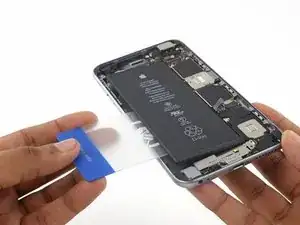
Prepare uma bolsa térmica de gel "iOpener" e aplique-a na traseira da estrutura traseira, diretamente sobre a bateria. Alternativamente, você pode aplicar calor por meio de uma pistola de ar quente ou um secador de cabelos.
-
Após cerca de um minuto, vire o telefone e use um cartão plástico para romper qualquer material adesivo restante atrás da bateria.
-



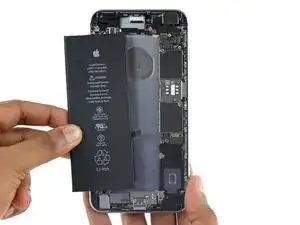
Para montar de novo seu dispositivo, siga estas instruções na ordem inversa. Para alcançar um ótimo desempenho, calibre sua bateria recém instalada: drene-a até abaixo de 10% e, então, carregue-a ininterruptamente até 100%.

97 comentários
Most common on IPhone 6s/6 repair jobs is this battery replacement. Great tutorial!
so few comments on this one?!
has any/many done this without the adhesive strips.. and was it ok?
sarah -
If you mean the battery adhesive strips, sure—you can put a piece of double-sided tape down the back of the battery, and it probably won't move anywhere. There's not much room for the battery to move anyway. Use the adhesive strips if you want to do it right—but, if you're in a bind and you just need the phone working, you can skip the strips. And you can always open the phone back up and add the adhesive strips later.
If you mean the adhesive gasket around the display, the answer is pretty much the same—It's better to have it, but it doesn't hurt anything to put the phone back together without it.
by far the easiest repair I've done. only 3 screws! really dont think the cables need to be disconneted. i just used a shoe lace to gently hold up the screen. sticky strips came out fine. happy. thanks.
sarah -
Make sure you use the correct screw driver tip to remove these screws, which for the iPhone 6s Plus is the P2, otherwise you may strip the tip of the screw making it 10 times harder to remove. If once the screw is lose, it will not come off, use a magnet to remove it.
Miguel Perez -
what if i do strip it
Adam P -
If I do it by myself, will it damage the water resistant strip?
I know iphone 7 have it ,but I am not sure 6s plus have it.
Ganqian Zhu -
iPhone 6s has an adhesive gasket under the display, similar to the iPhone 7—however, it doesn’t add much in the way of waterproofing since the 6s has non-sealed openings in other parts of the phone. Water resistance on the 6s is primarily internal (seals around the logic board connectors, etc.). It may still be worthwhile to replace the adhesive on the 6s in order to help keep the display firmly seated so it doesn’t move/wobble at all under pressure, but the phone will continue to work fine whether you replace the adhesive or not.
Jeff Suovanen -
Salve nella procedura iniziale di smontaggio display con la ventosa non è menzionato il fatto di scaldare i lati del display per “ammorbidire” la striscia che incolla il display alla scocca.
Non è necessaria la cosa o è consigliabile ?
grazie
Hello, in the initial disassembling procedure with the suction cup, it is not mentioned how to heat the sides of the display to "soften" the strip that glues the display to the body.
Is not the thing necessary or is it advisable?
thank you
Daniele -
You’ve probably received your answer by now but for future enquirers, it does help the process of taking the screen off if heat is applied to the screen. If you have a hair Dryer use that on a low setting to heat the edges of the screen until it’s almost too hot to touch then slip very thin metal spudger around the edge to cut the adhesive. The carefully lift the screen with the help of the spudger and continue with your repair
Cheers Wayne
Wayne Lyell -
How do I know that the Battery has ZERO Charging Cycles on it when it arrives ? Is there a (downside) to Higher Capacity batteries ? It is INCREDIBLY DIFFICULT to maintain a “Zero Chinese Products Lifestyle”, so how do I know that I’m not getting a deficient Chinese battery, potentially a refurb. battery ?
integritybuilders -
When your repair is complete, you can use coconutBattery to check your new battery stats and cycle count. (A properly tested battery may already have a charge cycle or two on it.) Avoid higher capacity batteries on iPhones—they’re generally either gimmicks, unsafe, or both. As far as the quality of the part, that comes down to how much you trust your supplier and whether they guarantee the product.
Jeff Suovanen -
So I need to empty the battery to zero percent?
johnpatrickanat -
Below 25%, exactly as stated in the instructions. There’s no benefit to draining it further than that, and in fact you’ll slightly shorten the service life of the battery by draining it all the way to zero. Follow the instructions exactly as written—if you go off-script, you’re a lot more likely to break something.
Jeff Suovanen -
So my screen shattered completely and the screen first had colored lines on tge while right side then it went out completely. If i get an lcd and digitizer replacement I'd that oing to fix it
shellietheleo -
I would initially recommend a well-lit, comfortable area and placing the screws on a white piece of paper with the screw sizes written down (apparently there are magnetic mats, also). Also, I found placing the phone on a paper towel is good so that if a screw is dropped, it will lessen the likelihood of bouncing away.
Lou Fazio -
I recommend that, before you even lift a screwdriver or plug in the hair dryer, get a piece of paper and a pencil. As you unscrew and remove the parts, write the size and/or number for that step and put them by their label. I also used a microscope to identify the screw heads (I'm 75 and my vision is not what it used to be). Laying them out in order, I just went backwards when putting them all back in. I used an anti-static cleaning cloth instead of paper, but I should think they both will work.
N.B.: my kit had a nice pretty blue plastic sheet with a black outline on it. It was only when I put the whole phone back together and was packing up the supplies and tools that I realized it was a replacement gummi seal. A LABEL WOULD BE VERY USEFUL HERE!
I am a retired engineer, and aside from the size of the bits and bobs, it was a piece of cake! Thanks...you saved me $75!
P. Roberts -