Introdução

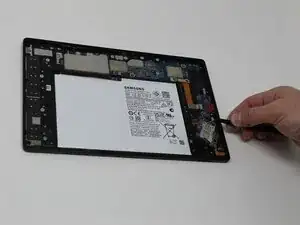
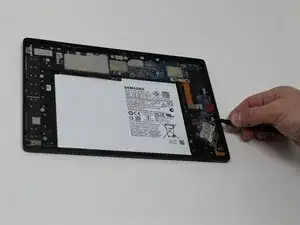
If your Samsung Galaxy Tab A8 isn't reading or writing to your SD card, then use this guide to replace the SD card reader.

Be sure to troubleshoot any possible causes and/or solutions before beginning this guide.

The mini SD card reader allows users to add additional storage to their device, allowing for more data to be stored and used on the tablet. This means more space for photos, large applications, and other important files now have room to be stored on the device.

If it seems that the reader isn't functioning properly, you can't access the storage from your tablet, or any other possible solutions are found, then follow the steps listed below.

  1. pfZrWo1wDtSPsFnQ
    pfZrWo1wDtSPsFnQ
    YNiNhRF34F3EBcIa
    AZ22GlZlZsj3M2pV
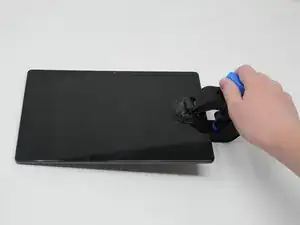
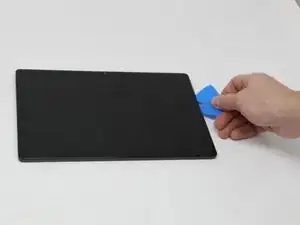
    • Fully power off the device.

    • Orient the screen so it is face-up.

    • Apply anti-clamp or other suction device to apply constant upward force on the screen.

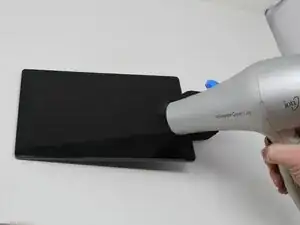
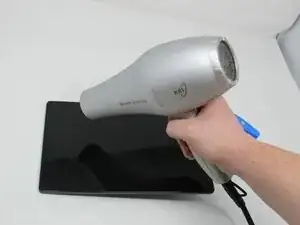
    • Heat the screen to soften the adhesive with a heat gun or blow dryer. Be sure to heat all sides as evenly as possible.

    • Be careful not to overheat the device, as that could cause damage. It should be just too hot to touch.

  2. B2nYIVQJZOga6TYI
    B2nYIVQJZOga6TYI
    c5fBFREQIhueRHSI
    dldYZB2liGYp2EGp
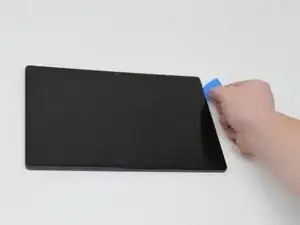
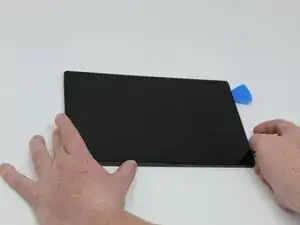
    • Use plastic opening picks, or a Jimmy if necessary, to remove the adhesive and get under the screen.

    • Using the plastic opening picks, move around the screen slowly, one corner at a time. Every few inches, leave an additional opening pick behind where you are working to hold the screen open while continuing to remove the adhesive.

  3. wKOQJkkMAI45G3VY
    wKOQJkkMAI45G3VY
    s6m6mKrnuCD2MGOF
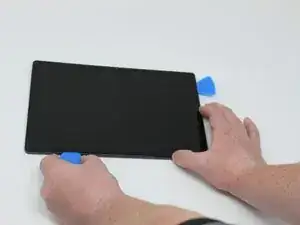
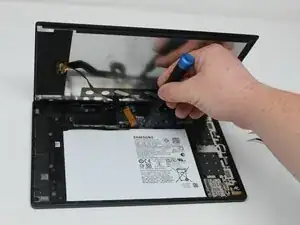
    • Continue to pry the screen off with the opening picks, using additional tools if more leverage is required.

    • If the device cools and the adhesive solidifies, reheat the device where necessary to soften the remaining adhesive.

    • Avoid using metallic tools, as doing so could cause damage to the screen or other internal components.

  4. hYSPmC6DFVmbqqMF
    hYSPmC6DFVmbqqMF
    dvW4TQTQJfyWcRwW
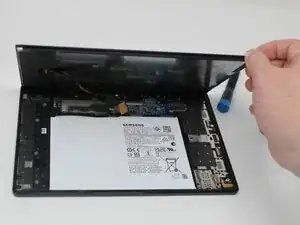
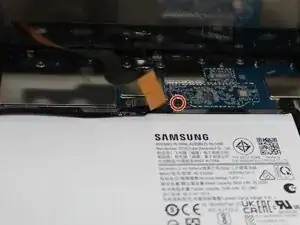
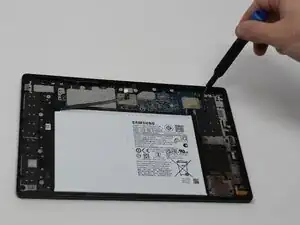
    • Using a Phillips #000 screwdriver, remove the 1.8mm screw holding the clamp that holds the screen ribbon in place.

    • Remove the battery connector ribbon to help prevent short circuiting of the device and/or shock hazards.

    Great explanation

    One tip from my experience with removing some Tab A8 displays:

    Once the screen is loose,

    Don't immediately start prying between the display and the PCB assembly with a screwdriver.

    Instead, look at where the display cable is connected to the screen.

    Because that's where it's attached to a so-called flip connector. Just loosen the adhesive tape.

    Remove the flip-up ribbon cable from the screen.

    This way, you can prevent yourself from breaking or pulling anything.

    You have a more limited view of your work, because your hand with the screwdriver is working between the two panels.

    My first repair job cost me a brief moment of inattention.

    More extra work because I had to replace the ribbon cable connector on the PCB.

    Again, not a comment on everyone's approach to repairing electronics.

    But I want to encourage beginning DIY enthusiasts to follow this video and incorporate this tip into their disassembly/repair process.

    Kind regards

    Tony

    TheNetherlands

    Tony jfx -

  5. T3I4hZAREIfV6mOZ
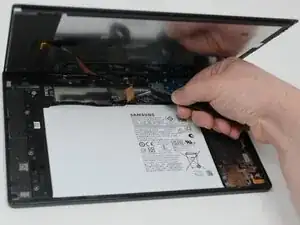
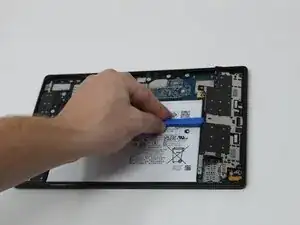
    • Disconnect the screen ribbon wire connector.

    • Remove the screen from the tablet.

  6. N3lhmX1LErPIHyaL
    N3lhmX1LErPIHyaL
    NZwxadvZat3SLIQh
    VvWQbXuNTEOcTfhr
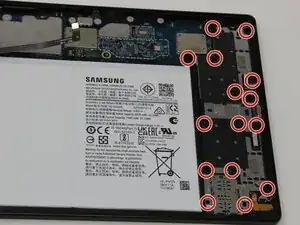
    • Remove the fifteen 1.8mm screws using a Phillips #000 screwdriver.

    • Carefully remove the speaker cover to gain access to the port and other components.

  7. OBsYeGDfqgGnGadM
    OBsYeGDfqgGnGadM
    wAiPlDeFIefexQyN
    • Carefully remove both ribbon wires connected to the circuit board.

  8. kOH4bHYiEfuwqHfo
    kOH4bHYiEfuwqHfo
    qDtONKxFKyLxiZno
    JYWxXoITebRck2xI
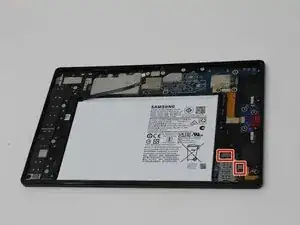
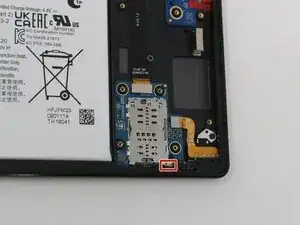
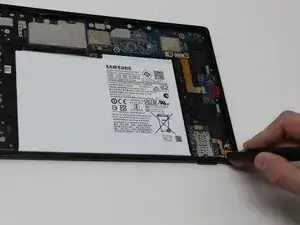
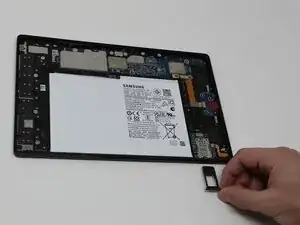
    • Push the lever back with a SIM card removal tool.

    • Remove the tray.

  9. uEn6DJWBNg5QQe3f
    uEn6DJWBNg5QQe3f
    5hbwaqFEQhZ3LOlZ
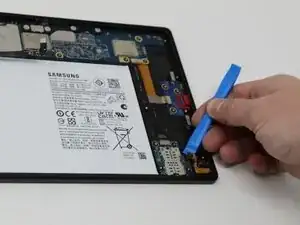
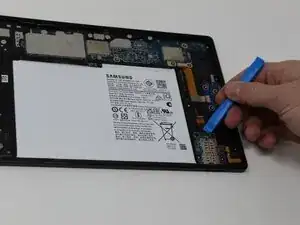
    • Carefully remove the mini SD card reader using an opening tool.

    • There may be a small amount of resistance as you proceed to pop the piece out.

Conclusão

To reassemble your device, follow these instructions in reverse order.

Daniel McGary

Membro desde: 09/09/25

444 Reputação

0 comentários