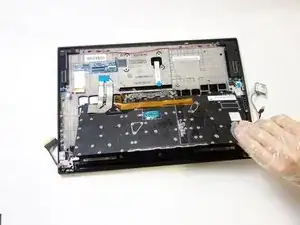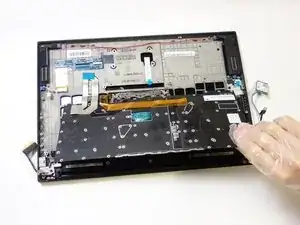
Introdução

This guide help you replace a failed or damaged keyboard. If you spill a drink or over a long period of time dirt can build up and prevent the keys from operating properly.

  1. LYUPDwUm5lNVOrDO
    LYUPDwUm5lNVOrDO
    EuSMRUqdSFMIDnIu
    qKOh1WhqQ1OlPBLG
    • Power off and unplug your device before you begin.

    • Orient the laptop so that it is bottom up, and the trackpad is closest to you.

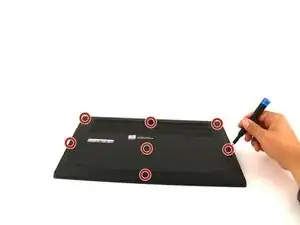
    • Unscrew the seven captive screws with a Phillips #00 screwdriver.

    • These screws will loosen, but stay attached to the cover. Do not attempt to completely remove them.

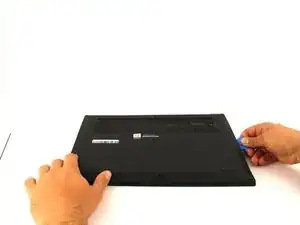
    • Slide a blue opening pick in the gap between the bottom panel and chassis, and pry off the one clip on each side.

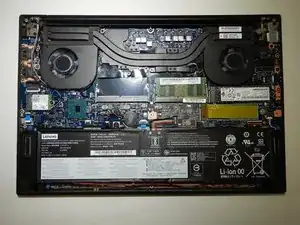
    • Remove the back cover from the device.

  2. f3OdiOll4UHfKhHg
    f3OdiOll4UHfKhHg
    gDIMJyOtOVHsTsE6
    hhJTnGHOfrqUCfkU
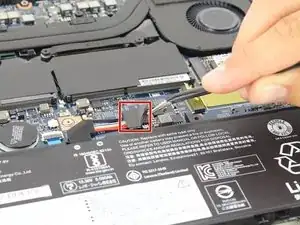
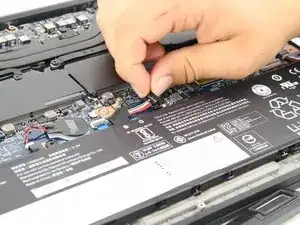
    • Use tweezers to peel the plastic cover off the connector.

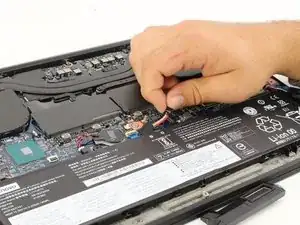
    • Use a plastic spudger or your fingernail to pry up the battery connector straight up from the motherboard.

    This does not mention the wire that connects the speakers entwined with the battery nor the screws that hold the battery down. This is not a huge deal, just pointing it out

    José B. -

    Also doesn't mention the 4x screws to remove along the top of the battery

    Wes Baynham -

  3. N4Iqw6RncUIRU1MW
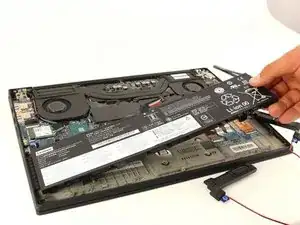
    • Lift the battery out of the frame and remove it from the device.

    Before the next step, I switched to this guide to remove the fans - Lenovo ThinkPad X1 Extreme Fan Replacement

    Wendy Wildshape -

    This guide also does not mention the speakers at all, but they are pretty easy to carefully remove

    Wendy Wildshape -

    Oh also this guide doesn't even mention removing the four screws which hold in the battery! Don't miss those!

    Wendy Wildshape -

    The four screws which hold the battery in place are not all the same, so keep track of which one goes where.

    Wendy Wildshape -

    The original battery had strips of compression foam adhered to the underside, which squish between the battery and the chassis plate. The replacement I got (from here at iFixIt) didn't come with these pieces of foam. So I removed the strips from the original battery and stuck them onto the new part. When I took off the first strip of foam, I ripped it off it's own adhering strip, so I had to glue it onto the new battery. I was more careful removing the other strips, using a metal shim from a fix kit to loosen a corner, and then slowly pulling the whole strip up and off. A razor blade, or even knife, would work fine to get at a corner of the adhesive.

    Nick Novelli -

  4. IRFHjFStXQQUlIPT
    IRFHjFStXQQUlIPT
    RGC2efModGQFXgv1
    MpelGLplUX2DZB2N
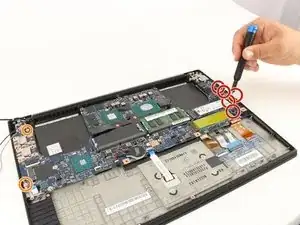
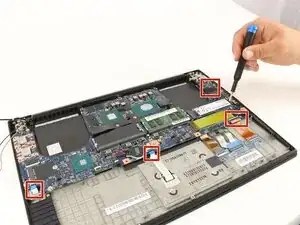
    • Use a Phillips #00 screwdriver to remove the five 4 mm screws below the charging port.

    • Use a Phillips #00 screwdriver to remove the two 3 mm screws.

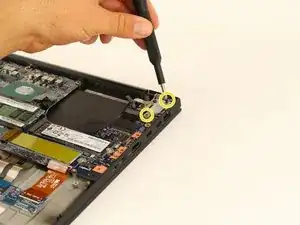
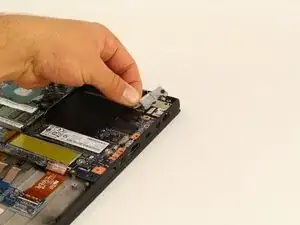
    • Use a Phillips #00 screwdriver to remove the two 5 mm screws securing a silver plate on the charging port, in the top-right.

    • Remove the silver plate on top of the charging port.

    There are more screws to remove along the left side of the motherboard. Zoom into the photo and remove all those shown already removed before the photo was taken.

    There are also two more screws to remove on the top edge of the motherboard, at either side of the center section where the processor is.

    David Sherrington -

    What's happened to the fan assemblies between steps 3 and 4? Is there anything tricky about removing them?

    Jim Gillespie -

    See also Lenovo support videos at https://pcsupport.lenovo.com/gb/en/produ...

    Jim Gillespie -

    You don't need to undo the m.2 SSD retaining screws.

    Jim Gillespie -

    All these screws are ph000. Not ph00. I ended up wrecking a screw because of this.

    Wes Baynham -

  5. 3CVjGNgXXZnh4HNv
    3CVjGNgXXZnh4HNv
    jDXnMF1LrKsvEOdt
    6qUZhCKPZEG5XfdI
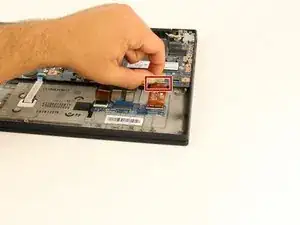
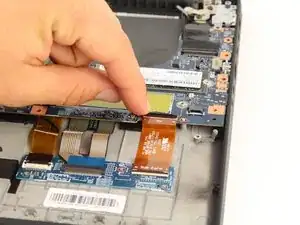
    • Disconnect all the ribbon wires from the motherboard.

    • All ribbon wires can be disconnected by flipping up the thin black tab at their connection points, and pulling the ribbon out.

    Whats the square chip that was placed on the LHS of the Mother Board and is now hanging off attached to cables?

    Wes Baynham -

    the furthest most right ribbon should be disconnected at the motherboard side, not the "sub card" side as it is adhered to the casing and can't be easily removed

    Wendy Wildshape -

  6. LraISIgZjcNBuIkM
    LraISIgZjcNBuIkM
    1DO3BT32DSDBDblG
    2LqRuRv11TwiMtfP
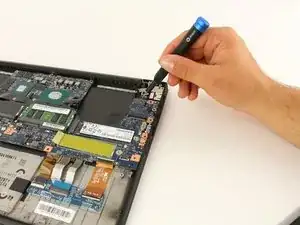
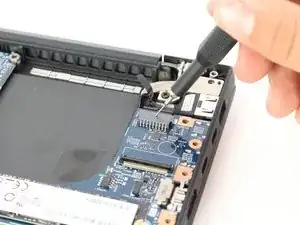
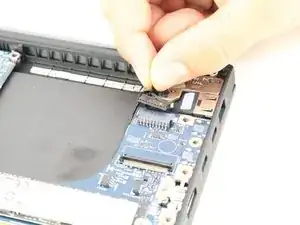
    • Disconnect the black attachment at the top right corner of the motherboard.

    • Insert the SIM eject bit into the small hole on the top and apply a small amount of pressure to release the clip.

    • While maintaining pressure, gently pull on the wire that is connected to it to remove it.

  7. ZygydqmVSkPlDyTF
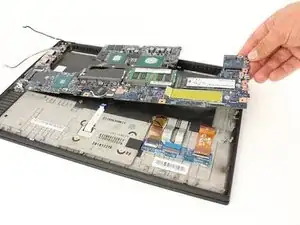
    • Gently lift the motherboard out of the computer.

    The motherboard is still attached. There’s two more screws at the top corners of the central section between the fans, and the sides still seem to be attached somehow. I’m not sure to what exactly. The ports maybe? Either way, I can’t get it out.

    Martijn Vos -

    The USB connectors have to be loosened and slid back slightly to clear the opening before allowing the MB to be removed. The screws don't have to be completely removed, just loosened.

    Herman Resto -

  8. JFrExWmLkQZWLQPk
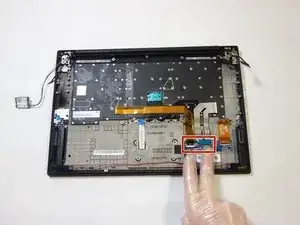
    • Use your fingernail or a nylon spudger to lift up the small locking flaps on the two ZIF connectors, then gently pull the ribbon cables directly out of their ports.

    Are the gloves necessary? What type are they?

    Jim Gillespie -

  9. sWwd5tlmgAbOSUS1
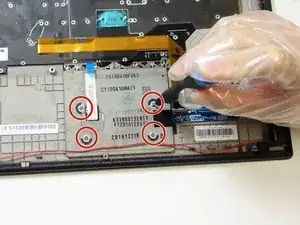
    • Use a Phillips #00 screwdriver to remove the four 6 mm screws securing the trackpad.

  10. cG4RmjhgxBQDEog4
    cG4RmjhgxBQDEog4
    KAblkYxpSK55k6Oh
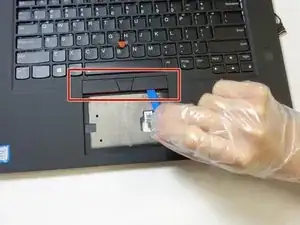
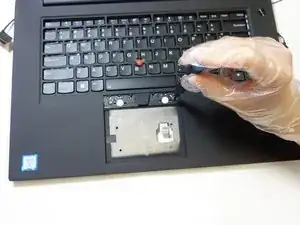
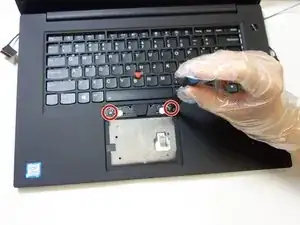
    • Use an opening tool to gently pry the touchpad buttons up and off, uncovering two screws.

  11. 1pXEHZ2SHCy1PCsm
    • Use a Phillips #00 screwdriver to loosen the two 4 mm captive screws under the touchpad buttons.

    • Captive screws cannot be completely removed.

  12. 35wW1gFdo6MkGVof
    35wW1gFdo6MkGVof
    BqKEcwuQGOl2VQsU
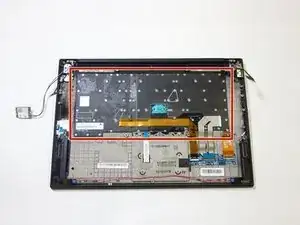
    • Use a Phillips #00 screwdriver to remove all eighty 6 mm screws on the back of the keyboard.

    • All screws are delineated by the white circles on the keyboard.

    My machine only had 73 screws here, not 80

    Wendy Wildshape -

    Oh also, you will need to remove the kapton tape layer to get at these screws - I kept it and put it back on the new keyboard.

    Wendy Wildshape -

  13. sHNB3mpVHOLnxWYg
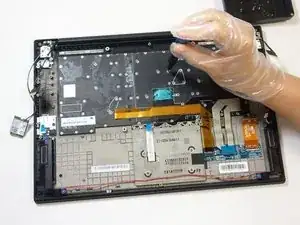
    • Lift the keyboard up and out.

    Open the clamshell a little at this point, to avoid touching the screen with the trackpad button assembly.

    Jim Gillespie -

Conclusão

To reassemble your device, follow these instructions in reverse order.

Joey Patton

Membro desde: 10/02/22

154 Reputação

Um comentário

This guide also works for the X1 Extreme Gen 2, with only minor differences.

Wendy Wildshape -