Introdução

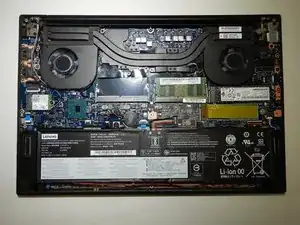
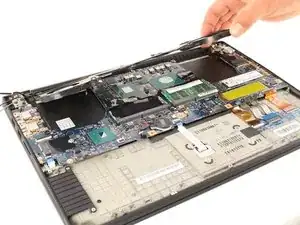
If your Lenovo ThinkPad X1 Gen 1 Extreme (model number 20MF-000LUS used in this guide) is overheating or making clicking noises, use this guide to remove the fan.

While this laptop has been noted to get quite hot and loud, this should typically only occur when charging or using high intensity applications. The laptop should not be overheating when idle.

Keep in mind that an entire replacement of the fan may not be necessary, as the problem could potentially be built up dust or a foreign object. If this is the case, removing the fan and cleaning it out with compressed air could solve the issue.

  1. LYUPDwUm5lNVOrDO
    LYUPDwUm5lNVOrDO
    EuSMRUqdSFMIDnIu
    qKOh1WhqQ1OlPBLG
    • Power off and unplug your device before you begin.

    • Orient the laptop so that it is bottom up, and the trackpad is closest to you.

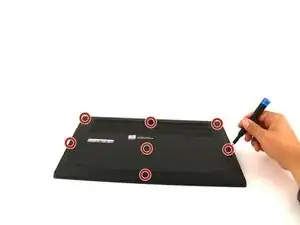
    • Unscrew the seven captive screws with a Phillips #00 screwdriver.

    • These screws will loosen, but stay attached to the cover. Do not attempt to completely remove them.

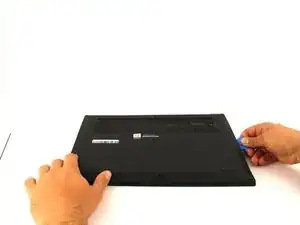
    • Slide a blue opening pick in the gap between the bottom panel and chassis, and pry off the one clip on each side.

    • Remove the back cover from the device.

  2. dIUW1yOK6EExQhxH
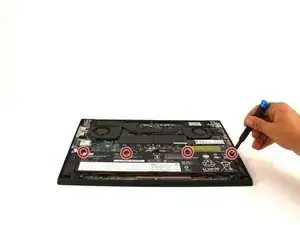
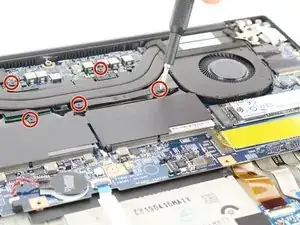
    • Use a Phillips #00 head screwdriver to remove the four 4 mm screws above the battery.

  3. nRJsdN6wyRSWWjWX
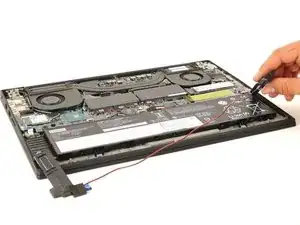
    • Lift the speaker modules on either side of the battery out of its pegs, and unwind the cable from the front of the battery.

    • Set the speaker modules out of the way.

  4. f3OdiOll4UHfKhHg
    f3OdiOll4UHfKhHg
    gDIMJyOtOVHsTsE6
    hhJTnGHOfrqUCfkU
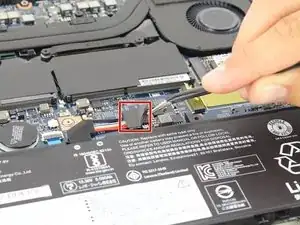
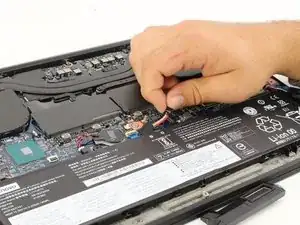
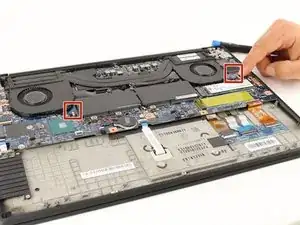
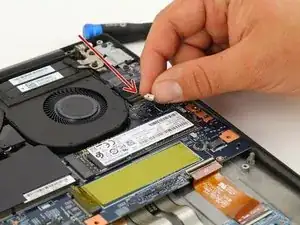
    • Use tweezers to peel the plastic cover off the connector.

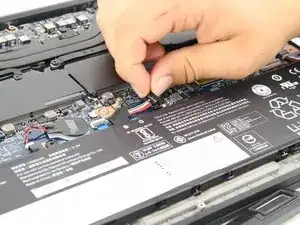
    • Use a plastic spudger or your fingernail to pry up the battery connector straight up from the motherboard.

    This does not mention the wire that connects the speakers entwined with the battery nor the screws that hold the battery down. This is not a huge deal, just pointing it out

    José B. -

    Also doesn't mention the 4x screws to remove along the top of the battery

    Wes Baynham -

  5. N4Iqw6RncUIRU1MW
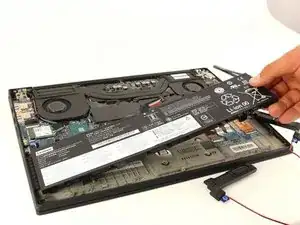
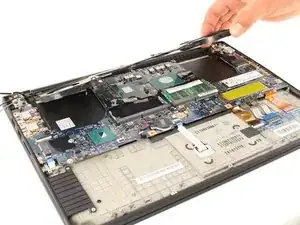
    • Lift the battery out of the frame and remove it from the device.

    Before the next step, I switched to this guide to remove the fans - Lenovo ThinkPad X1 Extreme Fan Replacement

    Wendy Wildshape -

    This guide also does not mention the speakers at all, but they are pretty easy to carefully remove

    Wendy Wildshape -

    Oh also this guide doesn't even mention removing the four screws which hold in the battery! Don't miss those!

    Wendy Wildshape -

    The four screws which hold the battery in place are not all the same, so keep track of which one goes where.

    Wendy Wildshape -

    The original battery had strips of compression foam adhered to the underside, which squish between the battery and the chassis plate. The replacement I got (from here at iFixIt) didn't come with these pieces of foam. So I removed the strips from the original battery and stuck them onto the new part. When I took off the first strip of foam, I ripped it off it's own adhering strip, so I had to glue it onto the new battery. I was more careful removing the other strips, using a metal shim from a fix kit to loosen a corner, and then slowly pulling the whole strip up and off. A razor blade, or even knife, would work fine to get at a corner of the adhesive.

    Nick Novelli -

  6. JANqwSHGN61EMVFh
    JANqwSHGN61EMVFh
    OYNEWmQYnEGsMsrf
    ViEAyAEQ2knAXOkL
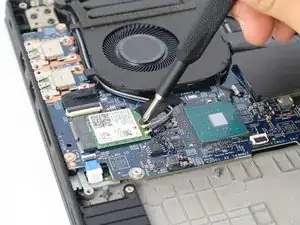
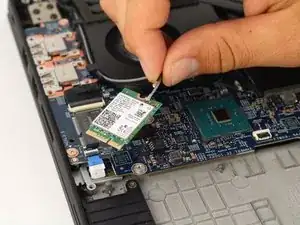
    • Unscrew the 3mm screw holding down the wireless adapter using a Phillips #00 screwdriver.

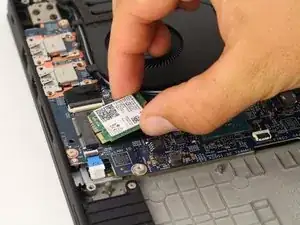
    • Slide the adapter out of its connector.

    • Detach the black and gray cables and separate them from the frame of the fan by gently pulling upwards.

    You can leave the wireless card connected and remove it from its socket. Lower risk for some than removing the connectors on the card.

    David Sherrington -

    yeah I found it much easier to leave the wireless card in place and just disconnect the two antennae

    Wendy Wildshape -

  7. fl2YN3dr2OWlwjAD
    fl2YN3dr2OWlwjAD
    Ed1S5usMY5NYKOsB
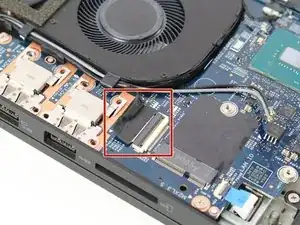
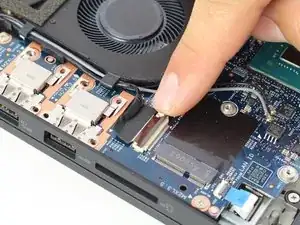
    • Unlatch and remove the cable connecting to the frame of the fan by flipping the thin black tab up.

    • Separate the cable from the frame of the fan.

  8. ZCH4ACDwrnDEWGAN
    ZCH4ACDwrnDEWGAN
    2vN5XKENMUDuNFhr
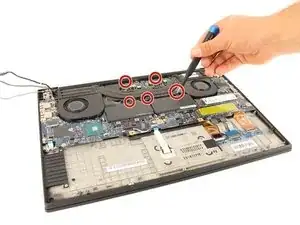
    • Loosen the five screws connecting the fan to the motherboard using a Philips #00 head screwdriver.

    • These screws will not come out and will stay connected to the fan.

    If you are also removing the motherboard, there are two screws near the top of the fan unit that you can remove at this step. In the photo they are already removed.

    Wendy Wildshape -

  9. mmPpTJkBEYUW4OqU
    mmPpTJkBEYUW4OqU
    edBLIyw4dMOokwOp
    SQTTxXyGPk6pbw6q
    • Gently disconnect the two cables located on right and left side of the fan.

    • To identify these, they are labeled "FANR1" and FANL2" on the motherboard.

    • Lift the fan up and out and remove it from the device.

    Should you use a thermal paste between the heatsink and the top of the chips?

    John Winner -

Conclusão

To reassemble your device, follow these instructions in reverse order.

Prabdil Sandhu

Membro desde: 10/02/20

141 Reputação

Um comentário

You only need to complete steps 1, 8, & 9. The cables for the wireless card come out of the side of the fan assembly without unplugging them. If you want to disconnect the battery for peace of mind you can do that without removing the battery. Definitely don't need to remove the speakers. I came across this guide looking for a replacement fan part but have done this particular job twice and removed the fan on another occasion to bench test it, so I've done the process 3 times. Seems like the author was hunting for additional steps for more brownie points but it's much simpler than that.

Evan Looney -