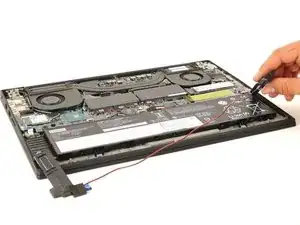
Introdução

This guide will be most useful when the laptop has trouble opening smoothly due to its use over time. To access the hinges one must remove the motherboard and battery. Other guides are provided to complete this and warnings associated with those parts.

  1. LYUPDwUm5lNVOrDO
    LYUPDwUm5lNVOrDO
    EuSMRUqdSFMIDnIu
    qKOh1WhqQ1OlPBLG
    • Power off and unplug your device before you begin.

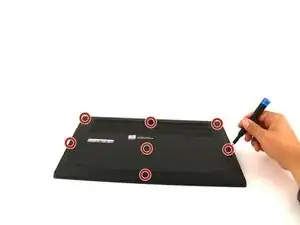
    • Orient the laptop so that it is bottom up, and the trackpad is closest to you.

    • Unscrew the seven captive screws with a Phillips #00 screwdriver.

    • These screws will loosen, but stay attached to the cover. Do not attempt to completely remove them.

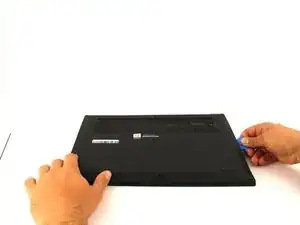
    • Slide a blue opening pick in the gap between the bottom panel and chassis, and pry off the one clip on each side.

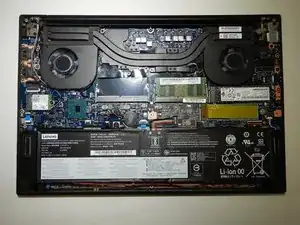
    • Remove the back cover from the device.

  2. dIUW1yOK6EExQhxH
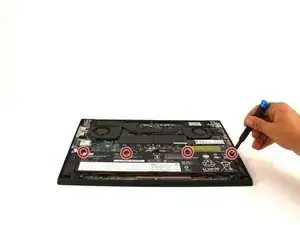
    • Use a Phillips #00 head screwdriver to remove the four 4 mm screws above the battery.

  3. nRJsdN6wyRSWWjWX
    • Lift the speaker modules on either side of the battery out of its pegs, and unwind the cable from the front of the battery.

    • Set the speaker modules out of the way.

  4. f3OdiOll4UHfKhHg
    f3OdiOll4UHfKhHg
    gDIMJyOtOVHsTsE6
    hhJTnGHOfrqUCfkU
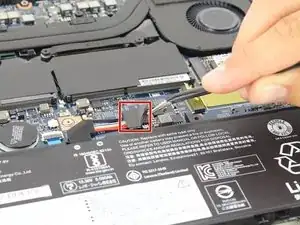
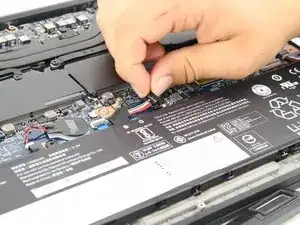
    • Use tweezers to peel the plastic cover off the connector.

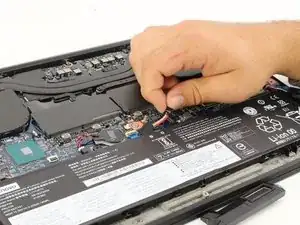
    • Use a plastic spudger or your fingernail to pry up the battery connector straight up from the motherboard.

    This does not mention the wire that connects the speakers entwined with the battery nor the screws that hold the battery down. This is not a huge deal, just pointing it out

    José B. -

    Also doesn't mention the 4x screws to remove along the top of the battery

    Wes Baynham -

  5. N4Iqw6RncUIRU1MW
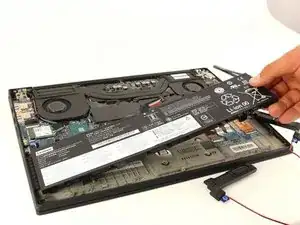
    • Lift the battery out of the frame and remove it from the device.

    Before the next step, I switched to this guide to remove the fans - Lenovo ThinkPad X1 Extreme Fan Replacement

    Wendy Wildshape -

    This guide also does not mention the speakers at all, but they are pretty easy to carefully remove

    Wendy Wildshape -

    Oh also this guide doesn't even mention removing the four screws which hold in the battery! Don't miss those!

    Wendy Wildshape -

    The four screws which hold the battery in place are not all the same, so keep track of which one goes where.

    Wendy Wildshape -

    The original battery had strips of compression foam adhered to the underside, which squish between the battery and the chassis plate. The replacement I got (from here at iFixIt) didn't come with these pieces of foam. So I removed the strips from the original battery and stuck them onto the new part. When I took off the first strip of foam, I ripped it off it's own adhering strip, so I had to glue it onto the new battery. I was more careful removing the other strips, using a metal shim from a fix kit to loosen a corner, and then slowly pulling the whole strip up and off. A razor blade, or even knife, would work fine to get at a corner of the adhesive.

    Nick Novelli -

  6. 4KVmm53pIlYsjmA6
    4KVmm53pIlYsjmA6
    o5kWGX5WYfySChLM
    LorFyUrgFop5Frjl
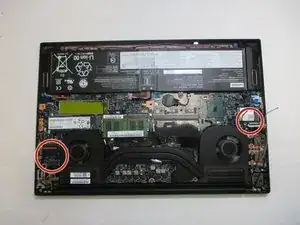
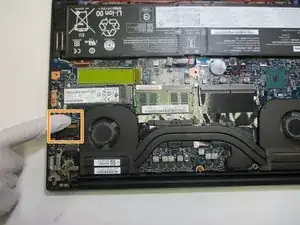
    • Remove back panel and locate the connecting wires.

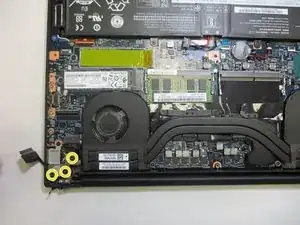
    • Disconnect the display connections on the motherboard.

    • Use a Phillips #00 screwdriver to remove the six screws (three on each hinge) securing the hinges to the main chassis.

  7. fwo2XOUaRVoLxeFp
    fwo2XOUaRVoLxeFp
    DR5Q4KeyZCaUh1JR
    oGNiJMYV1I54BF1Y
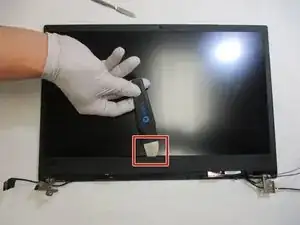
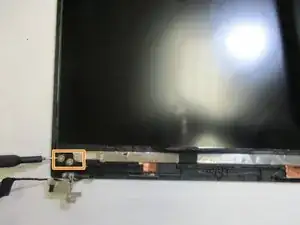
    • Flip the display face up, then wedge a Jimmy between the display and the bezel, sliding and prying around the perimeter until the bezel releases.

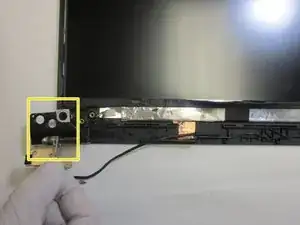
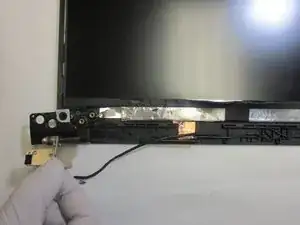
    • Unscrew the first two exposed 1.2 mm screws with a Phillips #1 screwdriver, then peel back the adhesive to find and remove the third screw.

    • Lift the hinges up and off the display.

Conclusão

To reassemble your device, follow these instructions in reverse order.

Alma Orozco-Rico

Membro desde: 10/02/22

85 Reputação

0 comentários