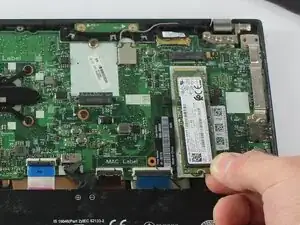
Introdução
Use this guide if you're experiencing issues with the Lenovo ThinkPad T14s Gen 1 Solid State Drive (SSD). If the laptop is crashing consistently or freezing, the SSD may be faulty or in need of replacement.
Before continuing with this guide, refer to the troubleshooting pages.
This repair requires opening the device, so proceed with caution; some components may be sensitive to electrostatic discharge (ESD) or accidental damage. Consider using an anti-static mat or wrist strap to minimize ESD when repairing electronic devices.
Before you begin this repair, make sure your laptop is off and disconnected from the charger and any peripheral devices. If the computer was recently charging, unplug it and wait a few minutes for any residual power to dissipate before beginning the repair.
Ferramentas


-
-
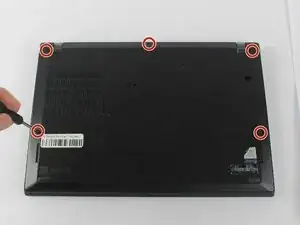
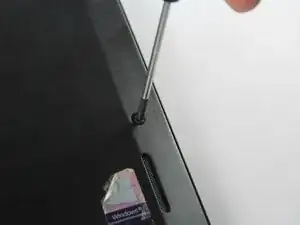
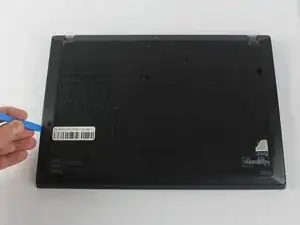
Insert the end of an iFixit opening in the space between the bottom and top case and move it around the perimeter to release the clips that hold the bottom case to the device.
-
Remove the back panel.
-
-
-
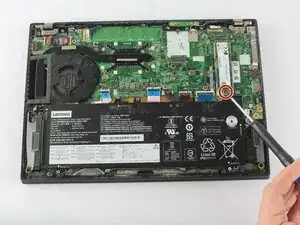
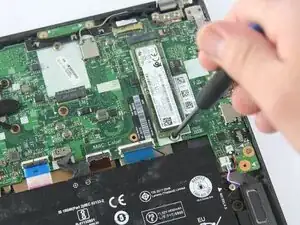
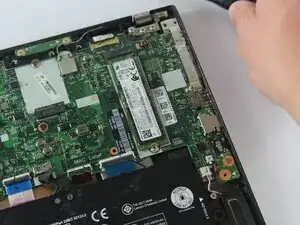
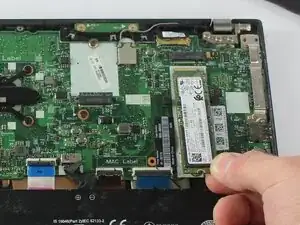
Use a Phillips #0 screwdriver to remove the single 3 mm screw securing the SSD to the motherboard.
-
To reassemble your device, follow these instructions in reverse order. Take your e-waste to an R2 or e-Stewards certified recycler.