Introdução

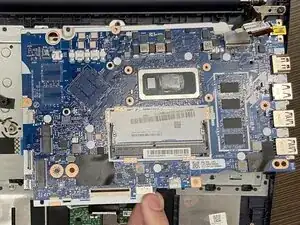
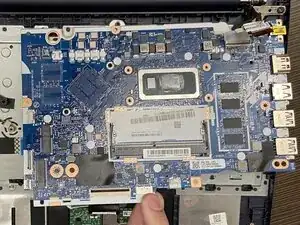
If your Lenovo IdeaPad 3-15IML05 will no longer power on or is failing, use this guide to replace your motherboard.

Before beginning this guide, attempt other possible solutions, this should be a last resort. Refer to the device’s troubleshooting page for additional diagnostic assistance.

The motherboard is a critical component of your computer, it allows internal components to communicate with one another. Motherboards primarily fail due to electrical surges, overheating, and physical damage. Replacing the motherboard can extend your computer's lifespan and reduce e-waste.

During this repair, all components and cables connected to the motherboard must be disconnected. Take your time and proceed through each step carefully to lower the risk of additional damage.

Working with lithium-ion batteries can be hazardous. A connected or swollen battery may catch fire if damaged. Before beginning this repair, discharge the battery below 25%, power off the laptop, and unplug all peripherals.

If you encounter a swollen battery, refer to this guide for disposal.

  1. RBjupdumAL2txWx1
    RBjupdumAL2txWx1
    6GohOps54PvCNXlH
    • Before beginning, discharge the battery below 25%, power the device off, and disconnect all peripherals.

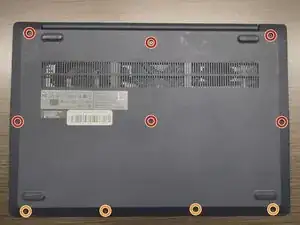
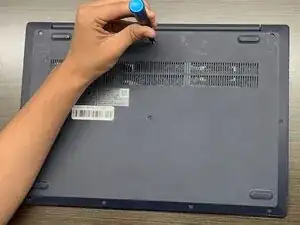
    • Use a Phillips #1 screwdriver to remove the following screws:

    • Six 7 mm screws

    • Four 4 mm screws

  2. UjQxEP1kSktanLeN
    UjQxEP1kSktanLeN
    MdawBlXHIokoo1Zs
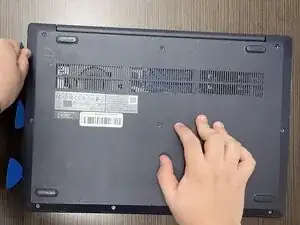
    • Insert an opening pick into the seam between the lower case and chassis.

    • Slide the pick around the entire perimeter until all of the plastic retaining clips release.

    • Remove the lower case.

    • Forcing the back cover open could break the plastic retaining clips.

    • During reassembly, lay the cover flat and press around the edges to secure it to the plastic clips.

  3. Xy6Y4QIYUV6EgJaD
    Xy6Y4QIYUV6EgJaD
    jVG6CKMWJUkg6jxZ
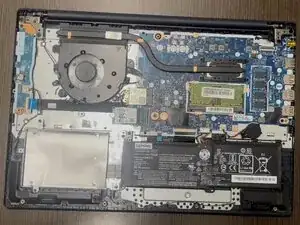
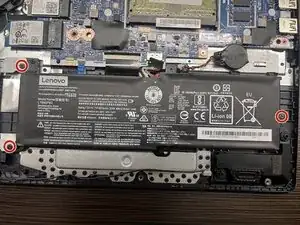
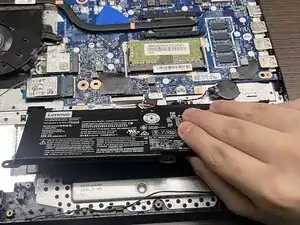
    • Use a Phillips #00 screwdriver to remove the three 5 mm screws securing the battery.

    • To remove the battery, slide it to the right and lift it away from the hard drive cover.

    • If needed, you can lift the hard drive cover by removing the two 5 mm screws on the left.

  4. vn2mdOxC5Cq1GH5k
    vn2mdOxC5Cq1GH5k
    sQ6WR3JxWJEgdYmF
    yvVAADDFpHM2iZZt
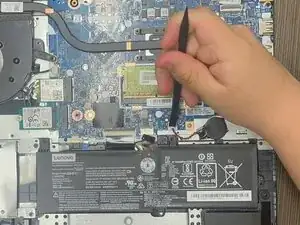
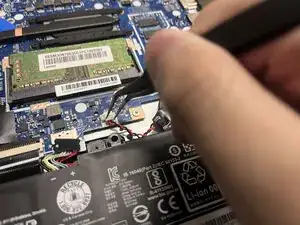
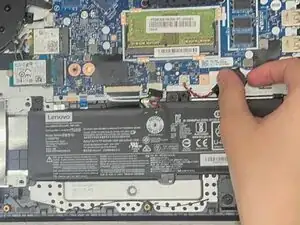
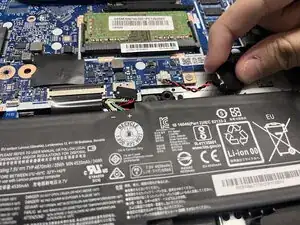
    • Using a spudger or tweezers, push the CMOS battery JST connector out of its socket.

    • Pulling directly on the cables could damage the connector.

  5. NwyakCn3tdGllfQn
    NwyakCn3tdGllfQn
    doEPqDkDxHIWBaEO
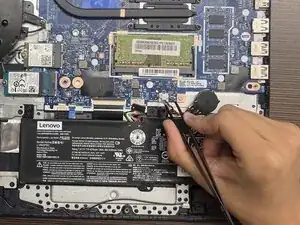
    • Grasp and remove the CMOS battery, which is secured with adhesive.

    • Prying tools, such as a spudger, can be used to remove the CMOS battery.

  6. RY1b1SoHXk2gGFpr
    RY1b1SoHXk2gGFpr
    YJJNUBPIMm4ZH55i
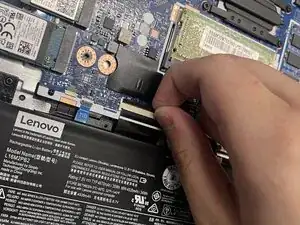
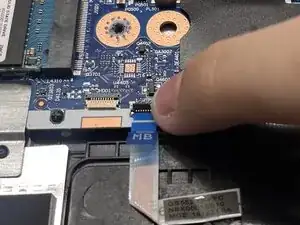
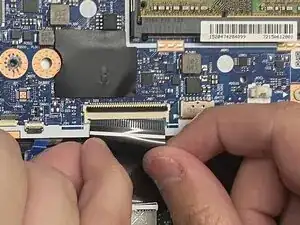
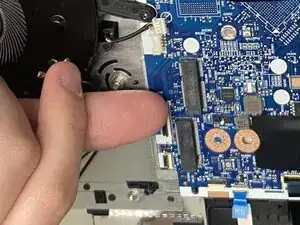
    • Use your fingernails to flip up the two locking flaps on the ZIF connectors near the battery.

    • You may use tweezers to flip the locking flaps up.

  7. bfkRQFUkdTXHKTHT
    bfkRQFUkdTXHKTHT
    mZIfavvuUK4xDa2V
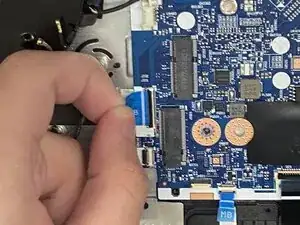
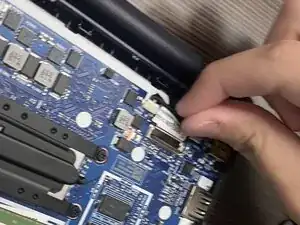
    • For the larger ZIF cable, grab the sides and gently pull it out of its socket.

    • For the smaller ZIF cable, use the blue pull tab provided and gently pull it out of its socket.

    • When reconnecting the cables, ensure the locking flap is up, insert the cable into the socket, and flip the locking flap down. The cables should slide in with little to no force.

  8. qls6ZqMGph1ZGPSo
    qls6ZqMGph1ZGPSo
    ntlyuCHWOXH1mDV1
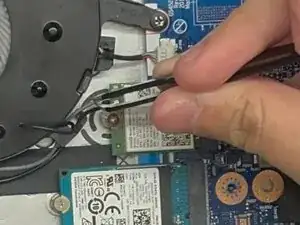
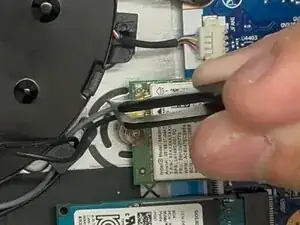
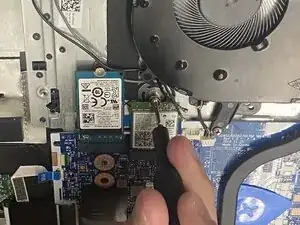
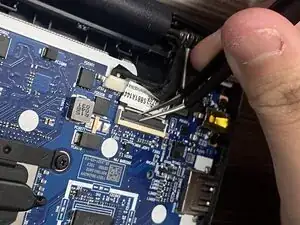
    • Using angled tweezers, slide them under the metal neck of the antenna cables, and lift straight up.

    • Lifting at an angle could damage the socket underneath the board.

    • When reconnecting the antenna cables, hold the cable with tweezers and gently press with your finger or a spudger. They should snap into place, however this might take a few tries.

    • Don't force the connector into place or you might permanently damage it.

  9. EBSJDZA1uIBaXgaw
    EBSJDZA1uIBaXgaw
    M55p6IRJRgbPHBmS
    • Using tweezers, gently pull the JST fan cable out of its socket.

    • Use a Phillips #00 screwdriver to remove the following screws:

    • Two 3.5 mm screws

    • One 5 mm screw

    • Lift the fan and guide the antenna cables out of the clips on its edge.

    • Slightly shift the fan to the left, away from the motherboard.

  10. VHacgeTcAJCFa2lA
    VHacgeTcAJCFa2lA
    kBhrPXWvHkkSItsS
    CpQh6QJwuVh13K14
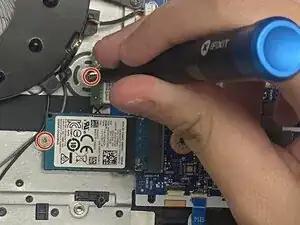
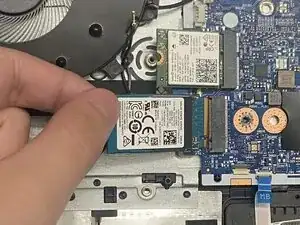
    • Using a Phillips #0 screwdriver remove each of the two 2.5 mm screws that secure the SSD and Wi-Fi card.

    • The SSD and Wi-Fi card will pop up at angle once the screw is removed.

    • Pull the SSD and Wi-Fi card out of their sockets.

    • During assembly, insert both at a downward angle into their socket.

  11. MQKimbUcnEvqikOs
    MQKimbUcnEvqikOs
    fQPueij2mDH1DBTx
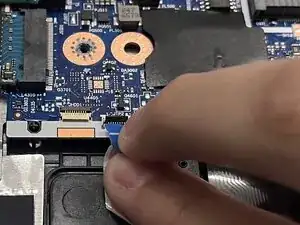
    • Using your fingernails, flip up the locking flap on the ZIF cable connector, located near the fan and motherboard

    • You may use tweezers to flip the locking flap up.

    • Use the blue pull tab provided and gently slide the cable out of its socket.

    • When reconnecting the cable, ensure the locking flap is up, insert the cable into the socket, and flip the locking flap down. The cable should slide in with little to no force.

  12. LoPK6UNMcqjkiwin
    LoPK6UNMcqjkiwin
    Ws3CXrTAUKMm1LrG
    etVgDYNOWsWbJujJ
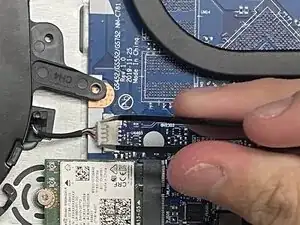
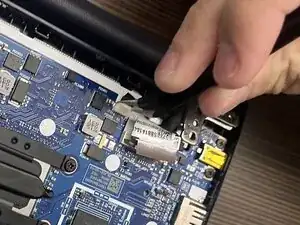
    • Using angled tweezers, flip up the locking flap on the ZIF cable connector.

    • For the ZIF cable, grab the sides and gently pull it out of its socket.

    • Using tweezers, gently pull the JST cable out of its socket.

    • When reconnecting the ZIF cable, ensure the locking flap is up, insert the cable into the socket, and flip the locking flap down. The cable should slide in with little to no force.

  13. CZVkQJjknTaZIYIL
    CZVkQJjknTaZIYIL
    C1hTa1djRkaSA1IK
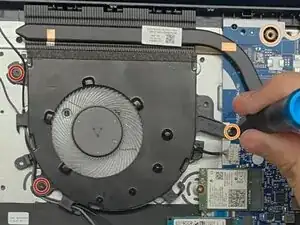
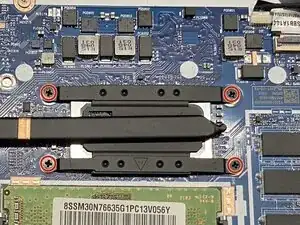
    • Use a Phillips #00 screwdriver to remove the four 2.5 mm screws that secure the heat sink.

    • Lift the heat sink straight up.

    • Based on the thermal paste's condition, some resistance might be present while removing the heat sink.

  14. XfZb2twj1jmt5sjR
    XfZb2twj1jmt5sjR
    AkvK45YEjtAXj46N
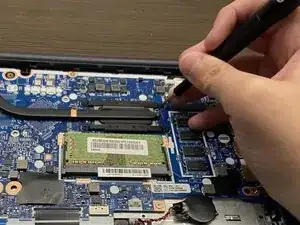
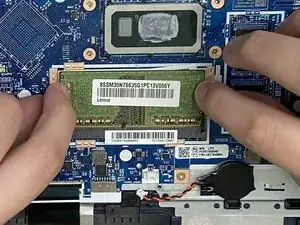
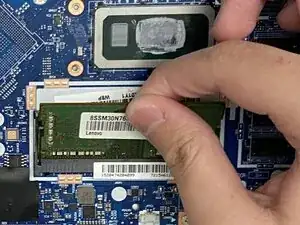
    • Push both of the metal arms away from the RAM module.

    • Upon pushing both sides, the RAM will pop up.

    • Pull the RAM out of its socket.

    • During reassembly, insert the RAM at a 45 degree angle and push down until it clips into place.

  15. UhahUKkHysNkFjfE
    UhahUKkHysNkFjfE
    qswE15MNKJtjk22l
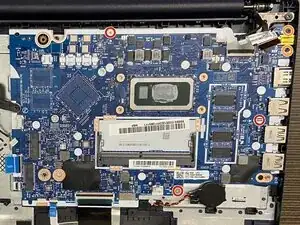
    • Use a Phillips #00 screwdriver to remove the following screws:

    • Three 2.5mm screws

    • Two 3.5mm screws

    • A Lenovo sticker might be hiding the third 2.5 mm screw.

    • Lift and pull the motherboard away.

Conclusão

To reassemble your device, follow the above steps in reverse order.
Take your e-waste to an R2 or e-Stewards certified recycler.
Repair didn’t go as planned? Try some basic troubleshooting or ask our Answers community for help.

Robert Carbajal Gonzalez

Membro desde: 17/06/25

721 Reputação

0 comentários