Introdução
If your Lenovo IdeaPad 3-15IML05 display assembly has physical damage, broken LCD, or degraded visual quality, use this guide to replace it.
Before beginning this guide, it's recommended that you reset the display, adjust brightness, and check for power. For additional diagnostic help, check out the device’s troubleshooting page.
The display assembly is the entire top lid on your laptop. Over time, it’ll receive wear and tear or the LCD screen could break. If the LCD screen breaks, replacing the entire display assembly is an optimal solution. By replacing your display assembly, you extend your laptop’s lifespan and reduce e-waste.
Working with lithium-ion batteries can be hazardous. A connected or swollen battery may catch fire if damaged. Before beginning this repair, discharge the battery below 25%, power off the laptop, and unplug all peripherals.
If you encounter a swollen battery, refer to this guide for disposal.


-
-
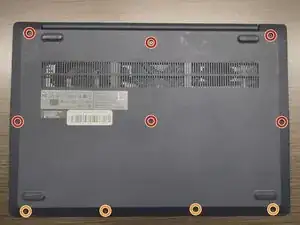
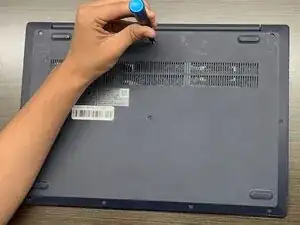
Use a Phillips #1 screwdriver to remove the following screws:
-
Six 7 mm screws
-
Four 4 mm screws
-
-
-
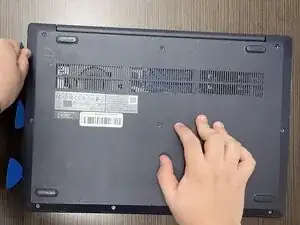
Insert an opening pick into the seam between the lower case and chassis.
-
Slide the pick around the entire perimeter until all of the plastic retaining clips release.
-
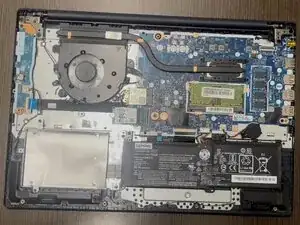
Remove the lower case.
-
-
-
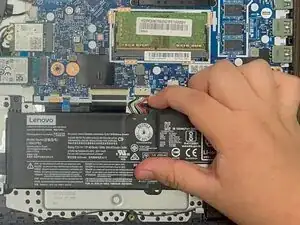
Use a plastic spudger or your fingernail to gently push the JST battery connector out of its socket.
-
-
-
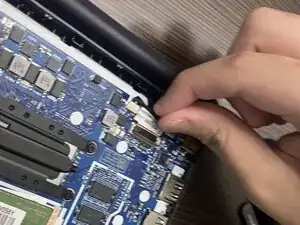
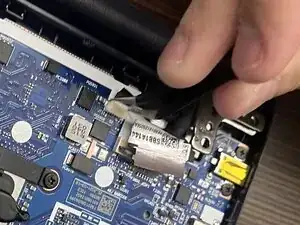
For the ZIF cable, grab the sides and gently pull it out of its socket.
-
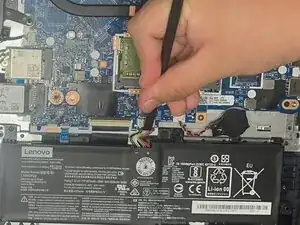
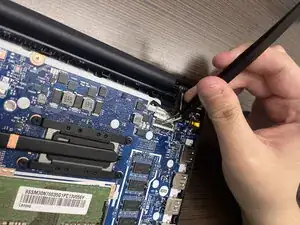
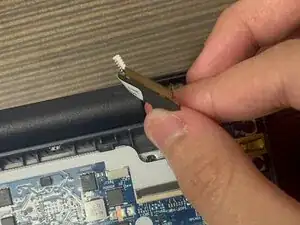
Using tweezers, gently pull the JST cable next to the display ZIF connector out of its socket.
-
-
-
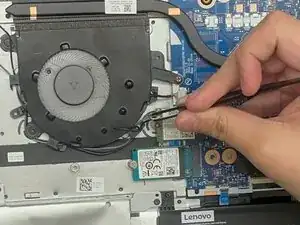
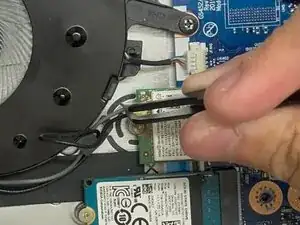
Using angled tweezers, slide them under the metal neck of the Wi-Fi card antenna cables, and lift straight up to disconnect them.
-
Guide the cables out from the plastic clips on the edge of the fan.
-
-
-
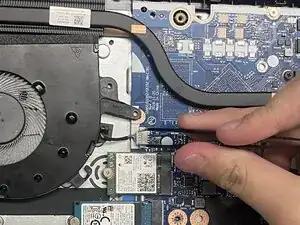
Using tweezers, gently pull the JST fan cable out of its socket.
-
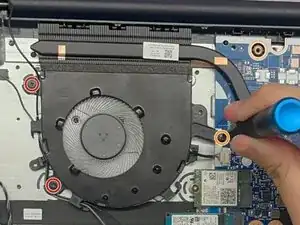
Use a Phillips #00 screwdriver to remove the following screws:
-
Two 3.5 mm screws
-
One 5 mm screw
-
Lift the fan and guide the antenna cables out of the clips on its edge.
-
-
-
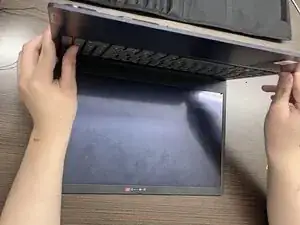
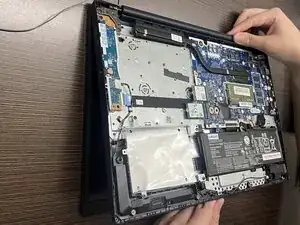
With one hand holding the back, slowly raise the display with the other hand.
-
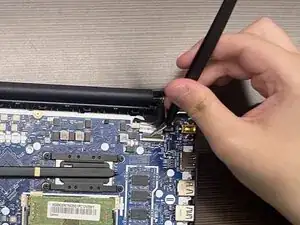
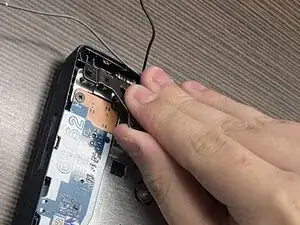
Grasp and open both hinges until they're straight.
-
-
-
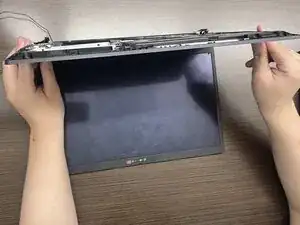
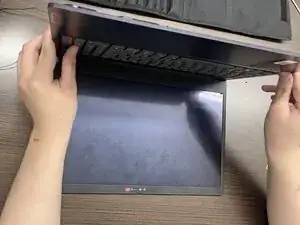
Lift the top cover until it's straight up.
-
Pull the cover towards you to separate it from the display.
-
To reassemble your device, follow the above steps in reverse order.
Take your e-waste to an R2 or e-Stewards certified recycler.
Repair didn’t go as planned? Try some basic troubleshooting or ask our Answers community for help.