Introdução
Use this guide to replace the motherboard in your Kobo Libra Colour (model N428B) eReader.
Important: There are two Libra Colour versions: N428 and N428B. Check your eReader's model number (printed on the edge of the device with the USB‑C port) before starting this guide. This guide is for the N428B model.
The charging port is soldered to the motherboard, so you'll need to replace the entire motherboard if you want to replace the port.
After this repair, follow this guide to calibrate your eReader to your replacement motherboard. If you don't, you might experience "ghosting" or visual artifacts of the E ink.
Following this guide will remove your eReader's IP (Ingress Protection) rating, making it susceptible to water damage.
Kobo supports their eReaders with a warranty. If your device is still under warranty, Kobo may be able to help. Before starting a repair, review your warranty information or check support documentation.
Note: Some photos used in this guide are of different Kobo Libra models. Any slight visual discrepancies won't affect the guide procedure.


-
-
Unplug all cables and fully shut down your eReader.
-
Your screen should be black and say Powered off.
-
-
-
Flip your eReader over so the screen is facing down.
-
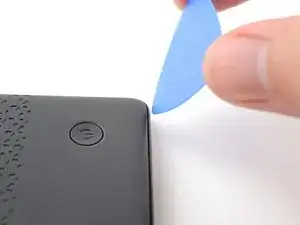
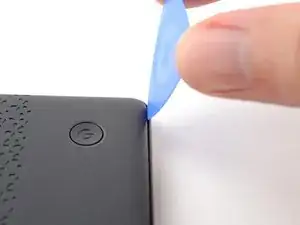
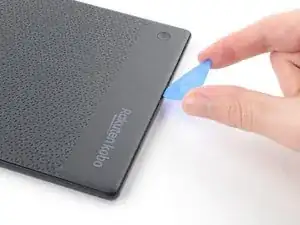
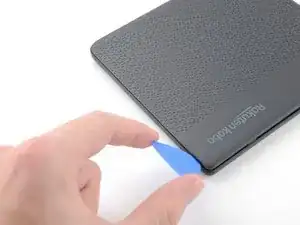
Angle an opening pick straight down, and insert its tip under the top right corner of the back cover, near the power button.
-
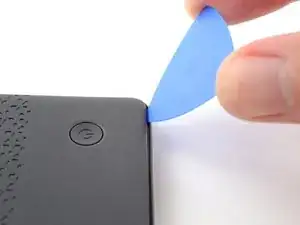
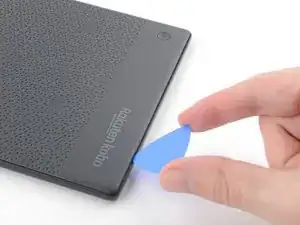
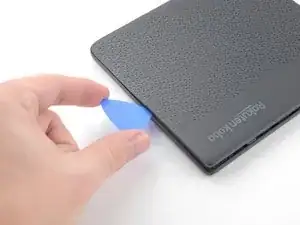
Push downward and pry up with the pick until you feel it slide between one of the clips and the frame.
-
-
-
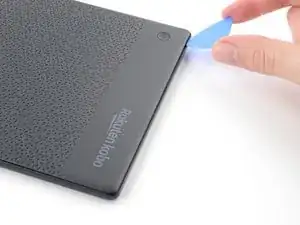
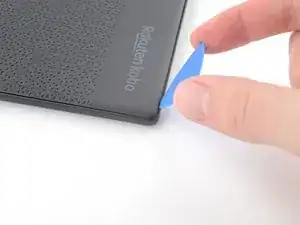
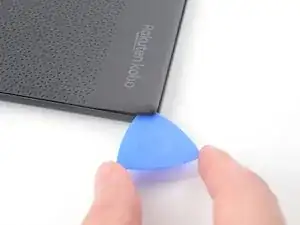
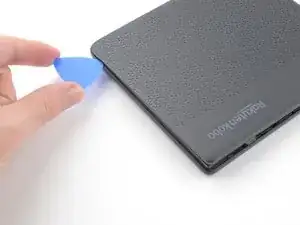
Angle the pick flat under the back cover and rotate it around the bottom right corner to release its clips.
-
-
-
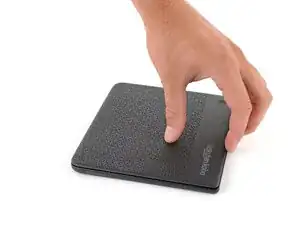
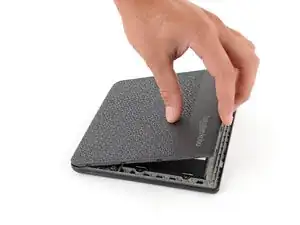
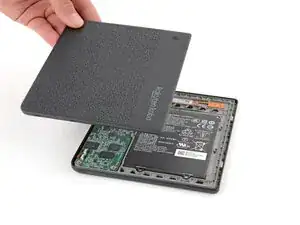
Grip the right edge of the back cover and lift it away from the eReader to release the remaining clips.
-
Remove the back cover.
-
-
-
The coating is brittle and can flake into many small pieces. Heating the coating helps, but working with it is still a time-consuming process.
-
Depending on your repair, you might have to remove the coating from ZIF connectors and their cables.
-
-
-
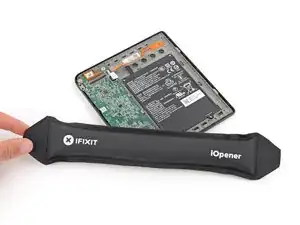
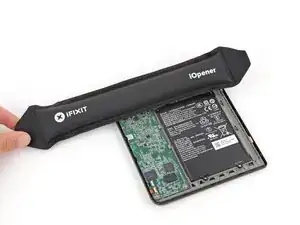
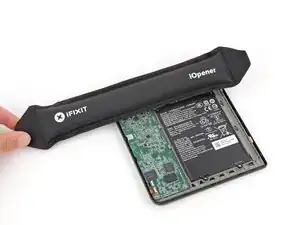
Heat an iOpener and lay it on the digitizer cable ZIF connectors for 90 seconds to soften the coating.
-
-
-
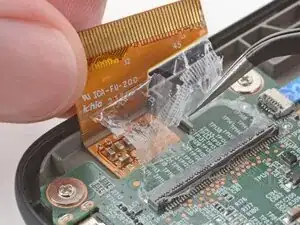
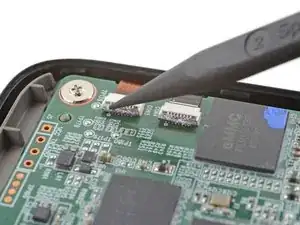
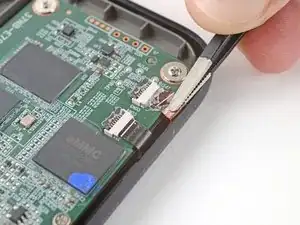
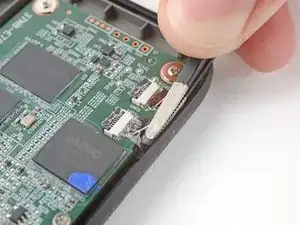
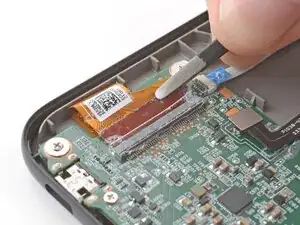
Use the tip of a spudger to scrape the coating along the ZIF connectors' black locking tabs—enough so you can grab clumps of it with pointed tweezers.
-
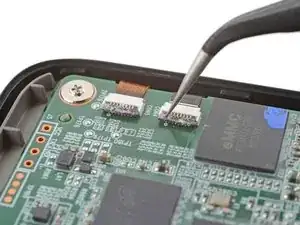
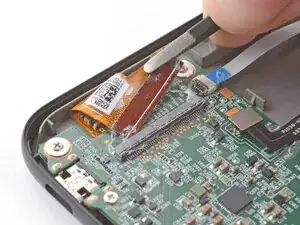
Use pointed tweezers to peel off the coating around the black locking tabs and their hinges on the ZIF connector.
-
-
-
Apply a heated iOpener to the digitizer cable ZIF connectors for 90 seconds to soften the coating.
-
-
-
Slide one arm of a pair of pointed tweezers underneath the cables to separate the coating securing them to the motherboard.
-
-
-
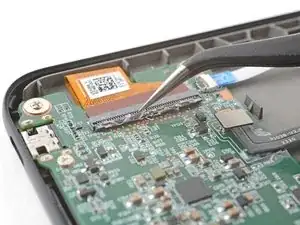
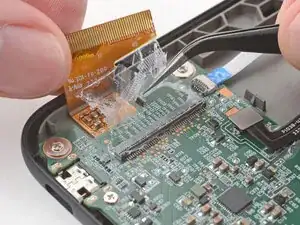
Use blunt nose tweezers to pull the cables away from their ZIF connectors slowly and steadily at a level angle to separate the coating.
-
Keep pulling on the cables until they're completely disconnected.
-
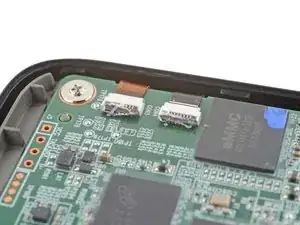
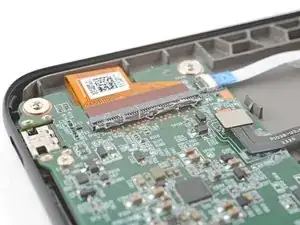
Inspect the ends of the cables and the ZIF connectors for any remaining coating that could prevent a good connection.
-
Peel off the coating, heating the cable and the ZIF connectors when the coating becomes too brittle.
-
-
-
Apply a heated iOpener to the display cable ZIF connector for 90 seconds to soften the coating.
-
-
-
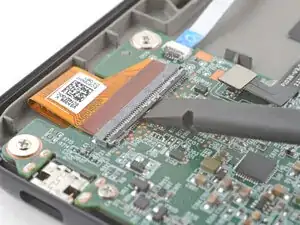
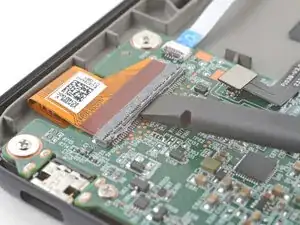
Use the tip of a spudger to scrape the coating along the ZIF connector's black locking tab—enough so you can grab clumps of it with pointed tweezers.
-
-
-
Use pointed tweezers to peel off the coating around the locking tab and its hinge on the ZIF connector.
-
-
-
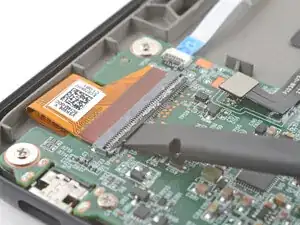
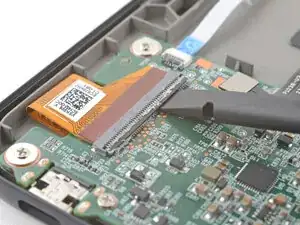
Use the flat end of a spudger to gently pry along the length of the locking tab to separate any remaining coating.
-
-
-
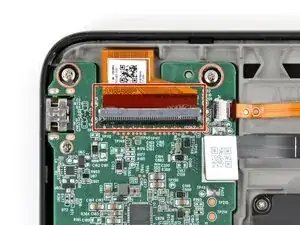
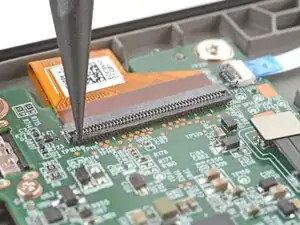
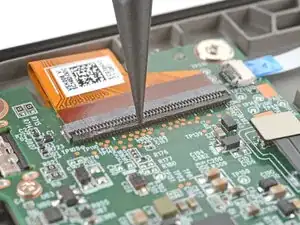
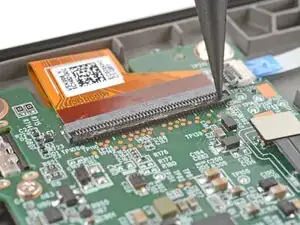
Insert the flat end of a spudger under the middle of the locking tab and lift to unlock it.
-
-
-
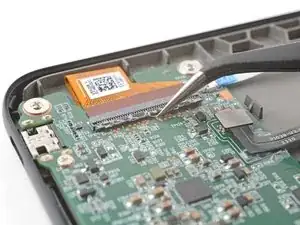
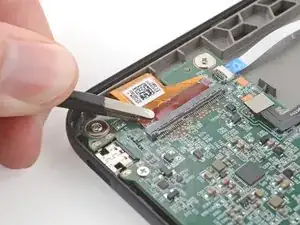
Use blunt nose tweezers to grip the corner of the display cable closest to the charging port.
-
Pull the cable away from the ZIF connector slowly and steadily at a level angle to separate the coating at the corner.
-
-
-
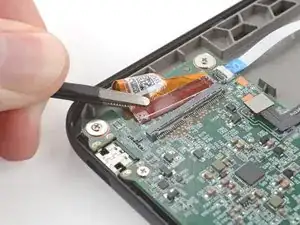
Repeat the previous step for the other corner until the entire cable is disconnected.
-
Lift up the cable and peel off any remaining coating holding it to the motherboard.
-
Inspect the ends of the cable and the ZIF connectors for any remaining coating that could prevent a good connection.
-
Peel off the coating, heating the cable and the ZIF connector when the coating becomes too brittle.
-
-
-
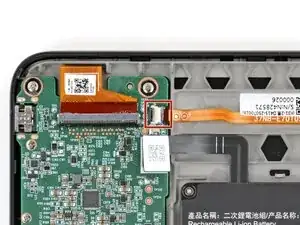
Heat an iOpener and lay it on the power button ZIF connector (near the top right corner of the motherboard) for 90 seconds to soften the coating.
-
-
-
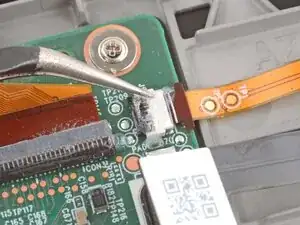
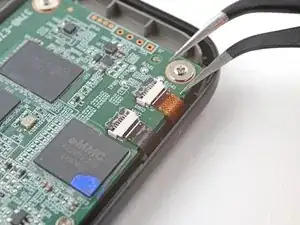
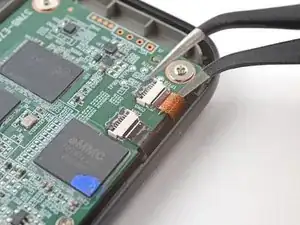
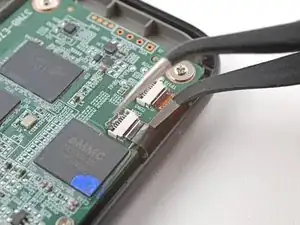
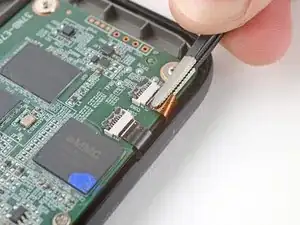
Use the tip of a spudger and pointed tweezers to scrape and remove the coating from the ZIF connector's locking tab and cable.
-
-
-
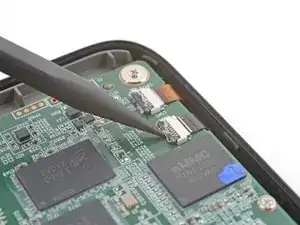
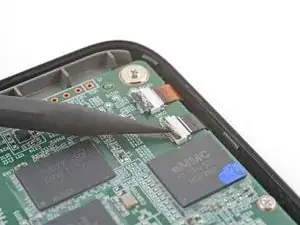
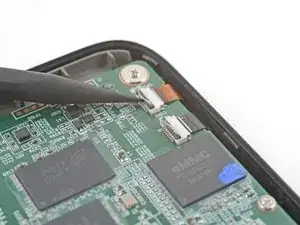
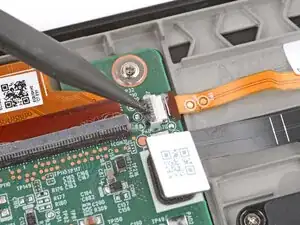
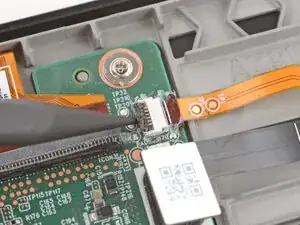
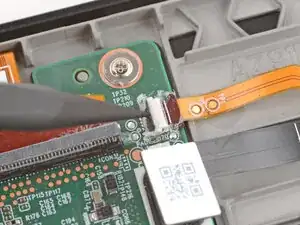
Use the tip of a spudger to lift up the locking tab on the power button ZIF connector.
-
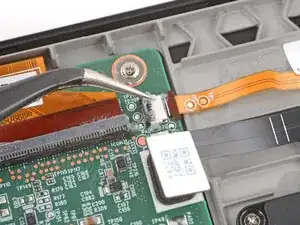
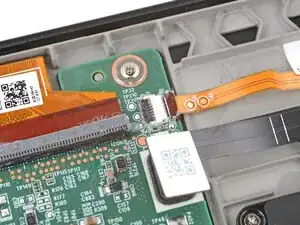
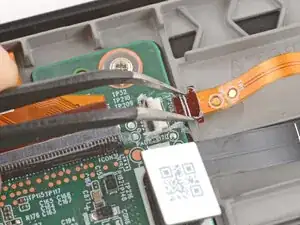
Use angled tweezers to push the cable fully out of its socket, pushing on the small "arms" near the head of the cable.
-
-
-
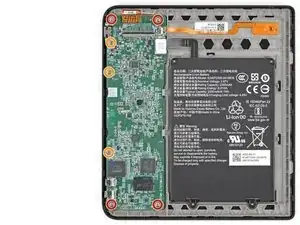
Use a Phillips screwdriver to remove the seven screws securing the motherboard:
-
Four 2.4 mm‑long screws
-
Three 3.9 mm‑long screws
-
-
-
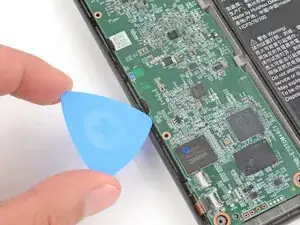
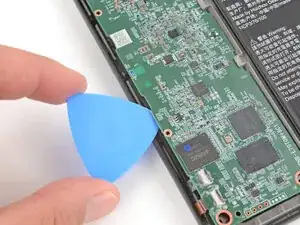
Insert the tip of an opening pick betwen the motherboard and the plastic buffer beneath it, near one of the plastic clips on the outer edge.
-
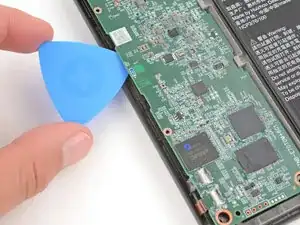
Gently twist the pick to release the clip.
-
Repeat the process to release the other plastic clip.
-
-
-
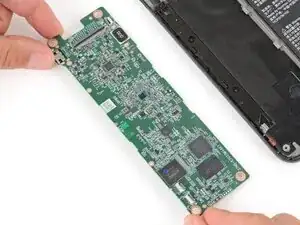
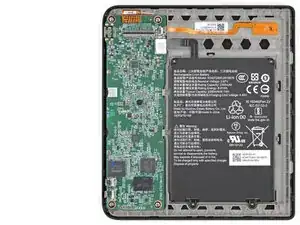
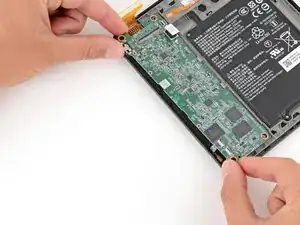
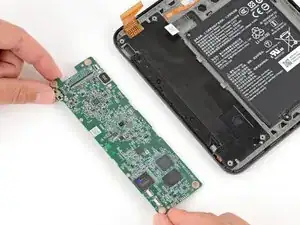
Grip the outer corners of the motherboard with your fingers and slide the board over the left edge to remove it.
-
Slide the board into place so the inner edge (opposite the USB‑C port) goes under the two metal tabs.
-
Lower the board into its recess, making sure no cables get stuck under the board. Ensure the corner screw holes go over their alignment posts.
-
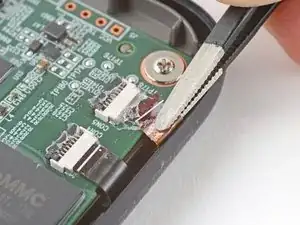
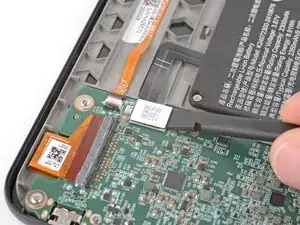
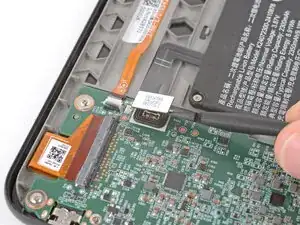
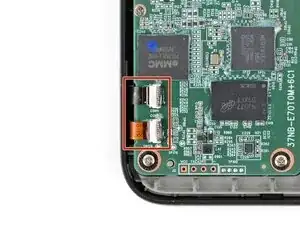
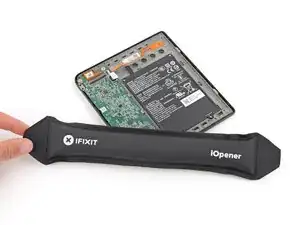
To reassemble your device, follow these instructions in reverse order.
Remember: after repairs, your eReader is no longer IPX8 waterproof.
Compare your new replacement part to the original part—you may need to transfer remaining components or remove adhesive backings from the new part before you install it.
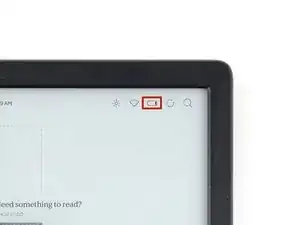
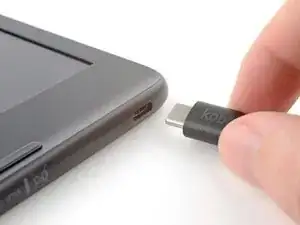
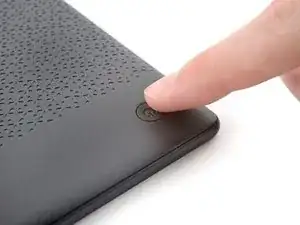
Make sure each of your device's main functions still work, e.g., LED backlight, touch, page-turn buttons, Wi-Fi, etc.
Take your e-waste to an R2 or e-Stewards certified recycler.
Repair didn’t go as planned? Try some basic troubleshooting, or ask our Answers Community for help.

Don't forget to remove the protective sheet from the replacement screen (as I did). Thanks for the manual, its working now again!
Hans -
Haha I second that! I nearly had a heart attack when I realized I hadn't removed the plastic film
Arianna A -