Introdução

Use este guia para calibrar um visor em e-readers da Kobo. Para isso deve-se mudar o código VCOM, o número da voltagem comum em seu e-reader Kobo para corresponder com uma placa-mãe nova ou uma tela de tinta eletrônica nova.

Este guia serve para o Kobo Libra Colour e os modelos Kobo Clara BW e Colour.

O código VCOM é a voltagem de referência associada com a tela do dispositivo. Para que a sua tela funcione corretamente, o valor gravado precisa corresponder com o código VCOM impresso na tela. Você vai precisar mudar o código VCOM se você trocar a tela "ou" a placa-mãe.

Se o código VCOM gravado da placa-mãe não corresponder ao código VCOM associado ao visor de tinta eletrônica conectado, pode ser que você tenha problemas de ghosting, uma imagem difusa ou opaca, ou outros.

  1. pXryWhCsW2TG1xcZ
    pXryWhCsW2TG1xcZ
    HEwSgjlZjXU5dYrE
    qqNJOSLDDSl2tGfU
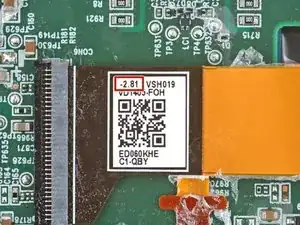
    • Olhe no cabo do visor para ver se encontra o código VCOM de três dígitos.

    • Por exemplo: -2.81

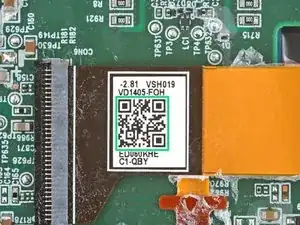
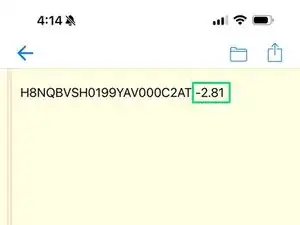
    • Se a sua tela não possui um código VCOM impresso, digitalize o QR code com um aplicativo especial para codificar QR e gere um código. Não funciona com o aplicativo integrado da câmera do seu fone.

    • O código VCOM registrado no seu tablet será este código de três dígitos multiplicado por 1000.

    • Por exemplo: -2.81 x 1000 = -2810

  2. didFFNlVs2W1ijMg
    didFFNlVs2W1ijMg
    cMPX2cHtk2Z1NAaT
    BUNG4GvKsq6MiqJK
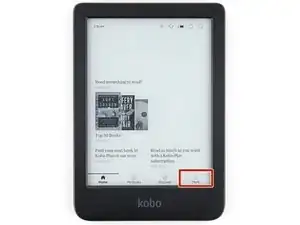
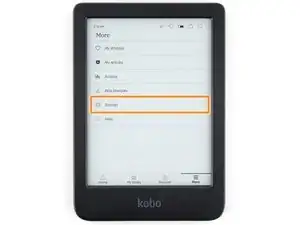
    • Na tela home, selecione Mais no canto direito inferior.

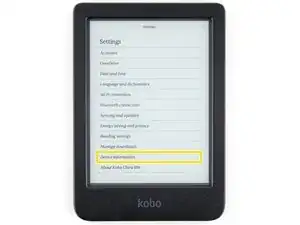
    • Selecione Configurações.

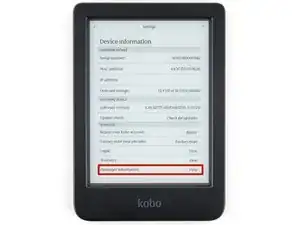
    • Selecione Informações do dispositivo.

  3. CeUSOROWR6xd2GV2
    CeUSOROWR6xd2GV2
    ZBKDx3ywhimuqL1J
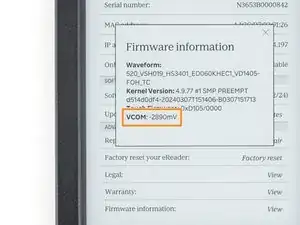
    • Encontre a linha chamada Informações de firmware e selecione Visualizar.

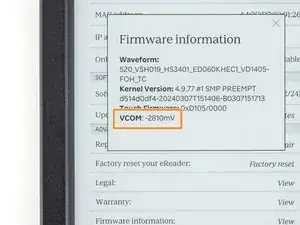
    • O código VCOM aparecerá na janela pop-up. Compare-o com o código VCOM de sua tela.

    • Se os seus código corresponderem, quer dizer que a sua tela já está calibrada - você conseguiu! Se os códigos não corresponderem, siga os próximos três passos para mudar o código VCOM.

  4. iOyNejPJ2RDSgrNr
    iOyNejPJ2RDSgrNr
    wVT1rjKFsoUGAkb4
    HTcCWkLRdYDxbXI6
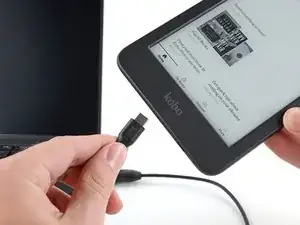
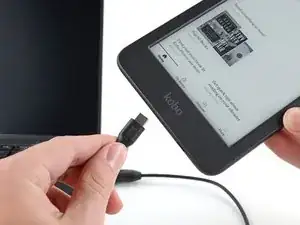
    • Conecte o seu e-reader a um computador.

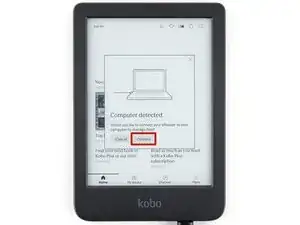
    • Aparecerá no tablet que um computador foi detectado. Selecione Conectar.

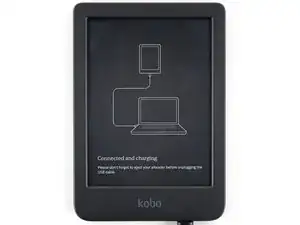
    • Enquanto o tablet estiver conectado, você não poderá usá-lo.

    • Se estiver tendo dificuldades para conectar ao seu computador, clique aqui para obter informações de diagnóstico.

  5. wWULoW6AOhIxX2dZ
    wWULoW6AOhIxX2dZ
    OwBY1ZcWGrbrEhkO
    ExF5AhPRRaOKCleb
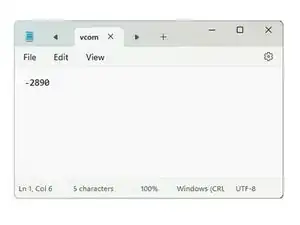
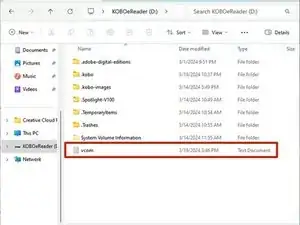
    • Em seu computador, use um editor de texto para criar um arquivo .txt chamado vcom com somente o código VCOM desejado (incluindo o símbolo negativo e a multiplicação por 1000).

    • Por exemplo, se o código VCOM na tela de reposição for -2.89, o arquivo deverá conter exatamente -2890.

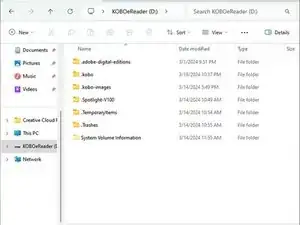
    • Encontre o drive chamado KOBOeReader e abra-o.

    • Transfira o arquivo vcom para o drive.

    The exact filename has to be 'vcom.txt' (without the quotes, all lowercase). So, need to have .txt to the vcom filename.

    Hans -

    Hans, I don't know if I misunderstood what you said, but when I titled my file 'vcom.txt' my Kobo did not recognize the new VCOM when I continued to step 6. I had to title the file simply 'vcom' for it to work

    Arianna A -

  6. m1JqulJ5UljuYmyv
    m1JqulJ5UljuYmyv
    1TRhHoYv2QAZ2CTq
    • No seu computador, ejete o e-reader.

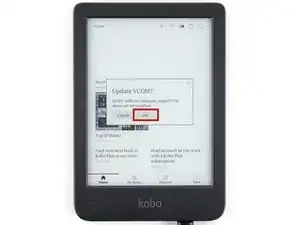
    • Uma vez ejetado com sucesso o dispositivo, você receberá uma solicitação para atualizar o código VCOM. Selecione OK para atualizar o código e reinicie o e-reader.

    • Se você não receber nenhuma solicitação, repita o passo anterior para garantir que o seu arquivo tem o formato e título corretos.

    • Volte à página Informações de firmware e cheque se o seu código VCOM atualizou.

    • Se o seu código VCOM foi atualizado, você conseguiu! Se não, verifique novamente cada passo deste guia para confirmar que o procedimento foi executado corretamente.

    • Pode ser que o valor atualizado do VCOM não corresponda com o número introduzido exatamente. Se eles corresponderem mais ou menos, está tudo bem!

    Hallo ich habe das Display ( Kobo Clara Colour) gemäß eurer Anleitung getauscht und auch den vcom Wert aktualisiert. Leider bleicht das Display immer wieder aus...woran kann das liegen?

    Sebastian Winkler -

Conclusão

A calibragem não está indo conforme o planejado? Tente soluções de problemas básicas ou peça a ajuda da nossa comunidade do fórum Respostas for help.

Alex Diaz-Kokaisl

Membro desde: 16/01/22

227430 Reputação

11 comentários

Any way of doing this on a kobo nia? I just changed my cracked screen and I don't have the vcom heading, nor do the steps work for my model.

Cheers

Mark B -

I saw some posts on forums commenting that some users opened their Kobo and noticed that the VCOM indicated on the board was different from the VCOM configured in the system. My question is whether I should open my Kobo to check if my model also has a mismatched configuration. It seems that several devices are coming with them misconfigured, and here on iFixit, there is the following information: If the VCOM numbers stay mismatched for long periods of time, this may result in permanent damage to the E-ink display.

So, should I open it to check or ignore it, even though there is a possibility that my Kobo is misconfigured? Any suggestions from Kobo or iFixit regarding this?

V M -

Hi, my reader's VCOM value is -1352mV and I've tried to open the back cover to check my VCOM number and found -1.36, I changed to the new value and "upload" to my reader like your procedure, but every time I reboot my device and found the value changed nothing, remains -1352mV.

I'm making sure that each step is correct. Does anyone know what's the problem?

r6b444 -

The VCOM values won't match to the exact digit. In your case, they're super close together and won't pose a problem.

Carsten Frauenheim -

What variance/difference is considered acceptable? My device firmware info tab lists -1470 however the inside of the device via QR code lists -1.48.

pocketwildflwr -

That's within tolerance and won't pose any problems.

Carsten Frauenheim -

I wonder if there is some battery life variances caused by this? My Kindle Libra color is at 1.64v. Then you have another user all the way at 1.25v. that's 390mv which seems pretty significant since if backlight it as zero the screen power might be a decent affect? But that's quite hard to test for without units with different voltages in hand.

Demon09 -

Or maybe a higher number is better since it's -xxxxmv? Would be interesting to know at least.

Demon09 -

I have a Tolino Vision Color, changed the LCD and it is working great. My old LCD was -1.70 and the new one is -1.45. There is no ghosting or any other problem.

But I switched my Tolino to Kobo, now the latest Kobo version is installed, but if I upload the file vcom.txt with the new value to the eReader, nothing happens after disconnecting the device. Under Software Details, I also don't see any VCOM value displayed. Only Waveform, Kernel Version, Touch Firmware, Status Code and Bluetooth Firmware.

Can I change the vcom value in the DEV mode? If yes, I need to reinstall everything from scratch. Or what can I do, to solve this?

Klaus -

There is a procedure to switch from Tolino Software to Kobo Software using the DEV mode.

Klaus -

For Tolino Users (Clara / Vision Color)

If you want to change the vcom value, you have to switch to the Kobo Stock 4.x firmware. Then the vcom.txt file will be accepted and the value will be changed.

Steps:

1. Search for "github notmarek" and on github look for his project "KoboTolinoFindings"

2. Connect your eReader to your PC using the USB cable

3. Copy over the file Kobo.tgz to the eReader under .kobo/ (If you don't see this folder in your file browser, enable hidden files)

4. Disconnect from USB, eReader will perform a reboot

5. Developer Mode is now activated

6. Copy over the file update.tgz from the PATH DowngradePackage to the eReader under .kobo/

7. Disconnect from USB, eReader will perform the downgrade

8. Check, if you can see the vcom value under Firmware Information.

9. If yes, you can proceed with the above mentioned steps.

10. As soon as you have WiFi, the eReader performs an update to the latest Kobo Stock 4.x version.

Klaus -