Introdução
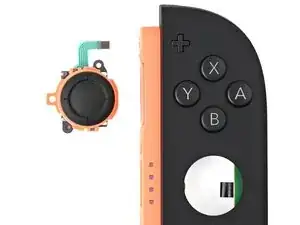
Follow this guide to replace a damaged or drifting joystick in a right Joy-Con 2 controller. If you need to replace the joystick in a left Joy-Con 2, follow this guide instead.
The Joy-Con 2 uses JIS screws. If you use a non-iFixit Phillips driver in JIS screws, you'll risk stripping them.


-
-
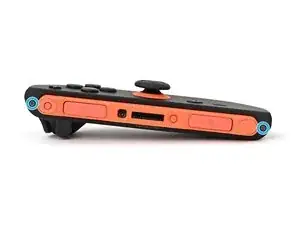
Use a tri-point Y00 driver to remove the two 3.1 mm‑long black screws on the left edge of the controller.
-
-
-
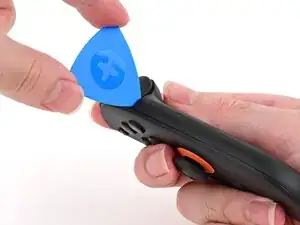
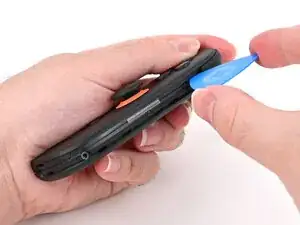
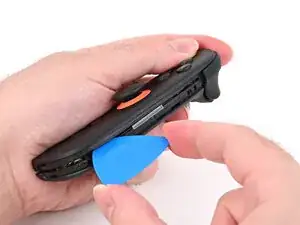
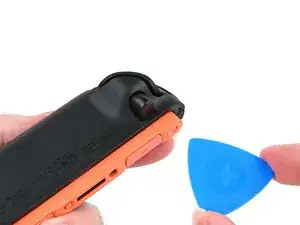
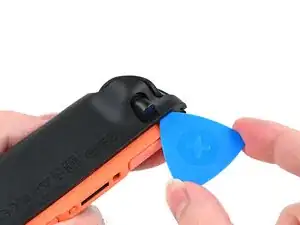
Insert an opening pick into the gap underneath the bumper button on the right side of the controller, with a point of the pick pointing downwards.
-
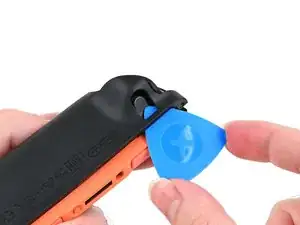
Pry up to slightly lift the plastic strip running across the right edge of the controller.
-
Slide the opening pick around to the front of the controller.
-
-
-
Slide the opening pick down the plastic strip to separate the clips and adhesive securing it to the controller's body.
-
-
-
Pry up on the bottom edge of the plastic strip with slow, steady force.
-
Repeat this prying action along the length of the strip until it's fully detached.
-
-
-
Remove the two screws on the right edge of the controller:
-
One 3.1 mm‑long tri-point Y00 black screw
-
One 3.0 mm‑long JIS 00 silver screw
-
-
-
Insert an opening pick into the gap between the front and back halves of the controller on its right side.
-
Slide the pick down the controller to disengage the clips.
-
Leave the opening pick at the bottom of the controller's right edge, just before its curve.
-
-
-
Hold the controller upside-down.
-
Insert a point of another opening pick next to the release button towards the top of the controller.
-
Use the opening pick to press the release button through the gap.
-
-
-
Firmly grasp the two wires (yellow and white) above the rumble motor connector, located at the bottom of the controller's board, and pull the beige connector out of its socket.
-
Remove the back cover.
-
-
-
Use tweezers or your fingers to firmly grip the battery cable's white JST connector and pull straight away from its socket to disconnect it.
-
-
-
Insert an opening pick between the bumper (R) and trigger (ZR) buttons at the top of the controller.
-
Use the opening pick to pry the trigger away from the bumper until it pops off the controller.
-
-
-
Use a JIS 00 driver to remove the five screws securing the midframe:
-
Four 3.9 mm‑long silver screws
-
One 6.2 mm‑long black screw
-
-
-
Hold the midframe lightly in place.
-
Pull the bumper (R) button off its mounting pegs and remove it.
-
-
-
Flip the controller's mid-frame over so it rests on the Joy-Con's inner edge (the edge with the shoulder buttons).
-
-
-
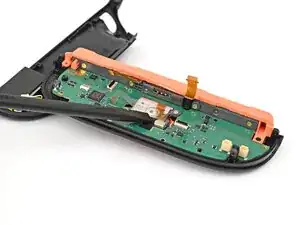
Use the point of a spudger to flip up the locking flap on the midframe cable ZIF connector, located on the controller's board.
-
-
-
Repeat this procedure to disconnect the remaining three ZIF connectors on the controller's board.
-
-
-
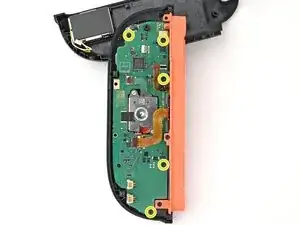
Use a JIS 00 driver to remove the five 3.1 mm‑long black screws securing the board to the controller.
-
-
-
Insert the point of a spudger between the board and the controller, near the battery connector socket.
-
Pry up on the board enough to grasp its edge with your fingertips.
-
-
-
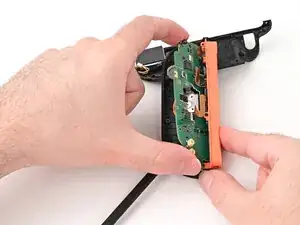
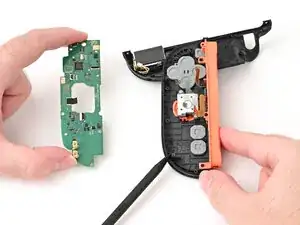
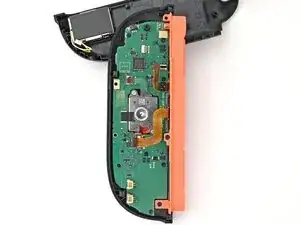
Lift the board by its outer edges to a roughly 45-degree angle, so it's no longer being blocked by the joystick assembly.
-
Remove the board.
-
-
-
Congratulations on completing disassembly! The remaining steps will show how to reassemble your console.
-
-
-
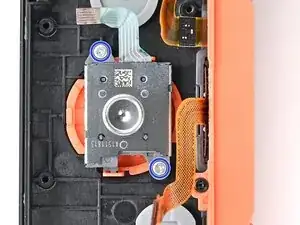
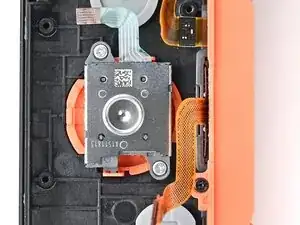
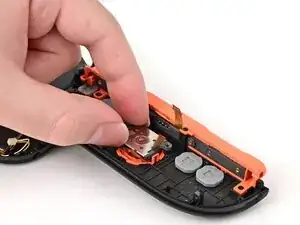
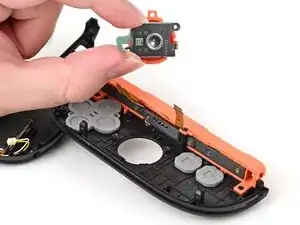
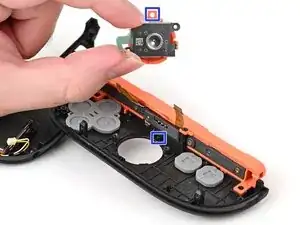
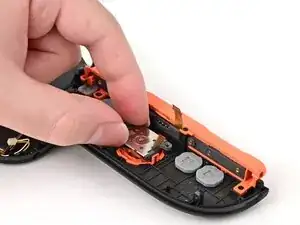
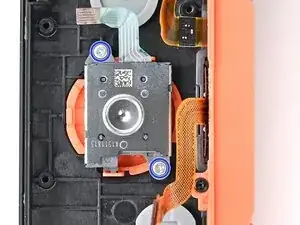
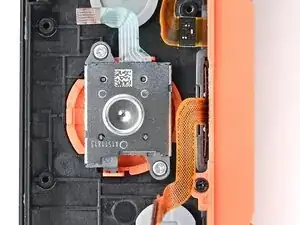
Align the cut-out in the joystick's plastic frame with its peg on the controller.
-
Set the joystick in the controller. Gently wiggle the joystick to ensure it's fully seated.
-
-
-
Lower the board's flat side into the controller at an angle.
-
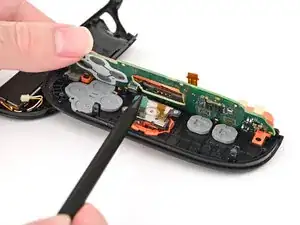
Use a spudger to bend the joystick's ribbon cable so it's perpendicular with the joystick.
-
Lower the board so the joystick's ribbon cable routes through the joystick cut-out in the board. Ensure the board is sitting underneath the locking tab on the frame.
-
-
-
Push the board towards the controller's inner edge (the side with the shoulder buttons) to prevent it from colliding with the joystick module.
-
Lower the board into the frame.
-
Use your finger or the flat end of a spudger to press the black tape onto the back of the joystick module.
-
-
-
Use a JIS 00 driver to install the five 3.1 mm‑long black screws securing the board to the controller.
-
-
-
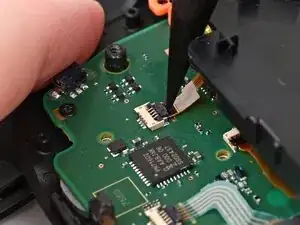
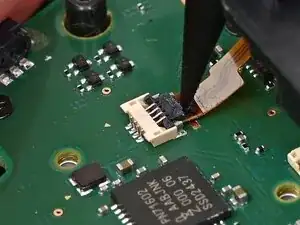
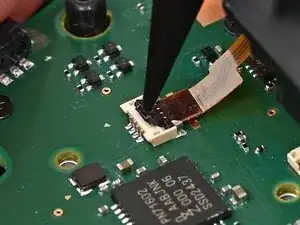
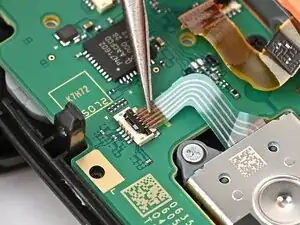
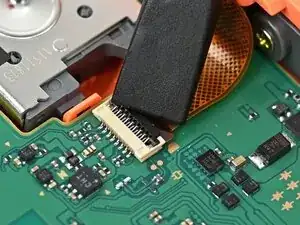
Make sure the locking flap is flipped up on the joystick cable ZIF connector.
-
Insert the joystick ribbon cable into its ZIF connector until it's fully seated.
-
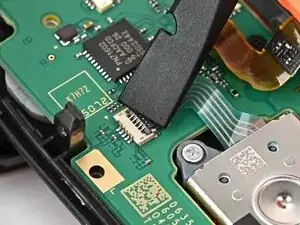
Use your finger or a spudger to flip the locking flap down to secure the cable.
-
-
-
Make sure the locking flap is flipped up on the Joy-Con connector cable ZIF connector.
-
Insert the Joy-Con connector ribbon cable into its ZIF connector until it's fully seated.
-
Use your finger or a spudger to flip the locking flap down to secure the cable.
-
-
-
Repeat this procedure for the shoulder button ZIF connector. The cable is fully seated when its brown "wings" are in their slots on both sides of the connector.
-
-
-
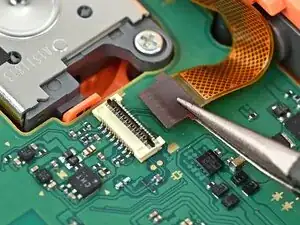
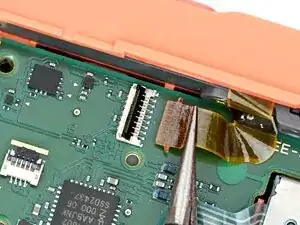
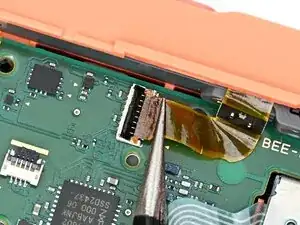
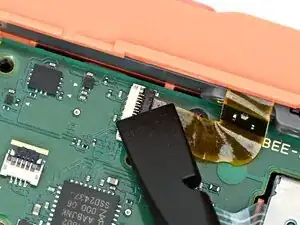
Make sure the locking flap is flipped up on the midframe cable ZIF connector.
-
Reposition the midframe so its ribbon cable is aligned with its socket on the board.
-
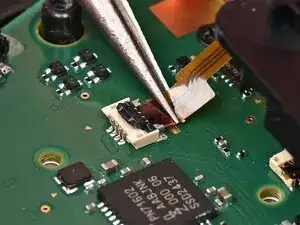
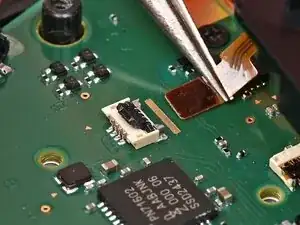
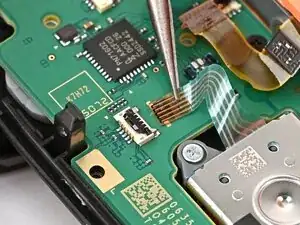
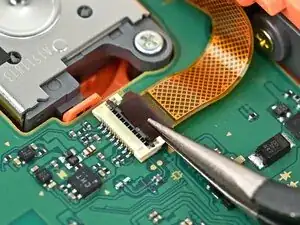
Push the ribbon cable into its connector by moving the midframe. If needed, use tweezers to fully seat the cable. The darker brown tab at the tip of the cable should end at the golden line on the board.
-
-
-
Align the two springs on the bumper with their two posts on the midframe, and press it into place.
-
-
-
Align the release button mounting bracket with its screw holes and press it in the frame so it snaps into place.
-
-
-
Use a JIS 00 driver to install the two screws securing the release button bracket.
-
One 3.9 mm‑long silver screw
-
One 6.2 mm‑long black screw
-
-
-
Align the trigger button with the top of the controller, with the "ZR" engraving facing out.
-
Set the trigger button onto its metal spring. Ensure the legs of the spring are seated properly in their channels on the midframe.
-
Press firmly on the trigger button to snap it into place.
-
-
-
Hold the release button so its smooth face is perpendicular to the controller.
-
Insert the release button into its bracket.
-
-
-
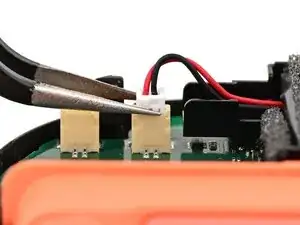
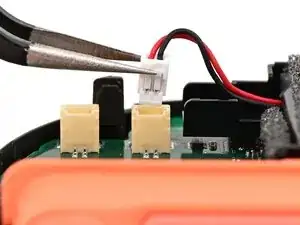
Align the battery connector with its socket on the board.
-
Press down on the connector until it's fully seated.
-
-
-
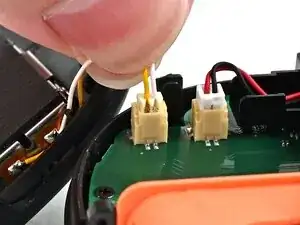
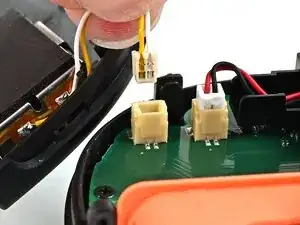
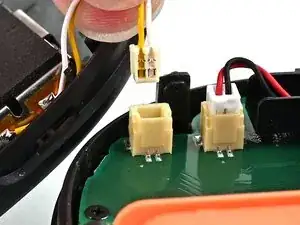
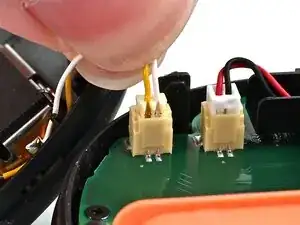
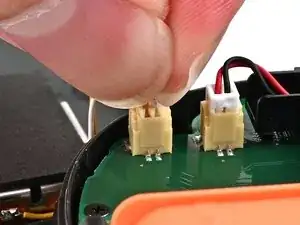
Align the rumble motor connector to its socket on the bottom edge of the board, and push down until it's fully seated to connect it.
-
-
-
Use an opening pick to press and hold the release button.
-
Place the back cover over the controller body so the release button cutout is slightly below the release button.
-
Press and slide the back cover up until the cut-out for the release button is aligned with the button itself.
-
-
-
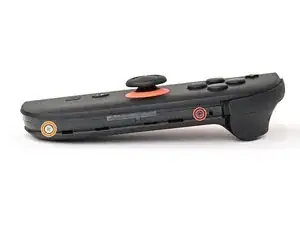
Install the two screws on the right edge of the controller:
-
One 3.1 mm‑long tri-point Y00 black screw
-
One 3.0 mm‑long JIS 00 silver screw
-
-
-
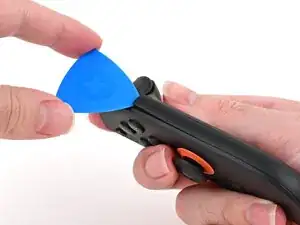
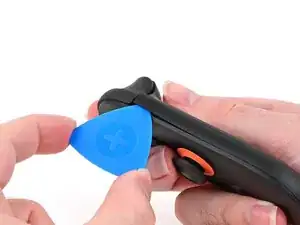
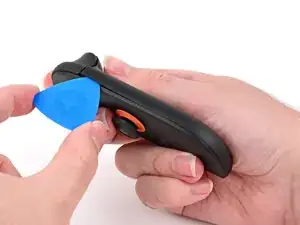
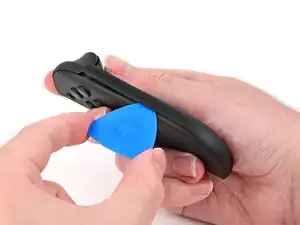
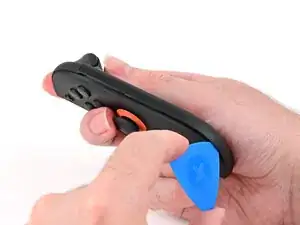
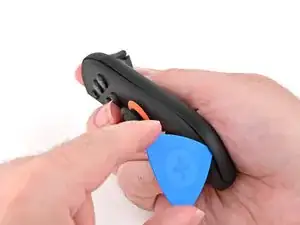
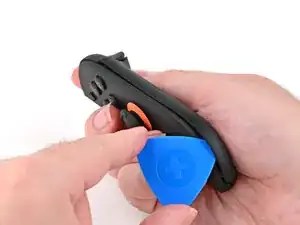
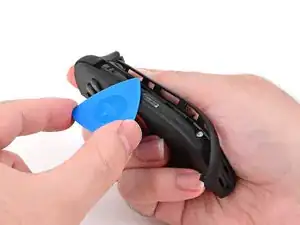
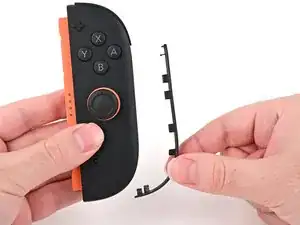
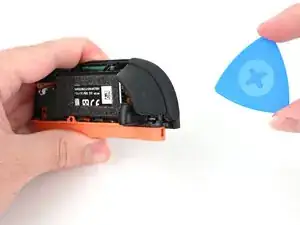
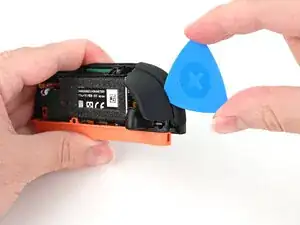
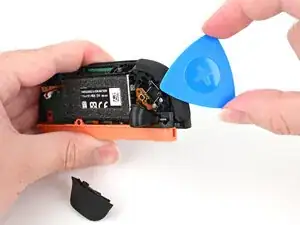
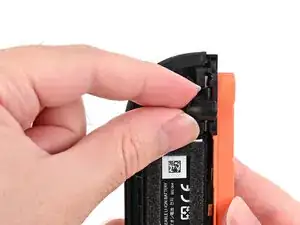
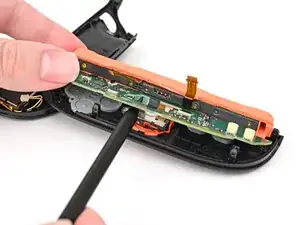
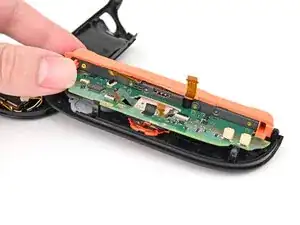
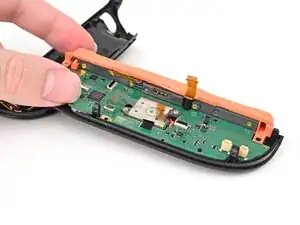
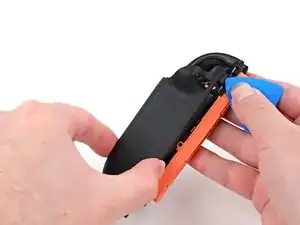
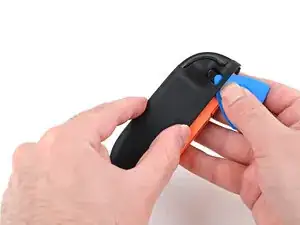
Align the clips on the plastic strip with their cut-outs on the right edge of the controller body.
-
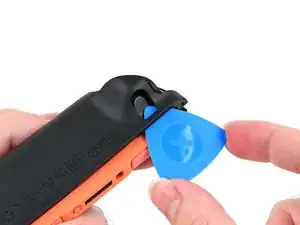
Insert the clips on the bottom edge first, then insert the rest so the plastic strip sits flush.
-
-
-
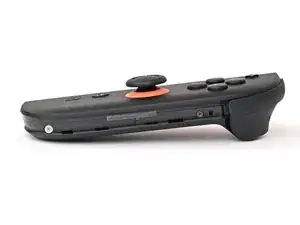
Use a tri-point Y00 driver to install the two 3.1 mm‑long black screws on the left edge of the controller.
-
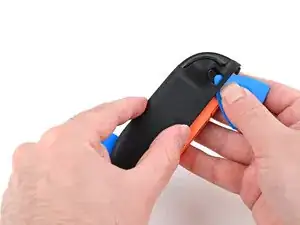
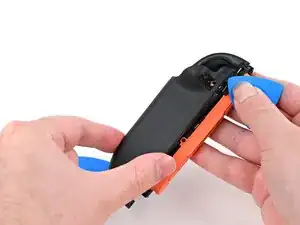
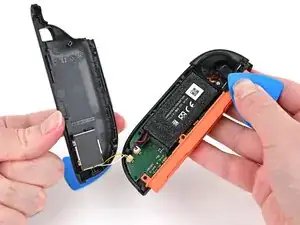
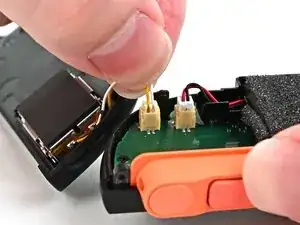
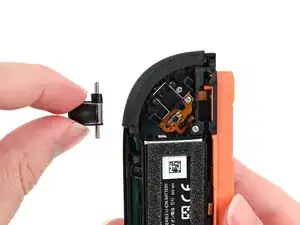
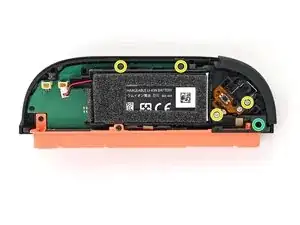
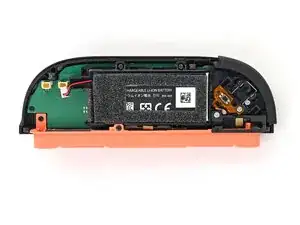
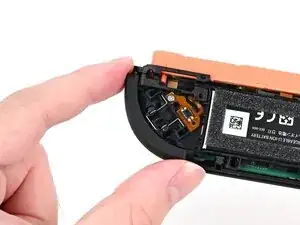
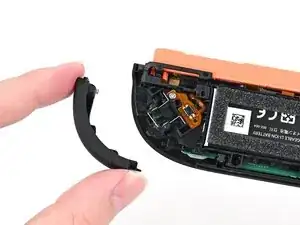
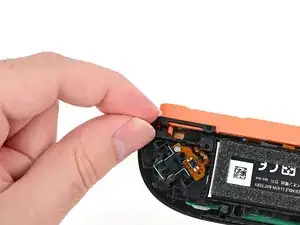
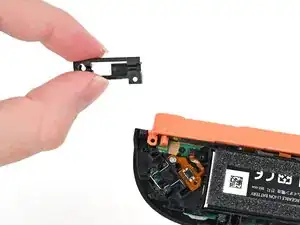
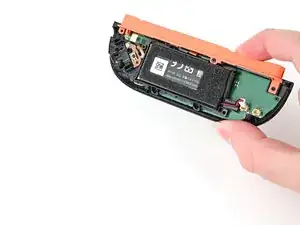
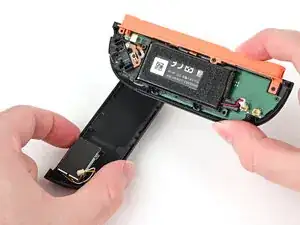
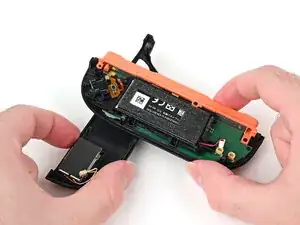
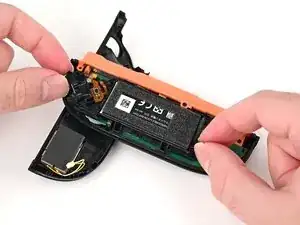
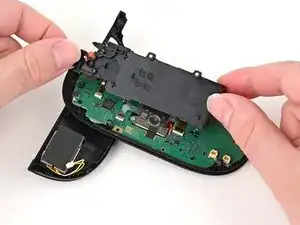
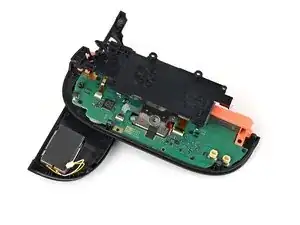
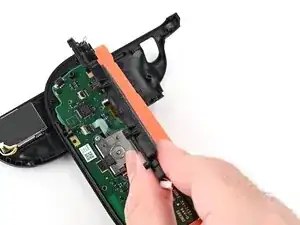
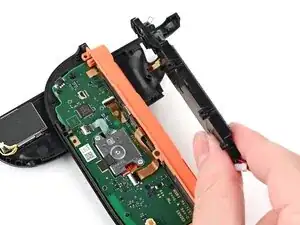
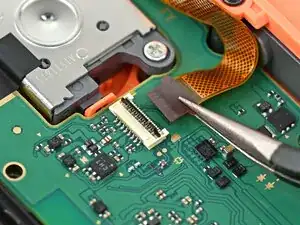
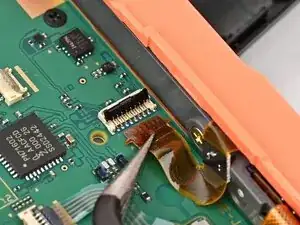
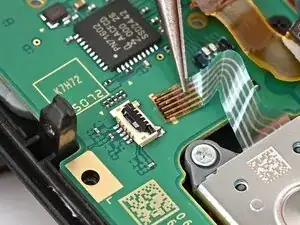
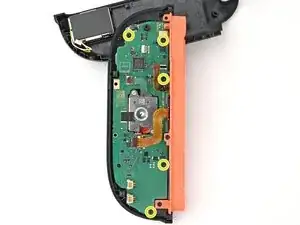
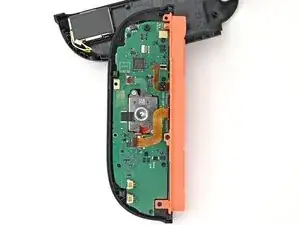
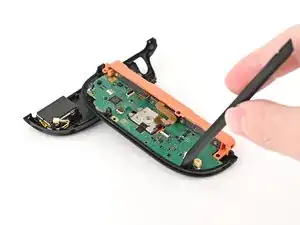
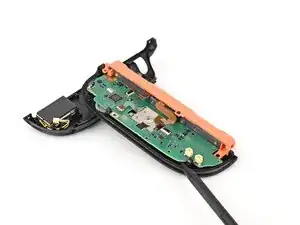
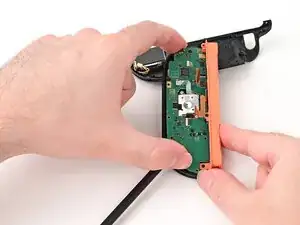
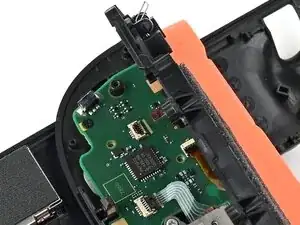
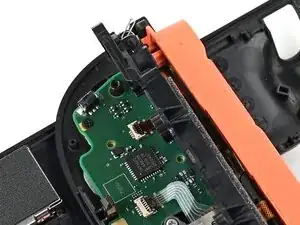
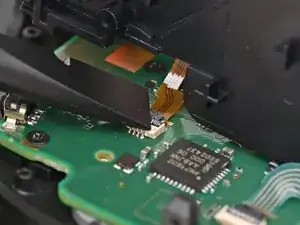
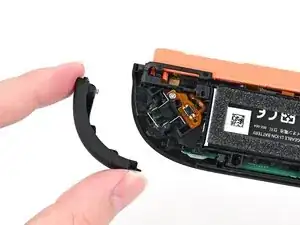
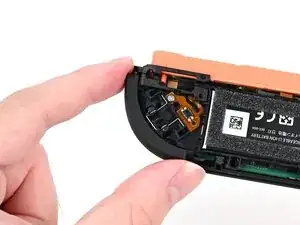
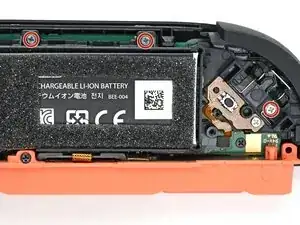
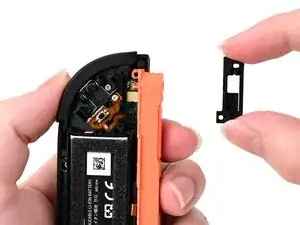
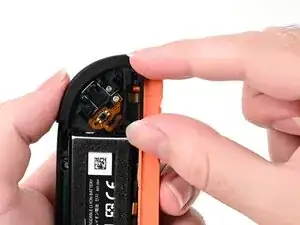
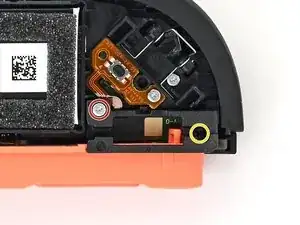
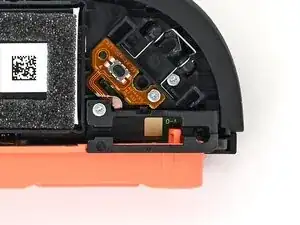
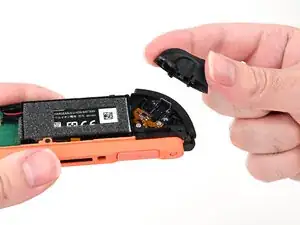
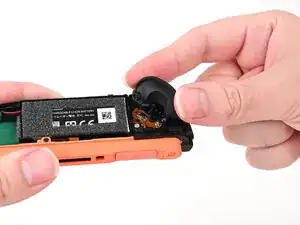
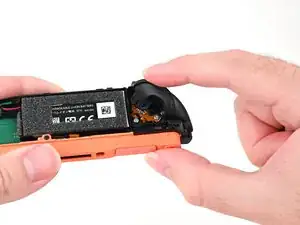
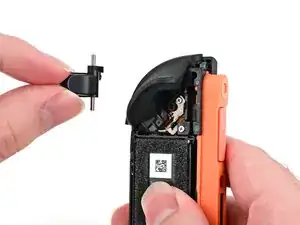
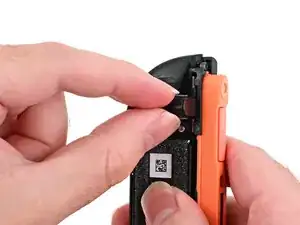
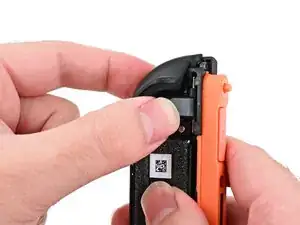
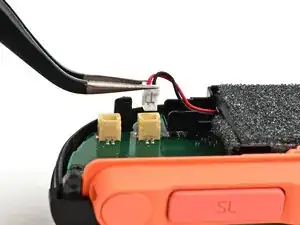
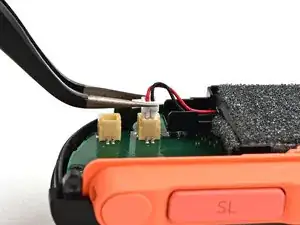
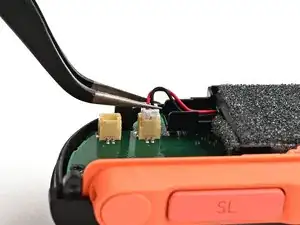
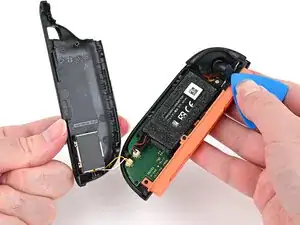
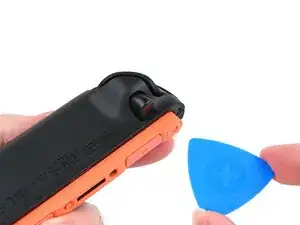
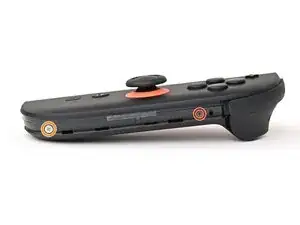
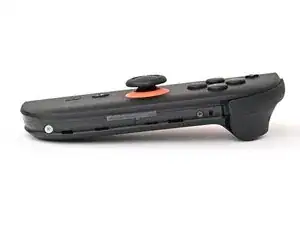
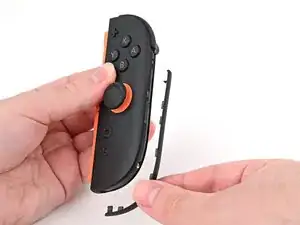
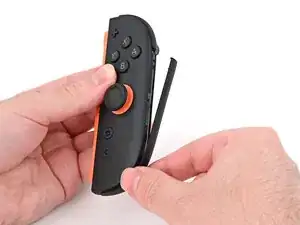
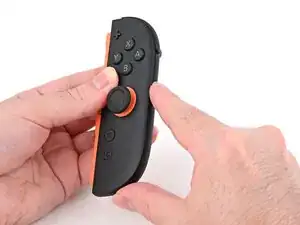
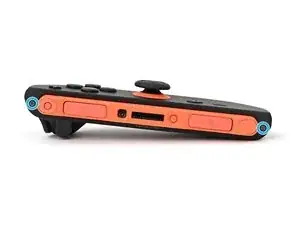
You finished fixing your Joy-Con 2!
Take your e-waste to an R2 or e-Stewards certified recycler.
Repair didn’t go as planned? Try some basic troubleshooting, or ask our Joy-Con 2 Answers Community for help.

Um comentário
Hello Reader!
I recently broke my right Nintendo Switch 2 joy-con when it fell off of my bed, and the joystick stem just snapped completely off. I thought all hope was lost, but then I found this guide and bought a repair kit (with proper screwdrivers, pliers, sticks, and smudger; can literally get it off of Amazon, if not from this website).
The steps were super thorough, and the pictures were amazingly accurate. I am a 19-year-old with no mechanical or technological experience, yet I was able to completely repair my joy-con in around an hour (maybe less), and now I don't have to buy new ones!
Please follow this guide if you need to fix your joy-con!! It works!!