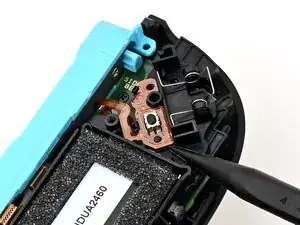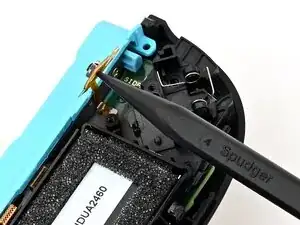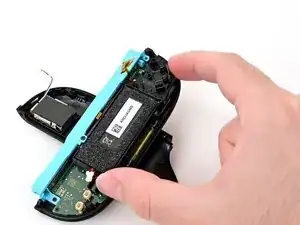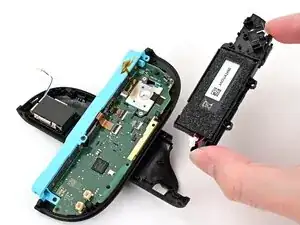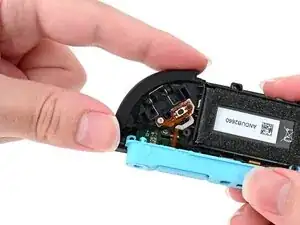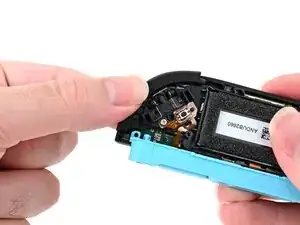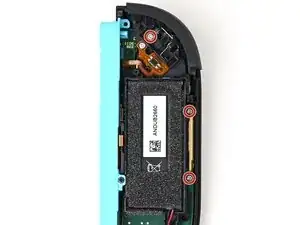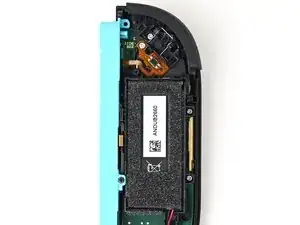
Introdução

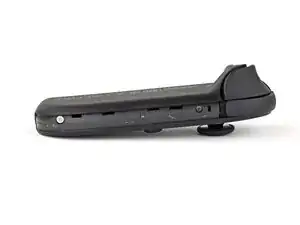
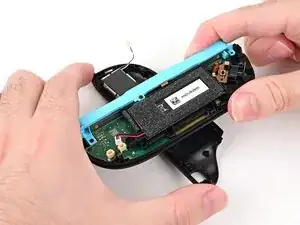
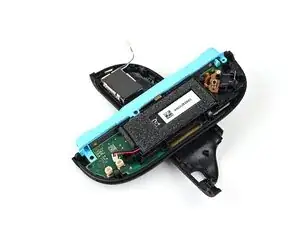
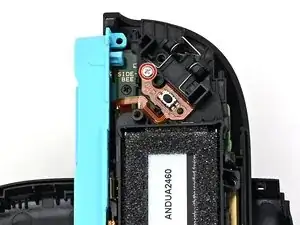
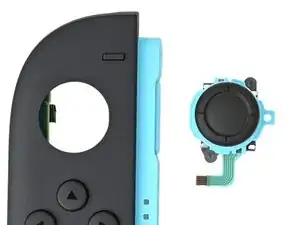
Follow this guide to replace a damaged or drifting joystick in the left Joy-Con 2 controller. If you need to replace the joystick in a right Joy-Con 2, follow this guide instead.

The Joy-Con 2 uses JIS screws. If you use a non-iFixit Phillips driver in JIS screws, you'll risk stripping them.

  1. AocCZm5flCKqyQP3
    AocCZm5flCKqyQP3
    ffdO3drRHwqfNGnt
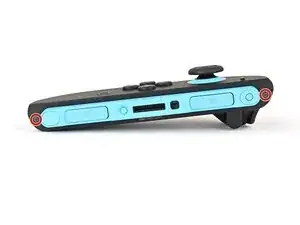
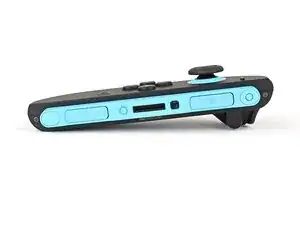
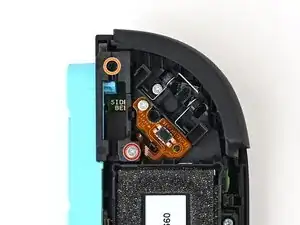
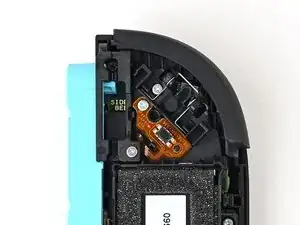
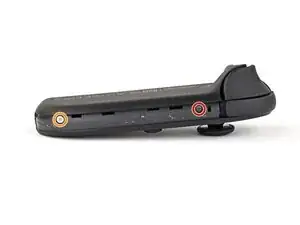
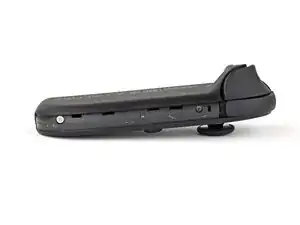
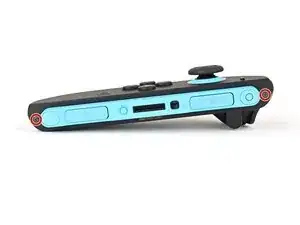
    • Use a tri‑point Y00 driver to remove the two 3.1 mm‑long black screws on the right edge of the controller.

  2. BHBkKEVmSUvJGSCO
    BHBkKEVmSUvJGSCO
    V143EftfffKNmNAL
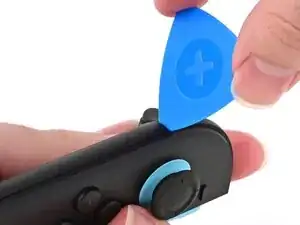
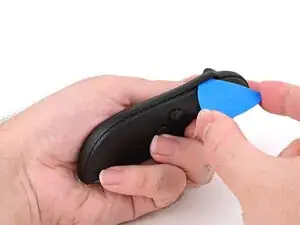
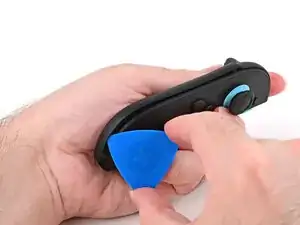
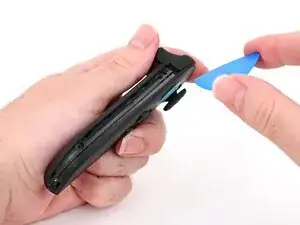
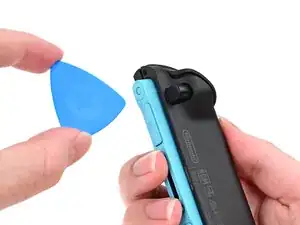
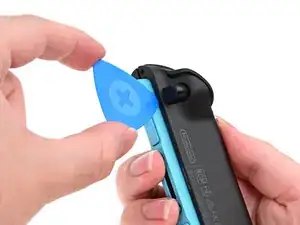
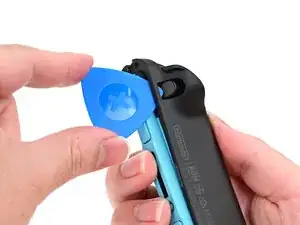
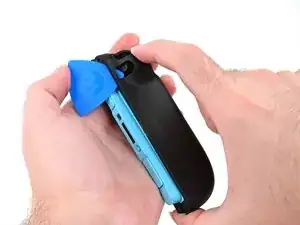
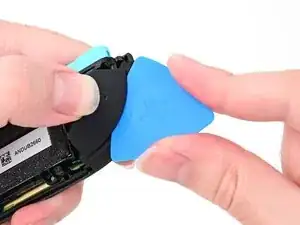
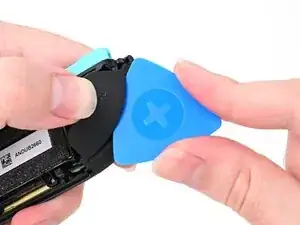
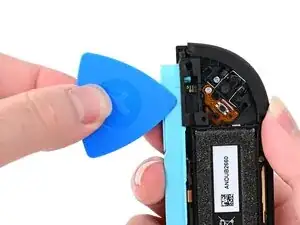
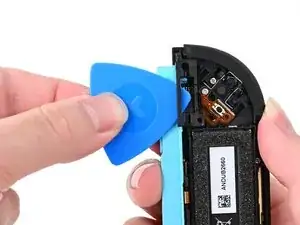
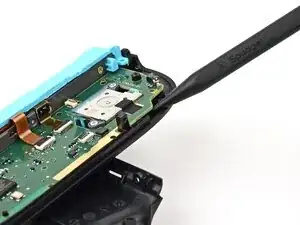
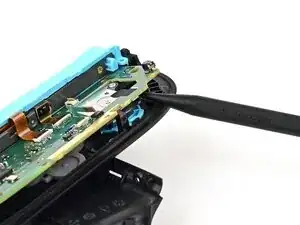
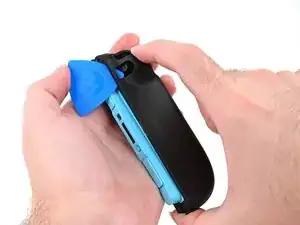
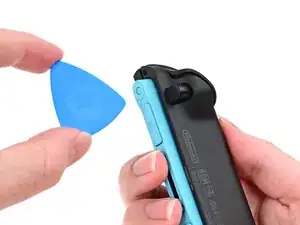
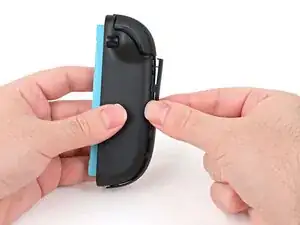
    • Insert an opening pick into the gap underneath the bumper button on the left side of the controller, with a point of the pick pointing downwards.

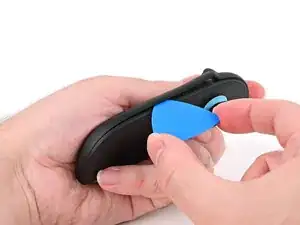
    • Pry up to slightly lift the plastic strip running across the left edge of the controller.

  3. 5lRN3a6LNJ1Ix4Wa
    5lRN3a6LNJ1Ix4Wa
    4afLB1vcGZxvprrK
    B2HlCP1BrKApQq4v
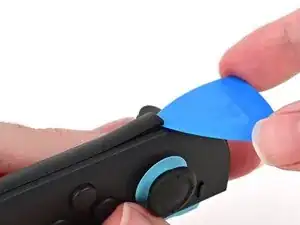
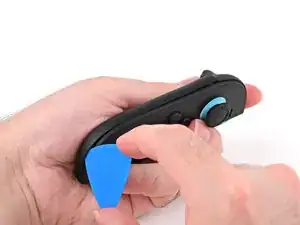
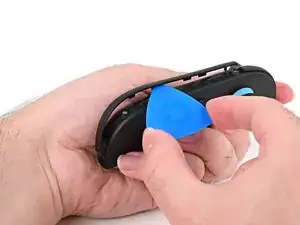
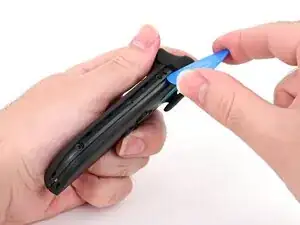
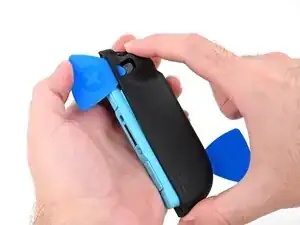
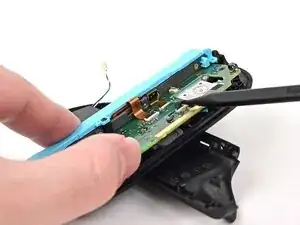
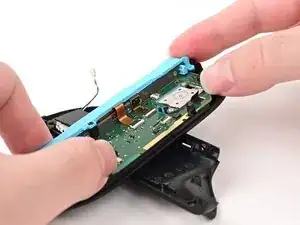
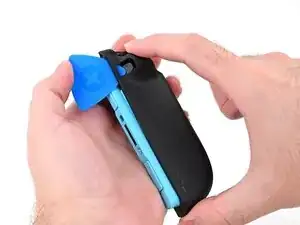
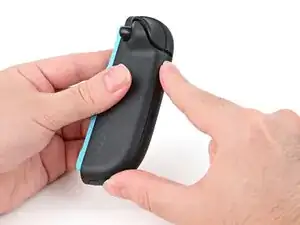
    • Slide the opening pick around to the front of the controller.

    • Slide the opening pick down the plastic strip to separate the clips and adhesive securing it to the controller's body.

  4. E5NKhTQStSgHyWW3
    E5NKhTQStSgHyWW3
    rZ5T6Z2gjavIxTjP
    4PjFWj6vRxLORgJL
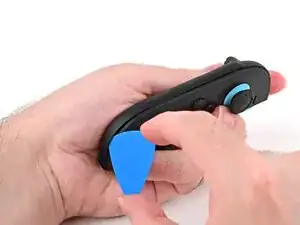
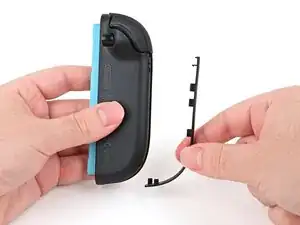
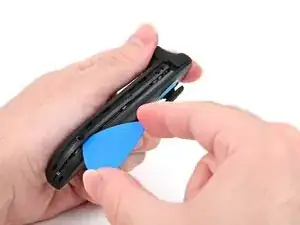
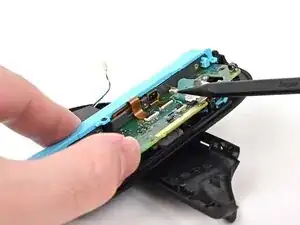
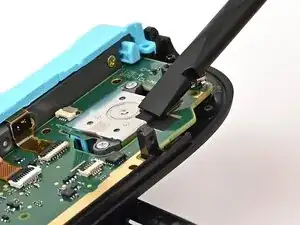
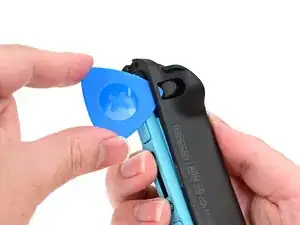
    • Pry up on the bottom edge of the plastic strip with slow, steady force.

    • Repeat this prying action along the length of the strip until it's fully detached.

  5. AbTUejsu6Iy4b3RP
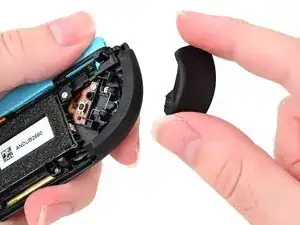
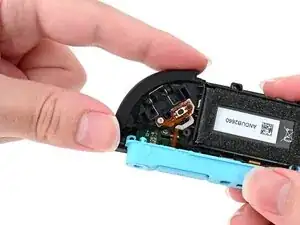
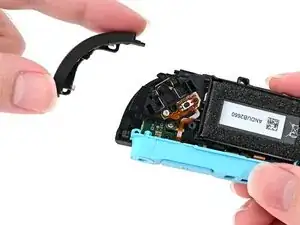
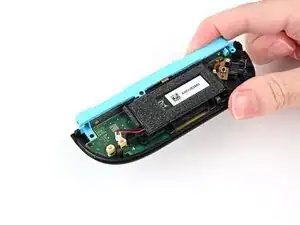
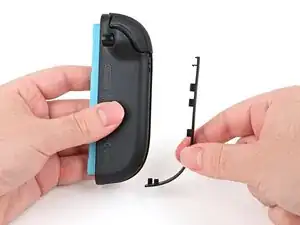
    • Remove the plastic strip.

  6. weiAao5PNNrtZ6sF
    weiAao5PNNrtZ6sF
    LcpjBvBBuSfllgwa
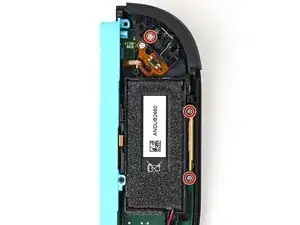
    • Remove the two screws on the left edge of the controller:

    • One 3.1 mm‑long tri‑point Y00 black screw

    • One 3.0 mm‑long JIS 00 silver screw

    • You can use a Phillips screwdriver in a pinch, but you risk damaging or stripping the screw. Push down firmly on the screwdriver and twist slowly. Often, switching drivers may help, even if they're the same size.

    It's actually supposed to be a JIS000 bit. At least that is the size that worked for me.

    BlueForce -
  7. elQeqaBMHFqC5FR4
    elQeqaBMHFqC5FR4
    NqmkKqAHf1WWno5w
    OXjhFnF5iabZbUgw
    • Don't try to remove the back cover yet.

    • Insert an opening pick into the gap between the front and back halves of the controller on its left side.

    • Slide the pick down the controller to disengage the clips.

    • Leave the opening pick at the bottom of the controller's left edge, just before its curve.

    • The opening pick will fall out once the back cover is removed. If it falls out before then, put it back to keep the two halves separated.

  8. BO6ctuiGEwv1xDNy
    BO6ctuiGEwv1xDNy
    g3ffhsMGOhHLw3kA
    CoWnTTN1NycmPgUj
    • Hold the controller upside-down.

    • Insert a point of another opening pick next to the release button at the top of the controller.

    • Use the opening pick to press the release button through the gap.

  9. 2OF2lhQEkYVAMA2w
    2OF2lhQEkYVAMA2w
    er5pqsBsj1tH11OU
    PiZqZTeCLs3DJHSg
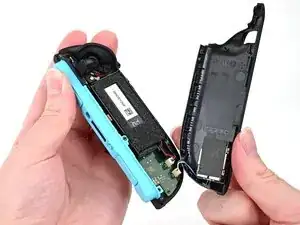
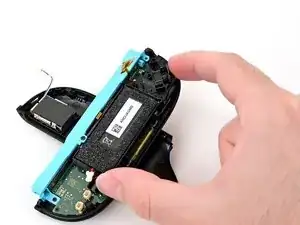
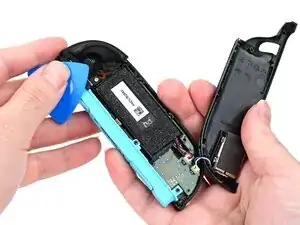
    • The back cover is connected to the controller by a cable at the bottom. Don't try to remove it completely yet.

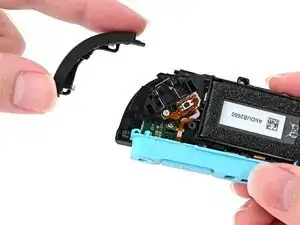
    • While holding the release button with the opening pick, use your other hand to slide the back cover down to release the clips securing it to the controller's body.

    • Open the back cover.

  10. SIEHVyIqUNys2eZ3
    SIEHVyIqUNys2eZ3
    DqYVoaQwOGfENq1l
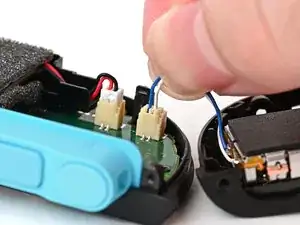
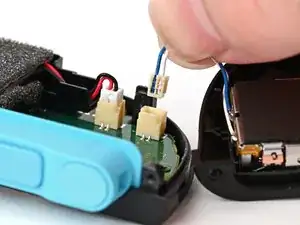
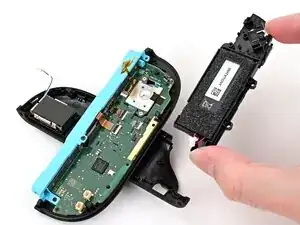
    • Firmly grasp the two wires (blue and white) above the rumble motor connector, located at the bottom of the controller's board, and pull the beige connector out of its socket.

    • Pulling the cable won't damage it, but don't dig your nails into the plastic sheathing.

    • Remove the back cover.

  11. Qj24KgmQqX2ZYtw5
    Qj24KgmQqX2ZYtw5
    RhaIuUGIDXJblWJM
    sYPQsPOjyaLLapAH
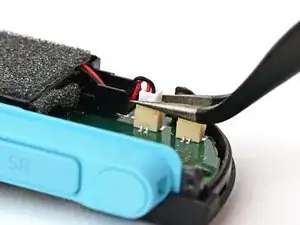
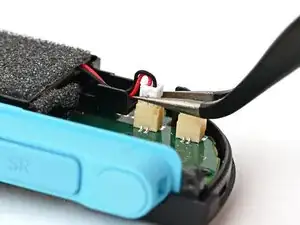
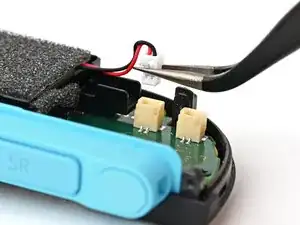
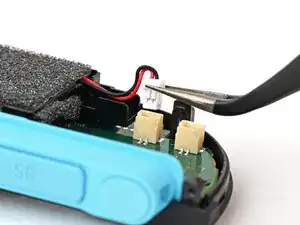
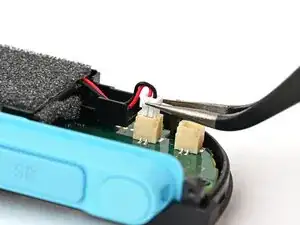
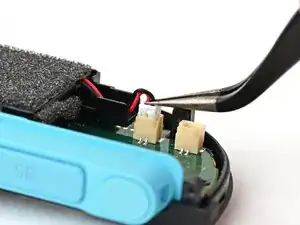
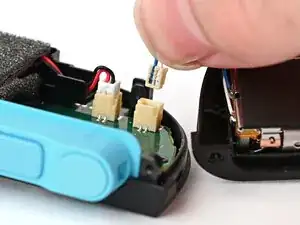
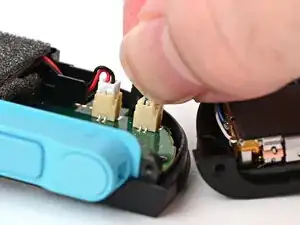
    • Use tweezers or your fingers to firmly grip the white JST connector and pull straight away from its socket to disconnect it.

    • Once partially lifted, reposition your fingers/tweezers to beneath the connector's upper lip to increase your grip.

  12. mWpiDCtZgGNDTZEI
    mWpiDCtZgGNDTZEI
    dNgqAqiVQMbavdtL
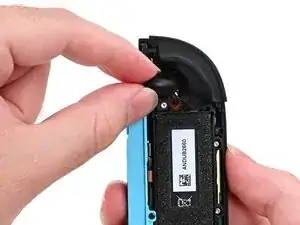
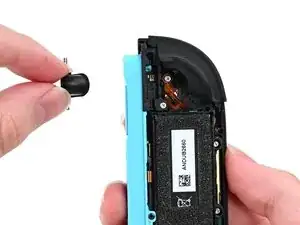
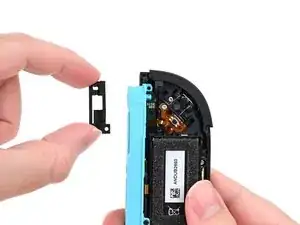
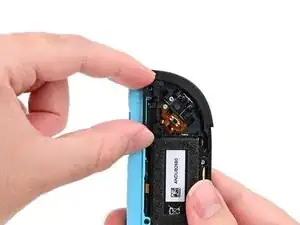
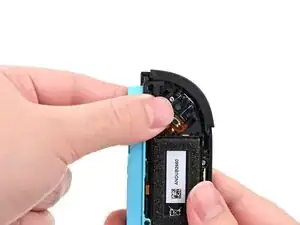
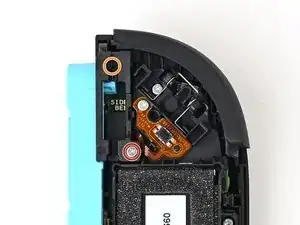
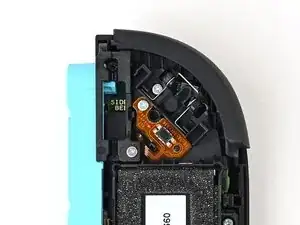
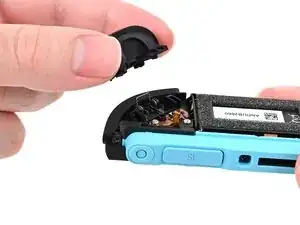
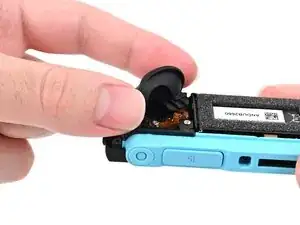
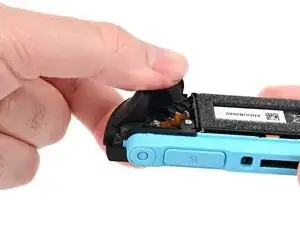
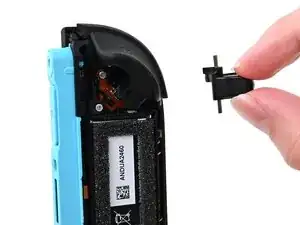
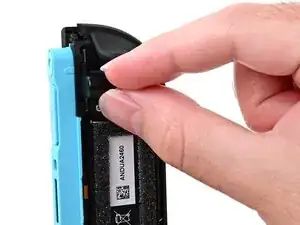
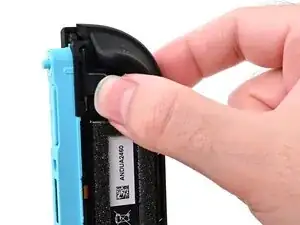
    • Pick up the release button and remove it.

  13. AENEdwIfCHDHDi2e
    AENEdwIfCHDHDi2e
    q15EnFUcRX3L6Cdn
    x1hBqIwrNCMN1WKb
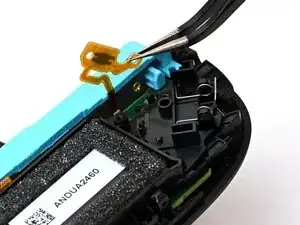
    • Insert an opening pick into the gap between the bumper (L) and trigger (ZL) buttons at the top of the controller.

    • Pry up on the ZL button to pop it off and remove it.

    • You can lightly hold the ZL button with your finger to avoid launching it.

  14. WxObJSAW2HgVZSVn
    WxObJSAW2HgVZSVn
    cNPqblT6xKvdn3Xt
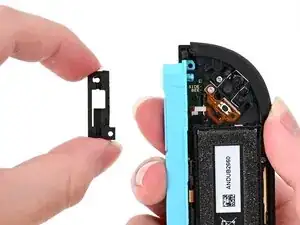
    • Use a JIS 00 driver to remove the two screws securing the release button mounting bracket:

    • One 3.9 mm‑long silver screw

    • One 6.2 mm‑long black screw

  15. xhiZtfhIhYlfQXae
    xhiZtfhIhYlfQXae
    EuXhFX3xU4yjkOnE
    nXToakYrXXjhjq43
    • Insert an opening pick underneath the release button bracket.

    • Pry it away from the controller to remove it.

  16. UZ6nwCLHpYjY5NLO
    UZ6nwCLHpYjY5NLO
    TiXLuTRcRlTGKJm4
    • Use a JIS 00 driver to remove the three 3.9 mm‑long silver screws securing the midframe.

  17. ZLmYkV1MHTAQbOmR
    ZLmYkV1MHTAQbOmR
    UjQdHPHv3JcPSooP
    • Hold the midframe lightly in place.

    • Pull the L bumper button off its mounting pegs and remove it.

    • The midframe will lift slightly when removing this button.

  18. KEawcYKLDcZQwbrS
    KEawcYKLDcZQwbrS
    ZvfwxInwa6QFopnD
    IJgZNZIILOKeBAVA
    • Use the back cover to prop up the controller while you work.

    • The buttons on the front of the controller should rest on the back cover's lip to keep it stable.

  19. pB6HpvyxomLTho4P
    pB6HpvyxomLTho4P
    AABQGyFP1rHBkasI
    • Use a JIS 00 driver to remove the 3.9 mm‑long silver screw securing the trigger button board.

  20. tMdfeltMlQDL3UKF
    tMdfeltMlQDL3UKF
    llOopVscQxa3yEfZ
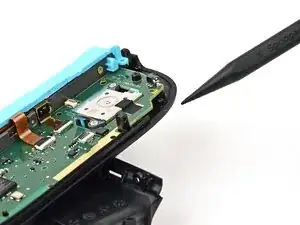
    • Insert the point of a spudger underneath the board, and lift it until it pops up.

  21. OynHmHt5DGodEgND
    OynHmHt5DGodEgND
    rELfFHtTDexIlOJX
    • Pick up and remove the midframe.

  22. yOSgYt4QDmhdVEPS
    yOSgYt4QDmhdVEPS
    4WB2LIKpu4A3LRGU
    LbEHFwYVaIwDqoCf
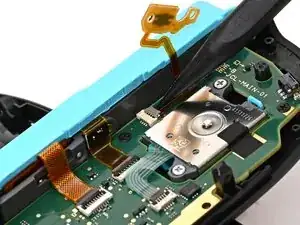
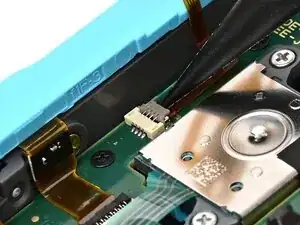
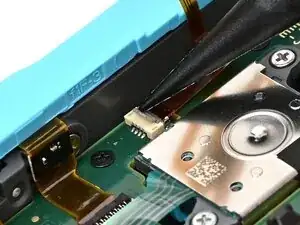
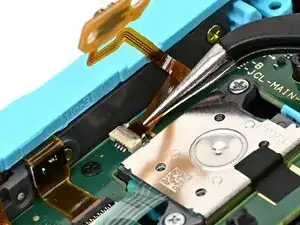
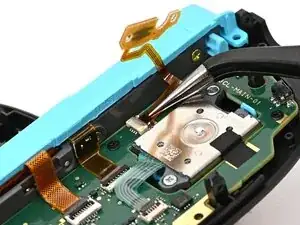
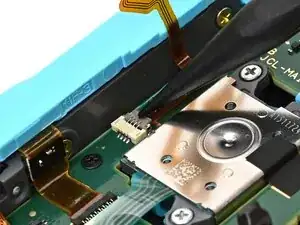
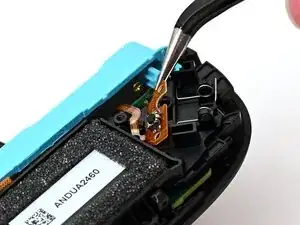
    • Use the point of a spudger to flip up the locking flap on the trigger button ZIF connector, located on the controller's board.

  23. vAEk2dAlFiN5ws2t
    vAEk2dAlFiN5ws2t
    rMTKRS1vu6QWUCmK
    • Use tweezers or your fingers to gently pull the cable out of its socket.

    • Remove the trigger button board.

  24. Q6kJIhnBRN2D6niQ
    Q6kJIhnBRN2D6niQ
    ClJfbRvYvtpmPKNV
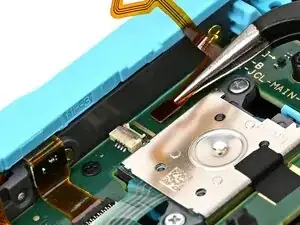
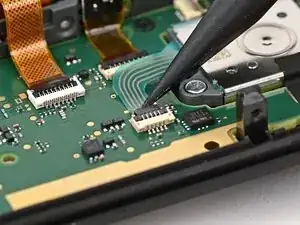
    • Use the point of a spudger to flip up the locking flap on the joystick cable ZIF connector, located in the center of the board.

  25. ZQyOigSPQX23SUjI
    ZQyOigSPQX23SUjI
    26OmwifOhmmgsoUO
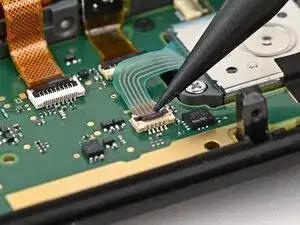
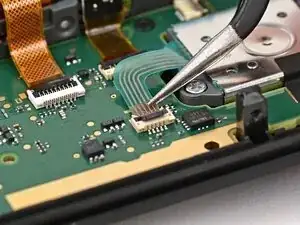
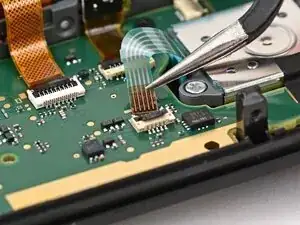
    • Use tweezers or your fingers to grab the brown part of the cable and gently pull the cable out of its socket.

  26. rAWFHmD4nuxaCJBt
    rAWFHmD4nuxaCJBt
    cpE3hBAYcFIIJMer
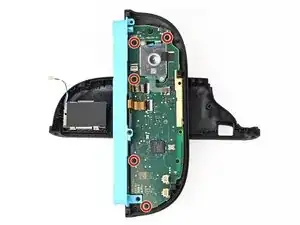
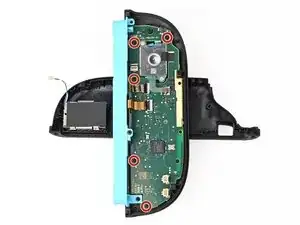
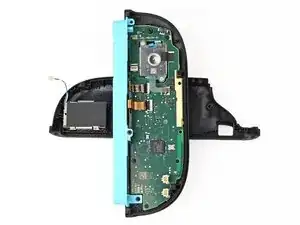
    • Use a JIS 00 driver to remove the five 3.1 mm‑long black screws securing the board to the controller.

  27. 2ujFqbv3ikRc3Xx2
    2ujFqbv3ikRc3Xx2
    Na6RpVj1RrVAWnMb
    VefCBBAoO6T6DW5H
    • Insert the point of a spudger underneath the board, next to the joystick, between the board and the frame.

    • Pry up slowly on the board to lift it until you can grab it with your fingers.

    • The black tape stuck to the joystick will stay with the board. Work slowly to avoid tearing the tape.

  28. uqaYyY3uIYwQ13TH
    uqaYyY3uIYwQ13TH
    oCxvPIYJaclONuZN
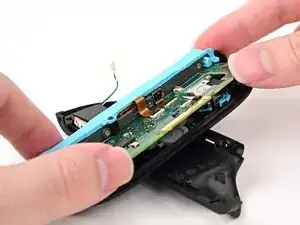
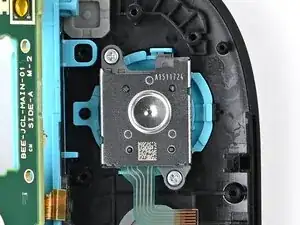
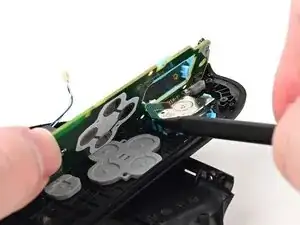
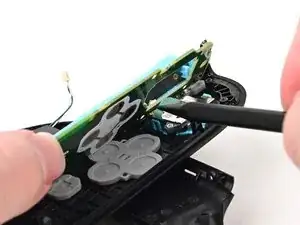
    • Use your fingers or a spudger to lift the joystick cable up so it's perpendicular to the joystick module.

  29. KLVPmJZgmdufeh3C
    KLVPmJZgmdufeh3C
    wgbklyVwH5Vrbr12
    Ie1wLqRGNoPcBZAx
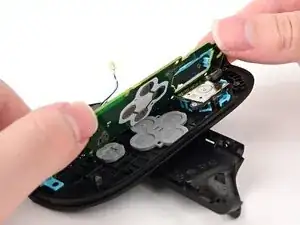
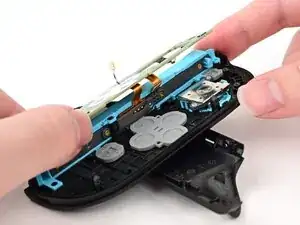
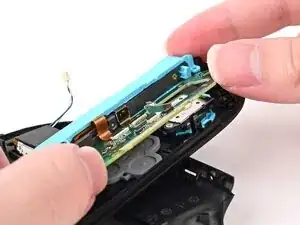
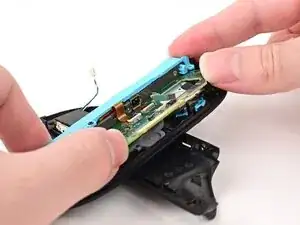
    • Lift the board and flip it over the controller's inner edge.

    • Be careful not to crease or tear the two ribbon cables connecting the board to the controller.

  30. NOSNvt4AE2bUi1ZY
    NOSNvt4AE2bUi1ZY
    YLuFBoNP2HH5axM4
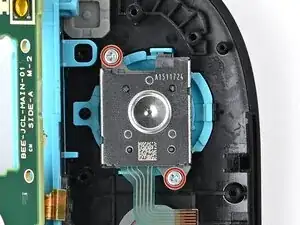
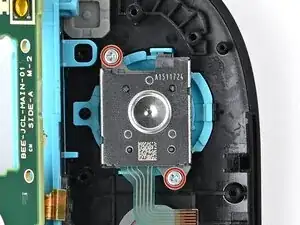
    • Use a JIS 00 driver to remove the two 3.9 mm‑long silver screws securing the joystick.

  31. iI1BhvgeNpnXiD3A
    iI1BhvgeNpnXiD3A
    AHtEEEMBIZXFsB1K
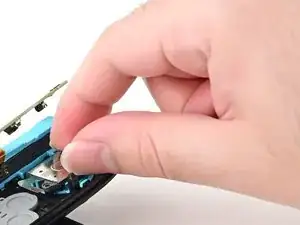
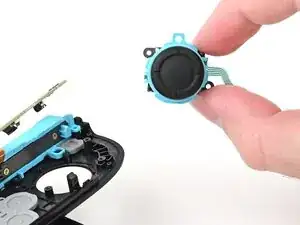
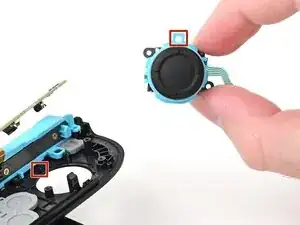
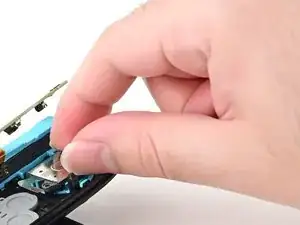
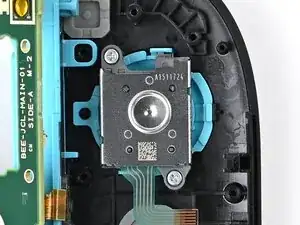
    • Use tweezers or your fingers to pick up and remove the joystick.

  32. joqvyGxvAljqRWdk
    • Congratulations on completing disassembly! The remaining steps will show how to reassemble your console.

  33. flY5Wtc4UyvFJPSt
    flY5Wtc4UyvFJPSt
    EiiBLHxSIoNXPRdv
    • Align the circular cut-out in the joystick's frame with the peg near the controller's inner edge.

    • Set the joystick in the controller. Gently wiggle the joystick to ensure it's fully seated.

  34. iBlFHeL5MxE6ptCb
    iBlFHeL5MxE6ptCb
    PZcF5AtU1iOATFFe
    • Use a JIS 00 driver to install the two 3.9 mm‑long silver screws securing the joystick.

  35. 3WJjKtfX6IBWYBrc
    3WJjKtfX6IBWYBrc
    f5RVJOuoZHYQrMQr
    3x2PMKgSMWEqdePd
    • Lower the board into the controller at an angle so it sits underneath the locking tab on the controller's inner edge.

    • Use a spudger to bend the joystick's ribbon cable so it's perpendicular with the joystick.

    • Lower the board so the joystick's ribbon cable routes through the joystick cut-out in the board.

  36. GtPypX4GQTfQAMMm
    GtPypX4GQTfQAMMm
    NVvGBBOJU6RARUuo
    xpJRKNYENorm52WJ
    • Push the board towards the controller's inner edge (the side with the shoulder buttons) to prevent it from colliding with the joystick module.

    • Lower the board into the frame.

    • Use your finger or the flat end of a spudger to press the black tape onto the back of the joystick module.

  37. wF1gKgU3iaoDKMGC
    wF1gKgU3iaoDKMGC
    m2Y5MWNFYeLGQ4DH
    • Use a JIS 00 driver to install the five 3.1 mm‑long black screws securing the board to the controller.

  38. TODRrrC1iCAM3IHR
    TODRrrC1iCAM3IHR
    JhxpTrCNjQGybEQa
    BKRSx1emWkY4IAdy
    • Make sure the locking flap is flipped up on the joystick cable ZIF connector.

    • Insert the joystick ribbon cable into its ZIF connector until it's fully seated.

    • The brown portion of the cable should end at the golden line on the board.

    • Use your finger or a spudger to flip the locking flap down to secure the cable.

  39. BjnrHLtRJL63iOYL
    BjnrHLtRJL63iOYL
    eSewRhRIKijTfeCI
    TB6C6ZwuyuWap5pv
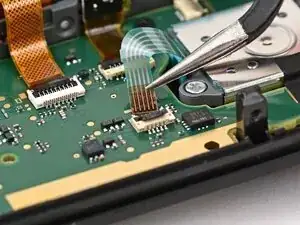
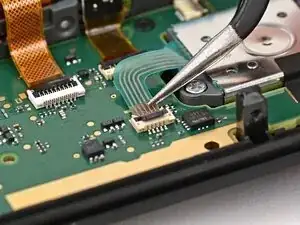
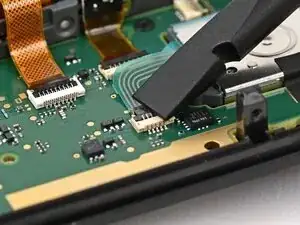
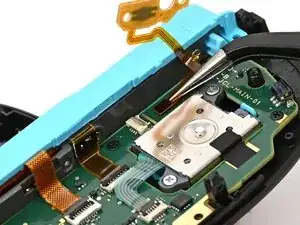
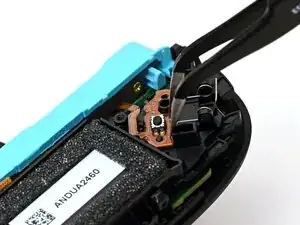
    • Make sure the locking flap is flipped up on the trigger cable's ZIF connector.

    • Position the trigger button board so its ribbon cable is aligned with its ZIF connector on the board.

    • Use tweezers or your fingers to gently slide the ribbon cable into its ZIF connector.

    • Flip the locking flap down to secure the cable.

    It might not be obvious, but the ribbon goes in with the copper facing down. That's why the images above show the solid-color other side of the ribbon. This makes the "flat" ribbon, with no twists, travel outside the board. If you put the ribbon in the wrong way, the ZL button will not work. Everything else about the instructions is correct!

    MrCab -
  40. VKsRDSCkoTLwvwY3
    VKsRDSCkoTLwvwY3
    nCWRqo5ZOIQBxiJK
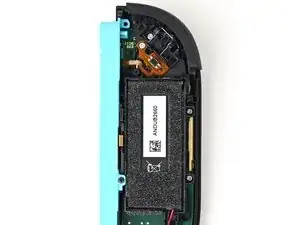
    • Align the midframe with its screw holes on the outer edge of the controller.

  41. pMhP34kY1vYAmvHx
    pMhP34kY1vYAmvHx
    umRbwMogauweEBRH
    5omVI2DOMNArGqAg
    • Use tweezers or your fingers to set the bottom edge of the trigger button board underneath the tab on the midframe.

    • Press the board into place so the black peg on the midframe protrudes through the hole on the bottom corner of the board.

  42. AdJCiOhToiIYcpXT
    AdJCiOhToiIYcpXT
    MvRrU3wqfGeiXnyx
    • Use a JIS 00 driver to install the 3.9 mm‑long silver screw securing the trigger button board.

  43. KOiBNDufxRJla2yE
    KOiBNDufxRJla2yE
    5l2gAwRulSDKCAgg
    2OvUTXTF3oN23qRU
    • Align the two springs on the bumper with their two posts on the midframe, and press it into place.

    • The bumper is held in place by the front shell of the controller. If it falls out, ensure it's fully seated in the shell.

  44. U5p6iQWUuoowiYrR
    U5p6iQWUuoowiYrR
    PxiGGkRkCghDR2UZ
    • Use a JIS 00 driver to install the three 3.9 mm‑long silver screws securing the midframe.

  45. MNnnyO4ltkPifTZm
    MNnnyO4ltkPifTZm
    2eiYDdUytR5Hycv4
    VXCJKIdLhWpW66yR
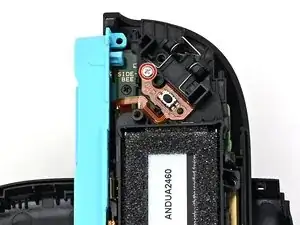
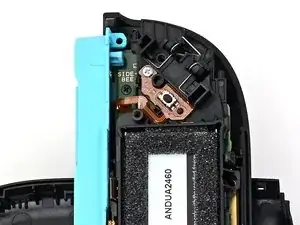
    • Align the release button bracket with its screw holes and set it in the frame so it snaps into place.

    • The corner with the protruding square should be facing the battery.

  46. fZCPPDstfxYQUPXE
    fZCPPDstfxYQUPXE
    u3QTM5D4drPJhPfx
    • Use a JIS 00 driver to install the two screws securing the release button bracket:

    • One 3.9 mm‑long silver screw

    • One 6.2 mm‑long black screw

  47. xfMpS6NPKDcBq4Tx
    xfMpS6NPKDcBq4Tx
    tWcO6akB6EBCmwcn
    lEeVXBNingcYLB3o
    • Align the trigger button with the top of the controller, with the ZL engraving facing out.

    • Set the trigger button onto its metal spring. Ensure the legs of the metal spring are seated properly in their channels on the midframe.

    • Press firmly on the trigger button to snap it into place.

    • Check that the metal stabilizer didn't fall out of position. If it did, remove the trigger, place it back into position, and try again.

  48. FVZMo4pcLsNOfhQ6
    FVZMo4pcLsNOfhQ6
    hud3AjksMFUi5Jg1
    TmTP5VDhtZZMthO2
    • Insert the release button into its bracket.

    • If the release pin doesn't stick out of the controller when the button is pressed, the button isn't installed correctly. Re-insert or flip the button and try again.

  49. QwKFeFA5XhILjykB
    QwKFeFA5XhILjykB
    nsCXtdoGU3IyfpsF
    X6bCDDxnvIlH1ZPc
    • Align the battery connector over its socket on the board.

    • Press down on the connector until it's fully seated.

  50. PVSXtNa13BGycZRk
    PVSXtNa13BGycZRk
    5XrtF3UAGVqxqBCk
    • Align the rumble motor connector to its socket on the bottom edge of the board and push down until it's fully seated to connect it.

  51. OV54G1WZoQEgHXuG
    OV54G1WZoQEgHXuG
    1X2I2I6GYdufr1CG
    iokI51oPAccxVDMB
    • Use an opening pick to press and hold the release button.

    • Place the back cover over the controller body so the release button cutout is slightly below the release button.

    • The release button is held down when the release pin is protruding from the frame. If the release button falls out of position, put it back and try again.

    • Press and slide the back cover up until the cutout for the release button is aligned with the button itself.

    • Ensure the rumble motor wires (blue & white) are fully within the frame.

  52. 1qoeRukXyCe3vFUZ
    1qoeRukXyCe3vFUZ
    gGIWDDItVLkZkSXv
    • Remove the opening pick.

  53. YCq2UHCvnKAjkirs
    YCq2UHCvnKAjkirs
    TaAfTa2dnCMKYLHh
    • Install the two screws on the left edge of the controller:

    • One 3.1 mm‑long tri‑point Y00 black screw

    • One 3.0 mm‑long JIS 00 silver screw

  54. qVQcpYJGFEQspZaU
    qVQcpYJGFEQspZaU
    KoXM2MESUlIdPmOD
    bgjLWK1Jn3Cyb46G
    • Align the clips on the plastic strip with their cut-outs on the controller body.

    • Insert the clips on the bottom edge first, then insert the rest so the plastic strip sits flush.

  55. wEMjesmxjXII1xOS
    wEMjesmxjXII1xOS
    Z6cmUJZThYjOWUvM
    • Use a tri‑point Y00 driver to install the two 3.1 mm‑long black screws on the right edge of the controller.

    How do the joy cons operate when physically connected to the switch 2 in handheld mode? Do the joycons rely on a Bluetooth connection at all times? Is the connection when paired to the switch 2 still using Bluetooth? Or is the connection physical when the joycons are physically connected? I am curious.

    Alen K -
    Thanks for the very clear and helpful guide. My thumbstick sheared off the controller and this was perfect and easy to follow.

    Jaydan Thorpe -
Conclusão

You finished fixing your Joy-Con 2!

Take your e-waste to an R2 or e-Stewards certified recycler.

Repair didn’t go as planned? Try some basic troubleshooting, or ask our Joy-Con 2 Answers Community for help.

Nick Schultz

Membro desde: 24/03/24

45909 Reputação

Um comentário

I used this to get at the left joycon's socket cable (Nintendo Switch 2 Left Joy-Con 2 Socket Cable) , it was excellent for taking apart the controller to that point even if I did not go the distance to the joystick.

The hardest part isn't the guide's fault since the controller does not make it easy to take apart, but be careful when removing the shoulder buttons to not lose track of the L button springs.

MrCab -