Introdução

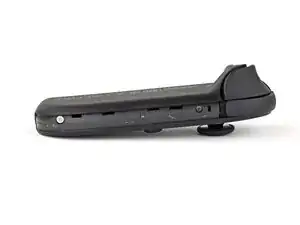
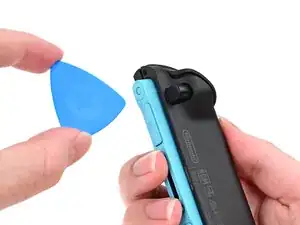
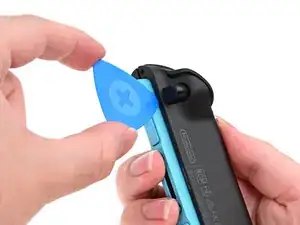
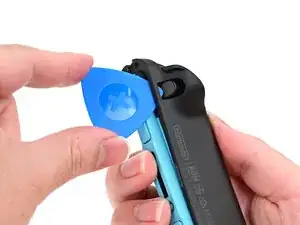
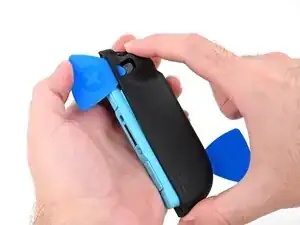
Follow this guide to replace a degraded battery in a left Nintendo Joy-Con 2 controller. If you need to replace the battery in a right Joy-Con 2, follow this guide instead.

The Joy-Con 2 uses JIS screws. If you use a non-iFixit Phillips driver in JIS screws, you'll risk stripping them.

If your replacement battery doesn't include adhesive, you'll need replacement adhesive or thin, double-sided tape to complete this repair.

  1. AocCZm5flCKqyQP3
    AocCZm5flCKqyQP3
    ffdO3drRHwqfNGnt
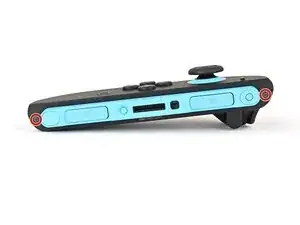
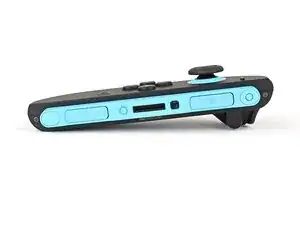
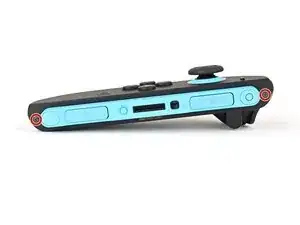
    • Use a tri‑point Y00 driver to remove the two 3.1 mm‑long black screws on the right edge of the controller.

  2. BHBkKEVmSUvJGSCO
    BHBkKEVmSUvJGSCO
    V143EftfffKNmNAL
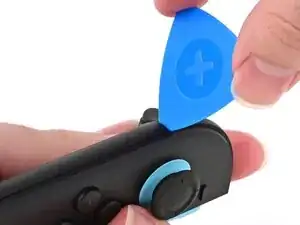
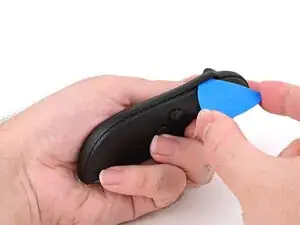
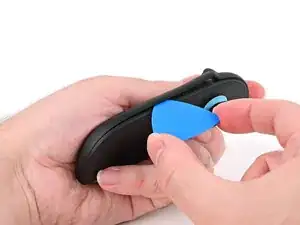
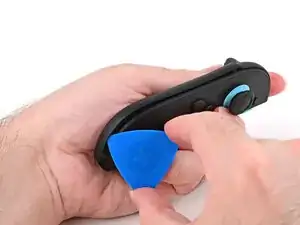
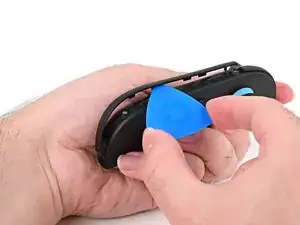
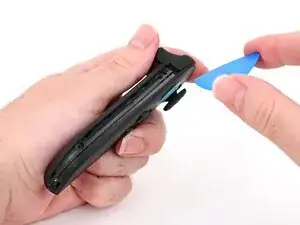
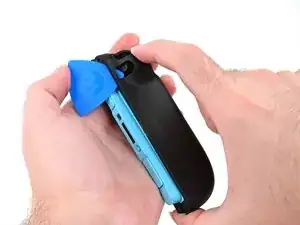
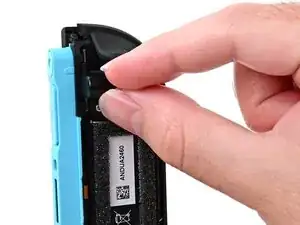
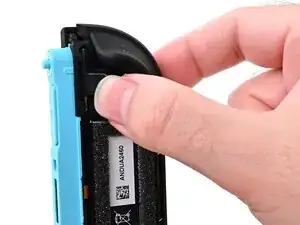
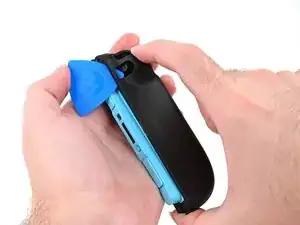
    • Insert an opening pick into the gap underneath the bumper button on the left side of the controller, with a point of the pick pointing downwards.

    • Pry up to slightly lift the plastic strip running across the left edge of the controller.

  3. 5lRN3a6LNJ1Ix4Wa
    5lRN3a6LNJ1Ix4Wa
    4afLB1vcGZxvprrK
    B2HlCP1BrKApQq4v
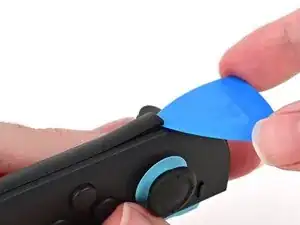
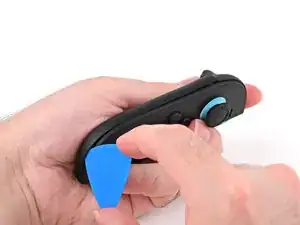
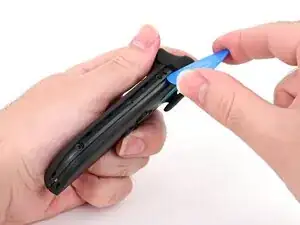
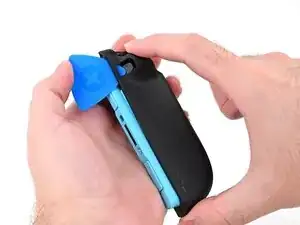
    • Slide the opening pick around to the front of the controller.

    • Slide the opening pick down the plastic strip to separate the clips and adhesive securing it to the controller's body.

  4. E5NKhTQStSgHyWW3
    E5NKhTQStSgHyWW3
    rZ5T6Z2gjavIxTjP
    4PjFWj6vRxLORgJL
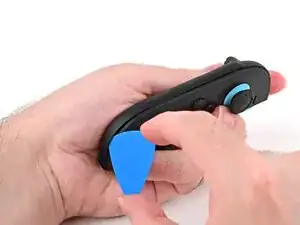
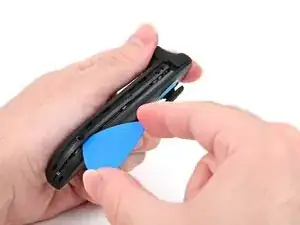
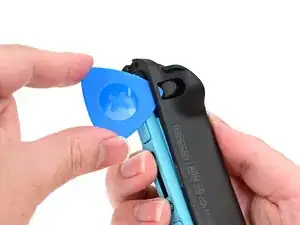
    • Pry up on the bottom edge of the plastic strip with slow, steady force.

    • Repeat this prying action along the length of the strip until it's fully detached.

  5. AbTUejsu6Iy4b3RP
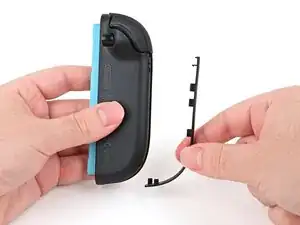
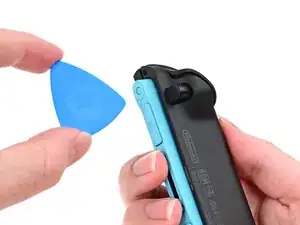
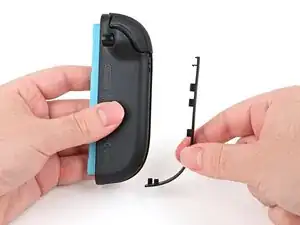
    • Remove the plastic strip.

  6. weiAao5PNNrtZ6sF
    weiAao5PNNrtZ6sF
    LcpjBvBBuSfllgwa
    • Remove the two screws on the left edge of the controller:

    • One 3.1 mm‑long tri‑point Y00 black screw

    • One 3.0 mm‑long JIS 00 silver screw

    • You can use a Phillips screwdriver in a pinch, but you risk damaging or stripping the screw. Push down firmly on the screwdriver and twist slowly. Often, switching drivers may help, even if they're the same size.

    It's actually supposed to be a JIS000 bit. At least that is the size that worked for me.

    BlueForce -
  7. elQeqaBMHFqC5FR4
    elQeqaBMHFqC5FR4
    NqmkKqAHf1WWno5w
    OXjhFnF5iabZbUgw
    • Don't try to remove the back cover yet.

    • Insert an opening pick into the gap between the front and back halves of the controller on its left side.

    • Slide the pick down the controller to disengage the clips.

    • Leave the opening pick at the bottom of the controller's left edge, just before its curve.

    • The opening pick will fall out once the back cover is removed. If it falls out before then, put it back to keep the two halves separated.

  8. BO6ctuiGEwv1xDNy
    BO6ctuiGEwv1xDNy
    g3ffhsMGOhHLw3kA
    CoWnTTN1NycmPgUj
    • Hold the controller upside-down.

    • Insert a point of another opening pick next to the release button at the top of the controller.

    • Use the opening pick to press the release button through the gap.

  9. 2OF2lhQEkYVAMA2w
    2OF2lhQEkYVAMA2w
    er5pqsBsj1tH11OU
    PiZqZTeCLs3DJHSg
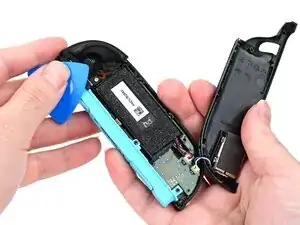
    • The back cover is connected to the controller by a cable at the bottom. Don't try to remove it completely yet.

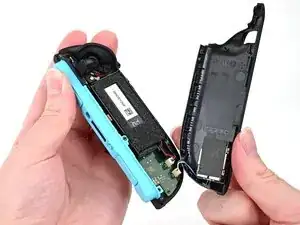
    • While holding the release button with the opening pick, use your other hand to slide the back cover down to release the clips securing it to the controller's body.

    • Open the back cover.

  10. SIEHVyIqUNys2eZ3
    SIEHVyIqUNys2eZ3
    DqYVoaQwOGfENq1l
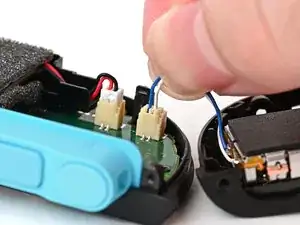
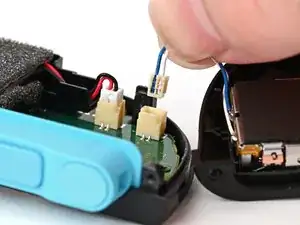
    • Firmly grasp the two wires (blue and white) above the rumble motor connector, located at the bottom of the controller's board, and pull the beige connector out of its socket.

    • Pulling the cable won't damage it, but don't dig your nails into the plastic sheathing.

    • Remove the back cover.

  11. 2pUGwSJZpf1n4STn
    2pUGwSJZpf1n4STn
    KmXQLMxpZcNBmccK
    GDG2SnUgdpK2FPIV
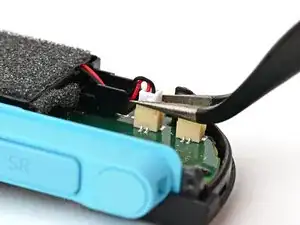
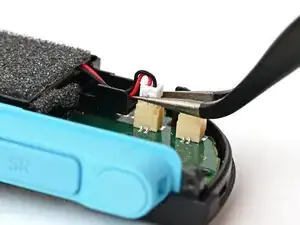
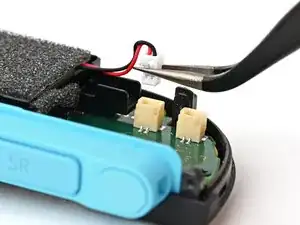
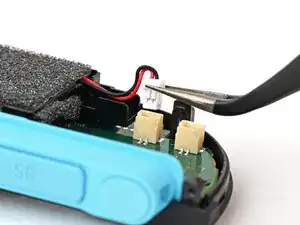
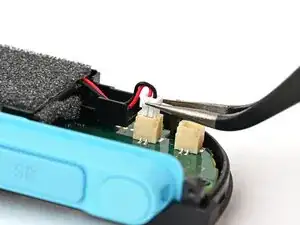
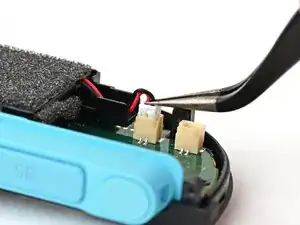
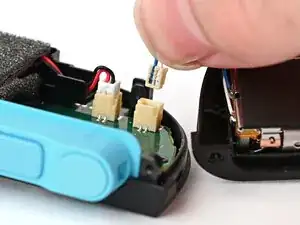
    • Use tweezers or your fingers to firmly grip the battery cable's white JST connector and pull straight away from its socket to disconnect it.

    • Once partially lifted, reposition your fingers/tweezers to beneath the connector's upper lip to increase your grip.

  12. ifXncuMq2xh5Nqnv
    ifXncuMq2xh5Nqnv
    DLHVuopLCFerAWNT
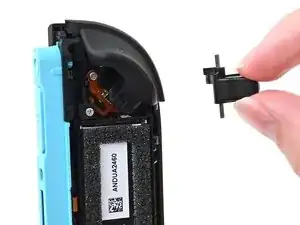
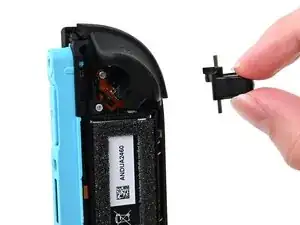
    • Pick up the release button and remove it.

  13. Le3CHfnXXpt6eXyF
    Le3CHfnXXpt6eXyF
    b3iP1ApBSPdHBkYs
    Dx5xBIaSTOjfWY2i
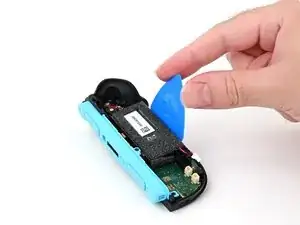
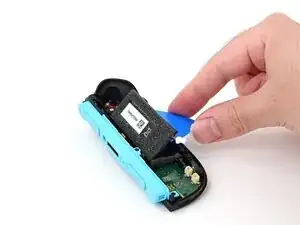
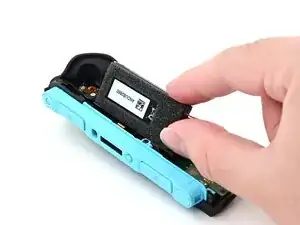
    • Insert a flat edge of an opening pick into the gap between the battery and the battery well.

    • Pry the battery up slowly with steady force to release the adhesive.

    • Don't bend or crease the battery—apply steady force and give the adhesive time to release.

    • If it feels stubborn, apply a few drops of adhesive remover or high-concentration (90% or higher) isopropyl alcohol to the battery side of the pick while it's inserted and allow it to run under the battery. Be careful not to spill it elsewhere in the controller.

    • If you're using adhesive remover, follow these preparation steps first.

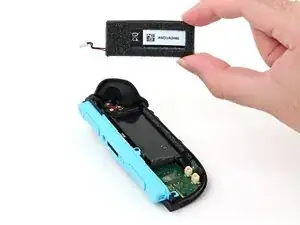
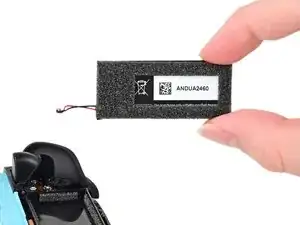
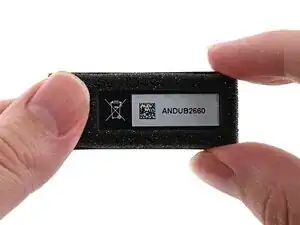
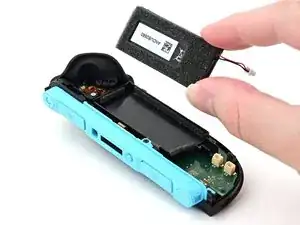
    • Remove the battery.

  14. joqvyGxvAljqRWdk
    • Congratulations on completing disassembly! The remaining steps will show how to reassemble your console.

  15. MLLsQtCbWujhGA1D
    MLLsQtCbWujhGA1D
    uO3MubgmZX5D4jRH
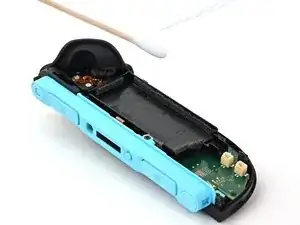
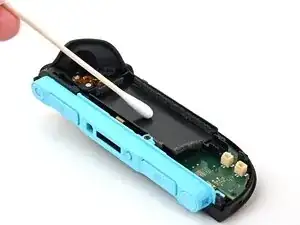
    • Apply isopropyl alcohol to a cotton swab and wipe any adhesive residue from the frame.

    • The foam on the inside walls of the frame dissolves in isopropyl alcohol. Avoid damaging the foam.

  16. mDK3cPwVPhPwBiDQ
    mDK3cPwVPhPwBiDQ
    IPLPVauwORquGWSZ
    vhtLYBIZLMBN2i3j
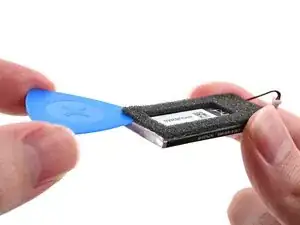
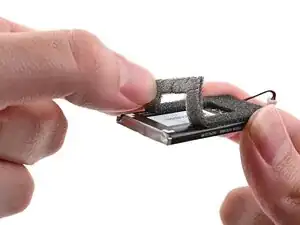
    • If your replacement battery includes new foam, skip this step.

    • Slide an opening pick or fingernail between the foam and the battery, making sure it's completely below the foam's adhesive.

    • Carefully peel the foam sticker, including its adhesive, off the old battery. Avoid stretching or tearing the foam.

    • If the foam does tear, apply the pieces to the replacement battery in their original shape.

    • Apply the foam sticker to the new battery so the edges of the foam are aligned with the edges of the battery.

  17. 4pALAV6RcOrVDmqg
    4pALAV6RcOrVDmqg
    JwUpL3CuFiKKFJp5
    AbsbSeSDPIVtpvsS
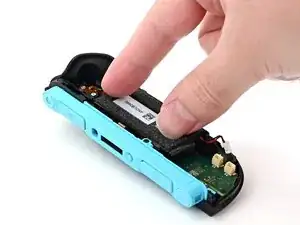
    • If your replacement battery came with adhesive pre-installed, peel off any adhesive liners.

    • If your replacement battery doesn't include new adhesive, use thin, double-sided tape instead. If you're using our pre-cut card, cut one of the 5 mm strips so it's half as long, and apply the strips to the back of the battery.

    • Align the battery with its housing. Ensure the battery cable lines up with its channel.

    • Lower one side of the battery, then the other, into its housing.

    • Press and hold on the battery for 10 seconds to bond the adhesive.

  18. LOUbhqP2TKPifCCx
    LOUbhqP2TKPifCCx
    rRVDfbPIADlEd3KX
    soASocpeZtCHYCnP
    • Hold the release button so its smooth face is perpendicular to the controller.

    • Insert the release button into its bracket.

    • If the release pin doesn't stick out of the controller when the button is pressed, the button isn't installed correctly. Re-insert or flip the button and try again.

  19. QwKFeFA5XhILjykB
    QwKFeFA5XhILjykB
    nsCXtdoGU3IyfpsF
    X6bCDDxnvIlH1ZPc
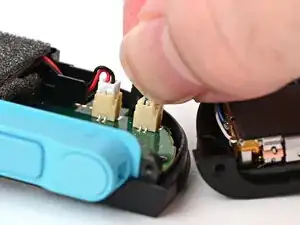
    • Align the battery connector over its socket on the board.

    • Press down on the connector until it's fully seated.

  20. PVSXtNa13BGycZRk
    PVSXtNa13BGycZRk
    5XrtF3UAGVqxqBCk
    • Align the rumble motor connector to its socket on the bottom edge of the board and push down until it's fully seated to connect it.

  21. OV54G1WZoQEgHXuG
    OV54G1WZoQEgHXuG
    1X2I2I6GYdufr1CG
    iokI51oPAccxVDMB
    • Use an opening pick to press and hold the release button.

    • Place the back cover over the controller body so the release button cutout is slightly below the release button.

    • The release button is held down when the release pin is protruding from the frame. If the release button falls out of position, put it back and try again.

    • Press and slide the back cover up until the cutout for the release button is aligned with the button itself.

    • Ensure the rumble motor wires (blue & white) are fully within the frame.

  22. 1qoeRukXyCe3vFUZ
    1qoeRukXyCe3vFUZ
    gGIWDDItVLkZkSXv
    • Remove the opening pick.

  23. YCq2UHCvnKAjkirs
    YCq2UHCvnKAjkirs
    TaAfTa2dnCMKYLHh
    • Install the two screws on the left edge of the controller:

    • One 3.1 mm‑long tri‑point Y00 black screw

    • One 3.0 mm‑long JIS 00 silver screw

  24. qVQcpYJGFEQspZaU
    qVQcpYJGFEQspZaU
    KoXM2MESUlIdPmOD
    bgjLWK1Jn3Cyb46G
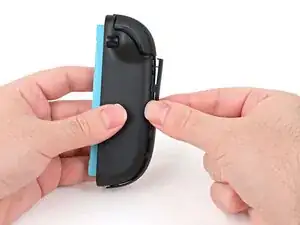
    • Align the clips on the plastic strip with their cut-outs on the controller body.

    • Insert the clips on the bottom edge first, then insert the rest so the plastic strip sits flush.

  25. wEMjesmxjXII1xOS
    wEMjesmxjXII1xOS
    Z6cmUJZThYjOWUvM
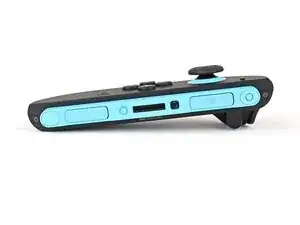
    • Use a tri‑point Y00 driver to install the two 3.1 mm‑long black screws on the right edge of the controller.

    How do the joy cons operate when physically connected to the switch 2 in handheld mode? Do the joycons rely on a Bluetooth connection at all times? Is the connection when paired to the switch 2 still using Bluetooth? Or is the connection physical when the joycons are physically connected? I am curious.

    Alen K -
    Thanks for the very clear and helpful guide. My thumbstick sheared off the controller and this was perfect and easy to follow.

    Jaydan Thorpe -

Conclusão

You finished fixing your Joy-Con 2!

Don't throw your battery in the trash. Click here to learn how to dispose of it properly.

Repair didn’t go as planned? Try some basic troubleshooting, or ask our Joy-Con 2 Answers Community for help.

Nick Schultz

Membro desde: 24/03/24

45909 Reputação

0 comentários