Introdução

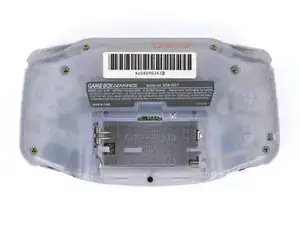
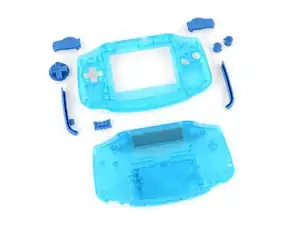
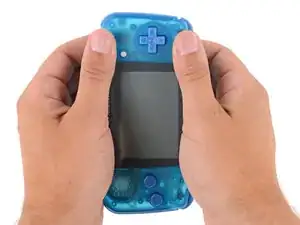
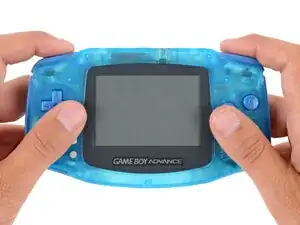
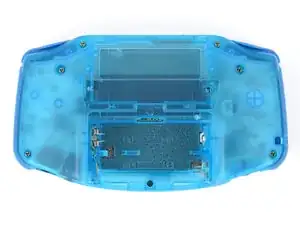
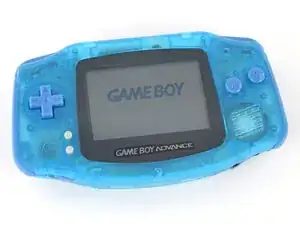
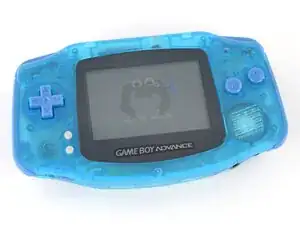
Follow this guide to completely reshell your Game Boy Advance.

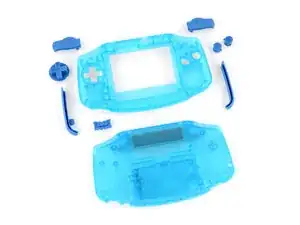
Reshelling your Game Boy Advance involves swapping out its outer plastic housing and transferring the internals, typically for customization.

This process replaces the both shells, and may also include new buttons, membranes, and the screen lens. You can also opt to replace or upgrade the screen and motherboard during this process. However, this guide doesn't cover any soldering, which is typically required for screen and motherboard upgrades.

The Game Boy Advance uses JIS screws. If you use a non-iFixit Phillips driver in JIS screws, you'll risk stripping them. iFixit's Phillips bits are designed to be compatible with JIS screws.

  1. 2cYB63PN1uNIqGSi
    2cYB63PN1uNIqGSi
    sQLHMsNXISQspZDV
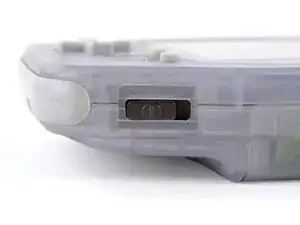
    • Before working on your Game Boy, turn the power switch to the OFF position and unplug any cables.

    • If you have a game cartridge installed, remove it.

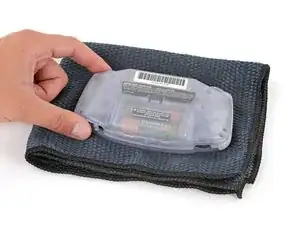
    • Since your Game Boy will be laying screen‑side down for most of your repair, consider placing it on a clean cloth for protection.

  2. 5TRbD3EYresrclWd
    5TRbD3EYresrclWd
    XyNoRjSSRcPCtxO3
    Cx6Ge3YyfIaDQMHr
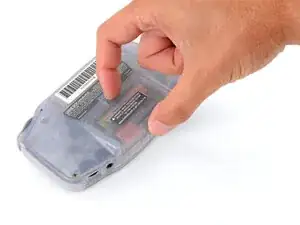
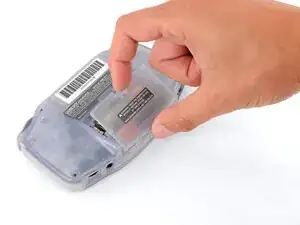
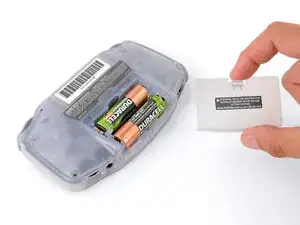
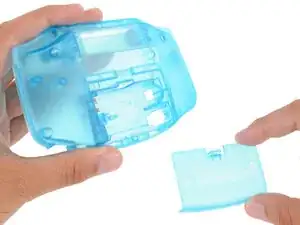
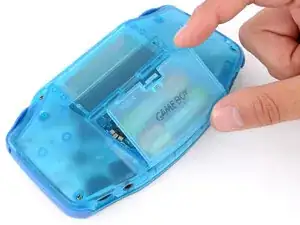
    • Release the battery cover tab with your finger and swing the cover away from your Game Boy to remove it.

  3. MpJbgxLbCBRPrPSu
    MpJbgxLbCBRPrPSu
    ZQn6qrHCl6G4KRY1
    KEnanwKUyDoAhCxl
  4. EILNHMhwQC54gHFe
    EILNHMhwQC54gHFe
    xNuZYIJcojrV5RHo
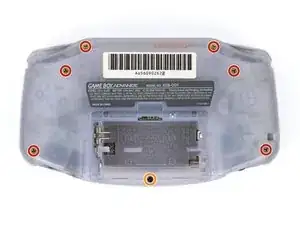
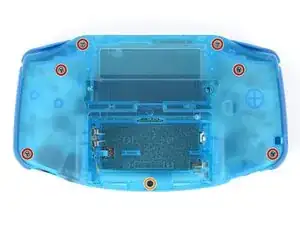
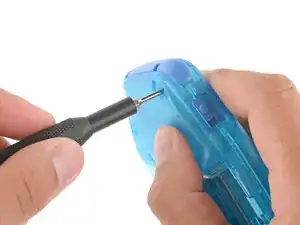
    • Remove the seven screws securing the back shell:

    • Six 9.4 mm‑long tri‑point Y0 screws

    • One 8.5 mm‑long JIS 1 screw

    • You can try to use a non-iFixit Phillips driver in a pinch, but you risk damaging or stripping screws. Push down firmly on the driver and twist slowly.

  5. GWaPfmKNqKFsh46N
    GWaPfmKNqKFsh46N
    lA5l3AIIhxhWInr1
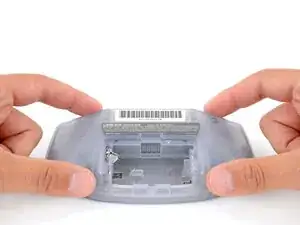
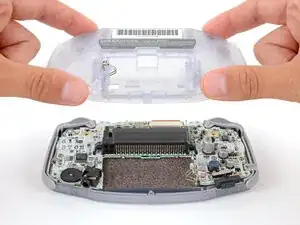
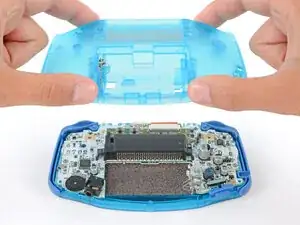
    • Lift the back shell straight up and remove it.

  6. Y5WFeNDPWxBtpXt2
    Y5WFeNDPWxBtpXt2
    LxlqlNkJLmBQcdE2
    lfMfVUBt5GjWI6n2
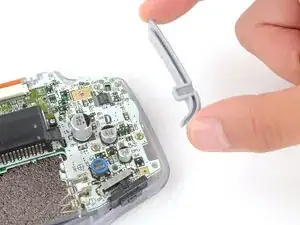
    • Lift the shoulder buttons (aka L and R buttons) straight up to remove them.

  7. xN3iiIYkJVNenrCN
    xN3iiIYkJVNenrCN
    xG5GhJXloMFJlyZc
    PALxBj6f4Qbx3NDc
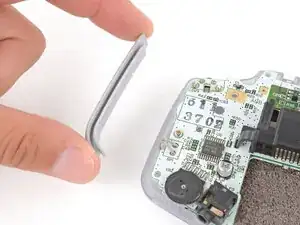
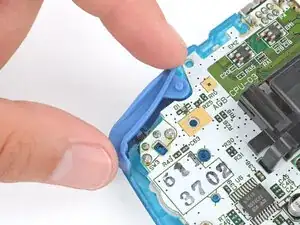
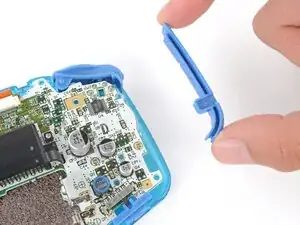
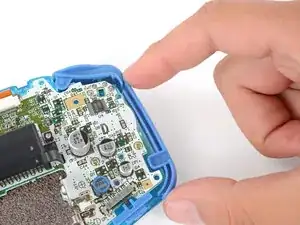
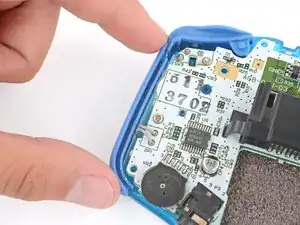
    • Lift and remove the side bumpers.

  8. ZD5nS3XZbV3yfrZE
    ZD5nS3XZbV3yfrZE
    YIyyRruJpVDdjEpa
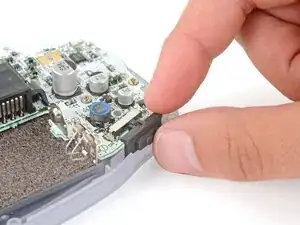
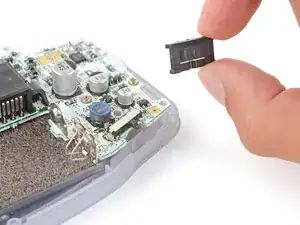
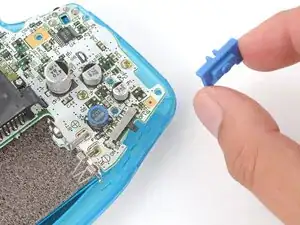
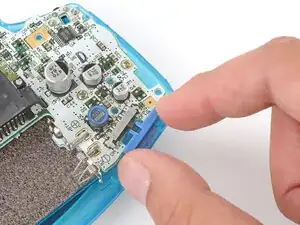
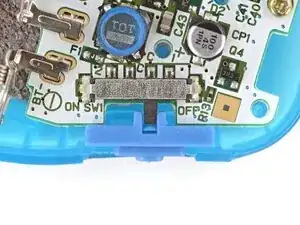
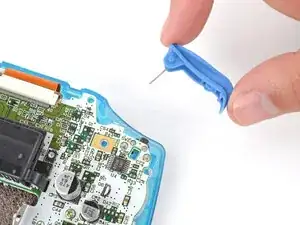
    • Lift and remove the power switch cover.

  9. jgHoOc2sdDA3aLMf
    jgHoOc2sdDA3aLMf
    5DXQRmTsLRlt6WPQ
    OKhrvtFsKB2dC3Lo
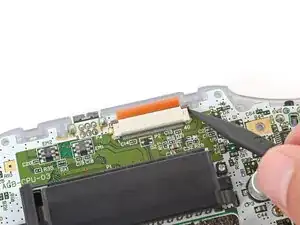
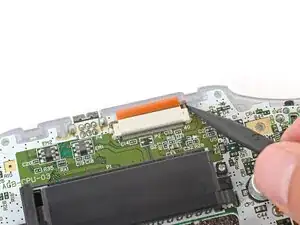
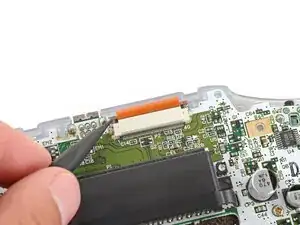
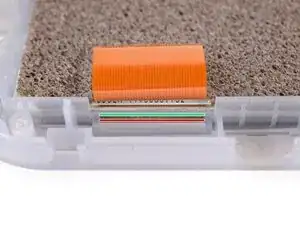
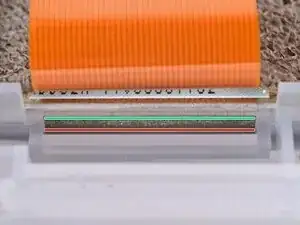
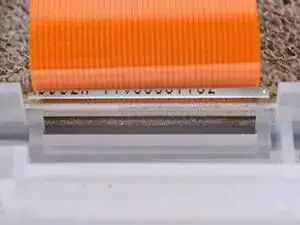
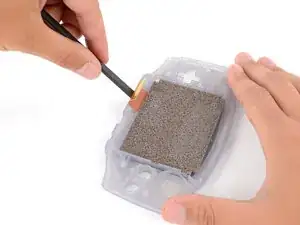
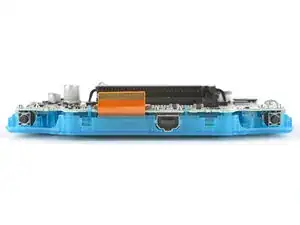
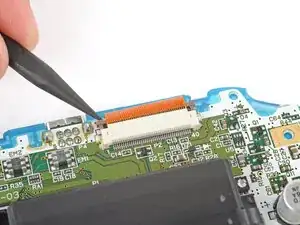
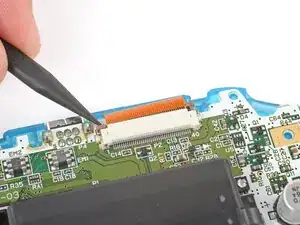
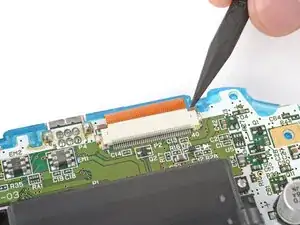
    • Use the point of a spudger to fully push up both locking tabs on either side of the screen cable connector.

    • You should feel the tab click into its unlocked position. Don't push too far, or the tab may slide completely out of the connector.

  10. vcY511DxvFiHb3oi
    vcY511DxvFiHb3oi
    XtTyp4PSLqMQSXro
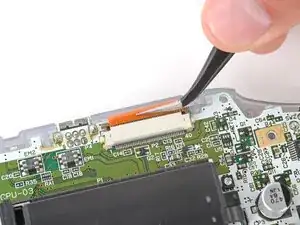
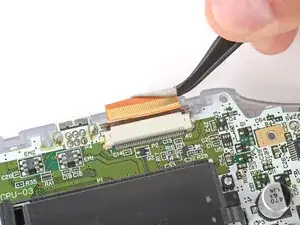
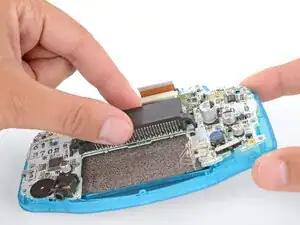
    • Use tweezers to slide the cable straight out of its socket.

    • The cable should come out with little to no force. If you feel resistance, the tab may not be fully unlocked.

  11. xyJFl6ALUaxAILuF
    xyJFl6ALUaxAILuF
    dHsGL6CmAFQRnqju
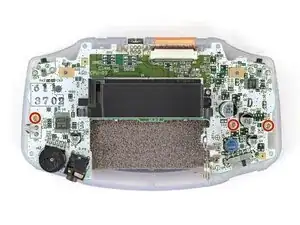
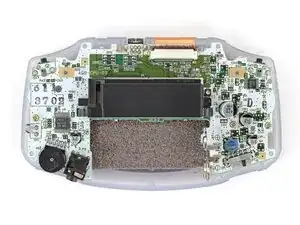
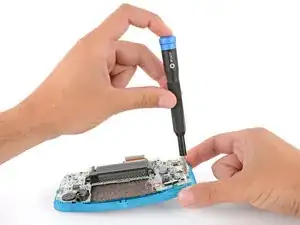
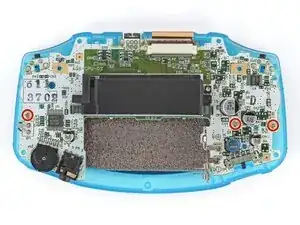
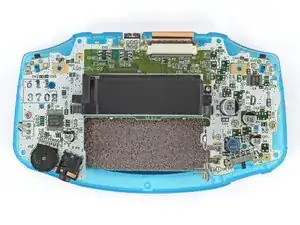
    • Use a JIS 1 screwdriver to remove the three 7 mm‑long screws securing the motherboard.

  12. ekvsmJwp3RQNQXZI
    ekvsmJwp3RQNQXZI
    SmPYepYEirJSWutv
    KuOQ5JPJYNicYRrp
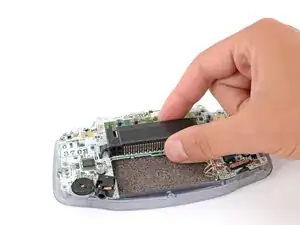
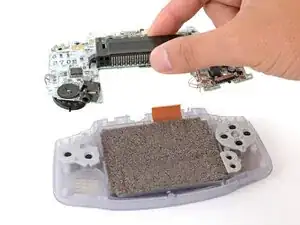
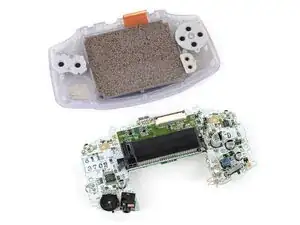
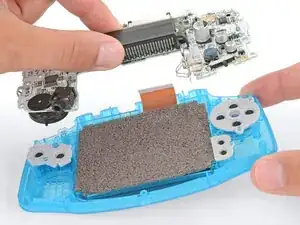
    • Use your fingers to grip the cartridge reader and lift the motherboard straight up to remove it.

  13. QsGUqUv5rghxUcJX
    QsGUqUv5rghxUcJX
    gaKCVV5DWP4RaavT
    QeFBAuTkYAi2uhfG
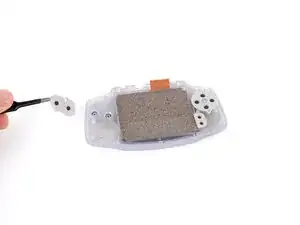
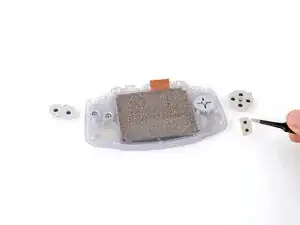
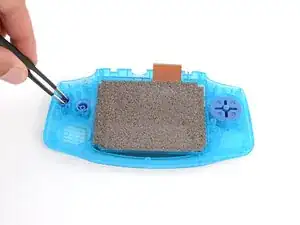
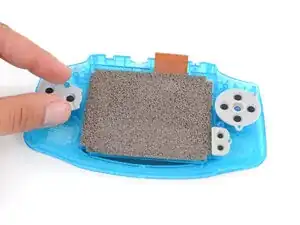
    • Use tweezers or your fingers to remove the silicone pads covering the action buttons (A and B), D‑pad, and Start/Select buttons.

    • If any of the pads are missing, they may be stuck to their corresponding spot on the motherboard.

  14. 1SQuPHvGG1WljLUg
    1SQuPHvGG1WljLUg
    R4J2xflSuQOBKjLu
    u5GFdtVJEnA1mbBK
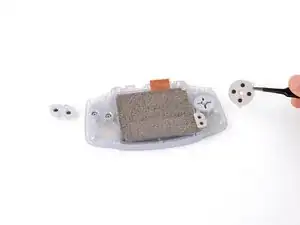
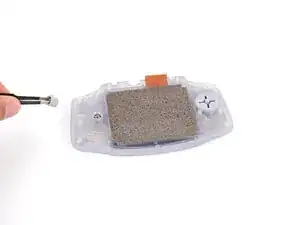
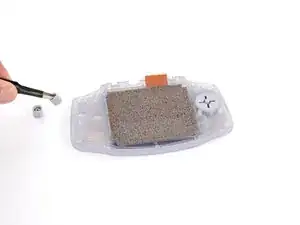
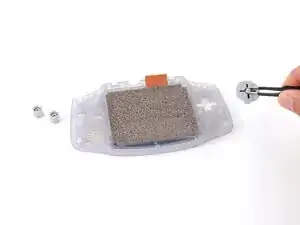
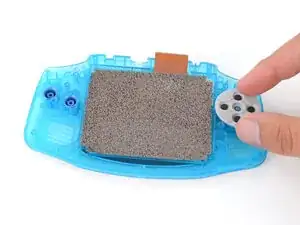
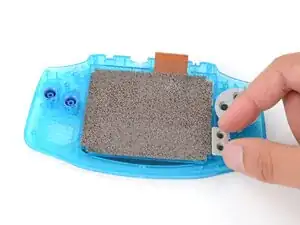
    • Use tweezers or your fingers to remove the action buttons (A + B) and D‑pad.

    • The Start/Select buttons are part of the silicone pad—there are no other buttons to remove.

  15. ffNRMOHELxlp4cmD
    ffNRMOHELxlp4cmD
    Y5lqRSXPHYcvlXwT
    3qgIB2EeSlAKGIKi
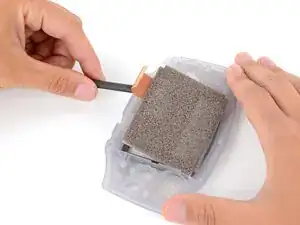
    • Before prying up the screen, note where you need to pry:

    • There's a seam between the screen and its gasket. Insert your tool here (under the screen) to give yourself the best chance of preserving the gasket.

    • There's a seam between the gasket and the shell. Don't insert your tool here, or you may damage the gasket.

  16. gJWqr4BrvORaoYwv
    gJWqr4BrvORaoYwv
    H2X4BRGoRejGfr3C
    FraUZFMQAKx2rg3P
    • When removing the screen, be careful not to damage or stretch the adhesive gasket that secures it to the shell.

    • Insert the flat end of a spudger under the screen and pry the screen up. Apply constant, steady pressure to allow the screen adhesive to separate.

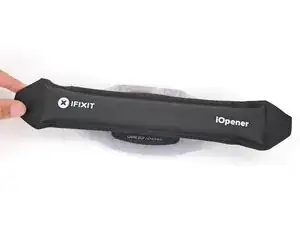
    • If the screen isn't budging, flip your Game Boy over and lay a heated iOpener on the screen for two minutes to soften the adhesive. Alternatively, you can use a hair dryer on the Low heat setting—be careful not to overheat your device, or you may warp the plastic.

  17. GpD6KiWIustGZoX5
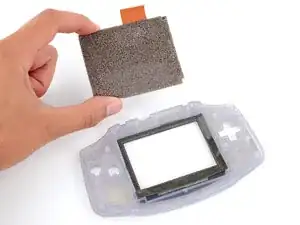
    • Carefully lift the screen up and remove it.

  18. UDg36e5nSxtRleUW
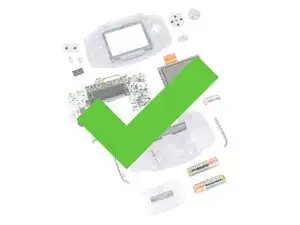
    • Congratulations on disassembling your Game Boy! The remaining steps will show you how to transfer everything into your new shells.

  19. ZMKZDWGVdTNg4qMB
    ZMKZDWGVdTNg4qMB
    dQl5hX4KbFJnsrmq
    5xtF5AFQ3PWl3D3X
    • Before starting reassembly, gather your new shells and buttons. Compare them to the original parts—you may need to remove or transfer some pieces:

    • The new buttons may be connected together with small plastic sprues. If they are, break them apart and discard the plastic.

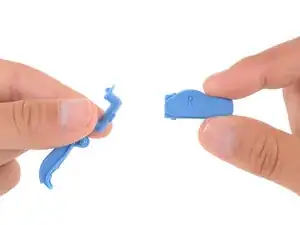
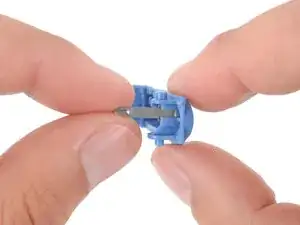
    • The new shoulder buttons require the small metal arms to function smoothly. Your replacement kit may come with them, or you might have to transfer them from the original buttons.

    • When installing the metal arms, make sure the arm bends inward. Optionally, you can apply one drop of superglue to the end of the arm to secure it to the button.

    • Once you've prepared your new parts for reassembly, separate them from your original ones—you don't want to accidentally install old parts!

  20. OfnvGAjfo1Kc1rlP
    OfnvGAjfo1Kc1rlP
    vVYUGfeFqkACVwst
    3eVH6rSIycQBUnxZ
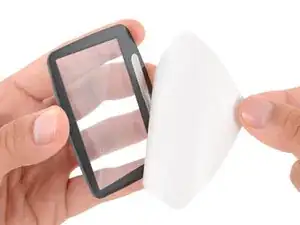
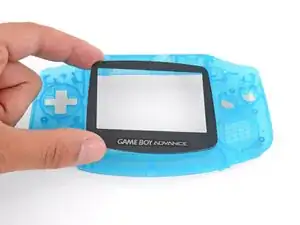
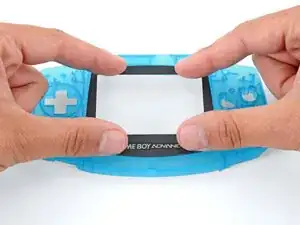
    • If your new shell has a screen lens pre‑installed, skip this step.

    • Remove the adhesive backing from your replacement screen lens and firmly press it into place on your new front shell.

    • Your replacement lens will likely have a protective liner on the front. To prevent scratches, leave it on until you've fully reassembled your Game Boy.

  21. MwmyaEUyrq2gGA1J
    MwmyaEUyrq2gGA1J
    KER5CPAFGwwrAVNc
    FJS3cDWptQ6udkxf
    • If your new shell has a screen pre‑installed, skip the next two steps.

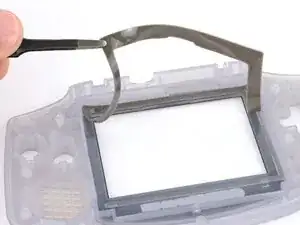
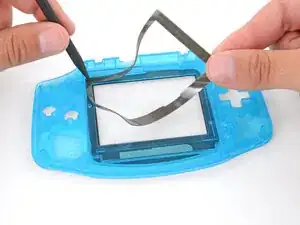
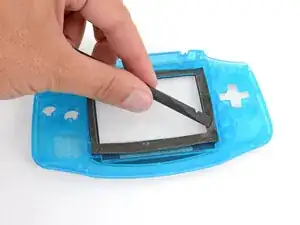
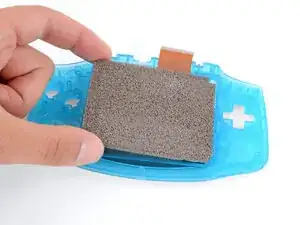
    • You'll need a screen gasket for your new shell. If your shell comes with one pre‑installed, you can skip this step.

    • If your kit doesn't have a replacement gasket, carefully remove the old one from your original shell (or screen, if it stuck to the bottom). If your kit comes with a new gasket, remove its adhesive liner.

    • Use your fingers to carefully align and install the gasket in your new shell, using a spudger as necessary to hold the gasket in place and secure it.

  22. VE22tglNbW1sLFFp
    VE22tglNbW1sLFFp
    BjVcSOdaEtlAOxRV
    akiXPjpEpThJqaCf
    • Before installing your screen, note the following:

    • If you're installing your original screen, this is a good time to gently clean it with a clean, lint‑free cloth.

    • If you're installing a new screen, check for any protective liners and remove them.

    • Lay your screen into its recess and firmly press around the perimeter to secure it against the adhesive gasket.

  23. 6AR4bWtGBReDwCue
    6AR4bWtGBReDwCue
    V21euRNjNUftANEx
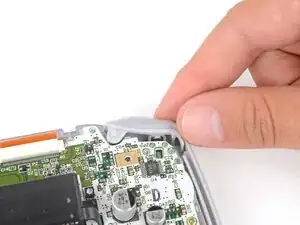
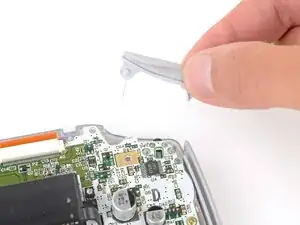
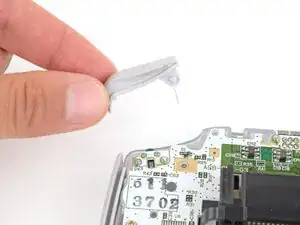
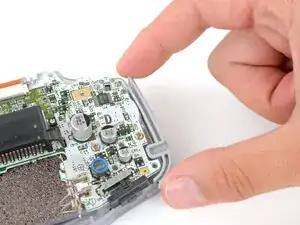
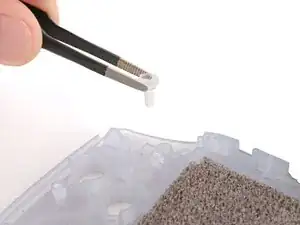
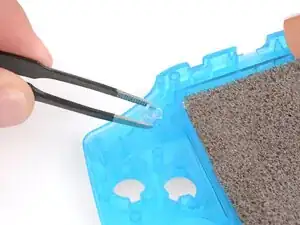
    • If your kit doesn't come with the small, translucent, peg‑shaped Power light diffuser, use tweezers to remove it from your original shell (above the action buttons).

    • Use tweezers to install the light diffuser in your new shell.

  24. CfYdnQWDZALIqQaq
    CfYdnQWDZALIqQaq
    nOwmEcTMXKGpuK6E
    KlIEevxhuZKCChMp
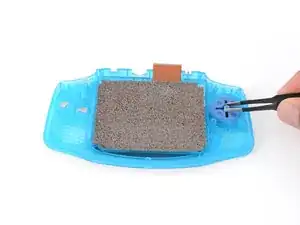
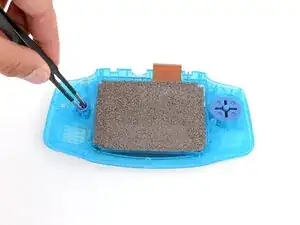
    • Use tweezers or your fingers to install the action buttons (A + B) and D‑pad.

    • The action buttons are keyed specifically for their recesses and proper orientation. The D-pad isn't keyed; any orientation is fine.

    • The Start/Select buttons are integrated with their silicone pad—there are no plastic buttons to install.

  25. M2OTtIwntCooWXrr
    M2OTtIwntCooWXrr
    ZWK6UCY2TJAq4nBr
    G331ZSrWaCVQTel1
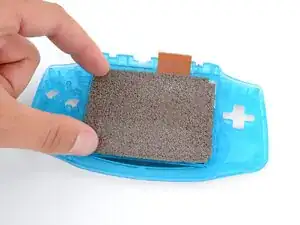
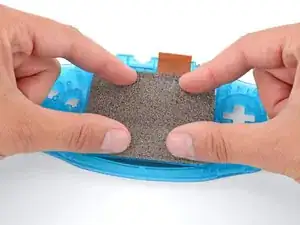
    • You may need to lift the shell up and off of your work surface during this step to get the silicone pads fully seated. With the shell flat, the buttons will push up on the pads.

    • Use your fingers to firmly press the three silicone pads into place—one for the action buttons (A and B), D‑pad, and Start/Select buttons.

    • Each pad has cutouts for alignment pegs to help properly orient them.

  26. jatFY1Z64gVbAOmY
    jatFY1Z64gVbAOmY
    sHUTvNHWxMxRuahY
    1YwSIxtxfXYyNUx6
    • If you're upgrading your screen or motherboard, you'll likely need to do some soldering or modifications before installing the motherboard. Reference any instructions included with your kit—and the website you purchased it from—to ensure you are properly installing everything. If this is your first time soldering, check out our helpful soldering guide.

    • With one hand, hold the front shell slightly above your work surface—try to keep the shell raised until you install the motherboard screws.

    • This will help allow you to fully seat the motherboard, since the buttons will push the board up if it's flat on your work surface.

    • With your free hand, grip the motherboard by the cartridge reader.

    • Push the motherboard into place on the shell, making sure the speaker gets correctly slotted into its circular cutout (including a small tab on the bottom).

    • You may feel the board lightly click into place.

    • Check around the perimeter of the board to ensure it's fully seated with no large gaps between the board and shell. If there are, gently wiggle the board and push it into place.

  27. JmCaokAdnCCqhbNY
    JmCaokAdnCCqhbNY
    BfOl4Qc1KQ2u5OBo
    3QPvtvG1UZnPx1fo
    • If your kit includes replacement screws, install them during reassembly. The screw lengths or bit sizes may vary slightly—use the quantity of each type to determine placement, keeping in mind that each set may include an extra screw.

    • With one side of the shell raised, use a JIS 1 screwdriver to install the three 7 mm‑long screws securing the motherboard.

    • Before continuing, make sure the board is correctly seated:

    • Test the action buttons, D‑pad, and Start/Select buttons.

    • Check around the perimeter of the board to ensure there are no large gaps between the board and shell.

    • If the buttons feel off or there are any large gaps, loosen the screws and re‑seat the board, tighten the board, and test it again.

  28. MXFdlpruOqGXtBSX
    MXFdlpruOqGXtBSX
    1MoKOvMvNZUwHLkk
    • If you're upgrading your screen or motherboard, the location of the screen cable and connector may be different.

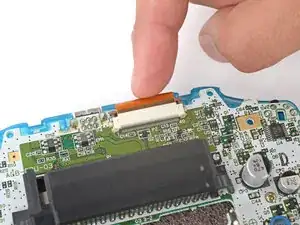
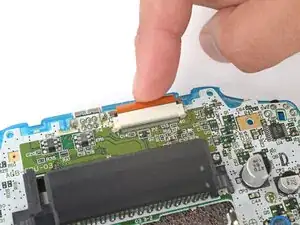
    • Before connecting the screen cable on the top edge, make sure both locking tabs are pushed up in the unlocked position.

    • Use your finger to gently push the display cable into its socket on the motherboard.

    • If you're having trouble, reposition the cable and try again—don't try to force it into the socket. It should slide into place with little to no effort.

  29. oxehYUnrMA2YRIpY
    oxehYUnrMA2YRIpY
    Ngaj2f2oAgTtFfXy
    ivolw52OOo3T43YB
    • Use the point of a spudger to push down both tabs on the screen cable socket into the locked position.

    • The tabs will bottom out when they're fully locked.

  30. jlvntOIIVaPxlrff
    jlvntOIIVaPxlrff
    AHQSEpwPDCVZ6KII
    m3r3JV2yJUlT3wMA
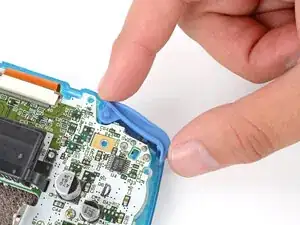
    • Use your fingers to install the power switch, making sure it's properly slotted around the arm on the switch mechanism.

  31. fuXhFMU5rniCV1bp
    fuXhFMU5rniCV1bp
    itucLqs2NVor6YcF
    TPDAk2yNlpAeFFHN
    • Since your Game Boy is laying upside down, the L button will go on your right‑hand side, and the R button will go on your left‑hand side.

    • Slide the shoulder buttons into place, making sure the peg on the button goes into its circular cutout and the button shroud is over the actual button mechanism.

    • Gently test the buttons to make sure they feel correct. If they don't, reposition them and make sure the metal arms aren't stuck in a weird position under the board.

  32. CXBAbRRmZUUoyHPr
    CXBAbRRmZUUoyHPr
    KQ3lrxiWOvdqpBXa
    QeHK1ibXNCSaTAhf
  33. NIVtidQjuNQoHJHn
    NIVtidQjuNQoHJHn
    QetbDbYq1AfCeyQN
    SgJF3bZ6KcvnwixJ
    • If your new back shell has the battery cover preinstalled, remove it for now.

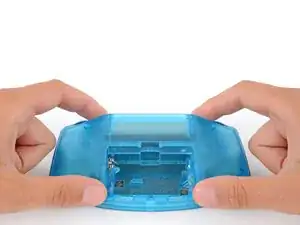
    • Place the back shell onto the front shell.

  34. EJU2SIO1qOmiarF5
    EJU2SIO1qOmiarF5
    xUBnRyyOV6flmWdd
    6psAwcc6bHZTndNV
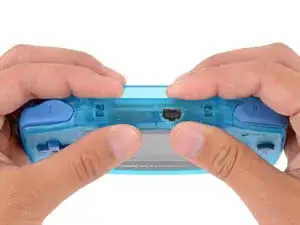
    • Squeeze the shell firmly around the edges and ensure the shoulder buttons and bumpers are properly seated with no large gaps.

    • Gently test the buttons to make sure everything feels correct.

  35. GcnGOSdaScpejbF3
    GcnGOSdaScpejbF3
    Etewd3Au3naQ3X6v
    uWO6mvVBogv2FpOU
    • To fully tighten these screws, it's easier to hold your Game Boy up off the work surface. Hold the two shell halves together as you work.

    • Install the seven screws securing the back shell:

    • Six 9.4 mm‑long tri‑point Y0 screws

    • One 8.5 mm‑long JIS 1 screw

    • Tighten these screws until just snug. Over-tightening can strip the screw head or damage the plastic shells.

  36. TUKwp6GbBccTM6E5
    TUKwp6GbBccTM6E5
    HOiXHEQ3BMvXPUOM
    wLl5hvPDAdw11yQQ
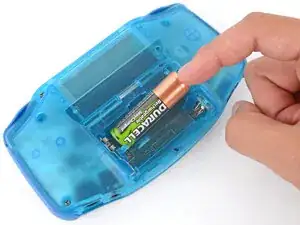
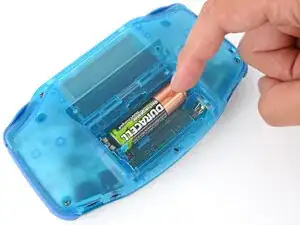
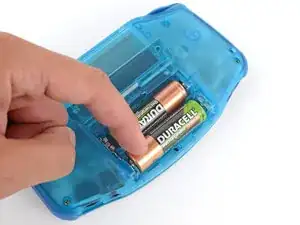
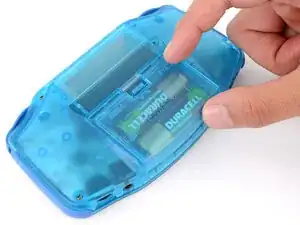
    • Use your fingers to install the batteries, following the diagram in the battery well to properly orient them.

  37. awfdsEKwDOR5OPDx
    awfdsEKwDOR5OPDx
    vWQBmsBnf6FidJoN
    • Insert the tabs on the bottom edge of the battery cover into their cutouts and click the cover into place.

  38. mgBOjJaZrBxJrnIl
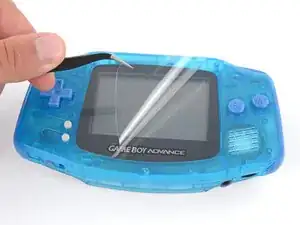
    • If your screen lens has a protective film, remove it.

    • Be very careful not to scratch the lens with your tool.

  39. 6KkVKscPrcSVVcwh
    6KkVKscPrcSVVcwh
    ufkfWBdwqZLjMaqv
    x32FrHBmWQSWkWBW
    • Flip the power switch into the On position and get to gaming!

    • That Game Boy startup really brings back some nostalgia…ours also somehow summoned Suction‑Cups‑For‑Feet Clampy...weird.

Conclusão

Congratulations on reshelling your Game Boy Advance!

Take your e-waste to an R2 or e-Stewards certified recycler.

Repair didn’t go as planned? Try some basic troubleshooting, or ask our Answers Community for troubleshooting help.

Spencer Day

Membro desde: 14/09/22

165254 Reputação

0 comentários