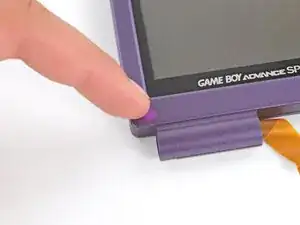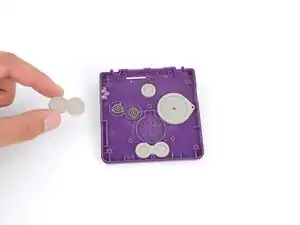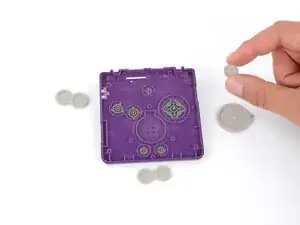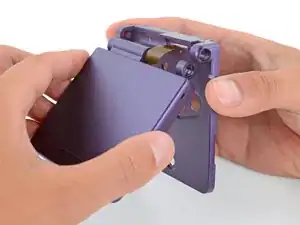
Introdução

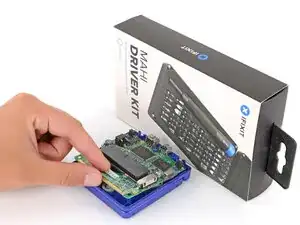
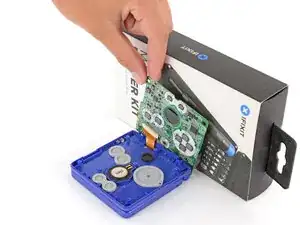
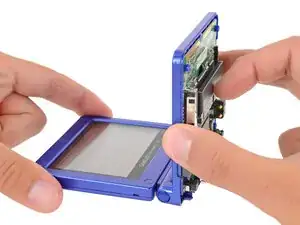
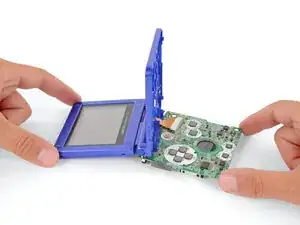
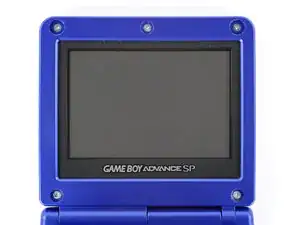
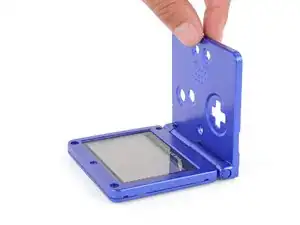
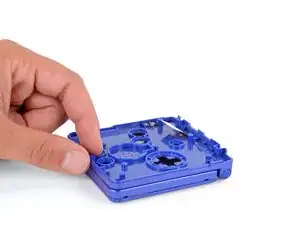
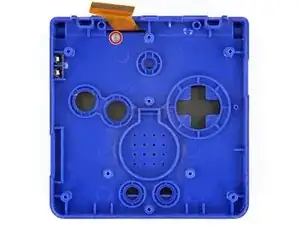
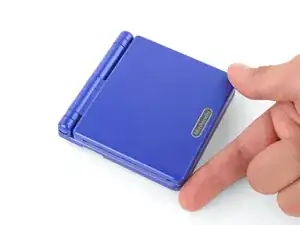
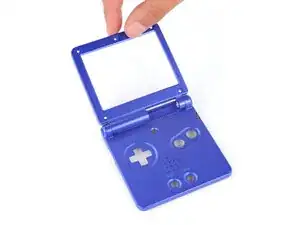
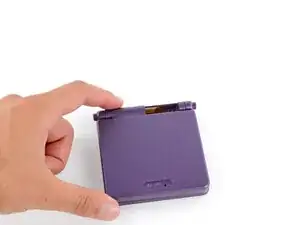
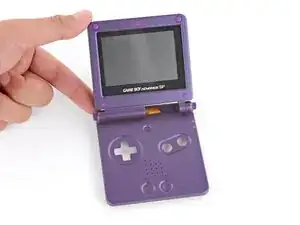
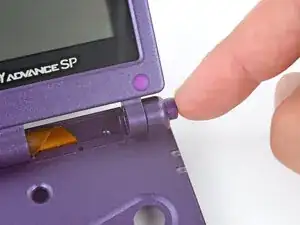
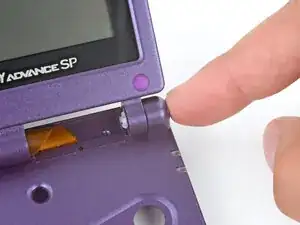
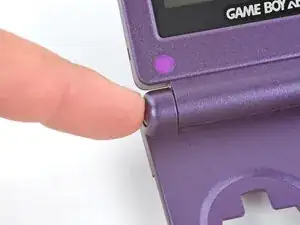
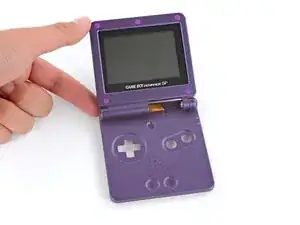
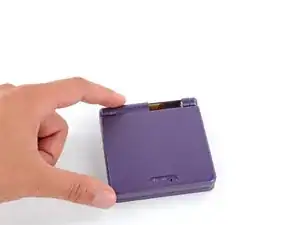
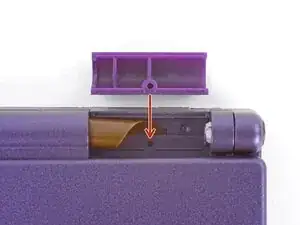
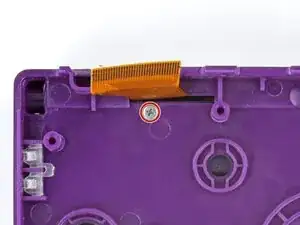
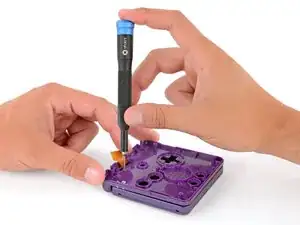
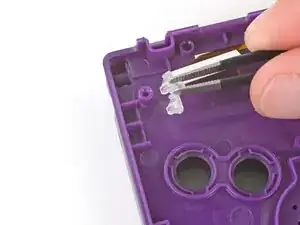
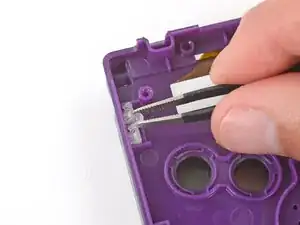
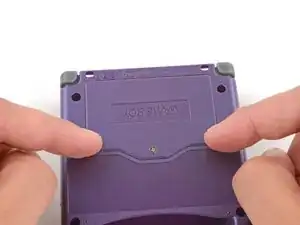
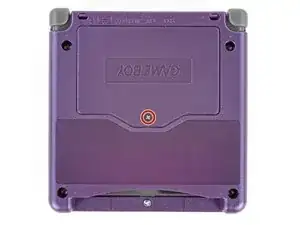
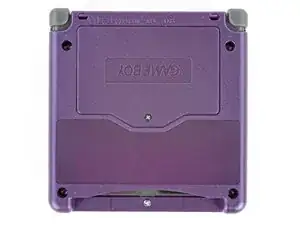
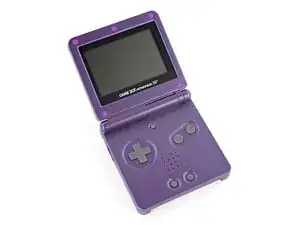
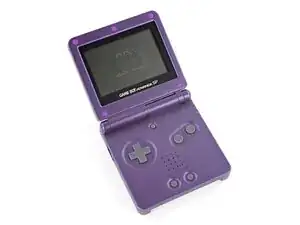
Follow this guide to completely reshell your Game Boy Advance SP.

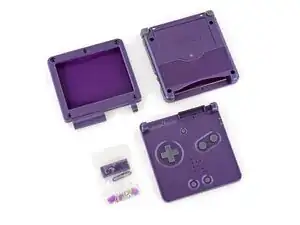
Reshelling your Game Boy Advance SP involves swapping out its outer plastic housing and transferring the internals, typically for customization.

This process replaces the both shells, and may also include new buttons, membranes, and the screen lens. You can also opt to replace or upgrade the screen and motherboard during this process. However, this guide doesn't cover any soldering, which is typically required for screen and motherboard upgrades.

The Game Boy Advance SP uses JIS screws. If you use a non-iFixit Phillips driver in JIS screws, you'll risk stripping them. iFixit's Phillips bits are designed to be compatible with JIS screws.

  1. SWAQRwHLaGvcKJLA
    SWAQRwHLaGvcKJLA
    XdLyiadbtMVKfyxy
    DLeO1OLyhhngJdyQ
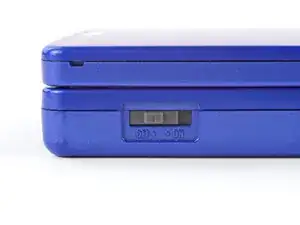
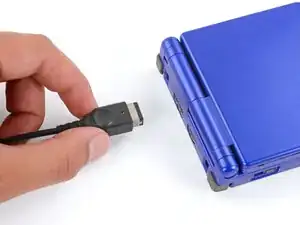
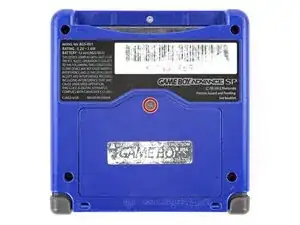
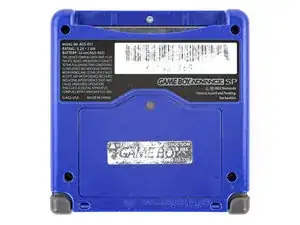
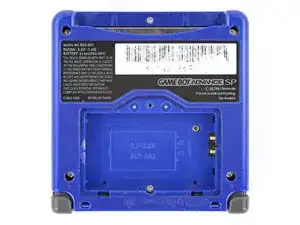
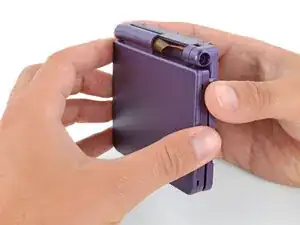
    • Slide the power switch to the OFF position and unplug any cables.

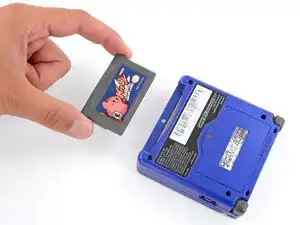
    • If you have a game cartridge in, remove it.

  2. 46UbwABdJNGmsSYy
    46UbwABdJNGmsSYy
    rUXbwksPAibTQFKW
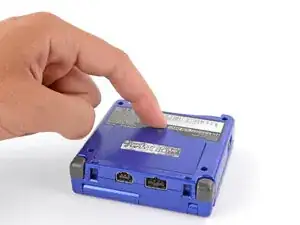
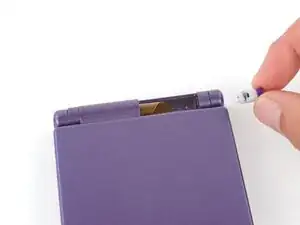
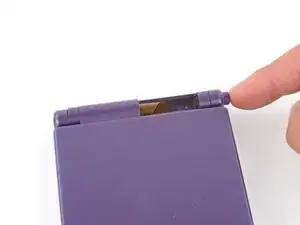
    • Use a JIS 00 screwdriver to loosen the captive screw securing the battery cover.

    • You can try to use a non-iFixit Phillips driver in a pinch, but you risk damaging or stripping the screw. Push down firmly on the driver and twist slowly.

  3. 1NVaKERyYEp12IZv
    1NVaKERyYEp12IZv
    DovWjXS1Vx5DhDEh
    ZmbMJgSwPtupCyJR
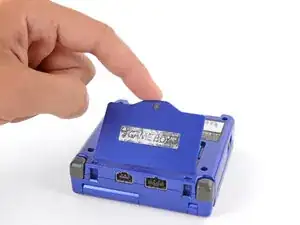
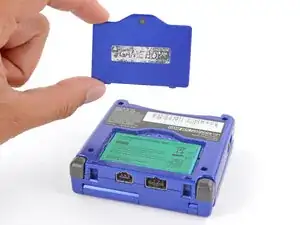
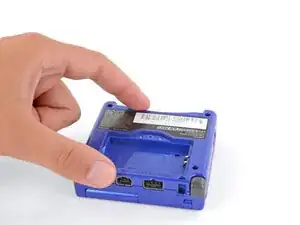
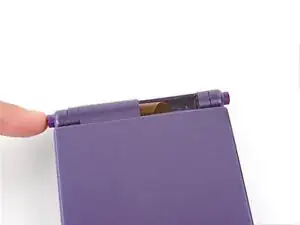
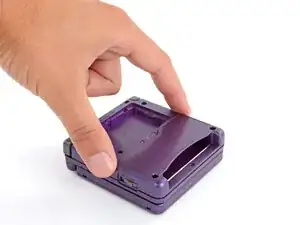
    • Lift the edge of the cover near the screw and remove the cover.

  4. O4BAKgKiyddagqkj
    O4BAKgKiyddagqkj
    nigLIO3F6WhSveRo
    xWeDsP2gXCd2JE2K
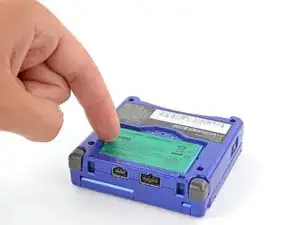
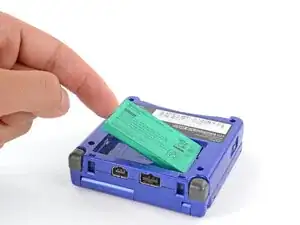
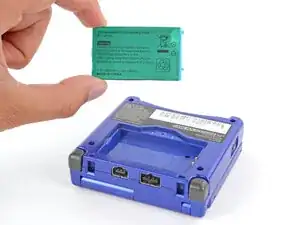
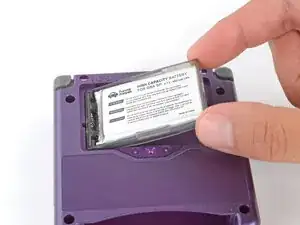
    • Use your finger to lift the battery by the tab on its left edge, then remove it.

  5. juIN5Gk1fFAGHbBF
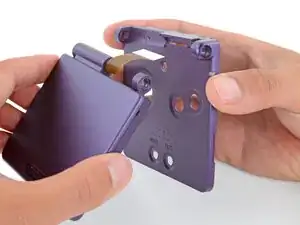
    juIN5Gk1fFAGHbBF
    yhUaAZlBZeoRQ42d
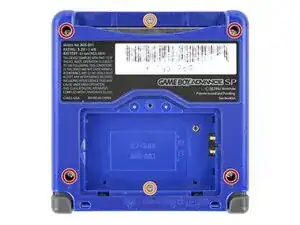
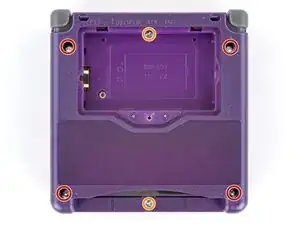
    • Use a tri‑point Y0 screwdriver to remove the six screws securing the bottom shell:

    • Four 6.3 mm‑long recessed screws

    • Two 4.6 mm‑long screws

  6. rHArxRROnSCWJbqe
    rHArxRROnSCWJbqe
    WH1aiHxrJGyLQuFD
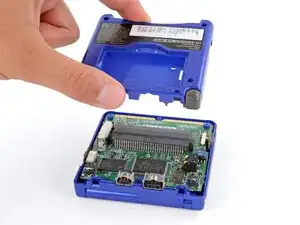
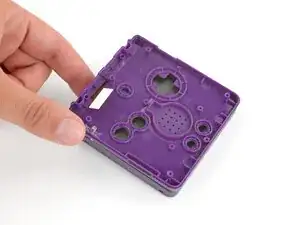
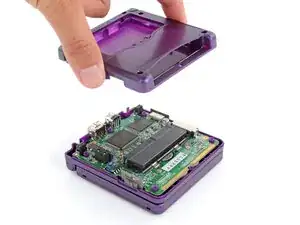
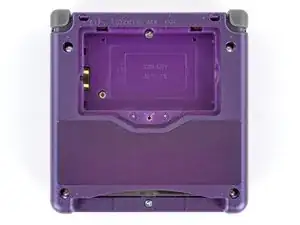
    • Lift the bottom shell straight up and remove it.

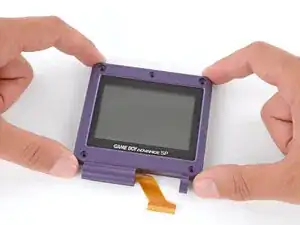
  7. dUkqYCp6OHyXWbxe
    dUkqYCp6OHyXWbxe
    WgsEGvbpGdn6C3qW
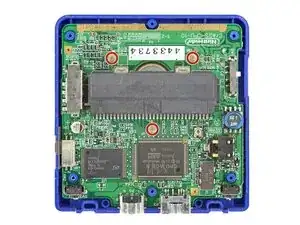
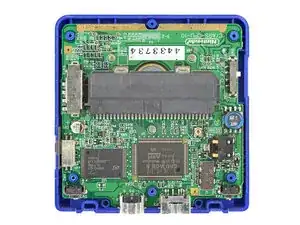
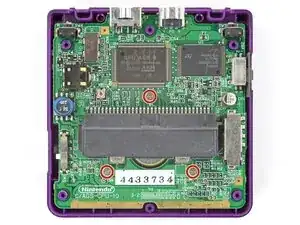
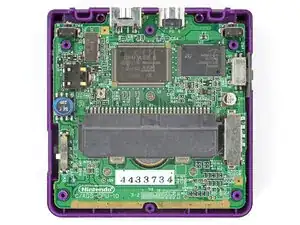
    • Use a JIS 00 screwdriver to remove the three 4.1 mm‑long screws securing the motherboard.

  8. 1Y1MZsFBLYX51rCr
    1Y1MZsFBLYX51rCr
    nsgAn5QIQehZB6KT
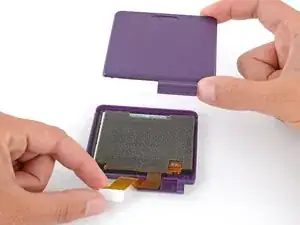
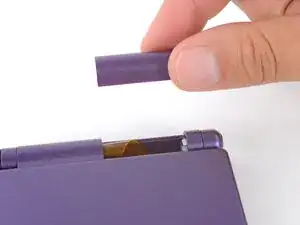
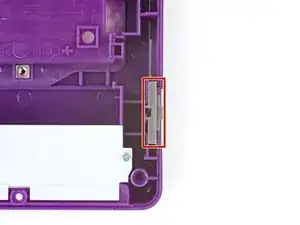
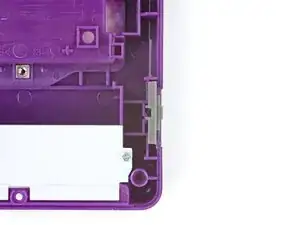
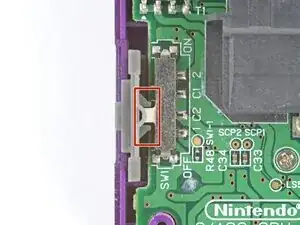
    • Use your fingers to lift and remove the power switch cover.

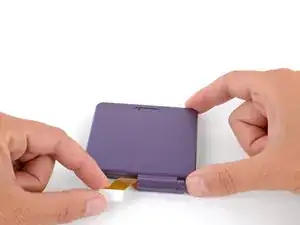
  9. LFW26341Yp3JfWXW
    LFW26341Yp3JfWXW
    BiZgjnK1stHKBOEm
    1HEPBT4aVa2iQFxx
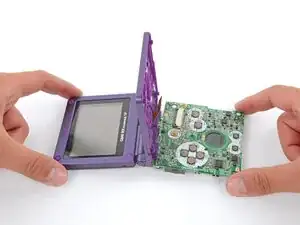
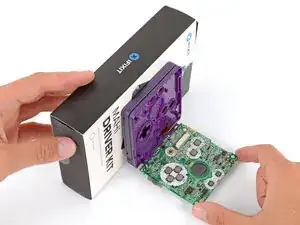
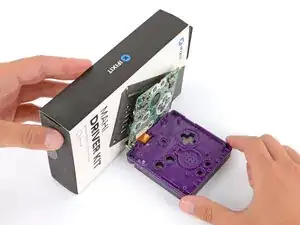
    • Place a sturdy object such as a stack of books or tool case along the edge of your Game Boy with the hinges.

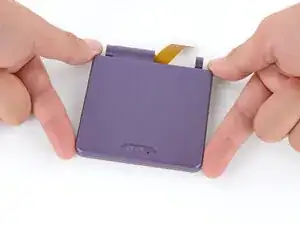
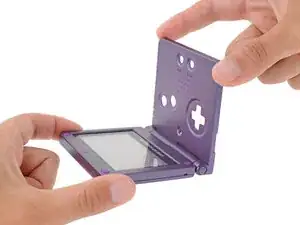
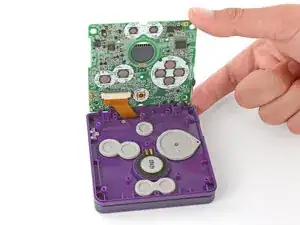
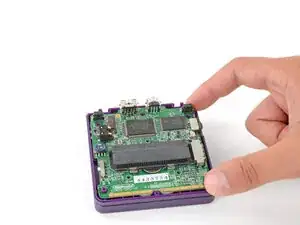
    • Use your fingers to gently flip the motherboard over the hinges and prop it up.

  10. Sm4TcLSR3hPg2RGe
    Sm4TcLSR3hPg2RGe
    CGJlWesMmhwaMfuu
    ka1yFfndgs1equ5T
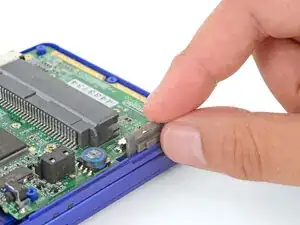
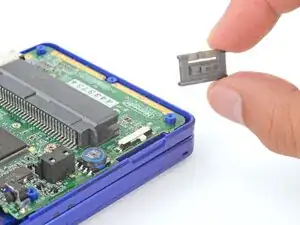
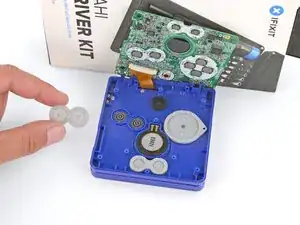
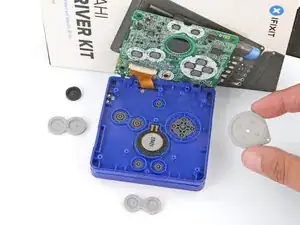
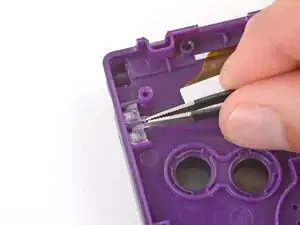
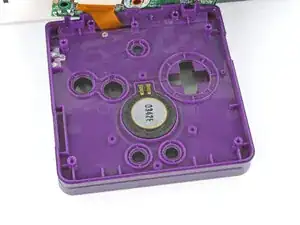
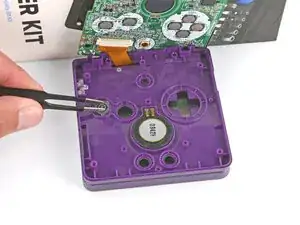
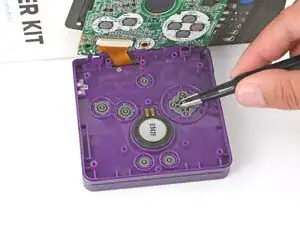
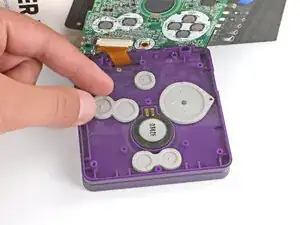
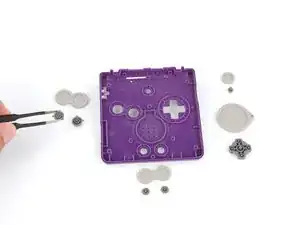
    • Use tweezers or your fingers to remove the four silicone pads covering the buttons (A and B, D‑pad, brightness, and Start/Select).

    • If any of the pads are missing, they may be stuck to their corresponding spot on the motherboard.

  11. qkNTUZTSHSJKmZCe
    qkNTUZTSHSJKmZCe
    xUw6C5vr6HgpmCGH
    N3Bcy56VlDmHwhF5
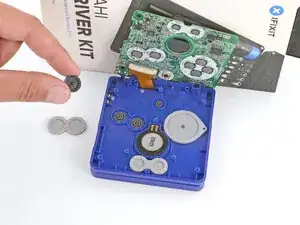
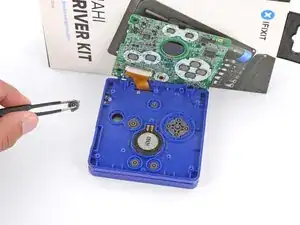
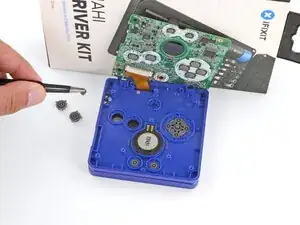
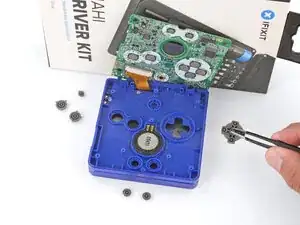
    • Use tweezers or your fingers to remove the buttons (A and B, D‑pad, brightness, and Start/Select).

  12. pKAOGpUImDBnU4Sa
    pKAOGpUImDBnU4Sa
    iZxnFlUKDclEgbka
    tTogSXxHNIqFE1FQ
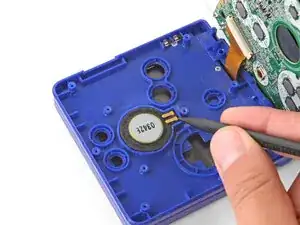
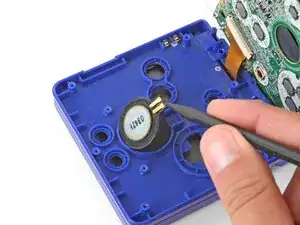
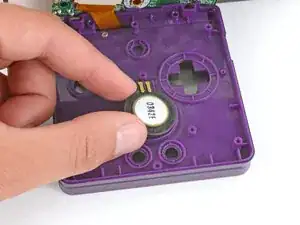
    • Use the point of a spudger or a clean fingernail to lift the speaker until you can grip it with your fingers.

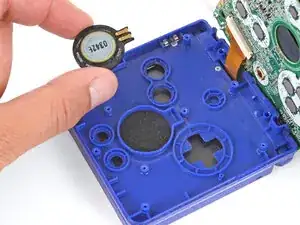
    • Remove the speaker.

  13. cQbqTagYiFb4gFuC
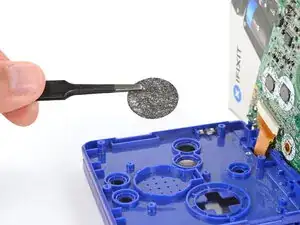
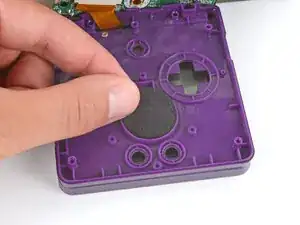
    • Remove the circular mesh from the speaker recess and set it aside—the piece can easily fall out and get lost when working.

  14. 5IahVjJJXPg2JP4V
    5IahVjJJXPg2JP4V
    11GNCBBYJXGMhDMW
    5AD2DIQoBaqUL5Pi
    • Be careful not to strain the screen cable during the next few steps—it has very little slack.

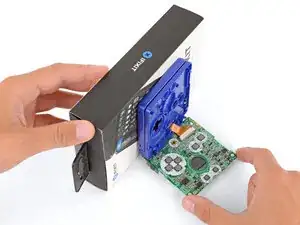
    • You need to prop up the main body of your Game Boy in order to disconnect the screen cable without straining it. Here are two ways to do so:

    • Option 1: Open the main body of your Game Boy to a 90‑degree angle and gently lay the motherboard down. Make sure the main body is resting on top of the motherboard to give the cable slack.

    • Option 2: Keep the main body closed and prop it up on the edge of the logic board, using a sturdy object to hold it up.

  15. iOX6LnURTochoSWx
    iOX6LnURTochoSWx
    thYNvZWqvZ3GNDsb
    yEJZe4gSTC4mpwE2
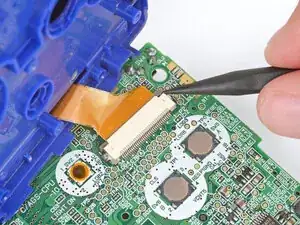
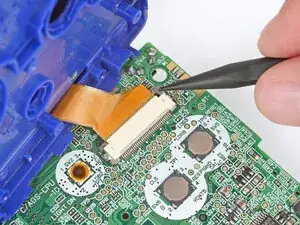
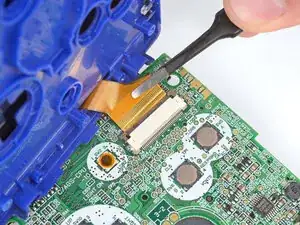
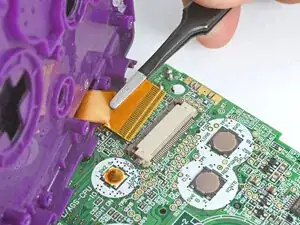
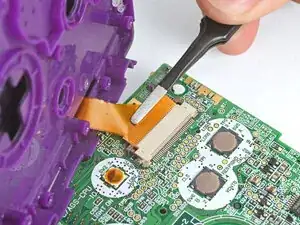
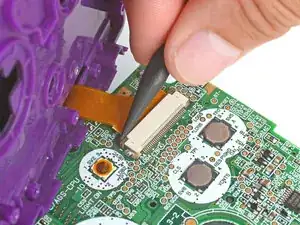
    • Use the point of a spudger to push the two tabs on either side of the screen cable connector into the unlocked position.

    • Only push the tabs until they stop. If you push them too far, you may slide the locking tab off the connector.

  16. ZVdpSSAGoEvlHuJl
    ZVdpSSAGoEvlHuJl
    IXaajsuSBOCxFoFP
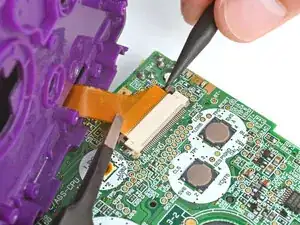
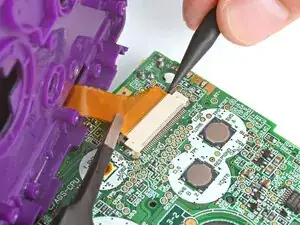
    • Use a pair of tweezers to gently slide the screen cable out of its socket.

  17. btSEVJoHF2Yw2T2Q
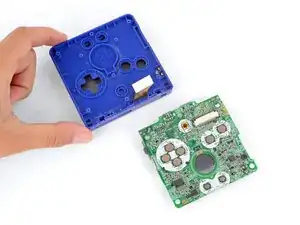
    • Remove the main body from the motherboard.

  18. PaGbgSuAfIpFxoxe
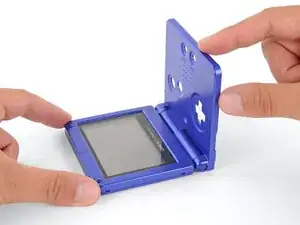
    • Open your Game Boy to a 90‑degree angle and set it down so the screen is facing up.

  19. hGoMGFNNxLVjtqR3
    hGoMGFNNxLVjtqR3
    nAtWTAxPmSevZJos
    pRNPPX5IcsKEBN2i
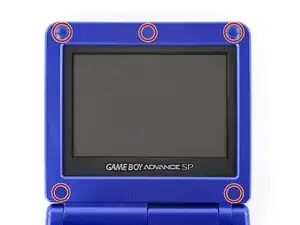
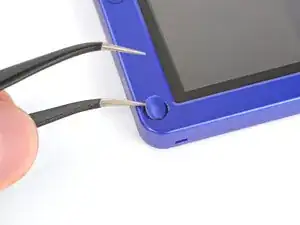
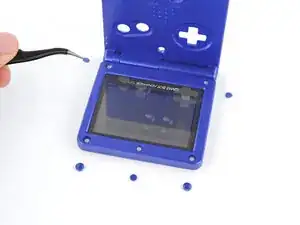
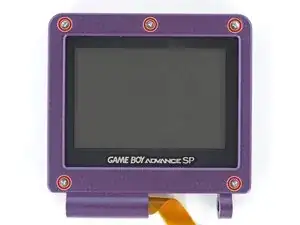
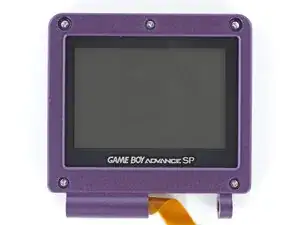
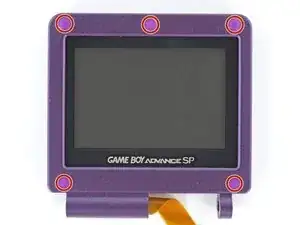
    • Use a pair of angled tweezers to pry up and remove all five rubber screw covers.

    • Removing old, brittle covers without damaging them can be tricky. Make sure to pry gently between the cover’s edge and the frame—don’t dig into the cover itself.

  20. I2NP1BJYeZOPGfRq
    I2NP1BJYeZOPGfRq
    eeQQ5TQTDOcPPZ1k
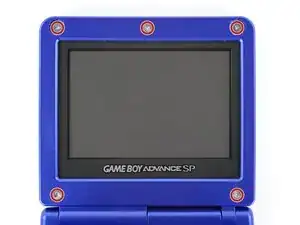
    • Use a tri‑point Y0 screwdriver to remove the five 4.7 mm‑long screws securing screen shells together.

  21. RT5XOkUjmoyMowdw
    RT5XOkUjmoyMowdw
    SJw3AxJXaYSOTARd
    • Fully close your Game Boy (the button cutouts should be on top).

  22. ASCHvbiPDLRUxBp5
    ASCHvbiPDLRUxBp5
    5hhG1pqXt2FHGDiO
    5CSwVhTwlauZvBgr
    • Use a JIS 00 screwdriver to remove the 6.3 mm‑long screw securing the hinge cover.

    • You may need to use your free hand to hold the screen cable out of the way.

  23. WJYIa6QGlEqlR1tG
    WJYIa6QGlEqlR1tG
    XwxFJCREEgWeM5kx
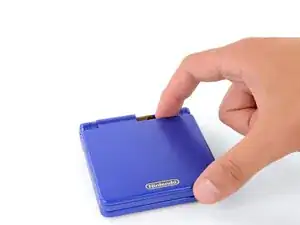
    • Flip your Game Boy over.

  24. PZuatGFkoHYScUt3
    PZuatGFkoHYScUt3
    kpImIumVpuipHr14
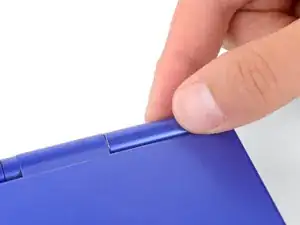
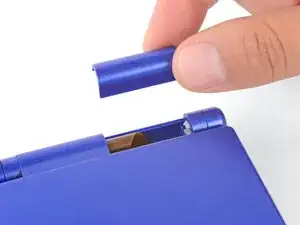
    • Use your fingers to lift and remove the hinge cover.

  25. 1ZBZJaAiYKamNWwX
    1ZBZJaAiYKamNWwX
    aQHCEM1jSwHpwlae
    FuWH2YW6nJYUClAx
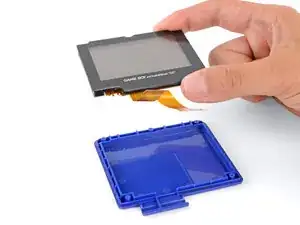
    • Depending on the age of your device, the screen may stay attached to its outer shell. If it does, make sure to thread the cable through its cutout while removing the shell.

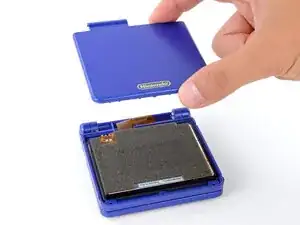
    • Use your fingers to lift and remove the outer screen shell.

  26. eUqX2VFvybMjon3F
    eUqX2VFvybMjon3F
    MGAxDrRoGsy6d1Jo
    2K5veeJkQmZkj5mn
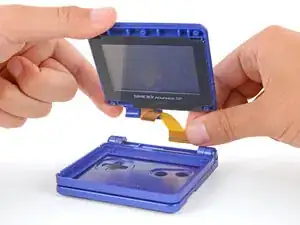
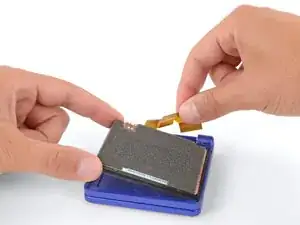
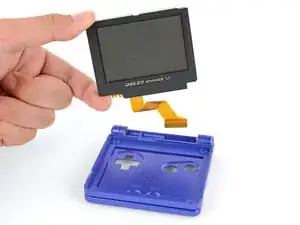
    • Use your fingers to lift and remove the screen, threading the cable through its cutout.

    • If your screen stayed attached to the shell, you may need to gently pry it up with a spudger before removing it.

  27. QsfJZZ5qTD1JHVIf
    QsfJZZ5qTD1JHVIf
    XDIaFDPkNVsOxMx3
    TVAECGjJ46hGnxQr
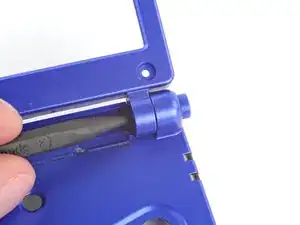
    • Don't try to force the hinges out of their sockets—you may damage the hinges, crack the shell, or injure yourself.

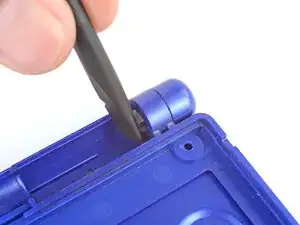
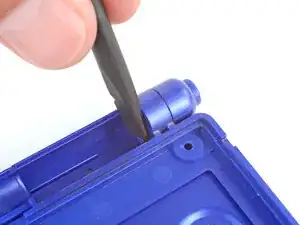
    • Use the flat end of a spudger to push both hinges partially out of their sockets.

    • You only need to push the hinges out until you feel them click into place.

  28. t5tyJx4GClYXWH42
    t5tyJx4GClYXWH42
    nc3OnBYTKXFTjFGt
    • Full open the shell of your Game Boy.

  29. mFjntTFSCCNCwNXc
    mFjntTFSCCNCwNXc
    hwGvApDnNDAjpZeB
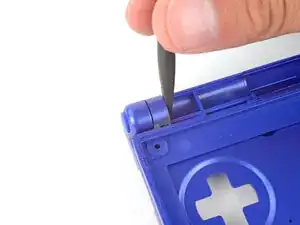
    • Use the point of a spudger to push the right hinge fully out of its socket and remove it.

  30. g3dIoBVtUhWPcXiX
    g3dIoBVtUhWPcXiX
    DfTLyDlI1IobQUQT
    hcp5XSwRETo2KRKY
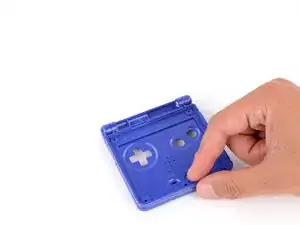
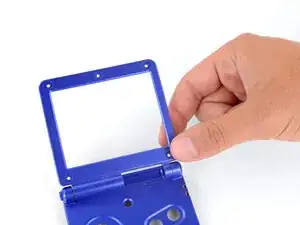
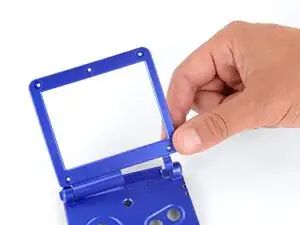
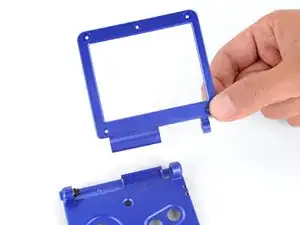
    • Use your fingers to gently lift the right side of the screen bezel.

    • Pull the screen bezel to the right—so it slides out of the left hinge—and remove it.

  31. lMH6QcHDNejOflVt
    lMH6QcHDNejOflVt
    sFCYC2uEIWyNCJNF
    FyFMOQDbQIAVKBeR
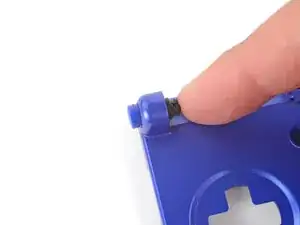
    • Use your finger to push the left hinge out of its socket and remove it.

  32. LCIUhGDIgjVEHdNw
    • Congratulations on disassembling your Game Boy! The remaining steps will show you how to transfer everything into your new shells.

  33. RTJMYRRttUpHyZsL
    RTJMYRRttUpHyZsL
    j1OybfWTOBNBcGqM
    fSJXwbDdtmGjSsVq
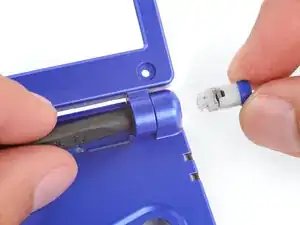
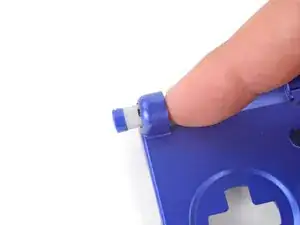
    • If your kit comes with replacement hinges, you can skip this step. Otherwise, follow this step to install new hinge caps.

    • Use your fingers to firmly slide the plastic caps off of the hinges, at a perpendicular angle to the hinge.

    • This may take some force, as the caps fit very tightly on the hinges.

    • Slide your new caps onto the hinges until they click into place.

    • The caps are grooved so you can only slide them on when they're in the proper orientation.

  34. dkGQiArQVuKcldJF
    dkGQiArQVuKcldJF
    H2eNilLWPT5csphX
    YniPDS2dOlQBVi34
    • For some IPS screen upgrades, you may need to make modifications to your replacement outer screen shell, or the screen itself. If you're using the original screen, you don't need to make modifications. Check your kit or the website you purchased it from for specific instructions before making any modifications.

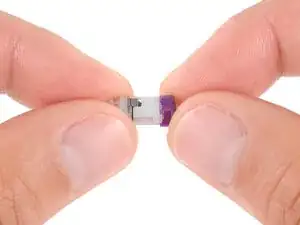
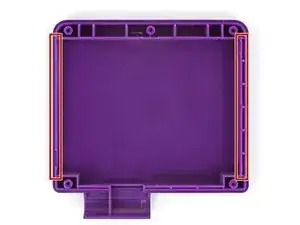
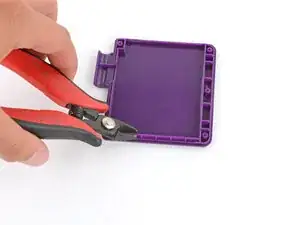
    • Some IPS screens are bigger than the original. You may need to use flush cutters to trim one of the plastic side rails to make room for your replacement screen.

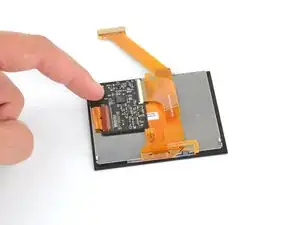
    • Your replacement screen may come with a small extra board and ribbon cable(s). The board will likely need to be adhered to the back of the screen, and the ribbon cable will connect to the board. Check the board and any cables for adhesive backings, and follow any manufacturer instructions.

  35. PKNw1PBVpCKhNfwK
    • Make sure your screen has the large foam pad installed on the backside.

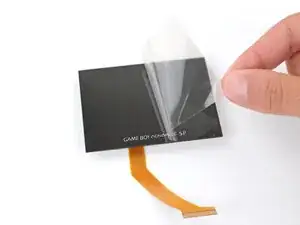
    • If you're installing a new screen, remove any protective liners.

  36. gUIkaDHjgggKQvsK
    gUIkaDHjgggKQvsK
    WWSkOvqB2RVVBema
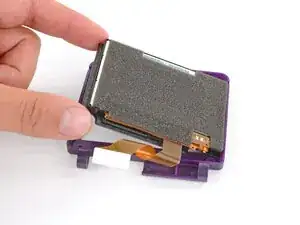
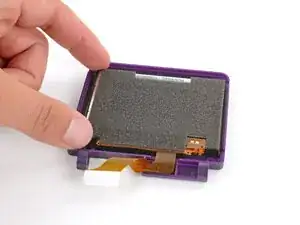
    • Remember, there are two screen shells—make sure you're laying the screen into the inner shell, with a cutout for the screen.

    • Lay the screen display‑side-down into its inner shell, so the cable is near the hinge sockets.

  37. yo4E3TuYuiPhXmXZ
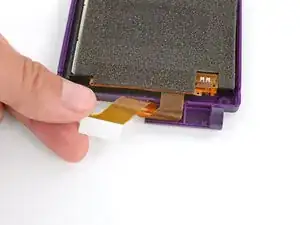
    • Carefully twist the screen cable to make one loop and hold it in place.

  38. yfg1Cek2WGlGfSSu
    yfg1Cek2WGlGfSSu
    vMZNaZsyGnfYpIBX
    • While keeping the screen cable looped, use your free hand to place the exterior screen shell into place over the screen.

  39. xZYM4fEOHJh2FkCd
    xZYM4fEOHJh2FkCd
    dQv6p4csoKwKAWMq
    • Nothing is securing the shells together. Be careful not to let them separate, or the screen may fall out.

    • Hold the screen shells firmly together and flip them over so the screen is facing up.

    • Continue holding the two halves of the screen shell together for the next step.

  40. U212XLmYCCUVNOaO
    U212XLmYCCUVNOaO
    lRJYCfgajeqvGYa6
    • Use a tri‑point Y0 screwdriver to install the five 4.7 mm‑long screws securing the screen shells together.

  41. XQQeCwgaM4PyLWly
    XQQeCwgaM4PyLWly
    tiEfAhwgaJgXhKQu
    kexAuoiHp1VG33Kx
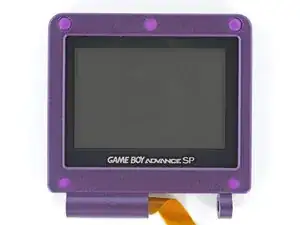
    • Use your finger to install the five rubber screw covers, pushing them firmly into place.

    • These don't usually need any adhesive—they stay secured on their own.

  42. muSK3egQiXEm1WXR
    muSK3egQiXEm1WXR
    kPErUM5GExLrkYBv
    weXWKVNdFoYEOKaN
    • If your replacement button shell has silicone pads and buttons installed, use tweezers or your fingers to remove them and set them aside for now.

    • This prevents the buttons from falling out and getting lost while you work on the shell in the next steps.

  43. xRBKyI1JkYTU5YCB
    xRBKyI1JkYTU5YCB
    6CI5vjPJFeYacRQB
    oDTTKCCqMRLga6Dt
    • Hold the screen in one hand and the button shell in the other.

    • Thread the screen cable through its cutouts, slide the hinge sockets into place, and fully close the shells together.

    • Check that the screen cable isn't pinched.

  44. Y5enPM2sYIJwUFyp
    Y5enPM2sYIJwUFyp
    tIS3OS5qyALqOGSb
    VqLqT2tvThbpBxxi
    • Use your fingers to partially insert both hinges in their sockets, only pushing them until they stop.

  45. HiwjCrQYYSsd2EkP
    HiwjCrQYYSsd2EkP
    RhFHiY2W5UQo3HJQ
    • Fully open your Game Boy and hold the screen in place.

  46. vE6qtOJqF6Clr4Hx
    vE6qtOJqF6Clr4Hx
    mQ11f6OweYuGRG5Y
    cWmlBhYlDNefCIE5
    • Use your finger to push the hinges fully into their sockets—they should click into place.

    • Gently open and close your Game Boy to make sure the hinges are correctly installed.

  47. sdRFTZoekGXEX5LK
    sdRFTZoekGXEX5LK
    BiKVHYd3hEuhkYxV
    • Close your Game Boy.

  48. 6eHRteenVEKOvTQJ
    6eHRteenVEKOvTQJ
    SlkgnNQEjccJnqPn
    BLbdOHCWMPgfMufT
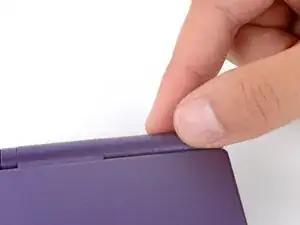
    • Use your fingers to put the hinge cover into place, with the screw hole closest to the screen.

  49. K6oOKbhvXkCI6TMS
    • Hold the hinge cover and main body together and flip your Game Boy over, so the button cutouts face up.

  50. gpsCduQp3nC4k2du
    gpsCduQp3nC4k2du
    1HoHZAs6oaT1aQA3
    XmxLAkfVFMbHorDE
    • Use a JIS 00 screwdriver to install the 6.3 mm‑long screw securing the hinge cover.

    • You may need to use your free hand to hold the screen cable out of the way.

  51. NioNMTsSwIeJrBYB
    NioNMTsSwIeJrBYB
    IfqLv4frFBMQXwrb
    SdbtEfLXIlWlLDpU
    • If your replacement button shell doesn't have an LED diffuser installed, transfer it from your original shell to the new one.

  52. 1kIRkJ5BBWAnqeVm
    1kIRkJ5BBWAnqeVm
    xq6EeauD5NZKlojE
    XlKDEj2NKEBXelUe
    • You'll need to prop up the main body of your Game Boy in order to reconnect the screen cable to the motherboard. Here are two ways to do so:

    • Option 1: Open the main body of your Game Boy to a 90‑degree angle. With the screen facing up, rest the hinges on the edge of the motherboard closest to the screen cable connector.

    • Option 2: Place the motherboard next to a sturdy object, such as a stack of books or tool case, so the side with the screen cable connector is up against it. With the Game Boy closed, prop it up so the hinges are on the motherboard and the screen cable is near its connector.

  53. JADellCQodNDHeBV
    JADellCQodNDHeBV
    OLlhAKOddp11DaAN
    • Before inserting the screen cable, make sure both sides of the connector's tab are pushed into the unlocked position.

    • Use a pair of tweezers to slide the screen cable fully into its connector.

  54. 2CXysrbwqPK4KiE4
    2CXysrbwqPK4KiE4
    xCRte1IHu6G3xA4s
    qJgJCwmaio15uTmn
    • With one hand, hold the screen cable in place with a pair of tweezers—make sure it's fully inserted in the connector.

    • The screen cable will tend to slide out of its socket since there's very little slack. If it slides out slightly, your screen may not work.

    • With your free hand, use the point of a spudger to push both sides of the connector's tab into the locked position.

  55. AXONO6RMTgeS4yMU
    • Be careful when repositioning your Game Boy. The motherboard is only attached by the screen cable—don't strain the cable.

    • With the Game Boy closed, place it screen-down on your work surface.

    • Place a sturdy object along the edge of your Game Boy with the hinges.

    • Use your fingers to gently flip the motherboard over the hinges and prop it up.

  56. MkcH4KYUsEAJmEnl
    MkcH4KYUsEAJmEnl
    DmndlubpvEx2Vdlf
    nHa1NkJ6nRSWKoX4
    • Place the speaker mesh into the speaker recess.

    • With the gold spring contacts facing up, place the speaker into its recess.

  57. a3eDDZPqgUiDeXxS
    a3eDDZPqgUiDeXxS
    pJRDhWMPYZlFDwes
    RYvPYuyAM2inAZVA
    • Use tweezers or your fingers to place all the buttons into their recesses.

    • The action and brightness buttons are keyed specifically for their recesses and proper orientation.

    • Lay the four silicone pads into place over the buttons.

  58. ggKOIIxnqN1tG51d
    ggKOIIxnqN1tG51d
    MJwlcXjsNiEETctl
    • Use your fingers to gently lower the motherboard into place, making sure all the screw posts go through their cutouts.

  59. SGgQtDghXgT5WowF
    SGgQtDghXgT5WowF
    kOLkZ44G1HsKIbs6
    • If your kit includes replacement screws, install them during reassembly. The screw lengths or bit sizes may vary slightly—use the quantity of each type to determine placement, keeping in mind that each set may include an extra screw.

    • Use a JIS 00 screwdriver to install the three 4.1 mm‑long screws securing the motherboard.

  60. QNfICqu2sX1KfKJj
    QNfICqu2sX1KfKJj
    dZRWbU4k6vPmKtiw
    • If the power switch cover is preinstalled in the new bottom shell, remove it—you'll install it in the next step.

    • The cover needs to be aligned properly over its switch, which is much easier to do with your fingers rather than trying to align it while putting the bottom shell on.

  61. VwKpqYf5DeYFwMGY
    VwKpqYf5DeYFwMGY
    kmNqYUPKSiqWnQBS
    42xTLACKfYI4tHCj
    • Use your fingers to put the power switch cover (notched side up) into place so the cutout goes around the actual switch.

    • Gently slide the cover back and forth to make sure it's positioned properly and moving the switch.

    • If the switch isn't properly in its cutout, you won't be able to power on your Game Boy.

  62. OoYPJDEZ1bUCr2Mj
    OoYPJDEZ1bUCr2Mj
    XXOYhHx4xhFB4ee3
    DeLGRYaOSIWcFCcY
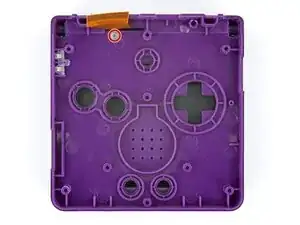
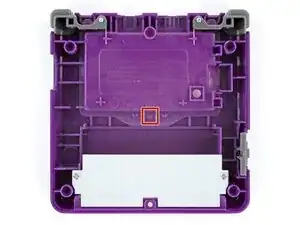
    • The bottom shell needs the small, metal captive nut/screw boss installed in the center for the battery cover screw to go into. Your kit may come with a new one, or you may need to transfer the one from your original shell.

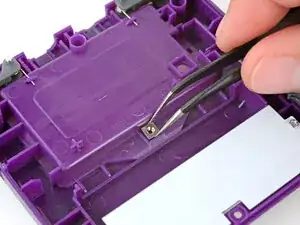
    • Use tweezers to place the captive nut into its recess in the center of the bottom shell.

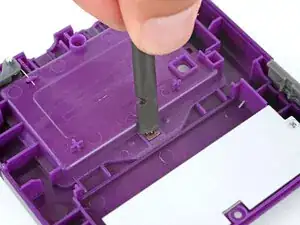
    • Use the flat end of a spudger to firmly push the nut fully into its recess.

    • This may require some force. Don't push too hard, or you may damage the shell.

  63. ciclQKHFtPPSUQvL
    ciclQKHFtPPSUQvL
    yYT5DBEbEtZuZPNH
    12TBbYKyTrZZ1nZU
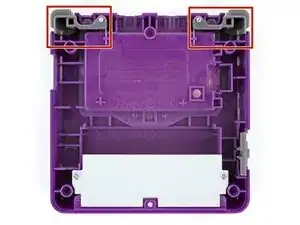
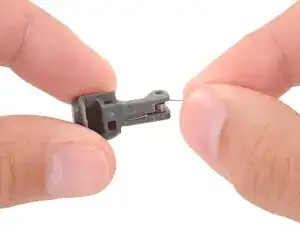
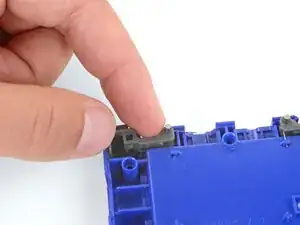
    • If shoulder buttons aren't already installed in your bottom shell, follow this guide to install them.

  64. dJItwWVdrEgrQPOw
    dJItwWVdrEgrQPOw
    vA4SL2CTW1ujJwE2
    • Place the bottom shell onto your Game Boy, making sure the shoulder buttons and power switch cover correctly slot into place.

    • While holding the shells together, test the shoulder buttons. If something doesn't feel right, remove the bottom shell and re‑seat it.

  65. KbXHdMotJwNYQLmE
    KbXHdMotJwNYQLmE
    NFG6cMDB2hJRLbrD
    • Use a tri‑point Y0 screwdriver to install the six screws securing the bottom shell:

    • Four 6.3 mm‑long recessed screws

    • Two 4.6 mm‑long screws

  66. lOMAwWw5QlRJjba6
    lOMAwWw5QlRJjba6
    qM3O3GDL1BbDxEsR
    oqh5g22KjEqnU2sv
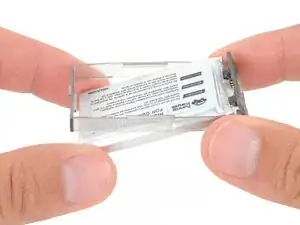
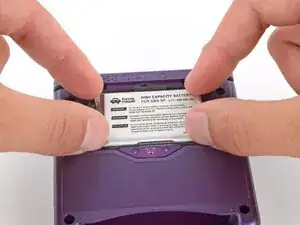
    • Some Game Boy Advance SP batteries are hard shell, and some are soft shell. Soft shell batteries will come with a plastic perimeter—don't try to remove it.

    • Insert the edge of the battery with contacts at a slight downward angle—aligning the contacts with their prongs in the recess—and press the battery into place.

  67. vKrLG5DEaCxwH3Mu
    vKrLG5DEaCxwH3Mu
    CKPho6PIXgTRWr3S
    CJVIKVLEaXqashSU
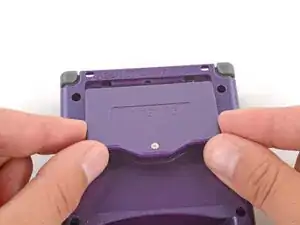
    • Slide the small tabs on the long edge of the battery into their cutouts and lay the cover into place.

  68. DxqMEdKkDJYjLsNI
    DxqMEdKkDJYjLsNI
    kAwRSbsbUhGPcxWn
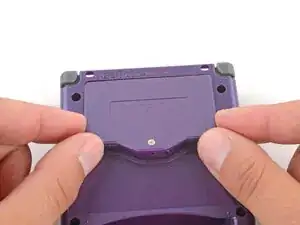
    • Use a JIS 00 screwdriver to tighten the captive screw securing the battery cover.

  69. aQGOYjVrxPHYYIdZ
    aQGOYjVrxPHYYIdZ
    hp2eLJaj4HjUxYXr
    rYEOhEQnhMRCwUnN
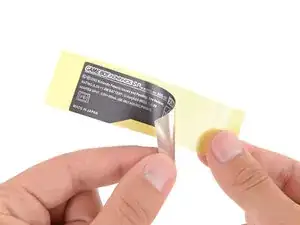
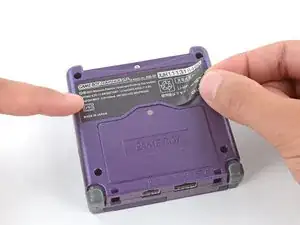
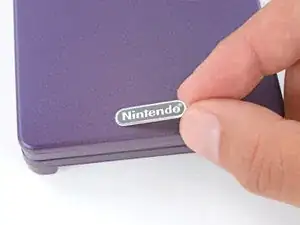
    • If your kit comes with replacement stickers, peel them off their liners, align them, and press them into place.

  70. WELRQISv2uR4kOIi
    WELRQISv2uR4kOIi
    3EFBRfw1P4XPHISZ
    NqGxIwNdKFKYJUxR
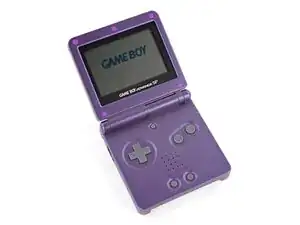
    • Flip the power switch into the On position and get to gaming!

    • That Game Boy startup really brings back some nostalgia…ours also somehow summoned Suction‑Cups‑For‑Feet Clampy...weird.

Conclusão

Congratulations on reshelling your Game Boy Advance SP!

Take your e-waste to an R2 or e-Stewards certified recycler.

Repair didn’t go as planned? Try some basic troubleshooting, or ask our Answers Community for troubleshooting help.

Spencer Day

Membro desde: 14/09/22

165254 Reputação

7 comentários

Excellent guide thank you! My GBA is looking great now :)

Justin Gagnon -
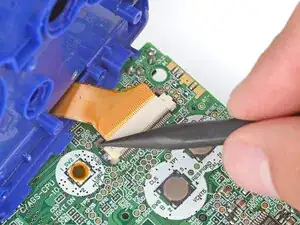
Hello this guide is great but it has some flaws (missing some steps) but I used an eXtremeRate GBA SP shell and they are the best ones to go with because they have It molded in a way to remove the Nintendo logo sticker and so you can put in a ips screen with out needing to trim and it is made out of a high quality plastic and it better than other third party shell and I used purple/blue color

dead -
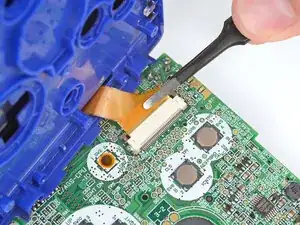
Thanks for the helpful guide! A couple things of note that I noticed along the way:


If you're replacing the screen lens, make sure you line it up properly so the end result isn't crooked.

Make sure to organize your screws, a mismatched screw can poke a hole through the shell.

Be gentle but firm when tightening a screw. I definitely messed up a screw or two being too forceful.

(I might be stupid) keep an eye on the battery lid screw hole. Mine ended up warping so I had to duct tape the lid to the shell.

If you're doing a button replacement too, be careful with the triggers.

Noah -
Excelent guide, just a quick detail: you forgot to add the part when you put the screw under the screen ribbon, the one that afix the hinge in place. The rest was amazing, thank you very much.

Daniel -
Bad guide, misses crucial parts (especially proper installation of the shoulder buttons)
edit: and it misses the top hinge cover.

Zac -

Sad that there is no step to remove the screen if you replace the shell

Blaxyy -

Thanks so much for this guide! 20 years ago I broke my screen when attempting a repair - now all these years later I managed to fix it and do a deep clean and everything works perfect. The missing steps mentioned in the other comments are now added, and there's a link in the Step about replacing the shoulder buttons to a separate guide or reassembling them. Mine fell out in the process, so that guide was super helpful.

CircuitBenT -