Introdução

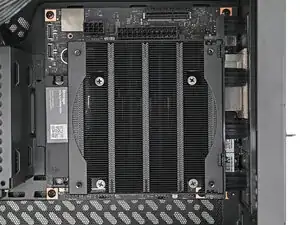
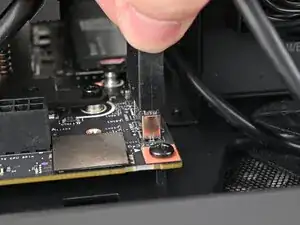
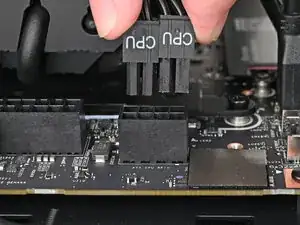
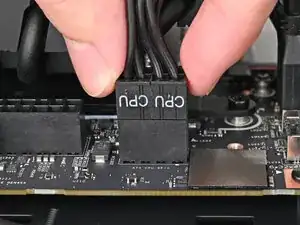
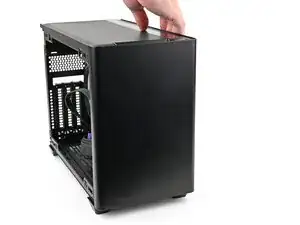
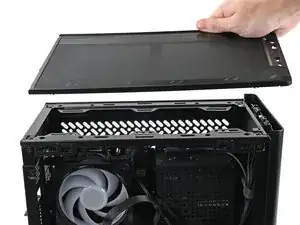
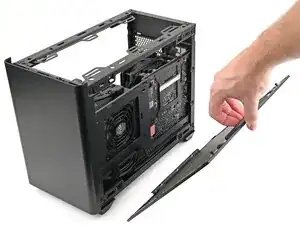
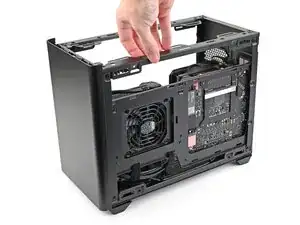
Follow this guide to install a Framework Desktop Mainboard into a Mini-ITX case.

The Framework Desktop Mainboard is compatible with a standard Mini-ITX case, ATX Power Supply, and 120mm CPU Fan. For detailed parts compatibility, click here.

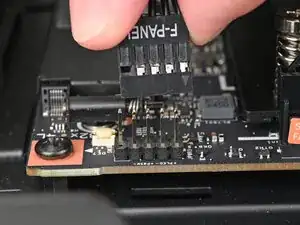
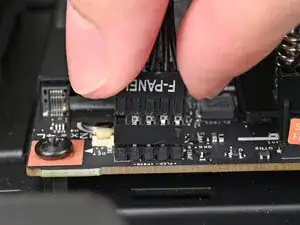
For information on the Front Panel IO Connectors, click here.

This guide only shows installing the Mainboard and assumes that a power supply and antenna module are already installed.

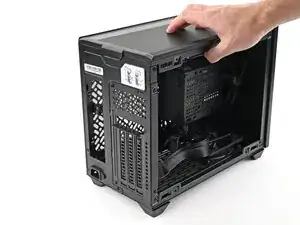
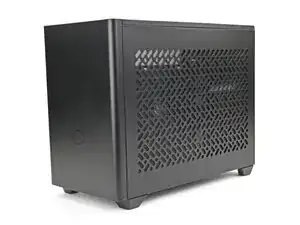
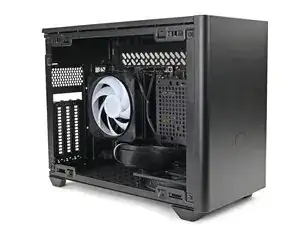
This guide features a Cooler Master NR200 case, but the procedure is identical across most Mini-ITX cases.

  1. BV6tCVGRioPNnClB
    BV6tCVGRioPNnClB
    KGAvLYVTnBpgc3Ly
    • Depending on your case, some components on the bottom of your Mainboard might be inaccessible after you install it.

    • The next four steps show how to install the secondary storage before installing the Mainboard; however, you may need to install other components, such as the Wi-Fi module.

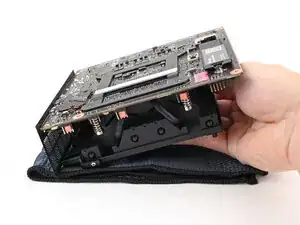
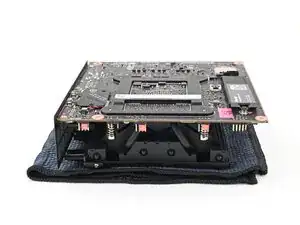
    • Place the Mainboard on your work surface with its heatsink resting on a soft, clean cloth.

  2. sHMtIOYEFXyB6PUv
    sHMtIOYEFXyB6PUv
    yBABcxYlYKKsOiJt
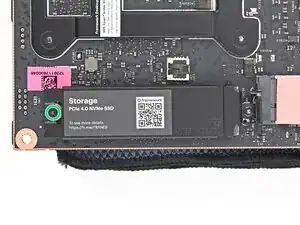
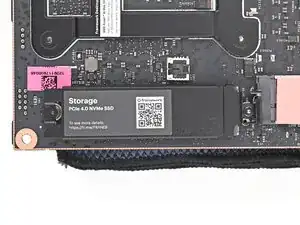
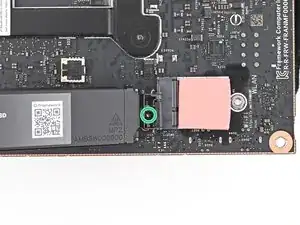
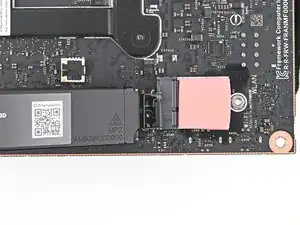
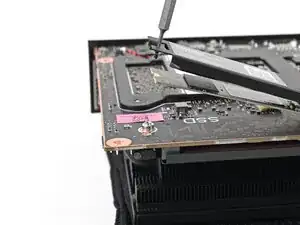
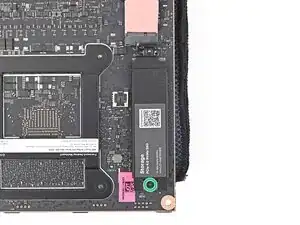
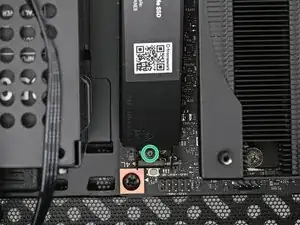
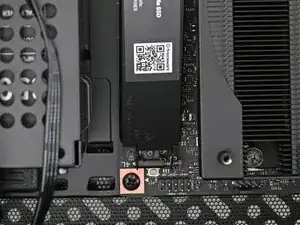
    • Use your Framework Desktop Screwdriver to loosen the captive T5 Torx screw securing the secondary storage.

    • The heat spreader will pop up to an angle when its screw is fully loosened.

  3. VHSuMbOCNAKl6xtK
    VHSuMbOCNAKl6xtK
    KpmAxV1iXZysVeBV
    cb6eqwKZBvwOTnYk
    • If your SSD comes with a pre-installed heat spreader, follow the next two steps. Otherwise skip here.

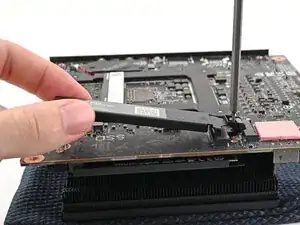
    • While securing the secondary storage heat spreader with one hand, use your Framework Desktop Screwdriver to remove the 4.5 mm‑long T5 Torx screw securing it.

  4. bv1JCk1uPXwyXlch
    • Lift the secondary storage heat spreader out of the Desktop and remove it.

    • Follow the guide normally, making sure to ignore instructions that involve the secondary heat spreader.

  5. vXtAViWyb5CVYE5Z
    vXtAViWyb5CVYE5Z
    j5qPDxAV6taVRgZD
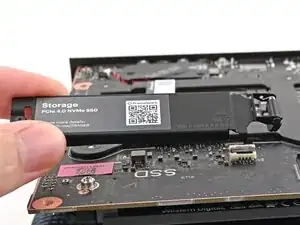
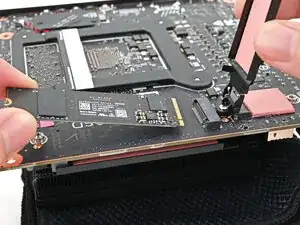
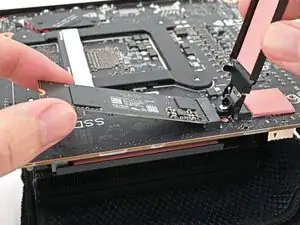
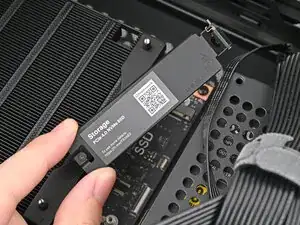
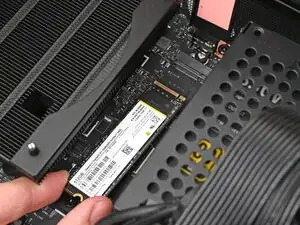
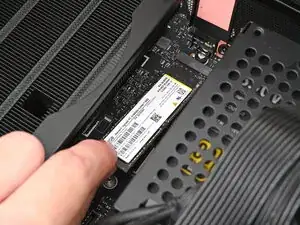
    • Hold the SSD by its edges. Don't touch the gold contacts with your fingers. If you do, wipe the contacts with a clean, lint-free cloth to remove any finger oils.

    • While holding the heat spreader upright, align the SSD's gold contacts with its socket.

    • Insert the SSD into the socket at a shallow angle. The gold contacts should be mostly covered by the socket.

    • The SSD fits into the socket in one orientation. If it doesn't feel like it fits, try flipping the module.

  6. CFCRJTmvAUr2aTi6
    CFCRJTmvAUr2aTi6
    WnGMdimn1QRawDQx
    kWNH1yp2YAwhZwFA
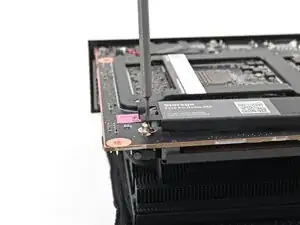
    • Insert your Framework Desktop Screwdriver into the captive screw on the secondary storage heat spreader and press it flat to the Mainboard.

    • Tighten the screw securing the secondary storage.

  7. hiuDsZPoc42UM4Q4
    hiuDsZPoc42UM4Q4
    GAobMRHZ5LZhfNkq
    b2KAJRNMTmTDCUXi
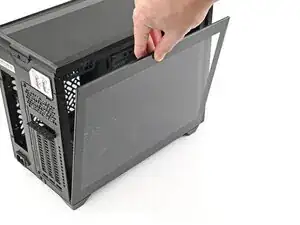
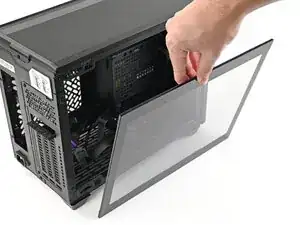
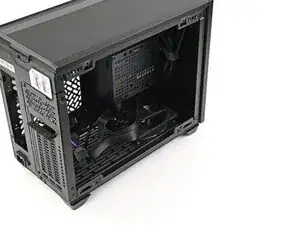
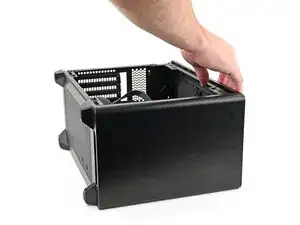
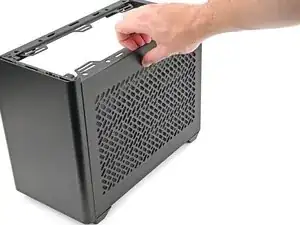
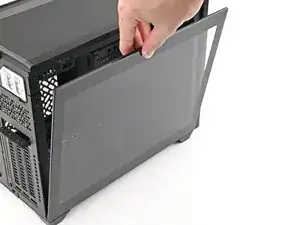
    • Remove the side panel from your case so you can access the cutout for the Mainboard.

  8. NrqFHSSVU5wq4nYS
    NrqFHSSVU5wq4nYS
    QxknHjUf1iDwpaAo
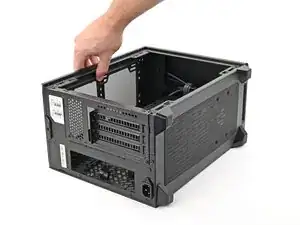
    • Lay the case on its side.

  9. YGJfnvSGHqgF6ANR
    YGJfnvSGHqgF6ANR
    FMHkpfUhYZDCAunK
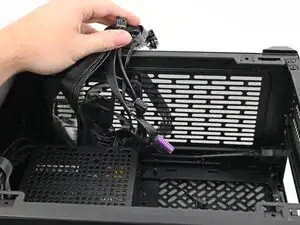
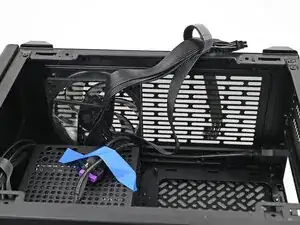
    • Move the cables out of the way of the Mainboard cutout.

    • Optionally, you can use tape with light adhesive, like painter's tape, to keep the cables out of the way.

  10. W1XNvAiK2GFPF2jS
    W1XNvAiK2GFPF2jS
    HriFRs3GltTsu5dl
    uqvUnhAnkJXvAlM4
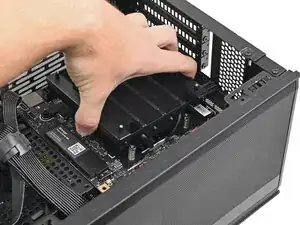
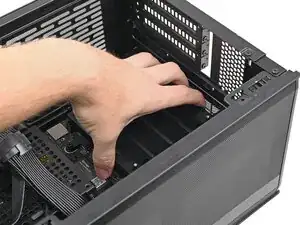
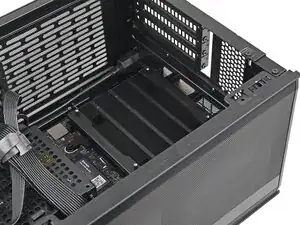
    • Grip the Mainboard by the heatsink and place it into its cutout, making sure the ports aligns with its slot in the case.

    • Only grab the heatsink by its left and right edges (the edges facing the back I/O ports and the Primary SSD). If you grab the other edges, you risk bending the heatsink fins.

    • You may need to move the Mainboard around in its cutout until it rests properly on its screw posts.

  11. WVZEcP6vxxBgiixJ
    WVZEcP6vxxBgiixJ
    5TdBtOYRAvQYB5qQ
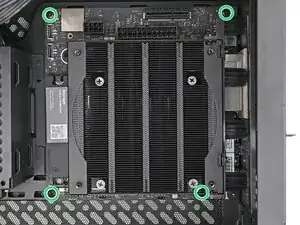
    • Use your Framework Desktop Screwdriver to install the four 8.2 mm‑long Phillips screws securing the Mainboard.

  12. M42LO3dWuqZXWWkE
    M42LO3dWuqZXWWkE
    aIxJiXHN2jmXICCf
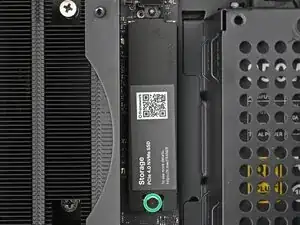
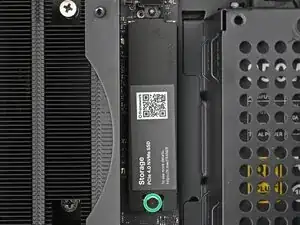
    • Use your Framework Desktop Screwdriver to loosen the captive T5 Torx screw securing the primary storage.

    • The heat spreader will pop up to an angle when its screw is fully loosened.

  13. XyOLv6VO2TemLWOX
    XyOLv6VO2TemLWOX
    vSYTSQsZWFAlggNe
    NqH2C5bFSZwDpNcj
    • If your SSD comes with a pre-installed heat spreader, follow the next two steps. Otherwise skip here.

    • While securing the primary storage heat spreader with one hand, use your Framework Desktop Screwdriver to remove the 4.5 mm‑long T5 Torx screw securing it.

  14. 6uPQnSm5rOyiSLeE
    • Lift the primary storage heat spreader out of the desktop and remove it.

    • Follow the guide normally, making sure to ignore instructions that involve the primary storage heat spreader.

  15. 5JuPCW5364DZgZSd
    5JuPCW5364DZgZSd
    21YOTUOm6u4oAWQn
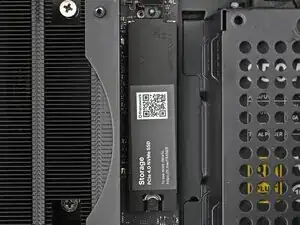
    • Hold the SSD by its edges. Don't touch the gold contacts with your fingers. If you do, wipe the contacts with a clean, lint-free cloth to remove any finger oils.

    • While holding the heat spreader upright, align the SSD's gold contacts with its socket.

    • Insert the SSD into the socket at a shallow angle. The gold contacts should mostly be covered by the socket.

    • The SSD fits into the socket in one orientation. If it doesn't feel like it fits, try flipping the module.

    • Lay the heat spreader back onto the SSD.

  16. M4SAMElFssFMBLsx
    M4SAMElFssFMBLsx
    eOtX1LwNRENh4G5B
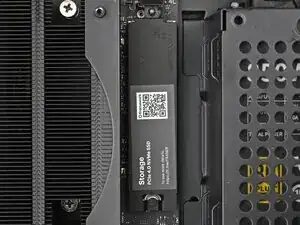
    • Insert your Framework Desktop Screwdriver into the captive screw on the primary storage heat spreader and press it flat to the Mainboard.

    • Tighten the screw securing the primary storage.

  17. vn5mCaRHWsSxdKgc
    vn5mCaRHWsSxdKgc
    tH3osAhUwVGwFLMt
    eIeVgLdyKDaqcFH1
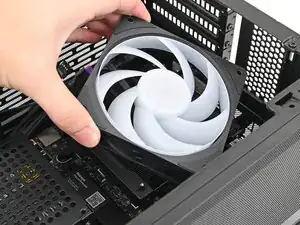
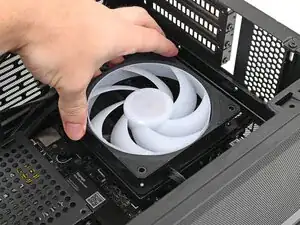
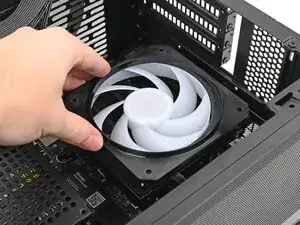
    • Orient the fan so its label is facing downward and the cable(s) are pointing towards their sockets on the Mainboard.

    • Depending on your fan, you may have one or two cables.

    • Lay the fan on top of the heatsink.

    • If your fan has an arrow indicating airflow direction, make sure it's pointed towards the heatsink.

    • If you're using a different fan, orient it such that the fan is blowing towards the heatsink, not away.

    • Lay the fan duct on top of the fan with the lip facing upward.

    • Align the screw holes on the fan duct with the ones on the fan.

  18. DRVHVkEAJDDSFnpW
    DRVHVkEAJDDSFnpW
    JJxdGHQcVLOw4wkh
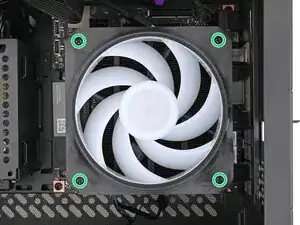
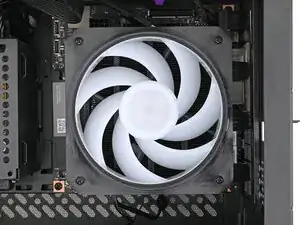
    • Use your Framework Desktop Screwdriver to install the four 27.3 mm‑long Phillips screws securing the CPU fan and fan duct.

  19. oqMP62iFnEXAhXAH
    oqMP62iFnEXAhXAH
    GjNHHmIeLYqfbG2E
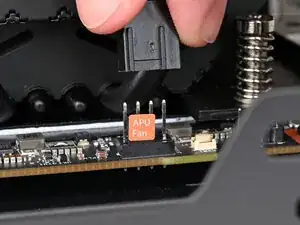
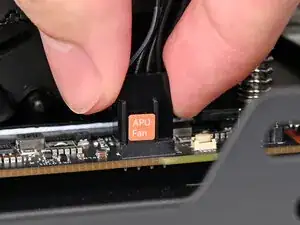
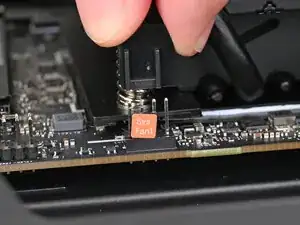
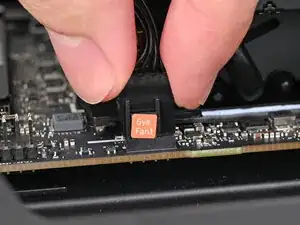
    • Slide the main fan cable over the four-pronged connector labeled "APU Fan," making sure the orange label slots between the vertical lines.

  20. DuERmPL6SIZNSt54
    DuERmPL6SIZNSt54
    rlVdCdjdfZ4KjjWS
    • If you aren't using an RGB fan, then skip this step.

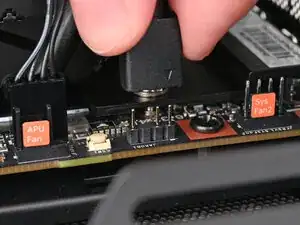
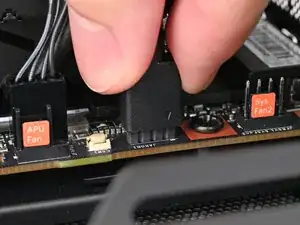
    • Use your fingers to slide the RGB cable over the three pronged connector located to the right of the "APU Fan" connector.

  21. UMQeCKduPnhjyVUF
    UMQeCKduPnhjyVUF
    yElYO51Akg4BFISA
    • Follow this step to connect an additional fan. Otherwise, skip it.

    • Slide the cable over the four-pronged connector labeled "Sys Fan1," making sure the orange label slots between the vertical lines.

  22. UatSQIM6upacoClL
    UatSQIM6upacoClL
    oYAv2RVLkMpvMBAy
  23. t1Bk15FKS2dStoYq
    t1Bk15FKS2dStoYq
    wYCO6SkngMnMlrAe
  24. VGJL6KqEs6AqJXNu
    VGJL6KqEs6AqJXNu
    YlfNPXMqlxM5EvdB
    ba3lMX2BKaj3A4E3
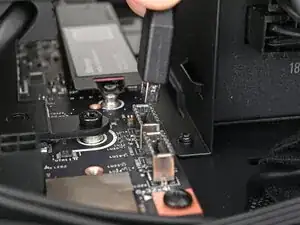
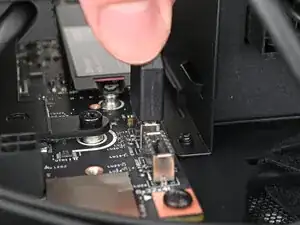
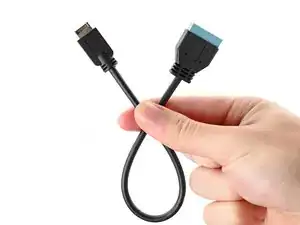
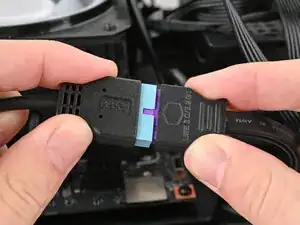
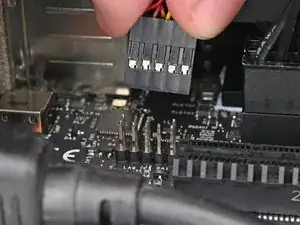
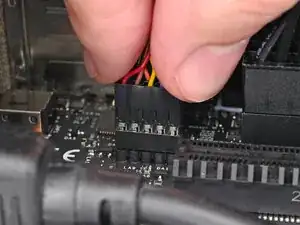
    • If your case comes with a USB 3.0 20-pin connector, use an adapter to connect it to the other USB Type-E 20-pin socket.

  25. QDU6IOECAxyO5rXg
    QDU6IOECAxyO5rXg
    xrXxOiFMJQea4PKF
  26. RjBVxYyiSJL3dfPb
    RjBVxYyiSJL3dfPb
    dGflQQ21KrhMKZLZ
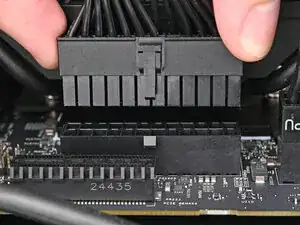
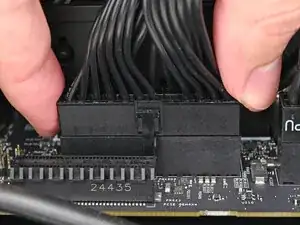
    • Orient the 24-pin main power supply cable so its clip is facing away from the heatsink.

    • Slide the cable into its socket on the Mainboard until you feel its clip click into place.

  27. qBZfFT5VyB43Yj5T
    qBZfFT5VyB43Yj5T
    C6eWs1EltkvDuXnr
  28. wEH3bH1h12FGm1dV
    wEH3bH1h12FGm1dV
    eheSmPsQWNX5s2dU
    • Stand your case upright.

  29. JX1J5XgsVCbXPDD5
    JX1J5XgsVCbXPDD5
    bbhgyrQHo2ZTKPpZ
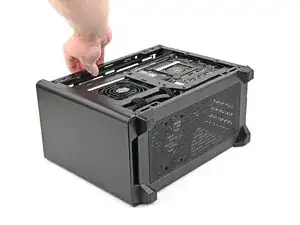
    • Disassemble your case enough to access the bottom side of the Mainboard.

  30. 3h3hMUtgljKHsHUs
    3h3hMUtgljKHsHUs
    ybfZxIBrGTJrMmYQ
    • Lay your case down so the bottom of the Mainboard is facing upright.

  31. AZ3jZ1vFi3xxiaxP
    AZ3jZ1vFi3xxiaxP
    TZGTHpDeBBcMpe5d
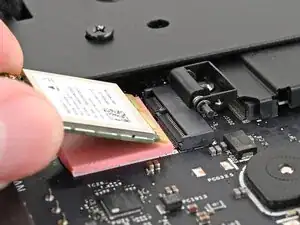
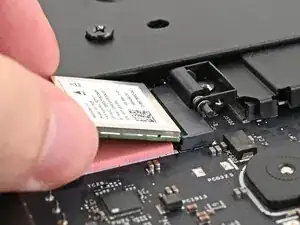
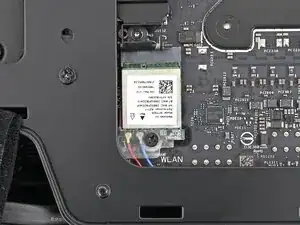
    • Hold the Wi-Fi module by its edges. Don't touch the gold contacts with your fingers. If you do, wipe the contacts with a clean, lint-free cloth to remove any finger oils.

    • Align the Wi-Fi module's gold contacts and notch with the socket on the Mainboard.

    • Insert the Wi-Fi module into the socket at a shallow angle. The gold contacts should mostly be covered by the socket.

    • The Wi-Fi module fits into the socket in one orientation. If it doesn't fit, try flipping the module.

  32. CEJBggAkSUWXYFFZ
    CEJBggAkSUWXYFFZ
    sxf3sgxLQiuiA2kR
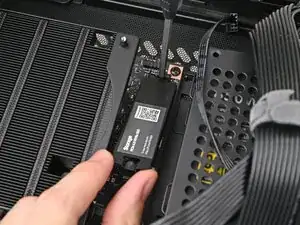
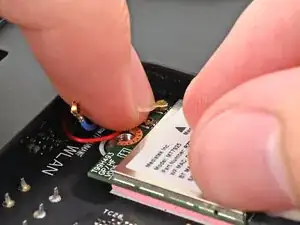
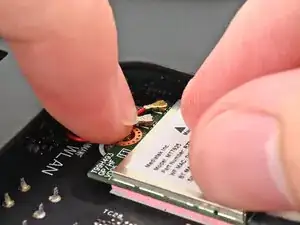
    • The color of your antenna cables will depend on the antenna module you're using. Refer to the instructions of your antenna module for which cables should connect to the two sockets on the Wi-Fi module.

    • Hold the Wi-Fi module down with your fingers.

    • Position the antenna cable connector over the left Wi-Fi module's coaxial socket.

    • Tweezers can help position the connector.

    • Use your finger to press the connector into place. You should feel a faint click, and the cable will stay attached to the socket by itself.

    • These connectors are very delicate! If the connector doesn't feel like it's clicking in place, reposition the connector and try again.

    • Repeat the procedure with the other antenna cable.

  33. 4GCwIO2DiJrLA4IO
    4GCwIO2DiJrLA4IO
    IEHaM6fiLBPoydCV
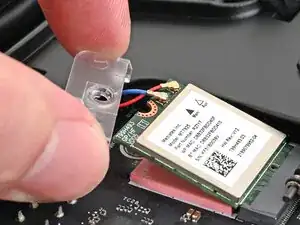
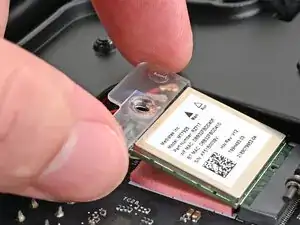
    • Hook the Wi-Fi bracket over the corner of the Wi-Fi module opposite the antenna cables.

    • Rotate the bracket over the Wi-Fi module, making sure the screw hole isn't being obstructed by the antenna cables.

  34. ynITYcpnGgHXKESc
    ynITYcpnGgHXKESc
    ObfMw5vCFxGjrEfu
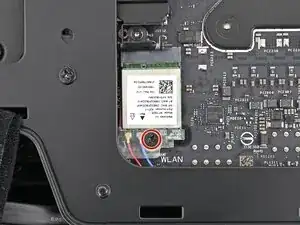
    • Use your Framework Desktop Screwdriver to install the 7.0 mm‑long screw securing the Wi-Fi module.

  35. nOF6CsMsbAdJ3PCQ
    nOF6CsMsbAdJ3PCQ
    OeScmSWiHrBRngOP
    lrTGaLBTiEBlCsep
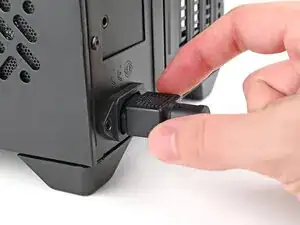
    • Reassemble the case and plug the AC Cable into the desktop.

  36. xWTb2POHpXUjXrS6
    • You're done installing your Framework Desktop Mainboard! If you haven't transferred your data, you'll need to install an OS.

    • If you're installing Microsoft Windows, check out this guide.

    • If you're installing Linux, check this page for more details.

Conclusão

For drivers, firmware, and software updates, check out this page.

If you need help, contact Framework support.

Alex Diaz-Kokaisl

Membro desde: 16/01/22

227430 Reputação

0 comentários