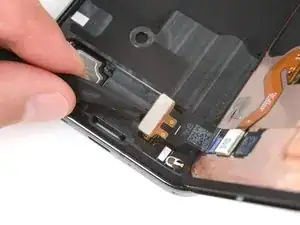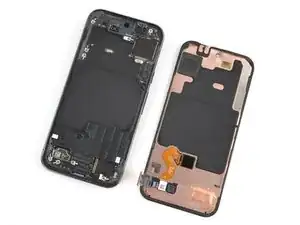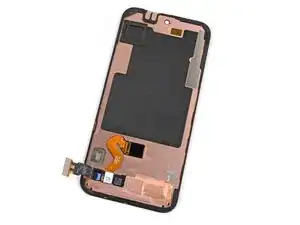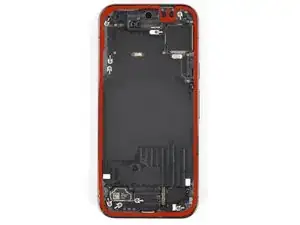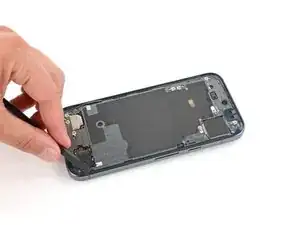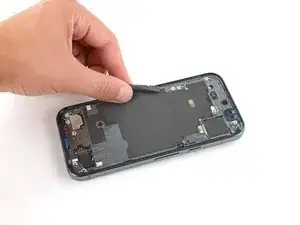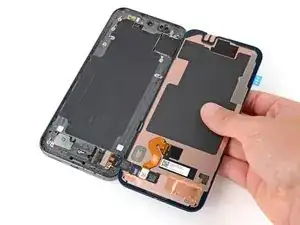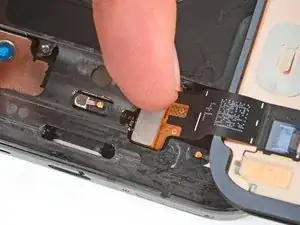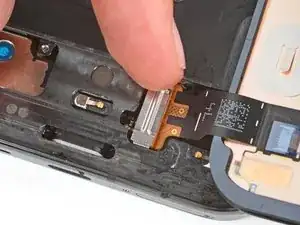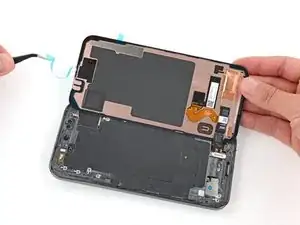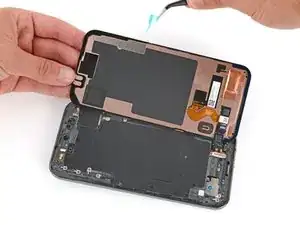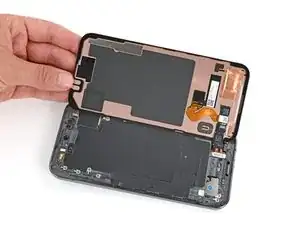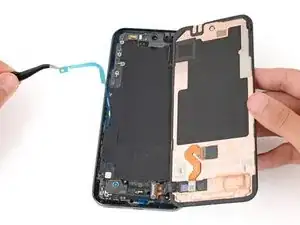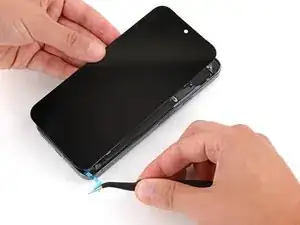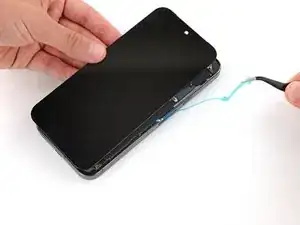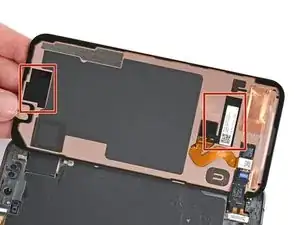
Introdução

This repair guide was authored by the iFixit staff and hasn’t been endorsed by Google. Learn more about our repair guides here.

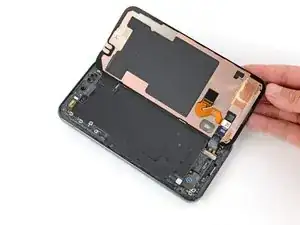
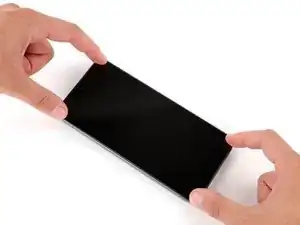
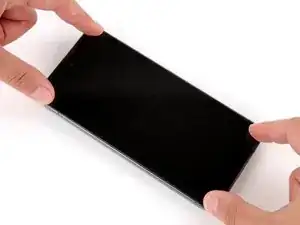
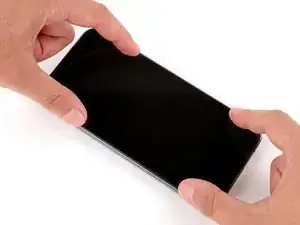
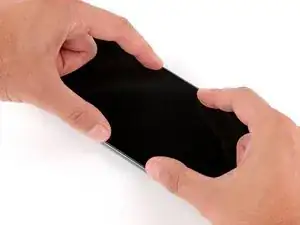
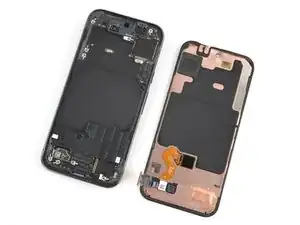
Follow this guide to replace a broken, cracked, or unresponsive screen on your Google Pixel 9 Pro.

If your screen doesn't come with adhesive pre‑installed, you'll need replacement screen adhesive in order to complete this repair.

Note: Any repair can compromise the water resistance of your phone. Retaining water resistance after the repair will depend on how well you reapply the adhesive.

  1. LTilkVoaHyOYJQoP
    LTilkVoaHyOYJQoP
    DDba2IYvihnIWjP6
    • Let your Pixel's battery drain below 25% before starting this repair. A charged lithium‑ion battery may catch fire if damaged.

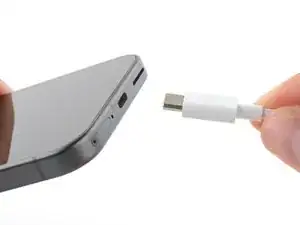
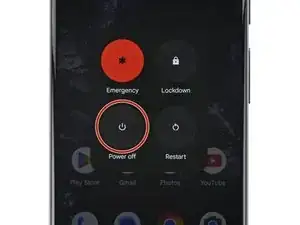
    • Unplug all cables and completely power down your phone.

  2. YtRSXlcWIbNGe4CQ
    YtRSXlcWIbNGe4CQ
    SPM32wmOUFMPOWVn
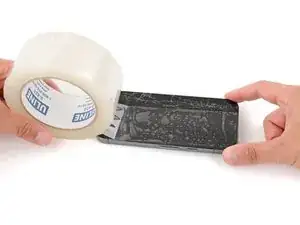
    • Glass shards can complicate disassembly—or worse, cause injury. If your phone has a cracked screen, follow these steps:

    • Apply overlapping strips of packing tape to the cracked glass until the whole screen is covered—this will allow the suction cup to stick to the screen.

    • Only cover the glass itself—don't stick any tape to the frame.

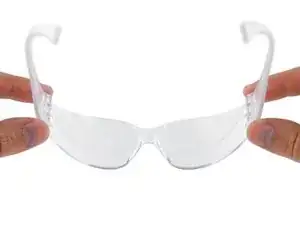
    • Consider wearing safety glasses to protect your eyes from any glass shaken free during the repair.

  3. Qo3nvIgWAPYWHRWs
    Qo3nvIgWAPYWHRWs
    w2sOUfB5JQCG2OQo
    HngAqA43gRSYmPGf
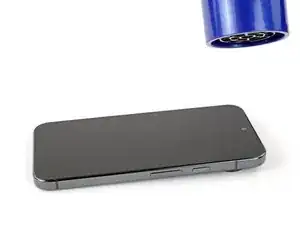
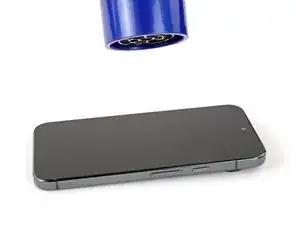
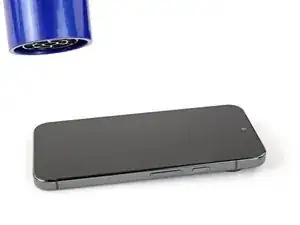
    • Adhesive secures the screen to the frame. Heating the screen softens the adhesive, making it easier to separate.

    • Use a hair dryer, heat gun, or hot plate to heat the entire screen until it's almost too hot to touch.

    • Be careful not to overheat the phone—the battery and plastic components are susceptible to heat damage. Stop heating if the frame becomes too hot to touch.

    To heat the screen I used a repair heat plate that I gradually increased to 165F before the glue softened enough to lift (the heat plate was a CPB brand, missing pieces out of the box, but worked).

    joc -
  4. OlAt5IV5prCjcENS
    OlAt5IV5prCjcENS
    auAsaTbDwLZlmRYD
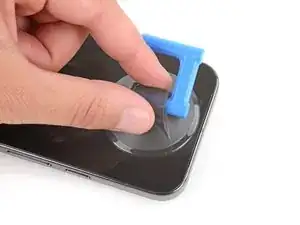
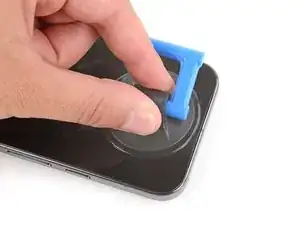
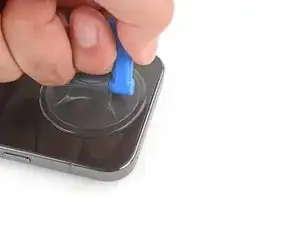
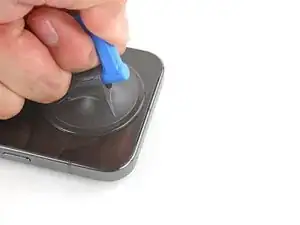
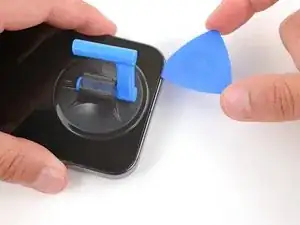
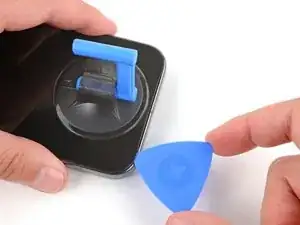
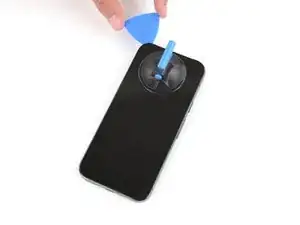
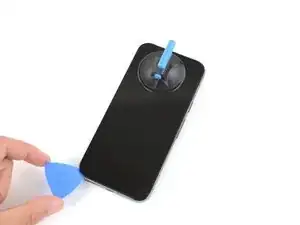
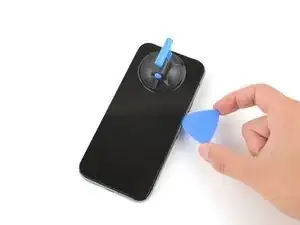
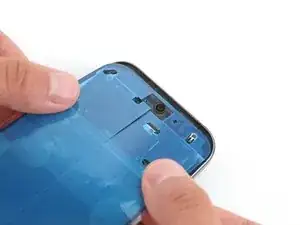
    • Apply a suction handle to the center of the screen's top edge.

    I could not get the suction cup to stick to the tape applied in step 2. Fortunately I had a large piece of glass that wasn't shattered, so I cut the tape back and the cup stuck well to the glass.

    Joshua S -
  5. Ne2OvmboNfrpknGN
    Ne2OvmboNfrpknGN
    OAVAn4WWl1c5TQTM
    anDAZANlBTCFM6Ol
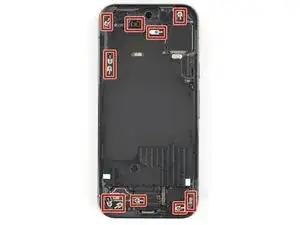
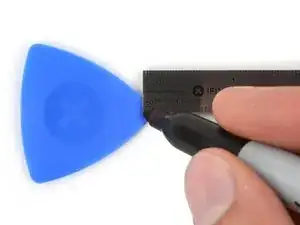
    • There are delicate metal spring‑contacts around the perimeter of your device. To prevent damaging them when separating the screen, don't insert your pick more than 3 mm deep.

    • Measure 3 mm from the tip and mark the opening pick with a permanent marker.

    • Alternatively, tape a coin to a pick 3 mm from the tip.

  6. xJQR65njhQsHTB1N
    xJQR65njhQsHTB1N
    T6BDaPXdS4kBsVQM
    2yljU4qPuXGWjdXO
    • Inserting an opening pick is difficult. Be patient and reheat the screen at any point if it feels stuck.

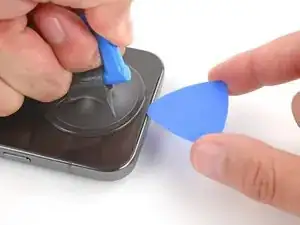
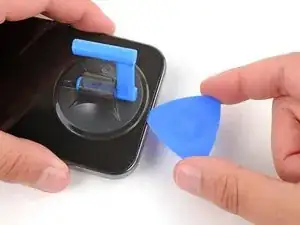
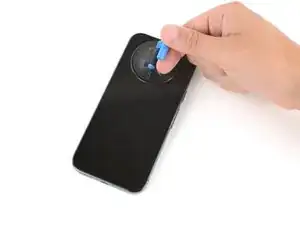
    • Pull up on the suction handle with strong, steady force to create a gap between the screen and frame.

    • Insert the tip of an opening pick under the screen.

    • A plastic frame is attached to the backside of the display. When inserting your pick, make sure it's underneath this frame, and not between the frame and the display glass.

    This bit is tough, it's really hard to know if you are under the plastic bit, or just the glass, and I ended up removing about half the glass before realizing. If you see a lot of coppery foil, you haven't got the plastic bit (but don't worry, it does actually make it easier to see the plastic frame). I suggest studying the thin black plastic edging on the replacement part so you know what to look for.

    Nick Ford -

    Thanks Nick. Hey people saying since this screen is held by glue that any repair will leave phone not 100% i.e. touch screen. Finger print scan etc. Did you encounter any post troubles and is this screen a true oem aa advertised? Thanks

    Homero Solis -

    I agree. It was a bit tough, however if the glass completely seperates; it's not the end of the world. I was able to get the old one off without the glass polarization layer just fine without damaging the phone.

    Otter's Repair Shop -

    I agree as well, that adhesive is pretty hard to get through but once you get the initial cut into that adhesive, it becomes easy. Make sure you get under that black frame

    Anjoem Ismail -

  7. TNRREk1RLDwR1bHM
    TNRREk1RLDwR1bHM
    kaYGdUEE1XWbsVJI
    hhsCMOjR3x3vdOPx
    • Slide the opening pick along the top edge to separate the adhesive securing it.

    You'll get a good workout doing this, and I kept accidentally turning my phone on. You can hold Power and Volume up to turn it off.

    Nick Ford -

    Be careful as the LCD will separate from the back plastic and that back plastic cannot be adhered to by the suction cup so it is much more difficult to remove separately.

    jak ll -

  8. NfQm5HlglCDPpI6D
    NfQm5HlglCDPpI6D
    vEZKtcjPHG2XPkA6
    cvGnHIbnd26mYXmc
    • Continue sliding your opening pick around the perimeter of the screen to separate the remaining adhesive.

  9. wrwpjuXHuHtWFkfT
    wrwpjuXHuHtWFkfT
    seFxdPVVyryGoiVN
    Ey1ZQrJYFjGQLMOD
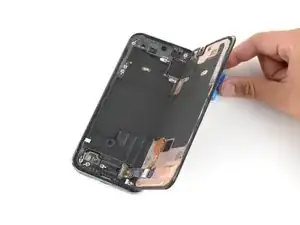
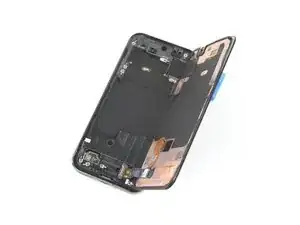
    • Flip the screen over the right edge of your phone and prop it up with the suction handle.

    • Be careful not to strain the display cable, located near the bottom right corner.

    • If the screen feels stuck, go back around the perimeter with an opening pick to separate any remaining adhesive.

  10. UII24ZUhGTnS51HD
    UII24ZUhGTnS51HD
    oMNjOJtNLtBeLe3h
    vxlEVvU12aEYGmWv
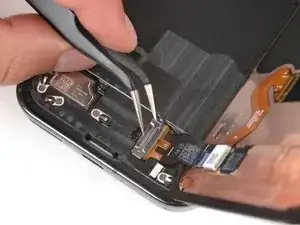
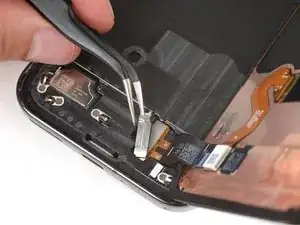
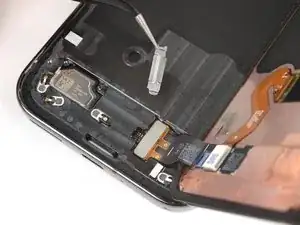
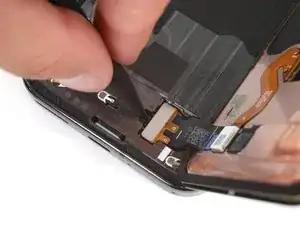
    • Use angled tweezers to pry up the top edge of the screen cable bracket.

    • Remove the bracket.

    This bracket is clipped in pretty tight. Don't let your hand slip.

    Anjoem Ismail -

    If you slide the top of the clip[ closer to the screen you can unclip it easier by exposing more of the edge.

    Gregg Stanley -

  11. 1uwGhLpiYlFHw6py
    1uwGhLpiYlFHw6py
    EWYcycEI3PoonXUj
    4jNT1pHEcUPHQtEW
    • Be very careful not to damage any of the small, surface‑mounted components around the screen's press connector.

    • Insert the point of a spudger under the left edge of the screen cable press connector and pry up to disconnect it.

    • Remove the screen.

  12. BepyA1Dt2YkOgOia
    • The back of the Pixel's screen is very fragile. Even a small scratch or dent can damage the screen.

    • To prevent damaging your screen or replacement screen:

    • When handling your screen, grip it by its edges.

    • When placing the screen on your work area, make sure nothing is touching the bottom of the screen. Consider placing it on a soft, lint-free cloth.

  13. TxWqIBSEfQIBrpfx
    TxWqIBSEfQIBrpfx
    rTlgZjQCYVeklyH1
    Z15FZriFHgJH5RLC
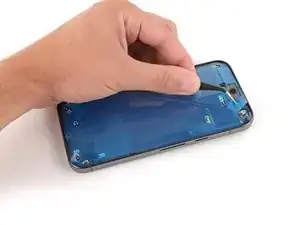
    • When removing the screen adhesive during this step, be very careful not to damage any of the fragile components near the perimeter of the frame.

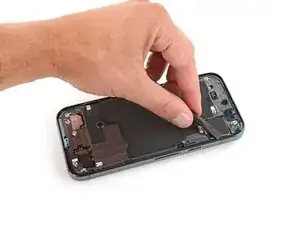
    • Use a spudger to scrape up and remove all the old screen adhesive from the perimeter of the frame.

    • This will take some time as the adhesive can be tricky to remove. Work slowly and try to roll the adhesive onto itself.

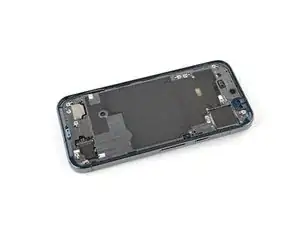
    • Once you've removed all the old adhesive, use isopropyl alcohol and a microfiber cloth to clean up the adhesive residue from the perimeter of the frame.

    • In order for the new adhesive to form a good bond, the frame needs to be completely clean of all adhesive and its residue.

    • Allow the frame to dry completely before continuing.

    I found a narrow slotted-head screwdriver tip inserted in the iFixit screwdriver to work better at rolling up the glue than any plastic-tipped spudger. YMMV.

    joc -

    This was so tedious! Almost all of the original adhesive stayed on the chassis. I used ipa to soften the adhesive and a mix of a flat plastic scraper, spludge, metal pick, tweezers, kimwipes, and cotton swabs. I didn't try rolling the glue without the ipa... maybe that would have worked better. Completely removed all of it with a short bristle brush, ipa, and a bunch of kimwipes. It took me easily an hour to remove it all. The worst part of the fix by far.

    neil l -

    I used Goo Gone adhesive remover, applied it with Q-tips (Cotton Swabs), then used a spudger to scrape it up. The cotton swabs also helped to remove all the residue of old adhesive that you can't get it through spudger.

    Nitish R -

    By far the hardest part. Take your time, isopropyl alcohol does the trick to loose. The old adhesive.

    Anjoem Ismail -

  14. WsCyjKBWAllEDQNn
    WsCyjKBWAllEDQNn
    Wn2CCOCp2BmucIdj
    kigX2FFvum5oBTe6
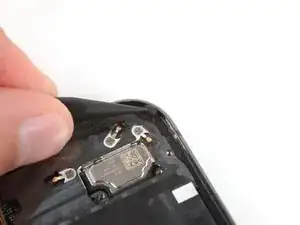
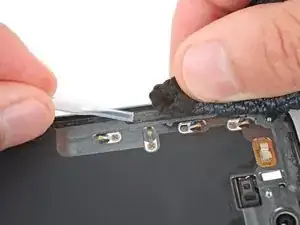
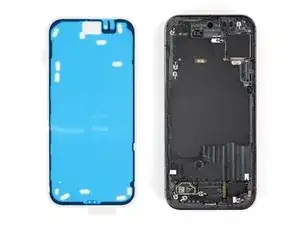
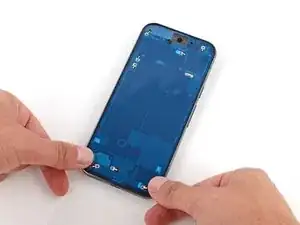
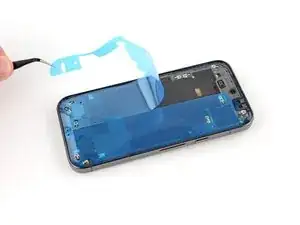
    • If your replacement screen has adhesive pre‑installed, skip down seven steps. Otherwise, follow the next seven steps to install new screen adhesive.

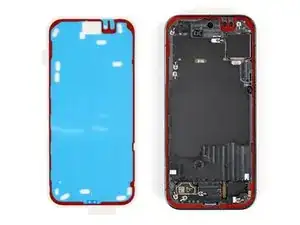
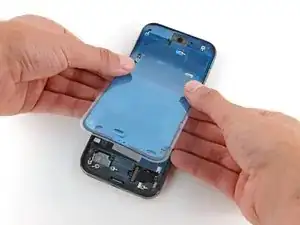
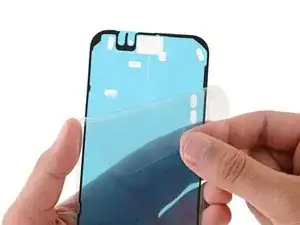
    • Before applying the adhesive, make sure you know its proper orientation on the frame. Hold the adhesive over your phone to find its proper alignment.

    • The blue liner should be facing up, with the larger clear liner on the bottom.

    • The adhesive has a corresponding groove on the perimeter of the frame.

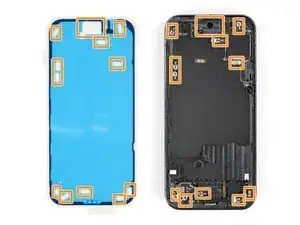
    • Cutouts in the blue liner correspond to spring contacts on the frame.

  15. IPvF5YCNxgUHxN2T
    • Peel down the top half of the larger, clear liner to expose the adhesive—don't remove the whole liner yet.

  16. hZCjdRimb2LlZxZd
    hZCjdRimb2LlZxZd
    CM6wySTb1IAYImOZ
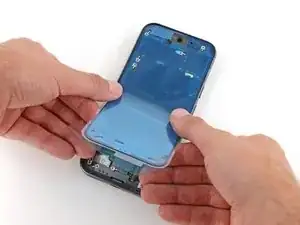
    • Take your time aligning the adhesive with the frame—it's very sticky and can't be moved after you apply it.

    • Keep the larger, clear liner folded towards the bottom of the phone during this step.

    • Lay the exposed top edge of the adhesive onto the frame, using the frame's lip to help align it.

    • Once the top edge is properly aligned, gently press down with your fingers to secure it in place.

  17. 2VHD2cKFWrkHM2ON
    2VHD2cKFWrkHM2ON
    IAJwnAWNp3QsTdNi
    5Cdf5FGLBvVIv2Ts
    • Slowly lay the rest of the adhesive onto the frame, peeling away the larger clear liner as you go.

  18. XJUV6vbSM5gYQHNc
    XJUV6vbSM5gYQHNc
    SGFYxQmleaHQBURW
    KURrTrSJFp46taAr
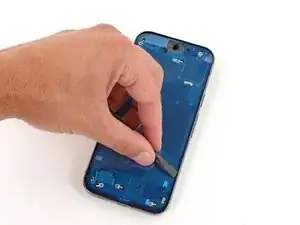
    • Use the flat end of a spudger to firmly press around the perimeter of the adhesive to secure it to the frame.

  19. y1ENdKMcPoDrM4sC
    y1ENdKMcPoDrM4sC
    jjKmYFCfcuTcCfal
    vI2DlnPdQXgaIRnS
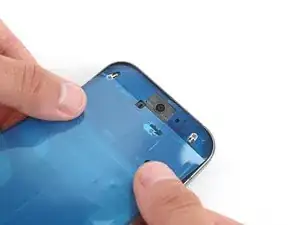
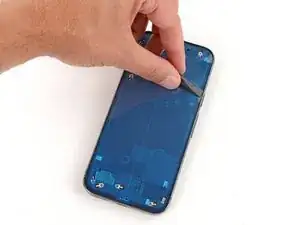
    • Use tweezers to grip the top right corner of the blue liner and remove it.

    • If any of the adhesive starts to peel up with the liner, gently lay it back on the frame and use the flat end of a spudger to secure it.

  20. 2t2kIhRAOmpyrJcf
    2t2kIhRAOmpyrJcf
    ZysRx1V3KRKXe13u
    F1XyJkPY24DKpZ1G
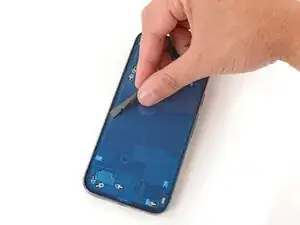
    • Use the flat end of a spudger to firmly press around the perimeter of the adhesive to secure it to the frame.

  21. RHIAdDT3q4yu5lyv
    • Carefully lay your replacement screen display‑side‑down just to the right of your phone so you can reconnect the cable.

  22. VOv2VhNXZfKJGyPb
    VOv2VhNXZfKJGyPb
    2BfJTtcOiX3gYVBr
    • Be very careful not to strain the screen cable during this step. You may need to hold the screen up at an angle to help position the cable.

    • Align the screen press connector over its socket and gently press down on one side until it clicks into place, then press down on the other side.

    • Don't press down in the middle. If the connector is misaligned, the pins can bend and cause permanent damage.

    • Hook the bottom edge of the screen cable bracket into its cutout and firmly press down on the top edge until the bracket clicks into place.

    This step is quite tricky - my first three attempts at seating the connector failed, based on the display remaining black after I attempted to turn the phone on. Fourth attempt succeeded. I think the problem was I did not have the connector perfectly level left-to-right looking from the bottom of the phone when attempting the connection. Patience pays off here.

    joc -

    Maybee it is just me, but i did forget to place the clip back... READ! 😁

    Paul Aafjes -

    Dude... they ya"ll have issues with your scan tool on the replacement screen or have to press harder? Or all honey dorey

    Homero Solis -

  23. MNfFHCrGbwrIKeF3
    MNfFHCrGbwrIKeF3
    XpcBhUQkIkOtw2NN
    Lyj4i5wMQYFkGeDa
    • Follow this step only if your screen has adhesive pre‑installed on the underside.

    • Use tweezers or your fingers to remove the two remaining blue liners from the underside of the screen.

    • Skip the next step.

    Why doesn't the camera protector comes in a red label and long enough to come off of the display itself? there's no warning inside the shipping box nor on the new display. In my case, i installed the screen with this protector and I only realized it after the new screen was installed. This error could be easily avoided.

    Even new furniture comes with a long red string telling us to be mindful about assembly parts. If this step is so important, it needs to be mentioned more than once and make the display impossible to be installed with such protector on.

    PEDRO M -

  24. mk4tZAY12sSAgDqm
    mk4tZAY12sSAgDqm
    p5OBPDImOksCQYmK
    YhsT3FbPqXxYcfIW
    • Follow this step if you applied screen adhesive directly to the frame.

    • Use tweezers or your fingers to remove the two remaining liners from the frame. You'll need to carefully hold the screen up to remove the right liner.

  25. 62nHDDlrio2Vu1cL
    • Thoroughly check your replacement screen for any remaining plastic liners (specifically near the front facing camera and screen cable) and use your fingers to remove them—you can identify the liners by their plastic pull tabs.

    • Be very careful not to damage the screen when removing the liners.

    Would be great if Step #25 is right after #22 (#23). I have been following the steps and thought I put the screen right after removing the liners. Good thing the adhesive has not settled in yet and was able to put the screen back and remove these other liners.

    Nino Bustillos -

  26. bhvWqdXmEklXLDO6
    bhvWqdXmEklXLDO6
    qKQWbl1krsRr2hSK
    • Carefully flip the screen onto the frame.

  27. mEWWdCQPX3YYUtLF
    mEWWdCQPX3YYUtLF
    KbNMXALID1D1DLEx
    qWOXOCIMOXQsAnUv
    • Firmly press around the perimeter of the screen to secure it to the frame.

    • When powering on your Pixel for the first time after your repair, make sure the phone is laying flat and nothing is touching the screen (fingers, plastic liners, screen protectors, cases).

Conclusão

Congratulations on completing your screen repair!

To run a diagnostics test with the built-in Pixel Diagnostic tool, click here.

To calibrate the display’s fingerprint reader, use Google’s Pixel Update and Software Repair tool.

Take your e-waste to an R2 or e-Stewards certified recycler.

Repair didn’t go as planned? Try some basic troubleshooting, or ask our Answers community for help.

Spencer Day

Membro desde: 14/09/22

165254 Reputação

7 comentários

ifixit's instructions that show a suction cup to remove a screen or a glass back always assume your glass is intact. I would assume most often it is shattered so forget using a suction cup. I used some thick shipping tape to cover the broken glass which gives the suction cup a chance to hold.

Scott Z -

Isnt that why Step 2 is there?.....

Andrew Eyring -

Is the screw in the top left corner supposed to stick out? Pulled a screen and the screw in the top left corner sticks out a little.

Travis Brubaker -

Took multiple apart and all were that way so apparently that's how there built. Looks like it's close to hitting the display though.

Travis Brubaker -

Also Googles Pixel Update and Sowftware Repair Tool says "Couldn't find the unique calibration software for this device" when I try to calibrate the fingerprint reader.

Travis Brubaker -

Seems to work okay and I found an article that said the ultrasonic readers on the Pixel 9 series doesn't need to be calibrated.

Travis Brubaker -

I just received my new screen from Ifixit. I've changed multiple screens before this, but on startup it didn't work. It turns on, but the screen is grey, fuzzy and distorted. I plugged in the screen cable as in the guide, bit it still doesn't work. Can it be missing an update or similar issues?

Frederik Vestergaard Sørensen -