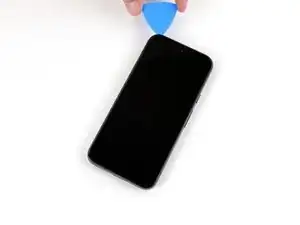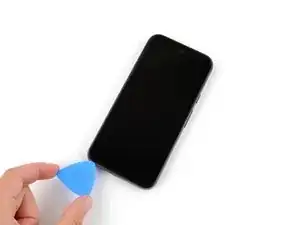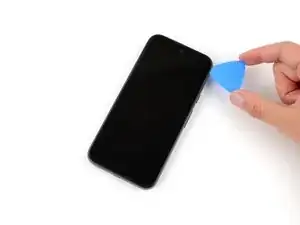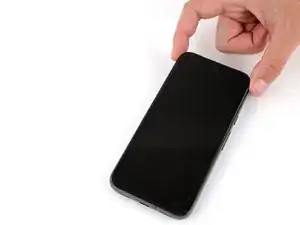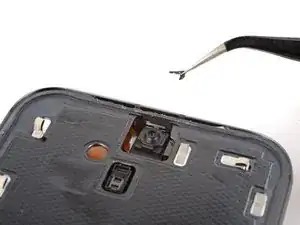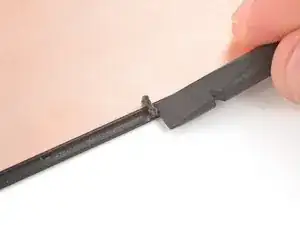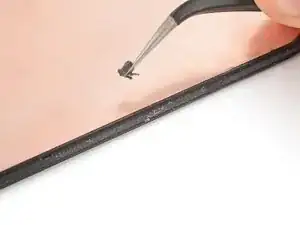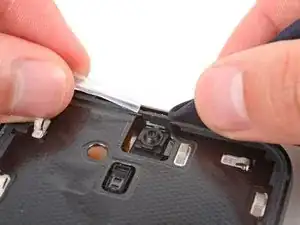
Introdução

This repair guide was authored by the iFixit staff and hasn’t been endorsed by Google. Learn more about our repair guides here.

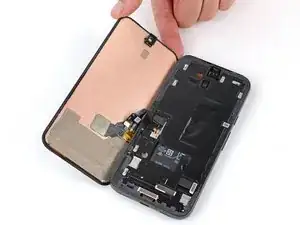
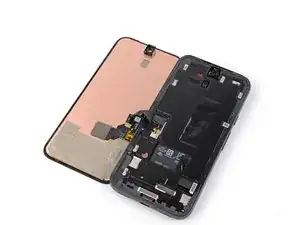
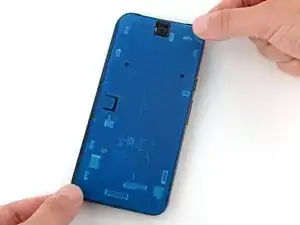
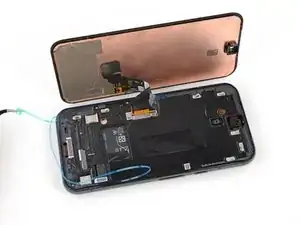
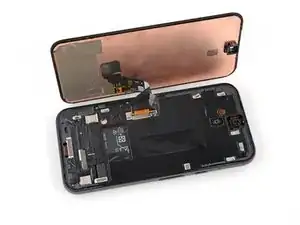
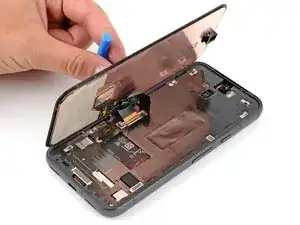
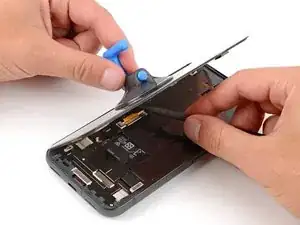
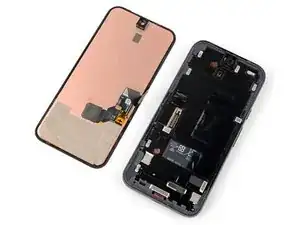
Follow this guide to replace a broken, cracked, or unresponsive screen on your Google Pixel 8a.

To calibrate the display’s fingerprint reader, follow this guide. Genuine Google replacement screens come with the fingerprint reader already attached. If your replacement screen doesn’t have a pre-installed fingerprint reader, you’ll need to transfer the original fingerprint reader to your new screen and recalibrate it to retain functionality.

You'll need replacement screen adhesives in order to complete this repair.

Note: Any repair can compromise the water resistance of your phone. Retaining water resistance after the repair will depend on how well you reapply the adhesive.

  1. 3JEVETmFcPY3bGJu
    3JEVETmFcPY3bGJu
    GvrKPSHTYM5FRY5W
    eviZ1n3shxbBWsf1
    • Let your Pixel's battery drain below 25% before starting this repair. A charged lithium‑ion battery may catch fire if damaged.

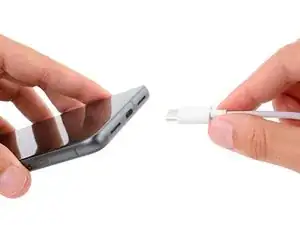
    • Unplug all cables from your phone.

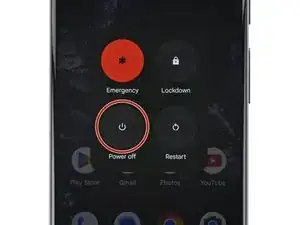
    • Completely power off your phone.

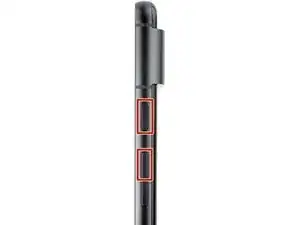
    • Press the power and volume up buttons at the same time to bring up the shutdown menu.

    Mein Bildschirm ist schwarz - das Smartphone reagiert jedoch. Wie kann ich es ausschalten wenn ich kein Bild nicht sehe?
    Ulises -
    Press the power and volume up button, and imagine where the power off button will be on the screen. Touch area and wait a couple of minutes. Then call or text your phone to see it any notifications or ringing would indicate eithers it's on or off. You can also try to use find my device from the web to see if you can ping or find the phone if it's on you will find it, if off it will not ring.

    Dave Hom -

    My phone is cracked to the point where no image is shown, nor is touch registered. How can I safely power off the phone before replacing the screen?

    Jayden Hua -

    Let it run out of battery, then change your screen. Plug the phone back onto the charger at the point where you need to confirm your repair before sealing it with adhesive.

    Dave Hom -

    I kept turning on the phone as I slowly destroyed the screen removing it. Holding the power, volume up and volume down all at the same time for 30 secs turns the phone off without needing to do anything else.

    THOMAS P -

    This works! Thank you very much

    Drfox -

  2. 6H2eqZryrrINW2YW
    6H2eqZryrrINW2YW
    HXkIkGLRDnqqAqND
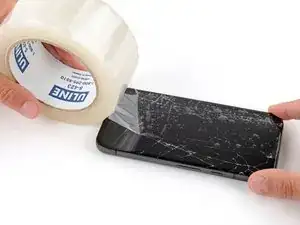
    • Glass shards can complicate disassembly—or worse, cause injury. If your phone has a cracked screen, follow these steps:

    • Apply overlapping strips of packing tape to the cracked glass until the whole screen is covered—this will allow the suction cup to stick to the screen.

    • Only cover the glass itself—don't stick any tape to the frame.

    • Consider wearing safety glasses to protect your eyes from any glass shaken free during the repair.

    If the glass is broken, the suction cup will not adhere.

    Justin Santa Barbara -

    The tape is really important if your glass is thoroughly broken. Try to get the tape right up to the edge of the screen. You end up prying off bits of glass with your fingers and the tools provided. Safety glasses also definitely a good idea.

    Calvin M -

  3. UFDhRLepKraDAHhk
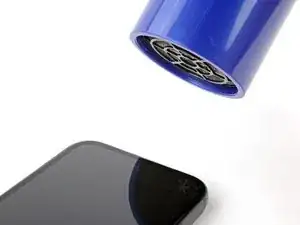
    • The screen is strongly adhered to the frame, has no clips, and resists flexing. It requires significant heat to soften the adhesive underneath.

    • Use a hair dryer, heat gun, or hot plate to heat the top edge of the screen until it's almost too hot to touch.

    • Be careful not to overheat the phone—the battery and plastic components are susceptible to heat damage. Stop heating if the frame becomes too hot to touch.

  4. lgDdGqHpvAiJxDBx
    lgDdGqHpvAiJxDBx
    2AqdE3Apvick2MYH
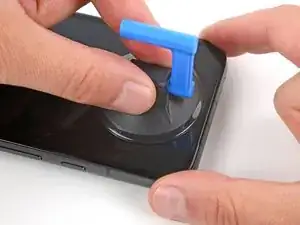
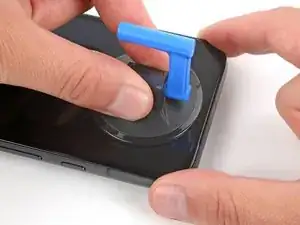
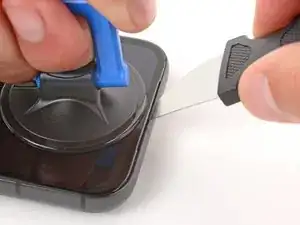
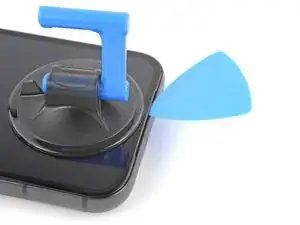
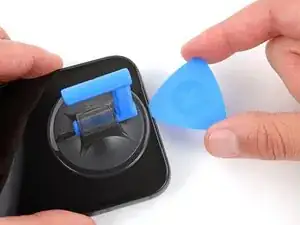
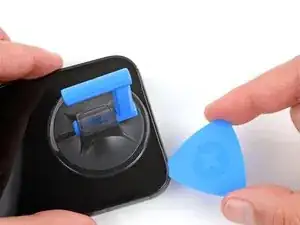
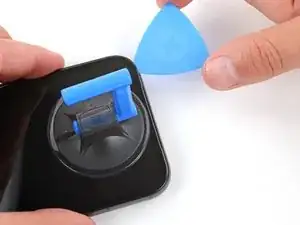
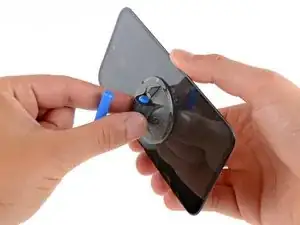
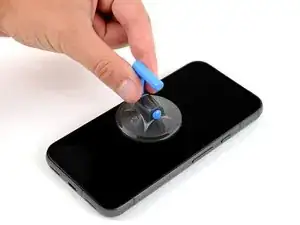
    • Apply a suction handle to the center of the top edge of the screen.

  5. wfPbZYVnBaJCWloe
    wfPbZYVnBaJCWloe
    nP2kbv4HTufgmsdS
    wbidP6mtGt3MXXCn
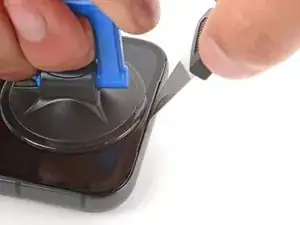
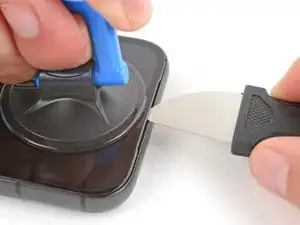
    • Inserting your tool is very difficult. Be patient and reheat the screen at any point if it feels stuck.

    • Don't insert your tool deeper than 2 mm, as you risk damaging the front-facing camera.

    • Insert the tip of a Jimmy into the left side of the earpiece speaker cutout.

    • If you don't have a Jimmy, you can use another small metal tool. Make sure it's thin and rigid.

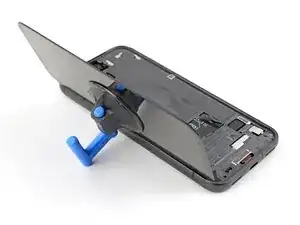
    • Pull up on the suction handle with a strong, steady force.

    • Firmly press the Jimmy into the cutout and lower it until the tip slides under the glass.

    Prying the screen with a metal tool can scratch or slightly dent the aluminum frame. Before placing a new screen, make sure to check the points of contact and fix any imperfections. A metal tool, like the Jimmy or a similar one, can easily be used to fix these dents.

    Sergii Iakymov -

  6. DJWsCfXUuKLQLiOS
    DJWsCfXUuKLQLiOS
    BKaGXuyLqvDdVsSn
    LBw3JLtNhhMVNVdL
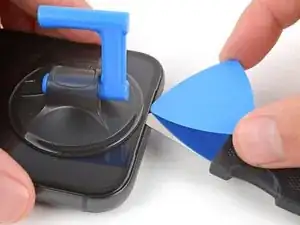
    • Insert the tip of an opening pick under the screen and remove the Jimmy.

    My screen had a spider-web crack that reached all the way to the camera. When I inserted the Jimmy, it cracked even further and pieces broke off, stopping me from getting the opening pick in. I had to use tweezers to remove the loose shards of glass that had separated from the layer underneath. Taking the glass off in one piece was impossible; I took great care not to damage anything below, especially near the connector, but the only option was to remove it bit by bit. Apart from that, all the other steps were very straightforward to follow. All things considered, I think the guide falls short here, removing a display that’s still intact is certainly much easier.

    Fulvio Rivetti -

    Definitely really challenging when your screen is broken. Suction cup and pick are not going to work. I found that once I pull off the bigger pieces, running the really fine tweezers along the edge was the most efficient way of getting the last bits of glass.

    Calvin M -

  7. dR44AxL1sP5odSLT
    dR44AxL1sP5odSLT
    2TlSQOxNVvKaxkLy
    vHaA6BSFt4AJBkup
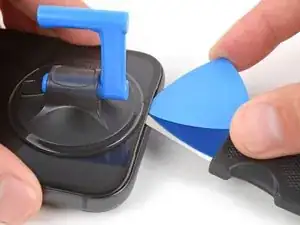
    • Don't insert your pick deeper than 2 mm, as you might damage the front-facing camera.

    • Slide your pick back and forth across the top edge of the screen to separate the adhesive.

  8. KXLcF5eItHoLgsdt
    KXLcF5eItHoLgsdt
    EqqL2nRPgmsRpTCd
    rqUbTRKyo1FZLGhi
    • Don't insert your pick deeper than 3 mm, as you might damage your phone's internal components.

    • For a visual reference, you can measure 3 mm from the tip and mark your pick with a permanent marker.

    • Continue sliding your pick around the perimeter of the phone to separate the remaining adhesive.

    Könnt ihr am Plektrum abschnitte für die Millimeter direkt draufdrucken?

    Lukas Schmidt -

    Hier wurde einen Schritt vergessen. Es gibt noch Klebstoff unten mittig unter der Bildschirm. Diese muss auch vorsichtig abgemacht werden. Mein Bildschirm hat sich delaminiert beim Abbau.

    dsavio93 -

    Die hier beschriebene Variante funktioniert aber nur, wenn dass Display wenig gerissen ist. bei mir waren die Ränder kleinteilig zerbröselt, so dass ich rundherum mit einem kleinen Spachtel die Displayreste entfernen musste.

    Detlef Mücher -

  9. EM5IfZVe6XUpuG4a
    EM5IfZVe6XUpuG4a
    BhEKOpUvQX56E3nA
    hCuKU52FMKLYNfQ3
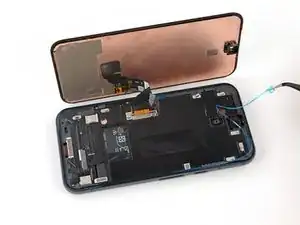
    • Swing the right edge of the screen open (like turning the page of a book) and lay it over the left edge of the frame.

    • Be careful not to strain the screen cable.

  10. bDTteNodmf1WrfLB
    bDTteNodmf1WrfLB
    TLbpKxeB4loJcPsE
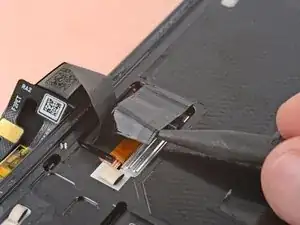
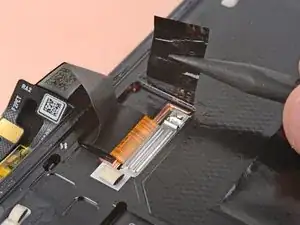
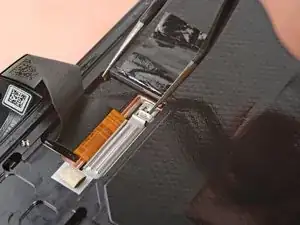
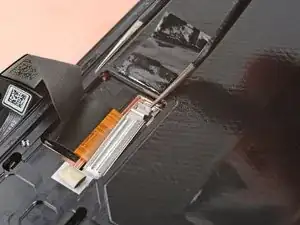
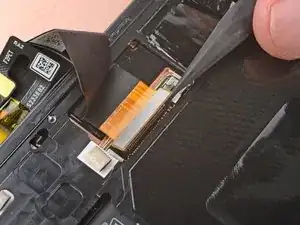
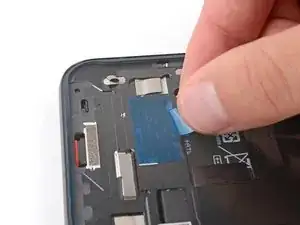
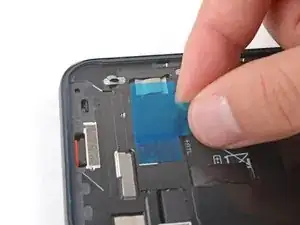
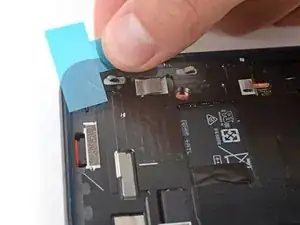
    • Move the flap of graphite film away from the screen connector.

  11. sPtZcr3YHgb4ORhV
    sPtZcr3YHgb4ORhV
    uuN52HkFrkTfPKYs
    2Z1SgRLmbPRmYjUi
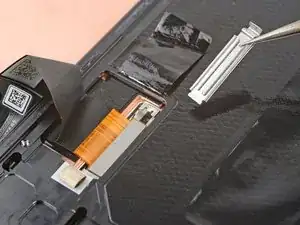
    • Hold one hand above the display bracket when prying it up, as the bracket can easily eject.

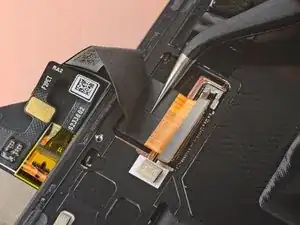
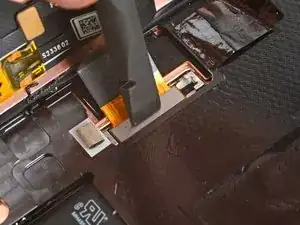
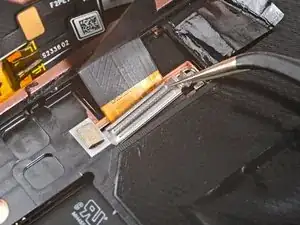
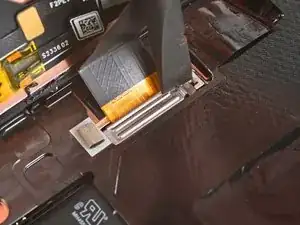
    • Use the tip of one arm of your angled tweezers to pry up the top edge of the display cable bracket from the center of the logic board.

    • Be very careful not to damage the board under the bracket's socket. Only insert your tweezers just enough to pry up the bracket.

    • Remove the bracket.

    Very hard to do this operation with the angled tweezers because they bend and do not really pry the bracket. Way easier to do so with a #1 flat screwdriver.

    Sergii Iakymov -

    Agreed with @sergiiiakymov

    Gregg R -

  12. 6hnAFMZnZgXcQyvw
    6hnAFMZnZgXcQyvw
    Ndn2ZCgfJW3l4wMD
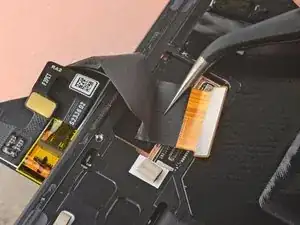
    • Insert the tip of a spudger or a clean fingernail under the top edge of the display cable press connector and pry straight up to disconnect it.

    • To reconnect a press connector, align it over the socket and gently press down on one side until it clicks into place, then press down on the other side. It might take a few tries to align the connector.

  13. GiNXJbCRW3IFMxFY
    GiNXJbCRW3IFMxFY
    55CB6e2D5n1TEKW4
    • Use tweezers or your fingers to pull the screen cable out from under its lip on the edge of the frame.

  14. ATi5GQIvYO4VudPg
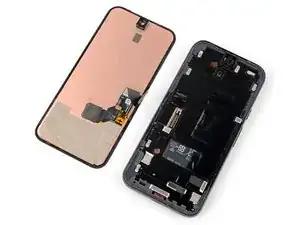
    • Remove the screen.

    • The back of the Pixel's screen is very fragile. Even a small scratch or dent can damage the screen.

    • To prevent damaging your screen or replacement screen:

    • When handling your screen, grip it by its edges.

    • When placing the screen on your work area, make sure nothing is touching the bottom of the screen. Consider placing it on a soft, lint-free cloth.

    How do you transfer the fingerprint sensor?

    Megabear4life -

  15. OqeSuNCAttTjlQkD
    OqeSuNCAttTjlQkD
    KHxx4ZdZo1ZNY3iZ
    mPcUbdAXpNxZ6GOJ
    • The remaining steps show how to install your replacement screen.

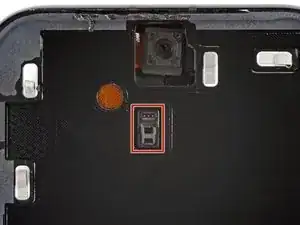
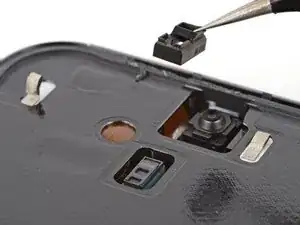
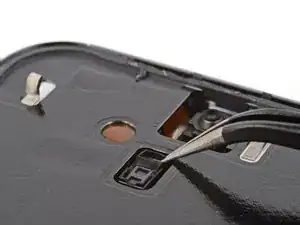
    • Make sure the front sensor gasket (located just below the front camera) is properly aligned and fully over the sensor.

    • If it's not, reposition it over the front sensor with the smaller cutout toward the top.

  16. wNeGjhwquuocVaWA
    wNeGjhwquuocVaWA
    hCffmtYCUnnsL2xL
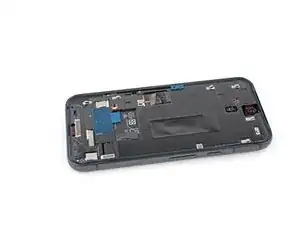
    • The underside of the battery is exposed through a small cutout in the frame—be careful not to damage it with your tool.

    • Use tweezers and a spudger to scrape up and remove any remaining pieces of adhesive below the battery cutout.

  17. xeu1Nrn6XjeyShqW
    xeu1Nrn6XjeyShqW
    6mQfdyFnNXWTtIQp
    • If any screen adhesive bits remain on the perimeter of the frame, use a spudger and tweezers to scrape up and remove them.

  18. OSCnsiGrwYaVDKbA
    OSCnsiGrwYaVDKbA
    3PKPKrOoVaPGTs5X
    • If you're reusing your original screen, use a spudger and tweezers to scrape up and remove the old adhesive from the perimeter of the screen.

  19. 4DuqkpXGOKXFMudI
    4DuqkpXGOKXFMudI
    e12mGr31DreoGxyU
    • Use a pipette or syringe to apply a few drops of highly-concentrated isopropyl alcohol (over 90%) to the perimeter of the frame and the area below the battery cutout.

    • Wipe the residue away using a lint-free or microfiber cloth.

    no 90% isopropyl included in kit?

    Venn -

  20. miEWpNYMdHn61IuO
    miEWpNYMdHn61IuO
    KrGIt3TNAthHLl6D
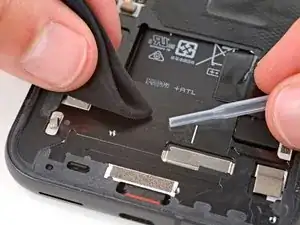
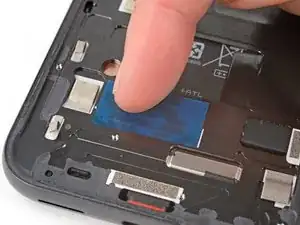
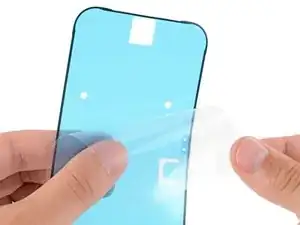
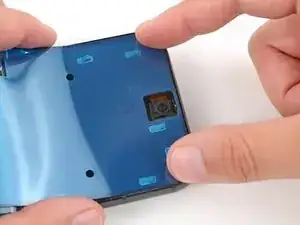
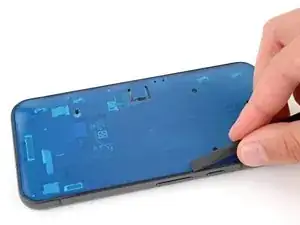
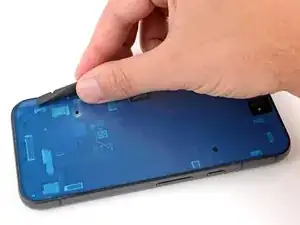
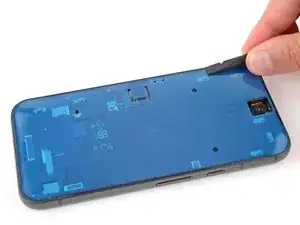
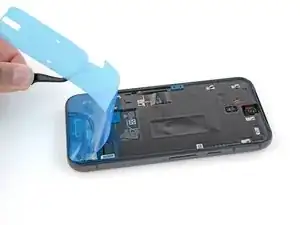
    • Peel the rectangular display enclosure adhesive from its large liner.

    • Apply the adhesive to the frame in the same location as the old adhesive, just below the battery cutout.

    • Use the white line on the frame to help align the right edge.

    • Use your fingers to press down and secure the adhesive to the frame—don't remove the top liner yet.

    I bought a screen only as I had to replace a second time. This adhesive was not included in my delivery.

    Uwe Wolfram -

    Same as Uwe's comment. iFixit don't supply this when you buy a replacement screen. There must be some fineprint somewhere stating this, but it's not obvious, which is silly.

    David Loader -

    Same here... Quite frustrating.

    Gabriel Sikorowski -

    Same as everyone else here, ya think it'd have the adhesive already on the screen? For it being a genuine Google replacement part, it should have the adhesive on it already! I don't have time to order the adhesive and wait additional time. Need my phone!

    Jordan Petrone -

    Edit: The adhesive is already on the screen; just have to remove the protective sheet. I was looking for a large rectangular adhesive sheet as shown in the photos, but that's not here. However, there is adhesive on the screen, and the lack of the large rectangular adhesive sheet caused confusion.

    Jordan Petrone -

    Mine came with the rectangular adhesive AND the pre-adhered adhesive on the screen. Just had to remove the blue pieces of plastic and attach.

    I was removing my adhesive around the screen after I had already attached the screen cable so I had to cut the plastic border piece to fully remove it.

    Gregg R -

  21. Wgl3NPlpNYkKxjdY
    Wgl3NPlpNYkKxjdY
    gDkOS6YgpkCKXGOM
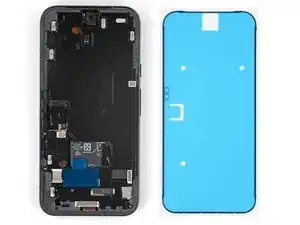
    • If your screen already comes with adhesive pre-installed, remove its liner and skip down six steps to continue reassembly.

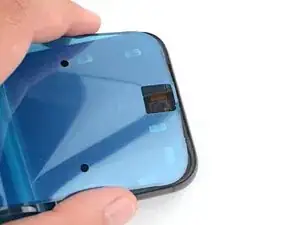
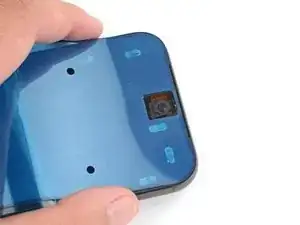
    • Before removing any liners from the screen adhesive, hold it over the frame to make sure it's oriented correctly. Use the camera cutout on the top edge to line it up correctly.

    • The blue liner should be facing up, with the larger, clear liner on the bottom.

    It's probably just me, but the large blue sheet looks very similar to other blue protective sheets covering the adhesive. I think it should be stated earlier that it is only the black edge which is the adhesive.

    Or remove these steps into a link and make the newer screens with adhesive the main instruction

    David Loader -

    I'd highly recommend NOT removing the adhesive protector until you're absolutely ready to put the screen on. Its a pain to get the suction cup on with the adhesive exposed.

    Gregg R -

  22. efbM1o5oJtVSjxyS
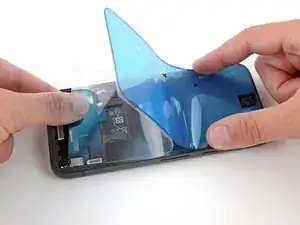
    • Peel down the top half of the larger liner (closest to the camera cutout) to expose the adhesive—don't remove the whole liner yet.

  23. MyxNKVA4cIqXyBDc
    MyxNKVA4cIqXyBDc
    lLbuGSlTkaZCpkMh
    SQ3FIsZpMVkeXPmF
    • Take your time aligning the adhesive with the frame—it's very sticky and can't be moved after you apply it.

    • Keep the larger liner folded towards the bottom of the phone during this step.

    • Lay the exposed top edge of the adhesive onto the frame, using the lip to help align it.

    • Once the top edge is properly aligned, gently press down to secure it in place.

  24. RTt1krEeqynHliLm
    RTt1krEeqynHliLm
    inklAPixN6gAtAet
    1io1kDmVmbUPnGse
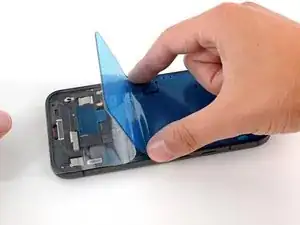
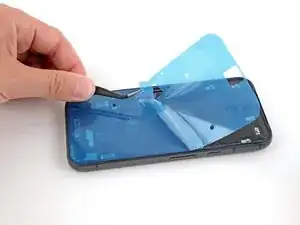
    • Slowly lay the rest of the adhesive onto the frame, peeling away the large liner as you go.

  25. 6NNdUPntcIe3pYBp
    6NNdUPntcIe3pYBp
    GvAGX4TFgZNLDXkL
    5ar1Mj1QtBAyHyKq
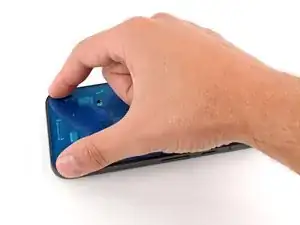
    • Use the flat end of your spudger to press along the perimeter of the adhesive and secure it to the frame.

  26. VOST4m4FiD2wiIup
    VOST4m4FiD2wiIup
    Xesgqb2Z1mu2CWS2
    DLPMYWtnYOPorE4g
    • Grab the pull tab in the center of the left edge and slowly peel and remove the liner.

    • If the adhesive starts to peel up with the liner, check that you’ve pushed all of it into place with your spudger. If it continues to peel up, hold it down with the point of your spudger as you go.

  27. vVWF4Gl1WluL5vmh
    vVWF4Gl1WluL5vmh
    KU5sHMWY2ukdXVxO
    • Apply a suction handle to the left side of the replacement screen, with the handle facing left.

    • Prop up your screen on the left side of the frame.

    • If you don't have a suction handle, prop up the phone against a sturdy object, such as a heavy box or thick book.

    I found that resting the edge of the new screen on the table surface made the cable closer to the right place so you don't have to pull on it quite so much.

    Calvin M -

  28. BfX1fuXCAkuXWwGy
    • Connect the screen cable by aligning it over the socket and pressing on one side until it clicks into place before fully pressing it down.

    My screen shows the google animation bootup in very tinted yellow and dim/dark. Then the time appears for less than a second and the screen goes completely black. Did I get a defective part?

    John -

    Hi, I hope somebody will be able to give some help. My screen wouldnt turn on after insterting my new screen connector, can anyone give me some advice on where i went wrong?

    Jimmy Lau -

    It really should be stressed here to be extremely careful!

    There is almost no feedback through your fingers or tools whether the cable is in the correct position before pressing down.

    100% this was the hardest/nerve-wracking part of the job

    David Loader -

    I can feel the click on what I believe is the alignment of the connector but unfortunately my screen won't cut on and show anything to me 😭

    Kayla C -

    I too have the same problem. My new screen won't light up at all. The previous screen at least used to show some flickering. It was not cracked. My phone has water damage. I wanted to switch the old screen back but now I cannot as there is no way to turn off the phone. The new screen is not working and since I had to recharge the battery a little bit to test it, I now again have to wait for the battery to drain and the phone to auto-shut.

    Abhijeet D -

    I was working on a phone for a friend. After a lot of frustration over the phone not powering on I remembered they had completely drained the battery. I plugged it in long enough to see that it worked then unplugged/powered it off again until screen install was complete. Something to consider.

    Anita Peters -

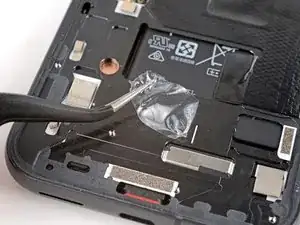
    My replacement screen came with a rectangle of masking tape on the connector. It's hard to get a proper view of the connector position with that in the way so took it off.

    Stephen H -

  29. yG2YeunlyCs6AFII
    yG2YeunlyCs6AFII
    bofc1KdQ2mQA1MQQ
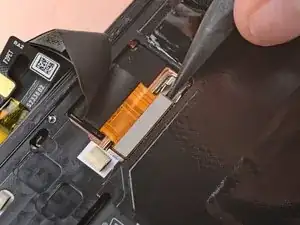
    • Hook the bottom edge of the bracket into its slot on the logic board and press down firmly on the top to snap the bracket back into place.

    • If your display cable bracket is bent and doesn't fit, replace it with a new one.

    The position of the bracket in the last pic is interesting looking left and high on the bracket but maybe it's it's hovering not touching. In any case I avoided touching the latching end of the bracket and pushed high between the two ridges. It took more force than I liked to get a click. Because of the pic I then tried pushing high to the left of the ridges, and surprise, I got another click (bracket must have gone in crooked).

    Stephen H -

  30. QgonXJLoXrKNFDBf
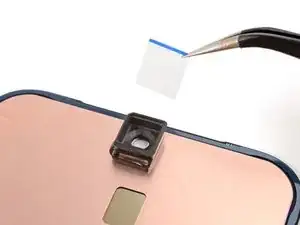
    • Remove any liners from the front camera housing on the top edge of the screen.

  31. yrDyAWl5wvPMxOUm
    yrDyAWl5wvPMxOUm
    FEWgPtUJsBkwhjAq
    ScKC4ICKoZEoseCq
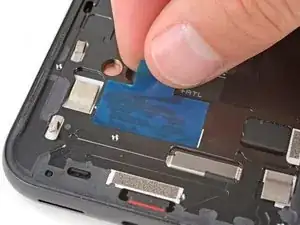
    • Peel and remove the blue liner from the square adhesive on the frame, just below the battery cutout.

    I tried turning on the phone before removing any liners. Just positioned the display loosely on the frame and pushed the power button. After startup turned off by pressing power and volume up buttons and tapping power off on the display.

    Stephen H -

  32. 3ynwQTKDfNwMPKhv
    3ynwQTKDfNwMPKhv
    TlSYZAKg3lIyrwdH
    OYOqjgIDdpyZgOfg
    • Use the pull tabs on the left edge to peel and remove the remaining perimeter adhesive liner.

    This is the part that confused me the most. On a replacement screen the adhesive is pre installed and the very narrow blue perimeter adhesive liner is removed from the screen, not the frame.

    Stephen H -

  33. WQRO5EZMGHyoSxN1
    WQRO5EZMGHyoSxN1
    htLZ5EZDlBQU3XRl
    kZOeNQTWZKex2aZX
    • Hold the screen just above the frame by the suction handle.

    • Use a spudger to fold the flap of graphite film back over the screen cable.

    • Press the screen into place.

  34. eaOayGFpiRHAhmXP
    eaOayGFpiRHAhmXP
    uknqACTEUWnMeJHY
    PXQ3Oqv2f4jxpPQQ
    • Remove the suction handle.

    • For a better seal, lightly warm the screen with a heated iOpener, hair dryer, heat gun, or hot plate before pressing around the perimeter.

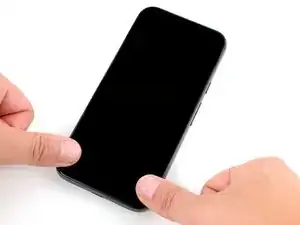
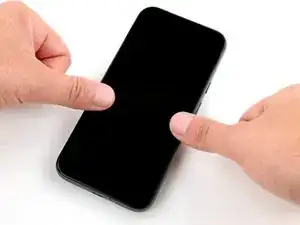
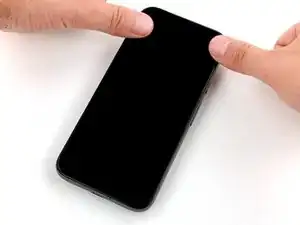
    • Firmly press around the perimeter of the screen to secure it to the frame.

    Sehr gut zu nutzende Anleitung. Vielen Dank.

    Nur die anschließende Aktivierung des Fingerabdrucksensors war etwas hakelig.

    Detlef Mücher -

    Ich möchte mich auch noch einmal bedanken, für die nützliche Anleitung und auch den hilfreichen Kommentaren. Bei mir hat alles super funktioniert.

    Benno Schwarz -

Conclusão

To calibrate the display’s fingerprint reader, use Google’s Pixel Update and Software Repair tool.

Take your e-waste to an R2 or e-Stewards certified recycler.

To run a diagnostics test with the built-in Pixel Diagnostic tool, click here.

Repair didn’t go as planned? Try some basic troubleshooting, or ask our Answers community for help.

Spencer Day

Membro desde: 14/09/22

165254 Reputação

29 comentários

so where is the replacement screens??

lsdfkgjlsdfjkl -

You can purchase a new screen from iFixit here.

Spencer Day -

Great step by step guide, it took a little time but was well worth it with my busted screen!

Kabel -

I think my screen was defective. It shows the boot up animation extremely yellowed out and dim/dark. Then it shows my lockscreen with the time for less than a second and goes complete black. I can still make my phone vibrate with the buttons, and do a reset to get the boot up animation again. It's just so frustrating because I really needed this to work and did so much of the hard work to get to the final steps, to find out... that the replacement screen is defective!!!!

John -

Hi John. I'm sorry to hear you're having issues with the replacement screen—that's very frustrating after taking the time to do the repair. My first thought is that the screen connector may not be fully seated (this connector in particular can be quite tricky to reconnect). If that's not the case, you can contact our customer support (support@ifixit.com) about a defective screen.

Spencer Day -

I've contacted support and they have yet to get back to me. I will be initiating a return. I don't think I would have attempted this repair again, taking the screen off was far far more difficult than it's worth. I'd take it to a repair shop.

John -

Excellent support and great company. I had a problem with the fingerprint sensor, which after starting it up indicated that it was faulty. I requested a replacement and everything went great. Thanks!

Carles Gomez -

You should add the part to recalibrate the fingerprint (pixelrepair.withgoogle.com/udfps) in your tutorial.

Bruno Spolidorio -

Thank you so much! As a first time screen repairer, it wasn't clear to me how deep I should insert the jimmy in the earpiece cutout. The screen assembly is much thinner than I imagined. Also, the screen was badly cracked so removal was overall messy. In the end I figured it out and after that it was all smooth sailing, but some additional clarifying notes in that section might be useful :)

Marco Baggio -

That's exactly what happened to me. I was super frustrated with their manual. to be honest, i'm not sure I'd choose this option again.

Tal Givati -

Did this as my first screen repair. Thanks heaps Spencer.

The only feedback I would suggest for this manual is how to handle massively cracked edges. Non cracked edges separated easily, but the blue pick looses its way when it gets to the cracked edges - I had a few - and for my first screen repair I was stuck.

I did end up applying some heat, and using the tweezers to carefully pry the screen away from the phone by grabbing the backing of the screen where it was stable. This worked. Most of the glass complied with the tweezers/heat method. The left over glass stuck to the frame was easy to remove with the spudger. Please let me know if there was a better way to do this.

The pixel 8a I have cost me $679 on special from JB-HifI. A local repairer quote me $700 - $800 to fix the screen - but I had to commit to a $99 diagnostic fee first.

Much much cheaper to fix it myself.

Thanks again!

Julius Csepregi -

Attempting this repair with the full ifixit kit has been a disaster. First off, the guide is not fit for purpose - if you have any cracks that run to the edge of the screen it is impossible to proceed past them with undoing the glue rim. Trying to just shatters the glass further. Also the suction cup is useless, does not adhere at all, even when using the tape as described. Now I have a completely broken phone screen that I cannot even use to recover the data (I should have backed up, but seemed like an easy enough repair for someone who has already had experience with these) and then I have an unused new screen i have no use for as I cannot repair this phone anymore. Urgh... 1/10 !!

Maciej Jabłoński -

A few days after the repair I wanted to put on a protective glass. I applied more then usual pressure on the screen and now my screen has a white stripe top to bottom and it does not react properly to my touch. Any idea as to what happened or how to fix it? Helpp!

Ulises -

Vielen Dank - Der Displaytausch hat perfekt funktioniert.

Die Werkzeuge im Set sind super und nichts fehlt. Selbst als Neuling hat in knapp zwei Stunden alles funktioniert.

ABER VORSICHT: Das Google update und repair tool hat einen schwerwiegenden Fehler. Die Software arbeitet nicht mit der aktuellsten Androidversion zusammen. Das wäre nicht so schlimm, wenn man im Fast-Modus nicht in einer Boot-Schleife landen würde!
Nach einer verzweifelten Stunde mit dutzenden Fehlversuchen habe ich aufgegeben. Das war mein Glück. Nach einer halben Stunde Inaktivität beendet sich der Fastmodus selber.....

Dirk Kwee -

Great tutorial. The worst part is removing the damaged old screen. Patience and persistent even heating is a must. Thanks for this guide.

AssyMcGee -

Very comprehensive & helpful guide 💘

Simon Felix Conrad -

Well done. How great the senTence serves well.

tyledge9211 -

I bought a genuine Google screen from iFixit and found that using this guide and a bit of common sense, I was able to successfully install the new screen. Unfortunately, when I tested the front facing camera, I found that the image was blurred. I removed the film cover from the front camera housing, so it's not that. The camera seems to be sitting perfectly in the camera housing so I'm not attributing it to that either. Any suggestions?

Julian -

What if you just need to replace the outer glass, not the entire "screen" as shown here? Do you have steps for separating & replacing just the outer glass?

Jeff Bihlman -

I purchased the kit and followed the guide. Everything went smoothly except the point for recalibrating the fingerprint sensor:

The tool by google claimed that the software on my device is newer than the version the service tool supports. So it suggests to use another service tool to install an old image. The tool did not succeed after several retries to install an older software image. So at the moment I'm stuck with a working phone without fingerprint sensor.

ifixit is not to blame for this, rather google in servicing it's support tools so badly. If you want to claim proper repairability you need also to keep the necessary software tools up to date

Matthias Schuh -

If your screen is severely cracked like mind was, you'll find removing the screen to be a bit difficult, as the screen will come off in pieces. Just go slow. I found liberal use of my wife's hair dryer to be very effective.

This guide does not mention that the screen/fingerprint sensor needs to be recalibrated when the new screen is installed. I would suggest adding another step (or even just a final note) with a link to recalibrating the screen.

How to Calibrate the Fingerprint Sensor in your Google Pixel Phone

David M -

I ordered the kit from ifixit, and it came with their iOpener for heating up the device, but the directions don't mention using it for loosening the glue. I'm wondering if it'll get hot enough or if I'll need to try with a hair dryer.

Castor Fu -

Hi @castorfu! Just to confirm, are you using the Pixel 8a Screen Fix Kit? It shouldn't come with an iOpener. You should use a hairy dryer, as you're right in assuming the iOpener most likely won't be able to soften the adhesive enough.

Spencer Day -

I am about to do this for the first time on a Pixel 8a. Do I need this: Display Enclosure Adhesive on top, if I have the complete Display already? What about the cable bracket? Thanks for any advice in advance.

henri.bardouin -

I'm still looking for a solution. thanks to anybody helping me. :)

henri.bardouin -

If you buy the "fix kit" you will have everything you need. Bonne chance!

Drew -

Just finished this in about 2 hours. A few tips for those who follow me:

1. The iFixit screen replacement "fix kit" is completely worth it since it comes with everything you need.

2. If your screen is cracked to the edges (mine was) it will break when you try to remove it. That's ok even though it will make a mess. Removing the broken bits of screen was the longest part of the process for me. I peeled the broken screen off as best as I could (wear goggles) and heated the phone where the adhesive and broken pieces remained. You can remove them with the spudger and tweezers. I thought I had ruined the phone! Go slowly and trust the process.

3. The suction cup was not useful to me but the Jimmy and opening picks absolutely were.

4. Cover the rear camera with clear tape to protect it.

Drew -

One thing I think I'd recommend is to try turning on the phone before adhering it to the new screen. If something isn't set right ( IE the cable connection ) then you'll have to re-do the adhesive which sounds like a big pain to try and do without damaging the new screen.

Gregg R -

Good guide, thanks a lot.

Mind you, when holding the phone to tear off the display, make sure not to power it on by accident.

Seeing the now-really broken screen turn on, flickering and not being able to shut down the phone properly gives you a baaaaaad feeling for the rest of the repair 🥶

metaphil -