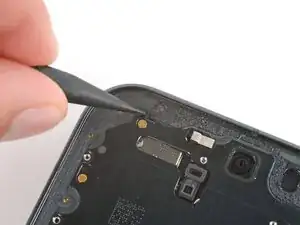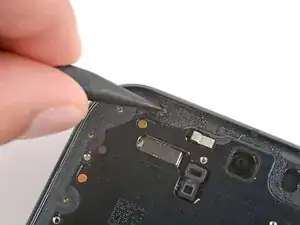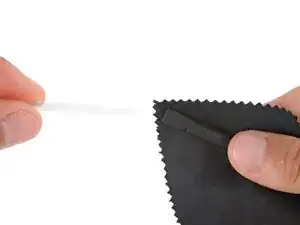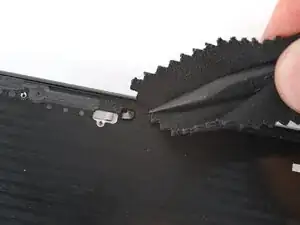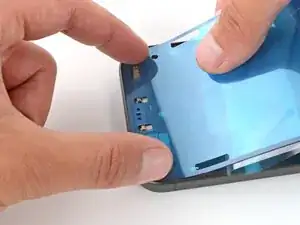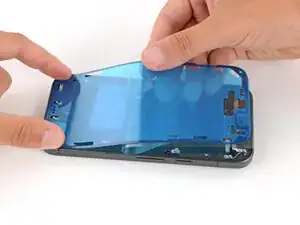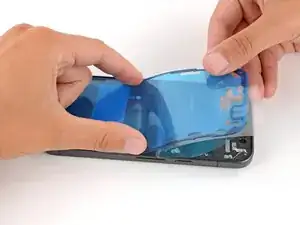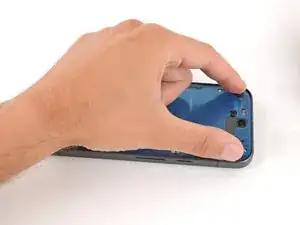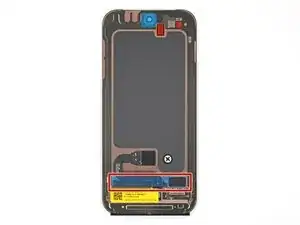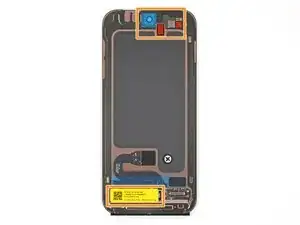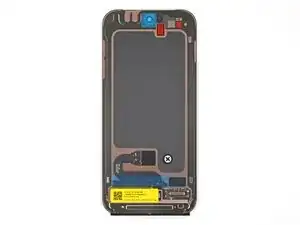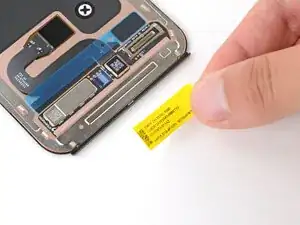
Introdução

This repair guide was authored by the iFixit staff and hasn’t been endorsed by Google. Learn more about our repair guides here.

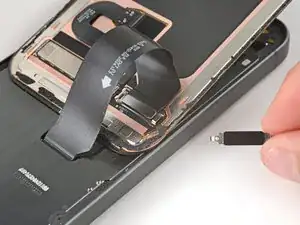
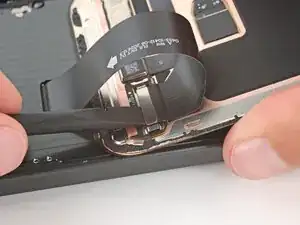
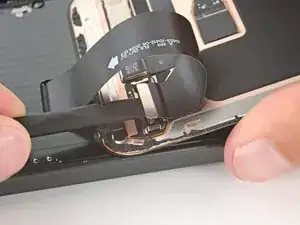
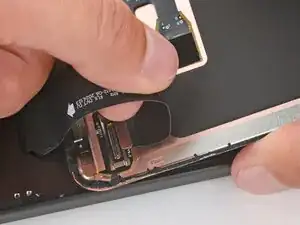
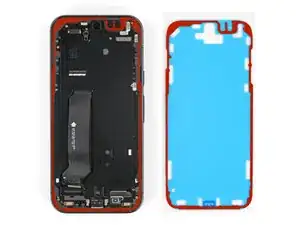
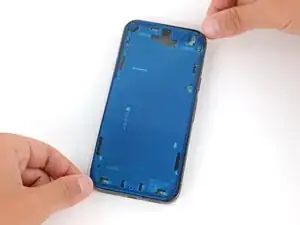
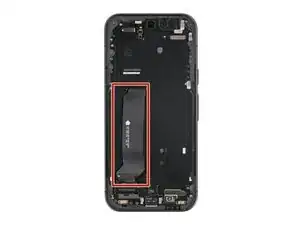
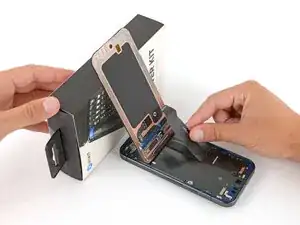
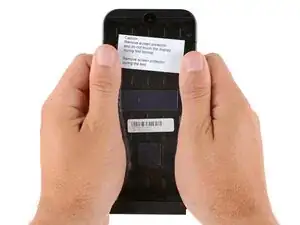
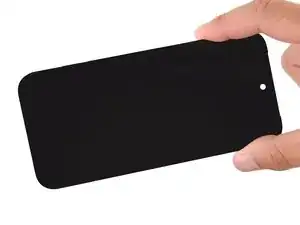
Follow this guide to replace a cracked, broken, or non‑responsive screen on your Google Pixel 10.

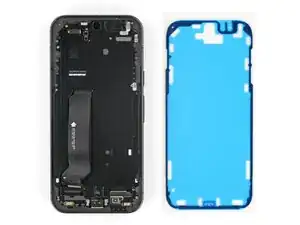
If your screen doesn't come with adhesive pre‑installed, you'll need replacement screen adhesive to complete this repair.

Note: Any repair can compromise the water resistance of your phone. Retaining water resistance after the repair depends on how accurately the new adhesives are applied and how clean the mating surfaces are.

  1. KfF631MWyOVITN1h
    KfF631MWyOVITN1h
    hZHiOHQ3mCjSMlFY
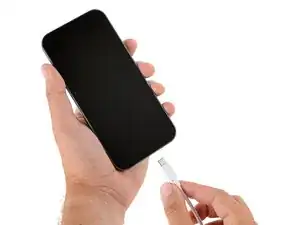
    • Let your Pixel's battery drain below 25% before starting this repair. A charged lithium‑ion battery may catch fire if damaged.

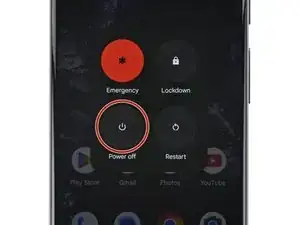
    • Unplug all cables and completely power down your phone.

  2. X2TZppfSWXJccibV
    X2TZppfSWXJccibV
    FwUel2FFF5lqW1d1
    PkeruXcFxSMwaSfV
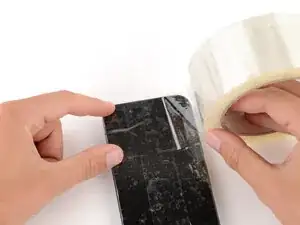
    • Glass shards can complicate disassembly—or worse, cause injury. If your phone has a cracked screen, follow this step.

    • Apply strips of packing tape to the cracked glass until the whole screen is covered—this will help keep the glass contained and allow the suction cup to stick to the screen.

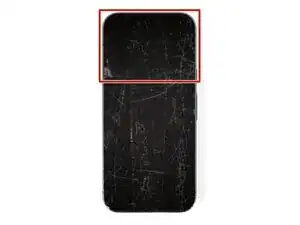
    • Make sure there's a single strip (not overlapping) of tape across the top edge, big enough for a suction cup to fit on.

    • Only cover the glass itself—don't stick any tape to the frame.

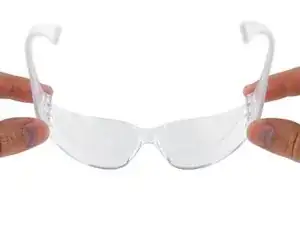
    • Consider wearing safety glasses to protect your eyes from any glass shaken free during the repair.

  3. Upd2YSLLCekviGPE
    Upd2YSLLCekviGPE
    KTKmpTPpcEQeXQNw
    UlJWqPKAKsAmh4pY
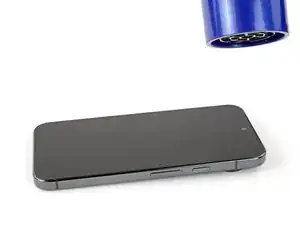
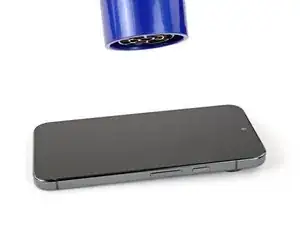
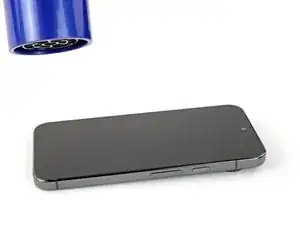
    • Adhesive secures the screen to the frame. Heating the screen softens the adhesive, making it easier to separate.

    • Use a hair dryer, heat gun, or heat pad to heat the entire screen until it's almost too hot to touch.

    • Improper use of a heat gun can destroy the display and/or battery—follow the linked instructions carefully.

    • If you're using a heat pad, set it to 60° C (140° F) and place your phone screen side down for 10 minutes.

  4. 3uFYyZYB2bWjFwov
    3uFYyZYB2bWjFwov
    oF4qHGX32YbmLtXH
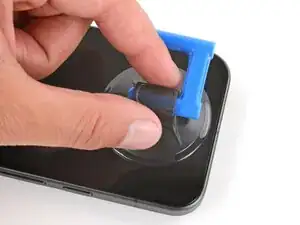
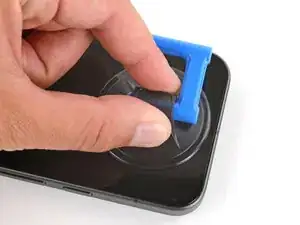
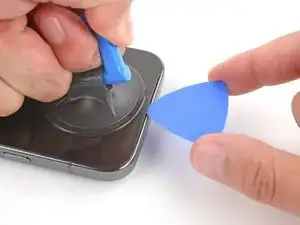
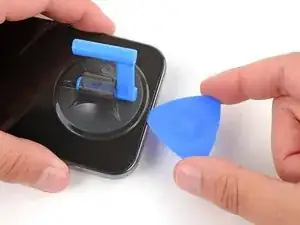
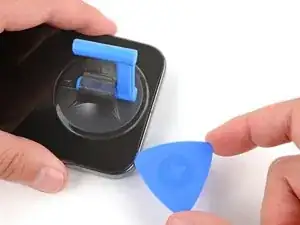
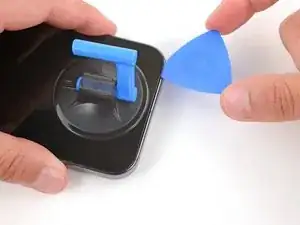
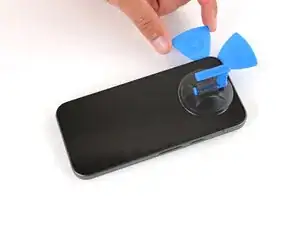
    • Apply a suction handle to the center of the screen's top edge, as close to the edge as possible.

  5. C5EjXVhRRThhda6j
    C5EjXVhRRThhda6j
    stLGmfLn4KQxwyAI
    sIHxsbABwPJlsH5y
    • Inserting an opening pick is difficult. Be patient and reheat the screen at any point if it feels stuck.

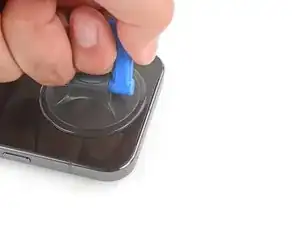
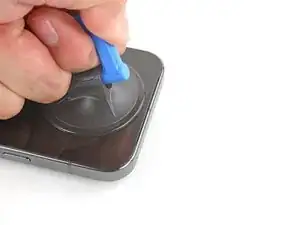
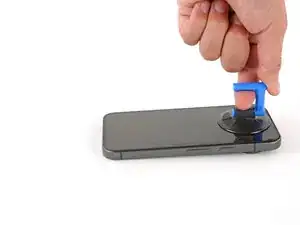
    • Pull up on the suction handle with strong, steady force to create a gap between the screen and frame.

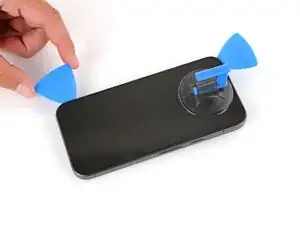
    • Insert the tip of an opening pick completely under the screen.

    • When inserting your pick, make sure it's fully underneath the screen, and not only under the glass panel—separating the glass panel from the screen will make removal difficult.

    • Only insert the pick slightly (a few millimeters) to prevent damaging the front camera.

  6. qD2YZMAUnAc4HBfL
    qD2YZMAUnAc4HBfL
    6jCHCG2IPklYvqPf
    ZpqckJ3Od1N4KqYa
    • Slide the opening pick along the top edge to separate the adhesive.

  7. LAnXLNFUTAST2srV
    LAnXLNFUTAST2srV
    rOQR1MKlB2sxGRRA
    F6pRRadbqyvKFBnC
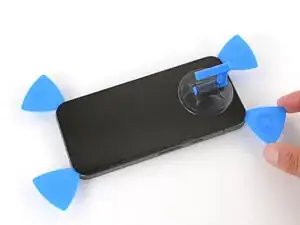
    • Continue sliding the pick around the perimeter of the screen until all the adhesive has been separated, leaving picks inserted at the corners to prevent the adhesive from re‑sealing.

    • Reheat the screen at any point if it feels stuck.

    • Don't try to fully remove the screen yet, as it's still connected by a ribbon cable.

  8. XfU662cQi21WOGAo
    XfU662cQi21WOGAo
    XoMaqCBej22GysIS
    qRhaKtHw1jtniPYx
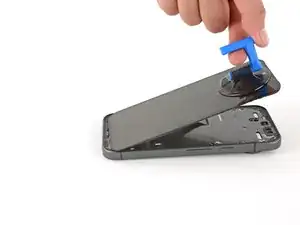
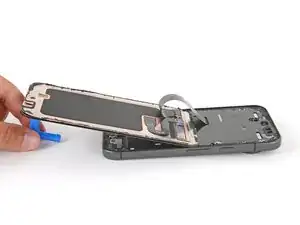
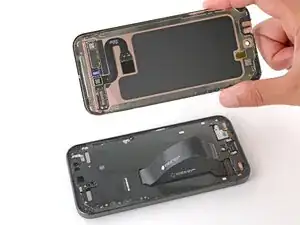
    • Flip the top edge of the screen over the bottom edge and use the suction handle (or a sturdy object) to prop it up, so you have access to the screen cable connector.

    • If the screen still feels stuck, go back around the perimeter with an opening pick and separate any remaining adhesive.

  9. JZiWgOfTjNJNwOAX
    JZiWgOfTjNJNwOAX
    ccCV662UlL4JEvo6
    NtXKDBlB1GULWyrn
    • Use the flat end of a spudger to push in the clip on the screen cable bracket until it releases.

    • Remove the bracket.

  10. fBTEkDxXWpB6mLNi
    fBTEkDxXWpB6mLNi
    oXFqwtJbAPIBJVOD
  11. CskEUGm6kJueJeAO
    CskEUGm6kJueJeAO
    INALLDwC2vPL3dqf
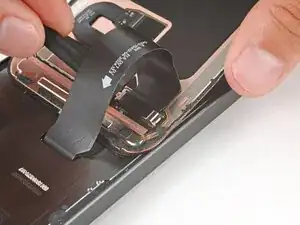
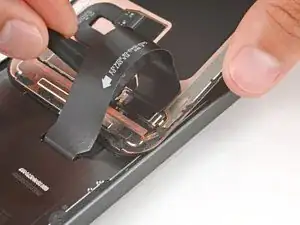
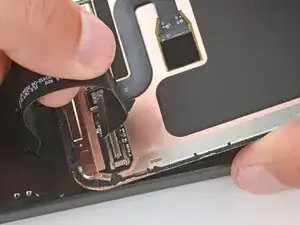
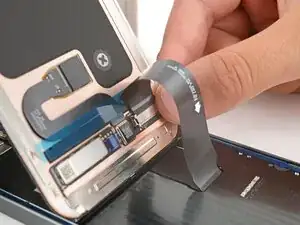
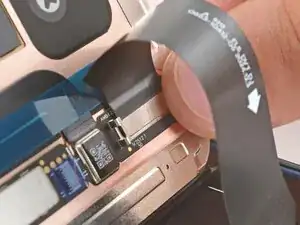
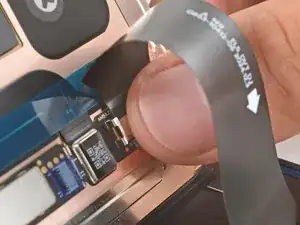
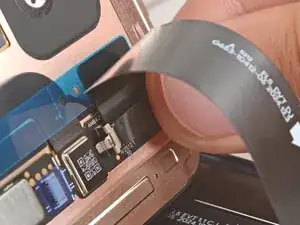
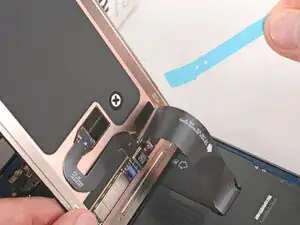
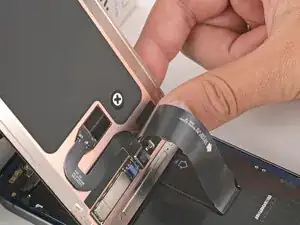
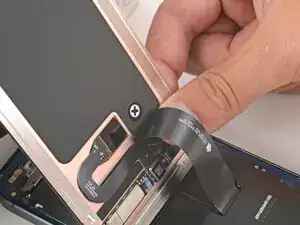
    • Grip the screen cable just above its connector and gently peel it up.

    • If you're having trouble, use a hair dryer or heat gun to lightly heat the cable.

  12. PxyMonZXuFoxHNBl
    • Remove the screen.

  13. lf2UhvPISLSchrGS
    lf2UhvPISLSchrGS
    IXJyjPvSyskhADqi
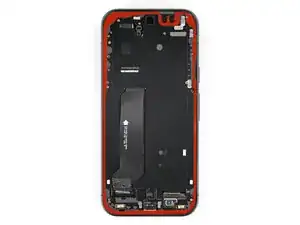
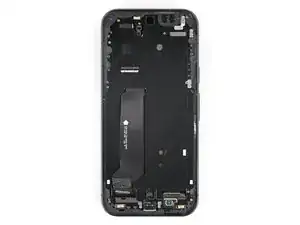
    • Before installing adhesive, all the old adhesive must be completely removed from the frame.

    • Take your time during the next two steps. A clean frame allows replacement adhesive to lay totally flat, ensuring a better seal for your new screen.

  14. lAePK5ZRIeR5MTHR
    lAePK5ZRIeR5MTHR
    eGd5UChoEXRtmiYH
    • This step will take some time, as removing the adhesive can be very tricky.

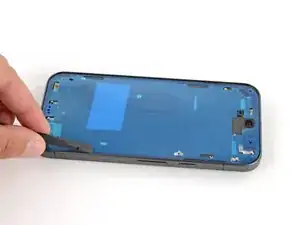
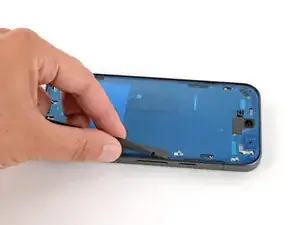
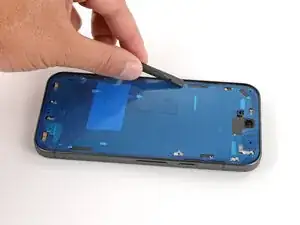
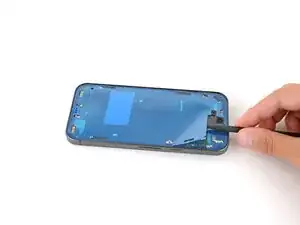
    • Use the point of a spudger to remove all the old screen adhesive from the frame. Try to "roll" the adhesive onto itself so it balls up, making it easier to remove.

  15. PScvLOKVyOOxGEWY
    PScvLOKVyOOxGEWY
    XcFB5kXxAanS4YC3
    • Wrap a microfiber or lint‑free cloth around a spudger and apply a single drop of high‑concentration (>90%) isopropyl alcohol to the end.

    • Use the spudger to clean up all the remaining adhesive residue from the frame, applying more drops of alcohol as necessary.

    • Let the alcohol dry completely before continuing.

  16. aW3vxDLSFKFpGhWx
    aW3vxDLSFKFpGhWx
    1u5AKffselBFx4vw
    nfhocKKOdijB2tPY
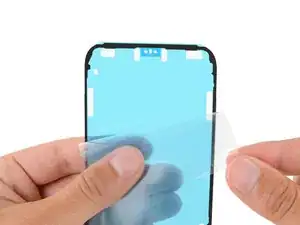
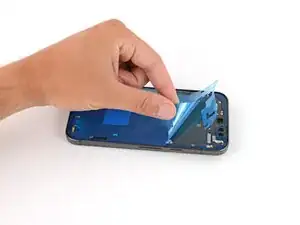
    • Before applying any adhesive, check if your replacement screen comes with adhesive pre‑installed around its perimeter. If it does, skip down nine steps. If it doesn't, follow the next nine steps to install new screen adhesive on the frame.

    • Before applying the screen adhesive, make sure you know how it will sit on the frame. If you apply the adhesive incorrectly, you'll need to restart with new adhesive.

    • Hold the adhesive above the frame to find its orientation. Use cutouts in the liner and the contours of the adhesive to help visualize how it will lay in the frame.

  17. fobVBFH1DiKPCYHu
    fobVBFH1DiKPCYHu
    m4cblXITWhbkVVe1
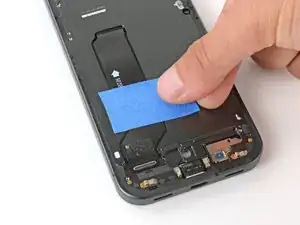
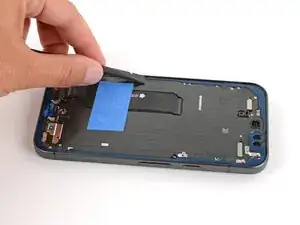
    • The screen cable sticks up off the frame, making it difficult to apply new screen adhesive.

    • Tape the middle of the cable down to the frame, making sure the tape isn't covering anywhere the new adhesive will go.

  18. pyJMM3UaxfXChO35
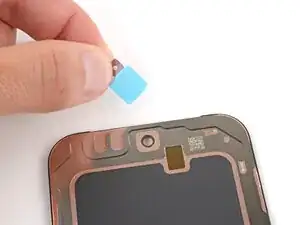
    • Peel up the bottom half of the large, clear liner to expose the adhesive—don't fully remove the liner yet.

  19. sULlsFQCq5CgSxXB
    sULlsFQCq5CgSxXB
    NqKnHFUxFsVoCqKf
    3CHakihIilMQqe5Q
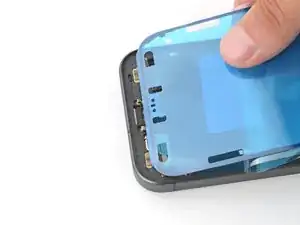
    • Take your time aligning the adhesive with the frame—it's very sticky and can't be moved after you apply it.

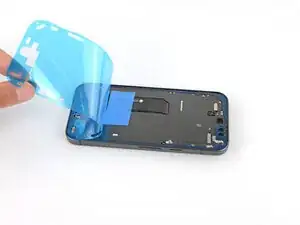
    • With the larger, clear liner folded towards the top of the phone, lay the exposed bottom edge of the adhesive onto the frame.

    • Use the lip of the frame to help align the adhesive.

    • Once the top edge is properly aligned, gently press down on the top corners to secure the adhesive.

  20. 2cTO1JXqFYhDXytG
    2cTO1JXqFYhDXytG
    HrHN6tVPaCmdvrF6
    GIjDw12hTFaE6YRY
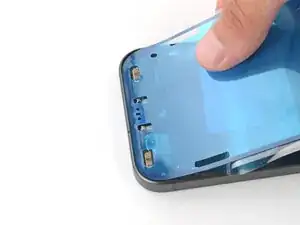
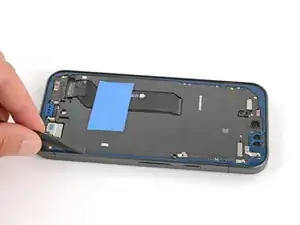
    • Slowly lay the rest of the adhesive onto the frame, pressing it into place and peeling away the larger liner as you go.

  21. PmijD6eWe1BXCLpX
    PmijD6eWe1BXCLpX
    PiFQ1TPMCitPo6c6
    sI4qirQFREWLh1xC
    • Use a spudger to press down firmly on the screen adhesive to secure it to the frame.

  22. QAoG4DQfUAbH2HHW
    QAoG4DQfUAbH2HHW
    3JfVjdXIvTkViwXK
    WUVyQDj16VWtDqNQ
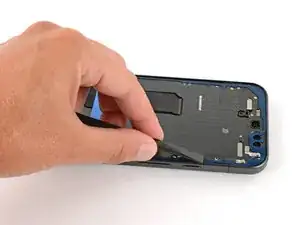
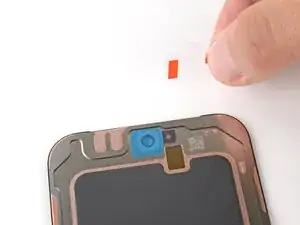
    • Slowly peel up and remove the large colored liner, peeling from the cutout near the top edge.

    • If the adhesive starts to peel up with the liner, check that you’ve pushed all of it into place with your spudger. If it continues to peel up, hold it down with the point of your spudger as you go.

  23. DqDIkrIAKdLykBNv
    DqDIkrIAKdLykBNv
    bjRuRl6ZppgGmKrN
    UIPYwcIwwRPF3RUD
    • Use a spudger to press down firmly on the screen adhesive to secure it to the frame.

  24. HSqVEQGwkOx4EVZq
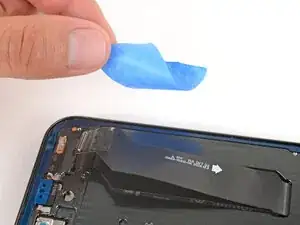
    • Remove the tape securing the screen cable.

  25. 4YEgEJGSxftkVmUx
    4YEgEJGSxftkVmUx
    FtJsGxEvw5VZ2ZXu
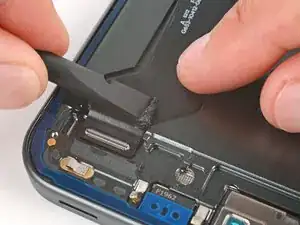
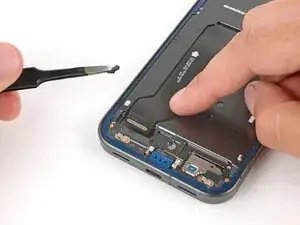
    • If your new screen comes with cable adhesive installed just above the connector on the back of the screen, follow this step to remove the old adhesive. Otherwise, skip this step and leave the old adhesive.

    • Use a spudger to gently scrape up and remove the piece of adhesive on the screen cable, near the connector.

    • Be very careful not to damage the cable or its connector. Otherwise, your screen may not work.

  26. erRXVGq6IZbTJ1FK
    erRXVGq6IZbTJ1FK
    HV6P2icDJAlAaoTB
    LZCnjJcJMCiQfyvV
    • Your replacement screen has various protective liners and pieces of tape on the underside that must be removed before installation. Your screen may have different pieces in different locations, so make sure to check carefully!

    • Don't remove the screen cable adhesive liner near the bottom of the screen yet—you'll do so after reconnecting the cable.

    • Check around the front facing camera cutout, and near the bottom edge of the screen—you'll remove these in the next step.

    • Usually, you can identify the liners by their pull tabs.

  27. FiACSBpdW5HLlTGc
    FiACSBpdW5HLlTGc
    XhwFO424hQBwdYkn
    FXVWc3klfGkom6MP
    • The exposed back of the screen is very fragile—even a small scratch can cause damage. Be very careful not to damage the screen during the remaining steps.

    • Use your fingers or tweezers to remove the plastic liners and tape from the back of the screen.

  28. DtVUS12mtXp1TmLw
    • Use a sturdy object to prop up the screen so you can reconnect its cable.

    • Make sure the screen is oriented so it's in the proper position when you flip it back down.

  29. cPoQNvxICwOedCes
    cPoQNvxICwOedCes
    DE3RlsKSXLVS3J4k
    uce6DTZEhehK53i5
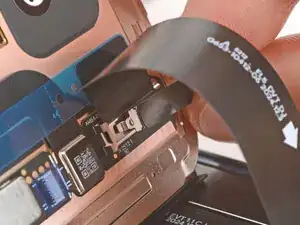
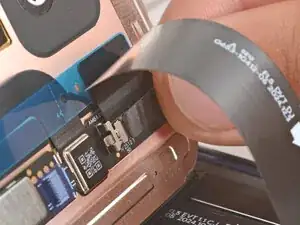
    • Loop the screen cable around and use your fingers to reconnect the press connector, pressing on one side first and then the other.

  30. aH3BBrIMgOYocf3o
    aH3BBrIMgOYocf3o
    dI12PWA1XDUBsbrj
    MV2AjH54k1wjUBWs
    • Insert the small arm of the screen cable bracket into its slot next to the connector.

    • Press down on the bracket and slide it into place until it clicks, making sure the outer edge hooks into place.

  31. LFkdWtgaqRIsptyH
    LFkdWtgaqRIsptyH
    y4uNJrZx2v3aywWI
    pbMbCJLwcXyu3Wkn
    • If your screen has screen cable adhesive pre‑installed, remove the plastic liner.

    • Press the cable into place above the connector to secure it to the screen.

  32. L2ubBxBVHh4ZVEXF
    L2ubBxBVHh4ZVEXF
    uMj5beLm2C1QxhX6
    QOEEo4Dwav2ZAuI4
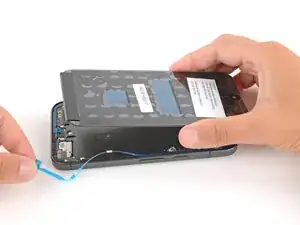
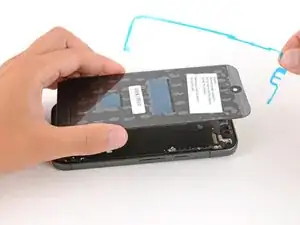
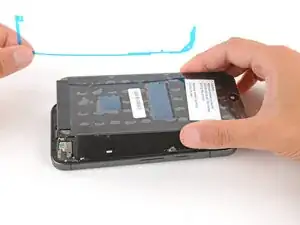
    • Flip the screen down and hold it above the frame.

    • Remove all remaining liners from the adhesive (either on the frame, or from the underside of the screen).

  33. OlLORIWiH56ahklO
    OlLORIWiH56ahklO
    QEriqmLTEqbgIZle
    dwfOAo3XUaYFMKYc
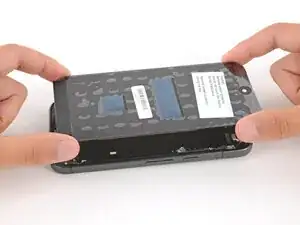
    • Firmly push the screen into place on the frame.

  34. rAVMukybiPB3wcqe
    rAVMukybiPB3wcqe
    xyAp6ee1AZEMECVn
    XiLNDFFTSqsnE4ej
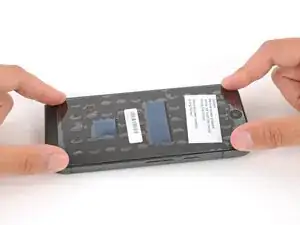
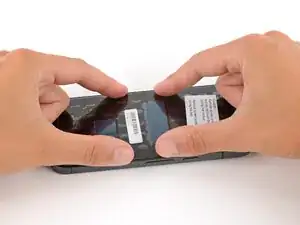
    • Hold your phone up and squeeze firmly around the perimeter to strengthen the adhesive bond.

    • For an even stronger bond, you can stack books on the back glass or use screen vise clamps.

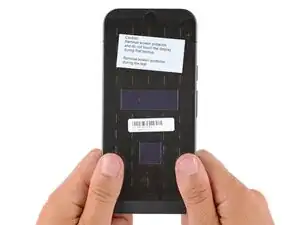
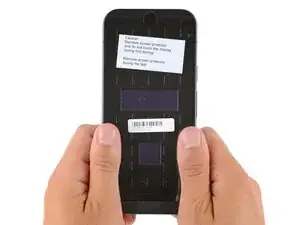
    • Before powering on your Pixel for the first time, lay the phone screen-side up on a clean, flat surface. Remove the plastic liner from the screen, making sure nothing touches the phone while you do so (fingers, screen protectors, or cases).

    • Follow any other specific instructions that may be on the screen's adhesive liner.

Conclusão

Congratulations on completing your repair!

To calibrate your display’s fingerprint reader, use Google’s Pixel Update and Software Repair tool.

To run a diagnostics test with the built-in Pixel Diagnostic tool, click here.

Take your e-waste to an R2 or e-Stewards certified recycler.

Repair didn’t go as planned? Try some basic troubleshooting, or ask our Answers community for help.

Spencer Day

Membro desde: 14/09/22

165254 Reputação

0 comentários