Introdução

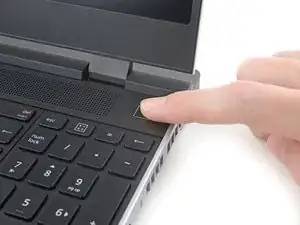
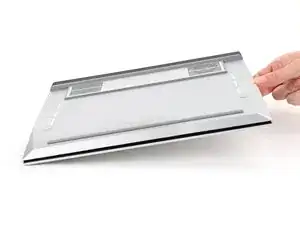
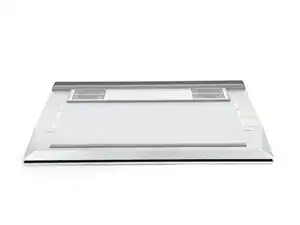
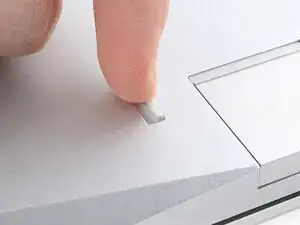
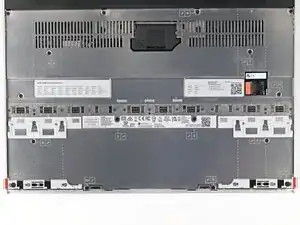
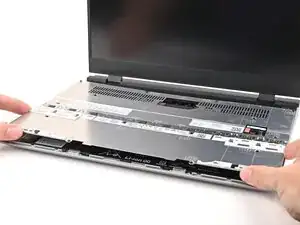
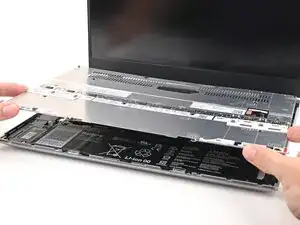
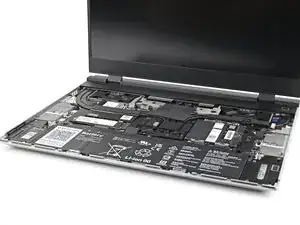
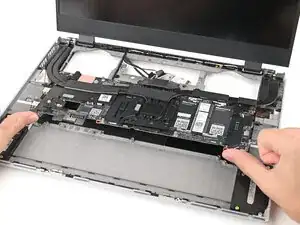
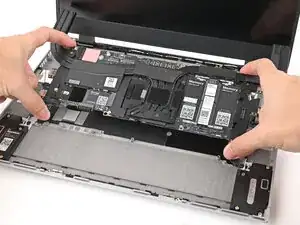
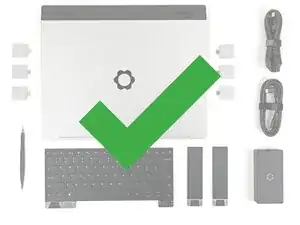
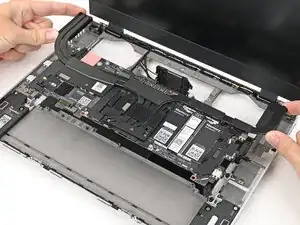
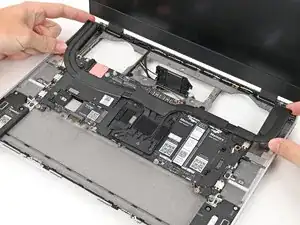
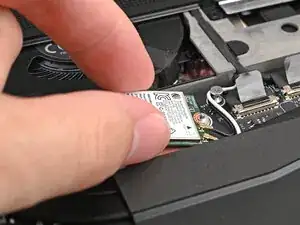
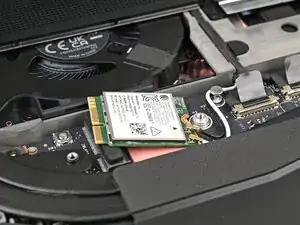
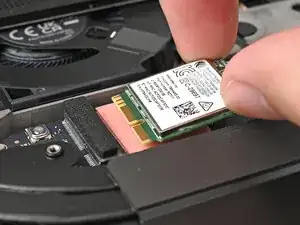
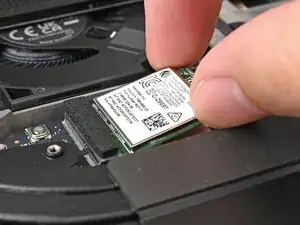
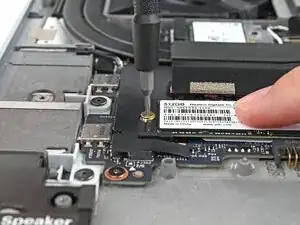
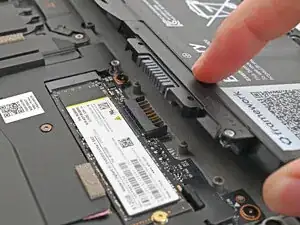
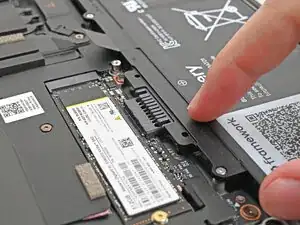
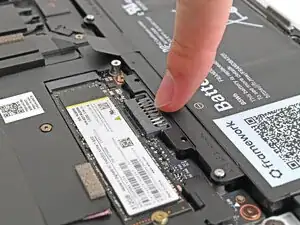
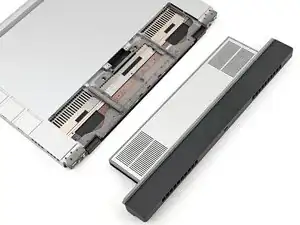
Use this guide to replace or upgrade the Mainboard in your Framework 16 Laptop.

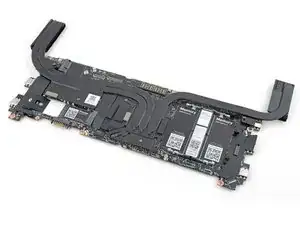
The Mainboard (aka motherboard) is responsible for the primary functions for your laptop. If you want to upgrade your processor, you'll need to replace the Mainboard.

Replacement Mainboards come with a pre-installed heatsink but don't come with pre-installed storage, memory, or Wi-Fi modules. This guide will show how to transfer them to your new Mainboard.

If you're running Windows:

  • Make sure you back up your data.
  • If you’re running a Pro version of Windows, follow these directions to suspend BitLocker.
  • If you're running a Home version of Windows and have enabled Windows Device Encryption, you'll want to disable it. To disable it, press Win + I to open Settings and select Privacy & Security. Then, click on Device Encryption on the right panel and toggle the setting to Off.
  • Find your product key or link your Windows license to a Microsoft account to make sure you can re‑activate Windows after the change.

If you're upgrading from AMD Ryzen™ 7040 Series to AMD Ryzen™ AI 300 Series, you'll need to update your Input Module firmware before swapping the Mainboard.

Some photos in this guide may contain slight visual discrepancies, but they won't affect the procedure.

  1. FyZqYQXlGGSUVdfO
    • Unplug all cables and fully shut down your laptop.

  2. uFV1SWmPwdrNd2Cr
    uFV1SWmPwdrNd2Cr
    rYNMSVx61nA4Z2Od
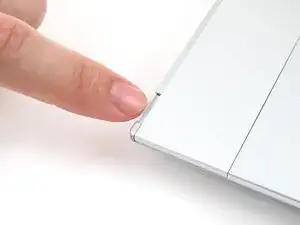
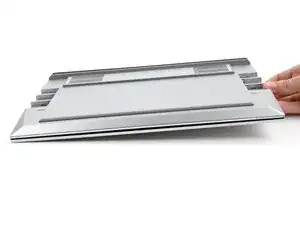
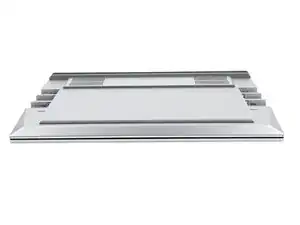
    • Close the laptop and flip it over.

  3. EBpjjGNOq4wkkZpM
    EBpjjGNOq4wkkZpM
    DO1eNcNkpLWbmLAs
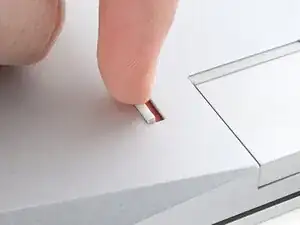
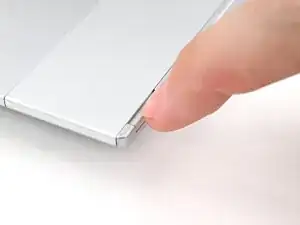
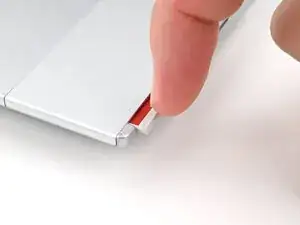
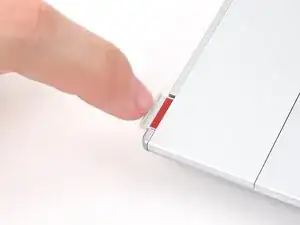
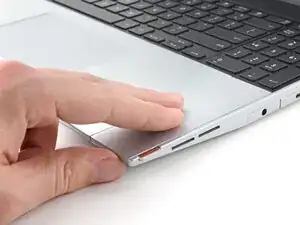
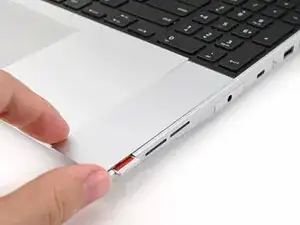
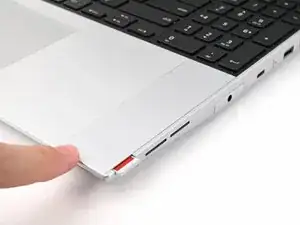
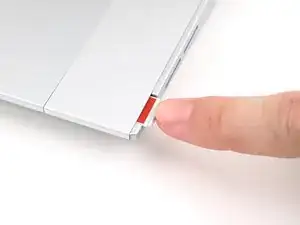
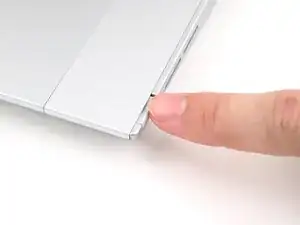
    • Use your finger to flip the Expansion Card latches into the unlocked position.

    • The latch displays a red bar when it's unlocked.

  4. qUx6qjZBfyPQ6Edp
    qUx6qjZBfyPQ6Edp
    kIFwxTgJDZXWIq1u
    3NqnLjPYuRVOnUhE
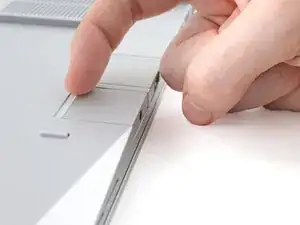
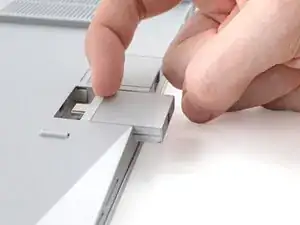
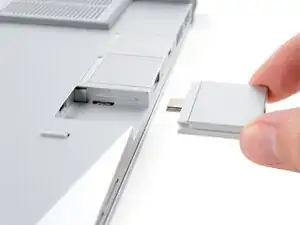
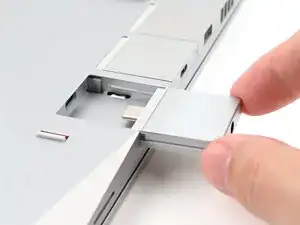
    • Grip the lip of the Expansion Card with your fingers.

    • Pull the Expansion Card out of its slot and remove it.

    • This might take some initial force. If you're having trouble, make sure the locking tab is properly unlocked.

    • Repeat for all remaining Expansion Cards.

  5. PbfUTyYSpLZb3Buu
    PbfUTyYSpLZb3Buu
    OQbOnHOL4QJoHNbv
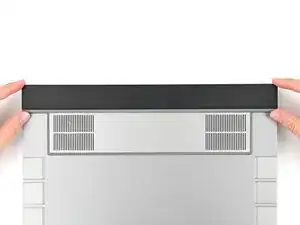
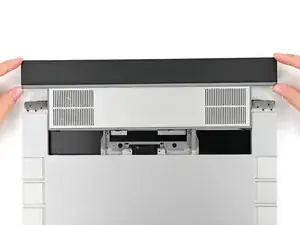
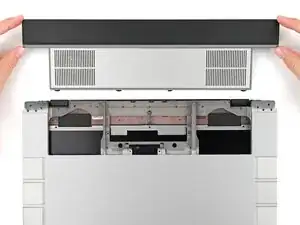
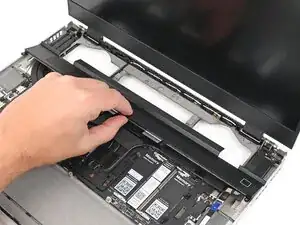
    gs2xPVUKHRSvKPhW
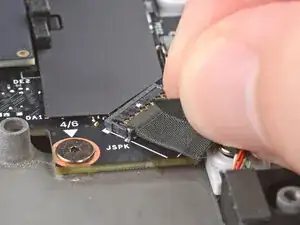
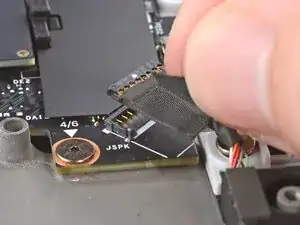
    • Flip your laptop over and open it.

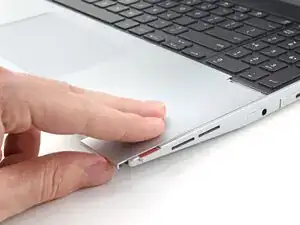
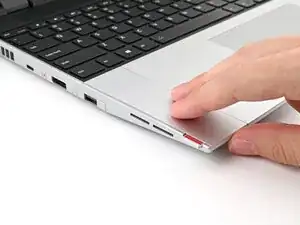
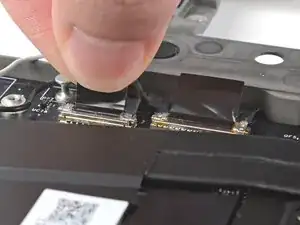
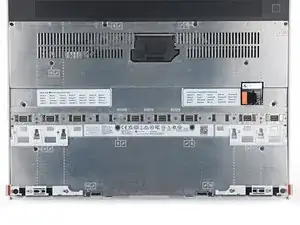
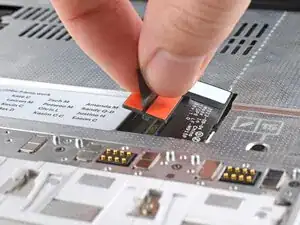
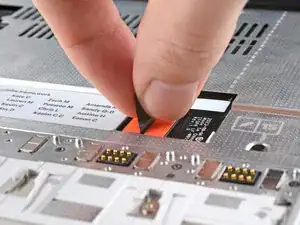
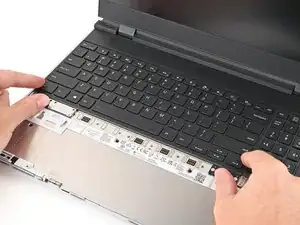
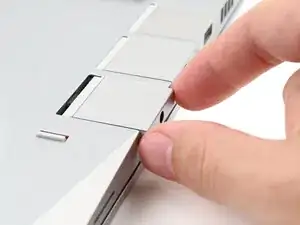
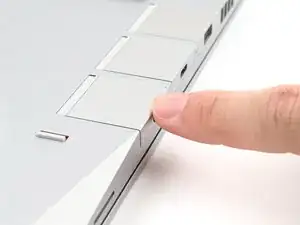
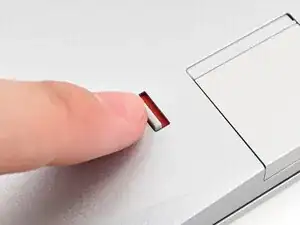
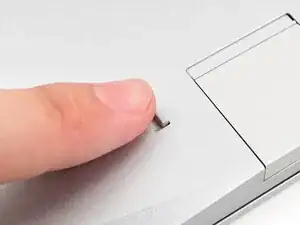
    • Use your fingernail to pull out the two Input Module latches and unlock them.

    • The latch will show red if it's unlocked.

  6. bpMHQhFddpbbE5c4
    bpMHQhFddpbbE5c4
    G1ZKNGUFENLOYu3K
    mOP6TMapXCANPZFK
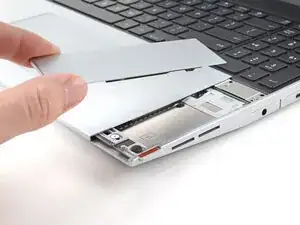
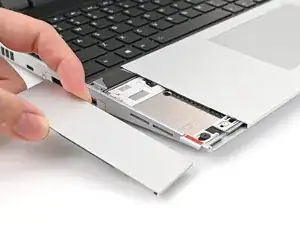
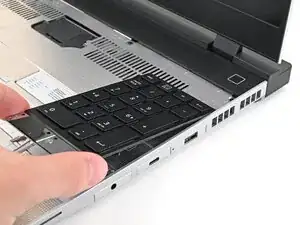
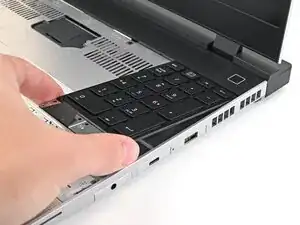
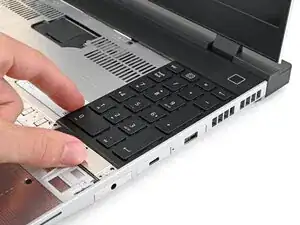
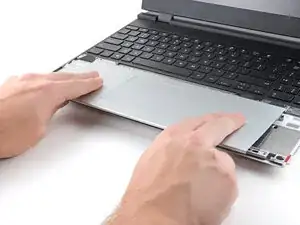
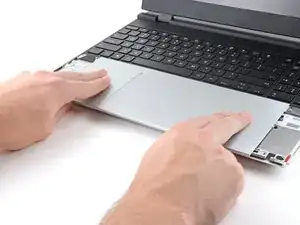
    • Use your fingers to slide the Touchpad Spacer toward the bottom edge of the laptop and unclip it.

    • If you're having trouble, check if the corresponding Input Module latch is properly unlocked.

    • Lift the Touchpad Spacer off the laptop and remove it.

  7. oEqip25KTEF2gXZt
    oEqip25KTEF2gXZt
    teuRGEDSLRjVVpId
    mbydNVpAcqSPltCM
    • Repeat the same procedure for the other touchpad spacer.

  8. wpTjqyCvB2wHlNbJ
    wpTjqyCvB2wHlNbJ
    IsFbHVdd3uX4gPbf
    teReJWIbcCJhn3OH
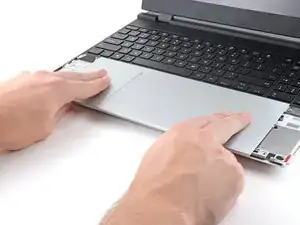
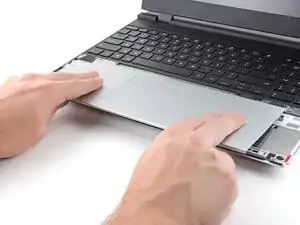
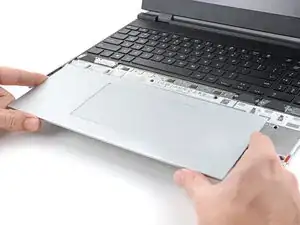
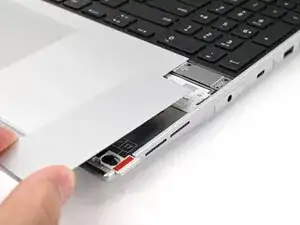
    • Use your fingers to slide the Touchpad Module toward the bottom edge of the laptop and disconnect it.

    • If you're having trouble, check if the Input Module latches are properly unlocked.

    • Lift the Touchpad Module and remove it.

  9. WXjcPFl2MgDiX2PZ
    WXjcPFl2MgDiX2PZ
    PojU1s2ZQqyfYBvO
    YlWkflmfJPHDuZov
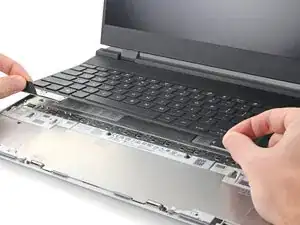
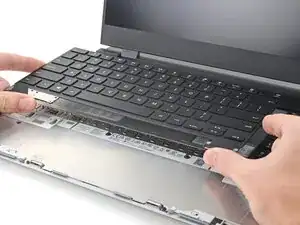
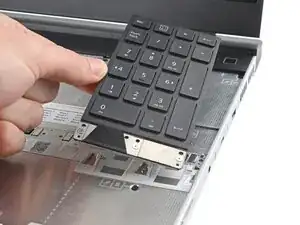
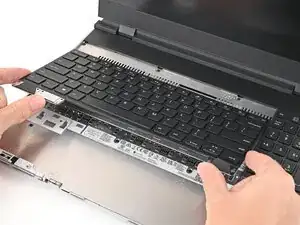
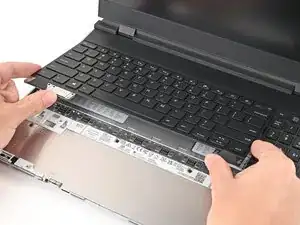
    • The keyboard is held in place with strong magnets. Apply gradually increasing force to avoid having the keyboard violently eject.

    • Grip the two pull tabs along the bottom of the keyboard and lift until its magnets release.

    • Remove the keyboard.

  10. hesMM66MFJtTfvCZ
    hesMM66MFJtTfvCZ
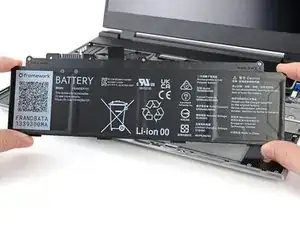
    3ZJ4rrrJTvR22eiV
    WesxvpHZwQSNZ3fK
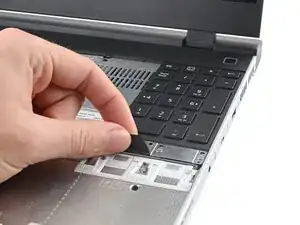
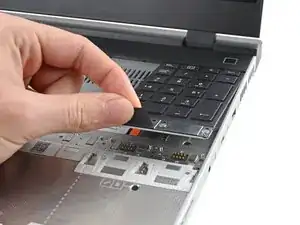
    • Your Input Module(s) might be different, but the procedure to remove them is the same.

    • Grip the pull tab at the bottom of the Input Module and lift until its magnets release.

    • Remove the Input Module.

    • Repeat for any remaining Input Modules.

  11. SRhXtXWpl3DPYYAS
    SRhXtXWpl3DPYYAS
    55XONtqi1PZJQADv
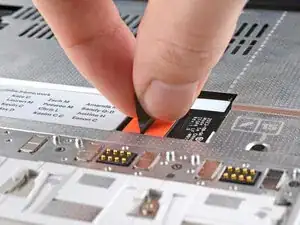
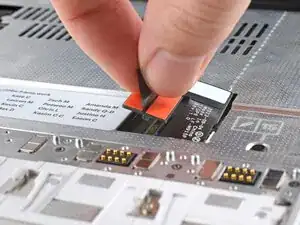
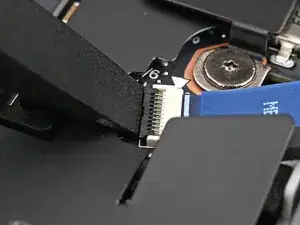
    • Grip the black pull tab on the Mid Plate cable press connector.

    • Lift up to disconnect the Mid Plate cable.

  12. aJoO4s4sLmUA5SSt
    aJoO4s4sLmUA5SSt
    EkZ2H5vKL2LW6Els
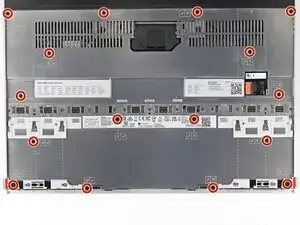
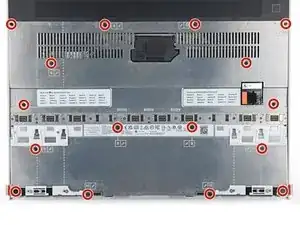
    • The Mid Plate screws are ordered from 2–17 (number 1 is the press connector). You don't have to follow the order, but you can use it to help keep track of the screws you've loosened.

    • Use your Framework Screwdriver to loosen the 16 captive T5 Torx screws securing the Mid Plate.

  13. VFMpNOrkg5EiKwlo
    VFMpNOrkg5EiKwlo
    VMfwxIagCZvb511j
    ZQ1ZDWKwVKQrjDYL
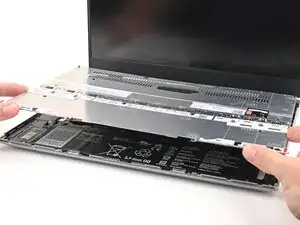
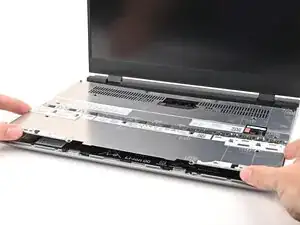
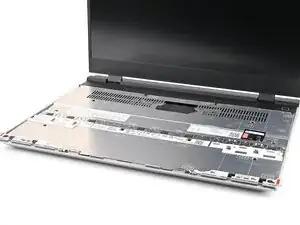
    • Use your fingers to lift the Mid Plate off the laptop and remove it.

  14. 1OA35gjE6BFfjjaY
    1OA35gjE6BFfjjaY
    6QuZOpyj6LH5dvVQ
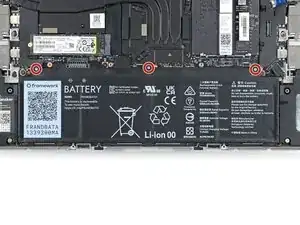
    • Use your Framework Screwdriver to loosen the three captive T5 Torx screws securing the battery.

  15. BPVogsAOsLdNbVN1
    BPVogsAOsLdNbVN1
    UaRXRJ4edO4MBBtc
    RSUowATAIjOPYONQ
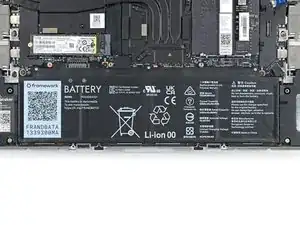
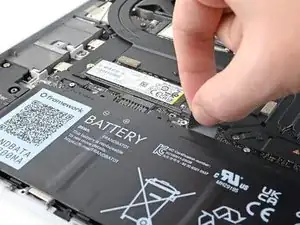
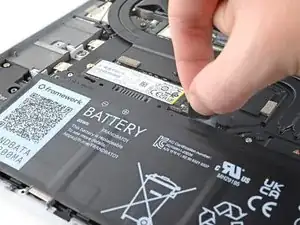
    • Grip the black pull tab at the top of the battery and lift to disconnect the battery connector.

    • Remove the battery.

  16. dG4Qy1W6xdvvjOfm
    dG4Qy1W6xdvvjOfm
    RZwJYDUWfdkx5pJa
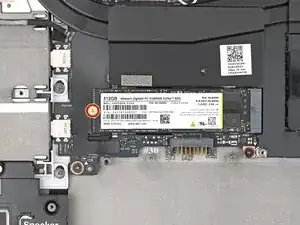
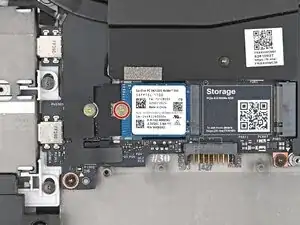
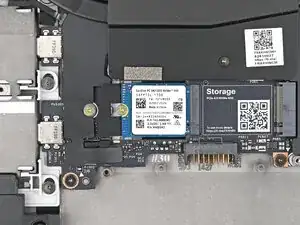
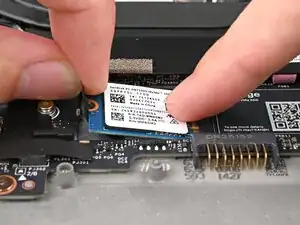
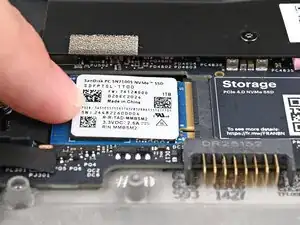
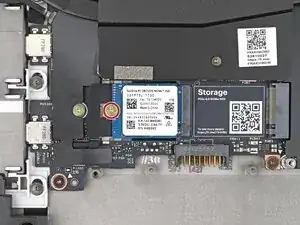
    • Use your Framework Screwdriver to remove the 2 mm‑long T5 Torx screw securing the SSD.

    • The SSD might pop up at a shallow angle when you remove the screw.

  17. xZuiYJlgwmgUPNTi
    xZuiYJlgwmgUPNTi
    5mUvEEUZw1XAYrFH
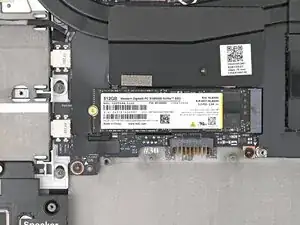
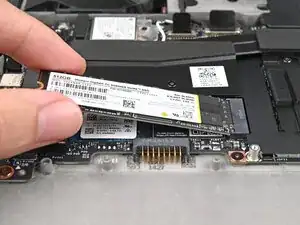
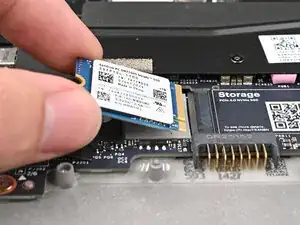
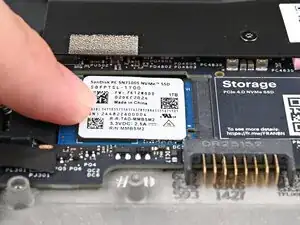
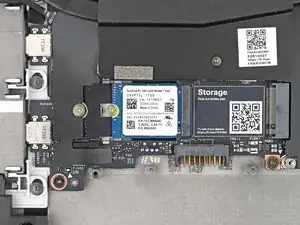
    • Grip the end of the SSD with the screw hole and slide it out of its socket.

    • Remove the SSD.

  18. qZeYcTh3JwD6EObN
    qZeYcTh3JwD6EObN
    UAOTlCVRXg4HAHFn
    • If you have a secondary SSD installed, follow the next two steps. Otherwise, skip here.

    • Use your Framework Screwdriver to remove the 2 mm‑long T5 Torx screw securing the secondary SSD.

  19. OUOScPtsAwl1uXjW
    OUOScPtsAwl1uXjW
    Tx3Q55OekeqPhT2J
    WPo5rbEKVisLBRkN
    • While pulling up on the black tab underneath the SSD, use your finger to slide the SSD out of its socket.

    • Avoid touching the gold contacts. Only press on the top label or the edges of the SSD.

    • The thermal pad under the SSD can vary in color—yours may be gray, orange, or pink.

  20. LcWBqfEhnuGFNGnt
    LcWBqfEhnuGFNGnt
    Jfm6ZVOOeoCmN1UG
    nKqhXrukkNprD51i
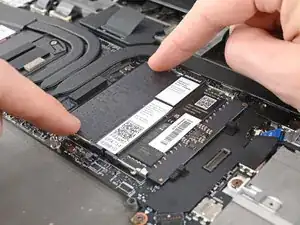
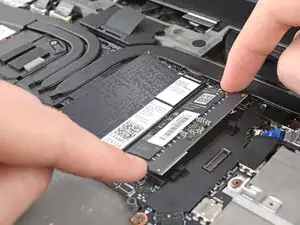
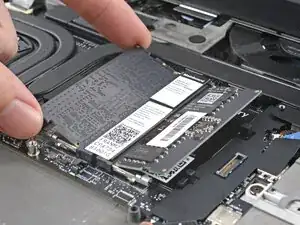
    • Push the two metal arms on each side of the RAM stick outward until they disengage and the stick pops up at a shallow angle.

    • Repeat for the other RAM stick.

  21. tPaIVOIoJlb4CgTo
    tPaIVOIoJlb4CgTo
    Tkt5TnGsEbRjK6KJ
    KUBiAmleV4RVXMDQ
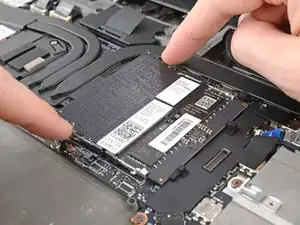
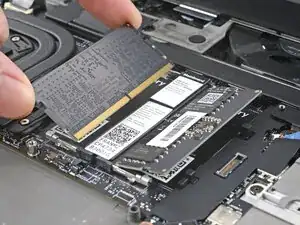
    • Slide the RAM stick out of its socket and remove it.

    • Repeat for the other RAM stick.

  22. A1CM2gmd3hSLE6DG
    A1CM2gmd3hSLE6DG
    KHyHqvjFGOahMRpg
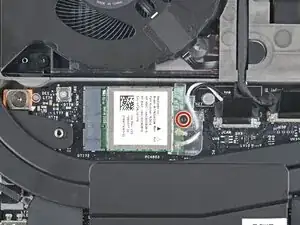
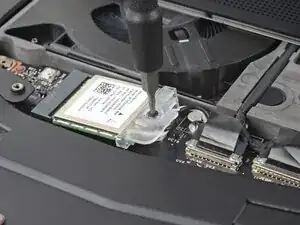
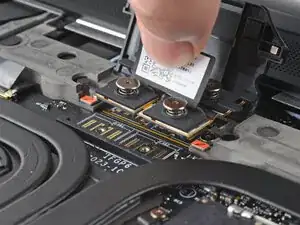
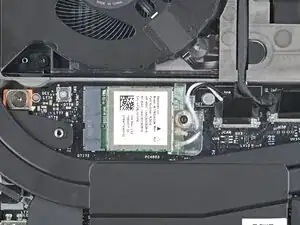
    • Use your Framework Screwdriver to loosen the captive T5 Torx screw securing Wi-Fi module.

    • The module might pop up at a shallow angle when you loosen the screw.

  23. EtnFCnAnK6jicUOb
    EtnFCnAnK6jicUOb
    EEtEKbYcD1fGiww5
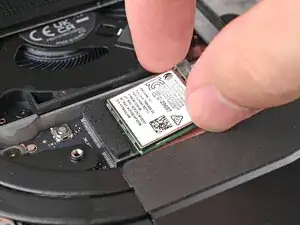
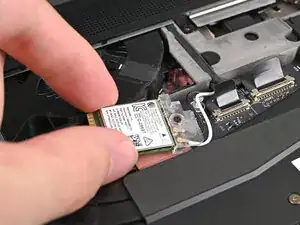
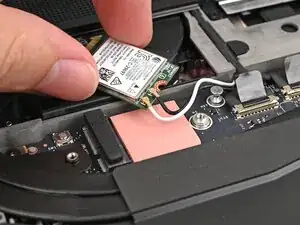
    • Grip the end of the Wi-Fi module with the screw hole and slide it out of its socket.

    • Don't pull the module too far from its socket, as it's still connected by two cables.

  24. gN22DM61pUAZRDaQ
    gN22DM61pUAZRDaQ
    Mla4FUPBbAGUUwQa
    2sK1JPdnOoGfDAfj
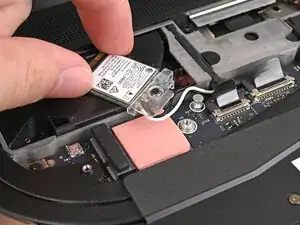
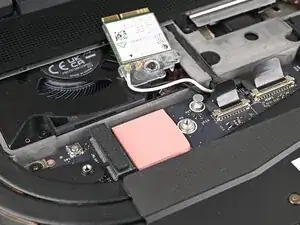
    • Rotate the Wi-Fi module towards the top of the laptop to keep it out of the way of the Mainboard.

    • If the antenna cables disconnect, follow these steps to reconnect them.

  25. lRVXxLICEGdocSrI
    lRVXxLICEGdocSrI
    JCgtidXYDtu1PaVO
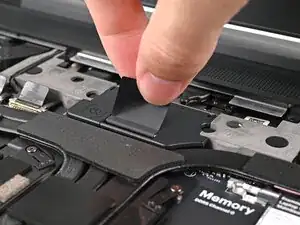
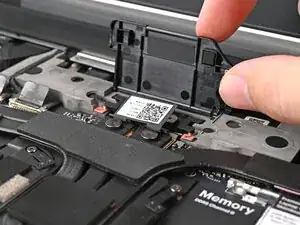
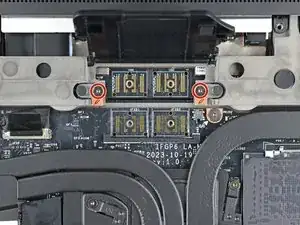
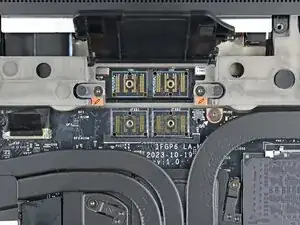
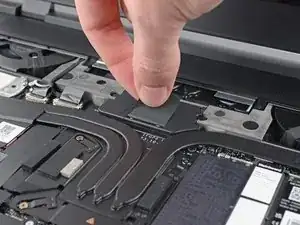
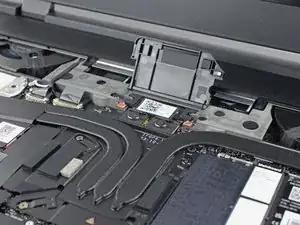
    • Lift the interposer door by its black pull tab and let it rest upright.

  26. QUSO5HwTLuMIAlVF
    QUSO5HwTLuMIAlVF
    UqPaLZBxyUeWB3Xm
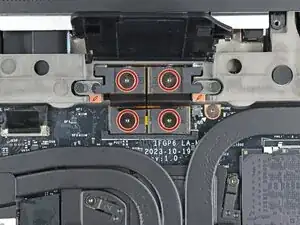
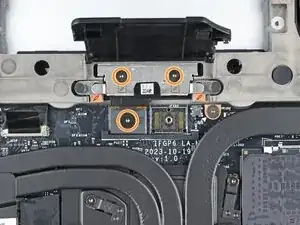
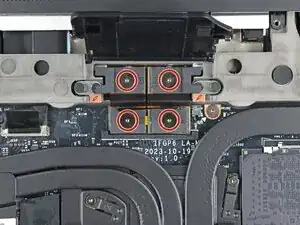
    • If you have the Graphics Module installed, your interposer will have four screws. If you have the Expansion Bay Shell installed, you'll have three screws instead.

    • If you have the Graphics Module, use your Framework Screwdriver to loosen the four captive T5 Torx screws securing the interposer.

    • If you have the Expansion Bay Shell, use your Framework Screwdriver to loosen the three captive T5 Torx screws securing the interposer.

  27. RRTnHiOVf2SmbBIL
    RRTnHiOVf2SmbBIL
    Xd5pXwSgLBOLaLnx
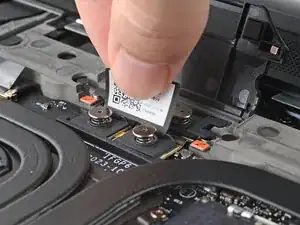
    • Lift the interposer by its pull tab and remove it.

  28. vDRVlx6RISCSiUcm
    vDRVlx6RISCSiUcm
    nrTLBFYiR4YNSALf
    dLPk65iSypbKMwLt
    • Use your Framework Screwdriver to loosen the two captive T5 Torx screws securing the module in the Expansion Bay.

    • Close the interposer door before continuing.

  29. EV6hxOxWhSeLhJgx
    EV6hxOxWhSeLhJgx
    OvgJqGPQnSC15AdL
    wQBqnhWGprulkl1l
    • Close your laptop and flip it over.

    • Slide the Expansion Bay Module out of the laptop and remove it.

    • The module should slide out easily. If you feel any resistance, check if the screws holding it in place are fully loosened.

    • Flip your laptop and reopen it.

  30. MBIEZmQ4ohlCsjYA
    MBIEZmQ4ohlCsjYA
    BwFJOVuiGGKCDS5x
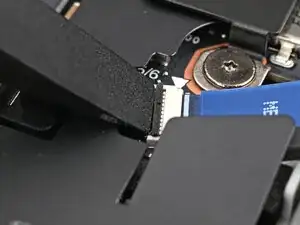
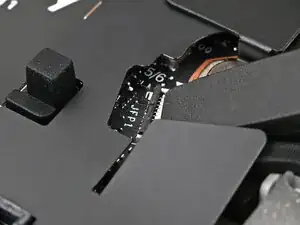
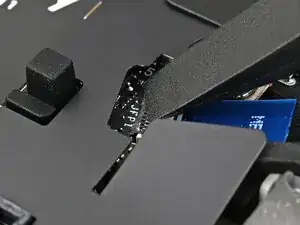
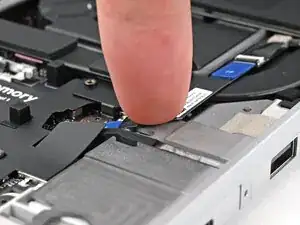
    • Use the flat end of your Framework Screwdriver, or a clean fingernail, to lift up the locking tab on the fingerprint reader ZIF connector next to the memory.

  31. FBMuVHkomoZUpPH1
    FBMuVHkomoZUpPH1
    oA3hLlmRmdfb1PwC
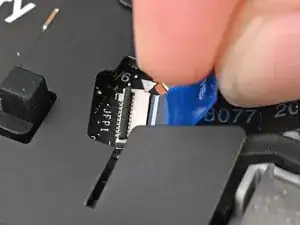
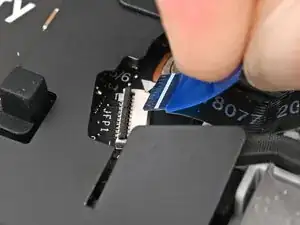
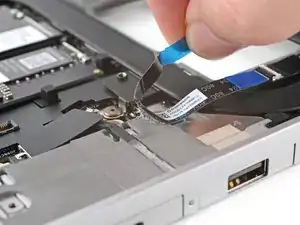
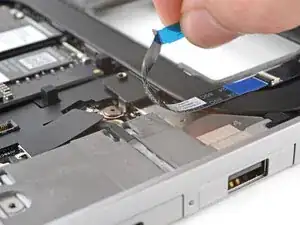
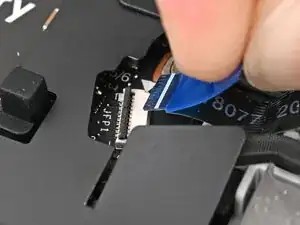
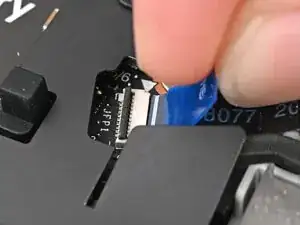
    • Use your fingers to grip the blue pull tab and slide the fingerprint reader cable straight out of its socket.

  32. nowIhewWYuAZsuLu
    nowIhewWYuAZsuLu
    KgMLYOAU4q4335DG
    YUb1K4hcBP1DskVV
    • The fingerprint reader cable is lightly adhered to the laptop's frame.

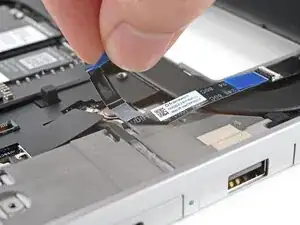
    • Use your fingers to peel the fingerprint reader cable away from the frame and separate the adhesive.

  33. 6VCdAUGj2cWHTdXf
    6VCdAUGj2cWHTdXf
    lFHDp6VISWM6ZWjE
    1jCaqMk5c5uFaCrb
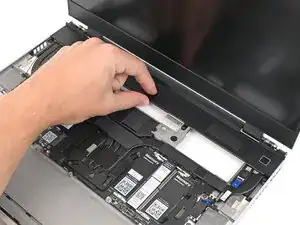
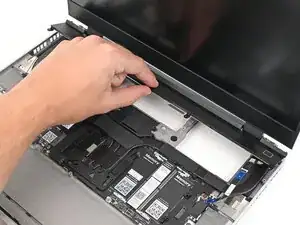
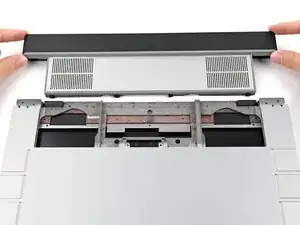
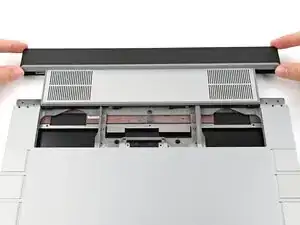
    • The ventilation plate is held in place with magnets.

    • Lift the bottom of the ventilation plate and pull it away from the laptop until the magnets release.

    • Remove the ventilation plate.

  34. ZE2ctRRYjPVBKTQZ
    ZE2ctRRYjPVBKTQZ
    tZoGnOojL1BIMUyq
    • Lift the speaker cable connector by its black pull tab and disconnect it.

  35. ikM3MVBQrWFTiDFv
    ikM3MVBQrWFTiDFv
    JcTWKaLa35lC3vT5
    bYMPFV3CxCKu3xuu
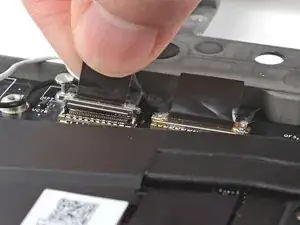
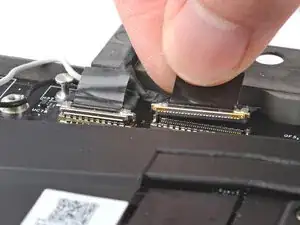
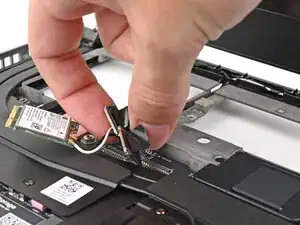
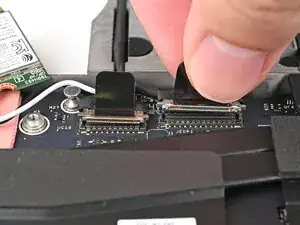
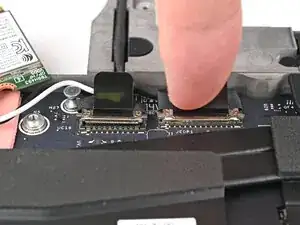
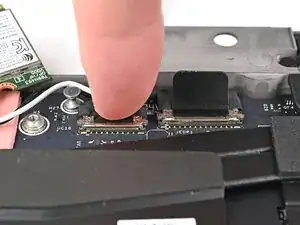
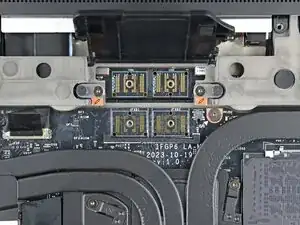
    • Grip the webcam cable connector to the right of the Wi-Fi module slot by its pull tab and lift up to disconnect it.

    • Repeat for the display cable connector next to it.

  36. iqBpRMWgYCn3PlvD
    iqBpRMWgYCn3PlvD
    KjfXpKuKEr2gAsyq
    NTBlRWqI4eidPxXc
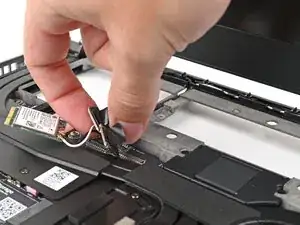
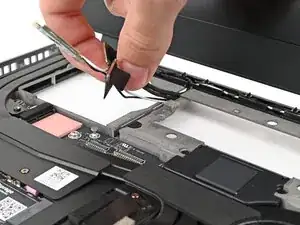
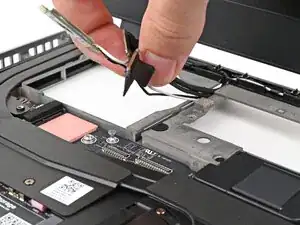
    • Lift the display, webcam, and Wi-Fi module cables out of their slot in the frame enough to give room for the Mainboard to lift straight up.

    • Optionally, you can tuck the cables underneath the frame.

  37. bmEGqsRbwymp2CFk
    bmEGqsRbwymp2CFk
    uRXENOqOsnrRwOZn
    • Lift up the interposer door to reveal the screw underneath.

    • The Mainboard screws are ordered from 1–6. You don't have to follow the order, but you can use it to help keep track of the screws you've removed.

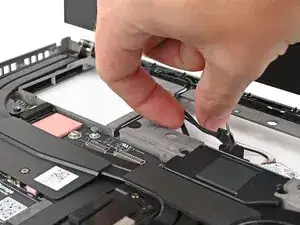
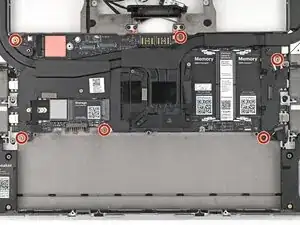
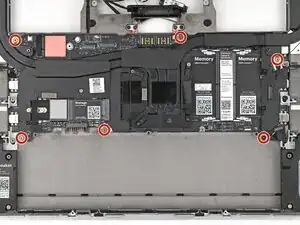
    • Use your Framework Screwdriver to remove the six 2.0 mm‑long T5 Torx screws securing the Mainboard.

  38. mdDQAVNraYHhyiUb
    mdDQAVNraYHhyiUb
    CZPPHea4ZHqnkO5V
    dplLdNRWZGhZmmcV
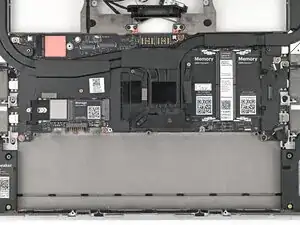
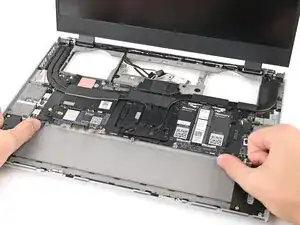
    • Use your fingers to lift the bottom edge of the Mainboard enough to grip its edges.

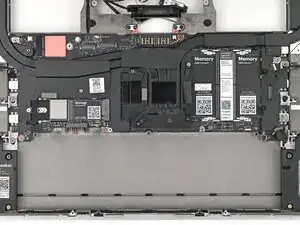
    • Lift the Mainboard off its alignment pegs and remove it.

  39. yAqjOcYW4FxBfQJa
    • Congratulations on completing disassembly! The remaining steps will show how to reassemble your Framework Laptop.

  40. PatKSLMvRSCOynVd
    PatKSLMvRSCOynVd
    UZ1EMHOPn1OOROX1
    • Grab the Mainboard by the curving pipes of its heatsink.

    • Place the Mainboard into the laptop and onto its alignment pegs.

    • Make sure all of the cables are above the Mainboard before continuing.

  41. rQNuGVWoMpTRgAm4
    rQNuGVWoMpTRgAm4
    CCLIW5cpxUPx2h26
    • Use your Framework Screwdriver to install the six 2.0 mm‑long T5 Torx screws securing the Mainboard.

  42. PGxQFlAMpQZj5BVv
    PGxQFlAMpQZj5BVv
    L5BhIvAiyMXIdcSm
    • Route the display, webcam, and Wi-Fi module cables into their slots in the frame.

  43. qcuLHBVFJDZnKUMT
    qcuLHBVFJDZnKUMT
    GFfFqD5dKWkgNAiq
    pANGvheAlRkHdGjo
    • Press the two display connectors straight down into their sockets to connect them.

  44. AoaLePKXSIIUHrLe
    AoaLePKXSIIUHrLe
    decYDkJWGWSoacsv
    • Press the speaker cable connector straight down into its socket to connect it.

  45. J3irymcQVyspoqPB
    J3irymcQVyspoqPB
    vpxgM1U2oeJSnEv6
    • Lay the ventilation plate along the top edge of the laptop and let its magnets pull into place.

  46. gwEvWqFlhXauVOcq
    gwEvWqFlhXauVOcq
    xKFssJdsSsvPZGjR
    • Use your fingers to grip the blue pull tab and slide the fingerprint reader cable straight into its socket.

  47. YyhVDEW2sHFYkZPg
    YyhVDEW2sHFYkZPg
    F4kMTvJw6MoYEOGa
    • Use the flat end of your Framework Screwdriver, or a clean fingernail, to press down the locking tab on the fingerprint reader ZIF connector.

  48. hqoukOlBlYcSXgNJ
    • Press the fingerprint reader cable to the frame to re-adhere it.

  49. YPDWdpOxdFAqThNw
    YPDWdpOxdFAqThNw
    4WGwAwjGwkx5HfPL
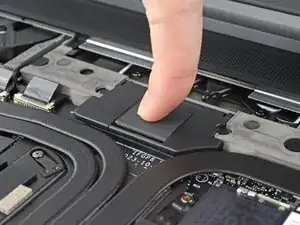
    • Close the interposer door.

  50. 1uOUECOFI5DgNkT1
    1uOUECOFI5DgNkT1
    MDnfnN4Kbc3BVytc
    QIYI5bfaG4BABOMY
    • If you have the Graphics Module installed, your interposer will have four screws. If you have the Expansion Bay Shell installed, you'll have three screws instead.

    • If you have the Graphics Module, use your Framework Screwdriver to tighten the four captive T5 Torx screws securing the interposer.

    • If you have the Expansion Bay Shell, use your Framework Screwdriver to tighten the three captive T5 Torx screws securing the interposer.

    • Close the interposer door.

  51. XRFliQnLmIASWZoT
    XRFliQnLmIASWZoT
    4aKZ5YUfYYwMJnA3
    • Place the interposer over its spot between the Mainboard and the module.

    • Depending on if you're installing a Graphics Module or the Expansion Bay Shell, the interposer should be oriented so either rubber grommets or metal tabs cover the Expansion Bay screws.

  52. vDRVlx6RISCSiUcm
    vDRVlx6RISCSiUcm
    XN3g1sFD65EmNgXE
    • Use your Framework Screwdriver to tighten the two captive T5 Torx screws securing the Expansion Bay Module.

  53. fBJ2bmmBascXHxYK
    fBJ2bmmBascXHxYK
    bSDEVdYXNbEIByCp
  54. lyOMJIkRgGOG6ULX
    lyOMJIkRgGOG6ULX
    LQOHABFS5VyvFRCH
    j3edcaaWFAt2sokZ
    • Rotate the Wi-Fi Module back into place, making sure the antenna cables wrap around their silver peg on the Mainboard and tuck underneath the heat sink.

  55. SS2bULQ23IsTOm2o
    SS2bULQ23IsTOm2o
    2XTVvOkBXOFn43Wh
    • Hold the Wi-Fi module by its edges. Don't touch the gold contacts with your fingers. If you do, wipe the contacts with a clean, lint-free cloth to remove any finger oils.

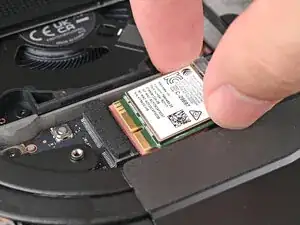
    • Align the Wi-Fi module's gold contacts and notch with the socket on the Mainboard.

    • Insert the Wi-Fi module into the socket at a shallow angle. The gold contacts should mostly be covered by the socket.

    • The Wi-Fi module fits into the socket in one orientation. If it doesn't fit, try flipping the module.

  56. epKeAwyoRyWcIuW3
    epKeAwyoRyWcIuW3
    huoEkjXWbdBTGrOf
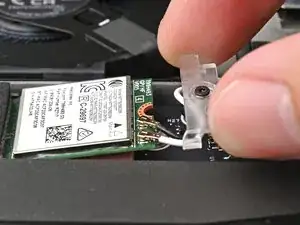
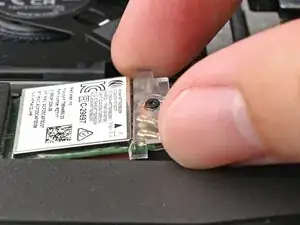
    • Slide the clear Wi-Fi module cover on the module and align its screw with the screw hole cutout.

  57. A1CM2gmd3hSLE6DG
    A1CM2gmd3hSLE6DG
    5HErtJZPrpTFLVsx
    • Use your Framework Screwdriver to tighten the captive T5 Torx screw securing Wi-Fi module.

  58. AByOSaSGNlVLIcDS
    AByOSaSGNlVLIcDS
    PbmorahoRBeSZsFF
    MbMGDIbNab6pQNsr
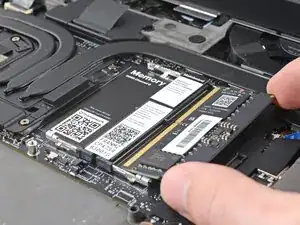
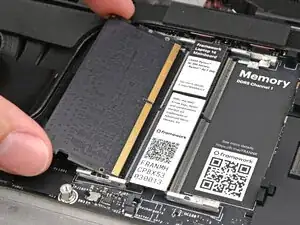
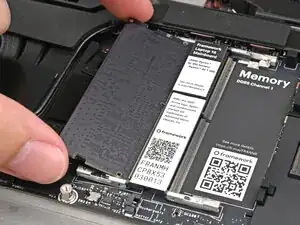
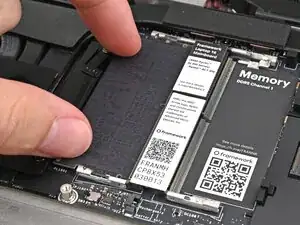
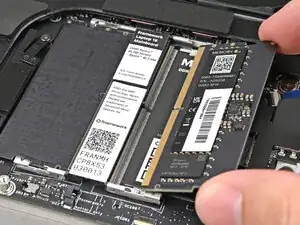
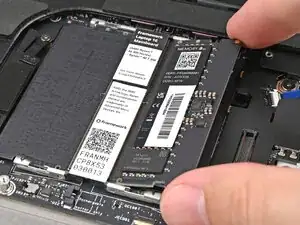
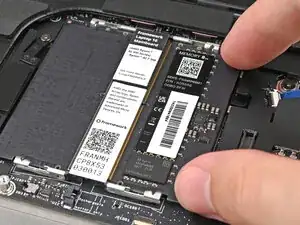
    • Hold the memory module by its edges. Don't touch the gold contacts with your fingers. If you do, wipe the contacts with a clean, lint-free cloth to remove any finger oils.

    • Orient the module with its label facing down and align the gold contacts with the left socket labeled DDR5 Channel 0.

    • Insert the contact edge into the socket at a shallow angle. The gold contacts should mostly be covered by the socket.

    • Press the edges of the memory module down until the side clips lock it in place.

  59. XMVpBb5uNBAUTIxM
    XMVpBb5uNBAUTIxM
    hEf1KpMQXcs3LCtU
    X4b4wuMSIKRLPhwa
    • Repeat the previous step for the other socket labeled DDR5 Channel 1, except orient the module so its label is facing upward.

  60. 6NbvZM3FPmGvIpyl
    6NbvZM3FPmGvIpyl
    dPFGYPXtIdLILNJo
    D2Gs1ivUKZxw2Jme
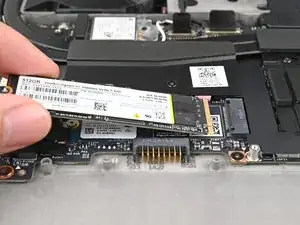
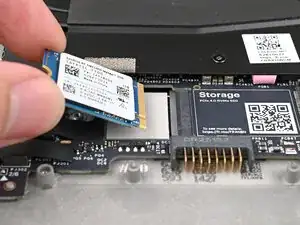
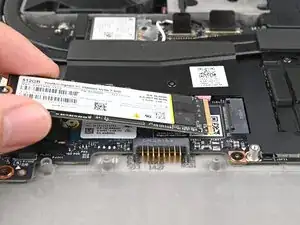
    • Hold the SSD by its edges. Don't touch the gold contacts with your fingers. If you do, wipe the contacts with a clean, lint-free cloth to remove any finger oils.

    • Align the SSD's gold contacts with its socket.

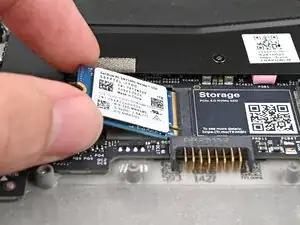
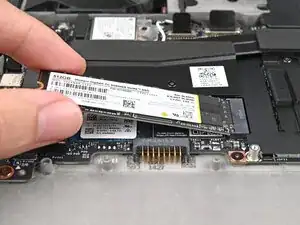
    • Insert the SSD partially into the socket at a shallow angle. You should still be able to see most of the gold contacts.

    • Press the SSD flat to the Mainboard.

  61. 5EsXALPSrPkdTeJy
    5EsXALPSrPkdTeJy
    kcylhWOahBSZRMTt
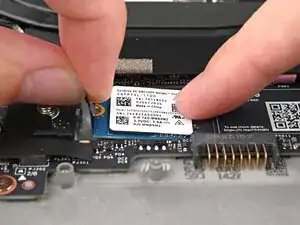
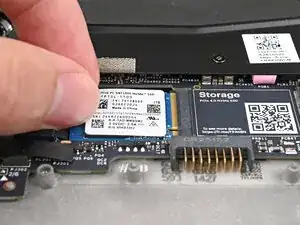
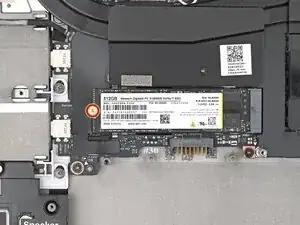
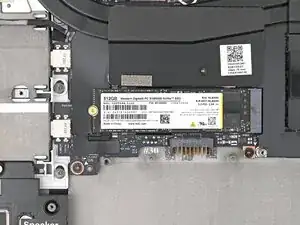
    • While keeping the SSD flat to the Mainboard, push it into its socket until its golden contacts are completely covered.

  62. QUypHpydThfjWERJ
    QUypHpydThfjWERJ
    vodkrnHmaS3Icm6r
    • Use your Framework Screwdriver to install the 2 mm‑long T5 Torx screw securing the SSD.

  63. D6ypw3dUmvOMyadC
    D6ypw3dUmvOMyadC
    kGABRpwu4LjLXS6Y
    • Hold the SSD by its edges. Don't touch the gold contacts with your fingers. If you do, wipe the contacts with a clean, lint-free cloth to remove any finger oils.

    • Insert the SSD into the socket at a shallow angle. The gold contacts should mostly be covered by the socket.

    • The SSD fits into the socket in one orientation. If it doesn't feel like it fits, try flipping the module.

  64. puWoWsKEkoASEnsf
    puWoWsKEkoASEnsf
    etsemZEYSNiyDQPR
    AeBkMxmDr5PfKxIS
    • While holding the SSD flat to the Mainboard, use your Framework Screwdriver to install the 2 mm‑long T5 Torx screw securing the SSD.

  65. gpChwnVnqJyxQRpx
    gpChwnVnqJyxQRpx
    ud2DNOciiYIUDaRP
    yEPZfqNQiVx5To4N
    • Align the battery connector over its socket and lay the battery into its well.

    • Lightly press the battery down to connect it.

  66. 1OA35gjE6BFfjjaY
    1OA35gjE6BFfjjaY
    6QuZOpyj6LH5dvVQ
    • Use your Framework Screwdriver to tighten the three captive T5 Torx screws securing the battery.

  67. WNXCOLdJxWygeIlt
    WNXCOLdJxWygeIlt
    KDQ5biLCZamuGX4Z
    NtmyYbY1tlXxr6YA
    • Place the Mid Plate on the laptop, making sure it sits evenly on its alignment pegs.

  68. pqZIeK5rgaKTBWl4
    pqZIeK5rgaKTBWl4
    4spVx1SupfNvWdAX
    • Use your Framework Screwdriver to tighten the 16 captive T5 Torx screws in order (starting with 2) to secure the Mid Plate evenly.

  69. SHR1O2N1YLLv6ryr
    SHR1O2N1YLLv6ryr
    NTicb3BsOPOSLmwn
    • Align the Mid Plate cable press connector over its socket and press down to connect it.

  70. JyccFC2cavJAQkw2
    JyccFC2cavJAQkw2
    UBPFtlfVJwD5MG4C
    qDoJmL3yEaNiGyLv
    • Your Input Module(s) might be different, but the procedure to remove them is the same.

    • Align the top edge of the Input Module with the top edge of the laptop.

    • Lay the Input Module on the laptop and let the magnets pull the keyboard into place

    • Make sure the Input Module is seated properly on its alignment pegs and sits flush with the edges of the laptop.

    • Repeat for any remaining Input Modules.

  71. 2oPYqKStliPhyMNB
    2oPYqKStliPhyMNB
    Sa6jykktBZSuiFBK
    mSXYbDZf6nqTloeB
    • Align the top edge of the keyboard with the top edge of the laptop.

    • Lay the keyboard on the laptop and let the magnets pull the keyboard into place

    • Make sure the keyboard is seated properly on its alignment pegs and sits flush with the edges of the laptop.

  72. txabwTJGUoQxRsfP
    txabwTJGUoQxRsfP
    oHknFQArjUvTUTFW
    • Place the Touchpad Module flat on its cutout so its clips are properly aligned.

    • Press the Touchpad Module down and slide it into place so it lines up evenly with the bottom edge of the laptop.

  73. YtqHYbylGARTxNWj
    YtqHYbylGARTxNWj
    cn3jxBl4L54daGYU
    lDt3Lk11ppl6IDoJ
    • Place the Touchpad Spacer over its spot on the laptop with the bottom edge overhanging slightly.

    • Slide the Touchpad Spacer towards the top of the laptop to secure it.

    • Repeat the same procedure for the other Touchpad Spacer.

  74. tiRuQKtLf5CEeB1o
    tiRuQKtLf5CEeB1o
    KIADBeXsLRFTqWIS
    IkUHVd6uW3V4NXVd
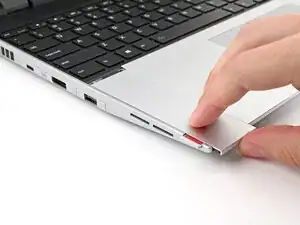
    • Push the Input Module latches back into place to lock them.

  75. iEs6VKFOkyM4NNCi
    iEs6VKFOkyM4NNCi
    2hOtgBBYDiSKmnRI
    • Close the laptop and flip it over.

  76. qpDuiK2sEjLdVDiE
    qpDuiK2sEjLdVDiE
    n1mKADaHXEyTVKC6
    bmfsPhStROdf2CbS
    • Slide an Expansion Card into an Expansion Card slot.

    • You don't need to unlock the latch to install the Expansion Cards—only when you want to remove them.

    • The Expansion Cards should click into place, and the front edge should be flush with the laptop.

    • Repeat for all remaining Expansion Cards.

  77. qMfBbabm2wLgpdQJ
    qMfBbabm2wLgpdQJ
    1rtOWyvkfisACuOU
    • Use your finger to flip both latches and lock the row of Expansion Cards above them.

  78. eS3bQOMDJ51BWdP5
    • If you're installing a new Graphics Module, check out this page to install the associated driver bundle.

Conclusão

You finished fixing your Framework Laptop!

Take your e-waste to an R2 or e-Stewards certified recycler.

If you need help, contact Framework support.

Alex Diaz-Kokaisl

Membro desde: 16/01/22

227430 Reputação

0 comentários