Introdução
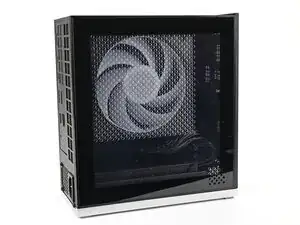
Congratulations on getting the Framework Desktop DIY Edition! Follow this quick start guide to assemble your Desktop and get it running.
Ferramentas

-
-
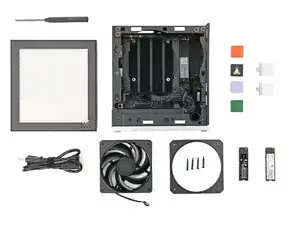
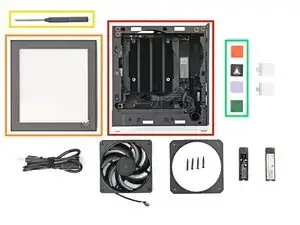
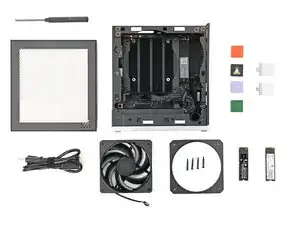
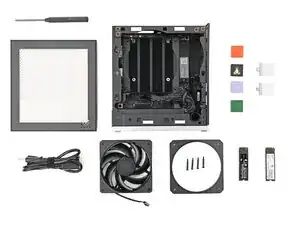
Framework Desktop chassis with pre-installed Mainboard, Heatsink, Power Supply, Top Panel, and Front Panel
-
Left Panel—either the Black or Translucent version
-
Framework Desktop Screwdriver
-
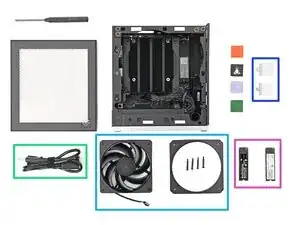
At least 21 Tiles for the Front Panel
-
-
-
AC Cable
-
Your choice of Fan and Mounting Kit
-
Expansion Card(s)
-
Primary and Secondary Storage
-
-
-
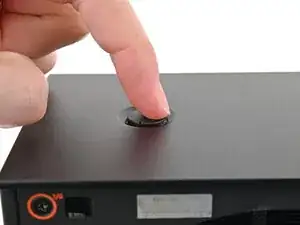
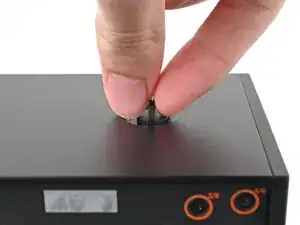
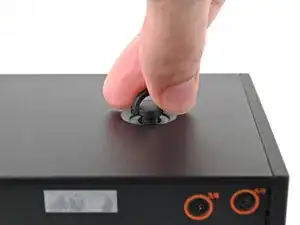
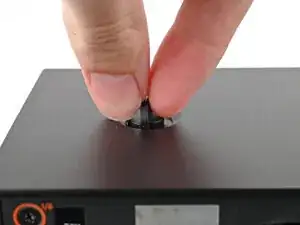
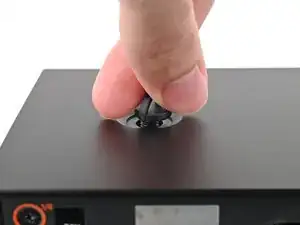
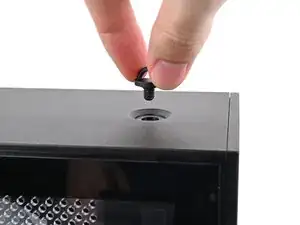
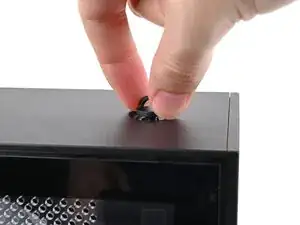
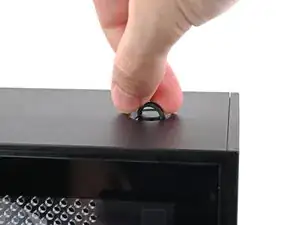
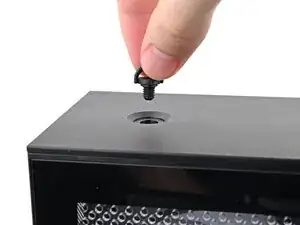
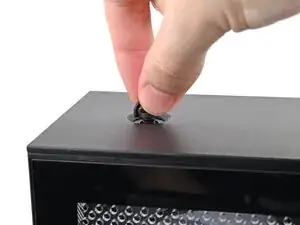
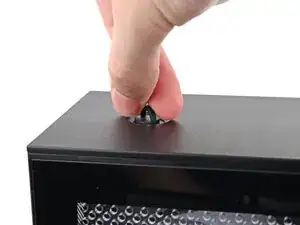
Use your fingers to twist the screw counter-clockwise and loosen it.
-
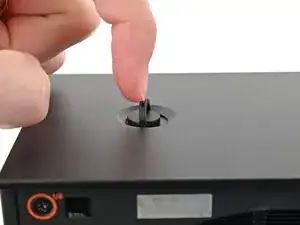
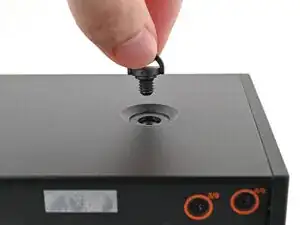
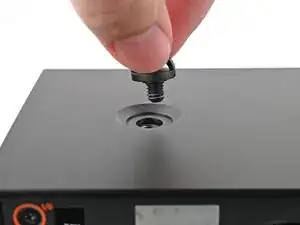
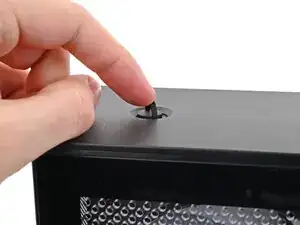
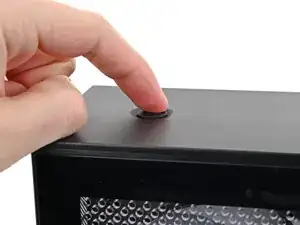
Remove the Top Panel screw.
-
-
-
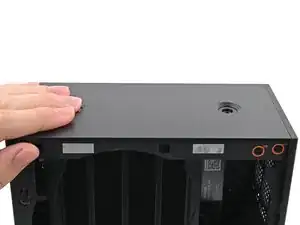
Slide the Top Panel towards the rear of the computer to release the clips securing it to the chassis.
-
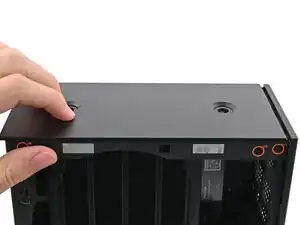
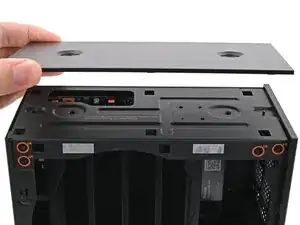
Lift the Top Panel off the chassis and remove it.
-
-
-
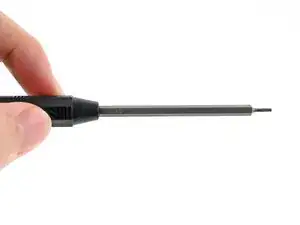
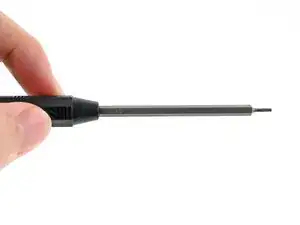
Make sure your Framework Desktop Screwdriver has the T5 Torx bit (labeled as T5) facing outwards. If it's not, pull the bit out and flip it.
-
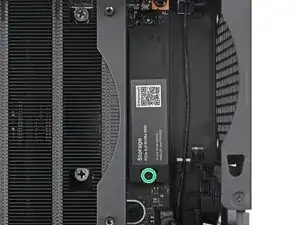
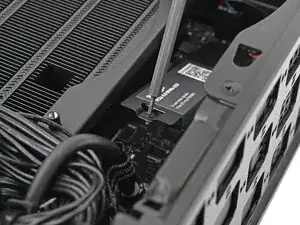
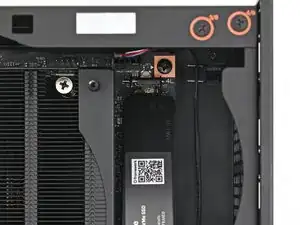
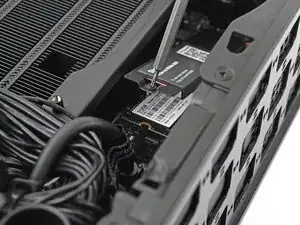
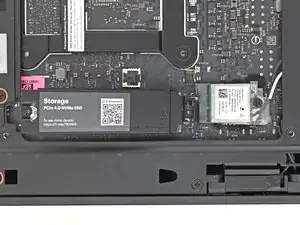
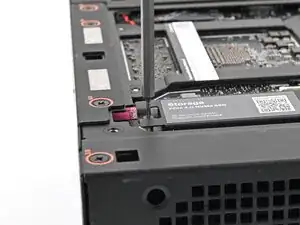
Use your Framework Desktop Screwdriver to loosen the captive screw T5 Torx securing the primary storage heat spreader.
-
-
-
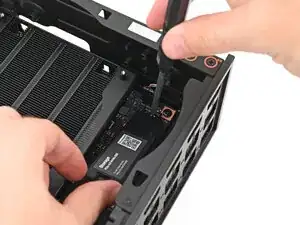
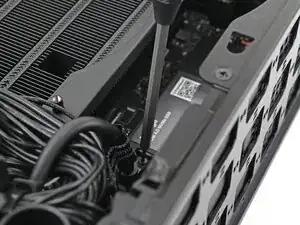
While securing the primary storage heat spreader with one hand, use your Framework Desktop Screwdriver to remove the 4.5 mm‑long T5 Torx screw securing it.
-
-
-
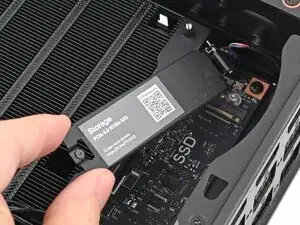
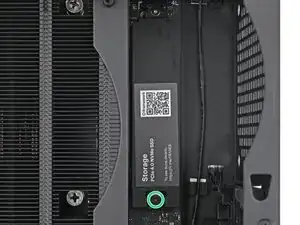
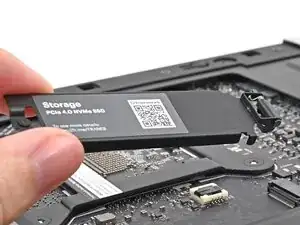
Lift the primary storage heat spreader out of the Desktop and remove it.
-
Follow the guide normally, making sure to ignore instructions that involve the primary storage heat spreader.
-
-
-
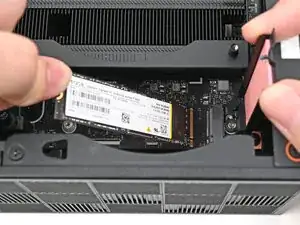
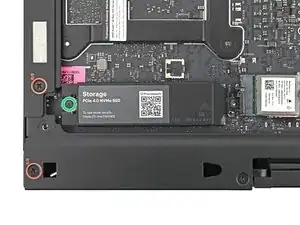
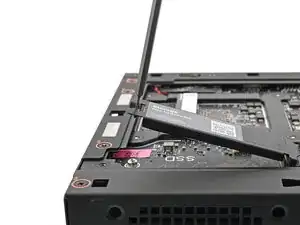
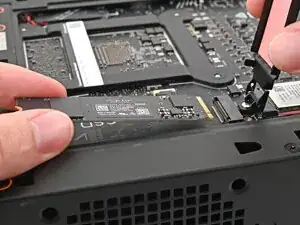
While holding the heat spreader upright, align the SSD's gold contacts with its socket.
-
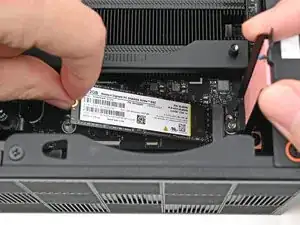
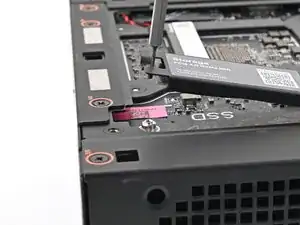
Insert the SSD into the socket at a shallow angle. The gold contacts should mostly be covered by the socket.
-
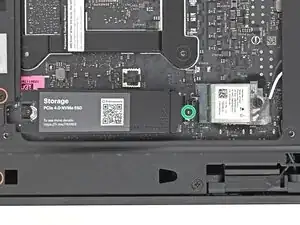
Lay the heat spreader back onto the SSD.
-
-
-
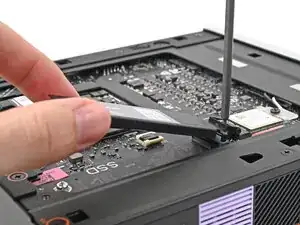
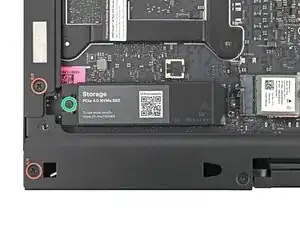
Insert your Framework Desktop Screwdriver into the captive screw on the primary storage heat spreader and press it flat to the Mainboard.
-
Tighten the screw securing the primary storage.
-
-
-
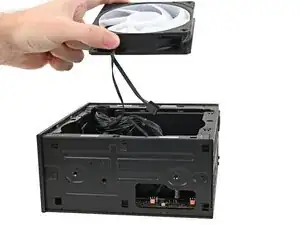
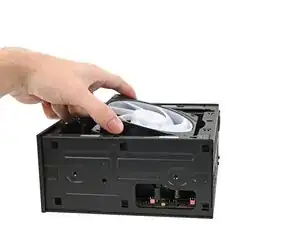
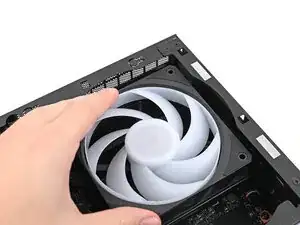
Orient the fan so its label is facing downward and the cable(s) is pointing towards the top of the computer.
-
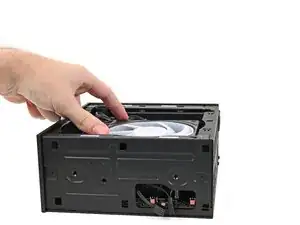
Lay the fan on top of the heatsink, making sure the cable(s) are routed so they poke out of the hole on the top of the computer.
-
-
-
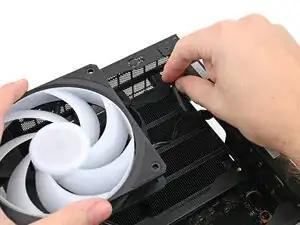
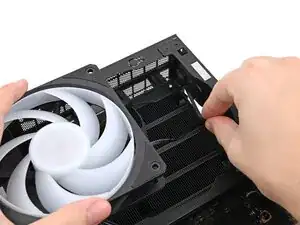
If the cable(s) aren't routed properly, lift the fan up slightly and use your fingers to reposition the cables over the side of the heatsink.
-
-
-
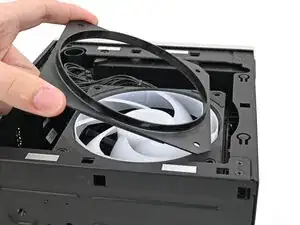
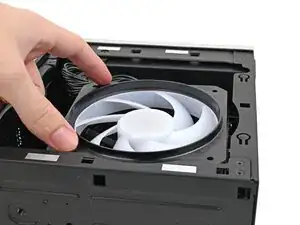
Lay the fan duct on top of the fan with the lip facing upward.
-
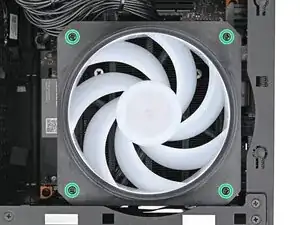
Align the screw holes on the fan duct with the ones on the fan.
-
-
-
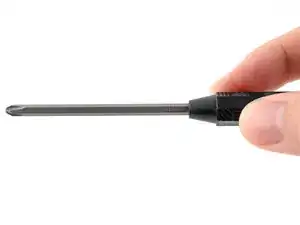
Make sure your Framework Desktop Screwdriver has the Phillips #2 bit (labeled as PH2) facing outwards. If it's not, pull the bit out and flip it.
-
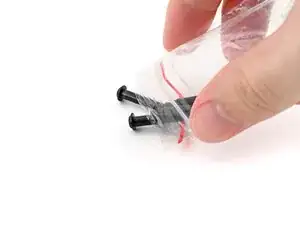
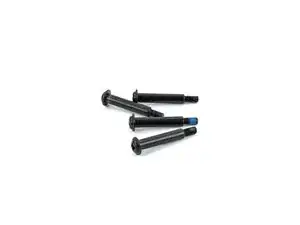
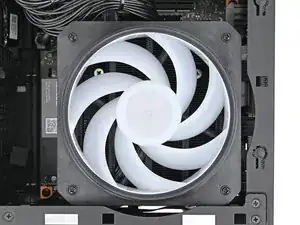
Use your Framework Desktop Screwdriver to install the four 27.3 mm‑long Phillips screws securing the fan and fan duct.
-
-
-
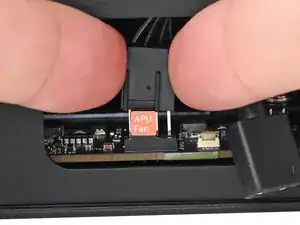
Orient the main fan cable so its two vertical lines are facing you.
-
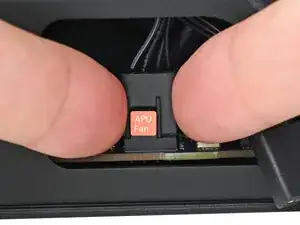
Slide the main fan cable over the four-pronged connector labeled "APU Fan," making sure the orange label slots between the vertical lines.
-
-
-
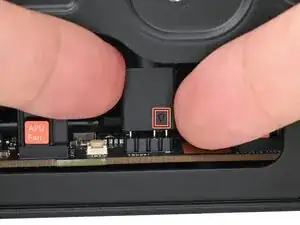
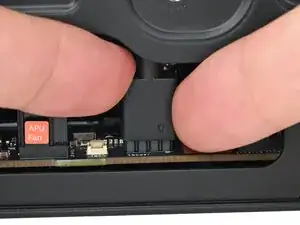
Orient the RGB cable so the arrow is on the right side of the connector.
-
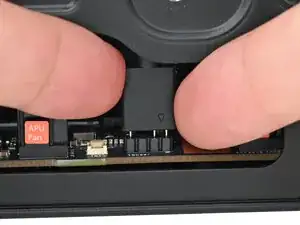
Use your fingers to slide the RGB cable over the three pronged connector located to the right of the "APU Fan" connector.
-
-
-
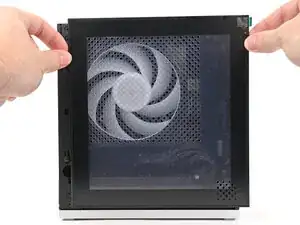
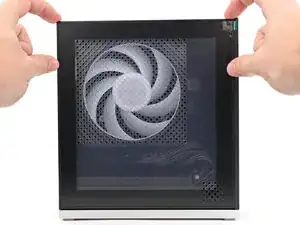
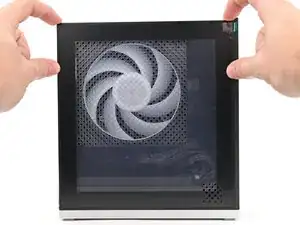
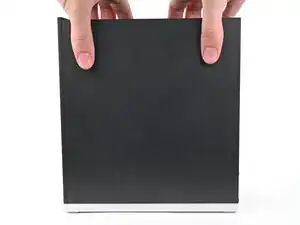
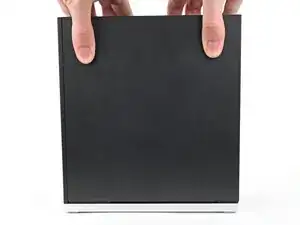
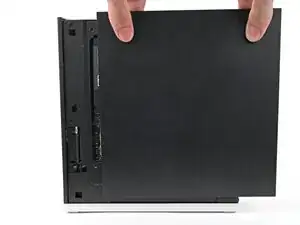
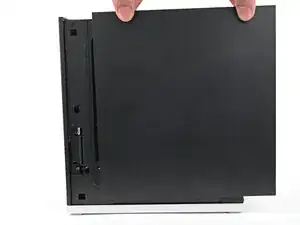
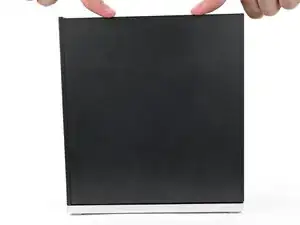
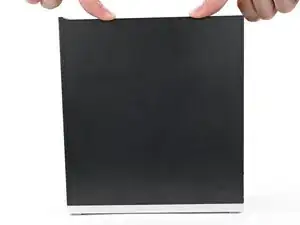
Slide the Left Panel onto the left edge of the chassis, from top to bottom, and press it flat to ensure its clips are slotted into place.
-
Push the Left Panel towards the base of the computer to engage the clips.
-
-
-
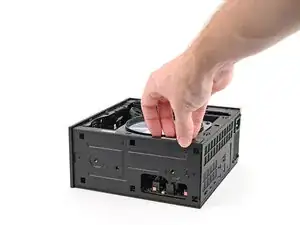
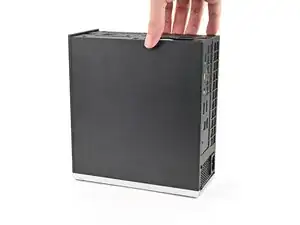
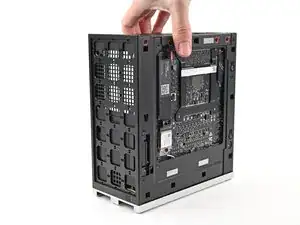
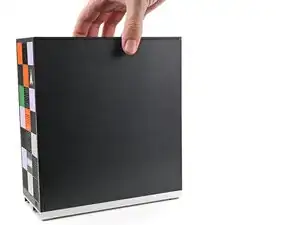
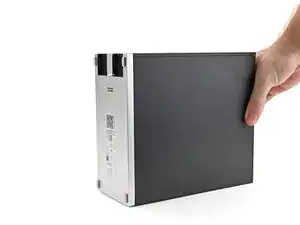
Use your fingers to grip the top of the Right Panel and slide it upward to release its clips.
-
Remove the Right Panel.
-
-
-
Make sure your Framework Desktop Screwdriver has the T5 Torx bit (labeled as T5) facing outwards. If it's not, pull the bit out and flip it.
-
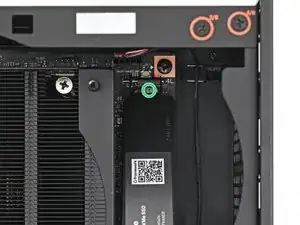
Use your Framework Desktop Screwdriver to loosen the captive T5 Torx screw securing the secondary storage.
-
-
-
While securing the secondary storage heat spreader with one hand, use your Framework Desktop Screwdriver to remove the 4.5 mm‑long T5 Torx screw securing it.
-
-
-
Lift the secondary storage heat spreader out of the Desktop and remove it.
-
Follow the guide normally, making sure to ignore instructions that involve the secondary heat spreader.
-
-
-
While holding the heat spreader upright, align the SSD's gold contacts with its socket.
-
Insert the SSD into the socket at a shallow angle. The gold contacts should be mostly covered by the socket.
-
-
-
Insert your Framework Desktop Screwdriver into the captive screw on the secondary storage heat spreader and press it flat to the Mainboard.
-
Tighten the screw securing the secondary storage.
-
-
-
Slide the Right Panel onto the right edge of the chassis and press it flat to ensure its clips are slotted into place.
-
Push the Right Panel towards the base of the computer to engage the clips.
-
-
-
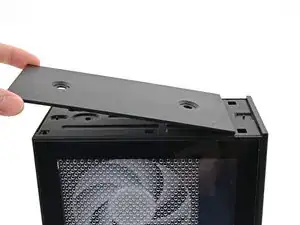
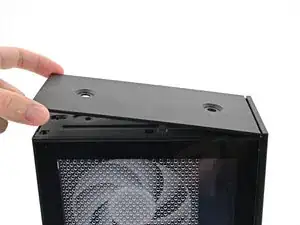
Orient the Top Panel so its arrow is pointing towards the rear of the computer.
-
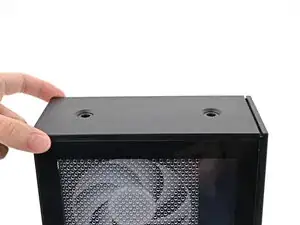
While holding the Top Panel at a slight downward angle, slide it across the top of the chassis (from rear to front) until you feel its clips catch.
-
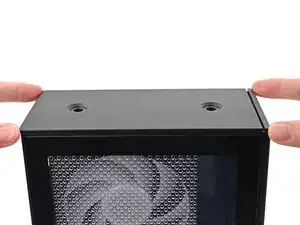
Lay the Top Panel flat on the chassis to align the remaining clips.
-
-
-
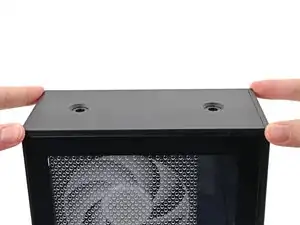
While securing the computer with one hand, use the other hand to slide the Top Panel towards the front of the computer and engage the clips.
-
-
-
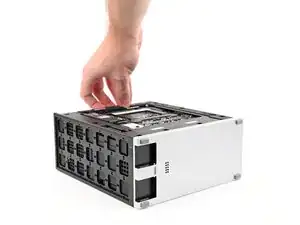
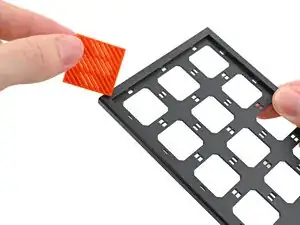
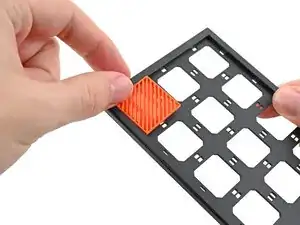
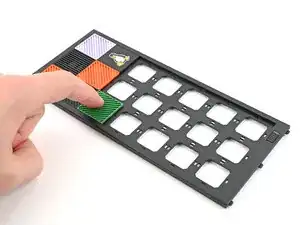
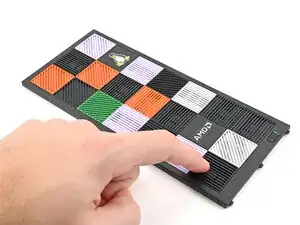
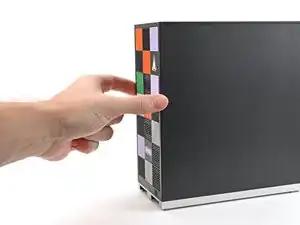
Lay a Tile over an open slot on the Front Panel.
-
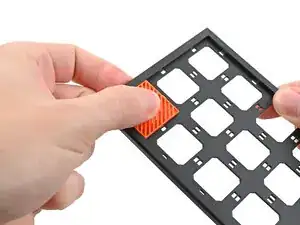
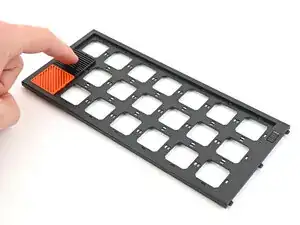
Use your fingers to press the tile into the slot and engage the clips.
-
-
-
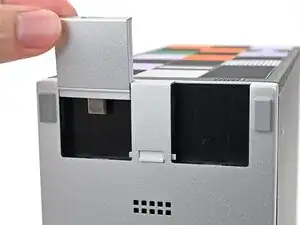
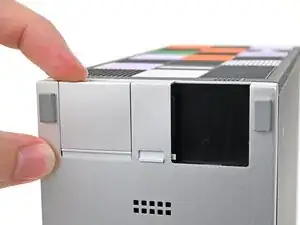
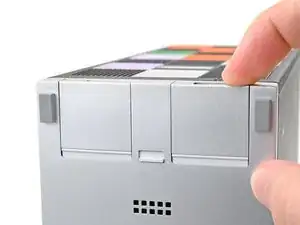
Slide an Expansion Card into an Expansion Card slot.
-
Repeat for the other Expansion Card slot.
-
-
-
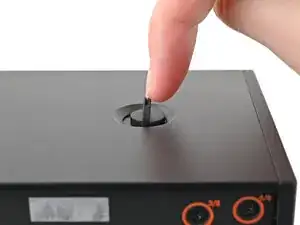
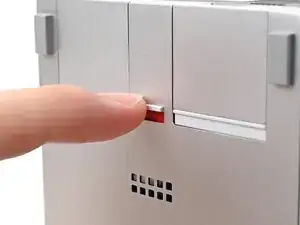
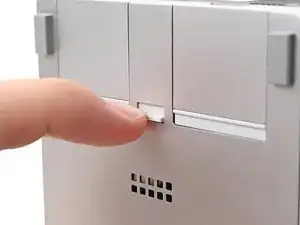
If there's a red bar showing under the Expansion Card latch, use your finger to flip the latch and lock the Expansion Cards into their slots.
-
-
-
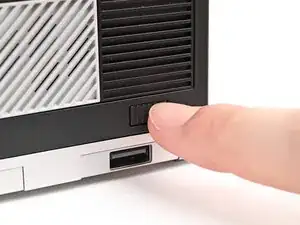
Press the power button on the bottom right of the Front Panel to turn the Desktop on.
-
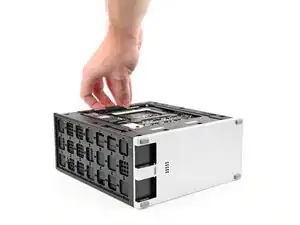
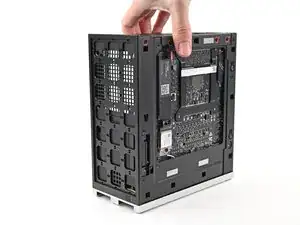
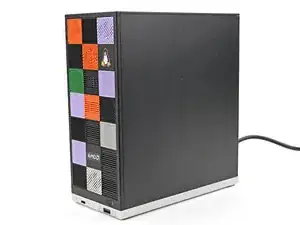
You're done assembling your Framework Desktop! Now, you'll need to install an OS.
-

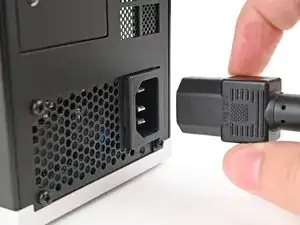
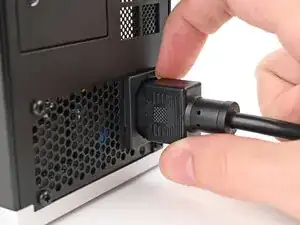
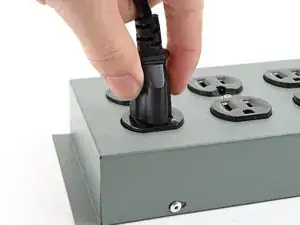
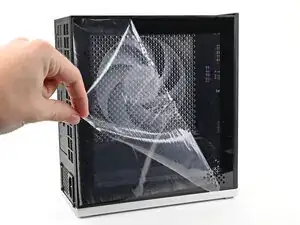
For drivers, firmware, and software updates, check out this page.
If you need help, contact Framework support.
