Introdução
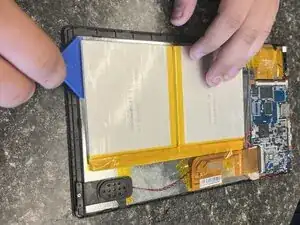
This guide will walk you through replacing the faulty battery in the Azpen A1045 tablet. If your device isn’t powering on, drains quickly, or overheats, these could be signs of a faulty battery. The battery is crucial for powering the device, and replacing it will restore normal functionality. Be sure to power off the tablet and disconnect the battery before starting the repair. Handle the battery with care, especially if it is swollen, as it can be hazardous.
Ferramentas


-
-
Power off the tablet by holding the side button for five seconds.
-
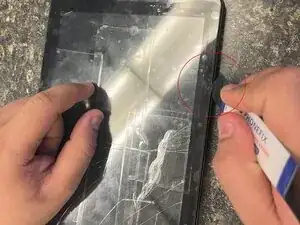
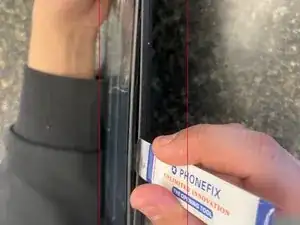
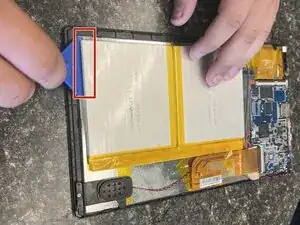
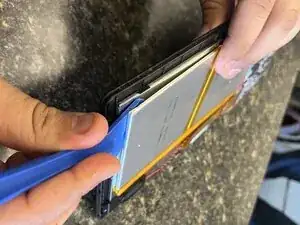
Insert an opening tool into one of the sides and lift until the screen comes off.
-
-
-
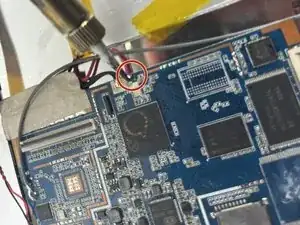
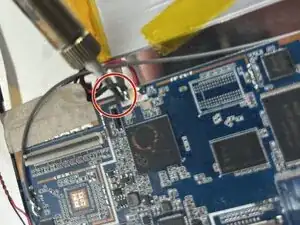
After heating your soldering iron, place it on the black wire and desolder it.
-
Repeat the same step for the red wire.
-
For more information on soldering, check out this guide.
-
To reassemble your device, follow these instructions in reverse order.
