Introdução
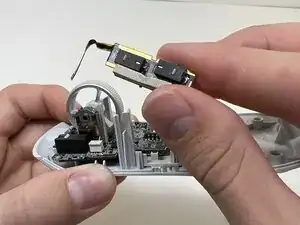
This guide will help you remove and replace the side buttons (often labeled M4 and M5) on your Alienware Pro Wireless Gaming Mouse (Model: PRO-MS and PRO-M-D).
The side buttons are the physical pieces your fingers press. They are essential as they function as Forward (front button) and Backward (rear button) in web browsers, but are mainly used for in-game commands.
This repair may be needed if the plastic buttons are cracked, snapped off, or keep popping out because their tiny internal clip is broken. If your buttons are "mushy" or "double-clicking," the problem is the switch underneath.
Before you begin, power off the mouse and disconnect it from any charger or device.
When you reassemble the mouse, make sure the ribbon line is facing the correct direction.


-
-
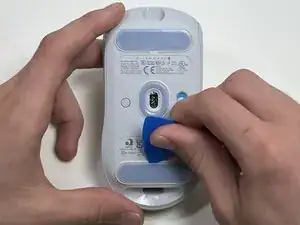
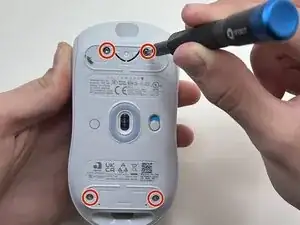
Flip the mouse over so the bottom is facing up..
-
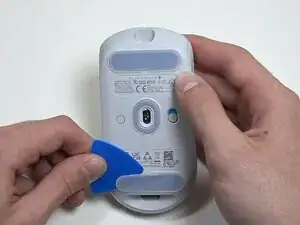
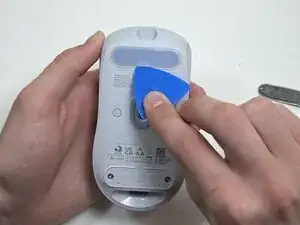
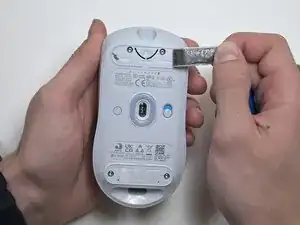
Use an opening pick to gently peel the mouse foot off the bottom case.
-
-
-
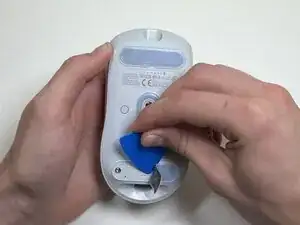
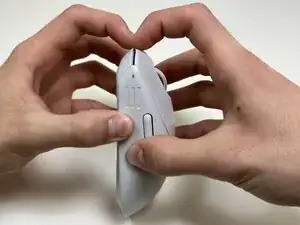
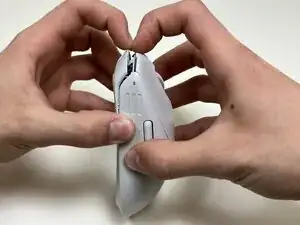
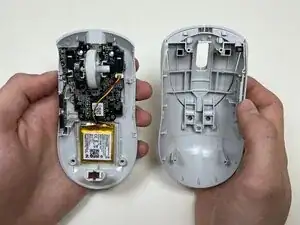
Use your hands or a spudger to separate the bottom and top of the mouse.
-
Insert the end of the spudger in the seam between the top and bottom case, and slide it around the perimeter to release the clips holding it together.
-
-
-
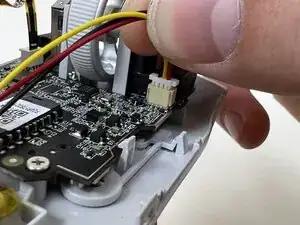
Use the pointed end of a spudger to push on alternating sides of the battery connector to "walk" it out of its socket.
-
-
-
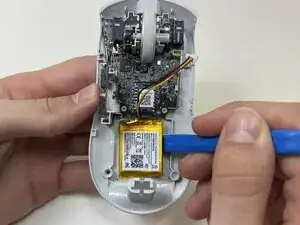
Use an opening tool or spudger to loosen the adhesive under the battery.
-
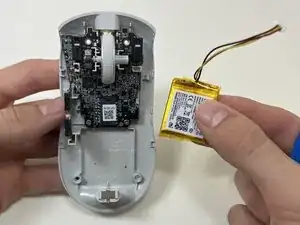
Remove the battery.
-
-
-
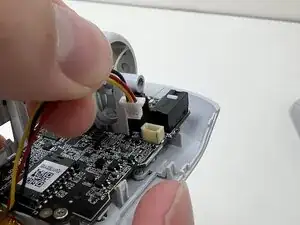
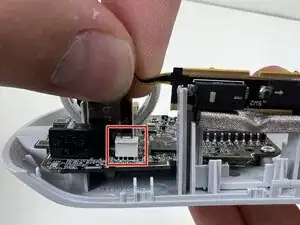
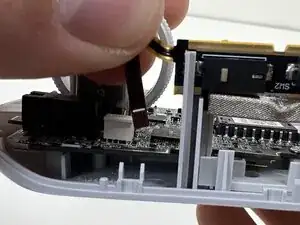
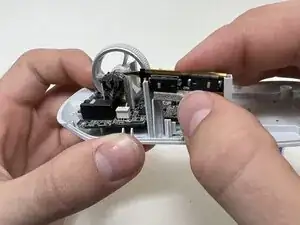
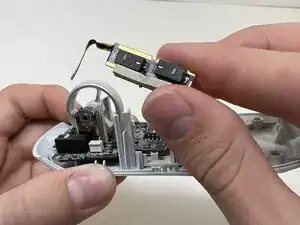
Pinch the upper part of the ribbon cable.
-
Pull the ribbon cable gently to detach it from the socket on the motherboard.
-
To reassemble your device, follow these instructions in reverse order. Take your e-waste to an R2 or e-Stewards certified recycler.