Introdução
This guide will walk you through the steps to safely remove and replace the scroll wheel on your Alienware Wireless Gaming Mouse (Model: PRO-MS and PRO-M-D).
The scroll wheel is the component you touch to scroll and acts as a third clickable button, which connects with the sensor of the circuit board to register movement. This replacement is typically necessary if the scroll wheel is cracked, damaged, or the grip has deteriorated/detached from the inner wheel.
Before attempting this repair, ensure the issue is physical and not an electronic failure. If your problem is inconsistent or "jumpy" scrolling without physical damage, it's likely not the scroll wheel itself, but likely dust in the electronic sensor called the encoder. Cleaning the encoder may resolve the issue without needing a full scroll wheel replacement.
Before you begin the repair, ensure the mouse is powered off. Proceed with patience and caution to avoid damaging compartments.


-
-
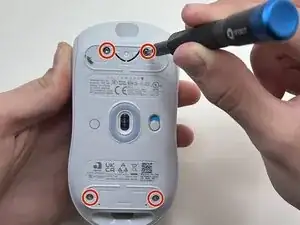
Flip the mouse over so the bottom is facing up..
-
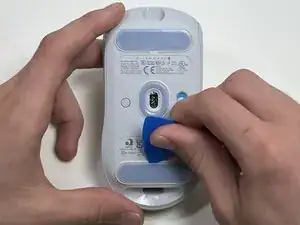
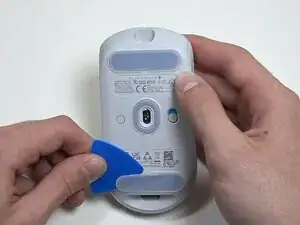
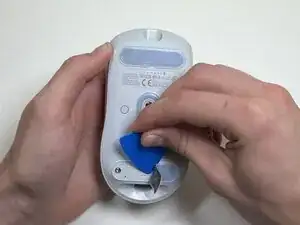
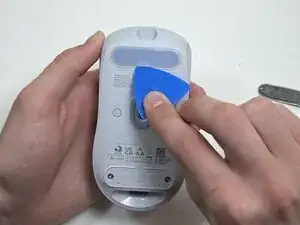
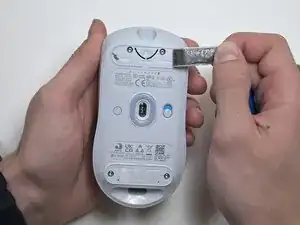
Use an opening pick to gently peel the mouse foot off the bottom case.
-
-
-
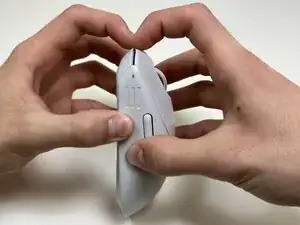
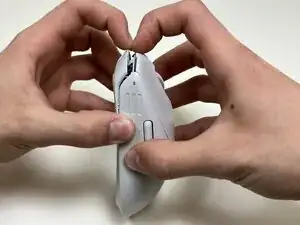
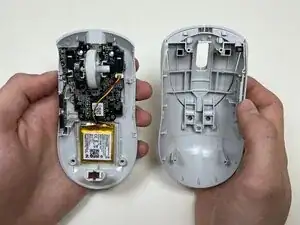
Use your hands or a spudger to separate the bottom and top of the mouse.
-
Insert the end of the spudger in the seam between the top and bottom case, and slide it around the perimeter to release the clips holding it together.
-
-
-
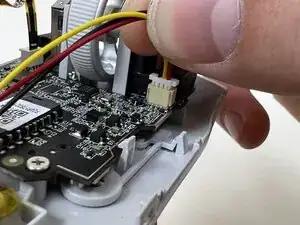
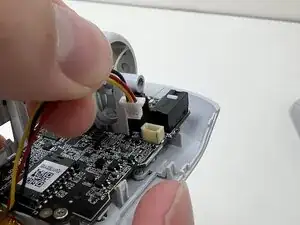
Use the pointed end of a spudger to push on alternating sides of the battery connector to "walk" it out of its socket.
-
-
-
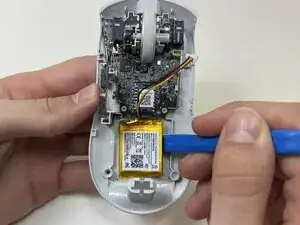
Use an opening tool or spudger to loosen the adhesive under the battery.
-
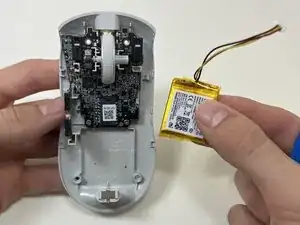
Remove the battery.
-
-
-
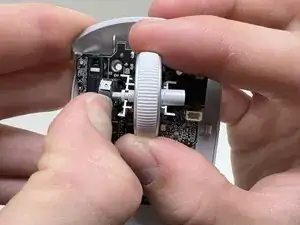
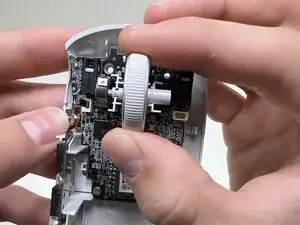
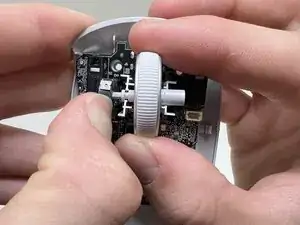
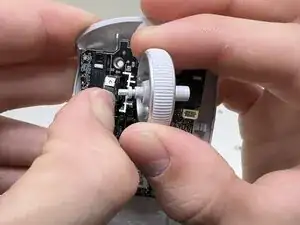
Hold the scroll wheel encoder steady and gently pull the scroll wheel to the right to remove it.
-
To reassemble your device, follow these instructions in reverse order. Take your e-waste to an R2 or e-Stewards certified recycler.