Introdução
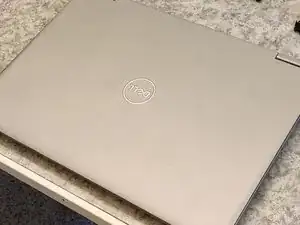
In this guide, you will learn how to teardown and disassemble a Dell Latitude 3310 Laptop. This guide requires minimal tools and is a medium difficult for tearing down the device due to the screw sizes used in the laptop and removal of parts.
NOTICE:
- Tearing down or disassembling your device may void your warranty. To check your device warranty, contact your manufacturer or visit their website
- This is a teardown guide for the full removal of components. This guide should not be used for repair and should be used as a reference for internal components


-
-
Make sure you have a clean desk space with plenty of room to separate components.
-
Ensure any devices or peripherals plugged into the laptop are removed and set aside.
-
Using the system dialog, power off the computer to prevent data loss.
-
-
-
Loosen and remove all ten (10) M2.5x5 screws.
-
Carefully remove the bottom plate of the laptop by prying it from the hinges and working around the edges.
-
-
-
Disconnect the battery cable from the motherboard.
-
Remove the four (4) M2x3 screws - there is one at each corner of the battery.
-
Lift away the battery and place it on a flat surface.
-
-
-
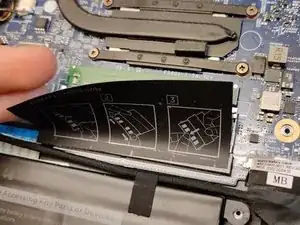
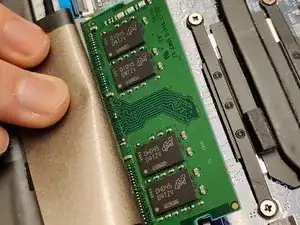
Remove the top of the sheet covering the RAM.
-
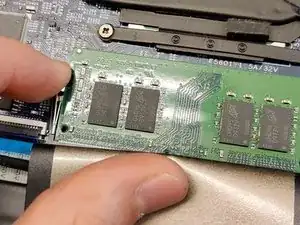
Press the metal rails aside with your fingertips.
-
Take the RAM out and place on a flat surface.
-
-
-
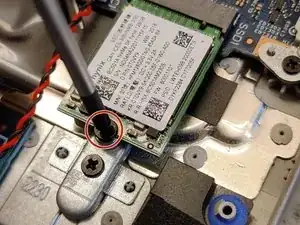
Remove the single (1) M2x3 screw.
-
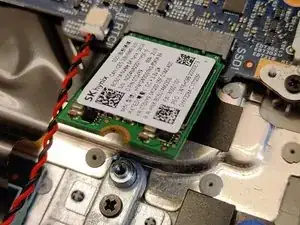
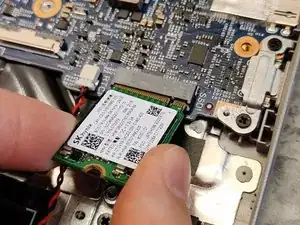
Wiggle the M.2 disk away from the motherboard, then set aside.
-
-
-
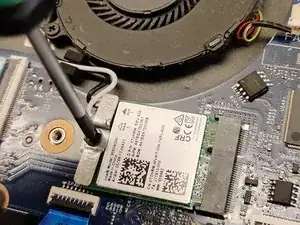
Remove the single (1) M2x3 screw.
-
Move the mounting plate aside.
-
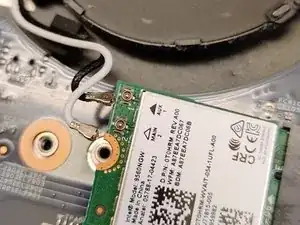
Disconnect the antennas.
-
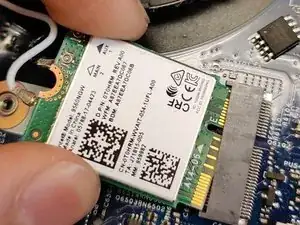
Wiggle the card away from the motherboard.
-
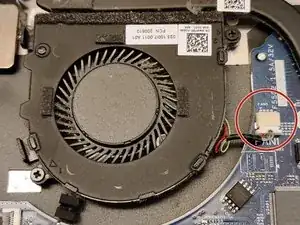
Rearrange the antenna cables for easier removal of the motherboard later.
-
-
-
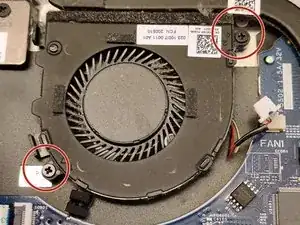
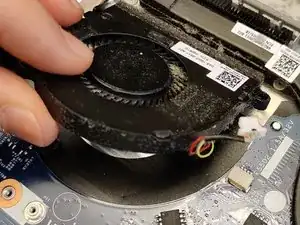
Disconnect the fan from the header.
-
Remove two (2) M2x3 screws.
-
Set the fan aside.
-
Take the opportunity to remove any dust from the fan.
-
-
-
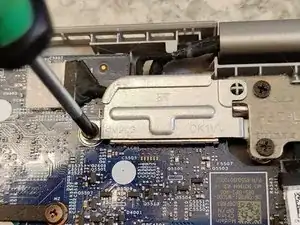
Remove one (1) M2x3 screw, lift the DP-cable mounting bracket, and set it aside.
-
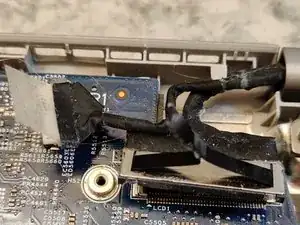
Disconnect both cables.
-
-
-
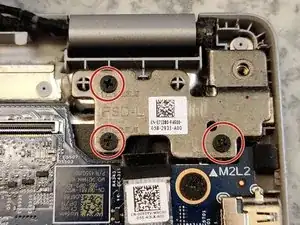
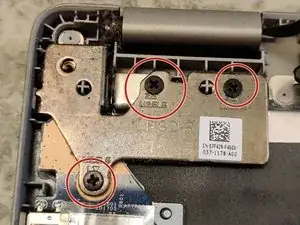
Remove the three (3) M2.5x5 screws.
-
Lift the metal brackets.
-
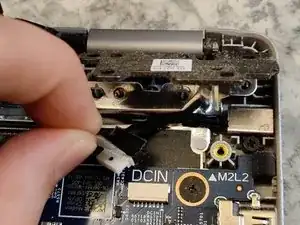
I usually do this by opening the laptop. Be careful while doing this to avoid lifting and bending the plastics under or back.
-
Then disconnect the DC-cable.
-
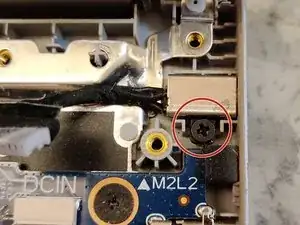
You can remove the DC-connector by removing this screw. There are no markings, but I'd say this one is M2x2.
-
-
-
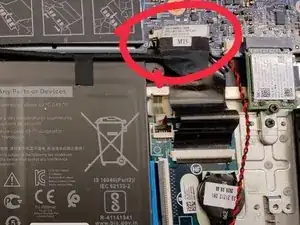
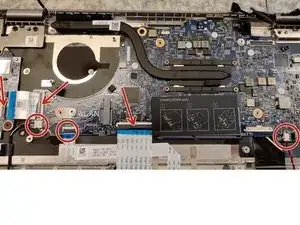
Disconnect the marked cables. Make sure to lift up the locking tabs with a plastic tool. The CMOS and speaker cables are disconnected by pulling on the white connector at the end of the cable.
-
Remove three (3) M2.5x5 screws and then lift the metal hinge.
-
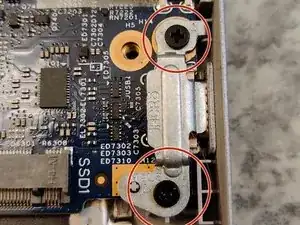
Remove two (2) M2x5 screws that hold the metal bracket over the USB-C connector, then set it aside.
-
-
-
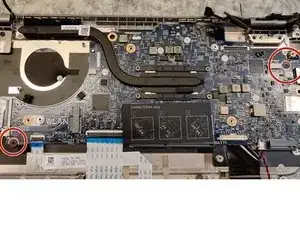
Remove two (2) M2x5 motherboard screws.
-
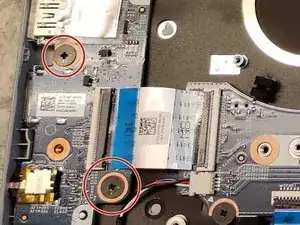
Remove two (2) M2x2 I/O-board screws.
-
Lift and remove the motherboard and I/O-board.
-
Place them on an anti-static mat or similar surface.
-
-
-
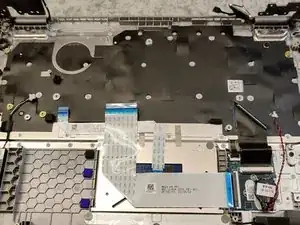
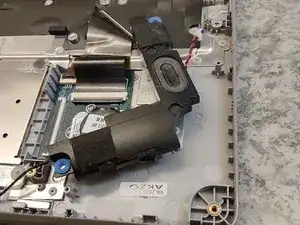
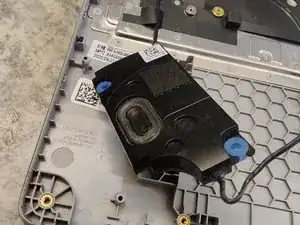
You can simply lift the speakers away and carefully wriggle out the cables.
-
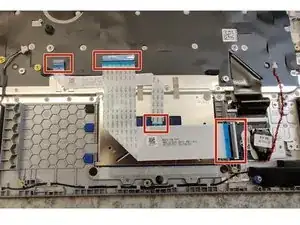
I disconnected and removed the MB (motherboard) to KB (keyboard) cable and MB to TP (trackpad) cable.
-
The CMOS battery is stuck to the frame with glue. The last cable goes to the keyboard that is hard mounted to the frame as well.
-
-
-
The keyboard is hard mounted to the armrest.
-
You should be able to lift the armrest up like one would open a laptop and then remove it from the screen.
-
The screen can be opened by prying around the edges of the frame and then removing four (4) M2x2 or smaller screws to replace the LCD screen.
-
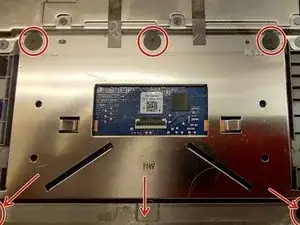
To reassemble your device, follow these instructions in reverse order.

Um comentário
Thank you, great help