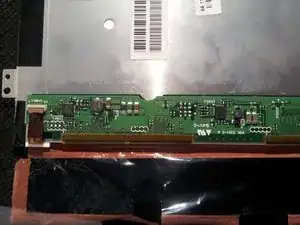
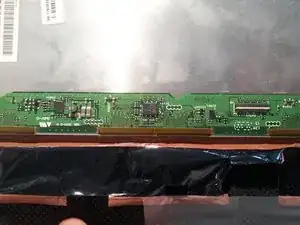
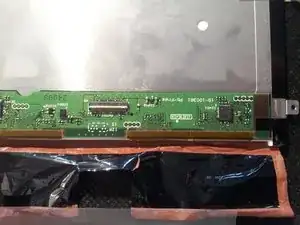
Introdução

  1. 3PxDKpNFVEZCqDOi
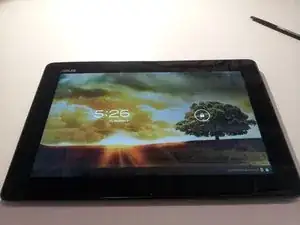
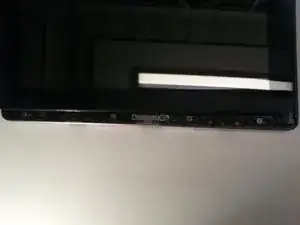
    • First, turn the power off

  2. g41MMX3dhkZXCxRy
    g41MMX3dhkZXCxRy
    ZvRASNCW4Qav5CQp
    knv2NMtVvTRyDMoa
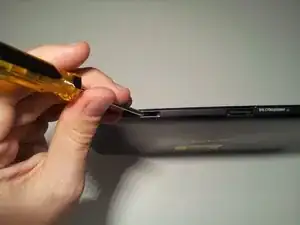
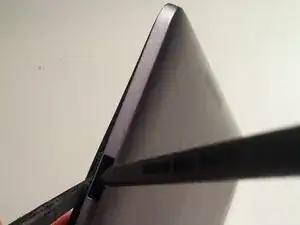
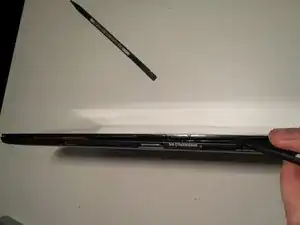
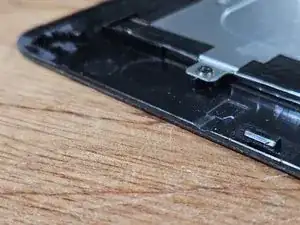
    • Insert a small flat head screwdriver into the 2 docking station guide ports on the bottom of the tablet.

    • Unlock screen casing tabs

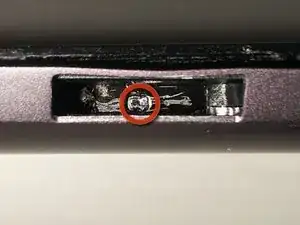
    • Push tab with screwdriver to the right until it clicks

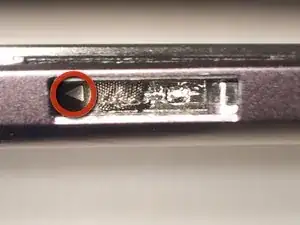
    • You should see a small arrow in the bottom of the port

    • Unlock the tabs in both docking station guide ports.

    Put the head of your small screwdriver into the small, almost circular hole in the tab, and push hard to the right.

    christopher -
  3. JCBGEDuFvSuZ2RUl
    JCBGEDuFvSuZ2RUl
    cVFW45IKOsaLNvi4
    PLMrI5LSEJDD5HMB
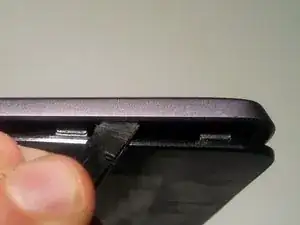
    • Use spudger to push upward on the small plastic tabs on top of the docking station guide ports.

    • Insert the flat side of another spudger to start freeing the bottom of the screen from the case.

    Great write up.

    On step 3.2 - I found a credit card to work effectively without damaging the locking tabs. Starting from the bottom near docking ports, slide card under screen and work your way around. No scratches, no damages tabs
    BAD -

    Great recommendation! I would like to add that you should angle your credit card (or used-up gift card) to be as normal to the screen (90 degrees) as possible when sliding the card around the sides. You are trying to push the aluminum case away from the screen edge for a smooth release.

    Skroob -

    Hi Did any one tear down the keyboard?

    Peter Lye -

  4. 2tMpDFX55WBrxARE
    2tMpDFX55WBrxARE
    MYKh6lKRlP5ESYrT
    XGMPu3pLd2YLh4GR
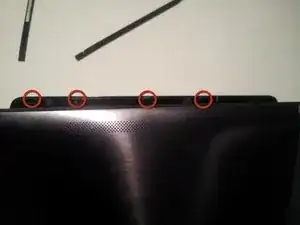
    • Use your spudger to open the four plastic tabs located on either side of the tablet.

    • These tabs are very fragile.

    • Remove the screen from the body

    Thank you for the great guide. I was able to preserve all 8 tabs. My recommendation : start with the bottom part starting from the keyboard ports (as indicated in the guide). Then go FIRST TO THE RIGHT SIDE of the screen (no ports there means it's easer to insert the spudgers), starting from the bottom obviously. Then finish with the left side.

    The glass is impressively resistant, so you can apply preassure to the case, you won't damage any of the two.

    Edouard Rossignol -

  5. iknUEN1VqGOCvOfe
    iknUEN1VqGOCvOfe
    AjWCVOSSsVYHe3FH
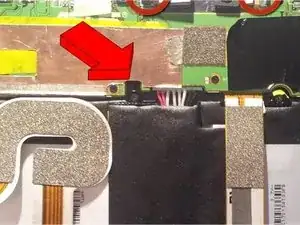
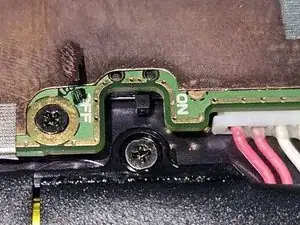
    • There is an internal power switch next to the battery connector, that will kill power to the entire device while you're working on it.

    • Don't forget to switch it back on when you're reassembling!

  6. iZcpifDfwHMcyhZw
    iZcpifDfwHMcyhZw
    dZKTIXVocS6IihNy
    L5ZIoJyreTbJZ4MI
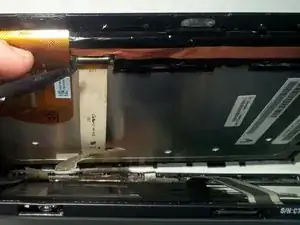
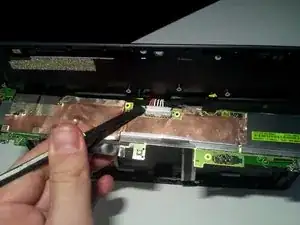
    • Use your spudger to release the two digitizer ribbon cables from the mainboard.

    • Located on the left side of the tablet between the micro-HDMI and the microSD slot.

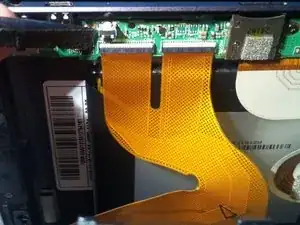
    • Use your spudger to release the LCD cable from the back of the LCD.

    • Set aside for later dissection.

  7. ypnJtj1jwtSfifx2
    ypnJtj1jwtSfifx2
    mtk2XtmADMKIj5Xn
    KBdAAOW2cPHbX4wI
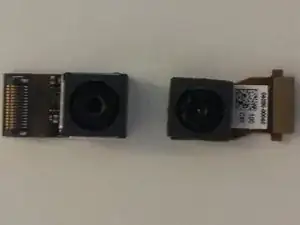
    • To remove the front facing camera (right):

    • Use your spudger to unlock the ribbon cable

    • Slide the camera out

    • To remove the rear facing camera (top):

    • Apply light lifting pressure to unplug it from it's socket

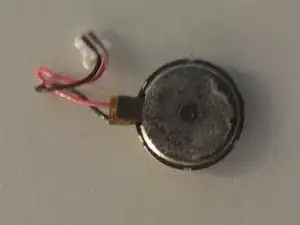
    • Remove the backup battery on the right side:

    • Unplug the cable from the motherboard with your spudger

    This thing is not a backup battery, it is the vibration motor / crystal, my TF700 was "vibrating" for long periods of time, I teared it down, removed it, turned it on again and the all the vibration was gone (even those that were ok, like moving from sound to vibration).

    Emerson Jr -

  8. 5XcQiYSAWtWkhhGZ
    5XcQiYSAWtWkhhGZ
    wRBkVPpkCWV53nKr
    VSsBsROJPSbIYKkv
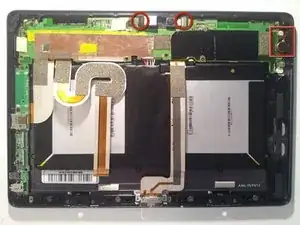
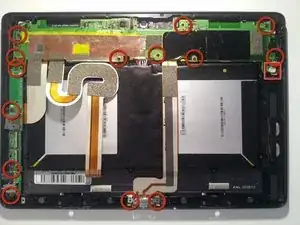
    • Remove the motherboard, daughterboard, and dock connector

    • Unscrew 14 points

    • Unplug the speaker from the motherboard before removing it

    • Reveal the battery connector:

    • Flip the motherboard from the top edge of the tablet down (towards the battery).

    • Unplug with light pressure from your spudger.

    • Disconnect the motherboard from the daughterboard:

    • Unlock the ribbon cable on the back side of the daughterboard

  9. bxTNKsahiRrkyjbI
    bxTNKsahiRrkyjbI
    sQJC4bEvL6vHuYgJ
    cTesCKLW5TRa5Gtj
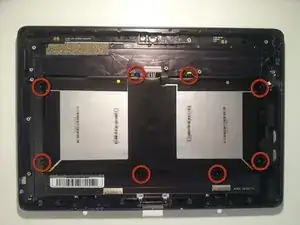
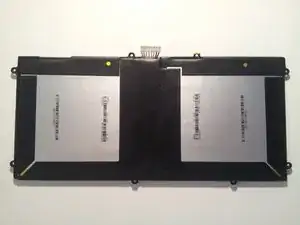
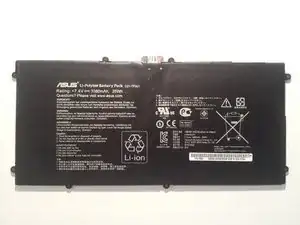
    • Remove the battery:

    • Remove screws (eight)

    • Use your spudger underneath the battery between the 2 cells to work it free

  10. xXbv6SWv24Gtn6fX
    xXbv6SWv24Gtn6fX
    iLWjV2C66LgSWAnI
    sw3LWekARBOBa3RC
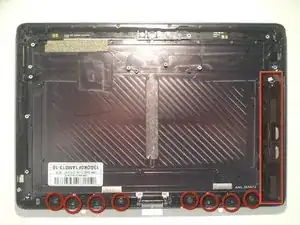
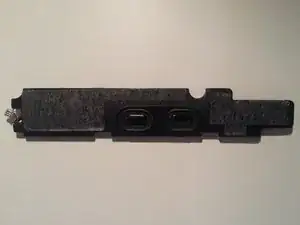
    • Remove the speaker:

    • Use your spudger underneath, and work it free

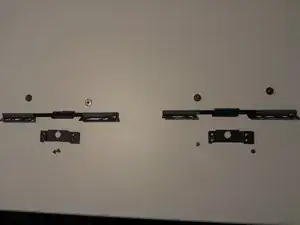
    • Remove the bottom screen locking mechanism:

    • Remove screws (eight)

    • Lift pieces out

  11. 2gCsSUOISfJyFOqP
    2gCsSUOISfJyFOqP
    iTTNiSdrdOHj6MK5
    b1TYiFUlJXdFbACx
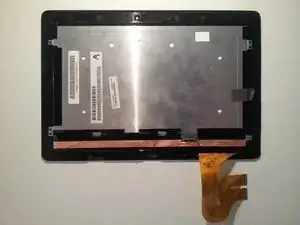
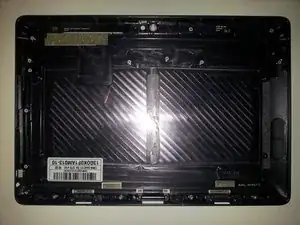
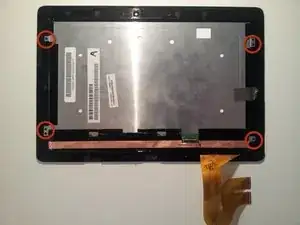
    • Now that we're left with a boring empty shell, let's return to the LCD assembly that we set aside in Step 5.

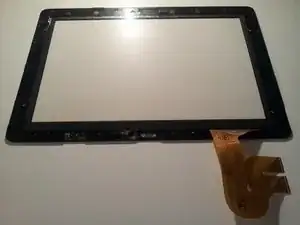
    • Remove the 4 screws. Then work your spudger underneath the edges of the LCD to separate it from the Gorilla Glass front. It has a light adhesive around all edges.

  12. wBfYDZOgZgvCRgDx
    wBfYDZOgZgvCRgDx
    UYaiea3WexVQGd3Q
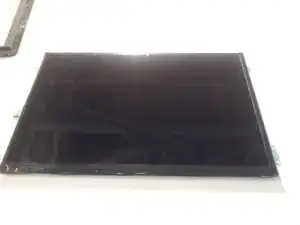
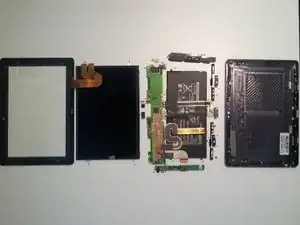
    • With the LCD free, you should now be able to lay it out in a big pile of parts and the teardown is complete. Now let's see what's under all those heatsinks and tape.

  13. M3PUZx1P2NLGerjK
    M3PUZx1P2NLGerjK
    HcNLmmW2VnboWnfx
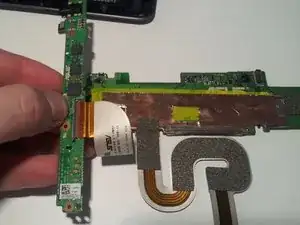
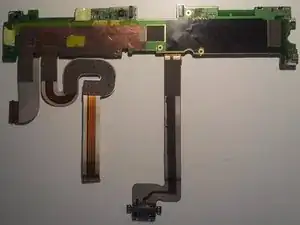
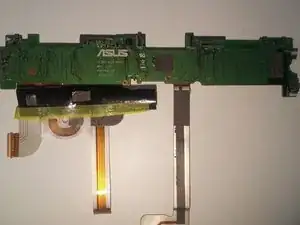
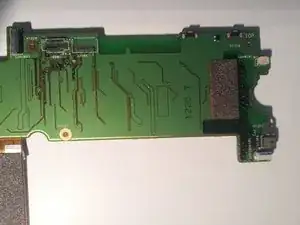
    • The back side of the motherboard

  14. GlEQkS4D2wdQCe44
    GlEQkS4D2wdQCe44
    lymwUqeM5sUm3ttZ
    1ZcUFYgSWJeHPlwM
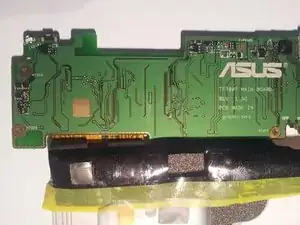
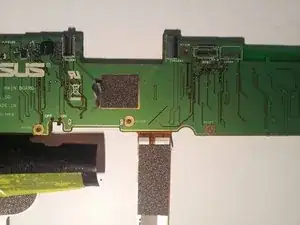
    • Motherboard backside closeups

  15. qUWjZoQSZfVI3aDg
    qUWjZoQSZfVI3aDg
    uSRNgEagurimVpGh
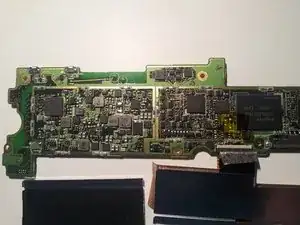
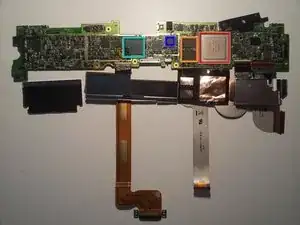
    • The front side of the motherboard is where all the action is.

    • Tegra 3 quad core processor T33-P-A3

    • 2x Elpida memory J4216EBBG-GNL-F

    • Realtek? ALCS631

    • Hynix H26M64002BNR e-NAND

  16. BAoCaINODOW3amnh
    BAoCaINODOW3amnh
    MHZKnMyJmRCfQwPn
    GqMVkJkYQGAmIWSr
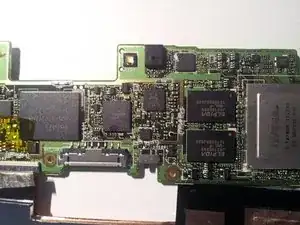
    • Front side motherboard closeups

  17. c4Q4SUJHmC1XQ2n3
    c4Q4SUJHmC1XQ2n3
    TvUaV6MhNwAAbCf2
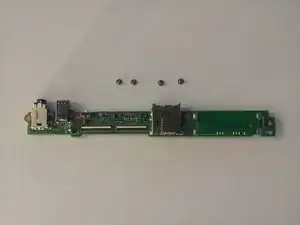
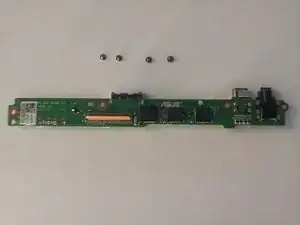
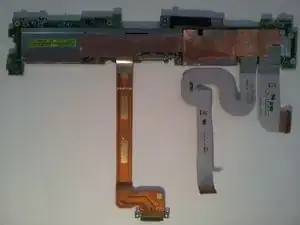
    • Front and back of the daughterboard.

  18. QLcGgVsaE2wFGuVh
    QLcGgVsaE2wFGuVh
    X3FZefVvlXesfpB4
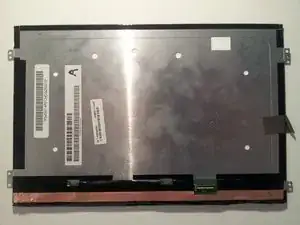
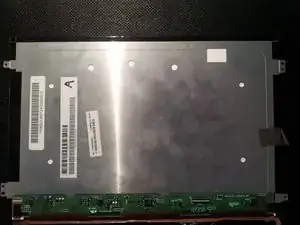
    • The back of the LCD.

  19. 4Zt12OhEvkfOiE6j
    4Zt12OhEvkfOiE6j
    UuXZqs4tMUORcdJm
    SjKbVxHjujSVtMih
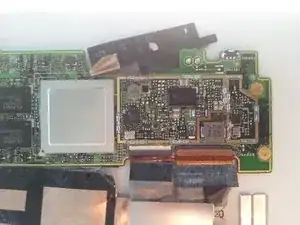
    • Close-ups.

    • That's all I've got. I apologize for any blurry pics as all I had on hand was my cell phone ( <3 Samsung Galaxy Note.) I hope your teardowns are far less destructive than mine was. Good Luck.

    • ...and yes, it still works after reassembly. Thanks for asking.

Matt

Membro desde: 30/08/12

497 Reputação

33 comentários

Does anyone know what the internal on/off switch does on the motherboard? Right next to the battery connector. How can you see that in a tear down and not mention it?

Jcortes1982 -

It is a master on/off switch. When the switch is flipped to the off position, the tablet will not operate. You can see the switch labels on the second picture of Step 13.

Matt -

Ya its for when your doing work inside the tablet your supposed to flick that off so you dont accidentally short anything. Like the on/off switch on your power supply on the back of your desktop

Jon Pileot -

Thanks for this teardown! Could the "mushy" power / volume buttons be due to poor placement of the buttons / board? Could slight nudging of the board in one direction or the other help the "mushy" buttons?

Jon Pileot -

Hi there, thank you very much for this teardown. I wanted to inquire if you were able to find out anything about the gyroscopes/accelerometers/GPS and other sensors during this. I'm doing a project and this would be very helpful information.

Johnathon -

Thanks so much for answering that. I did see that it was labelled "on/off" but wasn't sure what it switched. The best guess I could come up with was to completely override the cameras, like a factory set feature for corporate/gov purchases. Your answer makes much more sense.

Jcortes1982 -

There were severel TF 700 sold which show a not completely fixed display. In one ore more positions of the display you can press it slighty inwards and it "creaaks"

After seeing the broken tabs in step 4 I think that these tabs could also break during assembling in the factory. That would explain the creaking display. I wonder how they do it for repair at ASUS service if the tabs were that fragile (provided they have a service ;) )

Michael -

Does anyone where the motor for the haptic feedback and why it might make a clicking sound? I am thinking about tearing down my tf700 if it's just a matter or reseating the motor.

o0oelkabongo0o -

May I ask you what you have done about the broken tabs? Are there any spare parts available in any online store?

Michael -

Where can I find an LCD screen to replace my broken one. I just got my Asus Infinity Tablet the end of October and already dropped it

Brenda -

hey do you think it is possible to purchase elpida ram chips and increase the ram on the tablet? would be aweesome to have even 2 gb ram on this thing!

Andrew -

thanks

it looks like if you need to replace a SD card slot you will have to replace the complete daughter board, with several slots on it. do the usual warranty cover such cost?

sunny -

Great work with this teardown! Kudos and thanks. But while we are here has anyone found a place to purchase a battery for the Asus TF 700? I have spent hours searching and nothing so far!

Wayne -

Hi, in the Step 5, exactly, how to do to release the 2 digitizer ribbon?

Should I lift the piece of black color by the front or back?

or Should I slide the piece of black color?

Gonzalo Chacon -

You very gently lift the black tab from the ribbion side. If the black tab doesn't lift very easily, examine it very closely for about an hour. After careful consideration of how the piece may have been engineered, you could try to gently slide it towards the ribbion. If the black bar did manage to slide you should lift it gently up off of the ribbion. As you slide ribbion out take note of which way the contacts are facing if you plan on reassembling your device later.

mark -

Actually you lift ever so gently on the white half- to the rear of where the cables insert. Those things are so easy to break, & impossible to replace

Joseph Settergren -

Like Wayne I have been searching long & hard for a replacement battery. I even got ripped off by an eBay seller who listed a "NEW OEM" battery that looked like it had been run over by a truck! Does anyone know of a reasonably priced source for these batteries? Thanks! I

danpobrien -

I have seen many post about the TF700T wont lock into the dock any more, while you had it open could you see what might be the problem. Thanks and Thanks for a great guide.

Robert Crother -

Just replaced my battery (now available on eBay for around $25), and I only had to go to step 3, wiggle the old battery out, the new one in, and reverse, way easier than expected, thanks for the awesome write up! In order to avoid breaking tabs (I didn't break one, yay), using a good metal spudger (high quality, worth every penny, way thinner and stronger, and I haven't had an issue with scratching yet), and when you are separating the display from the case, pry the aluminum case outwards with one spudger while lifting the display glass up with the other. Comes out in about a minute easily. Thanks again for blazing the trail, especially the warning about the tabs, I may have given up and sold the thing as broken otherwise.

Mike Craft -

I have a TF700t which has broken the charging/data connection between the tablet and docking station. I had been unable to lock the docking station in place for some time which led to the screen getting cracked when the unit was closed and in a bad but came loose. This has also led tho the charging connection breaking. The tablet was connected to the docking station and closed but was knocked off a desk. The fall broke both connectors in the tablet and the docking station.

Can anyone suggest how I might find replacement parts?

Sarah -

Hi Guys. I used this to help me replace a digitizer. the first time, I didn't realise the machine was on and shorted out my LCD screen (which had been undamaged!! After getting a new screen and cable, I have connected it all, but now find that the backlight works on the LCD but not the image!!! Is this an issue with the cable or the screen? Thanks, Nick

Nick Barr -

Hi Nick, I'm having this same issue. Did you ever find what the problem was?

Steve -

i cant turn it on, only vibrating after 10-15 sec, when i plugged the charger tle light were green but nothing happens, i cant turn it on . help

tirolvlasic -

HI. I ve had a problem since the first 40 days with my TF700. The screeen would blank out randomly. It looks like a bad connection because when i press the screen close to the bottom of the unit the image would come back. I dont loose light, just the image. Even when blanked out , you could see that the screen was lit. I didnt sent it to repairs because i bought it when i was in Canada and found out (SURPRISINGLY) that ASUS is not covering worldwide warranty (Lost some major points on my future buys). So recently (ive been able to use it for 14 months that way, not so troublesome), i sent it to a local repair store. After 25 days the guy called me back to get the tablet saying he was not able to make it work. The bad thing is it doesnt work at all now.

Andre De Marco -

I oppend it up very easily using the tutorial and found out the 2 side ribbons were disconnected and the one close to the bottom (the LCD ribbon cable) had no docking unit anymore and it was linked up wire by wire with welding wires. Two of them were acctualy broke. So, i relocated the side ribbons (digitizer ?) and i cant do the wire welding myself. Its not working as i imagined- i can feel the vibrattion when it turns on , but no image at all. So the question, can the locking case for the ribbon be replaced ? if not, can it work with the proper wire weldings ?

Andre De Marco -

Can you insert a sim card anywhere?

ERIK -

Hi, thank you for this write up. I have a Asus vivotab smart and I'm considering to try upgrade the internal storage. On yours, were you able simply pry off the storage chip, or was it soldered on? One more question you might know, will the new micro sdxc 128gb or 256gb work in the vivotab smart? Thanks

Ray F, 15-12-2014

rafbus -

I have a brick 700, I was tool to replace logic board. Would that be the motherboard?

Also can you upgrade memory from 16 to 32gb ?

John Buyher -

Thank you very much for this writeup. TF700t had gone into a very deep sleep and would not power on although I did notice amber light when it was discharged after a month long out of country visit and a green followed by a full charge. It needed the first 3 steps here and little internal power switch helped resolve issue (discharge and power on)

Upendra Gandhi -

My TF700 turns on, but I cannot launch apps, then after several seconds, it turns off and recycles into the start process. Once it gets into that loop, it will not turn off, until battery dies. Is there a fix? If not, how can I get my photo's etc?

Jesus Cruz -

There are 2 small rectangular rubber spacers. Do you know where they go? Could not tell by the pics. Thanks. Great teardown.

Steve Griffith -

As I was jiggling the battery loose from the adhesive I accidentally disconnected the charging cable from the Motherboard, and can not figure out how to reconnect it. It appears to be connected on the underside, but I can't see a socket or locking mechanism to hold it secure.

Joe Lombardo 207-2017

Joe Lombardo -

Previous comment I was able to remove Mother Board assembly and reconnect docking/charging cable, and actually get it back together, with the exception of a small rectangular rubber bumper which fell out from somewhere? But on the plus side new battery charged fully and I was amazed, LOL downside is the touch screen will not respond now. Tried the cold start and reopened case and checked digitizer cables and also LED cable but all were connected solidly. Any suggestions? for getting touch screen to respond. Before teardown and battery replacement all was working well, just old battery was not holding charge for long? Thanks for any help

Joe Lombardo

Joe Lombardo -