Introdução

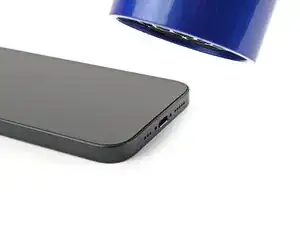
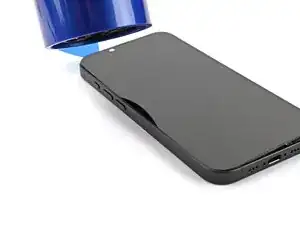
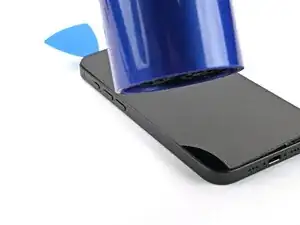
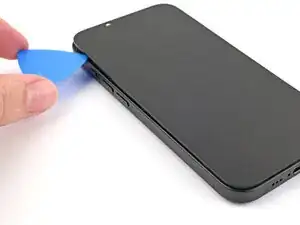
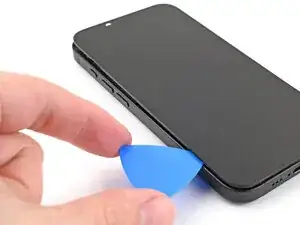
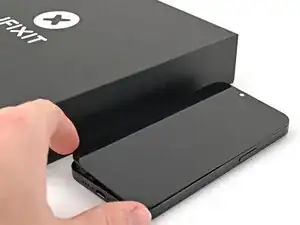
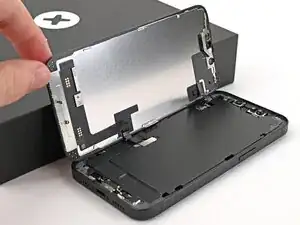
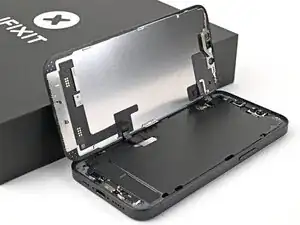
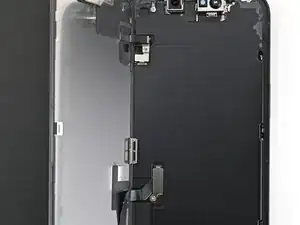
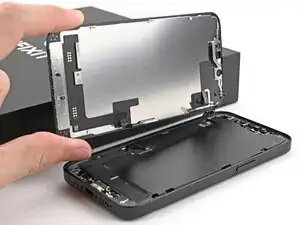
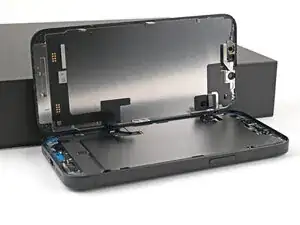
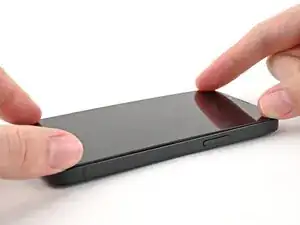
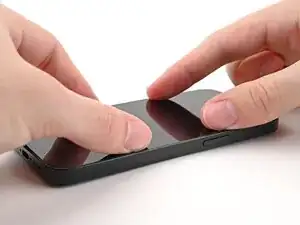
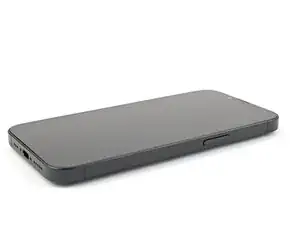
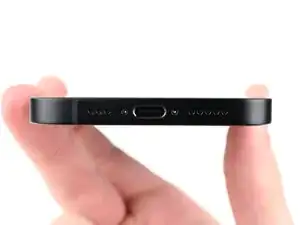
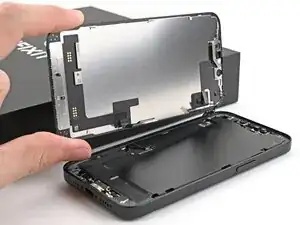
Use this guide to replace a broken, cracked, or non‑responsive screen in your iPhone 16e.

You'll need replacement screen adhesive to complete this repair.

Note: Since you can't disconnect the battery during this repair, be especially careful not to use metal prying tools or touch exposed contacts in your iPhone.

After your repair, calibrate an authentic display using Apple's Repair Assistant.

Some photos in this guide are from a different model and may contain slight visual discrepancies, but they won't affect the procedure.

  1. vqhDDSOotrQC2uQs
    vqhDDSOotrQC2uQs
    a5BooPW2IBYYxxDM
    • Allow your phone's battery to drain below 25%, as a charged lithium-ion battery is a potential safety hazard.

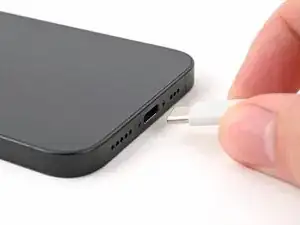
    • Unplug any cables from your phone.

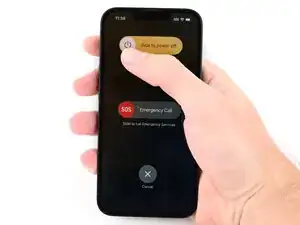
    • Hold the power button and either volume button, then slide to power off your phone.

  2. nvWjhyuFtKnLQjPS
    nvWjhyuFtKnLQjPS
    fatkaUI1sRhq1Qxm
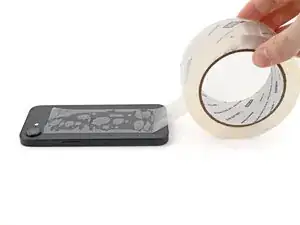
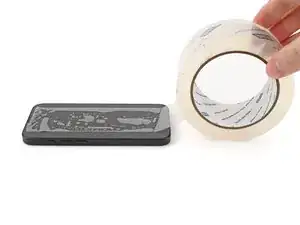
    • If your screen or back glass is badly cracked, lay overlapping strips of packing tape over the glass to protect yourself and make disassembly easier.

    • Make sure there's a smooth area near the bottom edge that's big enough for a suction cup to stick to.

  3. JfTTbrID13H2LUQx
    JfTTbrID13H2LUQx
    1wxJKOOTVo45Xceo
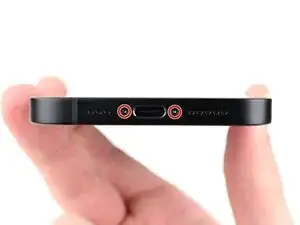
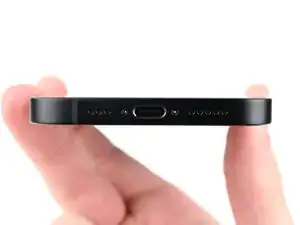
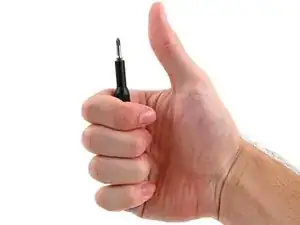
    • Use a P2 pentalobe screwdriver to remove the two 7.8 mm‑long screws on either side of the charging port.

  4. 6UPwoloGBO4tmVoS
    6UPwoloGBO4tmVoS
    BmSYPJmOy6dbHipF
    3EOdQPAGOmiuhoKU
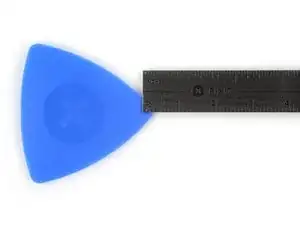
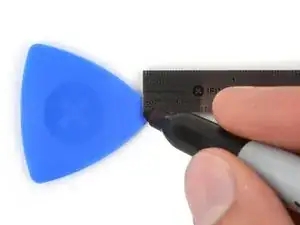
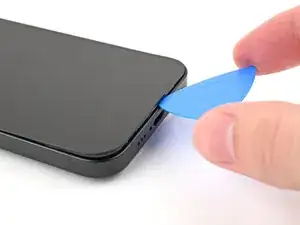
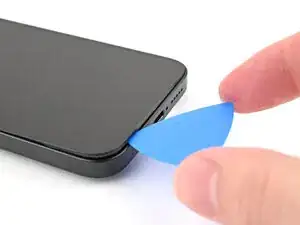
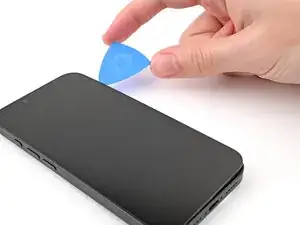
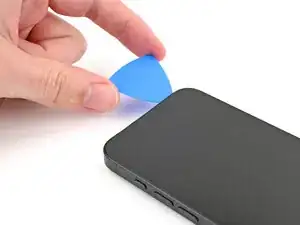
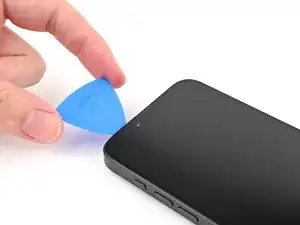
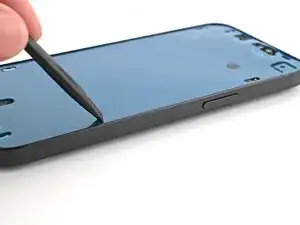
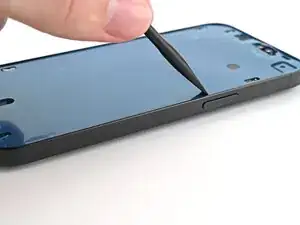
    • If inserted too far, an opening pick can damage your device. Follow this step to mark your pick and prevent damage.

    • Measure 3 mm from the tip and mark the opening pick with a permanent marker.

    • You can also mark the other corners of the pick with different measurements.

    • Alternatively, tape a coin to a pick 3 mm from the tip.

    • Apple sells an Adhesive Cutter tool for cutting the display adhesive safely in their Self Repair Store.

    Got to step 2 and realized the fix kit doesn't include an opening pick! Looks like a guitar pick, and I have those lying around. Is that expected? Looks like the pick is used in many steps below. There's a little blue crowbar that isn't mentioned in the instructions. Perhaps that replaces the opening pick?

    Sloan Looney -
    Hi! I can't see which guide you were using when writing this comment. Can you reply here with which guide and fix kit you used?

    Clay Eickemeyer -
    I see you posted this in Meta. I hope it's resolved soon! In the meantime, a guitar pick may work well enough for your repair.

    Clay Eickemeyer -

    what fix kit?

    Meow Purr -

    Super late reply to original post but my pick was with the replacement screen and not the tools kit.

    Nichol Augustus -

    My fix kit didn't include an opening pick either

    WILLIAM HARRIS -

    Make sure you check inside the black boxes after emptying them. My pick was stuck inside one of the boxes.

    AndyF -

    My AliExpress refurbished screen came with a pick that has a coin-like circle that pops out, so no modification was necessary

    Gijs Leegwater -

    the picture shows 3 cm but the description says 3 mm's. Which one is it?

    John Pena -

    That is a misunderstanding. It is a ruler with a scale for cm, it shows 0.3 cm, i.e. 3 mm.

    VauWeh -

    Oh, come ON!

    Big Ed -

    It will ALWAYS be millimeters on a phone, but this step is ridiculous, skip it!

    Leif DeWolf -

    @leifdewolf I wouldn't skip it for a first repair.

    Gabriel-Science -

    It's not an Ifixit KIT if it doesn't include everything. You'll need to order the opening pic separately. Or head to Walmart like myself and look for guitar pics. Hopefully, this will work just as well.

    Jaleeljb97@icloud.com -

    No pick in mine as well. It’s really not clear that you have to order this separately when ordering an IPhone SE 202/2022 screen repair kit. Is this the case?

    Jackson Castiglione -

    Frustrated, I ordered a compact package where everything was encapsulated. Useless suction tools could not separate the screen. If it is unable to decouple the screen, then why sucking suction tools you have provided.

    Shourob Datta -

    For my kit the triangle pick was stuck inside the box with the screen not with the other tools maybe it's also there for you

    Henry Scheibehenne -

    Y’all are getting far, FAR too detailed with some of this stuff…. Measuring and marking the pick that you won’t actually use to open the device?!? lol that’s kinda funny. Just heat it up, grab a spudger, and the back just pops right off! The iFixit tech need to stick to the KISS method more often, you know KEEP IT SIMPLE STUPID!!! Like l, for reals, I’ve been doing this stuff for YEARS and using iFixit guides regularly and this is just ridiculous at this point!

    Leif DeWolf -

    Will the phone still work if the sensor assembly on the back of the screen is damaged?

    Mutshidzi Rambau -

    I don't have a pick, but how much better are these picks than an old credit card for opening an iPhone 13 mini?

    mike eng -

    an old credit card will do that job, although you'll have to pull a little bit more if the credit card is thicker than the picks, just again, be careful and don't insert it that far

    Russ Torrez -

    The pick in my iFixIt kit was packed with the battery, not with the rest of the toolkit.

    Tony Houlihan -

    Many of these comments are PURE GOLD. Seriously y’all, if you’re not sure if it should be 3mm or 3cm or whether you could find and use an alternative pick, mending an IPhone really isn’t for you. Find a responsible adult and get back to doing something simpler…

    Alasdair Cameron -

    indeed!!!! I agreee!!!

    Lonnie -

    I bought the kit of five just in case. I used two and marking them at 3mm was definitely helpful.

    Megolina -

    Funktioniert super. Habe vorher sicherheitshalber den Akku abgesteckt.

    Lukas D -

  5. fSjywNfK36SqOm5G
  6. JLXkVI1MXOUGkUTA
    JLXkVI1MXOUGkUTA
    RIKxXGrcstdDw4aS
    KXtcM6C6JDuwLPXg
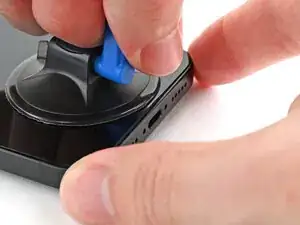
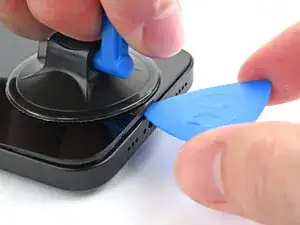
    • The screen consists of a display panel and a bezel. Make sure you insert the pick under the bezel, or you risk separating the two layers and destroying the screen.

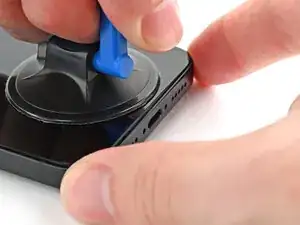
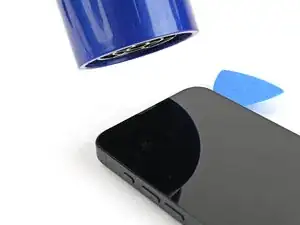
    • Apply a suction handle to the bottom edge of the screen.

    • While holding the frame down with one hand, pull up on the handle with a strong, steady force to create a gap between the screen and the frame.

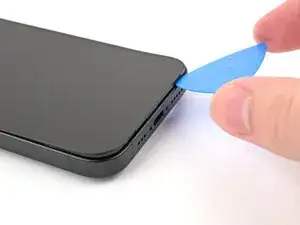
    • Insert the tip of an opening pick into the gap.

  7. EJGxDo45xsgTJDeV
    EJGxDo45xsgTJDeV
    EiXFKpp4bSdUrBLe
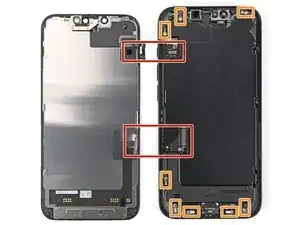
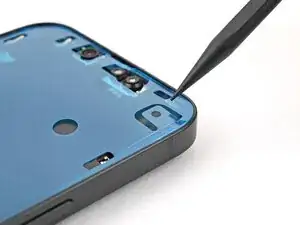
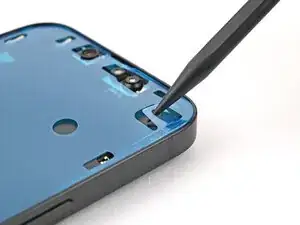
    • As you slice the adhesive securing the screen in the following steps, don't insert your pick deeper than 3 mm to avoid damaging the following areas:

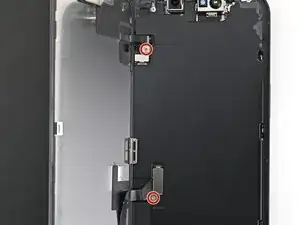
    • Two delicate cables connecting the screen to the phone—one next to the Action button and the other about halfway between the volume down button and the bottom of the phone.

    • Multiple spring contacts around the perimeter of the phone.

  8. DWEuqNTlpOuyAIJF
    DWEuqNTlpOuyAIJF
    YAaAPBXPiEJudEmI
    QegLGGakw44jLvrP
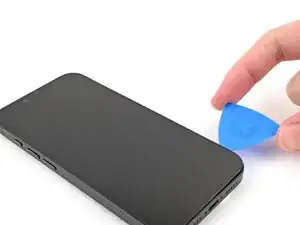
    • Slide the opening pick along the bottom edge to separate the adhesive.

    • Leave the opening pick in the bottom right corner.

  9. gJERDX2dJyqiuC4d
    gJERDX2dJyqiuC4d
    ovHgp2sAVYVpMbMr
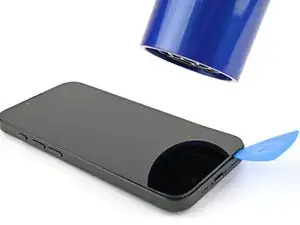
    • Heat the right edge of the screen until it's hot to the touch.

  10. XSteFa1SudyPJJKB
    XSteFa1SudyPJJKB
    abNpRyyox136HdOH
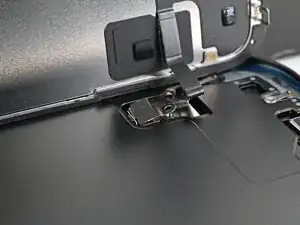
    • Slide your opening pick around the bottom right corner and up the right edge of the screen to separate the adhesive and release the metal clip.

    • You'll hear and feel the metal clip release as you pass it.

  11. 4hInrRdFVtm1DpDO
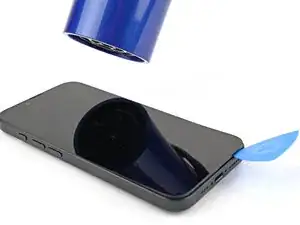
    • Heat the top edge of the screen until it's hot to the touch.

  12. jNNHMHrVykJqFrqr
    jNNHMHrVykJqFrqr
    w1ynH6nnC1wffpWJ
    • Continue sliding your pick around the top right corner and across the top edge to separate the adhesive and release the two metal clips.

  13. yMtHs2NHaunW4C2N
    yMtHs2NHaunW4C2N
    CTc53fedAgtZfKBi
    • Heat the left edge of the screen until it's hot to the touch.

  14. efaSqbOWUEieXjAK
    efaSqbOWUEieXjAK
    QgZZZAjNkXqeBkmG
    • Slide the opening pick down the left edge of the screen to separate the remaining adhesive and release the last two metal clips.

  15. DhreRVwKUrSTvRcn
    DhreRVwKUrSTvRcn
    AVL2fPBl4JoYcrpI
    CnBPYWoF1IkjfAqp
    • At this point, the screen should be free from the frame. If the screen feels stuck, go back around the perimeter with your pick to check for missed sections of adhesive or stuck clips.

    • Swing open the screen over the left edge of the phone and support it with a clean, sturdy object.

  16. WlFPBTFCaIl1VOO4
    WlFPBTFCaIl1VOO4
    GWbMub3gnYmBPYOh
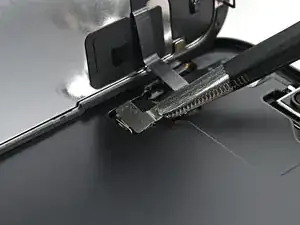
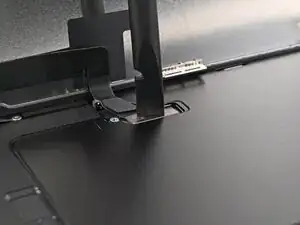
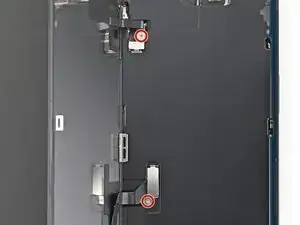
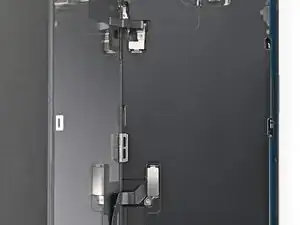
    • Use a tri-point Y000 screwdriver to remove the two 0.9 mm‑long screws securing the front sensor connector and screen connector covers.

  17. 6JwjqeuTMXJbUkKC
    6JwjqeuTMXJbUkKC
    cC4QGVOai6RacnZT
    UEMSNhWw3bm5gDCB
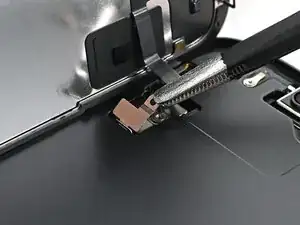
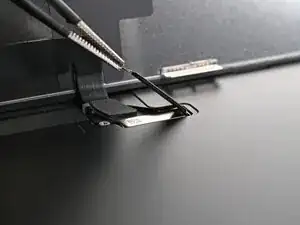
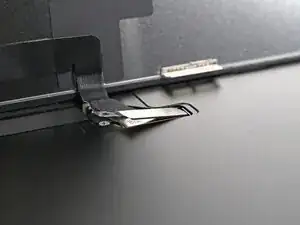
    • Use tweezers or your fingers to lift the front sensor cover to a 90-degree angle and unhook it from its slot in the logic board.

    • Lift the cover out of its slot and remove it.

  18. PoMOECKZ3NoCCSui
    PoMOECKZ3NoCCSui
    uECaqLtXlQTPNvdC
    OxFr5BJhLJiIMjuM
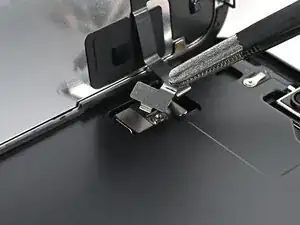
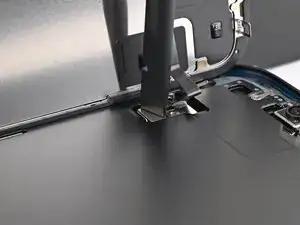
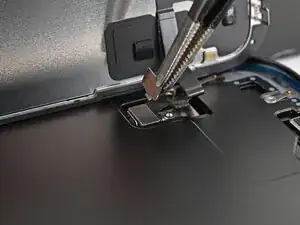
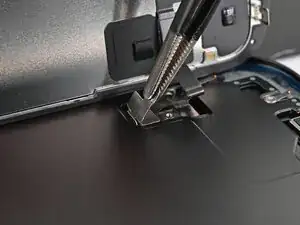
    • Use tweezers or your fingers to lift the screen connector cover at a slight angle to unhook it from its slot in the logic board.

    • Lift the cover out of its slot and remove it.

  19. vAr3IvElMp2kQ6Cb
    vAr3IvElMp2kQ6Cb
    YPXKOdd1rXwTtfBl
    Z1prnU4QshsslGo4
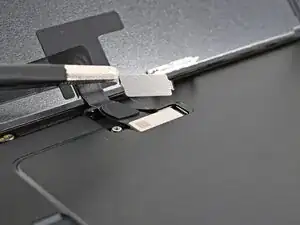
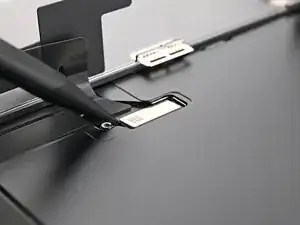
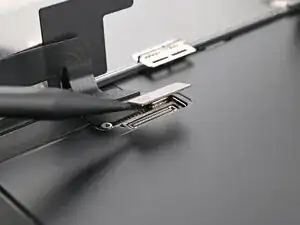
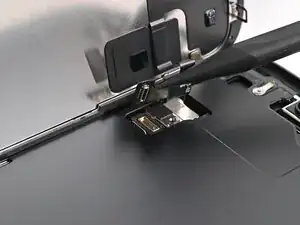
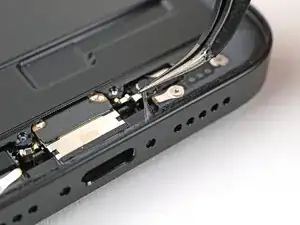
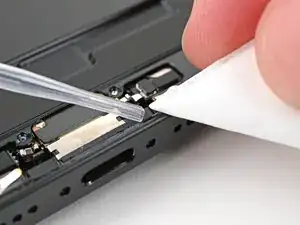
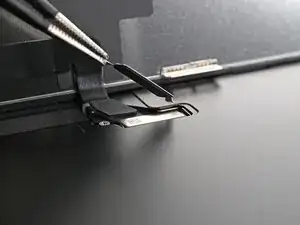
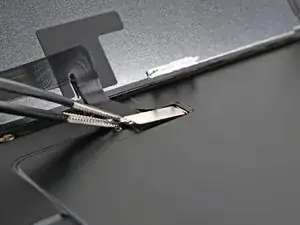
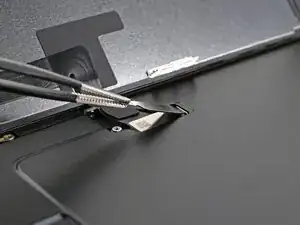
    • Use the tip of a spudger to pry up and disconnect the screen press connector.

    • Repeat for the front sensor press connector.

  20. 3dohVuDjEVaGrPnN
    • Lift the screen off the frame and remove it.

  21. ppW1tsmUPxg1msBC
    • Congratulations on completing disassembly! The remaining steps will show you how to reassemble your device.

  22. lVQyVrZCpurO5PqB
    lVQyVrZCpurO5PqB
    5eqgeMVFdyMFEFLr
    • Use tweezers to remove the adhesive around the perimeter of the frame.

    • You may need to bunch up the adhesive with the point of a spudger before gripping it with tweezers.

    • Use a coffee filter or a lint‑free cloth and high‑concentration isopropyl alcohol (>%90) to clean off any adhesive residue.

  23. AVSFtNEQOBurk14u
    AVSFtNEQOBurk14u
    KC1I1SLn3dOCW25L
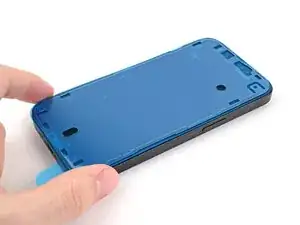
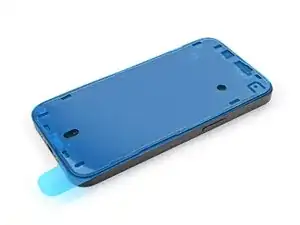
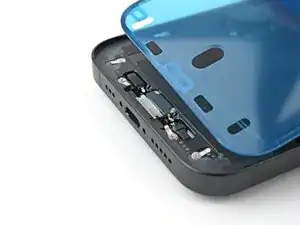
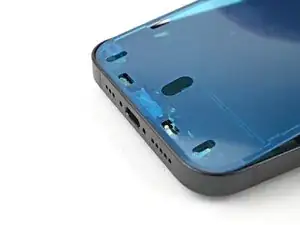
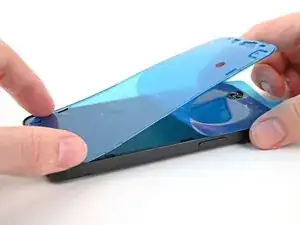
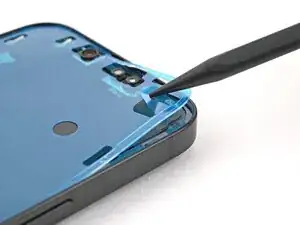
    • Lay the adhesive on top of the phone and use features like cutouts for spring contacts and the front‑facing camera to make sure the adhesive is oriented correctly.

    • Your adhesive may look slightly different.

  24. PJSCno52OTnFRisx
    PJSCno52OTnFRisx
    fBLrwneqaybCXeiw
    CynL1dLwXi4LxRCE
    • Once the adhesive is pressed into place, you can't reposition it—you'll have to remove it and start over with new adhesive.

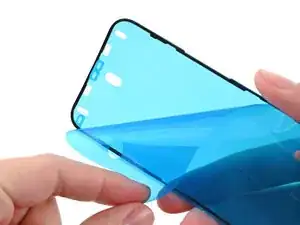
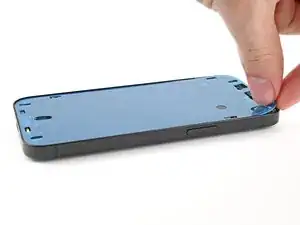
    • Use the pull tab to begin peeling the back liner off the adhesive starting from the bottom, but don't remove the liner all the way.

    • Hold the blue liner out of the way and align the adhesive with the bottom edge of the iPhone.

    • Lay the bottom edge of the adhesive into its recess in the frame, making sure the iPhone's spring contacts are aligned with their cutouts in the liner.

  25. yLeQIKZkNHiqNgXN
    yLeQIKZkNHiqNgXN
    YJyTY3BeAG4LHwan
    bhMKGqoR2VIAsKXW
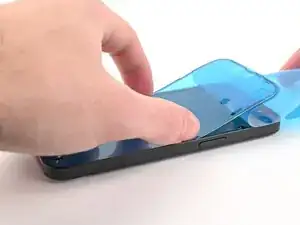
    • Continue peeling the back liner off the adhesive while pressing the adhesive into place along the edges of the iPhone's frame.

    • If you correctly aligned the lower edge of the adhesive, the side and top edges will fall perfectly into place. If the adhesive is misaligned, remove it and start over with new adhesive.

    • If your adhesive is misaligned and you don't have another set handy, it's okay to temporarily put your iPhone back together and use it normally without any adhesive, but keep in mind that your iPhone's water resistance will be compromised until you install new adhesive.

  26. cp5DCeEGuDOlm3Tp
    cp5DCeEGuDOlm3Tp
    S2gtDx4cIcSnay1A
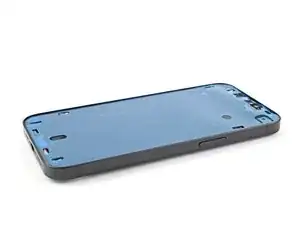
    • Use the flat end of a spudger to press the adhesive into place around the perimeter of the frame.

  27. 2ikEkhyh6NgUsAHH
    2ikEkhyh6NgUsAHH
    SskIURgf5wud5wDS
    avRuBAVEwh2nBH43
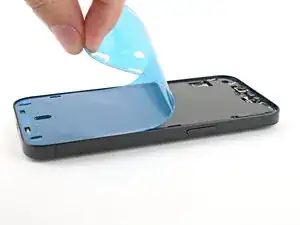
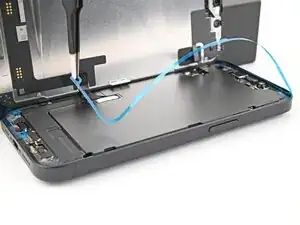
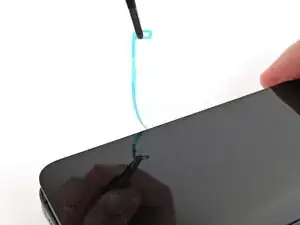
    • Use the tip of a spudger to lift up the pull tab on the top right corner of the blue adhesive liner until you can grip it with your fingers.

  28. yFldYYBFBOJP1Pia
    yFldYYBFBOJP1Pia
    a25PaPJvnRCmyUEA
    YVQgSHKEteOdDgZI
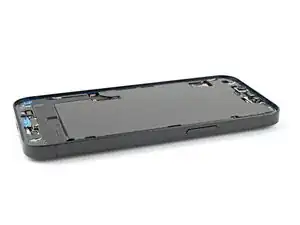
    • Use the pull tab to peel the blue liner off the frame.

  29. dqi1WdgL2NuA5GaX
    dqi1WdgL2NuA5GaX
    sDR3OTobsmclw6TD
    FARLXmwQubeJBLQd
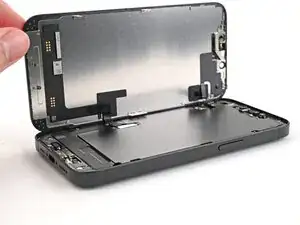
    • Prop up the screen along the left edge of the iPhone, using a box or similar sturdy object to support the screen.

    • Use the flat end of a spudger or your finger to connect the screen press connector.

    • Repeat for the front sensor press connector.

  30. OEhHku5u6qEO2BgA
    OEhHku5u6qEO2BgA
    3u64NDkSV4xuekVT
    g6LsJAvEq2SQNbBb
    • Insert the top of the screen connector cover into its slot in the frame and lay it over the press connector.

  31. E6hVxxCVx2Ob4QOG
    E6hVxxCVx2Ob4QOG
    ENORaH5HuVsXXEie
    nJgNXFdDjSHgotQ4
    • Angle the front sensor connector cover at a 90-degree angle and insert it into its slot in the frame.

    • Lay the cover over the press connector.

  32. HGHLjcgX4GAj2HoR
    HGHLjcgX4GAj2HoR
    OhqB3I4rQKM6Xnrc
    • Use a tri-point Y000 screwdriver to install the two 0.9 mm‑long screws securing the front sensor connector and screen connector covers.

  33. xxs1PjALlENHb1ru
    xxs1PjALlENHb1ru
    TSfXAIgKZGMGcWMK
    vuaMDmAHEYbHFxgo
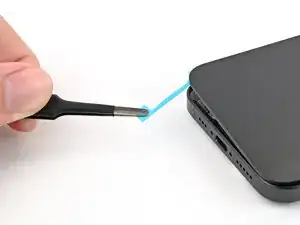
    • Use tweezers or your fingers to grip the blue pull tab and remove the liner along the right edge.

    • Without letting the screen touch the adhesive, hold the screen over the phone and remove the other two liners.

  34. sshOlfOggdt21EaT
    sshOlfOggdt21EaT
    NqZ6JHYFssWp5oE6
    • Hold the screen above the phone and align it with the frame.

  35. DUWvbnEGD2SJKQUu
    DUWvbnEGD2SJKQUu
    MTlEPCa6SJBAYIN1
    jkSdKCBsO4ycDrvq
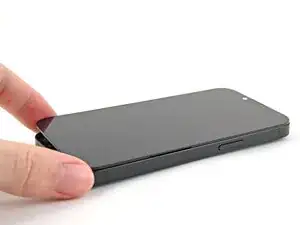
    • Lay the screen straight down onto the frame and press until the clips engage.

    • Press around the perimeter of the screen to engage all clips.

  36. uQYeDS6PIhjfivFy
    uQYeDS6PIhjfivFy
    CPTSUX143fDHaLpP
    • To help the adhesive bond, apply heat to the edges of the screen using an iOpener, hair dryer, or heat gun until it's hot to the touch.

    • If you have screen vise clamps, use them to strengthen the bond of your new adhesive. If not, keep reading for more ways to secure the screen.

  37. wFwZ31oE5cE1wdnq
    wFwZ31oE5cE1wdnq
    JyvWlpKGbv2Jl4eJ
    OauWmBZmvqiXC3TR
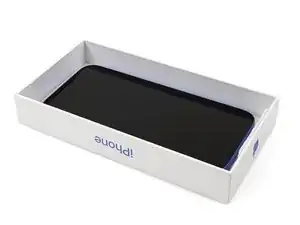
    • To evenly compress your iPhone and strengthen the bond of the screen to the frame, you need to account for the camera bump.

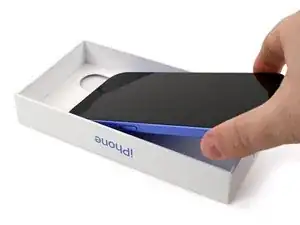
    • If you have the box your iPhone came in, take the lid and place it on a flat surface.

    • If you don't have your original box, skip this step for an alternate method.

    • Place your iPhone screen-side-up in the lid of your box with the camera bump in its recess.

    • Find something close to the size of your iPhone, but taller than the sides of the box. Stack it on top of the iPhone, followed by a few heavy objects.

    • Leave the objects in place for at least thirty minutes. The lighter the objects, the longer they should be left. Ideally, leave them stacked overnight.

  38. P6NwyuDHSCedNZ3B
    P6NwyuDHSCedNZ3B
    gAItI5gnXDJINUZE
    lJvN36M3yPTyVkO5
    • If you don't have the original box for your iPhone, follow the next three steps for another method to evenly compress the screen.

    • Place the iPhone screen-side-down on a soft, flat surface.

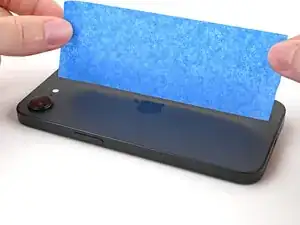
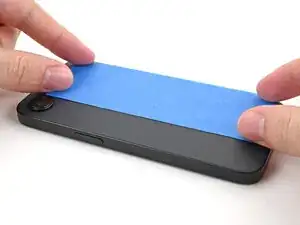
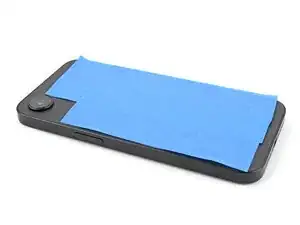
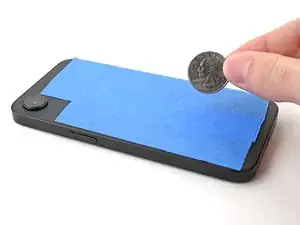
    • Apply tape to the back glass to protect its finish.

  39. 4aJUru4bLSCNDALb
    4aJUru4bLSCNDALb
    x6xRN5WC6FMoRLua
    hpgUHMFPjH3mcVvZ
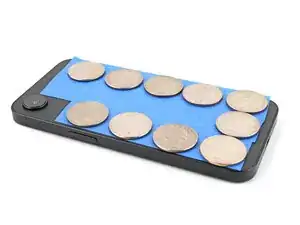
    • Place one layer of coins or similarly thick objects on the tape along the edges of the back glass.

    • Depending on the thickness of the coins, you might need multiple layers.

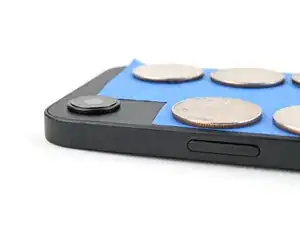
    • Evenly distribute the coins and make sure they are at least as thick as the camera bump.

  40. oqZfjoFZ4Ek1K5RT
    • Stack multiple books or other heavy objects on the iPhone.

    • The coins may leave an impression on the bottom object, so don't use anything valuable.

    • Leave the objects in place for at least thirty minutes. The lighter the objects, the longer they should be left. Ideally, leave them stacked overnight.

  41. lwZ3VfKIPvDNWB5o
    lwZ3VfKIPvDNWB5o
    RouVvffL5pwgDV3d
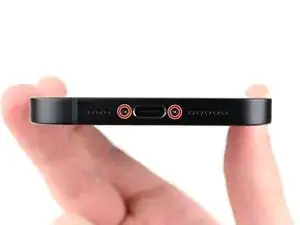
    • Use a P2 pentalobe screwdriver to install the two 7.8 mm‑long screws on either side of the charging port.

Conclusão

After your repair, calibrate a genuine replacement screen using Apple's Repair Assistant. Navigate to Settings General About Parts & Service History, tap Restart & Finish Repair, and follow the onscreen prompts.

Take your e-waste to an R2 or e-Stewards certified recycler.

Repair didn’t go as planned? Try some basic troubleshooting, or ask our iPhone 16e Answers Community for help.

Alex Diaz-Kokaisl

Membro desde: 16/01/22

227430 Reputação

0 comentários