Introdução
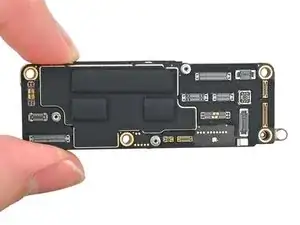
Prerequisite guide to remove the logic board in an iPhone 16 Pro.
Ferramentas


-
-
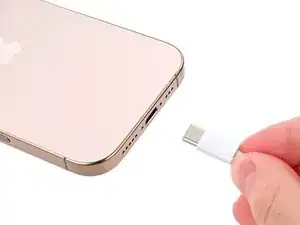
Unplug any cables from the phone.
-
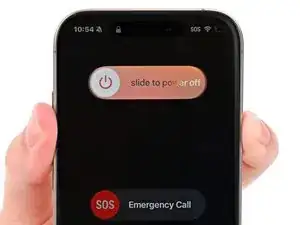
Hold the power and either volume buttons and slide to power off the phone.
-
-
-
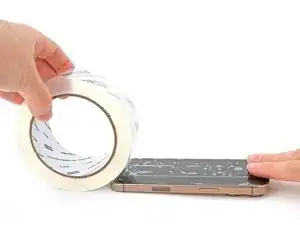
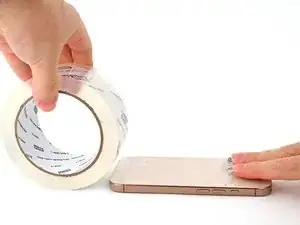
If the screen or back glass is badly cracked, lay overlapping strips of packing tape over the glass to protect yourself and make disassembly easier.
-
-
-
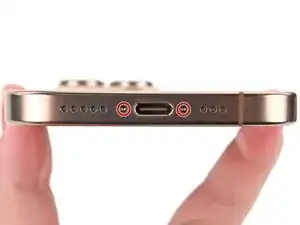
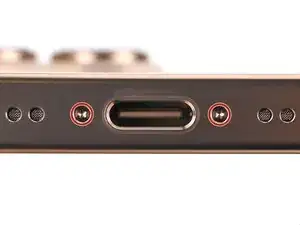
Use a P2 pentalobe screwdriver to remove the two 7.4 mm‑long screws on either side of the USB-C port.
-
-
-
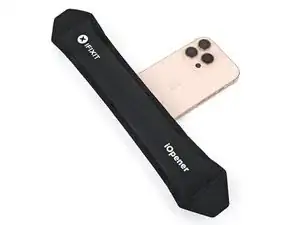
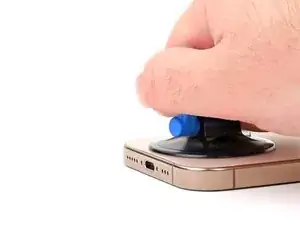
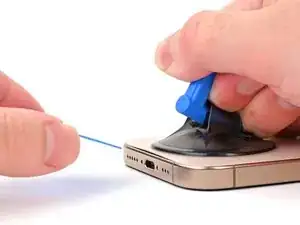
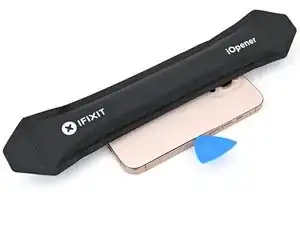
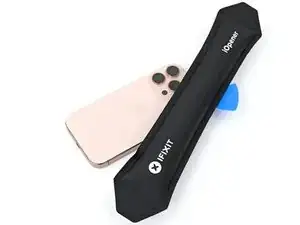
Apply a suction handle to the bottom edge of the back glass, above the USB-C port.
-
Pull up on the handle with a strong, steady force to create a gap between the back glass and the frame.
-
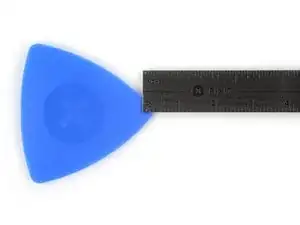
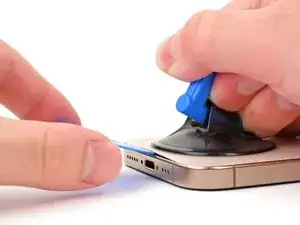
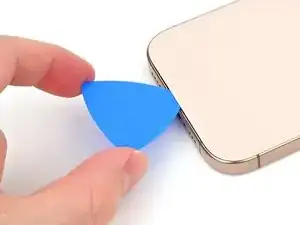
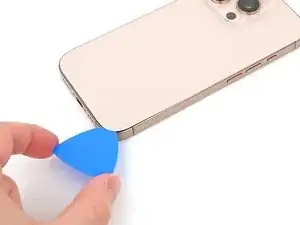
Insert the tip of an opening pick into the gap.
-
-
-
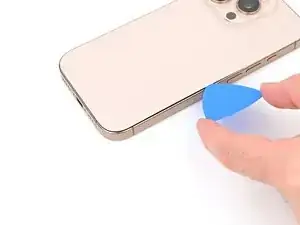
There's a delicate cable connecting the back glass to the phone, right next to the volume up button. Don't insert your pick here to avoid slicing the cable.
-
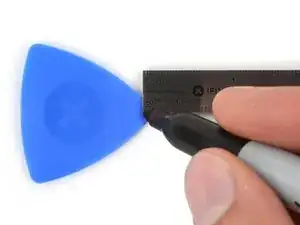
There are multiple spring contacts around the perimeter of the phone. Be extra careful not to insert your pick deeper than suggested in each step to avoid bending these contacts.
-
-
-
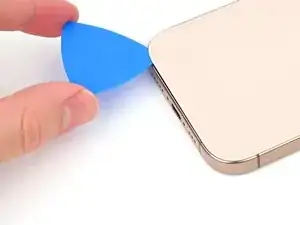
Slide your pick back and forth along the bottom edge to separate the adhesive.
-
Leave your pick inserted in the bottom right corner to prevent the adhesive from resealing.
-
-
-
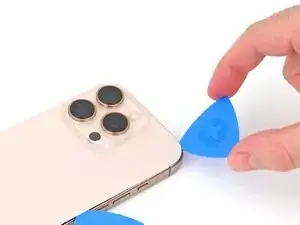
Slide your pick around the bottom right corner and halfway up the right edge, or until you feel a hard stop at a clip securing the back glass.
-
Leave this pick inserted to prevent the adhesive from resealing.
-
-
-
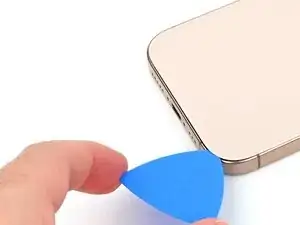
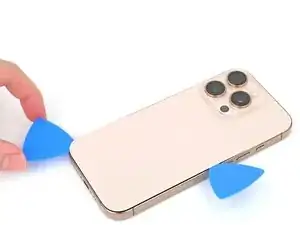
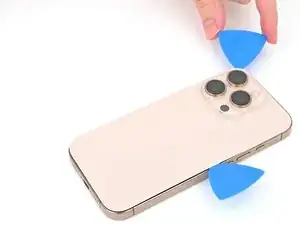
Insert a second opening pick at the bottom edge.
-
Slide the second pick around the bottom left corner and along the left edge of the screen to separate the adhesive and release the metal clips.
-
Leave this pick inserted at the top left corner to prevent the adhesive from resealing.
-
-
-
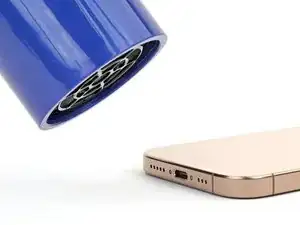
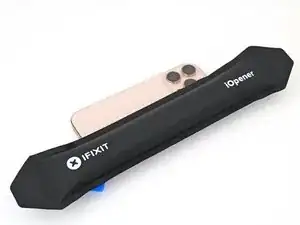
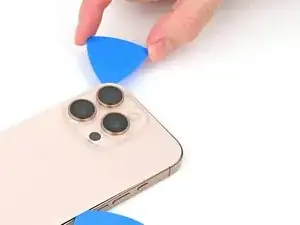
Heat the top edge of the back glass, including the area around the volume buttons, until it's hot to the touch.
-
-
-
Slide your opening pick across the top edge and around the top right corner to the volume up button to separate the adhesive.
-
-
-
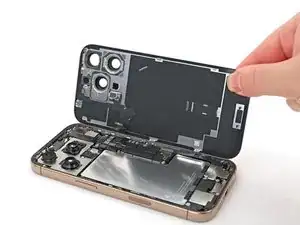
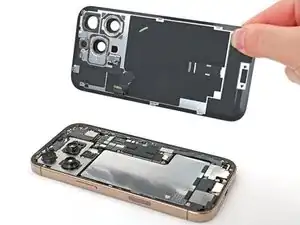
Gently swing open the back glass towards the volume buttons.
-
Support the back glass with a clean, sturdy object like a small box to avoid straining the cable.
-
Remove the opening picks.
-
-
-
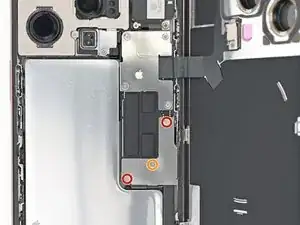
Use a tri-point Y000 screwdriver to remove the three screws securing the lower connector cover:
-
Two 1.2 mm‑long screws
-
One 1.0 mm‑long screw
-
-
-
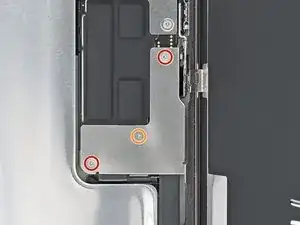
Use a tri-point Y000 screwdriver to remove the four screws securing the upper connector cover:
-
Two 1.0 mm‑long screws
-
One 1.2 mm‑long screw
-
One 1.6 mm‑long screw
-
-
-
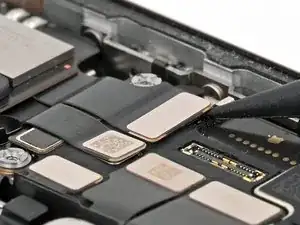
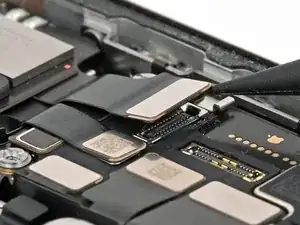
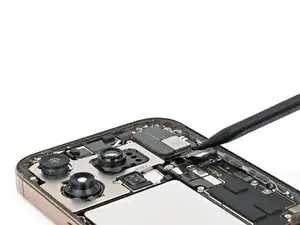
Use the point of a spudger to pry up and disconnect the earpiece speaker and 5G mmWave antenna press connectors, located on the top right corner of the logic board.
-
-
-
Use a Phillips screwdriver to remove the six screws securing the earpiece speaker:
-
Three 1.2 mm‑long screws
-
Two 1.8 mm‑long screws
-
One 1.7 mm‑long screw
-
-
-
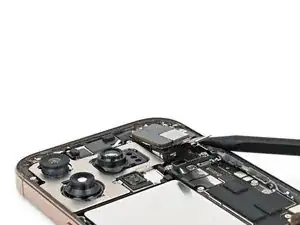
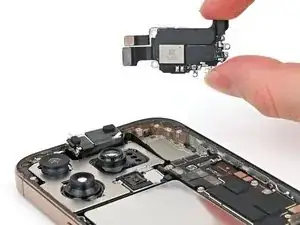
Insert the point of a spudger in the bottom-right corner of the earpiece speaker and pry it up to remove it.
-
-
-
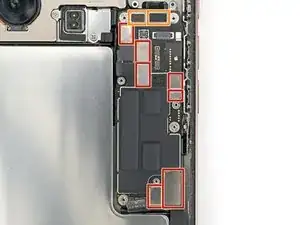
Use a spudger to pry up and disconnect the press connectors from the top of the logic board:
-
Seven silver connectors
-
Three black connectors
-
-
-
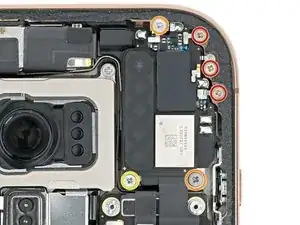
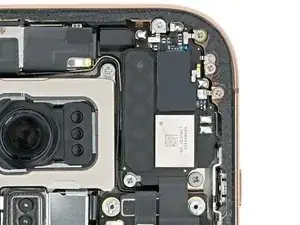
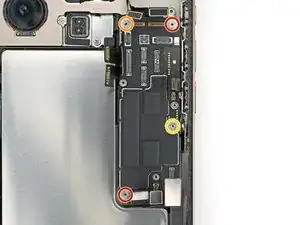
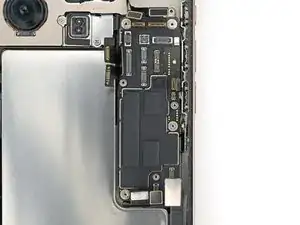
Use a standoff screwdriver to remove the four screws securing the logic board:
-
Two 4.5 mm‑long screws
-
One 3.4 mm‑long screw
-
One 4.2 mm‑long screw
-
-
-
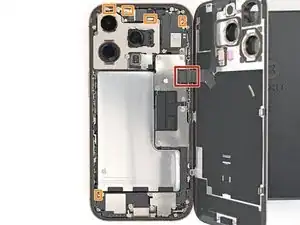
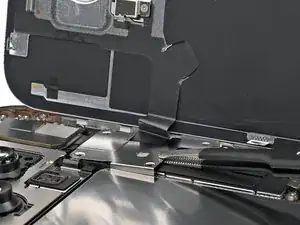
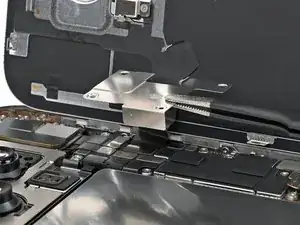
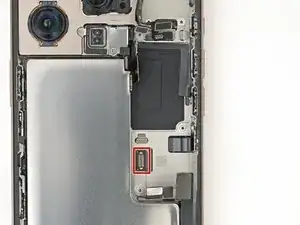
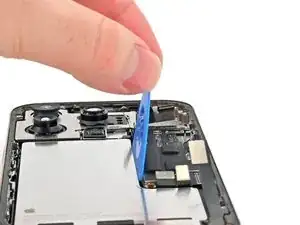
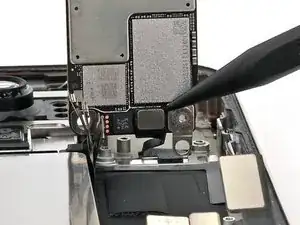
This image shows the display connector underneath the logic board with the board removed. The next two steps show how to disconnect this connector from the logic board.
-
-
-
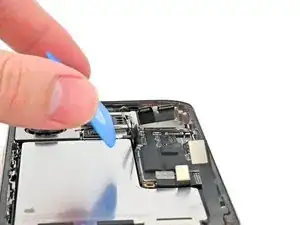
Insert the flat edge of an opening pick between the battery and the logic board. Hold the pick in place with your fingers.
-
-
-
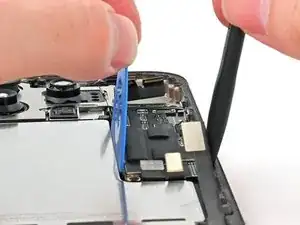
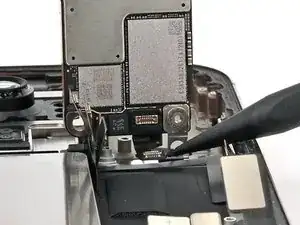
Insert the flat end of a spudger underneath the right edge of the logic board.
-
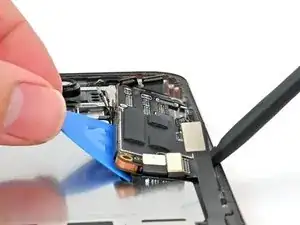
Gently pry with the spudger and opening pick to lift the logic board and disconnect the screen connector.
-
-
-
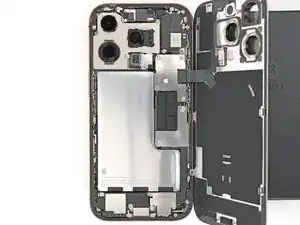
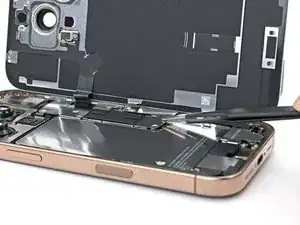
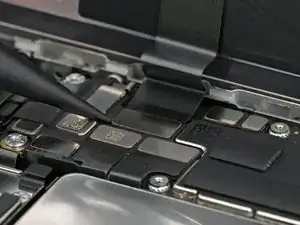
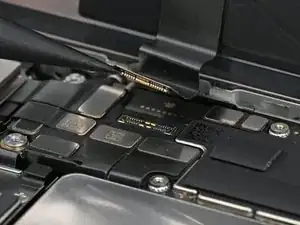
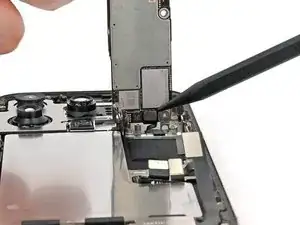
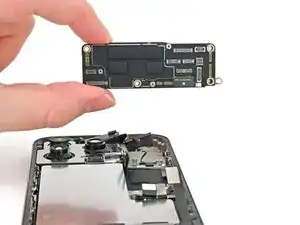
Pick up the bottom edge of the logic board, flip it up towards the top of the phone, and hold it steady vertically.
-
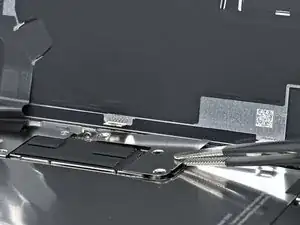
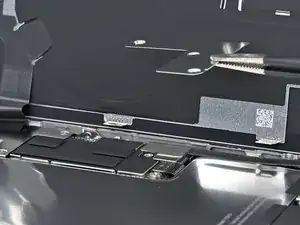
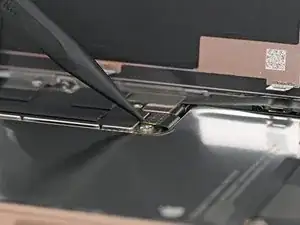
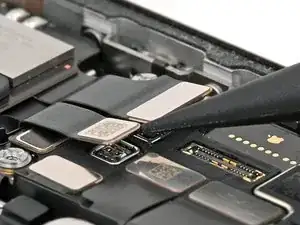
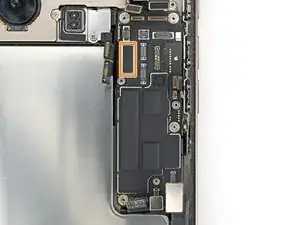
Use the point of a spudger to pry up and disconnect the front sensor connector from the underside of the logic board.
-

To reassemble your iPhone, follow these instructions in reverse order.
After your repair, calibrate genuine replacement parts using Apple's Repair Assistant. Navigate to Settings → General → About → Parts & Service History, tap Restart & Finish Repair, and follow the onscreen prompts.
Take your e-waste to an R2 or e-Stewards certified recycler.
Repair didn’t go as planned? Try some basic troubleshooting, or ask our iPhone 16 Pro Answers community for help.

Wilson Demosthène
Demosthène Wilson -