Introdução

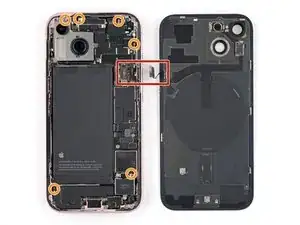
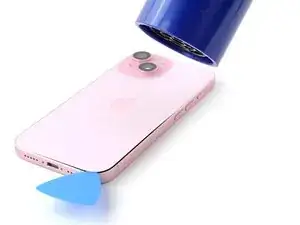
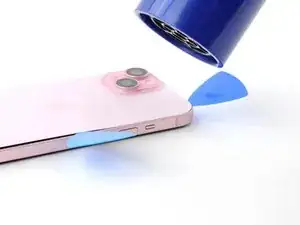
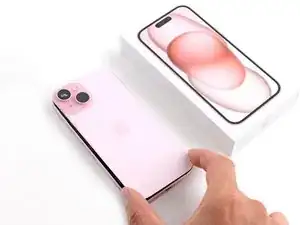
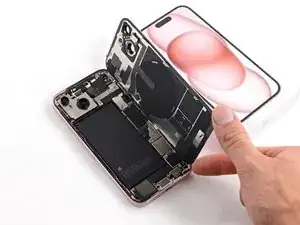
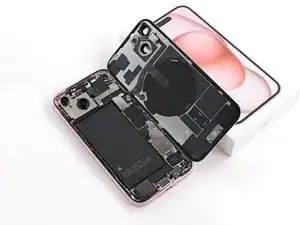
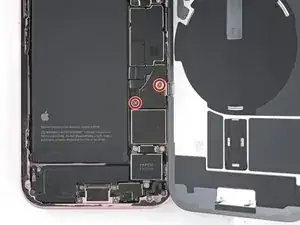
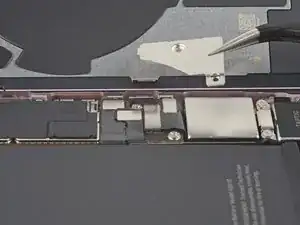
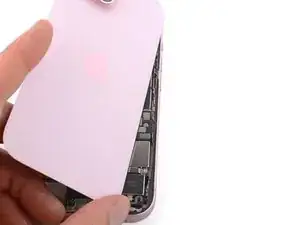
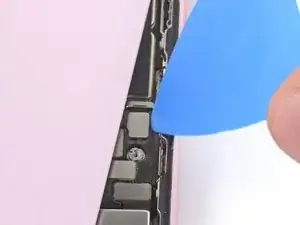
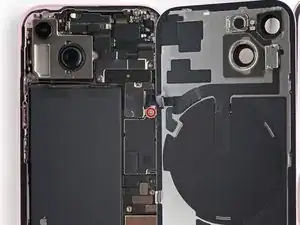
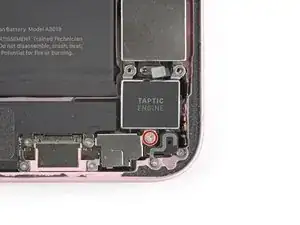
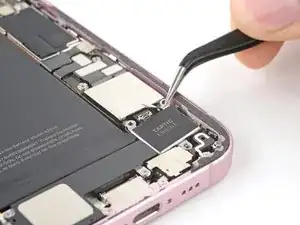
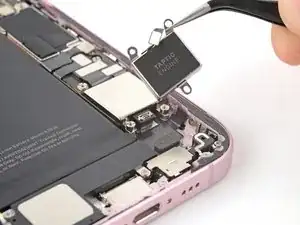
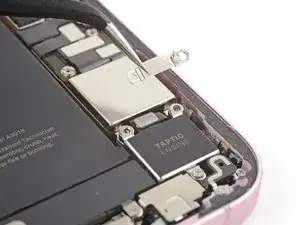
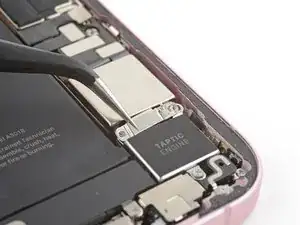
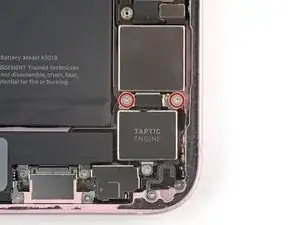
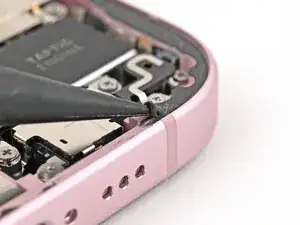
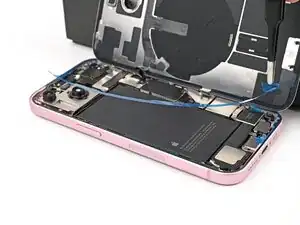
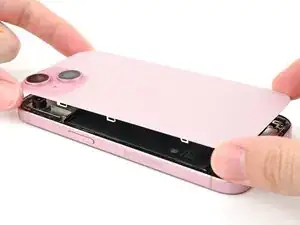
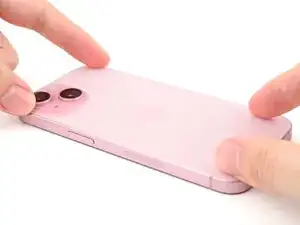
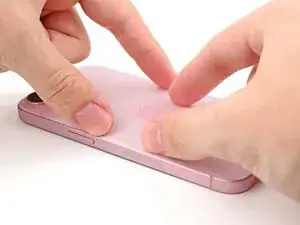
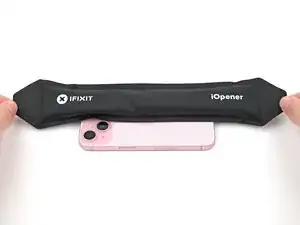
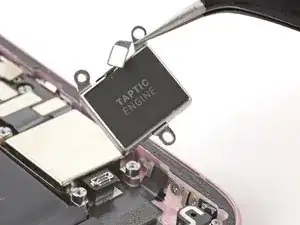
Use this guide to replace the Taptic Engine in your iPhone 15.

If the vibrations coming from your phone feel rattly or are intermittent, you might need to replace the Taptic Engine.

You'll need replacement back glass adhesive to complete this repair.

  1. lIUkreYGBUFeRMVi
    lIUkreYGBUFeRMVi
    mrhP4j3gku3xQTYu
    • Allow your phone's battery to drain below 25%, as a charged lithium-ion battery is a potential safety hazard.

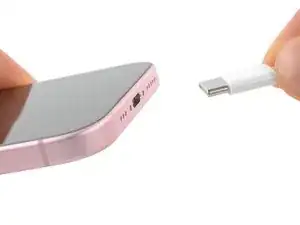
    • Unplug any cables from your phone.

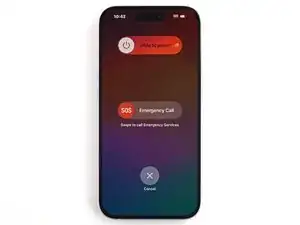
    • Hold the power and either volume buttons and slide to power off your phone.

  2. ChhMVWIceNdbvZQJ
    ChhMVWIceNdbvZQJ
    RYRPjo3rDShOAyHw
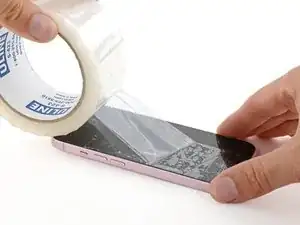
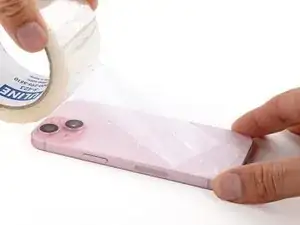
    • If your screen or back glass is badly cracked, lay overlapping strips of packing tape over the glass to protect yourself and make disassembly easier.

    • Make sure there's a smooth area near the bottom edge that's big enough for a suction cup to stick to.

  3. BWZ2RDFjMrvJeCc4
    BWZ2RDFjMrvJeCc4
    J3XYExNBDltjICCK
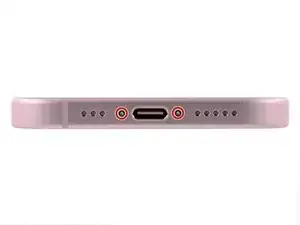
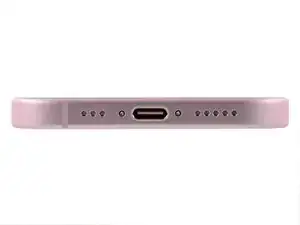
    • Use a P2 pentalobe driver to remove the two 7.7 mm-long screws on either side of the charging port.

    ネジが取れないときはもう終わりですかね??😭

    shinba916 -
  4. 6UPwoloGBO4tmVoS
    6UPwoloGBO4tmVoS
    BmSYPJmOy6dbHipF
    3EOdQPAGOmiuhoKU
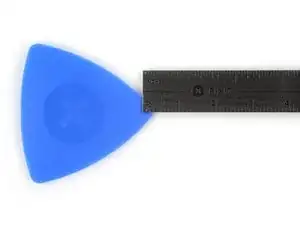
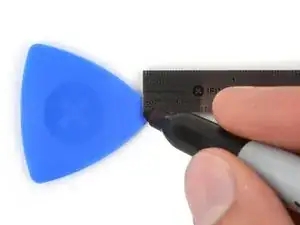
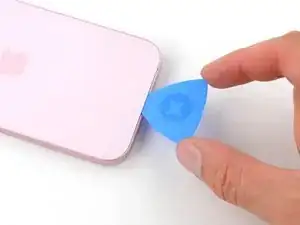
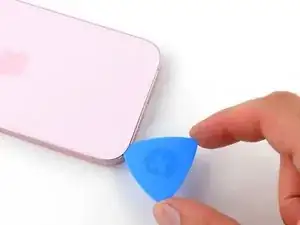
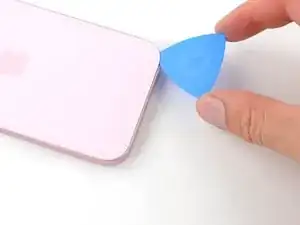
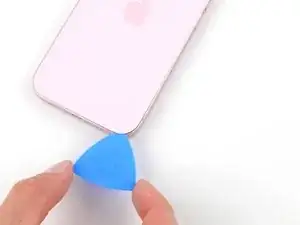
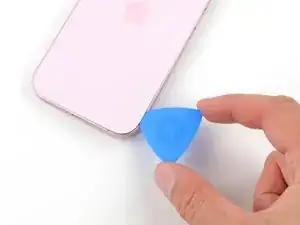
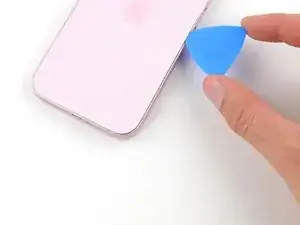
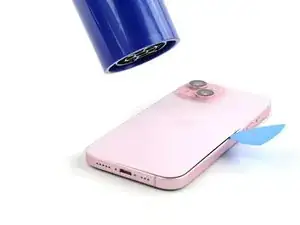
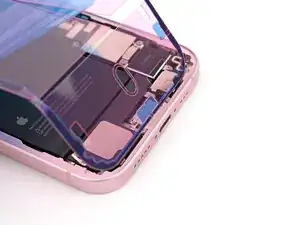
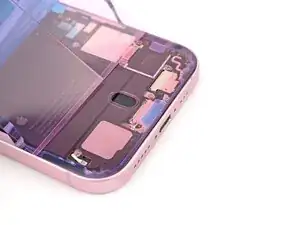
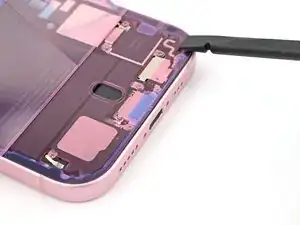
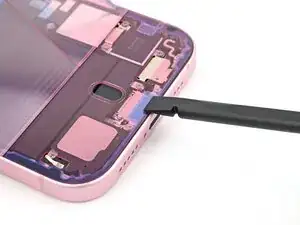
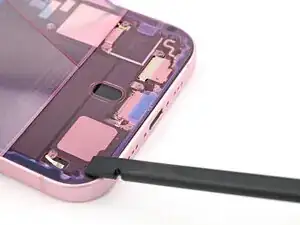
    • If inserted too far, an opening pick can damage your device. Follow this step to mark your pick and prevent damage.

    • Measure 3 mm from the tip and mark the opening pick with a permanent marker.

    • You can also mark the other corners of the pick with different measurements.

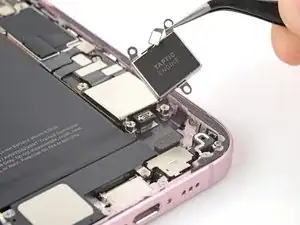
    • Alternatively, tape a coin to a pick 3 mm from the tip.

    • Apple sells an Adhesive Cutter tool for cutting the display adhesive safely in their Self Repair Store.

    Got to step 2 and realized the fix kit doesn't include an opening pick! Looks like a guitar pick, and I have those lying around. Is that expected? Looks like the pick is used in many steps below. There's a little blue crowbar that isn't mentioned in the instructions. Perhaps that replaces the opening pick?

    Sloan Looney -
    Hi! I can't see which guide you were using when writing this comment. Can you reply here with which guide and fix kit you used?

    Clay Eickemeyer -
    I see you posted this in Meta. I hope it's resolved soon! In the meantime, a guitar pick may work well enough for your repair.

    Clay Eickemeyer -
    what fix kit?

    Meow Purr -

    Super late reply to original post but my pick was with the replacement screen and not the tools kit.

    Nichol Augustus -

    My fix kit didn't include an opening pick either

    WILLIAM HARRIS -

    Make sure you check inside the black boxes after emptying them. My pick was stuck inside one of the boxes.

    AndyF -

    My AliExpress refurbished screen came with a pick that has a coin-like circle that pops out, so no modification was necessary

    Gijs Leegwater -

    the picture shows 3 cm but the description says 3 mm's. Which one is it?

    John Pena -

    That is a misunderstanding. It is a ruler with a scale for cm, it shows 0.3 cm, i.e. 3 mm.

    VauWeh -

    Oh, come ON!

    Big Ed -

    It will ALWAYS be millimeters on a phone, but this step is ridiculous, skip it!

    Leif DeWolf -

    @leifdewolf I wouldn't skip it for a first repair.

    Gabriel-Science -

    It's not an Ifixit KIT if it doesn't include everything. You'll need to order the opening pic separately. Or head to Walmart like myself and look for guitar pics. Hopefully, this will work just as well.

    Jaleeljb97@icloud.com -

    No pick in mine as well. It’s really not clear that you have to order this separately when ordering an IPhone SE 202/2022 screen repair kit. Is this the case?

    Jackson Castiglione -

    Frustrated, I ordered a compact package where everything was encapsulated. Useless suction tools could not separate the screen. If it is unable to decouple the screen, then why sucking suction tools you have provided.

    Shourob Datta -

    For my kit the triangle pick was stuck inside the box with the screen not with the other tools maybe it's also there for you

    Henry Scheibehenne -

    Y’all are getting far, FAR too detailed with some of this stuff…. Measuring and marking the pick that you won’t actually use to open the device?!? lol that’s kinda funny. Just heat it up, grab a spudger, and the back just pops right off! The iFixit tech need to stick to the KISS method more often, you know KEEP IT SIMPLE STUPID!!! Like l, for reals, I’ve been doing this stuff for YEARS and using iFixit guides regularly and this is just ridiculous at this point!

    Leif DeWolf -

    Will the phone still work if the sensor assembly on the back of the screen is damaged?

    Mutshidzi Rambau -

    I don't have a pick, but how much better are these picks than an old credit card for opening an iPhone 13 mini?

    mike eng -

    an old credit card will do that job, although you'll have to pull a little bit more if the credit card is thicker than the picks, just again, be careful and don't insert it that far

    Russ Torrez -

    The pick in my iFixIt kit was packed with the battery, not with the rest of the toolkit.

    Tony Houlihan -

    Many of these comments are PURE GOLD. Seriously y’all, if you’re not sure if it should be 3mm or 3cm or whether you could find and use an alternative pick, mending an IPhone really isn’t for you. Find a responsible adult and get back to doing something simpler…

    Alasdair Cameron -

    indeed!!!! I agreee!!!

    Lonnie -

    I bought the kit of five just in case. I used two and marking them at 3mm was definitely helpful.

    Megolina -

    Funktioniert super. Habe vorher sicherheitshalber den Akku abgesteckt.

    Lukas D -

  5. u3mPJt2mR2I2ijYQ
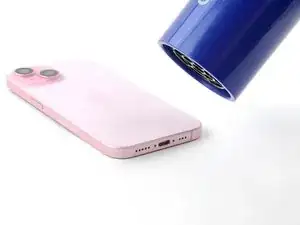
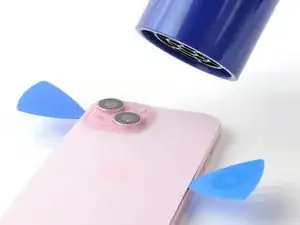
    • Use a hair dryer or heat gun to heat the bottom edge of the back glass until it's hot to the touch.

    • Be careful not to heat the phone hotter than this—the battery is susceptible to heat damage.

  6. ROlNCMEqGdoEsd31
    ROlNCMEqGdoEsd31
    lHmUBN6coSLADSNm
    sFWgqpUDfxfGCiuc
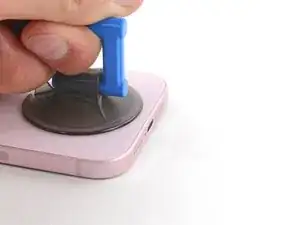
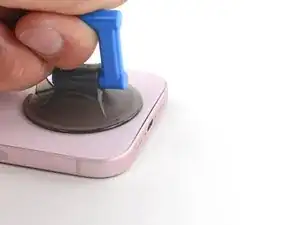
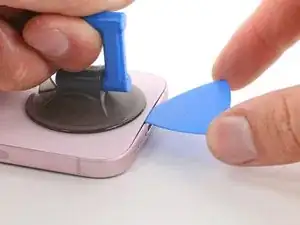
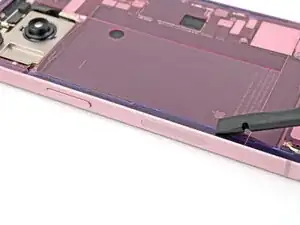
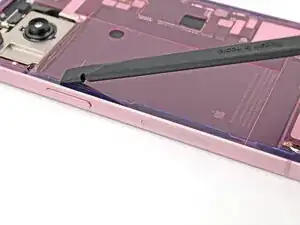
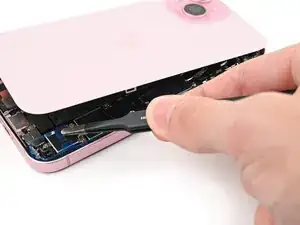
    • Apply a suction handle to the bottom edge of the back glass.

    • Pull up on the handle with a strong, steady force to create a gap between the back glass and the frame.

    • Insert the tip of an opening pick into the gap.

  7. b1htIXTOSifSEFxA
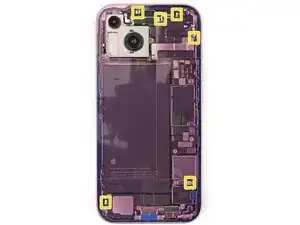
    • As you slice the adhesive securing the back glass in the next steps, be careful of the following areas:

    • There's a delicate cable connecting the back glass to the phone, right next to the volume down button. Don't insert your pick here to avoid slicing the cable.

    • There are multiple spring contacts around the perimeter of the phone. Be extra careful not to insert your pick deeper than suggested in each step to avoid bending these contacts.

  8. BGHHr1hdSOYF4mYV
    BGHHr1hdSOYF4mYV
    BynfnrQEYRSQLFnT
    u2sTKUtOyGOarXfL
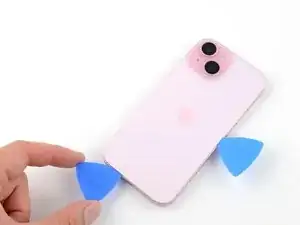
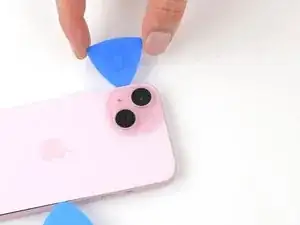
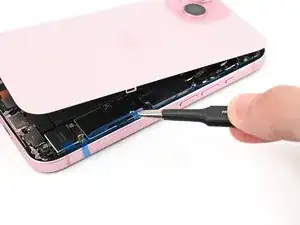
    • Don't insert your opening pick deeper than 5 mm along the bottom edge.

    • Slide your pick back and forth along the bottom edge to separate the adhesive.

    • Leave your pick inserted in the bottom right corner to prevent the adhesive from re-sealing.

  9. UCQnnBFmAWewNLwy
    • Heat the right edge of the back glass until it's hot to the touch.

  10. OEgFbQqEfh51q43u
    OEgFbQqEfh51q43u
    qWvcFUIxrMHT1ouQ
    1cwaWqPNuCDFYdOu
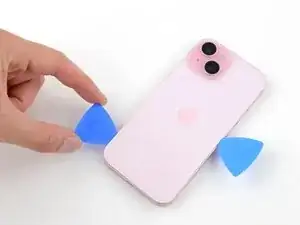
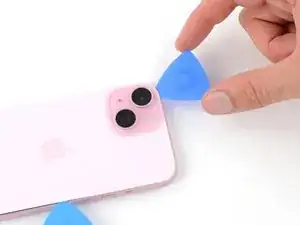
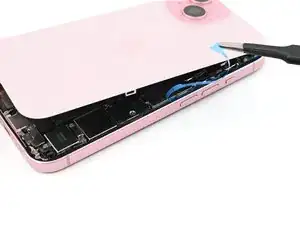
    • Don't insert your pick deeper than 7 mm along the right edge.

    • Rotate your pick around the bottom right corner and slide it to the volume down button or until you feel a hard stop at a large clip securing the back glass.

    • Don't slice past the volume buttons to avoid damaging the wireless charging cable.

    • Leave this pick inserted to prevent the adhesive from resealing.

  11. VkJawLlLQAOiicIp
    • Heat the left edge of the back glass until it's hot to the touch.

  12. h3LbWtR6tGe2JxM4
    h3LbWtR6tGe2JxM4
    UGFUP6uTlQK4Inng
    rfJMYQoDSAkmJjNw
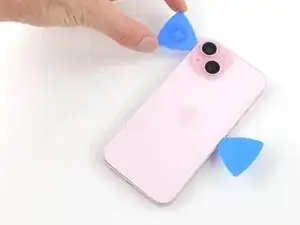
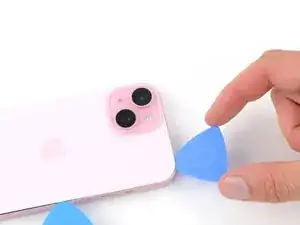
    • Along the left edge, don't insert your pick deeper than 5 mm.

    • Insert a second opening pick at the bottom edge.

    • Rotate the second pick around the bottom left corner.

    • Slide this pick up to the top left corner to separate the adhesive.

    • Leave this pick inserted to prevent the adhesive from resealing.

  13. 2cHFBTQtZPUFfbvL
    • Heat the top edge of the back glass until it's hot to the touch.

  14. ZqgTtva2foPDPQmg
    ZqgTtva2foPDPQmg
    MqKJZui2XowYWGlC
    C6qIuaJnhoRlkgnX
    • Don't insert your pick deeper than 3 mm along the top edge.

    • Rotate your second opening pick around the top left corner and slide it to the top right corner to separate the adhesive.

    • You might hear and feel clicks as the top two clips release.

    • Leave this pick in place to prevent the adhesive from resealing.

  15. ExROyPAubAHywCR3
    • Heat the top right corner of the back glass until it's hot to the touch.

  16. DdEhGjj4EaDhETVv
    DdEhGjj4EaDhETVv
    fUrkFthQk1T123RT
    IMhincBVnjEXEvDO
    • Don't insert your pick deeper than 4 mm along the right edge.

    • Rotate the second opening pick around the top right corner and slide it to the volume up button to separate the adhesive.

  17. UTFYLDxnlPi36GC5
    UTFYLDxnlPi36GC5
    WtLxwDKWMnLPMa4t
    NqtUdiQuqBOwnfg6
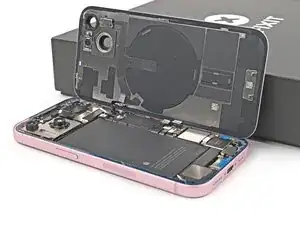
    • Gently lift and swing open the back glass to the right of the phone.

    • If the back glass feels stuck, go back around the perimeter to check for missed sections of adhesive or stuck clips.

    • Rest the back glass against a raised surface so it doesn't strain the cable.

  18. AHQbfncEVFKAMu3R
    • Throughout this repair, keep track of each screw and make sure it goes back exactly where it came from.

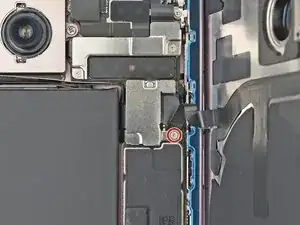
    • Use a tri-point Y000 driver to remove the two 1.3 mm-long screws securing the lower connector cover.

  19. XwNraSJDbvR5Z2dU
    XwNraSJDbvR5Z2dU
    S2emdmEFtc4XYYMe
    5RveuGV2CbuhH6S5
    • Use tweezers to slide the cover toward the top of the phone to unlatch it from the logic board.

    • Remove the cover.

  20. VRryqJsA6HOUReCH
    VRryqJsA6HOUReCH
    MBvpihyAnRhXLoGk
    1plUbwWVSMPbpqQa
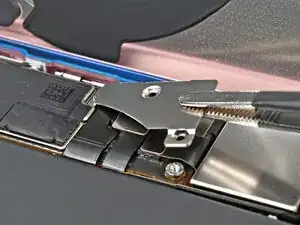
    • Hold the back glass upright with one hand and rotate it just enough to reveal the battery press connector just below the volume buttons.

    • A plus and minus sign is printed on the head of this connector.

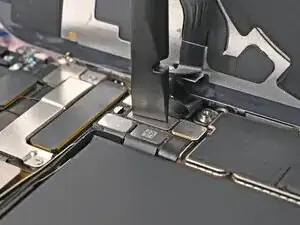
    • Use the tip of an opening pick to pry up and disconnect the battery press connector from the logic board.

  21. CS2ORXfZNfwCcVQF
    CS2ORXfZNfwCcVQF
    ATL6ohHuOy5LtF2n
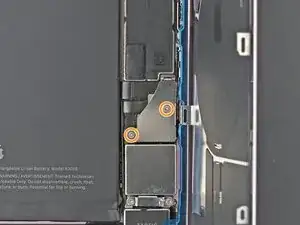
    • Use your tri-point Y000 driver to remove the 0.9 mm-long screw securing the middle connector cover.

  22. iHCMlkKivMvdtOMM
    iHCMlkKivMvdtOMM
    yAQiNhdjovc4TJqD
    hIsCBdLLgJnhGclL
    • Use the flat end of a spudger or your finger to push the cover toward the bottom of the phone and unclip its top edge.

    • Remove the cover.

  23. LvhmAXys1g2BPwcc
    LvhmAXys1g2BPwcc
    iPURLKRY1VL3Bfu3
    • Use an opening pick to pry up and disconnect the wireless charging coil and NFC connector.

  24. PZQeIxkHeJyE3Koy
    • Remove the back glass.

  25. yDboOstfXb2Qn1CL
    yDboOstfXb2Qn1CL
    HORpPyQ6BTRdjLfX
    yDheNRuI1pc4LLQV
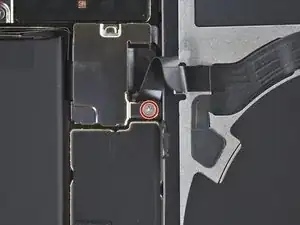
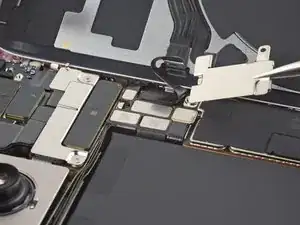
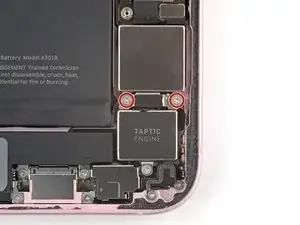
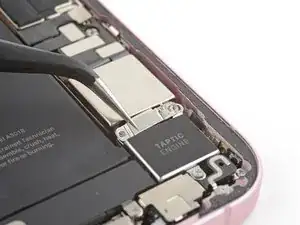
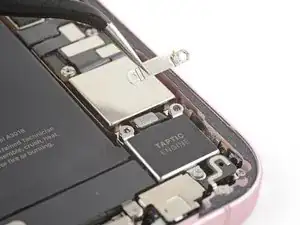
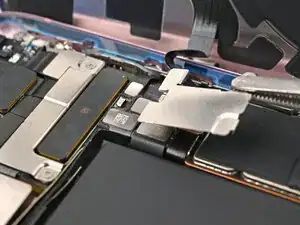
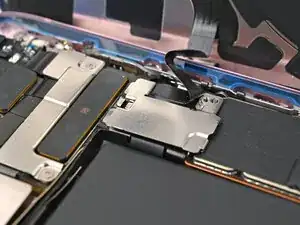
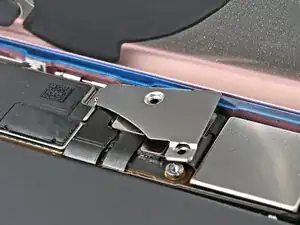
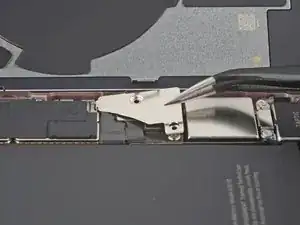
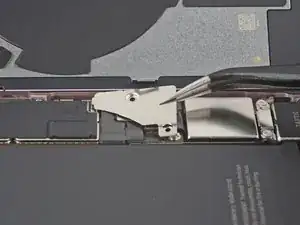
    • Use your Phillips #000 driver to remove the two 1.9 mm‑long screws securing the Taptic Engine press connector cover.

    • Remove the cover.

  26. ahoKgZhQGjQrohqg
    ahoKgZhQGjQrohqg
    Mq5DCNiO1NjO3RkN
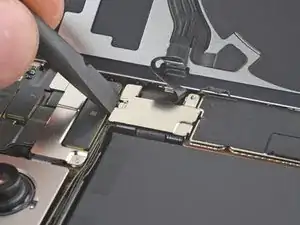
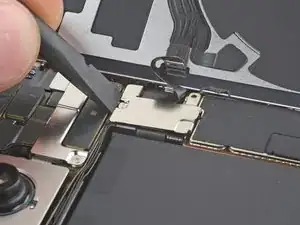
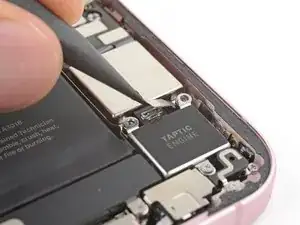
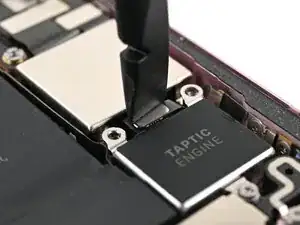
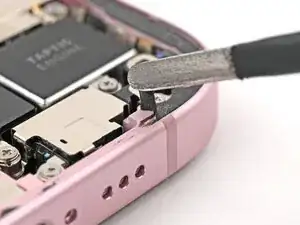
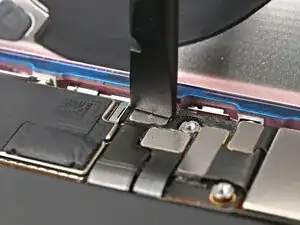
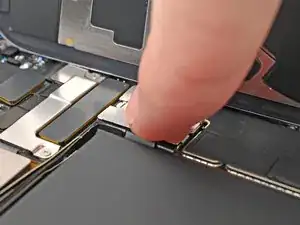
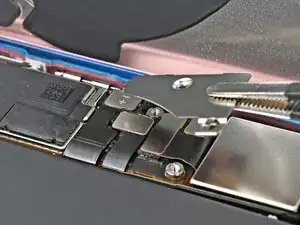
    • Use the point of your spudger to pry up and disconnect the Taptic Engine press connector.

  27. PR1UCLR5HiINHySs
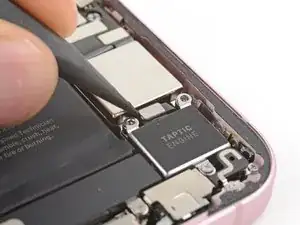
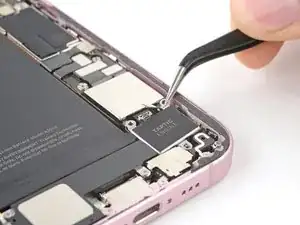
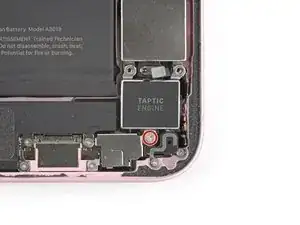
    • Use your Phillips #000 driver to remove the 1.9 mm‑long screw securing the Taptic Engine.

  28. 2WJcqVeelZHDUkGb
    2WJcqVeelZHDUkGb
    xEfSvXDeMfXEpGiw
    • Use tweezers or your fingers to remove the Taptic Engine.

  29. 2yBbdTInXU5GSdHt
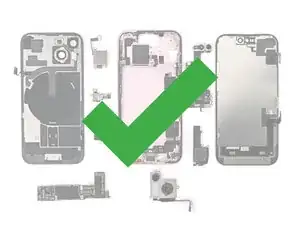
    • Congratulations on completing disassembly! The remaining steps will show you how to reassemble your device.

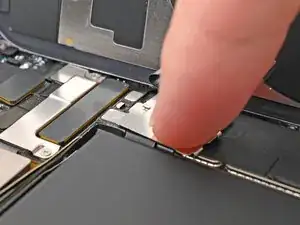
    • When reconnecting press connectors, align the connector carefully over its socket and press down with your fingertip or spudger—first on one side, then the other—until it clicks into place. Don't try to force the connector into place. If you're having trouble, reposition it and try again.

  30. mYFwMRMHofiMn22I
    mYFwMRMHofiMn22I
    qnH6esS1UrrNbG6q
    • Place the Taptic Engine into its slot in the frame.

  31. GHLUQRZuCTesAoEZ
    • Use a Phillips #000 driver to install the 1.9 mm‑long screw securing the Taptic Engine.

  32. ojEwxuJ6TlyAAFPL
    • Use the flat end of a spudger to connect the Taptic Engine press connector.

  33. 3aDbapMkCoMAqlRH
    3aDbapMkCoMAqlRH
    CyotOKCItiREtKM6
    • Place the cover over the Taptic Engine connector.

  34. enr1gEyIommuX1ZN
    • Use a Phillips #000 driver to install the two 1.9 mm‑long screws securing the Taptic Engine press connector cover.

  35. j2TQFhVQtWuecZQ4
    j2TQFhVQtWuecZQ4
    r5go3eDRp2uSEEYD
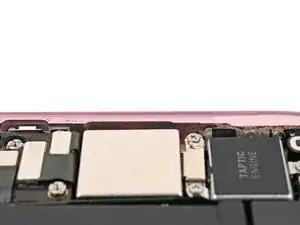
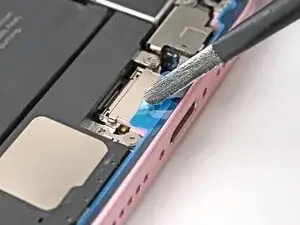
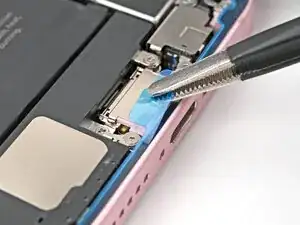
    • Be careful not to damage any of the spring contacts as you clean the frame.

    • This is a good point to test your repair before sealing up your phone. Connect the battery and back glass, power on your phone, and make sure it works as expected. Power it back down, disconnect the battery and back glass, and continue reassembly.

    • The adhesive remaining on your phone is difficult to remove and leaves residue. If you have trouble removing the adhesive, apply some heat using a hair dryer or heat gun.

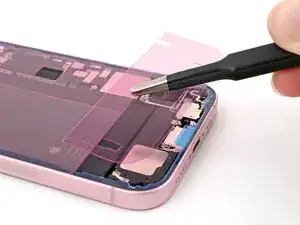
    • Use the pointed end of a spudger to press and roll the adhesive until you can grip it with a pair of tweezers.

    • Use the tweezers to pull the adhesive off of the phone.

  36. x3tbohNpHv1xRAxe
    x3tbohNpHv1xRAxe
    nppQZBdw4JKiHNkr
    FGFWnIJ6Ywd5RPEK
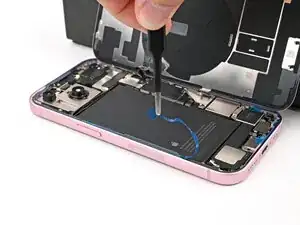
    • Any leftover residue will compromise your iPhone's seal. Be sure to clean the frame thoroughly.

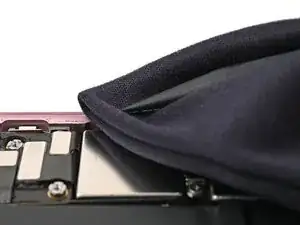
    • Wrap a microfiber or lint-free cloth around the pointed end of a spudger and apply a few drops of high-concentration (greater than 90%) isopropyl alcohol to the cloth.

    • Wipe in one direction along the perimeter of the frame to clean the adhesive residue.

    • Wait a few minutes before proceeding to make sure any excess alcohol has evaporated.

  37. npvgEajOlmIosxDJ
    npvgEajOlmIosxDJ
    o1XsGZAlGbRJdivZ
    aMsw6QbwYbcEByrI
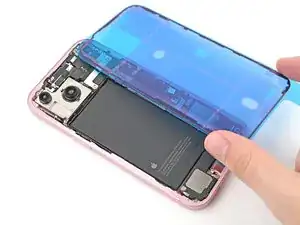
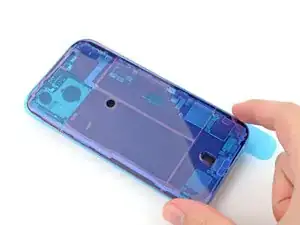
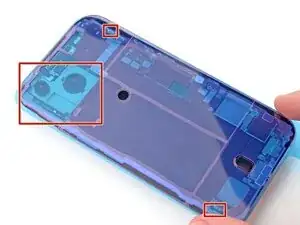
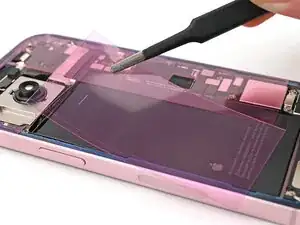
    • Lay the adhesive next to the phone and use features like cutouts for spring contacts and the rear camera to make sure the adhesive is oriented correctly.

    • Your adhesive may look slightly different.

  38. COEGAX16hDXA3KAy
    COEGAX16hDXA3KAy
    RX55pxQ6NiUMLZOl
    wSCagDRv3vRAWQyH
    • Once the adhesive is pressed into place, you can't reposition it—you'll have to remove it and start over with new adhesive.

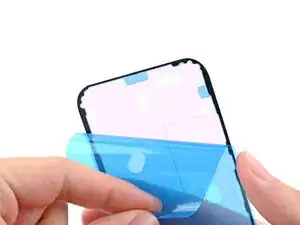
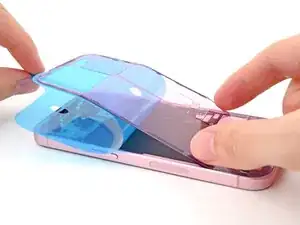
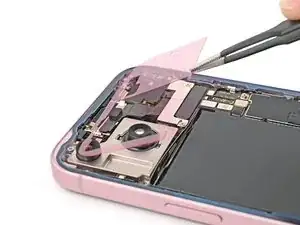
    • Use the pull tab to begin peeling the back liner off the adhesive starting from the bottom, but don't remove the liner all the way.

    • Hold the liner out of the way and align the adhesive with the bottom edge of the iPhone.

    • Lay the bottom edge of the adhesive into its recess in the frame, making sure the iPhone's spring contacts are aligned with their cutouts in the liner.

  39. 3ZRJ3CArDHokDNxQ
    3ZRJ3CArDHokDNxQ
    ZTkLZo6lQQGH5FTO
    yGQOYEGKGx4KBqtE
    • When the adhesive is aligned, use the flat end of a spudger or your finger to press it down firmly along the bottom edge.

  40. Bb1xwP4SDIFmIeEA
    Bb1xwP4SDIFmIeEA
    UWoF12Zj2pwfYc5X
    5ikMBIAlWIZoR2Zc
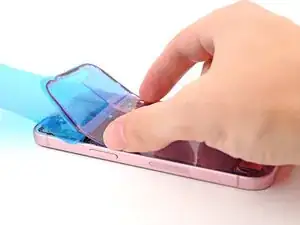
    • Continue peeling the back liner off of the adhesive while pressing the adhesive into place along the edges of the iPhone's frame.

    • If you correctly aligned the lower edge of the adhesive, the side and top edges will fall perfectly into place. If the adhesive is misaligned, remove it and start over with new adhesive.

    • If your adhesive is misaligned and you don't have another set handy, it's okay to temporarily put your iPhone back together and use it normally without any adhesive, but keep in mind that your iPhone's water resistance will be compromised until you install new adhesive.

  41. diOIWFN665wVydak
    diOIWFN665wVydak
    JcZeRXgWqDyy2KJR
    IhUDj3kXZkKRWavN
    • Make sure the liner is aligned properly by checking that all spring contacts and the rear camera are in their cutouts. If they aren't, remove the adhesive and start over with a new sheet.

    • Use the flat end of a spudger to press the adhesive into place around the perimeter of the frame.

    • Be careful not to touch the spring contacts sticking through the pink liner.

  42. VbauPGUTxVuIGuMd
    VbauPGUTxVuIGuMd
    WDttU2fyrGFAEMdG
    ar3YawGYCAQto26m
    • Remove the top adhesive liner.

    • Depending on your adhesive, your liner might be split into multiple parts or be a single piece.

  43. 5KNqAANb32f12fLk
    5KNqAANb32f12fLk
    df41onPpPu12auro
    XqmHGApGavxPINQR
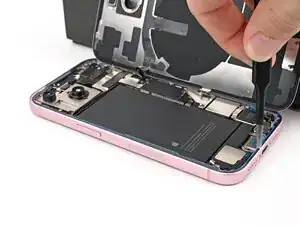
    • Prop up the back glass along the right edge of the iPhone, using a box or similar sturdy object to support the screen.

    • Use the flat end of a spudger or your finger to connect the wireless charging coil press connector, then the battery press connector.

  44. TMDWnWXBZ65n3IWZ
    TMDWnWXBZ65n3IWZ
    lH35GdVkv25WDp5n
    • Place the middle connector cover over the wireless charging coil press connector so it slightly overhangs the slot on the logic board for the bottom clip.

  45. frZKrWLx12tnjdlj
    frZKrWLx12tnjdlj
    PxZwfCUNjbhp2IQd
    • Use your finger to press the cover down on the logic board.

    • While pressing it down, slide the cover upward so both metal clips slot into their spots in the logic board.

  46. rVYKOiY1YABmIsUi
    rVYKOiY1YABmIsUi
    UdkTGOuLAGc5NEhQ
    AbO1CXibyOxBkWJm
    • Use tweezers to hook the top of the lower connector cover into its slot on the logic board.

    • Lay the lower connector cover over the press connectors.

  47. c56nCEfMiomJdiwO
    c56nCEfMiomJdiwO
    vAaSHXFMcxTUxZXH
    • Use a tri-point Y000 screwdriver to install the 0.9 mm‑long screw securing the middle connector cover.

    • Use a tri-point Y000 screwdriver to install the two 1.3 mm‑long screws securing the lower connector cover.

  48. e1gYVNEGBRvhSTJA
    e1gYVNEGBRvhSTJA
    vSwAuAQ3WhK1wFuO
    • Use tweezers or your fingers to separate the pull tabs at the bottom of the frame, near the charging port.

  49. pHRbVkA3NJaMaQCo
    pHRbVkA3NJaMaQCo
    kQFdeyhWFlksNT2E
    ECopLEn2EAmhJbGb
    • Remove the narrow liner covering the adhesive along the left and top edges of the frame.

  50. Z5wrOeZHEjGAITyD
    Z5wrOeZHEjGAITyD
    3ECTh6BBUDVgg1ln
    GyfeWDJHLPYotGC5
    • Hold the back glass over the phone without letting it touch the adhesive, so you can access the remaining liners along the right edge of the phone.

    • Use a pair of tweezers or your fingers to remove the remaing liners along the right edge of the phone.

  51. UDUxbcZ5WIKU4JtS
    UDUxbcZ5WIKU4JtS
    FhksAUPY16YgeNuP
    nZUkCGA43PSkTAg5
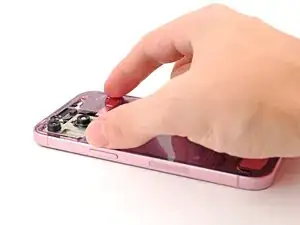
    • Lay the back glass straight down onto the frame and press until the clips engage.

    • Press around the perimeter of the back glass to engage all the clips.

  52. sMVeZnJootpaEBkk
    sMVeZnJootpaEBkk
    R4BI5AWwT5uQiCxx
    • To help the adhesive bond, apply heat to the edges of the back glass using an iOpener, hair dryer, or heat gun until it's hot to the touch.

    • Firmly press around the perimeter of the back glass. If you have screen vise clamps, use them to strengthen the bond of your new adhesive. If not, keep reading for more ways to secure the back glass.

  53. wRpxwGVCsyeogFDW
    wRpxwGVCsyeogFDW
    XnBjmqZdLyGrPnQf
    VdFnpDkX45epDMap
    • To evenly compress your iPhone and strengthen the bond of the back glass to the frame, you need to account for the camera bump.

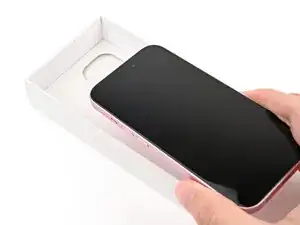
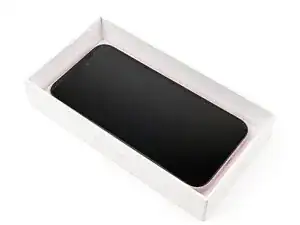
    • If you have the box your iPhone came in, take the lid and place it on a flat surface.

    • If you don't have your original box, skip this step for an alternate method.

    • Place your iPhone screen-side-up in the lid of your box with the camera bump in its recess.

    • Find something close to the size of your iPhone, but taller than the sides of the box. Stack it on top of the iPhone, followed by a few heavy objects.

    • Leave the objects in place for at least thirty minutes. The lighter the objects, the longer they should be left. Ideally, leave them stacked overnight.

  54. PgfIkAGpH1SawNEK
    PgfIkAGpH1SawNEK
    sIuayLVSTcQsb5Qh
    • If you don't have the original box for your iPhone, follow the next three steps for another method to evenly compress the back glass.

    • Place the iPhone screen-side-down on a soft, flat surface.

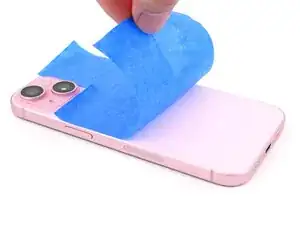
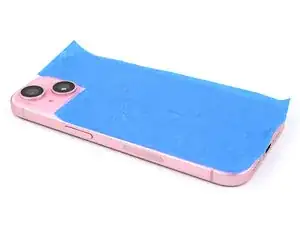
    • Apply tape to the back glass to protect its finish.

  55. Wc5usIpNnmBaV1uv
    Wc5usIpNnmBaV1uv
    NemtQNEeZKmMFvMY
    SEEhhSVZ2cZAKGbg
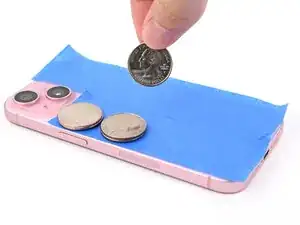
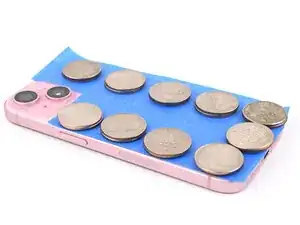
    • Place evenly spaced layers of coins or similarly thick objects on the tape along the edges of the back glass.

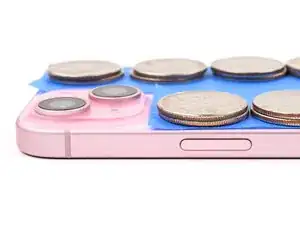
    • Stack them to a consistent height taller than the camera bump.

  56. f6bHcnyrE2T5hSdV
    • Stack multiple books or other heavy objects on your iPhone.

    • The coins may leave an impression on the bottom object, so don't use anything valuable.

    • Leave the objects in place for at least thirty minutes. The lighter the objects, the longer they should be left. Ideally, leave them stacked overnight.

  57. BWZ2RDFjMrvJeCc4
    BWZ2RDFjMrvJeCc4
    J3XYExNBDltjICCK
    • Use a P2 pentalobe driver to install the two 7.7 mm‑long screws on either side of the charging port.

Conclusão

Take your e-waste to an R2 or e-Stewards certified recycler.

Repair didn’t go as planned? Try some basic troubleshooting, or ask our Answers community for help.

Clay Eickemeyer

Membro desde: 19/09/22

99651 Reputação

2 comentários

how to unlock iphone 15 if forgot passcode and everthing

Sione Tufi -

You would need to connect your device to a computer capable of iTunes, then go into DFU mode to connect your phone to view it on iTunes

Joe -