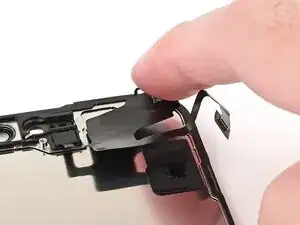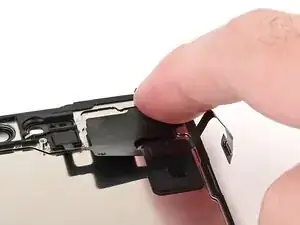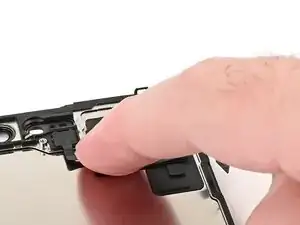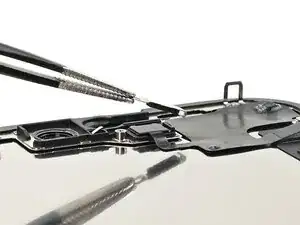
Introdução

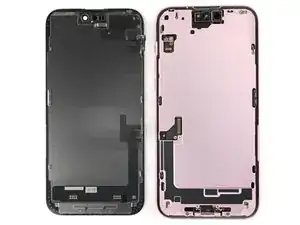
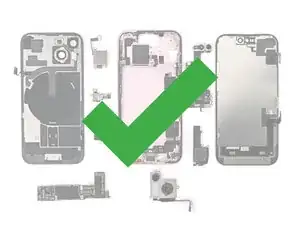
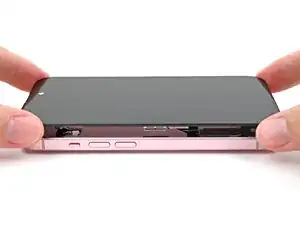
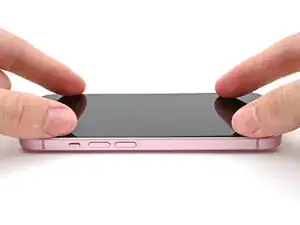
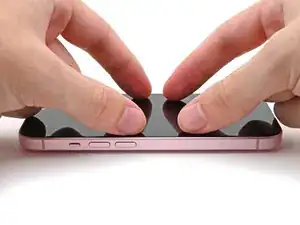
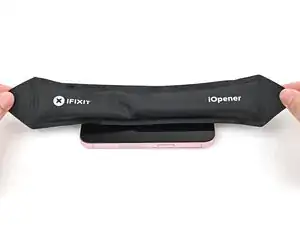
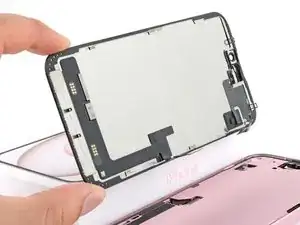
Use this guide to replace a broken or cracked screen in your iPhone 15 Plus.

Note: Since you can't disconnect the battery during this repair, be especially careful not to use metal prying tools or touch exposed contacts in your iPhone.

Note: Due to Apple's parts pairing restrictions, on iOS 17.6 and earlier, True Tone and auto brightness are disabled after a screen replacement, even when using an original Apple screen. On iOS 18 and newer, you can calibrate your new screen using Apple's Repair Assistant to restore functionality on genuine parts.

  1. lIUkreYGBUFeRMVi
    lIUkreYGBUFeRMVi
    mrhP4j3gku3xQTYu
    • Allow your phone's battery to drain below 25%, as a charged lithium-ion battery is a potential safety hazard.

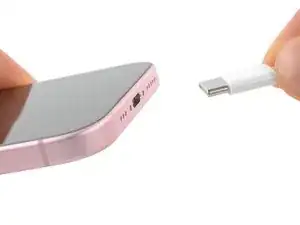
    • Unplug any cables from your phone.

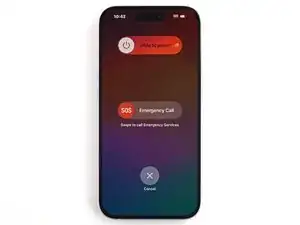
    • Hold the power and either volume buttons and slide to power off your phone.

  2. ChhMVWIceNdbvZQJ
    ChhMVWIceNdbvZQJ
    RYRPjo3rDShOAyHw
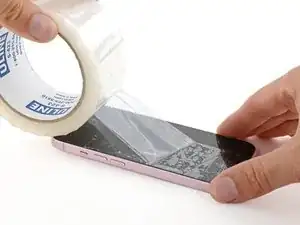
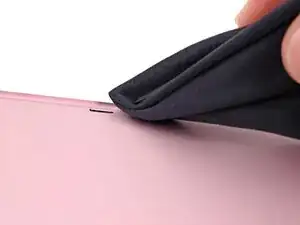
    • If your screen or back glass is badly cracked, lay overlapping strips of packing tape over the glass to protect yourself and make disassembly easier.

    • Make sure there's a smooth area near the bottom edge that's big enough for a suction cup to stick to.

  3. 6UPwoloGBO4tmVoS
    6UPwoloGBO4tmVoS
    BmSYPJmOy6dbHipF
    3EOdQPAGOmiuhoKU
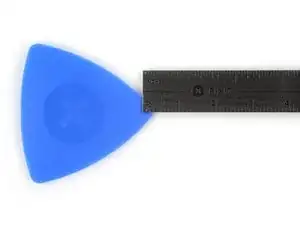
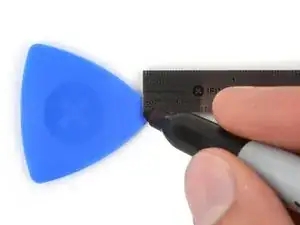
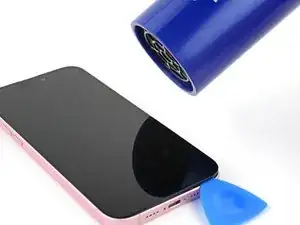
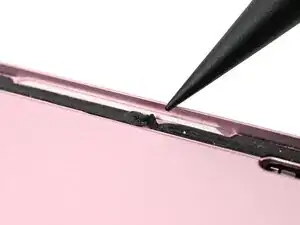
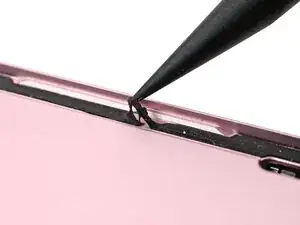
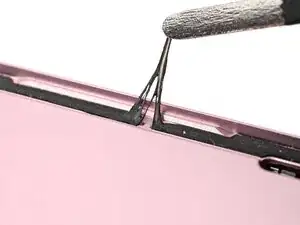
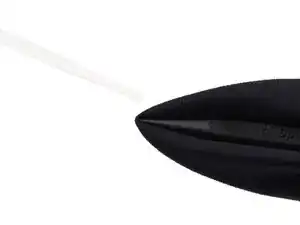
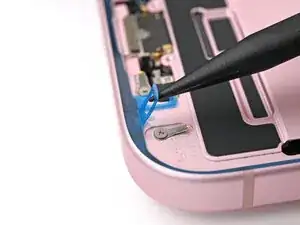
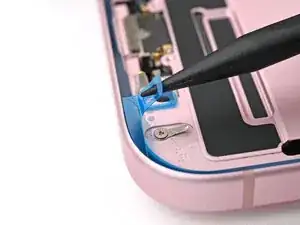
    • If inserted too far, an opening pick can damage your device. Follow this step to mark your pick and prevent damage.

    • Measure 3 mm from the tip and mark the opening pick with a permanent marker.

    • You can also mark the other corners of the pick with different measurements.

    • Alternatively, tape a coin to a pick 3 mm from the tip.

    • Apple sells an Adhesive Cutter tool for cutting the display adhesive safely in their Self Repair Store.

    Got to step 2 and realized the fix kit doesn't include an opening pick! Looks like a guitar pick, and I have those lying around. Is that expected? Looks like the pick is used in many steps below. There's a little blue crowbar that isn't mentioned in the instructions. Perhaps that replaces the opening pick?

    Sloan Looney -
    Hi! I can't see which guide you were using when writing this comment. Can you reply here with which guide and fix kit you used?

    Clay Eickemeyer -
    I see you posted this in Meta. I hope it's resolved soon! In the meantime, a guitar pick may work well enough for your repair.

    Clay Eickemeyer -
    what fix kit?

    Meow Purr -
    Super late reply to original post but my pick was with the replacement screen and not the tools kit.

    Nichol Augustus -

    My fix kit didn't include an opening pick either

    WILLIAM HARRIS -

    Make sure you check inside the black boxes after emptying them. My pick was stuck inside one of the boxes.

    AndyF -

    My AliExpress refurbished screen came with a pick that has a coin-like circle that pops out, so no modification was necessary

    Gijs Leegwater -

    the picture shows 3 cm but the description says 3 mm's. Which one is it?

    John Pena -

    That is a misunderstanding. It is a ruler with a scale for cm, it shows 0.3 cm, i.e. 3 mm.

    VauWeh -

    Oh, come ON!

    Big Ed -

    It will ALWAYS be millimeters on a phone, but this step is ridiculous, skip it!

    Leif DeWolf -

    @leifdewolf I wouldn't skip it for a first repair.

    Gabriel-Science -

    It's not an Ifixit KIT if it doesn't include everything. You'll need to order the opening pic separately. Or head to Walmart like myself and look for guitar pics. Hopefully, this will work just as well.

    Jaleeljb97@icloud.com -

    No pick in mine as well. It’s really not clear that you have to order this separately when ordering an IPhone SE 202/2022 screen repair kit. Is this the case?

    Jackson Castiglione -

    Frustrated, I ordered a compact package where everything was encapsulated. Useless suction tools could not separate the screen. If it is unable to decouple the screen, then why sucking suction tools you have provided.

    Shourob Datta -

    For my kit the triangle pick was stuck inside the box with the screen not with the other tools maybe it's also there for you

    Henry Scheibehenne -

    Y’all are getting far, FAR too detailed with some of this stuff…. Measuring and marking the pick that you won’t actually use to open the device?!? lol that’s kinda funny. Just heat it up, grab a spudger, and the back just pops right off! The iFixit tech need to stick to the KISS method more often, you know KEEP IT SIMPLE STUPID!!! Like l, for reals, I’ve been doing this stuff for YEARS and using iFixit guides regularly and this is just ridiculous at this point!

    Leif DeWolf -

    Will the phone still work if the sensor assembly on the back of the screen is damaged?

    Mutshidzi Rambau -

    I don't have a pick, but how much better are these picks than an old credit card for opening an iPhone 13 mini?

    mike eng -

    an old credit card will do that job, although you'll have to pull a little bit more if the credit card is thicker than the picks, just again, be careful and don't insert it that far

    Russ Torrez -

    The pick in my iFixIt kit was packed with the battery, not with the rest of the toolkit.

    Tony Houlihan -

    Many of these comments are PURE GOLD. Seriously y’all, if you’re not sure if it should be 3mm or 3cm or whether you could find and use an alternative pick, mending an IPhone really isn’t for you. Find a responsible adult and get back to doing something simpler…

    Alasdair Cameron -

    indeed!!!! I agreee!!!

    Lonnie -

    I bought the kit of five just in case. I used two and marking them at 3mm was definitely helpful.

    Megolina -

    Funktioniert super. Habe vorher sicherheitshalber den Akku abgesteckt.

    Lukas D -

  4. YAOTrTPUbu12tIJM
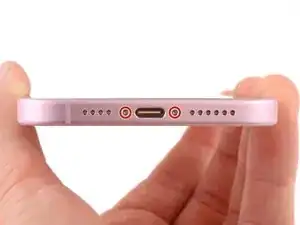
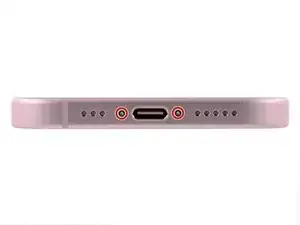
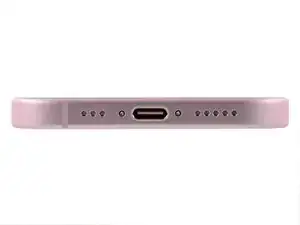
    • Use a P2 pentalobe driver to remove the two 7.7 mm-long screws on either side of the charging port.

  5. cuaVhfEmWZBoASC6
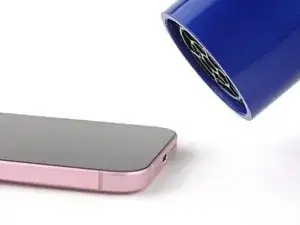
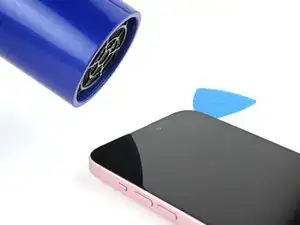
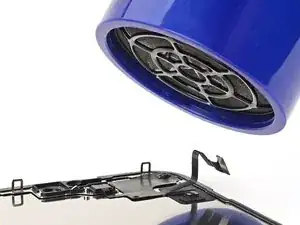
    • Use a hair dryer or heat gun to heat the bottom edge of the screen until it's hot to the touch.

    • Be careful not to heat the phone hotter than this—the battery is susceptible to heat damage.

  6. FlTSDM2RrAb6QjUi
    FlTSDM2RrAb6QjUi
    CsDPeDxR3acvoXDE
    6vHbNUKL2pxkpxFQ
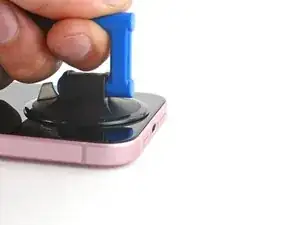
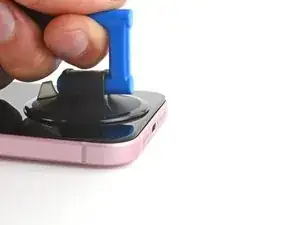
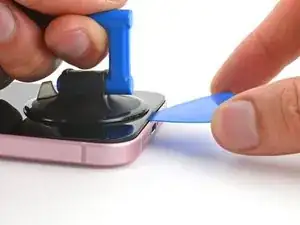
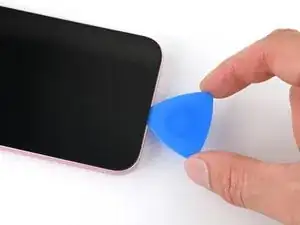
    • Apply a suction handle to the bottom edge of the screen.

    • Pull up on the handle with a strong, steady force to create a gap between the screen and the frame.

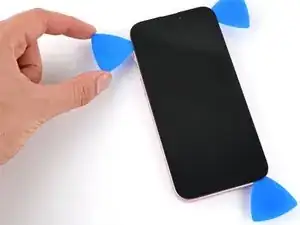
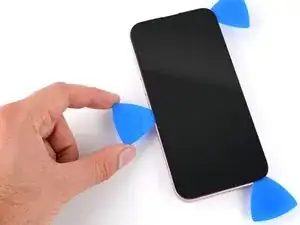
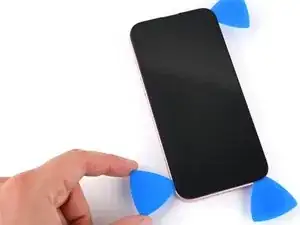
    • Insert the tip of an opening pick into the gap.

  7. VikZdqydT2it2D1u
    VikZdqydT2it2D1u
    AkGhDMlhjiBP3Jnd
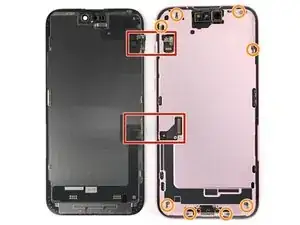
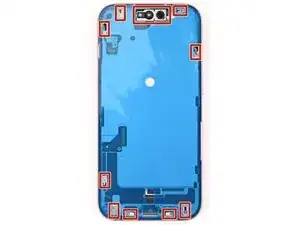
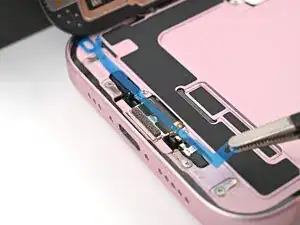
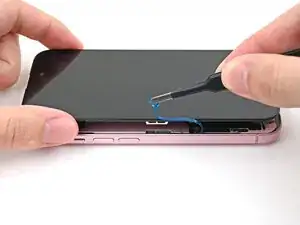
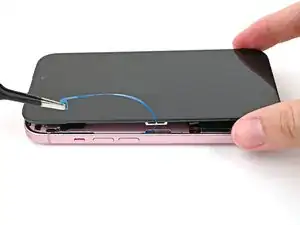
    • As you slice the adhesive securing the screen in the next steps, be careful of the following areas:

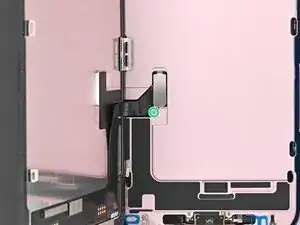
    • There are two delicate cables connecting the screen to the phone, one just above the mute switch, and the other about halfway between the volume down button and the bottom of the phone.

    • There are multiple spring contacts around the perimeter of the phone. Be extra careful not to insert your pick deeper than suggested in these locations to avoid bending the contacts.

  8. wCCfxTtUHYpDsRGf
    wCCfxTtUHYpDsRGf
    GaqLS26VQOsdRMEE
    qnuIYsbseQ6pZNaj
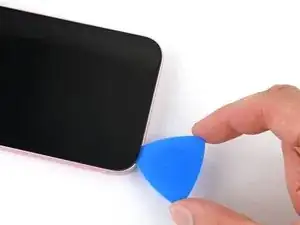
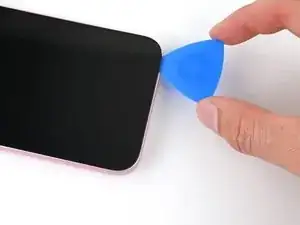
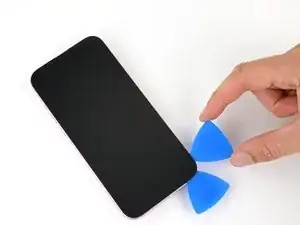
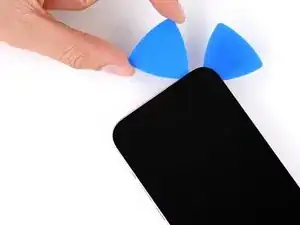
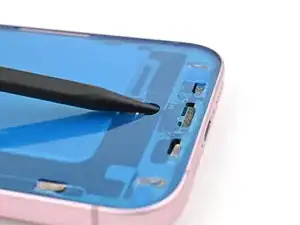
    • Don't insert your opening pick deeper than 3 mm along the bottom edge.

    • Slide your pick back and forth along the bottom edge to separate the adhesive.

    • Leave your pick inserted in the bottom right corner to prevent the adhesive from re-sealing.

  9. UICJMGccGqYuLiuT
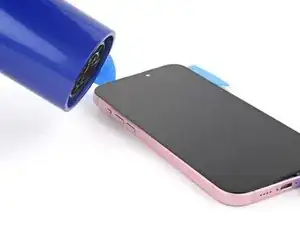
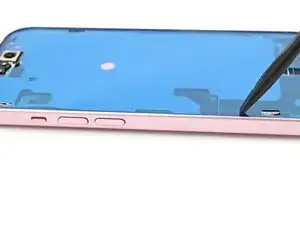
    • Heat the right edge of the screen until it's hot to the touch.

  10. fIgiBqBc2B6UtgIe
    fIgiBqBc2B6UtgIe
    WIjuXB35eLVdjExp
    TbCdsgufV6LBgdPA
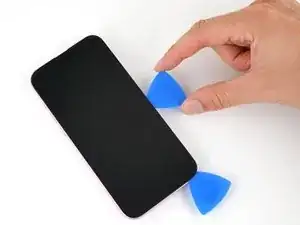
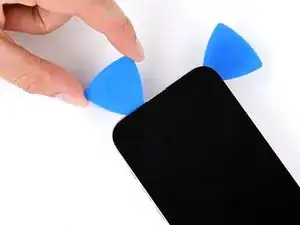
    • Don't insert your pick deeper than 5 mm along the right edge.

    • Insert a second opening pick to the right of the first one.

    • Slide the pick along the right edge of the screen to release the clips and separate the adhesive securing it.

  11. HLPYAOtuSQsFkitV
    • Heat the top edge of the screen until it's hot to the touch.

  12. RlLSxhYSEKTV66A1
    RlLSxhYSEKTV66A1
    aRtSgEQRFXw4JlgK
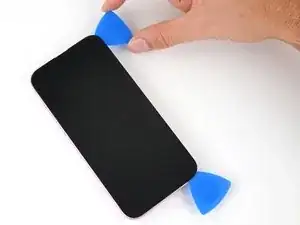
    • Don't insert your pick deeper than 3 mm along the top edge.

    • Insert a third opening pick in the top right corner and slide it along the top edge to release the two clips and adhesive securing it.

  13. T2pl3NcQaDGAQ55B
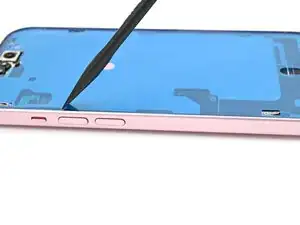
    • Heat the left edge of the screen until it's hot to the touch.

  14. XhgWV4hVGWYL1qvu
    XhgWV4hVGWYL1qvu
    hTKMyXEppsgToMKQ
    PT6rcmI5oRk6CIJW
    • Don't insert your pick deeper than 3 mm along the left edge to avoid the two cables connecting the screen to the phone.

    • Slide your pick around the top left corner of the screen and along the left edge to release the clips and separate the adhesive securing it.

  15. 2kVjGDLlJLaS4OPb
    2kVjGDLlJLaS4OPb
    56mDuqYtbvCt2NMu
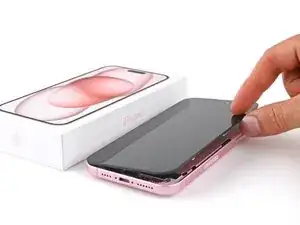
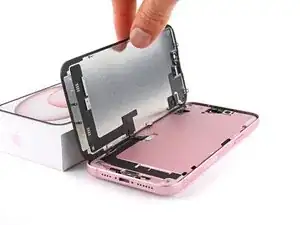
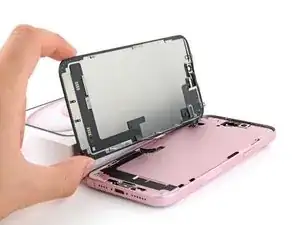
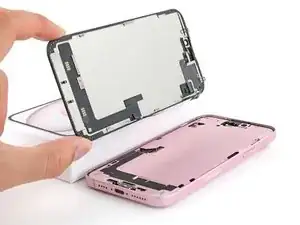
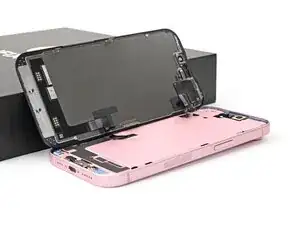
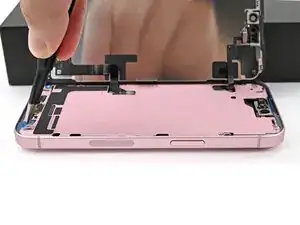
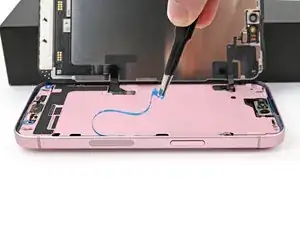
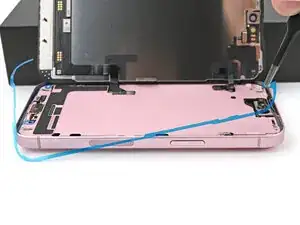
    • Gently swing open the screen over the left edge of the phone.

    • If the screen feels stuck, go back around the perimeter to check for missed sections of adhesive or stuck clips.

    • Rest the screen against a box or similar object so it doesn't strain the cables.

  16. LmlCMqEJvoexO4rS
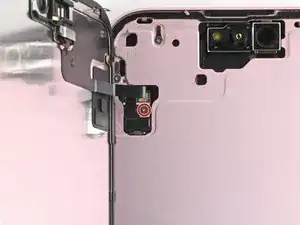
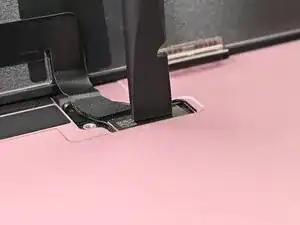
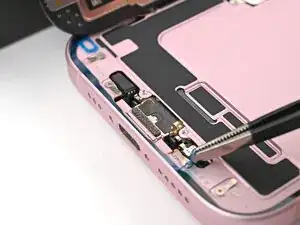
    • Use a tri-point Y000 driver to remove the 0.9 mm‑long screw securing the front sensor connector cover.

  17. qBmKiLhccX6eOrNn
    qBmKiLhccX6eOrNn
    LfFufqMxGkOFBum1
    tqyIhG23vhZYKERf
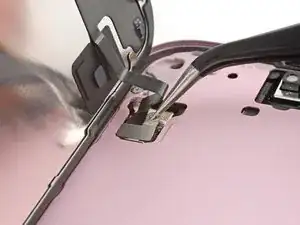
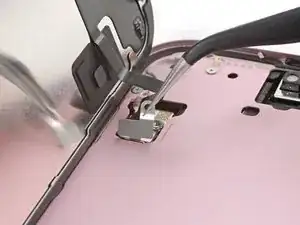
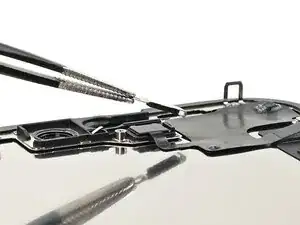
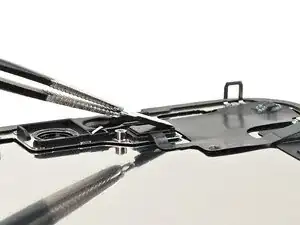
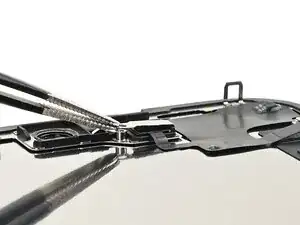
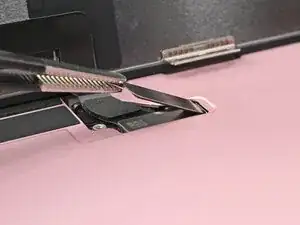
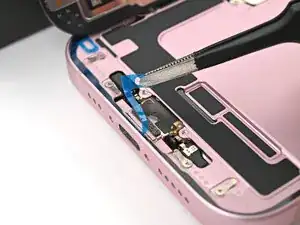
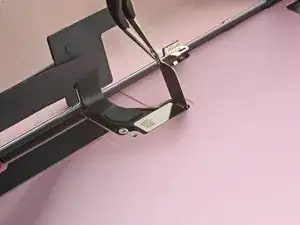
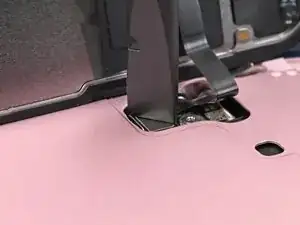
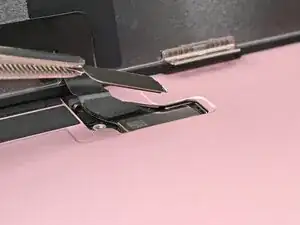
    • Use tweezers to lift the cover to a 90-degree angle.

    • Unhook the cover from its slot in the logic board.

    • Remove the cover.

  18. vuAKyh3H3lErhTXk
    vuAKyh3H3lErhTXk
    Edkisb1dx2ZceDFq
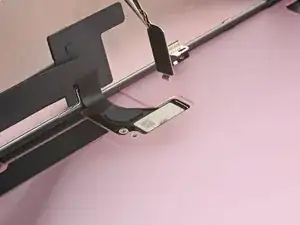
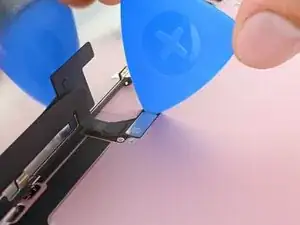
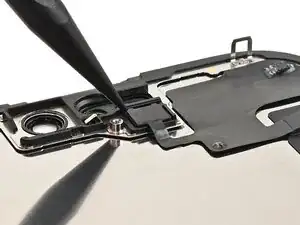
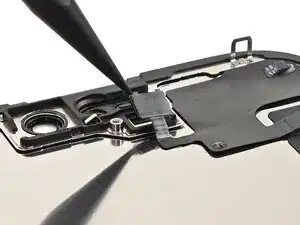
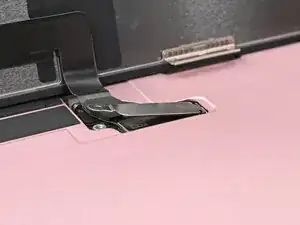
    • Use the tip of an opening pick to pry up and disconnect the front sensor press connector.

    • To reconnect a press connector, align it over its socket and gently press down on one side until it clicks into place, then press down on the other side.

  19. kyDnYDRbncYSt5Ep
    • Use your tri-point Y000 driver to remove the 0.9 mm‑long screw securing the screen connector cover.

  20. FcWDbVLBsvZfGewj
    FcWDbVLBsvZfGewj
    1iyS3svCJIFaesew
    2ofBmLLjTHJPild4
    • Use tweezers to lift the cover and unlatch it from its hook on the logic board.

    • Remove the cover.

  21. tGdIiGUGGfWvTqhM
    tGdIiGUGGfWvTqhM
    TiTsZuVK4GBQROHU
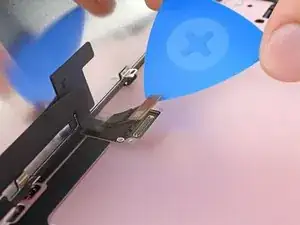
    • Use the tip of an opening pick to pry up and disconnect the screen press connector.

  22. 4Wg1yeHDWDPHbQfC
    4Wg1yeHDWDPHbQfC
    PkJiWqqMTxZMjECV
    • Remove the screen.

  23. 2yBbdTInXU5GSdHt
    • Congratulations on completing disassembly! The remaining steps will show you how to reassemble your device.

    • When reconnecting press connectors, align the connector carefully over its socket and press down with your fingertip or spudger—first on one side, then the other—until it clicks into place. Don't try to force the connector into place. If you're having trouble, reposition it and try again.

    • Reassembly photos are of the iPhone 15 non‑Plus. It may look a little different, but the procedure is correct.

  24. RjAVEmn25SDNPrvA
    RjAVEmn25SDNPrvA
    PQcPOsbCeAkH5bay
    snKG32RX14qEQOEo
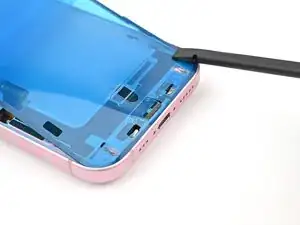
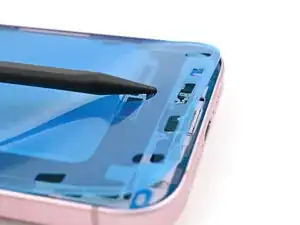
    • Be careful not to damage any of the spring contacts as you clean the frame.

    • This is a good point to test your repair before sealing up your phone. Connect the screen, power on your phone, and make sure it works as expected. Power it back down and continue reassembly.

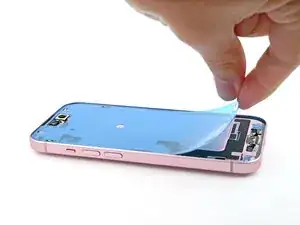
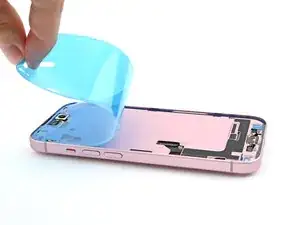
    • The adhesive remaining on your phone is difficult to remove and leaves residue. If you have trouble removing the adhesive, apply some heat using a hair dryer or heat gun.

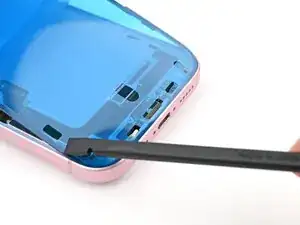
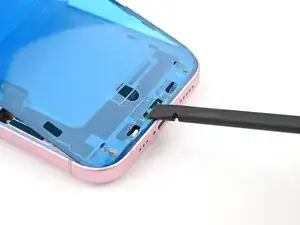
    • Use a spudger to push the screen adhesive up until you can grab it with a pair of tweezers.

    • Use a pair of tweezers, or your fingers, to remove the adhesive around the entire perimeter of the iPhone.

  25. dYBQX2xHvOhZWTWF
    dYBQX2xHvOhZWTWF
    JUaBPKuMCHyYLm51
    JJ2pFpkZlaqibjS4
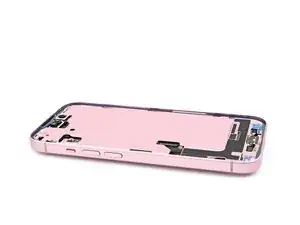
    • Any leftover residue will compromise your iPhone's seal. Be sure to clean the frame thoroughly.

    • Wrap a microfiber or lint-free cloth around the pointed end of a spudger and apply a few drops of high-concentration (greater than 90%) isopropyl alcohol to the cloth.

    • Wipe in one direction along the perimeter of the frame to clean the adhesive residue.

    • Wait a few minutes before proceeding to make sure any excess alcohol has evaporated.

  26. NVUmSrjDccBBP1AO
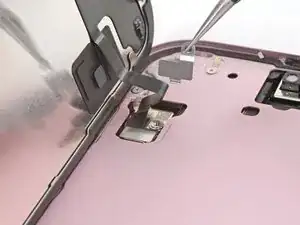
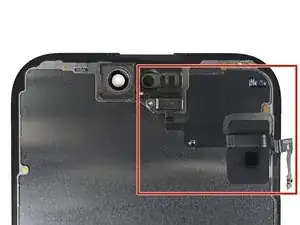
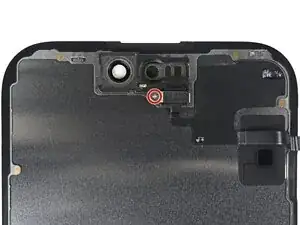
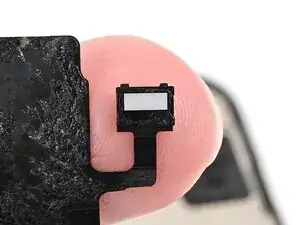
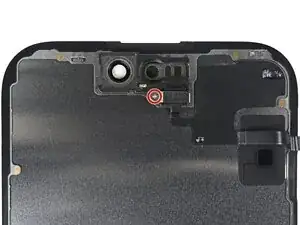
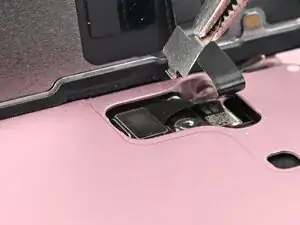
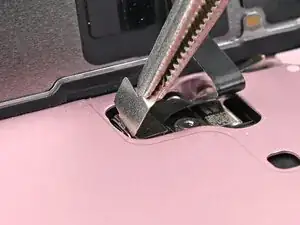
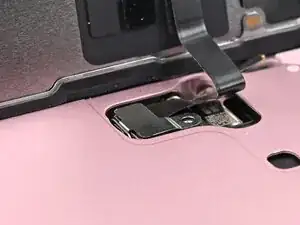
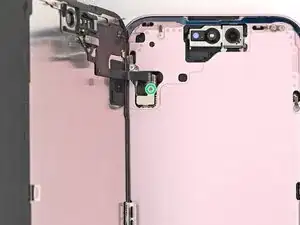
    • The ambient light sensor is located behind the screen, directly beneath the cut‑out for the Face ID sensors.

    • Check if the replacement screen comes with one installed. If it does, skip to this step.

  27. Y4ShHLJj3rX35JWS
    Y4ShHLJj3rX35JWS
    4JyCmcAPTJ5MgMoB
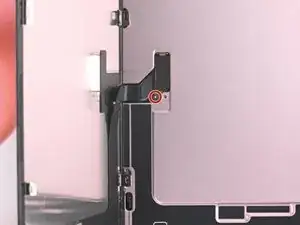
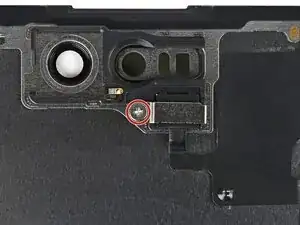
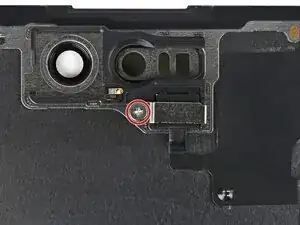
    • Use a Phillips screwdriver to remove the 1.3 mm‑long screw securing the ambient light sensor bracket.

  28. cpRpFEAxGEBKLqGU
    cpRpFEAxGEBKLqGU
    3YeBYHNeJJAvXJaS
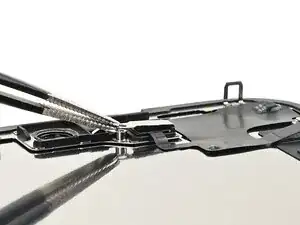
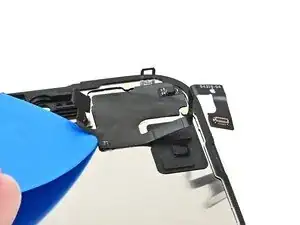
    • Use a pair of tweezers or your fingers to lift and remove the ambient light sensor bracket.

  29. yAbsKX3PHvdyiddq
  30. BQpDhUGcdARkLDAq
    BQpDhUGcdARkLDAq
    UcUOu64yoYyGw4T6
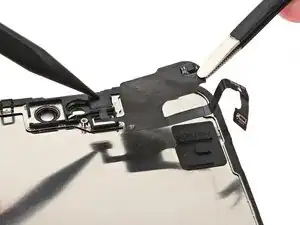
    • Use a spudger to pry up the ambient light sensor.

  31. bIxAYB56rPuhoxA2
    bIxAYB56rPuhoxA2
    tPlrdXmYAZCUETJP
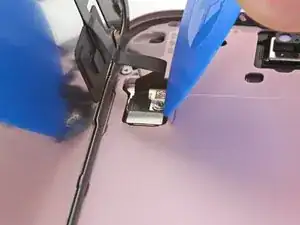
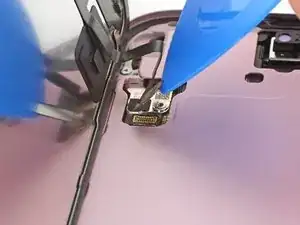
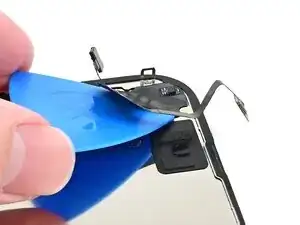
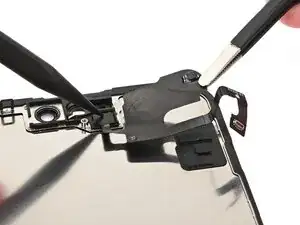
    • Gently slide an opening pick under the ambient light sensor cable, starting near the sensor and moving towards to the opposite corner until it's free from the screen.

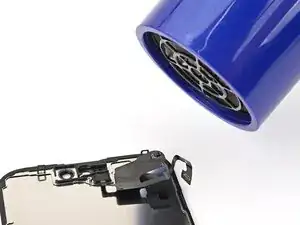
    • If the adhesive doesn't peel up easily, apply more heat.

  32. sKOPDKmOjU3MAeXN
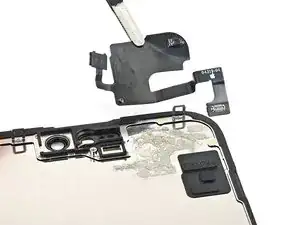
    • Use a pair of tweezers to lift the ambient light sensor off of the screen.

  33. QZoZBdj4X5fBCWsL
    QZoZBdj4X5fBCWsL
    wnjTPgejDVmSgDPk
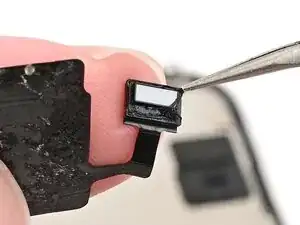
    • Use tweezers to reposition any adhesive that may have covered the ambient light sensor during removal. The adhesive should form a border around the raised white rectangle.

    • If the adhesive was damaged or stayed with the old screen, replace it with a 1 mm wide strip of thin, double-sided tape along its bottom border.

  34. vkXtbxoN5L5V4hyb
    vkXtbxoN5L5V4hyb
    4jsrJH11S3j4fUSC
    • Align the ambient light sensor with its recess in the back of the screen.

    • Use a spudger or your finger to press the ambient light sensor into its recess.

  35. CmXVejVYODUBIBid
    • Use a hair dryer, heat gun, or heated iOpener to soften the adhesive under the ambient light sensor and ambient light sensor cable. It only needs to be warm—not hot.

  36. HsBlSNHTtWZi3UAp
    HsBlSNHTtWZi3UAp
    CnuDaWmkQ2i3X5Sc
    2AhcGHCVR6ycT4Vn
    • Use your finger to press down the ambient light sensor cable.

    • If the ambient light sensor cable isn't sticking, apply a few small pieces of double‑sided tape, like Tesa tape, to the back of the sensor cable.

  37. uE1q3BB6Sepye3dU
    uE1q3BB6Sepye3dU
    1g2qNCuvvR1OwsRq
    RTrJlNKKWsdR3Ba2
    • Use tweezers or your fingers to hook the ambient light sensor bracket over the back of the sensor and set it into place.

  38. tbYkANXW1EmoihYB
    tbYkANXW1EmoihYB
    6LpUQ6iyBGiwLfLY
    • Use a Phillips screwdriver to install the 1.3 mm‑long screw securing the ambient light sensor bracket.

  39. qmWXeDyxLmhNsjX2
    qmWXeDyxLmhNsjX2
    u36Awft5CPKVALjQ
    ncJhyJIIiPlxmSGX
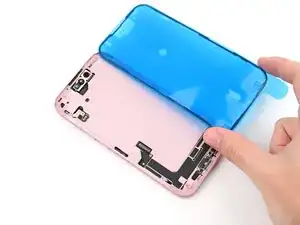
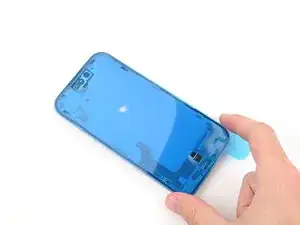
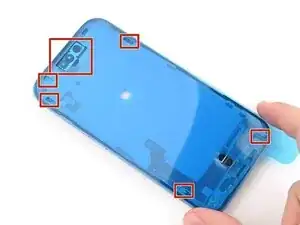
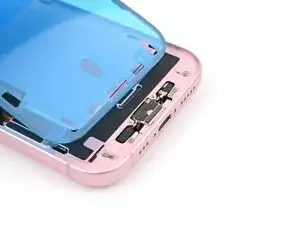
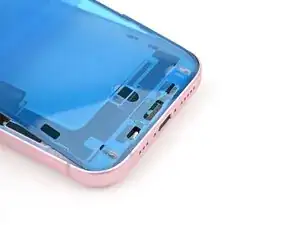
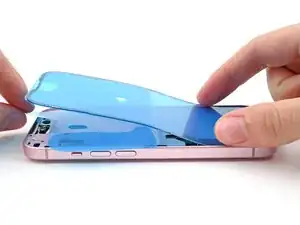
    • Lay the adhesive next to the phone and use features like cutouts for spring contacts and the front‑facing camera to make sure the adhesive is oriented correctly.

    • Your adhesive may look slightly different.

  40. 4nqNRPRNY6JbKAbb
    4nqNRPRNY6JbKAbb
    KaCNl332EVGI5mMH
    iFdZFrPbe3GamLd2
    • Once the adhesive is pressed into place, you can't reposition it—you'll have to remove it and start over with new adhesive.

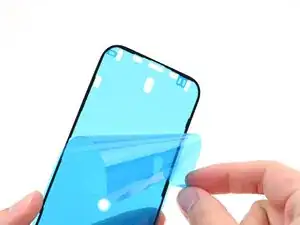
    • Use the pull tab to begin peeling the back liner off of the adhesive starting from the bottom, but do not remove the liner all the way.

    • While holding the back liner out of the way, carefully align the exposed edge of the adhesive to the bottom edge of the iPhone's frame.

  41. JqcBItHdqHitVITH
    JqcBItHdqHitVITH
    ic1xsMHAGQYGvWWn
    thiJMQjATLYPYSPa
    • When the adhesive is aligned, use the flat end of a spudger, or your finger, to press it down firmly along the bottom edge.

  42. qpDLTnAPYWZCHLQP
    qpDLTnAPYWZCHLQP
    owOpbURFso3nLXQS
    ayc3ZPGAXHAIMYQJ
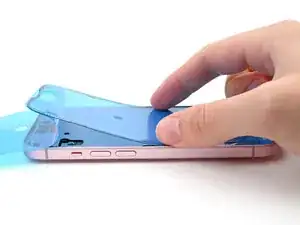
    • Continue peeling the back liner off of the adhesive while pressing the adhesive into place along the edges of the iPhone's frame.

    • If you correctly aligned the lower edge of the adhesive, the side and top edges will fall perfectly into place. If the adhesive is misaligned, remove it and start over with new adhesive.

    • If your adhesive is misaligned and you don't have another set handy, it's okay to temporarily put your iPhone back together and use it normally without any adhesive, but keep in mind that your iPhone's water resistance will be compromised until you install new adhesive.

  43. EWnNpavpE1LdOVgu
    EWnNpavpE1LdOVgu
    aUujUajckj5dS3tQ
    BNkP6iohxRyPQtIy
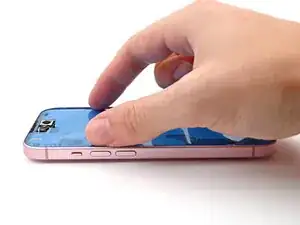
    • Make sure the liner is aligned properly by checking that all spring contacts and the front-facing camera are in their cutouts. If they aren't, remove the adhesive and start over with a new sheet.

    • Use the flat end of a spudger to press the adhesive firmly into place all around the iPhone.

    • Be careful not to press on the camera, spring contacts, or other internal components.

  44. FdXIKKW1iaReRrAH
    FdXIKKW1iaReRrAH
    y6hHFJBpBNMl55uU
    • Insert the point of a spudger under the top liner's hole at the bottom of the frame.

    • Pry up to separate the liner from the frame—enough to grip it with your fingers.

    • Your pull tab may be in a different location. Make sure you're pulling the full-size top liner, not the thin liners under it.

  45. ZVFbaBuZYNNoQFEh
    ZVFbaBuZYNNoQFEh
    FXZcpZblxfsyqZwg
    qy2MgxNLxL12pZpO
    • Peel back the top liner and remove it.

  46. CvF63RHES5cXrpsP
    • Prop the screen up along the left edge of the iPhone frame, using a box or similar sturdy object to support the screen.

  47. cgQC6rkWVtfZu11I
    cgQC6rkWVtfZu11I
    rq5NIJCWPVV33s24
    • Use the flat end of a spudger or your finger to connect the screen and front sensor press connectors.

  48. RDpyeQ5ZilLnsQuG
    RDpyeQ5ZilLnsQuG
    LPvaMQsSD4Lq2eGC
    sBSRN1ewPSIDXkFh
    • Insert the top of the screen connector cover into its slot in the frame and lay it over the press connector.

  49. Ht4NLARIAHENCmWv
    Ht4NLARIAHENCmWv
    S2E56dLKuCFJBACZ
    IGiH1ySRIXdMMOsw
    • Insert the front sensor connector cover into its slot in the frame at a 90‑degree angle vertically.

    • Lay the cover over the press connector.

  50. iixJHZOiNLCHEbKr
    iixJHZOiNLCHEbKr
    IUKgOCqfSOgB4IL3
    • Use a tri-point Y000 driver to install the two 0.9 mm‑long screws securing the front sensor connector and screen connector covers.

  51. hNIpN6X6GovqYR3J
    hNIpN6X6GovqYR3J
    RNpaAqeKXCWQJwlB
    • As you remove the liners in this step, the adhesive will be fully exposed. Make sure nothing touches the exposed adhesive.

    • Use a spudger, or your fingers, to separate the pull tabs at the bottom right corner of the frame.

  52. fiCqaah5SHxFUZyE
    fiCqaah5SHxFUZyE
    VFQIATVVN2vEjDfp
    jBxdNWXsBOgaYivY
    • Remove the narrow liner covering the adhesive along the right and top edges of the frame.

  53. cAy16FhTgIrZDpZQ
    cAy16FhTgIrZDpZQ
    JhjMQiO3vPAsHZek
    IlsbxcyGLYS1OUdC
    • Remove the liner along the bottom edge of the frame.

  54. irEF33cVskhaccOB
    irEF33cVskhaccOB
    jGnB6glG6CSHOhvD
    CYxALRFlXTHqekbJ
    • Without letting the screen touch the adhesive, hold the screen over the phone so you can access the final liner along the left edge of the phone.

    • Use a pair of tweezers or your fingers to remove the final liner along the left edge of the phone.

  55. QRNFkOJdo16GsOVc
    QRNFkOJdo16GsOVc
    HlAFv3XVnwRAWAEm
    6VAHXYUqX2QSUWvW
    • Lay the screen straight down onto the frame and press until the clips engage.

    • Press around the perimeter of the screen to engage all clips.

  56. nBLxgpGUrSOGPZdO
    nBLxgpGUrSOGPZdO
    YgrZgPtZ1mhBpGG1
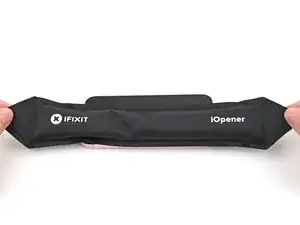
    • To help the adhesive bond, apply heat to the edges of the screen using an iOpener, hair dryer, or heat gun until it's hot to the touch.

    • If you have screen vise clamps, use them to strengthen the bond of your new adhesive. If not, keep reading for more ways to secure the screen.

  57. llclGixQNwPY2SbK
    llclGixQNwPY2SbK
    ujqJ1kAvUmtqx6bj
    ywDlHjLv3ClFEKXn
    • To evenly compress your iPhone and strengthen the bond of the screen to the frame, you need to account for the camera bump.

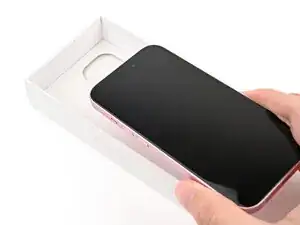
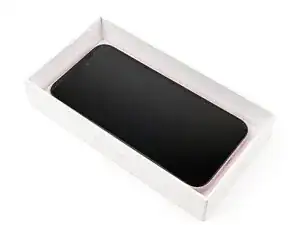
    • If you have the box your iPhone came in, take the lid and place it on a flat surface.

    • If you don't have your original box, skip this step for an alternate method.

    • Place your iPhone screen-side-up in the lid of your box with the camera bump in its recess.

    • Find something close to the size of your iPhone, but taller than the sides of the box. Stack it on top of the iPhone, followed by a few heavy objects.

    • Leave the objects in place for at least thirty minutes. The lighter the objects, the longer they should be left. Ideally, leave them stacked overnight.

  58. 4DUftRNSZgrOwNPE
    4DUftRNSZgrOwNPE
    XZwJvVAq3ClNSaUn
    • If you don't have the original box for your iPhone, follow the next three steps for another method to evenly compress the screen.

    • Place the iPhone screen-side-down on a soft, flat surface.

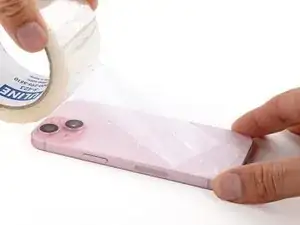
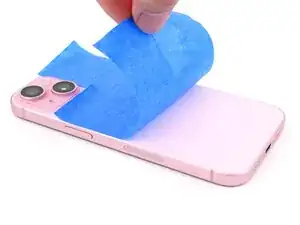
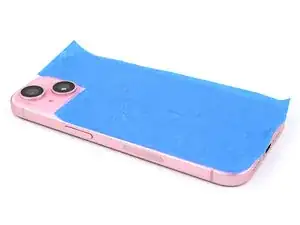
    • Apply tape to the back glass to protect its finish.

  59. sBJPmWlNyAKAiw5Q
    sBJPmWlNyAKAiw5Q
    W4CM4HPu3DfKgCnY
    yp11IVZwTqTCDXOP
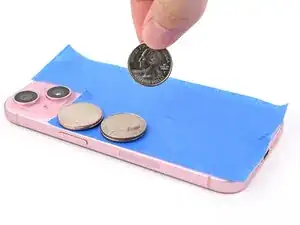
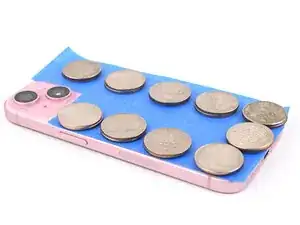
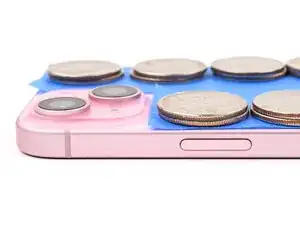
    • Place evenly spaced layers of coins or similarly thick objects on the tape along the edges of the back glass.

    • Stack them to a consistent height taller than the camera bump.

  60. GAGsUB3AOlGvvOJV
    • Stack multiple books or other heavy objects on your iPhone.

    • The coins may leave an impression on the bottom object, so don't use anything valuable.

    • Leave the objects in place for at least thirty minutes. The lighter the objects, the longer they should be left. Ideally, leave them stacked overnight.

  61. BWZ2RDFjMrvJeCc4
    BWZ2RDFjMrvJeCc4
    J3XYExNBDltjICCK
    • Use a P2 pentalobe driver to install the two 7.7 mm‑long screws on either side of the charging port.

Conclusão

After your repair, depending on the replacement part, you may be able to calibrate it using Apple's Repair Assistant, available as of iOS 18. Update your device, navigate to Settings General About Parts & Service History, tap Restart & Finish Repair, and follow the onscreen prompts.

Take your e-waste to an R2 or e-Stewards certified recycler.

Repair didn’t go as planned? Try some basic troubleshooting, or ask our Answers community for help.

Clay Eickemeyer

Membro desde: 19/09/22

99651 Reputação

4 comentários

No link for screen?

Josh Clayman -

Battery still plugged in? You would need to take the back glass also

Smarterthanyou -

You actually won’t need to unplug the battery before hand. Just attach the new screen, and if the phone is still “on” do a soft reset, and the screen will start normally

Rob Preston -

Incomplete guide. No instructions for reassembly. Part ordered directly from ifixit is different than part removed. Unsure how to proceed. Refund requested

Blake Rhodenizer -