Introdução
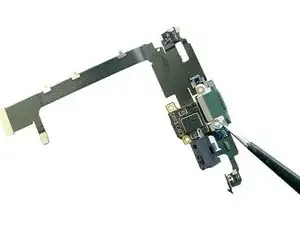
If you've tried cleaning the lightning port to no avail, use this guide to replace the Lightning connector assembly in your iPhone 11 Pro Max, which can resolve many charging and connectivity issues.
Ferramentas


-
-
Power off your iPhone before beginning disassembly.
-
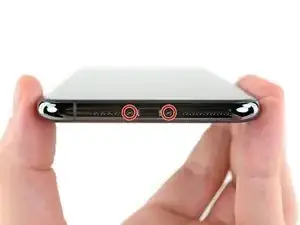
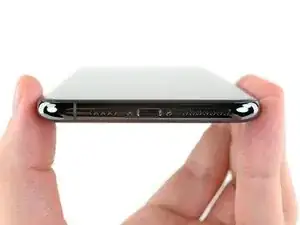
Remove the two 6.7 mm-long pentalobe screws at the bottom edge of the iPhone.
-
-
-
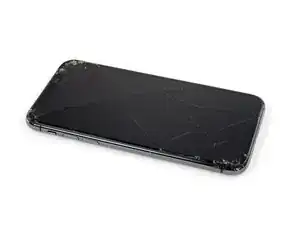
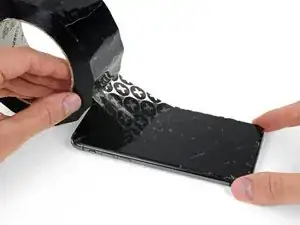
Lay overlapping strips of clear packing tape over the iPhone's screen until the whole face is covered.
-
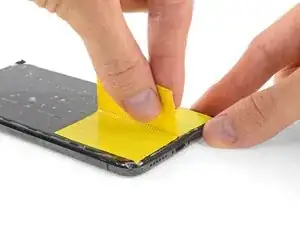
If you can't get the suction cup to stick in the next few steps, fold a strong piece of tape (such as duct tape) into a handle and lift the screen with that instead.
-
-
-
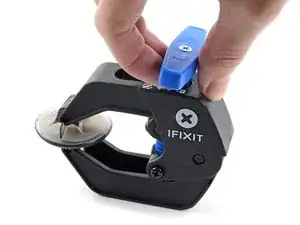
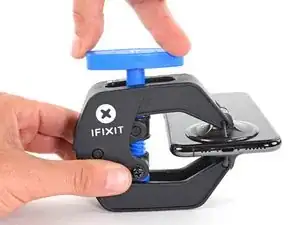
Pull the blue handle backwards to unlock the Anti-Clamp's arms.
-
Slide the arms over either the left or right edge of your iPhone.
-
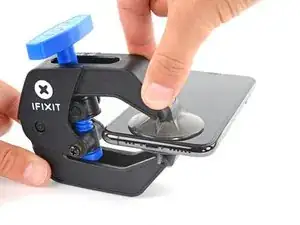
Position the suction cups near the bottom edge of the iPhone—one on the front, and one on the back.
-
Squeeze the cups together to apply suction to the desired area.
-
-
-
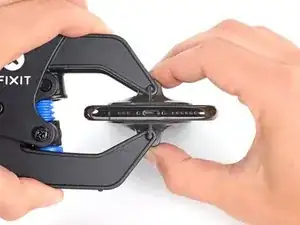
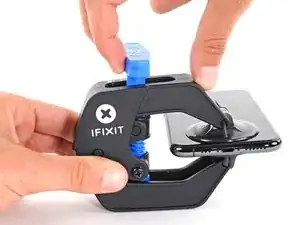
Pull the blue handle forward to lock the arms.
-
Turn the handle clockwise 360 degrees or until the cups start to stretch.
-
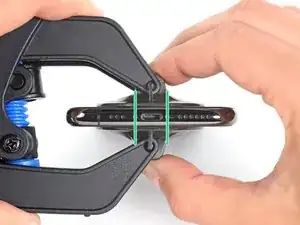
Make sure the suction cups remain aligned with each other. If they begin to slip out of alignment, loosen the suction cups slightly and realign the arms.
-
-
-
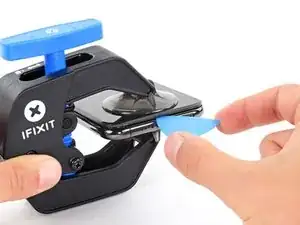
Heat an iOpener and thread it through the arms of the Anti-Clamp.
-
Fold the iOpener so it lays on the bottom edge of the iPhone.
-
Wait one minute to give the adhesive a chance to release and present an opening gap.
-
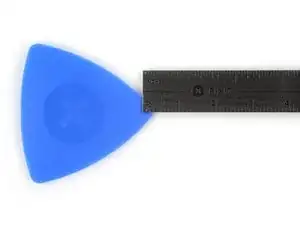
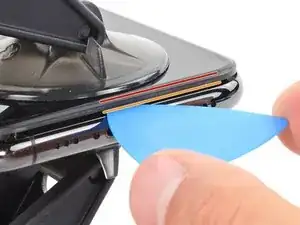
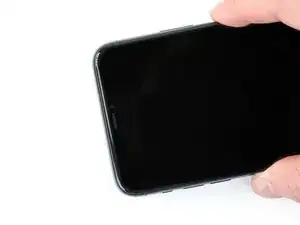
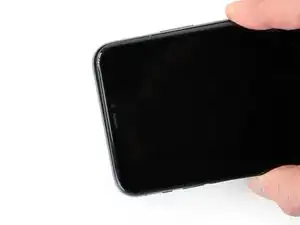
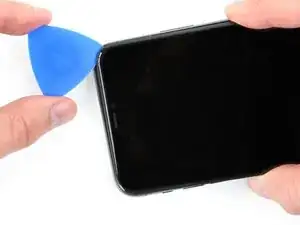
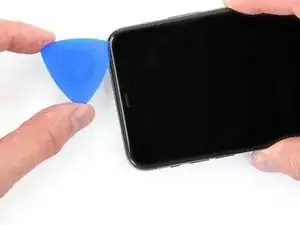
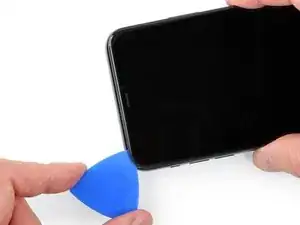
Insert an opening pick into the gap under the screen and the plastic bezel, not the screen itself.
-
Skip the next three steps.
-
-
-
Use a hairdryer or heat gun or prepare an iOpener and apply it to the lower edge of the iPhone for about a minute in order to soften up the adhesive underneath.
-
-
-
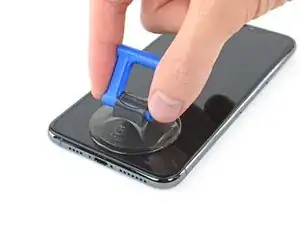
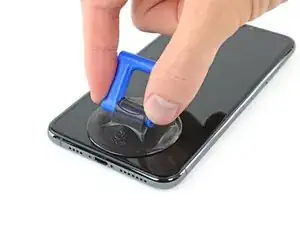
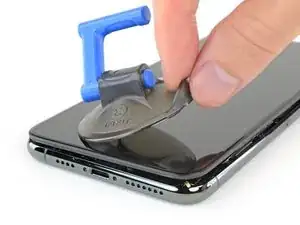
If you're using a single suction handle, apply it to the bottom edge of the phone, while avoiding the curved portion of the glass.
-
-
-
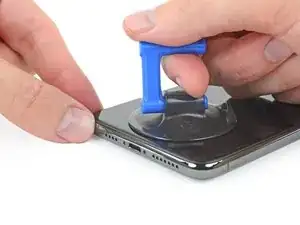
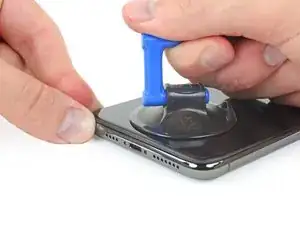
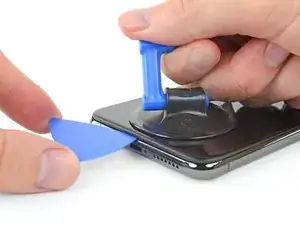
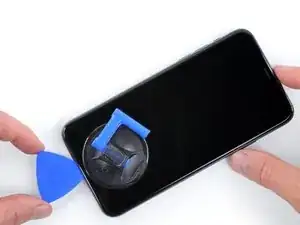
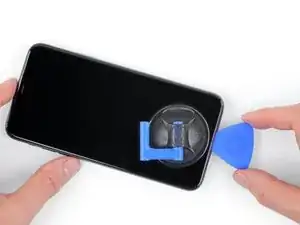
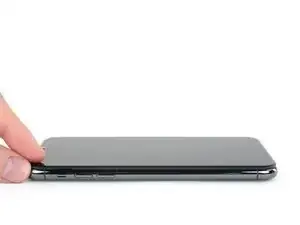
Pull up on the suction cup with firm, constant pressure to create a slight gap between the front panel and rear case.
-
Insert an opening pick into the gap.
-
-
-
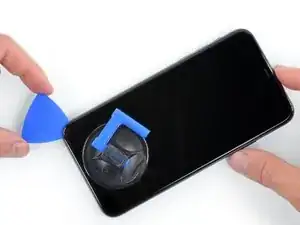
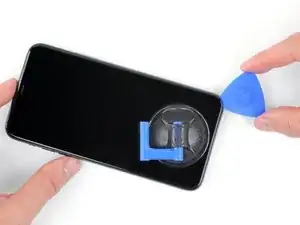
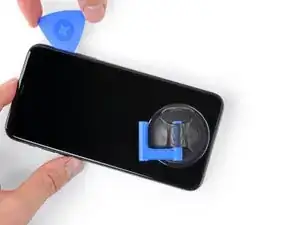
Slide the opening pick around the lower left corner and up the left edge of the iPhone, slicing through the adhesive holding the display in place.
-
-
-
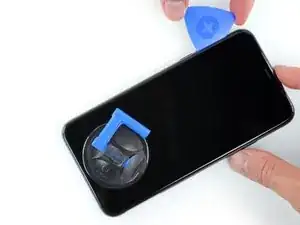
Re-insert your pick at the bottom edge of the iPhone, and slide it up the right side to continue separating the adhesive.
-
-
-
Gently pull the right edge of the display down slightly (in the direction of the Lightning port).
-
Insert your pick into the top-right corner of the phone.
-
-
-
Continue pulling the display down (toward the Lightning port) as needed in order to make a gap large enough for the pick.
-
Slide the pick to the top left corner and cut any remaining adhesive securing the display.
-
-
-
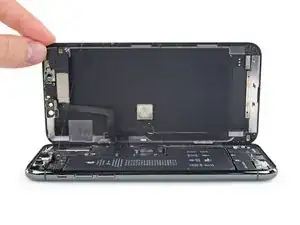
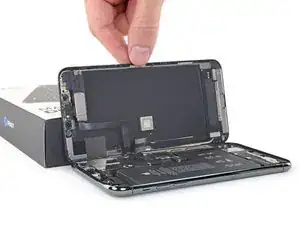
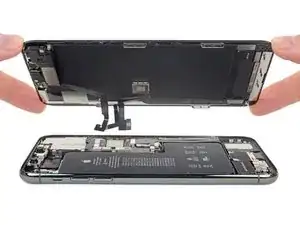
Open the iPhone by swinging the display up from the left side, like the back cover of a book.
-
Lean the display against something to keep it propped up while you're working on the phone.
-
-
-
Use a spudger or a clean fingernail to pry the battery connector up from its socket on the logic board.
-
Bend the connector slightly away from the logic board to prevent it from accidentally making contact with the socket and providing power to the phone during your repair.
-
-
-
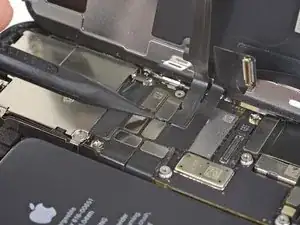
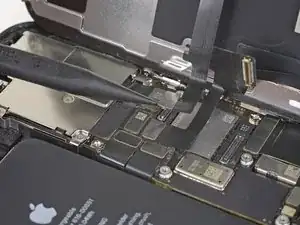
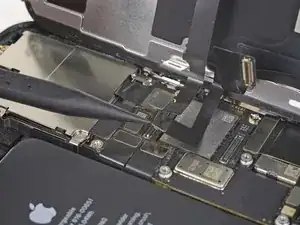
Use a spudger or a fingernail to disconnect the front sensor assembly cable connector.
-
Use a spudger or a fingernail to disconnect the digitizer cable connector.
-
-
-
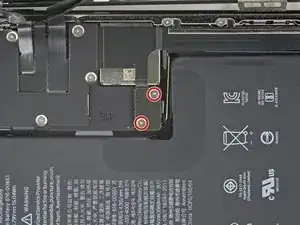
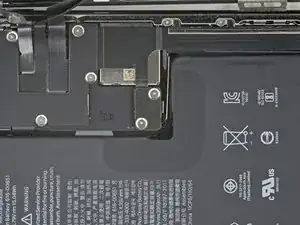
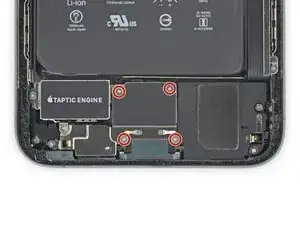
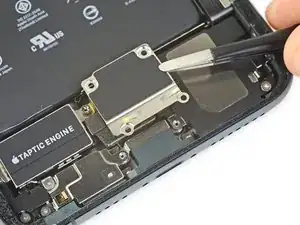
Use a Y000 driver to remove the four 1.2 mm screws securing the lower battery connector cover.
-
-
-
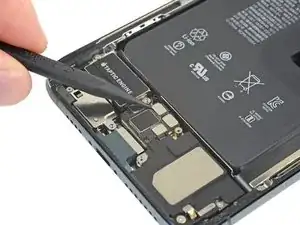
Use a spudger to disconnect the lower battery flex cable by prying it straight up from its socket.
-
-
-
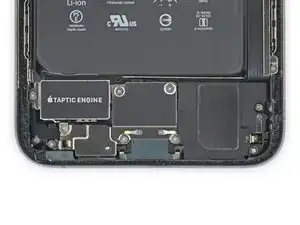
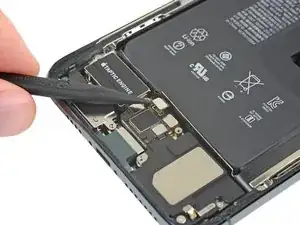
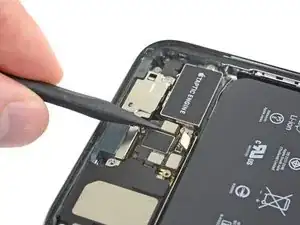
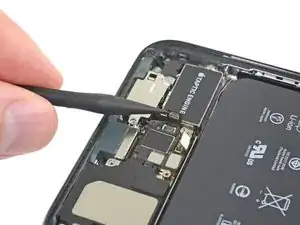
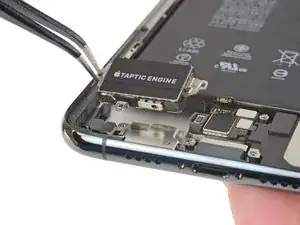
Use a spudger to disconnect the Taptic Engine flex cable by prying it straight up from its socket.
-
-
-
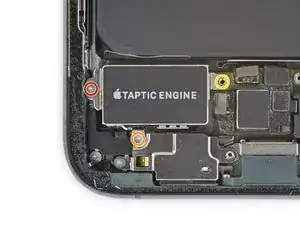
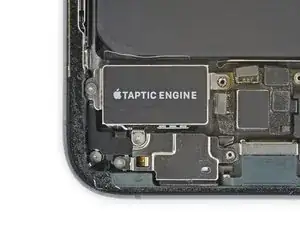
Remove the three screws securing the Taptic Engine:
-
One 2.0 mm-long Y000 screw
-
One 1.6 mm-long Y000 screw
-
One 4.0 mm-long standoff screw
-
-
-
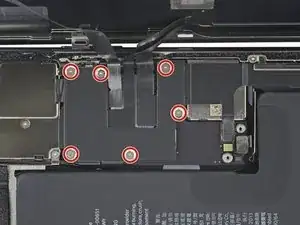
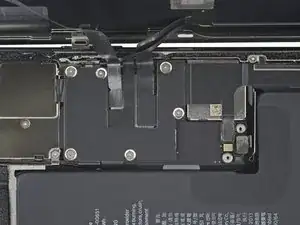
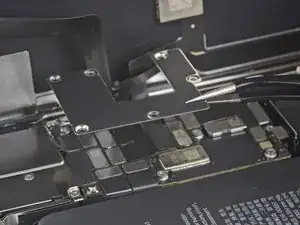
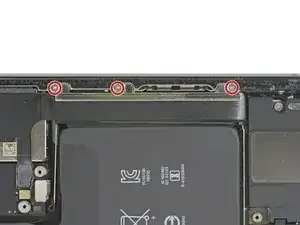
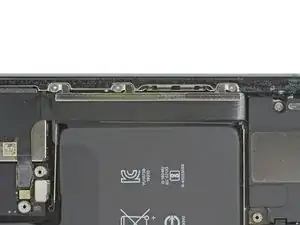
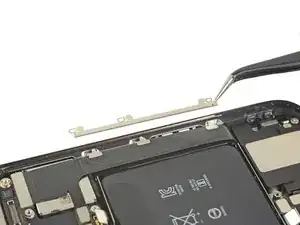
Use a Y000 driver to remove the three 1.3 mm screws securing the Lightning flex cable bracket.
-
-
-
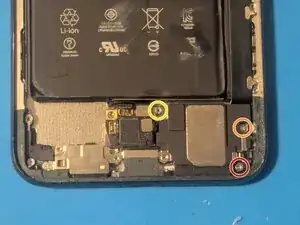
Use a Phillips 000 screwdriver to remove the 2.8 mm screw.
-
Use a Phillips 000 screwdriver to remove the 1.4 mm screw.
-
Use a standoff screwdriver to remove the 3.8 mm screw.
-
-
-
Lift the speaker high enough to clear the battery.
-
Rock the speaker from side to side, then pull it away from the frame from one side.
-
-
-
The barometric sensor incorporates a water-tight gasket, so the cover is held down with adhesive. Use a hair dryer or iOpener to heat the cover to soften the adhesive.
-
-
-
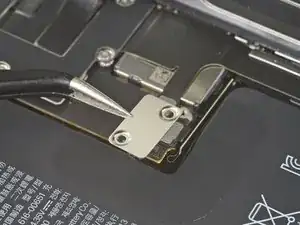
Remove the barometric sensor cover. Lift carefully from the side with the mounting screw and slowly peel it off.
-
-
-
Use a standoff screwdriver to remove the two 2.8 mm screws on the lightning connector.
-
Use a standoff screwdriver to remove the 2.3 mm screw on the barometric sensor/microphone housing.
-
-
-
Use fine tip tweezers to pry the microphone loose from the housing.
-
Fold the microphone and sensor back away from the housing.
-
-
-
Gently pull the housing away from the frame.
-
Note that the microphone flex cable is folded over at the point indicated by the arrow.
-
-
-
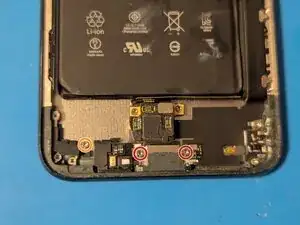
Use a Phillips 000 screwdriver to remove the two 3.6 mm screws securing the charging port to the bottom of the phone.
-
-
-
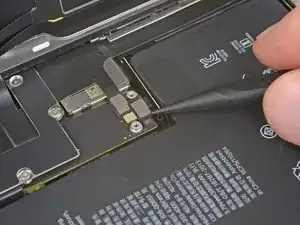
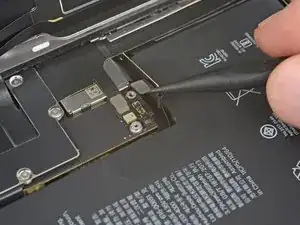
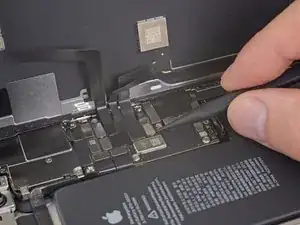
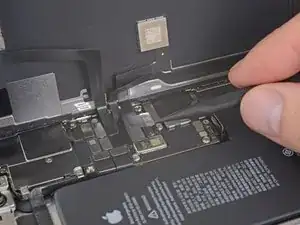
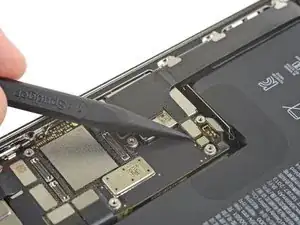
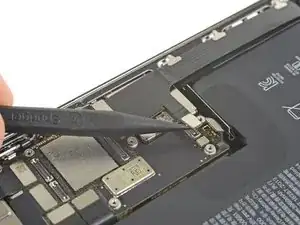
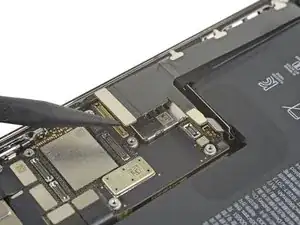
Use a spudger to disconnect the remaining flex cable from the Lightning connector assembly and fold it back out of the way.
-
-
-
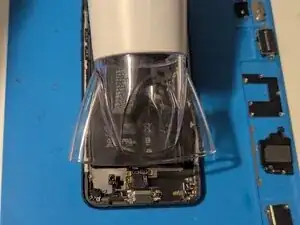
One last time, heat the entire flex assembly to soften the adhesive holding the flex cable to the rear case and the charging port to the bottom frame.
-
-
-
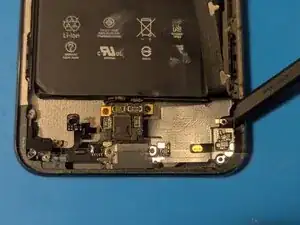
Starting at the corner where the ribbon cable leads to the motherboard, insert a spudger and separate the flex cable from the frame.
-
-
-
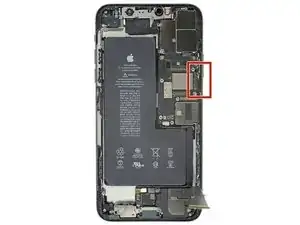
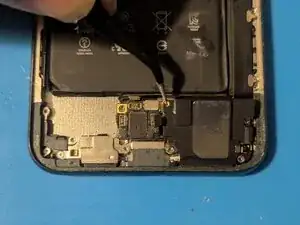
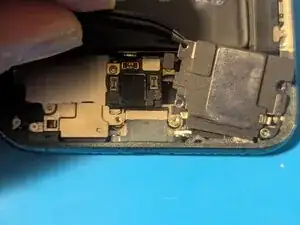
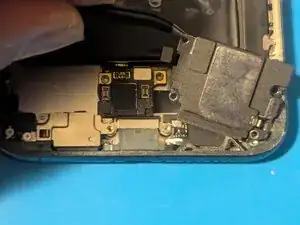
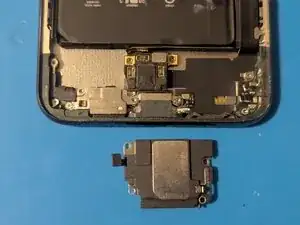
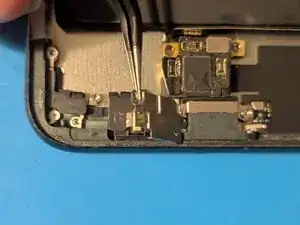
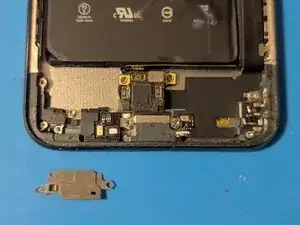
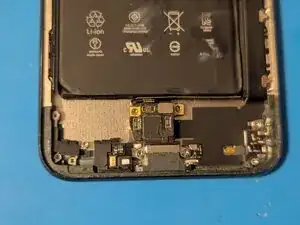
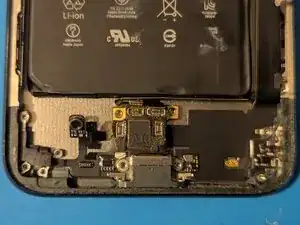
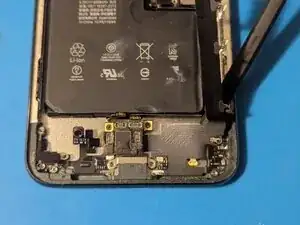
Use blunt nose tweezers to gasp the Lightning connector and rock it from side to side to loosen it, then remove it from the frame.
-



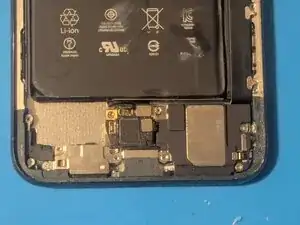
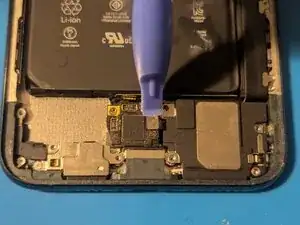
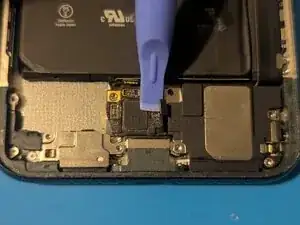
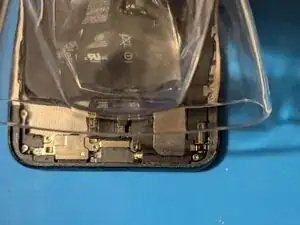
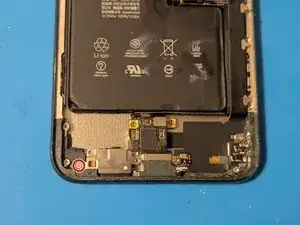
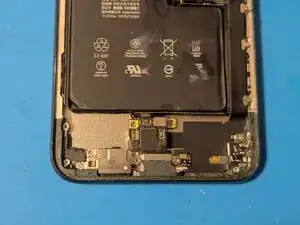
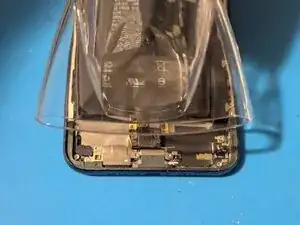
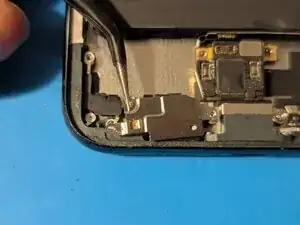
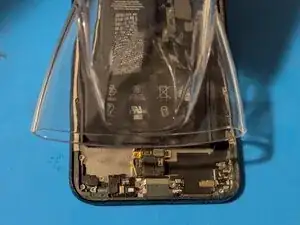
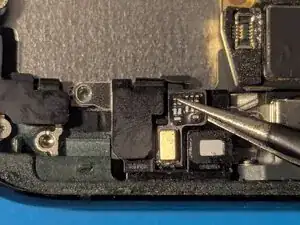
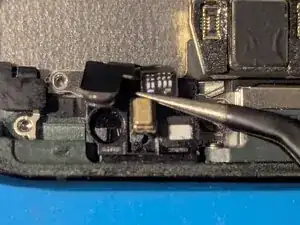
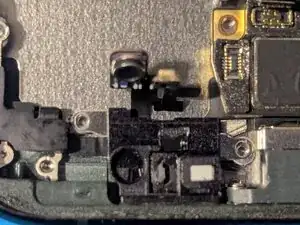
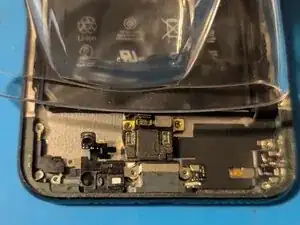
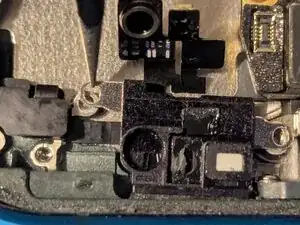
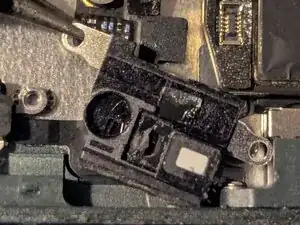
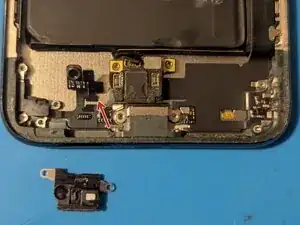
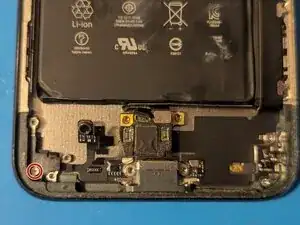
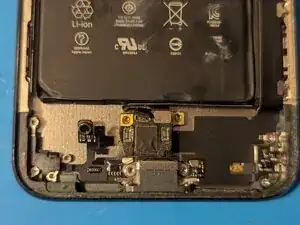
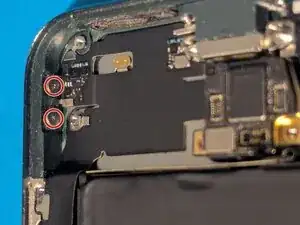
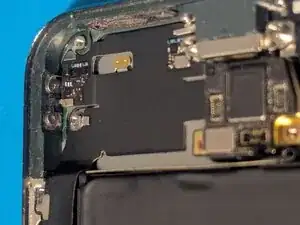
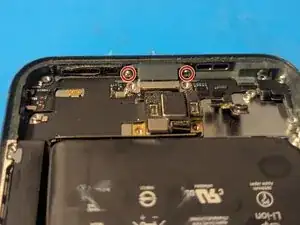
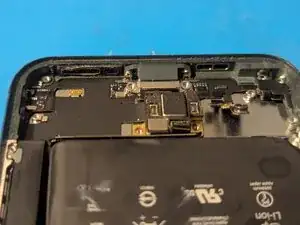
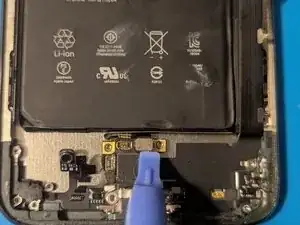
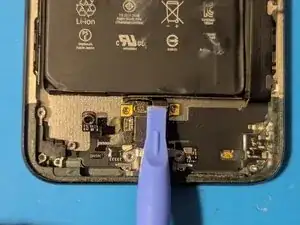
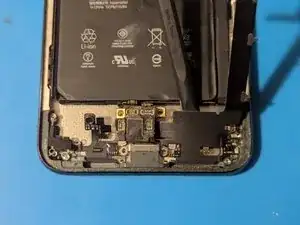
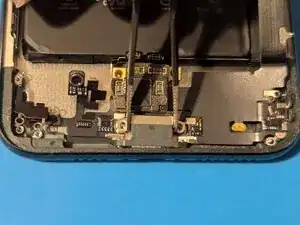
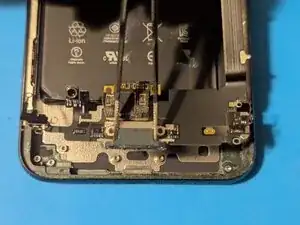
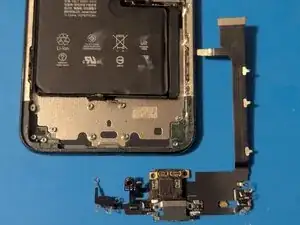
To reassemble your device, follow these instructions in reverse order.

2 comentários
Will this work for the 11 Pro (not max) as well? It looks the same, but wondering if this one is larger than the Pro (not max). I haven’t been able to find the part for the 11 Pro.
just curious, is microsoldering the PDB absolutely necessary? is there anywhere to acquire a lightning port that comes with a PDB attached?
Wie soll mann das Handy ausschalten wenn das Display defekt ist oder nicht angeht?
Elias_Will Diamondblock -
Usáis mal el verbo remover
Vicente Tortajada -
Cornelius COSTA -