Introdução
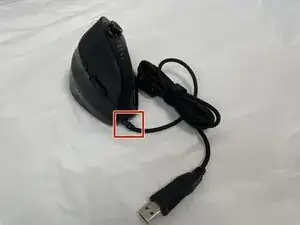
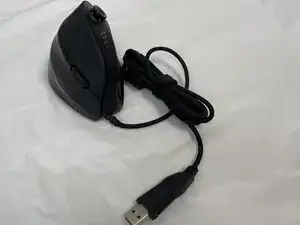
Is your mouse having connection issues? This guide will help you determine whether the problem is caused by an external USB connection or internal wiring damage.
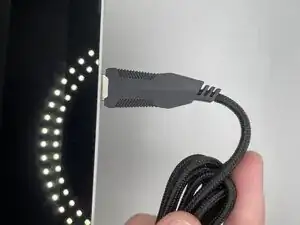
You’ll start by testing the USB cable to rule out port or connector issues, then move inside the mouse to inspect and repair the internal wiring.
This guide begins with checking if the USB works by connecting it to a device, but the mouse should remain disconnected throughout the rest of the process.
Ferramentas


-
-
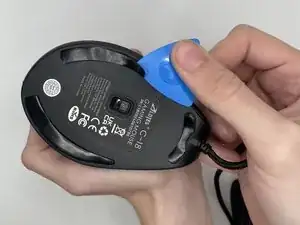
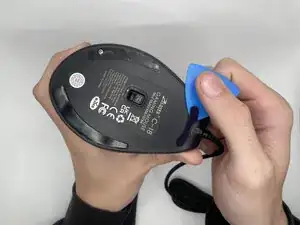
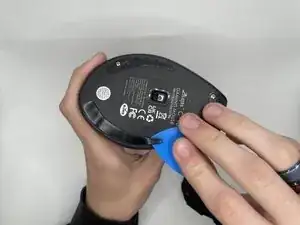
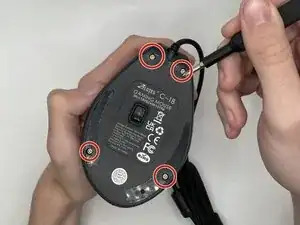
Use an opening pick to gently pry off the mouse feet and stickers on the bottom of the mouse to expose four hidden screws.
-
-
-
Using a Phillips #0 screwdriver to remove the four 9 mm-long screws on the bottom of the mouse.
-
-
-
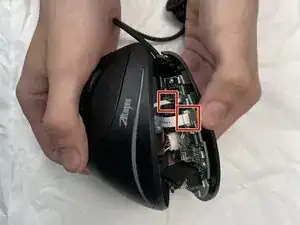
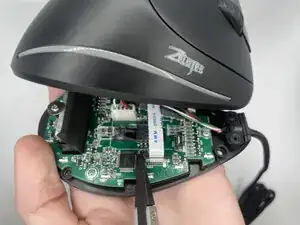
Using a spudger, carefully lift the locking tab by gently alternating pressure on each side until it’s in the unlocked position
-
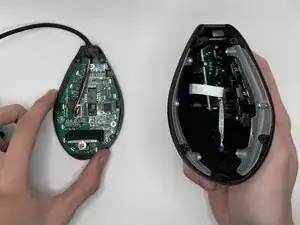
Detach the ribbon cables by gently pulling them straight (perpendicularly) away from the motherboard.
-
-
-
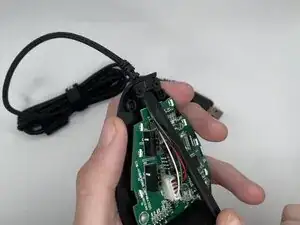
Remove the plastic cable bracket found in the front of the mouse.
-
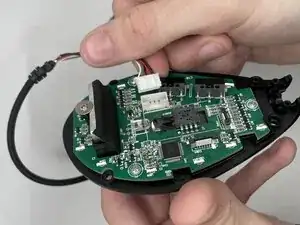
Lift the cable to remove it from its groove.
-
-
-
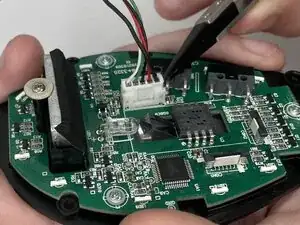
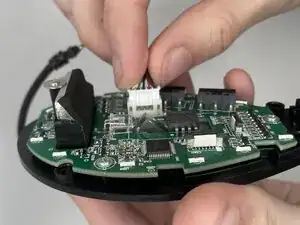
Find the 5-pin connector attached to the motherboard, which is located in the middle of the motherboard next to the laser.
-
Use the point of the reverse tweezer to alternate pressure on each side until the connector is out of its socket.
-
To reassemble your device, follow the above steps in reverse order.
Take your e-waste to an R2 or e-Stewards certified recycler.
Repair didn’t go as planned? Try some basic troubleshooting or ask our Answers community for help.