Introdução

Trackpad prerequisite without the reassembly instructions.

  1. xJPH6raejS4AGHFs
    xJPH6raejS4AGHFs
    3wSVHWf5IpZw5jwB
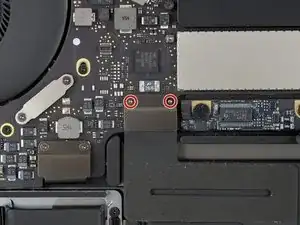
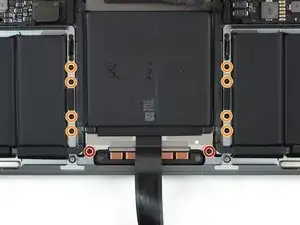
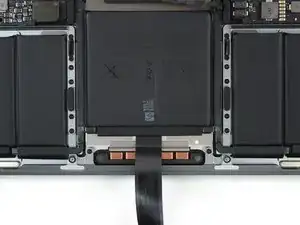
    • Use a T3 Torx driver to remove the two 1.8 mm screws securing the trackpad cable connector bracket.

  2. fBocHATfFgSGmY3N
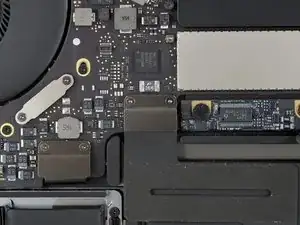
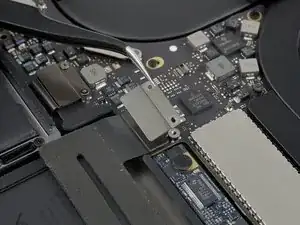
    • Remove the trackpad cable connector bracket with a pair of tweezers.

  3. lG1TH2NbxOXtNXJQ
    lG1TH2NbxOXtNXJQ
    Aj2NjKUWteqjdJKU
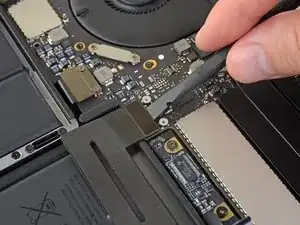
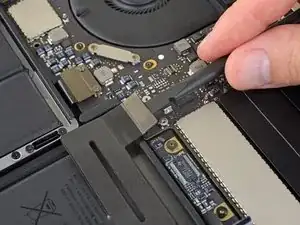
    • Use a spudger to disconnect the trackpad ribbon cable by gently prying its connector straight up from the logic board.

    FWIW, I just swapped my battery and it was much easier than the rest of the directions here would make you think.
    The main issue is that there are 2 semi-flat cables that must very slightly pass underneath the motherboard's edge that are part of the battery unit that run from the center to the 2 sides. You definitely don't have to remove the motherboard to slip them in. Just remove around 8-10 screws at the edge near the battery and around the fans. This allows about 1-2 mm of play, enough to slide the problem cable elbows underneath without removing a million things. I also didn't remove the track pad. If you don't remove the track pad, just be sure that when you're prying the battery out that you don't poke downwards as there are a few windows where prying could damage the trackpad. Go in as straight in as you can with wide plastic spudger (not skinny metal one) and you'll be ok.

    The following long directions almost stopped me from trying, but it really wasn't all that bad, skipping 90% of the following steps.

    Thomas -

  4. o1OmvUYWsUdaOwaD
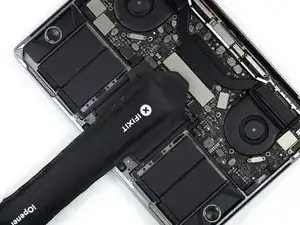
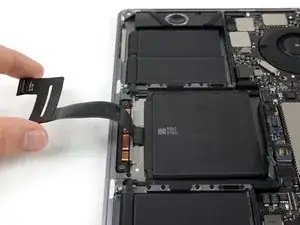
    • Prepare an iOpener and lay it on top of the trackpad ribbon cable for about a minute, in order to soften the adhesive securing the trackpad ribbon cable to the top of the battery.

    • If you don't have an iOpener, use a hair dryer to warm up the cable instead. The cable should be warm, but not too hot to touch. Be careful not to overheat the battery.

    I was able to extremely gentle peel (just applying a little bit of continuous tension and waiting for the adhesive to release) the cable off without heating. It came off relatively easy, probably due to age or heavy usage in the past.

    Justin Ossevoort -

    it went off quite easy without the heat; maybe glue dissolved after 8 years;

    Denny -

  5. NPf6eZplKQeJFvBq
    NPf6eZplKQeJFvBq
    qgLCqH3TxjwSVpZa
    g1qEEEviQXkSrVwq
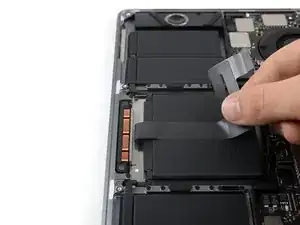
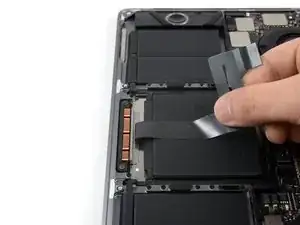
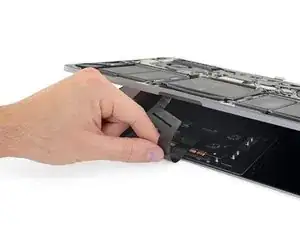
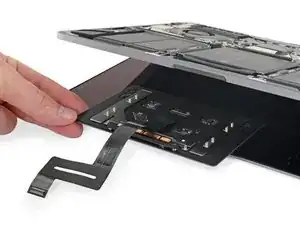
    • Carefully peel the trackpad ribbon cable up off the battery, and push it out of the way.

    • Do not fold or tear the cable.

  6. jKEZqfy1YjXSlftq
    jKEZqfy1YjXSlftq
    fPHwQjZC1fRCYd14
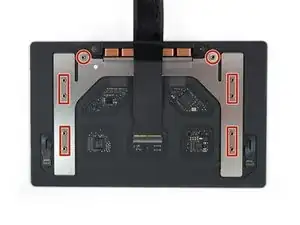
    • Use a T5 Torx driver to remove the ten screws securing the trackpad assembly:

    • Two 4.3 mm screws

    • Eight 5.8 mm screws

    When assembling this back, one should note that the trackpad actually has some wiggle room in its slot, so it should be properly centered before firmly screwing down all 10 screws.

    For me, adjusting the position of the trackpad and screwing the two red ones first while holding the bottom plate up at 90 degrees helped.

    S Woo -

  7. nqULadYTgfGCUj6X
    nqULadYTgfGCUj6X
    41QN6aQUhIRcjGBl
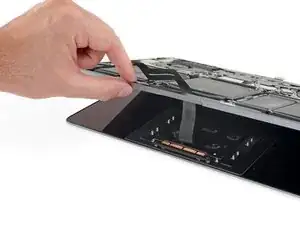
    • Swing the display open slightly to access the trackpad.

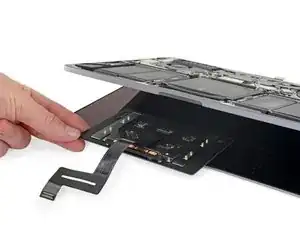
    • Carefully thread the trackpad ribbon cable out through the hole in the MacBook Pro's frame.

    It'd be super nice to remind about the washers at this point - I've done 3 or 4 of these laptops the past few years and I forget every time about this step & lost many washers.

    JoeP -

  8. eqpFWnaqpAePZKVO
    eqpFWnaqpAePZKVO
    mBM12cVmhimFArDc
    4MH5VNGMEJ6auxnQ
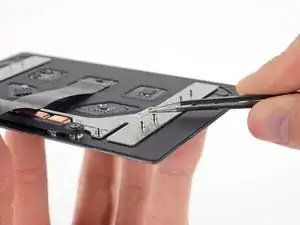
    • Remove the trackpad assembly.

    • Be sure not to lose the six small washers (two circular and four rectangular) resting on the underside of the trackpad.

    The washers really need to be mentioned before removing the trackpad. I pulled it out and excitedly showed my wife, not realizing that I'd just flung most of the washers onto the carpet. Luckily I found them all, but holy crap, please put this in step 22 or like 21.5, PLEASE.

    Lane Anderson -

Conclusão

To reassemble your device, follow these instructions in reverse order.

Tobias Isakeit

Membro desde: 31/03/14

131371 Reputação

0 comentários