Introdução

Trackpad prerequisite without the reassembly bullet.

  1. U2b3A2wsIwDEJSge
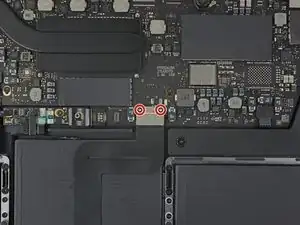
    • Use a T5 Torx driver to remove the two 1.9 mm screws securing the trackpad cable connector bracket.

    Be sure not to over torque these 1.9 mm screws they are more delicate than you think they are and if they break .... you're screwed

    PapiGordo -

  2. Yur6NX12KReGeRQD
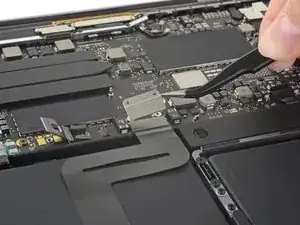
    • Remove the trackpad cable connector bracket.

  3. ZR2IDdxWMfCngk5R
    ZR2IDdxWMfCngk5R
    43gd5FYWjqBlN3rO
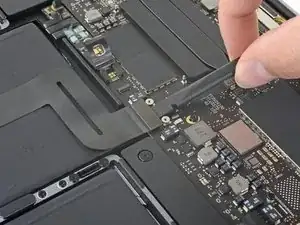
    • Use a spudger to disconnect the trackpad ribbon cable by gently prying its connector straight up from the logic board.

  4. jSlPDRqIu56Jvt1e
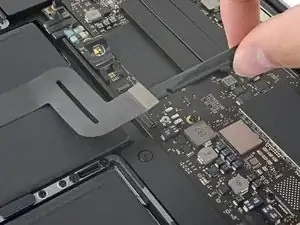
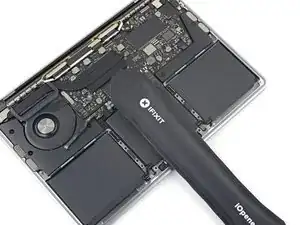
    • Prepare an iOpener and lay it on top of the trackpad ribbon cable for about a minute, in order to soften the adhesive securing the trackpad ribbon cable to the top of the battery.

    • If you don't have an iOpener, use a hair dryer to warm up the cable instead. The cable should be warm, but not too hot to touch. Be careful not to overheat the battery.

    When reassembling, you can use the backend of the driver to smooth the ribbon back into place adhering it into place

    Liza B -

    Mine came off easily and didn’t require this step.

    Http -

    I didn’t have the iOpener (even though they say you get everything you need) so I successfully used a small Glad baggie with a folded up wet paper towel inside heated in the microwave.

    Paul W -

  5. GicrFqeqDWCDtNso
    GicrFqeqDWCDtNso
    MxYTA2EBx5JKB5F6
    VqOUGQ6uFgHCkxnc
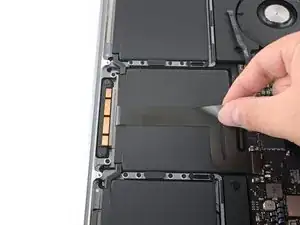
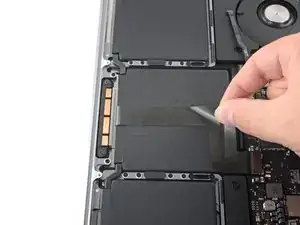
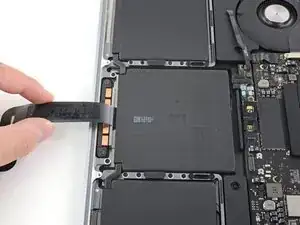
    • Carefully peel the trackpad ribbon cable up off the battery, and push it out of the way.

    • Do not fold or tear the cable.

    The cable is fragile and you need to be gentle, but at the same time a small amount of pull is needed to seperate the adhesive, about the strength you'd use to pull a roll of toilet paper without tearing it

    Emily V -

  6. LSFSSLWCda6X6H6m
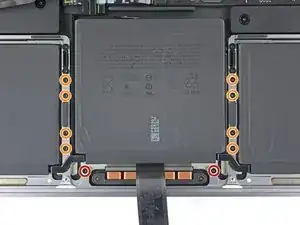
    • Use a T5 Torx driver to remove the ten screws securing the trackpad assembly:

    • Two 4.3 mm screws

    • Eight 5.8 mm screws

    maybe my bit set is mislabeled, but i think these are T6 screws!

    rami -

    T6 Screws, not T5!

    peterclaussen -

  7. abmUpIlg1JRgBQQ1
    abmUpIlg1JRgBQQ1
    tTNowZG4GVoxPfVJ
    4RAOs3sPHNVROfvA
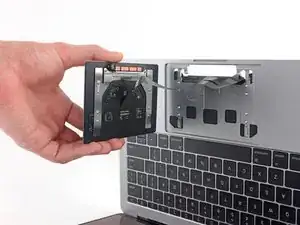
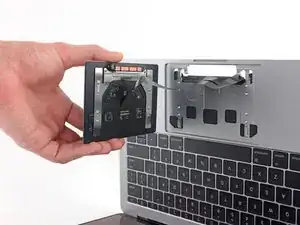
    • Remove the trackpad assembly.

    • You'll need to swing the display open slightly to remove the trackpad.

    • Take care to feed the trackpad ribbon cable through the MacBook Pro's frame without snagging.

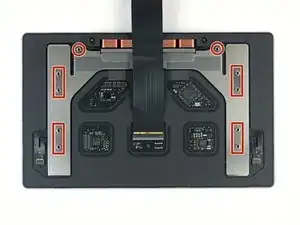
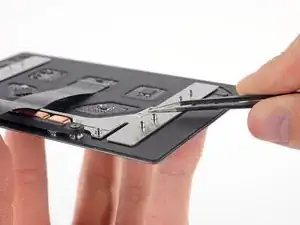
    • Be sure not to lose the six small washers (two circular and four rectangular) resting on the underside of the trackpad.

    DO NOT remove the tracpad while its vertical in the picture; you will loose the washers. Instead, keep it flat, after removing the screws, gently tap the bottom assembly while slowly lifting the bottom to clear the track pad. This will keep the washers in place, then carefully feed the tracpad cable through the slot.

    Gregg Stanley -

    Thanks for this!

    Akeem Scrubb -

    🙏🌟🙏🌟🙏🌟🙏🌟🙏

    Liza B -

Conclusão

Compare your new replacement part to the original part—you may need to transfer remaining components or remove adhesive backings from the new part before installing.

To reassemble your device, follow the above steps in reverse order.

Take your e-waste to an R2 or e-Stewards certified recycler.

Repair didn’t go as planned? Try some basic troubleshooting or search our Answers community for help.

Carsten Frauenheim

Membro desde: 10/03/20

160437 Reputação

0 comentários