Introdução
Ever wondered why your laptop is running hotter than usual? This guide will show you how to replace the thermal paste in your laptop so that it can run better and cooler.
Ferramentas


-
-
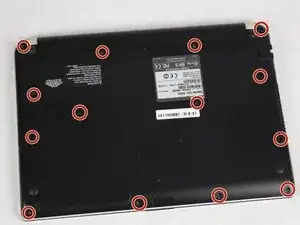
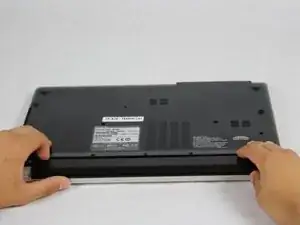
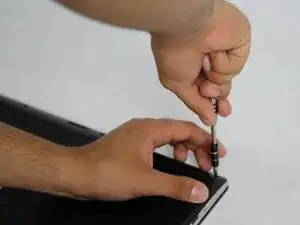
Locate all of the screws on the back of the laptop as shown by the image. There are two screws that hold the battery in place.
-
The screws holding the back of the laptop and battery in place are 4mm.
-
-
-
Lift up the backplate from the empty battery slot to create small gaps.
-
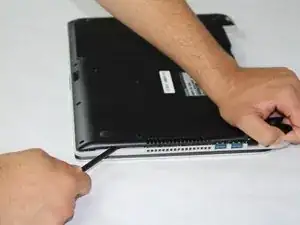
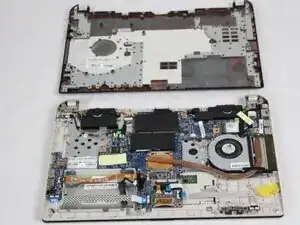
Use the spudger or an opening pick to gently pry open the backplate.
-
-
-
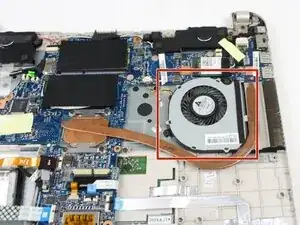
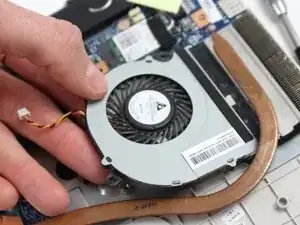
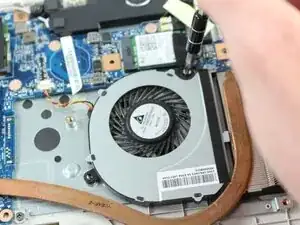
There are two 4mm screws holding the fan. Remove those screws with the Phillips #1 screwdriver.
-
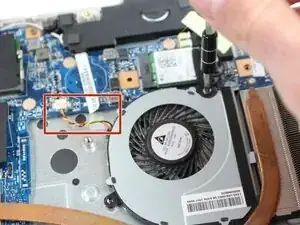
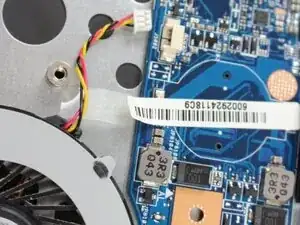
There is a connector with red, yellow, and black wiring. Gently remove the clip from the slot.
-
-
-
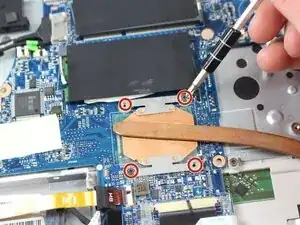
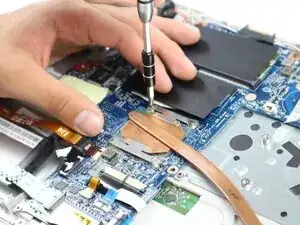
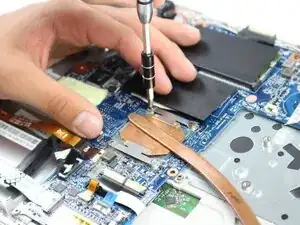
There are four 3mm screws holding copper heat sink on the CPU. Use the Phillips #1 screwdriver to remove them.
-
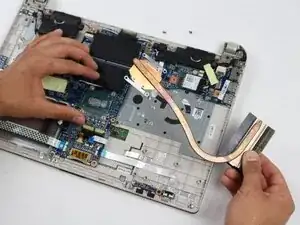
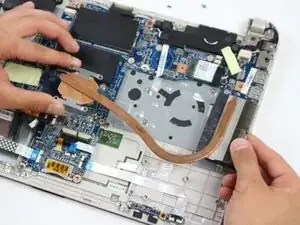
After removing the screws, carefully remove the heat sink from the motherboard and casing.
-
-
-
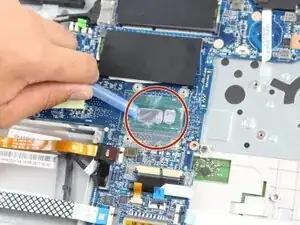
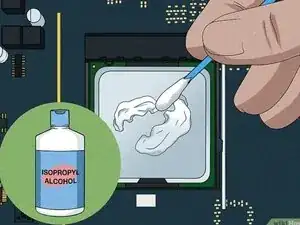
Use a cotton swab with 99% Isopropyl alcohol applied to clean the old thermal paste off the CPU.
-
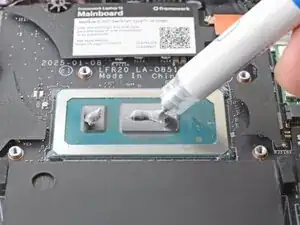
Apply thermal paste to the two metal parts of the CPU.
-
Be careful not to overdo the thermal paste application. You only need a little bit of thermal paste and applying too much can cause the thermal performance to struggle and potentially hardware damage.
-
-
-
After applying the thermal paste, carefully put the heat sink back in place. Carefully placing the heat sink will ensure that the thermal paste stays in place.
-
After putting the heat sink in place, apply the 4 screws with the Phillips #1 screwdriver.
-
-
-
After reinstalling the copper heat sink, put the fan back in place. Apply the two 4mm screws with the Phillips #1 screwdriver.
-
After screwing, reconnect the fan cable to the motherboard slot.
-
-
-
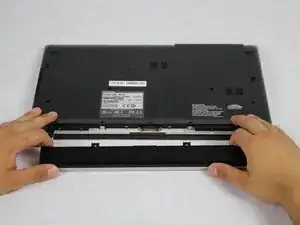
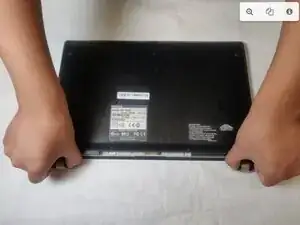
Place the backplate onto the laptop and press on the edges to snap the backplate into place.
-
Place the battery into the laptop's battery slot.
-
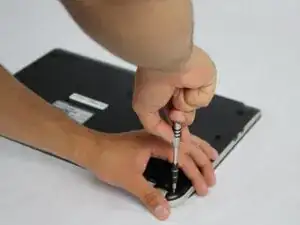
Apply the fourteen 4mm screws using the Phillips #1 screwdriver to hold the backplate and battery in place.
-
Congratulations, you just did your first repair! Your device should be running cooler after following this guide. If you don't notice any difference, please check your CPU and the thermal application.
