Introdução

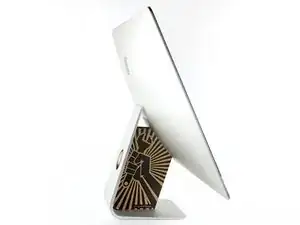
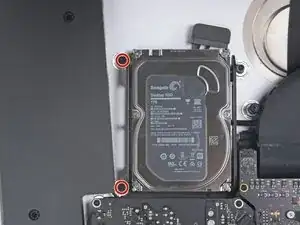
Siga este guia para substituir o disco rígido do seu iMac. A substituição do disco rígido requer a separação a tela e a remoção do alto-falante esquerdo.

Este guia também inclui passos para realizar o upgrade do disco rígido de seu iMac com um SSD. Ele descreve como instalar o sensor de temperatura do SSD de forma que as ventoinhas do Mac operem na velocidade correta.

Antes de começar os trabalhos no seu iMac: Tire o computador da tomada e pressione segurando o botão de liga/desliga por dez segundos para descarregar os condensadores da fonte de alimentação de energia.

Tenha muito cuidado para não tocar nos terminais do condensador ou juntas de solda expostas na traseira da fonte de alimentação.

  1. osHwwTsVGOoGRyLD

    You can also use an AirPort 802.11ac router!

    Dani -
  2. FkIZHINdYQaFYLVW
    FkIZHINdYQaFYLVW
    SaBSMhWoyPaOMStr
    b1vsQZmYLT5uGp1K
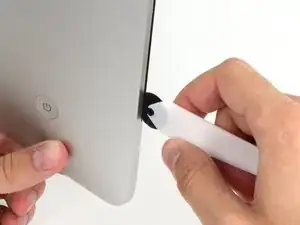
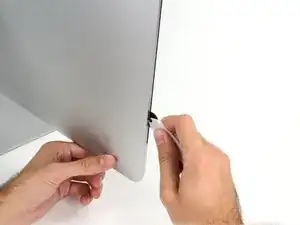
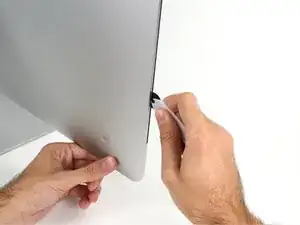
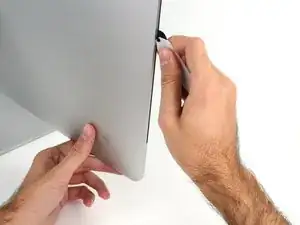
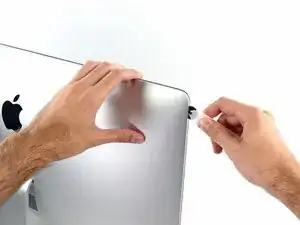
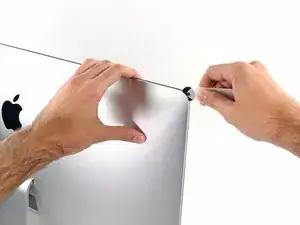
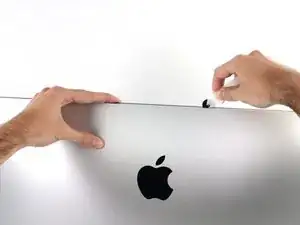
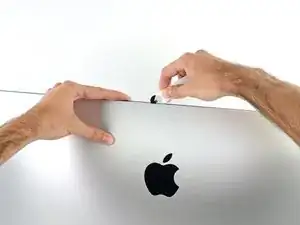
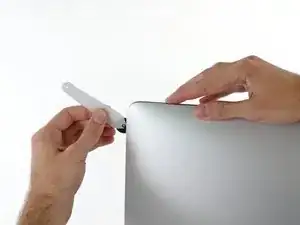
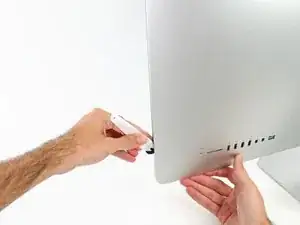
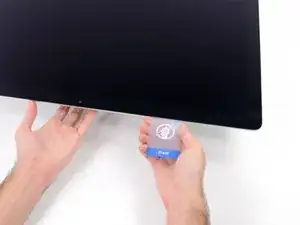
    • Começando pelo lado esquerdo da tela, próximo ao botão de liga/desliga, introduza a ferramenta de abertura para iMac no vão entre o painel de vidro e a estrutura traseira.

    • O eixo da ferramenta de abertura para iMac evita que você introduza muito para dentro a roda. Se estiver usando uma ferramenta diferente, não a introduza mais do que 9,5 mm dentro da tela. Você corre o risco de romper os cabos da antena e causar sérios danos se introduzir demais a ferramenta.

  3. YBXnnZvqvcCXc3Dh
    YBXnnZvqvcCXc3Dh
    LKTY6fnxuTkhOFEZ
    GplU2x5KlWXrhqPW
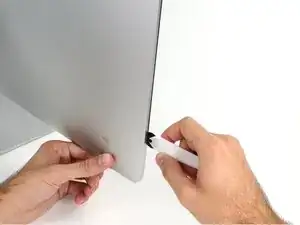
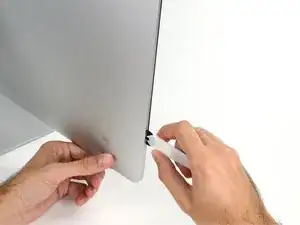
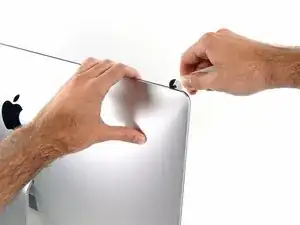
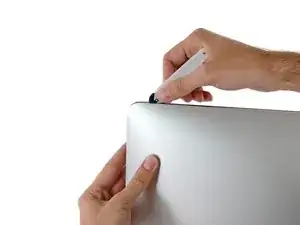
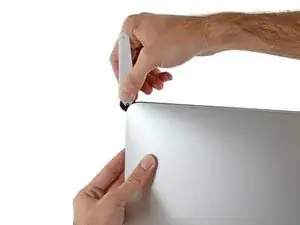
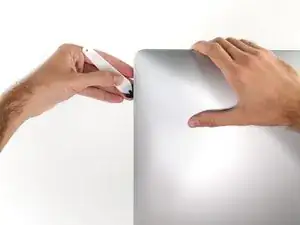
    • Use a ferramenta como um cortador de pizza - empurre-a por toda a extensão do vão e ela cortará o ponto central do adesivo de espuma.
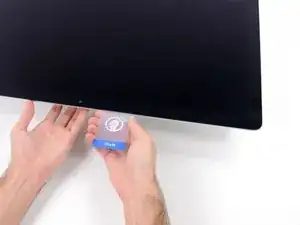
    • Lembre-se de empurrar constantemente o punho atrás da roda cortante. Se você puxar, a roda pode escapar do punho.

    • Passe a ferramenta por toda a extensão da lateral esquerda da tela.

  4. SqUGmWPNJAPDStKv
    SqUGmWPNJAPDStKv
    3R6TSjlIyerQQ2AX
    cOQGUrU1ekuPaBed
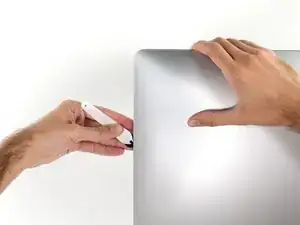
    • Continue rolando a ferramenta para cima, virando no canto esquerdo superior.

  5. bfYMgtBPICJ4ROqy
    bfYMgtBPICJ4ROqy
    CXhC5LNJ6jdiHu4w
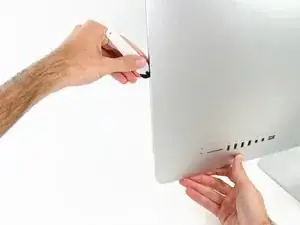
    • Corte o adesivo da parte esquerda superior da tela.

  6. QVGwDDiKZB3UZvNN
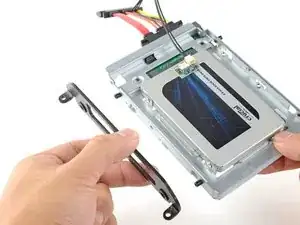
    QVGwDDiKZB3UZvNN
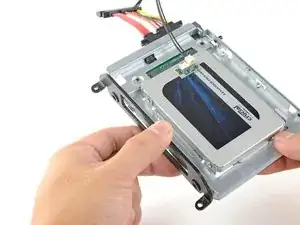
    iBtbvCLPV2KZgoVd
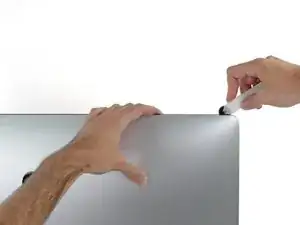
    • Continue na parte superior da tela.

    • Você precisa passar a ferramenta algumas vezes para trás e para a frente onde já cortou adesivo, para garantir que tenha soltado o máximo possível de adesivo.

  7. qpQxBHqvRfjvmcID
    qpQxBHqvRfjvmcID
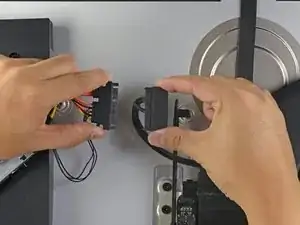
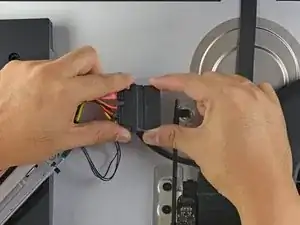
    NNJxPC1uZ4wLkFiT
    ZTZAVaPN1NX5O4ps
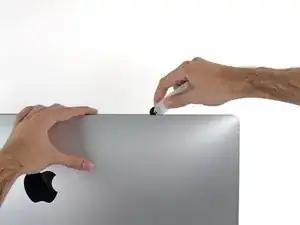
    • Passe a ferramenta pelo canto superior direito da tela.

  8. BVZmfm5LTcwa1QrC
    BVZmfm5LTcwa1QrC
    qm3gY6CAvA1tKZEU
    • Role a ferramenta para baixo, por toda a extensão da lateral direita da tela.

  9. oRxMayHO2sLbQc1s
    oRxMayHO2sLbQc1s
    o5OdKdGHEAt4Pty3
    • Finalize empurrando a ferramenta de abertura para a parte inferior na lateral direita da tela.

    • A esta altura, você pode passar a ferramenta por toda a tela, voltando no sentido inverso, para garantir que tenha cortado o máximo possível de adesivo.

  10. Muy6AIw1J2wEDPvF
    Muy6AIw1J2wEDPvF
    nbPL3P3VBylPcyhZ
    uJQxYDCVYwnx6Qbv
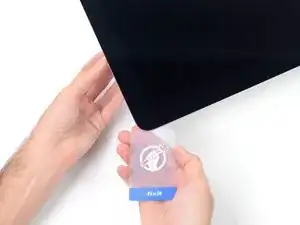
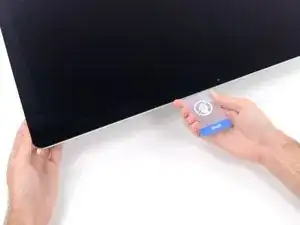
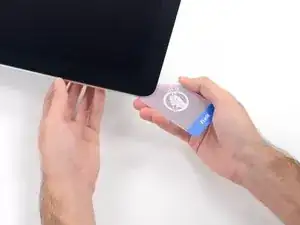
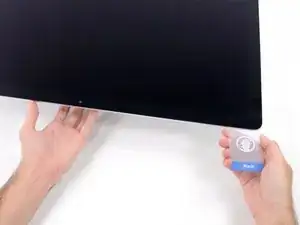
    • Ainda que a ferramenta de abertura já tenha feito a parte difícil do trabalho, a tela ainda estará levemente colada na estrutura. Será necessário usar um cartão de plástico para soltar o resto desse adesivo.

    • Coloque o iMac numa mesa com a tela virada para cima.

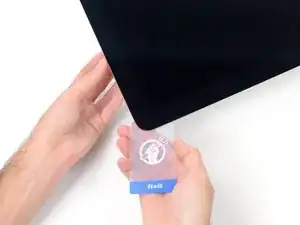
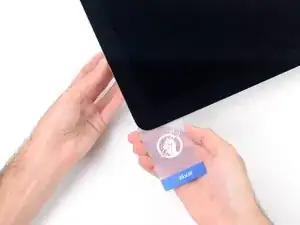
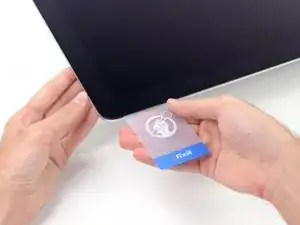
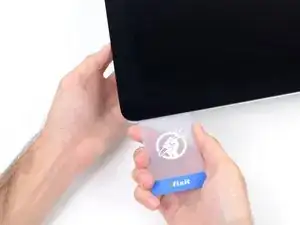
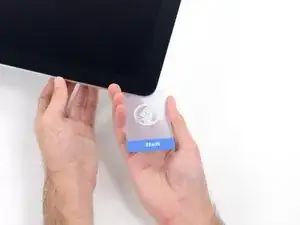
    • Começando pelo canto direito superior do iMac, introduza um cartão de plástico por entre a tela e a moldura.

    • Tenha cuidado para não introduzi-la mais do que 9,5 mm, caso contrário você danificará componentes internos.

  11. NjIxZSSHogTThAMd
    NjIxZSSHogTThAMd
    QRGOYnlsZyP6T5Py
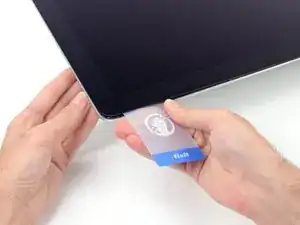
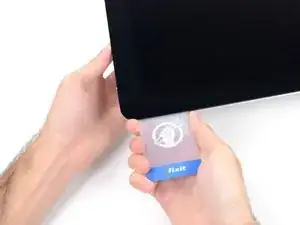
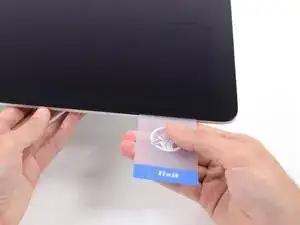
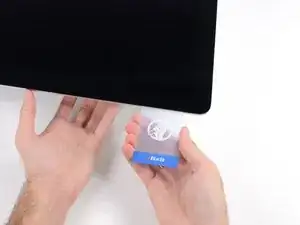
    • Vire o cartão de plástico cuidadosamente para abrir o espaço entre a tela e a moldura, e corte os adesivos resistentes próximos ao canto.

    • Se você usar muita força, irá quebrar o vidro. Trabalhe com cuidado e tente formar um vão que não seja maior do que 6 mm.

  12. jQAyIj6HrrdJJAJk
    jQAyIj6HrrdJJAJk
    xYIoQCXxGkKCZsDe
    uTgLtnrRgljTV3SV
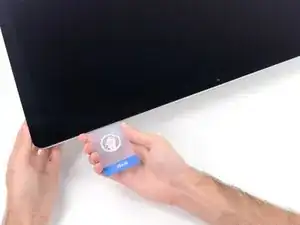
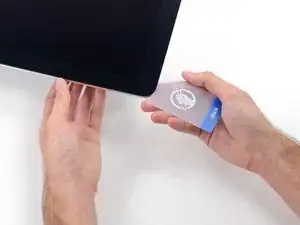
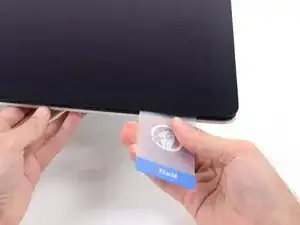
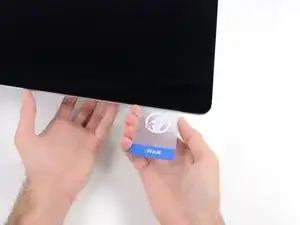
    • Pare de cortar antes da câmera iSight neste passo, caso contrário você pode danificá-la.

    • Passe o cartão na direção do centro da tela para cortar os adesivos resistentes.

  13. 3JgNS4JkPQitgWmT
    3JgNS4JkPQitgWmT
    oZxopX4GBdr2IZND
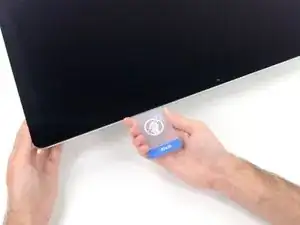
    • Introduza o cartão novamente no canto e deixe-o nessa posição para evitar que o adesivo cole novamente.

  14. CKqSXChbW1Q5J2Mj
    CKqSXChbW1Q5J2Mj
    M3mumpuHF6DuGG5d
    uZeaiM2Ss3Nhp6l1
    • Introduza um segundo cartão no vão, por entre a tela e a moldura, no canto esquerdo superior.

  15. WVS45JD1UFeUkafQ
    WVS45JD1UFeUkafQ
    tpW1SBUu3OVBWWFf
    • Vire gentilmente o cartão, aumentando ligeiramente o espaço entre a tela e a moldura.

    • Como na outra lateral, mova lentamente para permitir que o adesivo se rompa e tenha cuidado para não tensionar demais o vidro da tela.

  16. FRjlwMRyCnMiL5uI
    FRjlwMRyCnMiL5uI
    Bk1FEUAstoZL5kPG
    AkYFNYjFGlOHPpfP
    • Passe o cartão de plástico na direção do centro, parando novamente um pouco antes da câmera iSight.

  17. IJOHHiD2GtNNew33
    IJOHHiD2GtNNew33
    mimwcClnvQR6kwT4
    • Introduza o cartão de volta no canto esquerdo superior.

  18. yXXU4PGlmjAVts3U
    yXXU4PGlmjAVts3U
    JwFEwvPQsHIaxQ6C
    JQV5vHS5gLW2hiCT
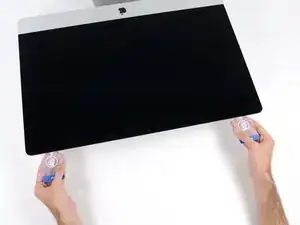
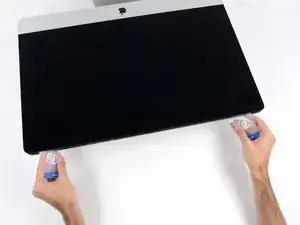
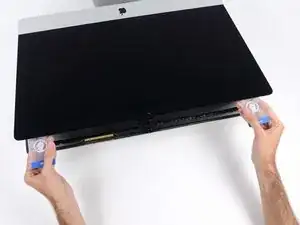
    • Com os cartões introduzidos próximo aos cantos, como mostra a figura, vire cuidadosamente os cartões para aumentar o vão entre a tela e a estrutura.

    • Se em algumas partes o adesivo ainda estiver colando e não puder ser separado, pare de fazer movimentos de vai-e-vem e use um dos cartões para cortar o adesivo nesta área.

    • Comece a erguer a parte superior da tela para fora da moldura.

    • Erga a tela somente umas poucas polegadas - ela ainda está presa ao iMac pelos cabos de dados e de energia.

  19. wHjJRVLAFXewfnyp
    wHjJRVLAFXewfnyp
    CpBnbf1FNgAfIZn1
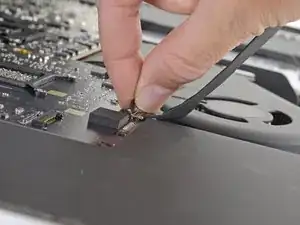
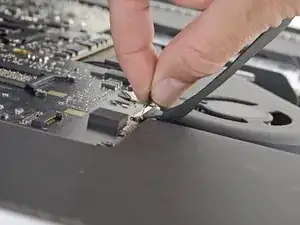
    • Enquanto segura a tela com uma mão, use a outra para desconectar o cabo de energia da tela.

    • Erga a tela o suficiente para facilitar o acesso às conexões, mas não tanto que os cabos fiquem estendidos e as suas conexões sejam danificadas (umas 8'').

    This is not a picture of the 2019 model. On the 2019, the cable is angled and very close to a metal part that looks like it could be a wireless card. This makes it difficult to squeeze in the edges required to release the cable. I was able to unfasten it using my fingernail, doing one side at a time.

    maccentric -

    Same issue. You can't just pull it out. I used a plastic "spudger" to push the clips in. The photo here shows where to press

    https://www.icloud.com/sharedalbum/#B0qG...

    See also my comment in step 20

    Bill4321 -

    There is a problem with this picture. It shows the cable angled up, as if you are supposed to pull the cable upward. In fact, the cable should be flat to the board and pulled toward you, not up. Unfortunately, I copied the picture and pulled up on the cable. There needs to be more detailed descriptions with each disassembly operation.

    DB108 -

  20. VdsiAgtUyYorMen1
    VdsiAgtUyYorMen1
    KHHFi452QTQMTeBV
    CsKrEVrGRnpfrDwC
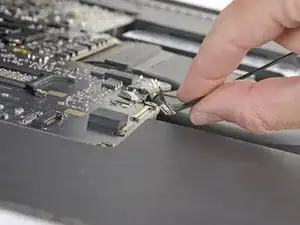
    • Vire para cima o suporte metálico com trava do cabo de dados da tela.

    • Desconecte o cabo de dados da tela.

    • Esta conexão é sensível e pode se romper facilmente. Certifique-se de puxar em linha reta o conector do cabo de dados da tela para fora do soquete, em direção à parte superior do iMac.

    on the 2020 model there is also a connector from the camera that is connected ted to the screen.

    Erwin Biermans -

    This isn't the photo of my IMac 27 2019.

    To remove this clip, lift up the plastic tag sticking down & the metal clip will lift too

    https://www.icloud.com/sharedalbum/#B0qG...

    Bill4321 -

  21. eJ1ZlYNHPi6CWHyZ
    eJ1ZlYNHPi6CWHyZ
    iJ1harXteIPLEIKd
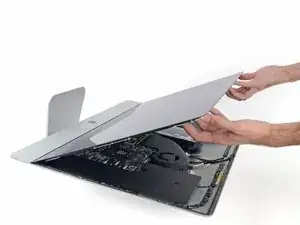
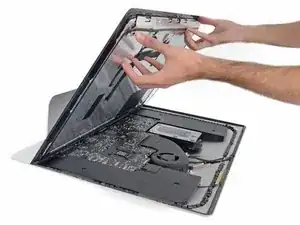
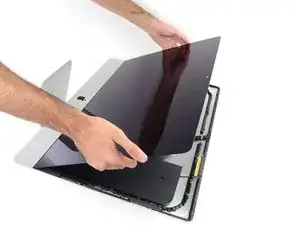
    • Erga a tela até ela quase alcançar uma posição vertical.

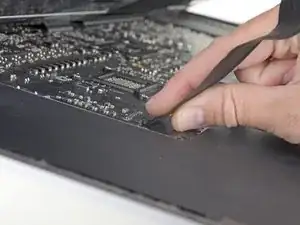
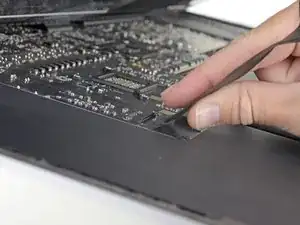
    • A esta altura, ainda há uma tira de adesivo na extensão da parte inferior da tela, que segurará a tela à moldura, fazendo as vezes de uma dobradiça. Você pode soltar este adesivo erguendo e baixando a tela por algumas vezes.

    On my 2019 iMac, the adhesive strip along the bottom edge of the screen has a non-sticky tab on both sides. Pull these tabs and the adhesive strip comes way. If you are lucky you might get it all. Mine tore off about 1/3 of the way along on both sides.

    Adrian Berry -

  22. lACpgXcvlGFyrLvA
    lACpgXcvlGFyrLvA
    ISMvuLCodAhiRMwB
    hpHSWgP6FbSE133b
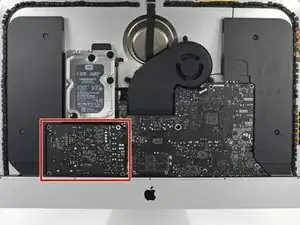
    • Tenha muito cuidado para não tocar nos terminais do condensador ou nas juntas de solda expostas na parte traseira da fonte de alimentação (no quadrado vermelho).

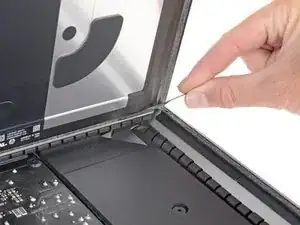
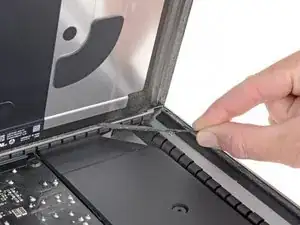
    • Agarre a pequena tira na extremidade de uma das fitas adesivas da tela na borda inferior e puxe o adesivo na direção da parte superior do iMac para removê-lo.

    • Repita esse passo com a outra faixa adesiva e remova-a.

    • Se uma das tiras adesivas se romper antes de ser removida, use um cartão plástico para cortar o adesivo restante.

    This image features the wrong model. The 2020 5K iMacs all came with SSDs. This one still has a mechanical hard drive.

    smidgeondutchrabbit -

  23. k6S2mPdemkHANTQd
    k6S2mPdemkHANTQd
    JZD2kebALoGllJpG
    gAqAXTZm1QxOsqZu
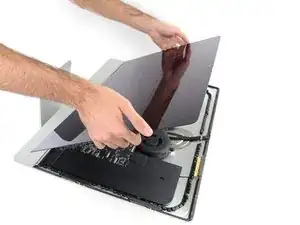
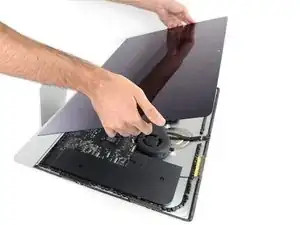
    • Tenha muito cuidado ao manusear a tela, ela é grande, pesada e feita de vidro. A tela tem bordas frágeis. Evite erguer a tela pelos cantos.

    • Erga a tela da moldura e remova-a do iMac. Deite a tela virada para baixo numa superfície plana e macia.

    • Pode ser que seja necessário erguê-la lentamente de um lado, para soltar o adesivo restante.

    • Depois de cortado o adesivo, ele não pode mais ser usado para vedar a tela. Vá para o guia de reposição de adesivo de seu modelo quando o seu reparo tiver sido completado para repor as tiras de adesivo que seguram a tela no seu invólucro traseiro.

  24. e2SQbENy6wul345Z
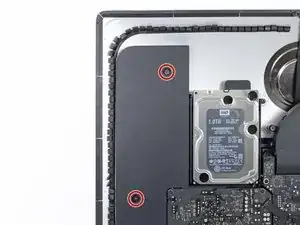
    • Com uma chave T10, remova os dois parafusos de 10 mm que fixam o alto-falante esquerdo.

  25. gKDsSsIWR4f4QgCp
    gKDsSsIWR4f4QgCp
    q3ZAsbgkhQTmAtIL
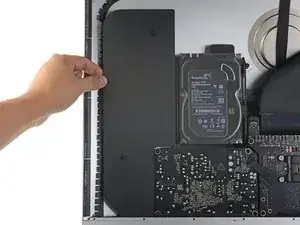
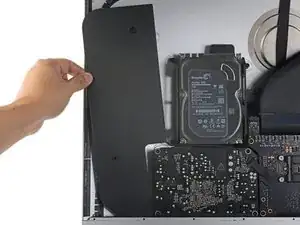
    • Afaste o alto-falante solto para a esquerda - o bastante para expor os parafusos do suporte do disco rígido.

  26. POLboPSR6wDCQOrL
    POLboPSR6wDCQOrL
    AuX1HgDZFljPrFOA
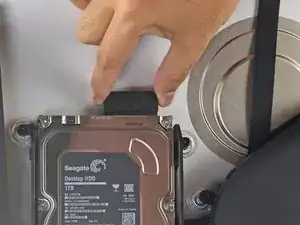
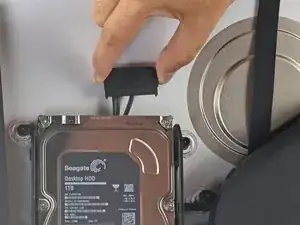
    • Puxe para cima em linha reta o cabo SATA combinado para desconectá-lo da unidade HD.

    Where can I purchase this cable if my iMac only came with the m.2 SSD?

    Julien Dal Col -

  27. WtNqEsuv3qXHIWhA
    • Com uma chave T8, remova os dois parafusos de 7,3 mm que fixam o suporte esquerdo do disco rígido na estrutura traseira.

    they are T9 for 2012.

    sean_gizzle -

    They are T10 for the 2013 model

    Quinten van Kessel -

  28. 46GMbQrdWuRMOhBW
    46GMbQrdWuRMOhBW
    pWdfnFTdXvxQueB4
    rD6ULDdslihryxhY
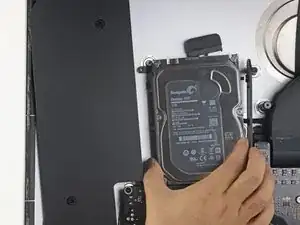
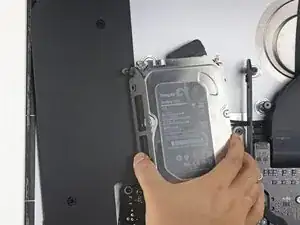
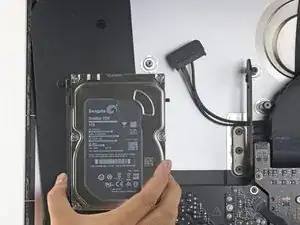
    • Agarre ambos, o disco rígido e o suporte esquerdo do disco rígido.

    • Levante a lateral esquerda, afastando-a da estrutura traseira, e puxe a unidade para a esquerda.

    • Remova o disco rígido e o suporte esquerdo do disco rígido do iMac.

  29. pL5C6Rk6VPJbItnW
    pL5C6Rk6VPJbItnW
    T33jCoZ6yOCtdDi3
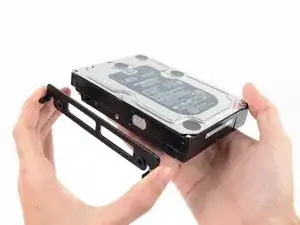
    • Remova o suporte esquerdo do disco rígido.

  30. BHci35AvSBmp2sp6
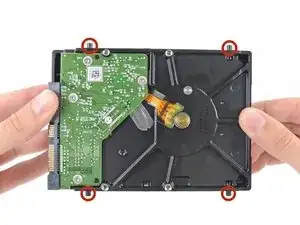
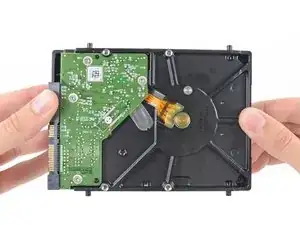
    • Remova os quatro pinos-parafusos T8 de 8,1 mm do disco rígido e transfira-os para o invólucro da unidade nova.

    In my case these were T9 screw posts. Late 2012 iMac. They had traces of Loctite on them.

    rsnadd -

    Not sure if this is the right place to add this comment, but here goes: I bought a late 2015 iMac 27 which had only a 256Gb blade SSD in it, and wanted to upgrade it with additional storage. I'll not include everything here that I did, however I will mention that I discovered that it had the brackets inside for a 3.5" HDD, but no SATA cable. With a new cable and 2.5" SSD drive in an adapter, I now found that I had no screw posts to secure the SSD adapter in the mounting brackets. I searched everywhere online, but couldn't find any to buy. I procured some (brass) logic board mounting posts with the proper thread gauge to fit the SSD adapter which I then filed to an appropriate round shape that would hold the adapter in the mounding brackets. Problem solved.

    By the way: I grabbed one post in my drill to spin them while filing them round. Holding one post in the drill, I could screw a second one into it for filing, lastly placing a finished post into the drill to modify the last post. Worked like a charm!

    VikingShips -

  31. HKQbp12ZISQhNfAv
    HKQbp12ZISQhNfAv
    C535jLFwdCXbrulv
    wDWxsjpZCDD5vCjk
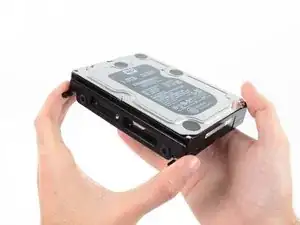
    • Siga os passos restantes se estiver substituindo o seu disco rígido por um kit SSD.

    • Se o seu invólucro de SSD for como o da primeira imagem, vá em vez disso para este guia.

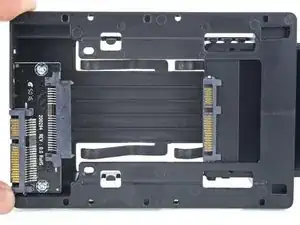
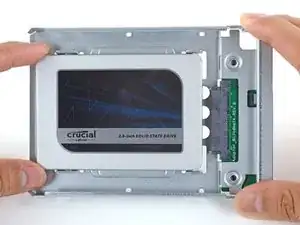
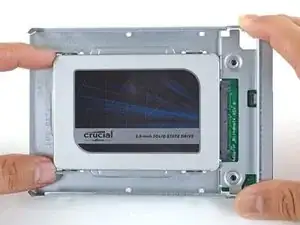
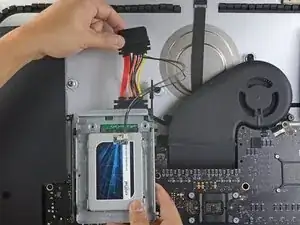
    • Alinhe os conectores do SSD com os soquetes do invólucro metálico.

    • Pressione a unidade contra os soquetes do invólucro, até que o SSD se assente firmemente.

    • O SSD se conecta com o invólucro somente numa única direção. Se não conseguir alinhar os conectores, vire o SSD e tente novamente.

    what if I’m installing a hard drive?

    Troy Garcia -

    Didn’t bother with the SSD caddy. Some 3M sticky pads did the trick!

    James Clive -

    Been using them for years...works great.

    Michael Maxson -

    Two thoughts on SSD replacement/upgrade:

    1) It would help if some references were made to help us determine what we need in terms form factors. I’ve never used an SSD and see a 2.5” one that would work, but I don’t know if 2.5” SSDs are different (in form factor) from 2.5” HDs. A lot of us are still learning about SSDs and isn’t that what this site is about? (Learning new things about hardware and using hardware?)

    2) I’m not clear if I definitely need a new temperature sensor if I put in an SSD or if

    Hal Vaughan -

    You do not need the temperature sensor, just replace the old HD for a new SATA HD or better Sata SSD. This sensor was only needed in former models, I think the iMac 2011. I replaced already some drives of the 27" iMac 2017 and never needed the extra sensor. E.g. Apple used a normal not branded 1 TB Seagate SATA Desktop HD ST1000DM003.

    Frank N -

    Can I buy the kit without the SSD. I'm thinking of replacing my 3TB hard drive with a 4TB SSD.

    Also, would you happen to know what the maximum hard drive dimension that can fit inside of this iMac? I may try a 14TB hard drive instead.

    Larry -

    A 14Tb HDD does not represent any problem. But I will care about rising temperature. Must attach a heat sensor. If rise to high, it will suddenly shutdown to protect it.

    Neos Marketing -

    Is it possible to have some reference of compatible SSD please?
    I would like to replace the HDD from my Fusion drive, Imac 5K late 2014, by a SSD.
    But i don't know which model should i take, and there is no recommandation on this website :(

    thanks in advance

    Nathan André -

    Is it possible to use an M.2 NVMe SSD with an adapter (mount) for a 2.5" SATA SSD instead of a SATA SSD?

    Kirill Legion -

    Great tuning set and tutorial.
    With the new SSD my late 2012 iMac feels like 10 years younger now! :-)

    The only things to mention:

    - before starting read the whole tutorial very carefully!

    - prepare your working place

    - take enough time for each step!!

    Chris Wagner -

    Has anyone used a Samsung 870 EVO SATA 2.5”?

    Mark -

    yes, i replaced the fusion drive with the samsung 870 evo. works great!

    foto fuzzi -

  32. FtBOnUuDYZJTjvey
    FtBOnUuDYZJTjvey
    RvVXsqFVNCWuybvj
    UmyFUVECjaDZNRjp
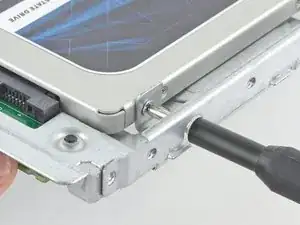
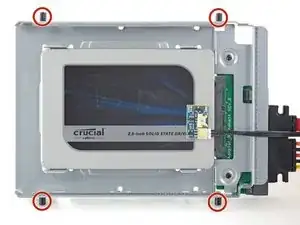
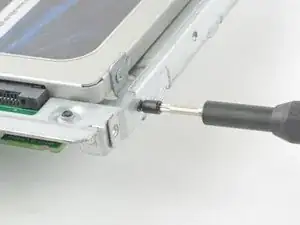
    • Com uma chave Phillips, instale os quatro parafusos prateados (dois de cada lado) ao longo das bordas do SSD para fixá-lo no invólucro.

  33. quopgXjU6RgRFYYW
    quopgXjU6RgRFYYW
    6FVtDs36uVFQAEUg
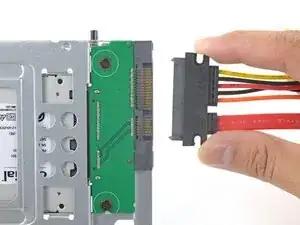
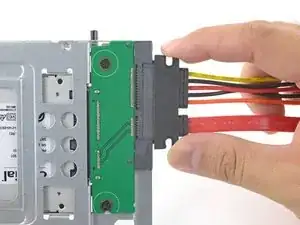
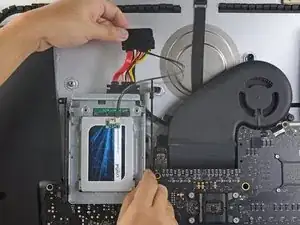
    • Conecte o cabo combinado habilitado a sensores à porta do invólucro.

    • O cabo somente pode ser conectado em uma única orientação. Se não conseguir conectar o cabo, gire-o 180º e tente novamente.

    Is the thermal sensor needed? I fitted a replacement SSD and it’s all back together and the iMac’s fans are fine. They don’t go into full max speed mode.

    James Clive -

    If you have a problem with the fans, you can always use Macs Fan Control (free) to set the speed. The sensor is not needed.

    maccentric -

    Hi, thanks for good information. Do we need intermediate SSD cables (red, black and yellow)? iMac has SATA original cable.

    O S -

    I used always the "old" SATA original cable. You do not need the temperature sensor, just replace the old HD for a new SATA HD or better SATA SSD. This sensor was only needed in former models, I think the iMac 2011. I replaced already some drives of the 27" iMac 2017 and never needed the extra sensor. E.g. Apple used a normal not Apple branded 1 TB Seagate SATA Desktop HD ST1000DM003.

    It is always a good idea to fix the TFT Screen with tape and test the HD replacement.

    Frank N -

  34. nFPHEiNHZQZIIWir
    nFPHEiNHZQZIIWir
    25p6UPH1X2Hpm1ut
    kZJrQ2FKFMAo4eGZ
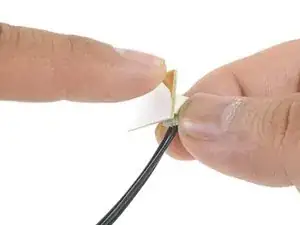
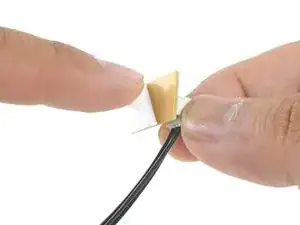
    • Remova a película branca da traseira da pequena placa de sensor de temperatura para expor o adesivo.

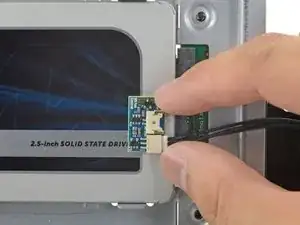
    • Cole a placa do sensor de temperatura numa superfície metálica exposta do SSD, próximo ao conector SATA.

    • Dobre o excesso dos fios do sensor de temperatura, de forma que eles não atrapalhem enquanto você instala o invólucro.

    Great pics ! Is that “temp sensor board” is already on my HDD IMAC ?? Or must I buy one ?

    kenclark200 -

    Don’t bother with the thermal sensor. I didn’t fit one and the iMac is working fine and no fans are kicking in.

    James Clive -

    Instructions say to attach sensor to the SSD, but all pictures show it being attached to the SSD carrier. This may not represent accurate SSD temp as much of the carrier dissipates the heat absorbed from the SSD

    chris byrne -

    Confirmed, no need for the extra temp sensor on Mid-2015 iMac. (EMC 2806, Mid-2015 27" iMac). Just changed the old 1TB HDD to SSD, no extra fan RPM after power on.

    Laszlo Nyirfa -

    The adhesive on the sensor is very weak. My sensor fell off after a couple of days. Is there a safe glue to use to adhere it to the SSD? Super glue?

    estyle18 -

    FWIW I bought a 4TB Western Digital Blue SSD. The entire case of the SSD is plastic- there is no metal. Hoping the temp sensor adheres to it okay.

    Kupe -

    de donde salio el sensor de temperatura? lo trae el disco nuevo?

    Pedro -

  35. TB3g2BfZthZmgZof
    TB3g2BfZthZmgZof
    UZXpLNW61PfcoLXO
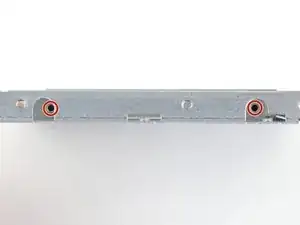
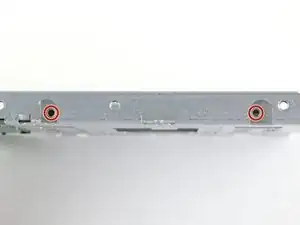
    • Com uma chave T8, instale os pinos de montagem do disco rígido velho nas laterais do invólucro.

  36. KBSB2H5m4afo1XQb
    KBSB2H5m4afo1XQb
    yaSlbXuRWxuB6UEm
    • Fixe os suportes de montagem removidos do disco rígido velho no invólucro.

    i don't have a combo cable.i also didn't have asata drive. just a blade ssd. i don't see wwhere i could add a cable

    Larry Paterson -

  37. SldWU16exyqkJemL
    SldWU16exyqkJemL
    UjNyOhADTniaGyRe
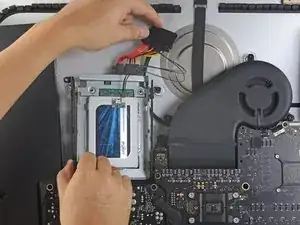
    • Conecte o cabo combinado do iMac ao novo cabo combinado habilitado para temperatura.

  38. YJqasivdZRKDWMjy
    YJqasivdZRKDWMjy
    FI6EqbMtmSvAcIM6
    DpsoNu5h3obcGm6g
    • As imagens usadas neste passo são de um iMac de 2017. Os seus cabos podem ser diferentes, mas o procedimento é o mesmo.

    • Empurre o invólucro do SSD no espaço ocupado anteriormente pelo disco rígido.

    • Disponha os cabos de tal forma que eles não interfiram nenhum outro componente.

    • Tente manter os cabos afastados de dobras acentuadas e passe-os de tal forma que eles não sejam apertados.

    The SATA cable on my Late 2012 was not long enough to comfortably attach to the end of the temperature sensor array after it was plugged into the new SSD. I had to fold the array and slide it under the SSD and housing. There was much resistance to the folding so I took it slowly to let the wires adjust gradually to the fold so they would not break.

    Bob Enders -

    Unfortunately, the adapter that comes with it isn't long enough to avoid pushing against the screen in the front. One week after upgrading to SSD my screen fell off shattering and breaking the power connector on the systems board. A new screen is ordered but I'm hoping the power connector isn't damaged beyond repair. I'm going to try to adhere the HD adapter to the back inside of the case with 3m adhesive to avoid pressure against the screen.

    Erik Johnson -

    As a newbie, the only other upgrade I have done is to replace my iPhone 7 battery. I had trouble on reassembly.

    This is a great upgrade guide, but it would be important to me to see the reassembly instructions including the cautions.

    For example, I had issues with reattaching the plugs in the phone. I could see having an issue with them here, as well as repositioning the display back into the cabinet.

    I do PCB board repair work and repair pinball machines. But I won’t try this.

    LexVAPin -

    how do i glue on the new screen? which glue is used?

    Marc Seeh -

    Try 3m double sided tape from Amazon, it available in 3mm width which is ideal for iMac screen. It has a very thin foam and is much better quality than the cheap Chinese kits available on Amazon. You will have to trim it to size with a sharp craft blade as you fit. Don’t risk your screen falling off from using cheap tape in the so called fitting kits!

    Tony Street -

    In my Late 2012 27" iMac I Scotch-taped the SATA connector to the case to stop it from pushing against the screen after reassembly.

    [deleted] -

    Only 39 steps!

    Is it possible to clone the internal disk and have the imac boot off the external SSD?

    D Leinweber -

    The extension cable is too long. I folded it over carefully & stuck it down to the case using a double sided sticky pad. Photo here

    https://www.icloud.com/sharedalbum/#B0qG...

    Bill4321 -

    hi is it possible to use another caddy caddy 3,5" ---> 2,5" for the upgrade? I think the logic board of the one that comes in the kit is faulty.

    Thanks

    Radament -

    There is no need for a temperature sensor on a Late-2013 and later.

    Phil Taylor -

    I got more length of the SATA cable to work with by removing the fan and routing the cable differently under there (right through the middle instead of around the edges). However, then the adapter cable turned out to be too long, the whole thing would have gotten in the way of the display. Since I read that the Mid 2017 iMac doesn't really need the sensor, I'll be trying it without. Otherwise, my solution would have been to bend the adapter under the cage and tape it in place.

    l l etc -

    Could one just leave the fusion hdd in there, disconnect the cable, and plug into a sata sdd and have it sit in the space above the disconnected fusion hdd?

    Gold Coast Spanner Crab -

    With the Fusion Drive 3T and 128 SSD in my 2017 27” iMac … can they be removed separately ? The HD is not mountable. Don’t know if the SSD can be salvaged.

    polonius007 -

Conclusão

Compare a sua nova peça de reposição com a peça original - pode ser que você precise transferir componentes remanescentes ou remover suportes adesivos da nova peça antes de instalá-la.

Para a remontagem do seu dispositivo, siga essas instruções na ordem inversa.

Leve o seu lixo eletrônico para um ponto de recolha ou uma recicladora certificada.

O reparo não estão indo conforme o planejado? Confira a nossa comunidade do fórum Respostas para obter ajuda na solução de problemas.

Adam O'Camb

Membro desde: 11/04/15

220314 Reputação

15 comentários

Hola.

¿Es realmente necesario colocarle el sensor de temperatura al iMac A2115 de 2019?

Gracias. Saludos

thetwoangels -

A great and very carefully and detailed instruction. But what about glueing the glass pane back to the iMac? How does that work?

Thanks for any hint!

Hans Mueller -

Hi Hans,

The instructions on how to glue the display back is embedded in step 23. Here is a quick link to the instructions!

Arthur Shi -

These are model specific, look through the guides for your model. My 2019 27” Intel was: iMac Intel 27" Retina 5K Display 2019 Adhesive Strips Replacement

Keith Rutter -

If I replace a factory 1T SSD with a new 2T SSD . . .

am I correct in assuming it will already have the temperature sensor attached?

Would I need to replace the adhesive?

Mcorney -

If you purchase the bundle from iFixit, the bundle will come with a temperature sensor. You can’t re-use the existing adhesives and will need to replace them. They are also included in the bundle.

Arthur Shi -

Cual es el part-number del cable Sata? Sabéis si el iMac 27” 2019 con disco duro pci-express 512gb viene con el cable Sata para instalar un disco duro Sata?

gracias

What is the part-number of the Sata cable?  Do you know if the iMac 27 ”2019 with 512gb pci-express hard drive comes with the Sata cable to install a Sata hard drive?

 Thank you

Eugenio -

Can I install an additional SSD to my blade? Is the SATA cable already in or has Apple saved a few cent¿

cubdiel -

My 2019 iMac had a 2tb Fusion drive. This consisted of a 128gb blade and a 2tb SATA Seagate spinning HDD. I replaced the spinning disk with a SATA Samsung SSD + temp sensor, and then recreated a Fusion drive with the blade SSD and SATA SSD. As per this guide, I re-used the original SATA cable. Not sure if this would be different if your original spec was SSD only.

green_coconut -

I am using the late 2019 version of iMac 27". Currently, the iMac has installed 3TB fusion drive but I want to replace the larger capacity of the HDD. So what is the maximum storage capacity of the HDD? Is it possible to install a 16TB HDD like NAS HDD? Thank you for the feedback in advance.

Jay Juon -

iMac19,1,3.6 GHz Core i9 (I9-9900K)。可以,我更换的型号是:HDD西部数据WDC  WUH721816ALE6L4,NVME海康威视(慧荣主控)HS-SSD-C2000Pro 2048G。融合硬盘,缺点是更换HDD没有加装温度传感器风扇狂转,不知道更换希捷的硬盘会不会好点,我现在的解决办法是Macs Fan Control。还有就是更换硬盘前需要做U盘系统。

大木木 -

Die Anleitung ist wirklich sehr gut geschrieben und funktionierte bei mir soweit problemlos.

Allerdings heißt es zum Zusammensetzen lediglich, dass man die Schritte in umgekehrter Reihenfolge durchgehen soll. Dabei muss man aber natürlich die Kleberreste entfernen und neue Klebestreifen verwenden

UND: Man muss dabei darauf achten, das Mikro nicht zu überkleben! An der Kante über dem Apfel-Logo, wo das Display aufgesetzt wird gibt es etwas rechts von der Mitte zwei kleine Löcher - das sind die Mikros und diese dürfen nicht vom Klebestreifen verdeckt werden.

Achim Heynen -

Funciona para el modelo A2115

Elder Prado -

The screen replacement quick link takes you to an iPhone 7 rear camera replacement page.

Ecurbledeux -

On the 2.5-inch SATA SSD upgrades, I'm curious why the iMac 27-inch 2019 model would need a proprietary temp sensor? The iFixit guide for the older iMac 21.5-inch 2017 states it doesn't need one. Have things gone a bit backwards?

ITP -