Introdução

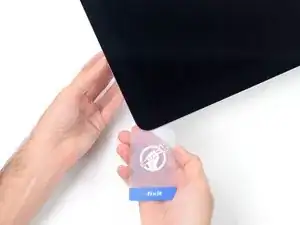
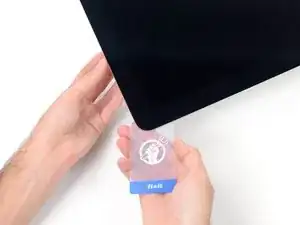
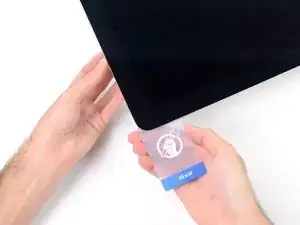
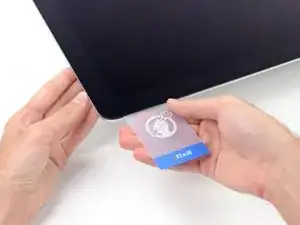
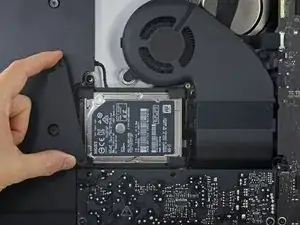
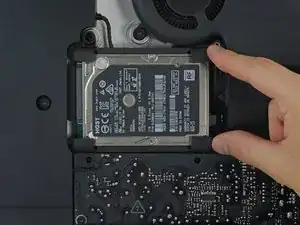
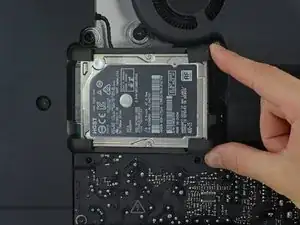
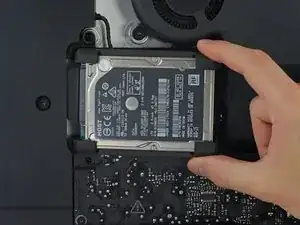
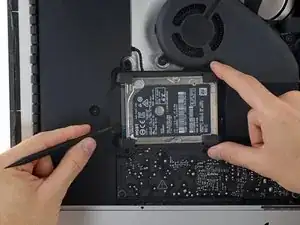
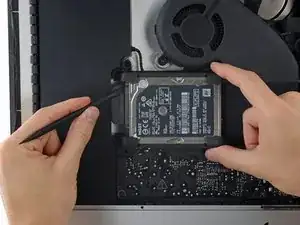
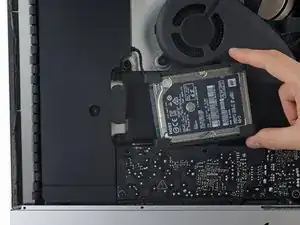
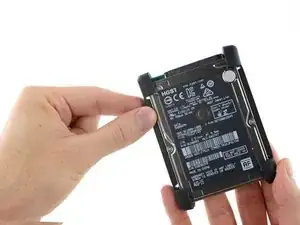
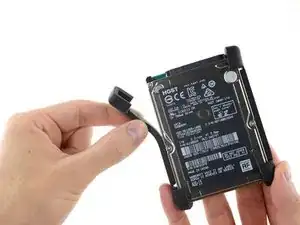
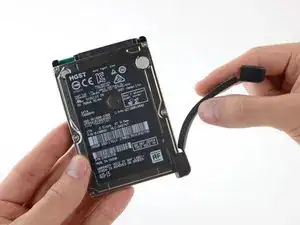
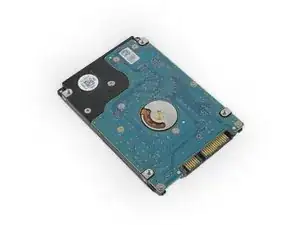
Siga os passos deste guia para dar um upgrade ou substituir o disco rígido de um iMac Intel 21,5" com tela Retina 4K.

Observe que se você estiver realizando um upgrade do seu drive, você irá precisar clonar o seu disco rígido atual no novo antes de executar este upgrade, para preservar seus arquivos e sistema operacional.

  1. SrDNTSYqyhGMRNDC
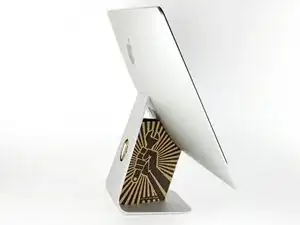
    • Com a dobradiça podendo se mover livremente, o iMac fica instável, o que torna o trabalho difícil. Os reparos ficam mais rápidos e fáceis com um suporte de reparos para iMac, mas podem ser executados sem ele.

    • Se estiver usando o suporte de reparo de papelão da iFixit, siga estas instruções de montagem para instalá-lo.

    • Antes de começar os trabalhos no seu iMac: Tire o computador da tomada e pressione segurando o botão de liga/desliga por dez segundos para descarregar os condensadores da fonte de alimentação de energia.

    • Tenha muito cuidado para não tocar nos terminais do condensador ou nas juntas de solda expostas na parte traseira da fonte de alimentação. Somente segure a placa pelas bordas.

    The wedge is an extremely tight fit for this model. I was worried that the amount of force needed to use it as shown might damage the stand, so I used it with the long side down instead. It worked fine that way and didn’t need anywhere near as much force to insert.

    roberttrevellyan -
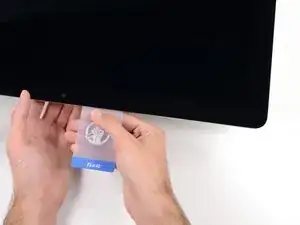
    Here’s a good YouTube vid on upgrading the RAM: Can a Normal Person Upgrade the RAM in the 2017 21.5" iMac?

    DanJ -
    Here are a couple tips from me:

    1) Expose the adhesive to extreme temperatures. I did this by transporting my iMac in my car, screen-down on a piece of cardboard on a cold February morning (in Chicago). When I went to pick up the iMac, the screen practically fell off the chassis. I would have been distraught by this if I hadn’t already planned this replacement. So it was a happy accident.

    2) Remember to expell the residual power from the power supply by pushing the power button while the iMac is unplugged. This does NOT guarantee it’s safe to touch, but when I accidentally brushed the solder and exposed capacitors, I didn’t get shocked.

    jerrid_foiles -

    Instead of using the wedge, I placed the iMac faced up with the top side (web cam) facing me while I ran the pizza roller around. It worked out great!

    Sam Fung -

    “All iMacs also come with a traditional hard drive” mine doesn’t!! it’s HDD bay is completely empty, no SATA cable or anything. I guess I’ll have to upgrade the PCIe SSD instead.

    Chris Hughes -

    There is no replacement glass for this model, it is part of the LCD and impossible to remove or replace- the entire LCD has to be replaced unfortunately if the glass is cracked or damaged. You will have to Google search for a replacement. Also be careful with some of the lock tight tork screws as I broke one of my screw mounts taking one out.

    Phil Tesone -

    I used this service wedge but also found it a very tight fit. The same stabilization can be achieved by using a big rolled up towel.

    Ernst -

    While this is a good instruction guide, I recommend to also look at OWC’s instruction video about drive installation, before starting the exercise. Those install videos are very detailed and useful.

    Ernst -

    Main advice: TAKE YOUR TIME with the pizza roller.

    Make several passes, until you really feel like there's no more sticker in the way. Stay away from the camera though (approx. 1inch / 2.5cm on both sides). This will reduce the work left with the plastic card. Adhesive is really on the edge of the screen so there is absolutely no need to go any further than the recommended 1cm / 3/8inch depth.

    Where are the sensitive parts?

    Facing your iMac, imagine you're looking at a watch. There are antennas on 1, 2 and 4 o'clock. Do not insert any metal piece there (nor anywhere else, btw). Other than that AND the screen cables underneath the camera, not much danger.

    Froggy Manny -

    OWC hard drive instalation video: https://www.youtube.com/watch?v=9GrteBJ9...

    vrino -

    It's a pity iFixit UK use UPS as their shipping agent. I still have not received my upgrade kit. UPS is one of the worst shipping/courier companies operating. They're a complete disaster!!

    Roger Hawkins -

  2. QPZ14vf5mNSObPx1
    QPZ14vf5mNSObPx1
    1KAQXZNy65Y1ferW
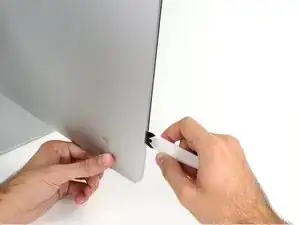
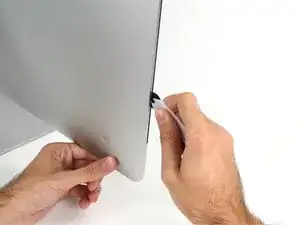
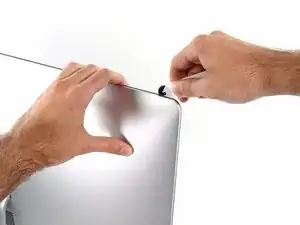
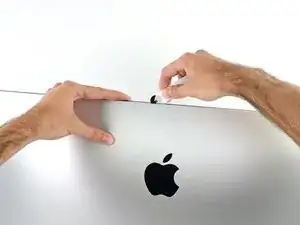
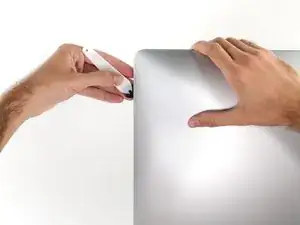
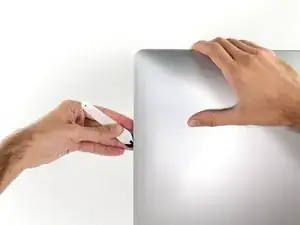
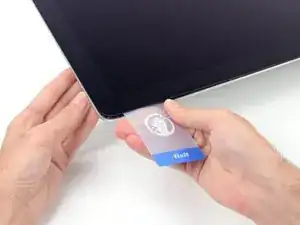
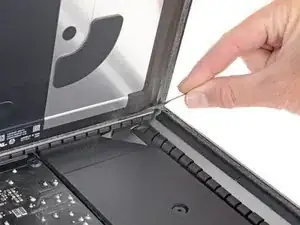
    • Começando pelo lado esquerdo da tela, próximo ao botão de liga/desliga, introduza a ferramenta de abertura para iMac no vão entre o painel de vidro e o invólucro traseiro.

    • O eixo da ferramenta de abertura para iMac evita que você introduza muito para dentro a roda. Se estiver usando uma ferramenta diferente, não introduza mais do que 9,5 mm dentro da tela. Caso contrário, você corre o risco de romper os cabos da antena e causar sérios danos.

    Don’t get too worried about starting exactly where the picture says. The glue is stronger in some parts so just start wherever is easier and then work slowly and patiently around in the direction shown.

    Richard Cook -

    As this guide doesn’t cover replacing the adhesive strips, I found referring to the following was useful (noting that it’s not for the same model of iMac, so the modification they mention wasn’t necessary): iMac Intel 21.5" EMC 2544 Adhesive Strips Replacement

    Alan Digby -

    It is very easy to crack the glass in front of the LCD during this step. I used the guitar pick, maybe it was too thick… crack is just on the frame but anyway it is disappointing :(

    Nikolay -

    This part of the exercise should be done with extreme patience. I took my sweet time with the opening tool, rolling it through the entire panel and enclosure gap over and over again, until I was very sure no parts were sticking together anymore. And when I thought I was I done, I decided to do it over again.

    Ernst -

    You can "warm up" the adhesive before try to cut it with the tool using a hair dryer. Heat the edges for about a minute, keep moving it so you don't cause stress in the glass. Also the above note.. use the tool and then the cards. Do not use a guitar pick or other objects as the thickness will cause you to break the front glass, which is a bonded part of the display (expensive).

    Carl Schultz -

    Merci pour ce conseil

    Nicolas Bry -

  3. SdaoaCo1EmiD4NqV
    SdaoaCo1EmiD4NqV
    eOsvYmvle2iDrZvZ
    LS2Bi6uDXDmSSIOJ
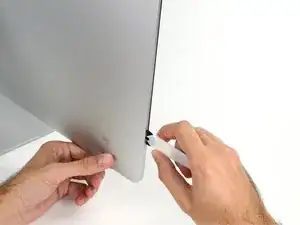
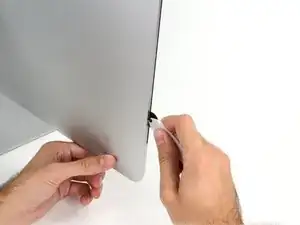
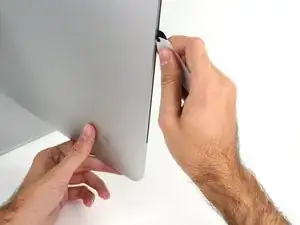
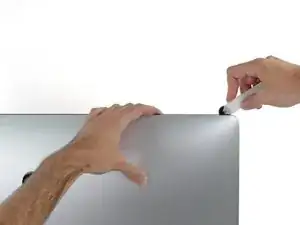
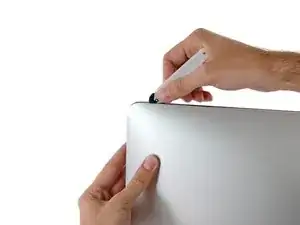
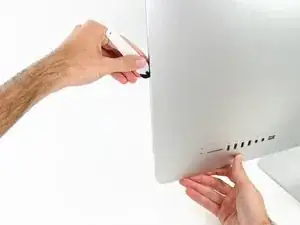
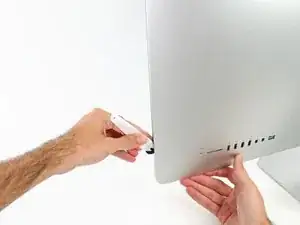
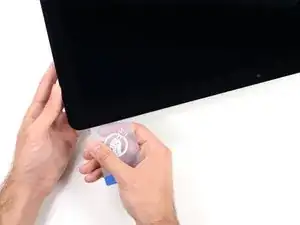
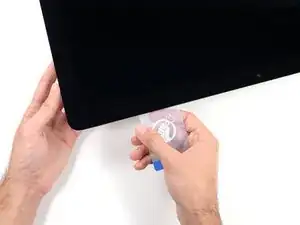
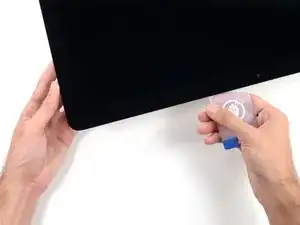
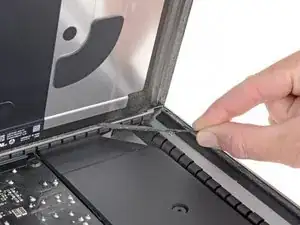
    • Use a ferramenta como um cortador de pizza - empurre-a por toda a extensão do vão e ela cortará o ponto central do adesivo de espuma.

    • Lembre-se de empurrar constantemente o punho atrás da roda cortante. Se você puxar, a roda pode escapar do punho.

    • Passe a ferramenta por toda a extensão da lateral esquerda da tela.

    Erreur de traduction: "de bas en haut" et non de" haut en bas" sur le côté gauche de l'écran

    Moreau -

    If re-opening a screen that was opened and re-attached using iFixit’s adhesive strips, I would strongly recommend heating it first with an iOpener, heat gun or hair dryer. 20 minutes after attaching with the iFixit adhesive I tried to open it again with the pizza slicer to fix something and cracked the screen on the left-hand side.

    plasticpool -

  4. r1eMkSSjJdpmWr1B
    r1eMkSSjJdpmWr1B
    d6iAMVdqVUdnvYnD
    PsnDnjYNWucTLycx
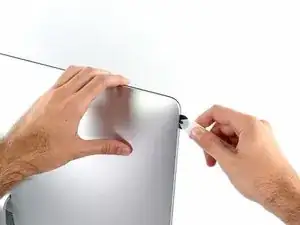
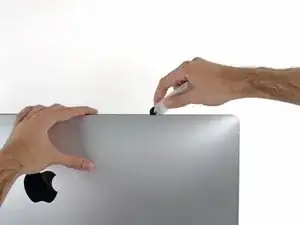
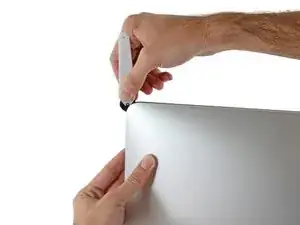
    • Continue passando a ferramenta para cima, virando no canto esquerdo superior.

    Ne pincez pas l’écran avec l’autre main. Vous exercez une pression inutile sur le verre et empêchez la roulette de couper le joint.

    phfoglia -

  5. sZNVaGR3f2vruyLS
    sZNVaGR3f2vruyLS
    HDO3QbYuc4krqwHX
    • Corte o adesivo da parte esquerda superior da tela.

  6. vSKcLcMFSZoPp6Gp
    vSKcLcMFSZoPp6Gp
    uiuQPD3lViaQODlB
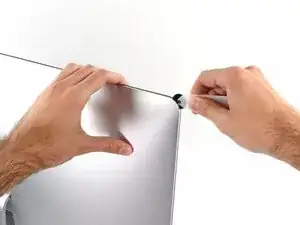
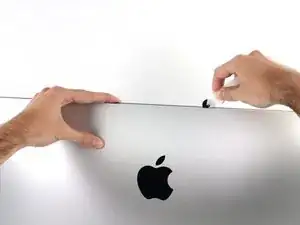
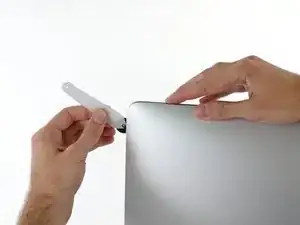
    • Continue na parte superior da tela.

    • Você precisa passar a ferramenta algumas vezes para trás e para a frente onde já cortou adesivo, para garantir que tenha soltado o máximo possível de adesivo.

    In this step can I cut along the display without make any damage to the front camera?

    arisnordico -

    Hi! Actually - there is no need to cut the tape around the camera area - there is no tape to cut at all! And so, the way go is easy - just pass 10 mm to the left and to the right from camera and start cutting!

    P.S. Just did the whole procedure to replace a RAM and to add SSD on PSIe an hour ago! Seems to be different reading the instructions... you know - 2/10 and so on. But it's really not that hard, trust me. I'll give it 5/10.

    P.P.S. By the way there is one trick to pass the difficult steps. Any action which requires pulling smth (motherboard, speaker, power supply unit) from the narrow crack (or should i say - slit?) at the bottom of your Imac is really not so easy.

    And the trick is to first remove a thin metal stripe with some kind of insulation on it which held by 5 small (very small!!) screws at the bottom of your Imac. After you done it - it's easy to pull everything! Pay attention to the fact that one of this 5 screws at the center are more shortly than others.

    dv1977 -

    I did all steps like this manuell but now the Display wont work only some colered strips are to see! Whats happend??

    Can anybody help me ? Maybe the connector cable is broken?

    djfanta -

    Check both connectors, probably one of them not seated well

    pzhivulin -

    You can add a SATA SSD if you already have a PCIe SSD Factory?

    kaserlik -

    If you're changing cracked EMC 2638 display to new assembly, there's two more steps:

    Step 24: Use the tip of a spudger to flip up the metal retaining bracket on the display data cable.

    Carefully pull the display data cable from its socket on the display assembly.

    Step 25: Use the tip of a spudger to unplug bracket of the thermal sensor small cable near display data cable.

    Carefully remove scotch tape covering thermal sensor. Using iSesamo or flat tip of the spudger carefully peel the thermal sensor away.

    pzhivulin -

    omg - forgot to switch the termal sensor from the old display...

    now fan runs like crazy...

    Andrei Balotescu -

    The key thing is to never put any force on the opening tool when working through the tape. Just roll it back and forth with ease.

    Ernst -

  7. eDPbRqQfKjS4oUnZ
    eDPbRqQfKjS4oUnZ
    qm5g46NqRXJjxaVm
    krs4wdofACqDD6Ju
    • Passe a ferramenta pelo canto superior direito da tela.

  8. 3c3b2XusJDWQekW6
    3c3b2XusJDWQekW6
    NGOHPeVZ52OQCRWQ
    • Role a ferramenta para baixo, por toda a extensão da lateral direita da tela.

  9. SAgRGwk3lGGO3ZCH
    SAgRGwk3lGGO3ZCH
    1DLPSpBELT2mxJok
    • Finalize empurrando a ferramenta de abertura para a parte inferior na lateral direita da tela.

    • A esta altura, você pode passar a ferramenta por toda a tela, voltando no sentido inverso, para garantir que tenha cortado o máximo possível de adesivo.

    Yes, do it many times to loosen the adhesive.

    Noah Ralston -

    Would be good data to show the 3 areas (wifi antennas where the "tape" is larger and covers them. The rest of the "tape" is 1.4" and easy. Also after removing the display, be sure to remove the old "tape" from both the display and the rubber parts of the case. Use the spudger to start an end and it should pull off easily. Careful on the baackside of the display as you can scratch off the black paint/covering.

    Carl Schultz -

  10. HVK2HNgts1D53wOs
    HVK2HNgts1D53wOs
    QrZMXcap4the5yXk
    hZXQgXJhIoKTxBwH
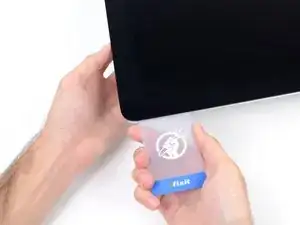
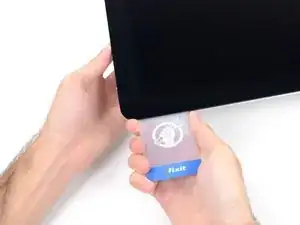
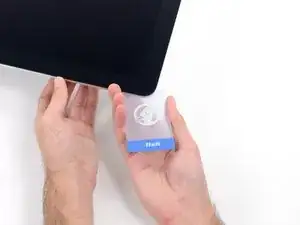
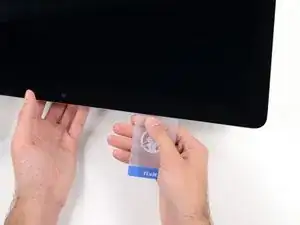
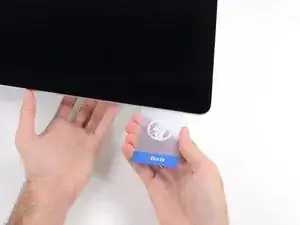
    • Ainda que a ferramenta de abertura já tenha cortado a maior parte do adesivo, a tela ainda estará levemente colada na estrutura. Será necessário usar um cartão de plástico para soltar o resto desse adesivo.

    • Coloque o iMac numa mesa com a tela virada para cima.

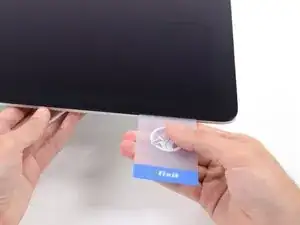
    • Começando pelo canto direito superior do iMac, force um cartão de plástico por entre a tela e a moldura.

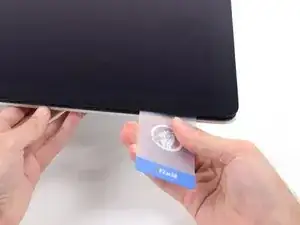
    • Tenha cuidado para não introduzir o cartão de plástico mais do que 9,5 mm, caso contrário você danificará componentes internos.

    this step is extremely important NOT to stick in the cards too far….. doing so, you risk a 600 euro replacement as I experienced………

    Edgar Broekema -

    I drew a 3/8” line on my cards with a marker first.

    Max Romano -

    I’m reading this on the EU store, please change all measurements to cm/mm.

    Morgana Devina -

    @ifixit The next batch of cards you create should have a line printed on the card 3/8” in from the edges. Would make a nice reference.

    Richard Giratd -

    Here’s where OWC provides glass removal suction cups, which is a better solution than plastic cards.

    The suction cups help to easily lift the glass panel, without risking the damaging of any internal wiring that the plastic cards could cause.

    Ernst -

    Better to remove stand wedge at this point? Can’t see from pics

    derekrobinson -

  11. wUjiMGtv2IpkNB5p
    wUjiMGtv2IpkNB5p
    LncJQeQQOAvg3CMA
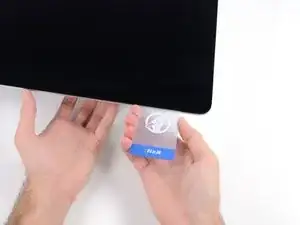
    • Com um movimento leve, vire o cartão lateralmente, para formar um espaço entre a tela e a moldura.

    • Mova lentamente e tenha cuidado para não tensionar demais o vidro da tela, você só precisa fazer um vão de aproximadamente 6,3 mm.

    This part must be done very carefully or you can damage the flat cable from display, despite it was under a iron cover.

    Cassio Machado -

  12. qmVJHqIxctiuCbE5
    qmVJHqIxctiuCbE5
    6PF3COgq44osRMSX
    1nZLqZWsCa1xRTOR
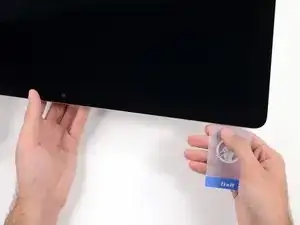
    • Passe o cartão em direção ao centro da tela, para cortar todo adesivo restante na extensão do canto direito superior do iMac.

    • Pare de cortar antes da câmera iSight neste passo, caso contrário você pode danificá-la.

    You don't need to do it like this, simply open the iMac bendidng the LCD completely and use the pizza cutter to remove the adhesive.

    Felix -

    Using glass removal suction cups will avoid running this risk of damaging the camera (or any wiring).

    Ernst -

  13. pwG3JFqqfxxQXLID
    pwG3JFqqfxxQXLID
    wKv4nNrdklsj61AD
    • Force o cartão novamente no canto direito superior e deixe-o ali para evitar que o adesivo cole novamente.

  14. B1l4C4H1WK3CwfsH
    B1l4C4H1WK3CwfsH
    5gnKwfWW1K2gnkAY
    dU3V1S5PiPpZoiRX
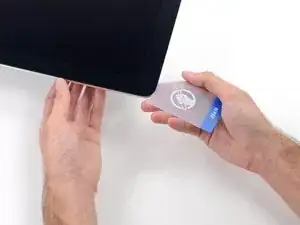
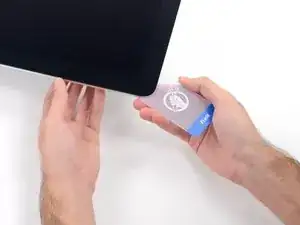
    • Introduza um segundo cartão de plástico no vão, por entre a tela e a moldura, perto do canto esquerdo superior do iMac.

  15. 1eeYyLOXUgoVdMcU
    1eeYyLOXUgoVdMcU
    XNwnBG1I3otkGVaj
    • Com um movimento leve, vire o cartão para cima, aumentando ligeiramente o espaço entre a tela e a moldura.

    • Como na outra lateral, vire lentamente para permitir que o adesivo se rompa e tenha cuidado para não tensionar demais o vidro da tela.

  16. 1AtMSKY35dfSoyov
    1AtMSKY35dfSoyov
    eYI56QJhkhMLdtyx
    oVDneBvJQXNCvQpC
    • Passe o cartão de plástico na direção do centro, parando novamente um pouco antes da câmera iSight.

  17. KlhOFUANthUfPZrW
    KlhOFUANthUfPZrW
    KGDDBwLWXguRGlso
    • Force o cartão de volta no canto esquerdo superior.

  18. xXVPepFcNBfFlYLm
    xXVPepFcNBfFlYLm
    mJWDXXcMCnL6OwqX
    lGcKi3n1DVFdANJw
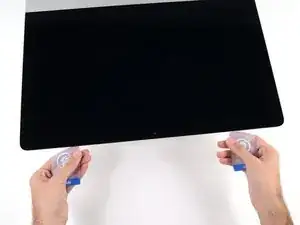
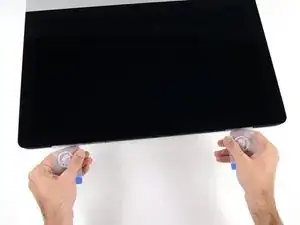
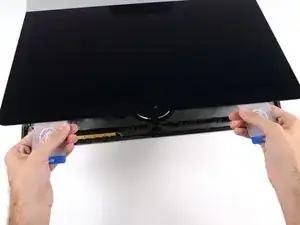
    • Com ambos os cartões de plástico introduzidos próximo aos cantos, como mostra a foto, vire cuidadosamente os cartões lateralmente para aumentar o vão entre a tela e a estrutura.

    • Se em algumas partes o adesivo ainda estiver colando e não puder ser separado, pare de fazer movimentos de vai-e-vem e use um dos cartões para cortar o adesivo restante.

    • Comece a erguer a parte superior da tela para fora da moldura.

    • Erga a tela somente umas poucas polegadas - os cabos de dados e de alimentação da tela ainda estão ligados à placa lógica.

  19. 2CYaRvZMKD1MHJWF
    2CYaRvZMKD1MHJWF
    fHCLPYQIpP4EVOLZ
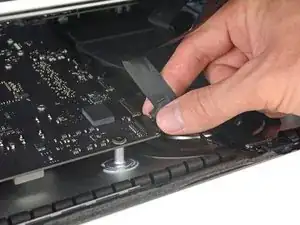
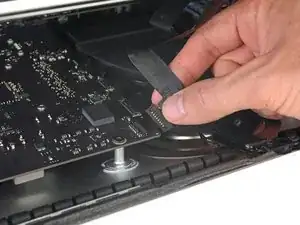
    • Erga a tela o suficiente para facilitar o acesso ao conector, mas não tanto que os cabos fiquem estendidos e as suas conexões sejam danificadas (umas 8").

    • Segure a tela com uma mão enquanto usa a outra mão para desconectar o cabo de alimentação da tela.

    It was difficult to remove this connection. I ended up having to gently pull-up vertically a little on the wire side to unsnap it about 1mm and then horizontally wiggle it out.

    delacrj2 -

    I had a difficult time removing this connection. I had to lift the wire-side about 1mm before it unsnapped and then carefully wiggle it out horizontally.

    delacrj2 -

    Can this cable be replaced? I am worried mine is damaged. I have no display after the screen fell and stressed the display flex cables following an SSD upgrade.

    Jeremy Brainard -

    This step should be done with extreme caution and care, as this step 19 is not described in great detail (sorry, author).

    The first (most outward) cable will slide out by gently pulling it by its tabs. The second (inner) cable is more tricky, as the locking lever must be moved backward first, before gently pulling backward on the cable connector. The angled tweezers are useful here, to help lift that locking lever, because fingers are too big for this.

    Ernst -

    be VERY careful and SLOW...take your time. These displays crack VERY easily when removing and they'll spider web on you. I've done probably 20 or so of these and cracked 3 being super careful.....ugh.

    Faslane -

    I found the best way to unplug this display power cable was to use my right hand, and the fingernails of my index finger and thumb to grab the ends of the tabs on either side of the connector, squeeze, and pull the connector out gently.

    Phil McInnis -

    i think the cable nearest the case edge is held in by friction and can be gently pulled, maybe with fingernails or a spudger. The next cable is held by a wire lever clip as described above it unlocks so the cable can be removed. These cables are also fiddly to re-insert, I didn't get one of them home and had no display after power-up, so at the end, don't re-seal the screen until tested.

    Peter Taffs -

    I suspect I broken either the video or the power connector when I opened it the iMac. What can be done / price to have the logic board fixed? Also where?

    Roger Tiedemann -

  20. Zh56FQPLtH1qJkBF
    Zh56FQPLtH1qJkBF
    RuoSZ5iXxQqvKfcF
    MuEuntgC4FjFNuDJ
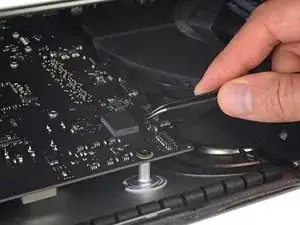
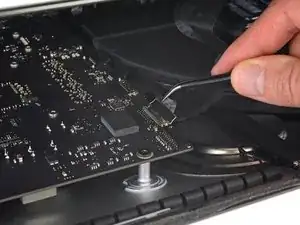
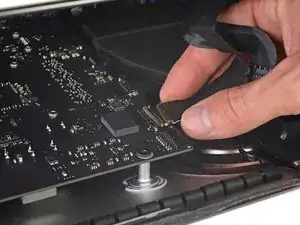
    • Ainda apoiando a tela com uma mão, vire para cima o suporte metálico com trava do cabo de dados da tela.

    • Cuidadosamente, puxe o cabo de dados da tela de seu soquete na placa lógica.

    • Certifique-se de puxar em linha reta o conector do cabo de dados da tela para fora do soquete, mantendo-o paralelo à placa-mãe, para evitar causar danos a ele.

    Cannot seem to find a replacement cable for this, as I suspect mine is damaged. Can’t even find a part number. Anyone know what it might be?

    Jeremy Brainard -

    https://www.amazon.com/gp/product/B08TTL...

    That's the part I ordered for mine and it seems to work ok. I did make a point of contacting the seller and advising them of my requirement and they ensured I got the right part and it matches the description of the link. Bear in mind I bear no responsibility if yours does not work since I am just sharing what I did and what I ordered. Thanks.

    Jim Stanford -

    I also need that cable.

    cameronjpu -

    It's a little difficult to tell... but looking at the connection to the logic board on the video data cable, are the pins faced up or down?

    On the display, same question since it appears you have to "twist" the cable during the reconnection step.

    Jim Stanford -

    For this particular cable, take a good look before pulling on anything. Plug is locked on its socket with a bracket. You can lift this bracket by holding the small, flat black plastic handle that is attached to it. If you're struggling to grab it, use the end of the pizza roller handle to lift it, or the tweezers. Cable then comes off by pulling parallel to the main board.

    Froggy Manny -

    How can I tell if either of this cable is bad? My iMac display won't turn on after reconnecting it. I'm using an external display and everything is working except for the iMac display. If I go to settings - display the built-in display is recognize. But again nothing shows up in the screen - not even the apple logo when turning it on.

    Carlos Sosa -

  21. faYLZCcUqNgfLImh
    faYLZCcUqNgfLImh
    fTsCL5NUphoD5vbV
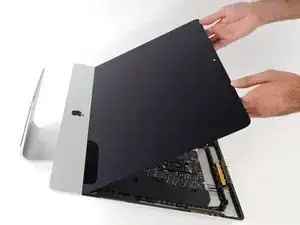
    • Erga a tela até ela quase alcançar uma posição vertical.

    • A esta altura, ainda há uma tira de adesivo na extensão da parte inferior da tela, que segurará a tela à moldura, fazendo as vezes de uma dobradiça. Você pode soltar este adesivo erguendo e baixando a tela por algumas vezes.

    The adhesive strip along the bottom is designed with a pull tab on each outer end. Rather than lever and pull the screen simply carefully pull the tab which removes that half of the lower adhesive strip and frees up the screen.

    Andrew Stephens -

    Yes, use the tabs as Andrew indicates. Super easy.

    Michael Adams -

    Here is an image of the pull tabs that Andrew mentioned above. Thanks guys https://i.imgur.com/GoISPkq.jpeg

    Peter Newman -

  22. 4khmQjreaXsfuDm5
    4khmQjreaXsfuDm5
    KRfMF3ZqmM6YLc2N
    ebbuYdy61gTLEEmm
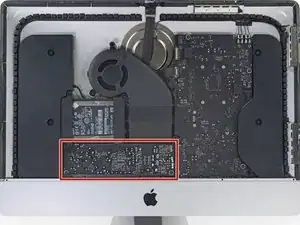
    • Tenha muito cuidado para não tocar nos terminais do condensador ou nas juntas de solda expostas na parte traseira da fonte de alimentação (no quadrado vermelho).

    • Agarre a pequena tira na extremidade de uma das fitas adesivas da tela na borda inferior e puxe o adesivo na direção da parte superior do iMac para removê-lo.

    • Repita esse passo com a outra faixa adesiva e remova-a.

    • Se uma das tiras adesivas se romper antes de ser removida, use um cartão plástico para cortar o adesivo restante.

  23. W11PURO2LYnqVMEL
    W11PURO2LYnqVMEL
    4x45fNhvlBjfqU3f
    WstuEbNDdOlFKIns
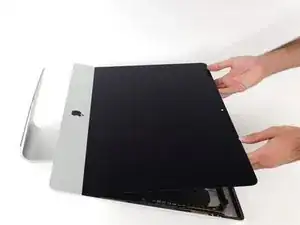
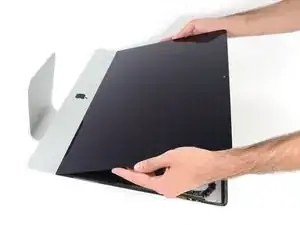
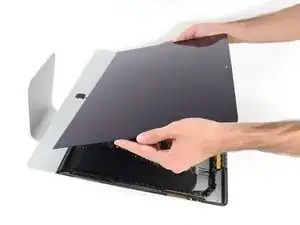
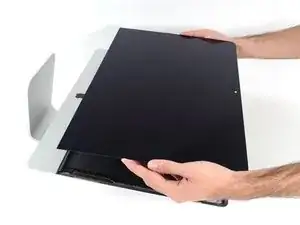
    • Erga a tela da moldura e remova-a do iMac.

    • Pode ser que seja necessário erguê-la lentamente de um lado para soltar o adesivo restante.

    • Tenha muito cuidado ao manusear a tela, ela é grande, pesada e feita de vidro.

    • Depois de cortado o adesivo, ele não pode mais ser usado para vedar a tela. Siga as instruções deste guia para substituir as tiras adesivas que fixam a tela ao invólucro traseiro.

    The adhesive strip along the bottom is designed with a pull tab on each outer end. Rather than lever and pull the screen simply carefully pull the tab which removes that half of the lower adhesive strip and frees up the screen.

    Andrew Stephens -

    Andrew, FTW! This worked perfectly

    Megan O'Leary -

  24. vnCZOVJAfQMkCXVO
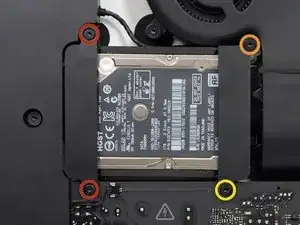
    • Remova os seguintes parafusos Torx T10 que fixam os suportes do disco rígido no iMac:

    • dois parafusos de 21 mm

    • um parafuso de 9 mm

    • um parafuso de 27 mm

    At step 26, when reassembling, it's super easy to over-tighten the 9mm screw and strip the brass ferrule out of its hole in the plastic bracket (%#*@).

    roberttrevellyan -

    Mine has 4 different length screws, the two red colored 21mm screws in this guide are actually two differ lengths

    anonymous 523 -

    Mi imac does not have a HDrive whats the steps to follow?

    Charlie -

    buongiorno, l'imac del 2019, non monta alcuna ssd, ma monta una m2 direttamente sulla scheda madre!

    pertanto nella guida andrebbe aggiunto il cavo sata con sensore temperatura da aggiungere sulla scheda madre, per poter collegare un nuovo hd ssd altrimenti rimarrete come me bloccati con un imac aperto e non assemblato, in attesa di ricevere il cavo acquistato su internet da amazon o terze parti.

    vi consiglio inoltre di aggiungere una foto reale del ò'imac 2019 nella guida in cui manca l'ssd, renderà subito la problematica che avranno in molti!

    Donato Altomare -

    Hi, mine doesn’t HAVE an HD/SSD to remove, the bay is empty (yes it was fully working yesterday. So what do we do ? I see someone else with the sane issue above….

    Jeroen Speak -

    If you don’t have a HDD in this bay, you have a SSD on the other side of your main board for storing up to 256GB.

    MEX -

    I have a 500gb HDD but it too is not where the tutorial states. How do I get to it?

    Khabran P -

  25. MFEFhp6PYNe1LMei
    MFEFhp6PYNe1LMei
    YOZ6AmbKs2AlGURG
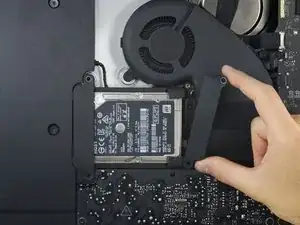
    • Remova os suportes esquerdo e direito do disco rígido do iMac.

  26. EGSkL6kXHVGCmtmj
    EGSkL6kXHVGCmtmj
    snVMiOLDfgjXKECJ
    lSpidPoWASusAqki
    • Erga o disco rígido da borda próxima à placa lógica e puxe-o um pouco para fora de seu recesso.

    • O disco rígido ainda está preso por seu cabo do SATA; não tente ainda removê-lo completamente do iMac.

  27. lPTZWiOAYX4DCip2
    lPTZWiOAYX4DCip2
    WWAqU5y5tyeOXye2
    Ze5CkUIkcEpVNERw
    • Com uma espátula, desconecte o único cabo do SATA fazendo alavanca nele, puxando-o com movimento leve para fora do disco rígido.

    • Remova o conjunto do disco rígido do iMac.

    I’ve found that loosening the T10 screws on the enclosure to the left helps give some room to remove and reinstall the drive. Otherwise reattaching the SATA cable can be a hassle.

    rothgar -

    Not only is it useful to loosen up the speaker next to the SATA connector I found it helpful to use a pen to mark the exact location of the edges of the SATA connector on top of the new drive, so I could guide the connector in place. It also helps to put the bumpers in after you get this SATA connector in place.

    bsmith1 -

    Waiting to put the bumpers on until after the SATA cable is attached was a must! Also loosing the speaker and moving over a couple centimeters was a huge help. Thanks

    Michael Bunsen -

    Saludos excelente guia

    Orlando valencia -

  28. OhYEhqf5cHYCQQIr
    OhYEhqf5cHYCQQIr
    UGpGbsieey3Yi44v
    wQTUmAvYnOUYUKKM
    • Destaque o amortecedor emborrachado em um lado do disco rígido.

    • Repita o procedimento do outro lado.

    • Ao instalar um novo drive, pode ser útil usar fita dupla-face para colar os amortecedores no seu novo drive.

    reconnecting the new drive can be a little tricky as the sata connector in the Mac is hard to align. I found that it helps to move the end of the bumpers out of the way, then push them back into position once the drive is connected.

    Gareth Jones -

    Thank you for the tip!

    Michael Gagne -

    thats what it did as well, thx for the hint. also i used a plastic spudger to reconnect the plug unto the new drive and leveled it against the speaker casing thats so close to the drive bay

    Stef999 -

    Can I install a Samsung 850 EVO 500GB to replace my 1TB 5400rpm disk? and is a seperate thermal sensor/cable needed to prohibit the fan to run at 100% all the time?

    Maurits K -

    Yes you can install ANY SATA SSD.

    And no … there is no thermal sensor on the drive. You don’t need them on these models.

    robert Seith -

    Can I install a Seagate FireCuda 2TB to replace my 1TB 5400rpm disk? and is a seperate thermal sensor/cable needed to prohibit the fan to run at 100% all the time?

    andrew mudd -

    Did you ever find out if you could replace your 500 GB with that Firecuda? I’m looking at doing that. I need more storage for my 500 GB photos library and don’t want to pay so a ton for the SSD that is big enough.

    shippster -

    where is the guide for the follow up ?

    installing a new hard disk and closing the screen back up.

    yog1389 -

    The SSD was a HUGE performance boost over the 5400rpm drive my iMac came with. If you’re pulling your hair out because Lightroom has become excruciatingly slow, upgrade your hard drive to SSD. You will not be disappointed.

    The kit has everything you need. Follow these instructions carefully and you’ll be fine.

    Mike Mullis -

    Huge improvement! It’s like a new machine. Highly recommended upgrade.

    Take care with the adhesive strips, and don’t forget to set new SSD as the boot disk (System Preferences, Startup Disk) after you’ve tested its bootable.

    Stephen Babbage -

    I previously had a fusion drive and installed a SSD. Will there be any issues with the ssd portion of the fusion drive? I still see it there in disc utility. Also, I’m showing two SSDs, along with the 32 gig one. Is that correct or did I create something that shouldn’t be there?

    rossmueller -

    I have this same question. I’m showing 2 drives but 1 is grayed out on the computer screen when I click on it nothing happens.

    Frank -

    A fusion drive combines two physical disks via software to act as one. It it something that has to be done manually and expressly. When you first got the computer, your fusion drive combined disks A (SSD) and B (HDD). If you replaced B, then you probably have an unused 32 GB blade SSD along with your new SSD. It possible to create another Fusion drive, but you’d have to start from zero, because creating a fusion drive erases the individual disks completely.

    also, not 100%, but I tried for several hours the other day and I’ve come to the conclusion that my version of Big Sur (11.1) doesn’t support Fusion Drives. Correct me if I’m wrong. Or maybe it’s because I’m running Big Sur on an unsupported iMac.

    David -

    It is also possible install the bumpers after getting the drive cable attached. This gives you more room to work with the cable and drive.

    Sean Kane -

    The hardest part was to plug the connector into the new SSD. I loose the two screws of the adjacent (left) speaker and move it just enough to have sufficient space to introduce my fingers to push the conector into the SSD. Left the replace of the rubber bumpers after reconnect the SSD, is easy to handle without it.

    Dennis Salas -

    I bought Samsung QVO 1TB SSD and now the fan is blasting fast and loud. So if these don’t use the thermal cables then what seems to be triggering the high temp? Obviously it’s the hard drive but could it be that the drive was cloned? I’m kinda stumped, I know I can control with software but some of you are saying it should run normal after install. Thanks for the info.

    MonoFrio -

    Is there a PCIe slot for an SSD instead of the SATA 3.0 2.5”?

    thank you,

    deejaysurfer -

    Not unless your iMac shipped with a Fusion drive or SSD.

    roberttrevellyan -

    The step-by-step guide was awesome and easy to follow. As others have commented, getting the SATA connector onto the SSD is tricky but not impossible. Just pull back the rubber bumpers long enough to reach the connector, then flip them back into place before seating the drive. One comment for my machine (late 2015 21.5”): There is no mic hole for my model, so while I was a little confused at the instructions on reinstalling the adhesive, the drive replacement went like a dream. And I saved myself the $120 labor the local Mac shop wanted to charge me.

    Glenn Pettit -

    Hat alles prima funktioniert. Leider läuft der Lüfter jetzt auf 100% und kernel_task Prozess ist bei über 300%. Was habe ich falsch gemacht. Diagnose meldet jetzt einen SMC Fehler und CPU-Proximity liefert keinen Wert.

    Kann jemand helfen?

    Michael Schmitz -

    This is the least accurately described step (sorry, author). While removal is easy, inserting the new drive in its place is a bit tricky. The key here, is to insert the new drive with its rubber bumpers back in its space, so that it is fully seated down in its place *before* the connector can be re-attached. Once it is seated in place, use the flat end of the spudger to gently manoeuver the connector back into place until it is firmly connected to the drive.

    Ernst -

    Reassembling the iMac is not simply following these instructions in reverse order (sorry, author).

    Before embarking on the home stretch, it is very important to carefully study the guide about the Adhesive Strips Replacement (iMac Intel 21.5" Retina 4K Display (2017) Adhesive Strips Replacement - iFixit Repair Guide), as this a tedious and time consuming process. Perfect alignment of those adhesive strips takes some concentration, because you will want to have your display panel back nice and tight and fully aligned with the case. Once all strips are in place, the 2 display connectors need to be gently reattached to the motherboard, before closing up the panel. I took my sweet time for that step, and thankfully have a perfectly aligned display panel back in place looking no different from the factory fit.

    Ernst -

    Here’s the rest of the information you need.

    https://www.youtube.com/watch?v=2xDJ28Oe...

    John Smith -

    I got a 4 TB Seagate Barracuda HDD as a replacement for a client. (Going for capacity over speed.) Does anyone know if it will fit? It’s definitely fatter than the other HDD/SSDs I’ve installed before.

    David -

    There needs to be more added to cover the first part of re-assembly. To connect up my SSD, I needed to remove screws that held in place the black plastic to the left of the drive bay. This was only way to get the added space needed to connect the SSD to the drive cable. I also connected the SSD first, then attached the rubber bumpers, simply to give me more room to maneuver the drive next to the connector. All in all, yes, a person well familiar with tearing down iMacs could do it in an hour or so. But frankly, the design of this iMac is a total horror show when it comes to repair or replacement of parts, especially given its reliance on glue and adhesives. Gee, just like other Apple products.

    Ben Myers -

    Ben, after you replaced the HDD with SSD, did you have any fan issues on the A1418 model iMac? Thinking of doing this but I’ve been reading for hours and seeing mixed reports about thermal sensors.

    Christopher Henley -

    This iFixit tool (iFixit Opening Tool) will be your best friend when it's time to install your new 2.5" hard drive. Simply hook the tool to the back top corner of the iMac SATA adapter, connect your hard drive loosely to the SATA ports and use the tool to pull the SATA adapter forward into the hard drive.

    iannai29 -

    After replacing the hard drive. All went well BUT -now my mic does not work. It's the single hole on the bottom. Any ideas anybody?

    Paolo Alberto -

    Did you notice step 14 in the guide to replacing the adhesive strips?

    roberttrevellyan -

    Please update the end of this guide, pointing the customer to the guide for replacing the display adhesive strips. You provide a single kit for this procedure, and the customer has to figure out that they must follow two independent guides, in order to successfully complete the installation.

    Lewis -

    Ich habe den unteren Klebestreifen gar nicht gelöst! --> Monitor (Glasscheibe) nach vorne auf ein dickes Kissen gelegt - so dass das Glas nur ca. 80° Winkel nach vorne zu liegen kommt und dann habe ich die Festplatte getauscht! So konnte ich die untere Klebeleiste wieder verwenden und hatte genügend Platz um die senkrechten und oberen Leisten zu verkleben! ⏎
    Tip: Klebestreifen zuerst auf dem Alugehäuse befestigen......

    Fridtjof Schüssler -

    I used this to upgrade the drive on my wife's 2017 iMac and it worked perfectly. Please add a link to putting it back together including the adhesive tape. I had to search for that.

    Nonetheless, this is a great article and worked beautifully.

    Ben Brown -

Conclusão

Para a remontagem de seu dispositivo, siga essas instruções na ordem inversa.

Evan Noronha

Membro desde: 06/02/15

228791 Reputação

33 comentários

An excellent guide, leaving no guesswork for the handyman.

snively -

Hi, Evan, thanks a lot for the guide, could you let us know where can we find the adhesive for the screen to put it back together?

Alex Wang -

The replacement adhesive is linked in the intro area at the top of this guide. ;)

Jeff Suovanen -

Very good! *thx* for your work.

Peter C -

What a GREAT set of instructions. I’m thinking about replacing the original hard drive on my iMac (late 2015) with an SSD drive.

This gives me a whole lot more confidence to do it myself.

Thanx!

Tom Carnevale -

Hi,

Thanks for that guide!

I have a question for you though… can we assume each motherboard from this 2015 Retina model will have a blade SSD connector or some may not?

I would like to upgrade my iMac with an SSD but I would prefer the blade SSD as having a better throughput than the hard drive style SSDs.

Thanks!

Julien Reveillet -

Hi,

Does anybody know, are there known issues with cooling/fans, or is there need for thermal inline sensor when putting a 2tb Seagate FireCuda Hybrid SSHD. I have ordered a 2TB FireCuda 2.5 for my iMac and all relevant replacing tools. Will I run into any problems or is it just a straight swap?

Thank you

iMac 4K 21.5 2015 >> Seagate FireCuda 2TB >>Thermal Sensor >> iMac 4K 21.5 2015 >> Seagate FireCuda 2TB >>Thermal Sensor

andrew mudd -

Does the screen still “snap” back into place on the iMac without any adhesive? I just bought an SSD and I’m about to clone my machine, but if I’m not able to put the screen back on all after upgrading the hard drive then I’ll have to hold off on this project until later.

Wesley Mitchell -

Does the screen “snap” back into place at all without the adhesive, or is the adhesive necessary to keep the screen in place? Thanks

Wesley Mitchell -

you need to apply new glue. dont use double sided sticky tape - even the strongest one isnt able to keep screen in place. But the problems I run into are as follow… fan is weirdly loud i guess its related to lack of the temperature sensor on a new SSD - this can be easily fixed with little app to control the speed of it… but the main issue is that computer got slower than before… I tried the trick with enabling TRIM in SATA settings.. still same… its i5, 8GB RAM and brand new SSD - and its slower than with old HDD… kind of running out of ideas here… anyone can help ?

Rafal Krawczyk -

If I replace the standard HD with SSD Do I need a new thermal sensor? It the HD size 2,5?

Massimiliano Esposito -

Thanks Evan for this guide. The HD in my wife’s 2015 late iMac was failing and it was time to replace it with a SSD. This guide make it possible. Thanks

HammerMan -

The iMac opening tool made all the difference for me. After going around the case a few times the screen came out very easily. Ignore people who say this model is too difficult to repair, it’s easy with the right tools.

I installed an SSD and the computer is like new. Massive performance improvement over the original slow HDD.

Don’t hesitate to do this upgrade.

Tim Biddulph -

Is this process exactly the same to replace a fusion drive instead of a standard hdd?

John Qaqish -

Yes! Every step is the same

Oleg -

Rien de plus facile avec un tel détail et des photos aussi précises.

Quelques difficultés à ôter les nappes reliées à l’écran puis plus tard pour rebrancher le SSD à la place du HDD original (j’ai d’abord rebranché le SSD puis remis les protections en caoutchouc de chaque côté et non l’inverse comme indiqué).

bref, merci !!

Olivier -

Excellent, you must also follow the related guide about re-applying adhesive strips, very important too.

John -

Very good guide and people who submitted comments were helpful as well. Nice job.

Michael Adams -

The kit worked great. Replacing my HDD with a SSD made my 2015 iMac as fast as my 2019 model.

One tip that may help you: Getting the SSD connected is tricky. I took a business card and folded it several times, wedging it behind the SATA connector. I was able to easily push the drive in and make a solid connection. Then, using the tweezers from the kit, I pulled the business card out and finished assembly as instructed.

Dimitri Pappas -

Thank for the guide. Quite an easy job. Note that the fan problem is not there for the iMac Intel 21.5" Retina 4K Display.

Installed a Samsung 860 QVO. Seems this is a problem for iMac Intel 21.5" EMC 2805 only.

This upgrade is a must. Went from super slow machine to very fast.

anonymous 9470 -

Hi. Does the same procedure apply to iMac 21.5 2019 version?

Thank you.

Mayank Singh -

that was a great guide got it done well. Only is missing some trick to reconnect theHD or SSD in my case. I had to struggle quite a bit to align the plug to the SSD. It needs some device that goes behind the plug to push it in. Otherwise, the SSD cannot go forward enough to engage the plug.

Thanks a lot for your help.

serge -

I bought my 2015 4K 21.5” iMac with the256 GB PCIe SSD, and now I’m hoping to add a SATA drive to the vacant bay. What parts do I need to make this happen? Are any already there in the SSD-only versions?

David Lyke -

I used to own a PR business with ONLY Macs. I fixit has helped me keep mbps and iMacs in top condition with upgrades a that extend the life of expensive computers. Your tools and guides are so easy to follow and essential for taking on important upgrades.

Thanks to all and every person who works for and with iFixIt!

dfiorito -

Am I right in thinking that this imac doesn’t have the same requirement for the sata thermal sensor?

Colm Donnelly -

that is correct

Chuck -

DO NOT TAKE THE RE-ADHESIVE LIGHTLY. Don't ask me how I know.

Chuck -

one thing its a lot easier to get the new SSD in if you undo the two speaker screws then shift the speaker to the right then connect the drive and then put the rubber mounts back etc

macfixer -

Hello all,

I have a small question on the conation of hard drive required in the introduction. It is required "clone of the HDD before switching the hard disk". Nevertheless, the associated guide (How to Clone an Existing Drive) recommend to create a bootable USB external drive. I understand that this bootable external drive should be the new drive I want to install. In this case, the recovery partition will be the bootable part? Thanks in advance for your clarification!

Have a nice day.

Julien

Julien LECLERCQ -

I just opened my late 2015 21.5” iMac as it crashed last week, but there is NO hard drive in the HD bay ! I can find absolutely no record of an iMac from this year with a soldered SSD, so what’s going on ?? How do I fix it ? The disk is unreadable and I don’t want to sell the computer for parts if it’s got my old data on it.

Jeroen Speak -

Excellent technical documentation. Well written. Good photos. I would not have attempted replacing my hard drive without these instructions.

Corky

Retired programmer and technical writer

Corky -

Works very well. despite took bit longer time than I expect.

yet the plug back of the new SDD was not easy as the plug is not standing still in the Mac, had to use a business card I fold and place on the back of the Plug to be able to really connect the SSD.

Apart from this, iMac is back up and running ant stunning fast compare to the HDD I had before on it...

Olivier -

Can I install a samsung 870 EVO?

Il Mure -