Introdução
Use este guia para substituir ou dar um upgrade no seu disco rígido.


-
-
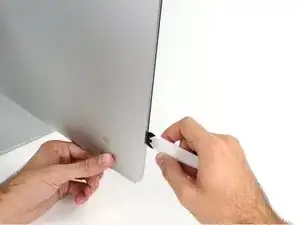
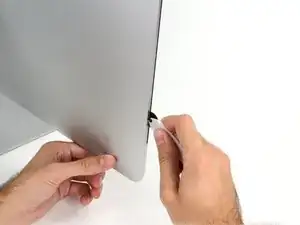
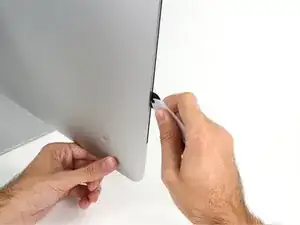
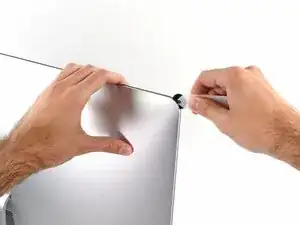
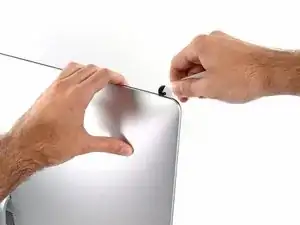
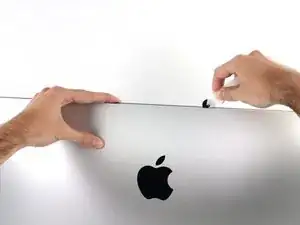
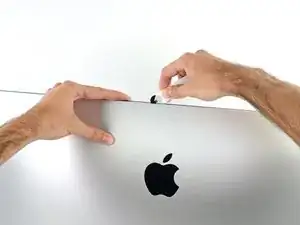
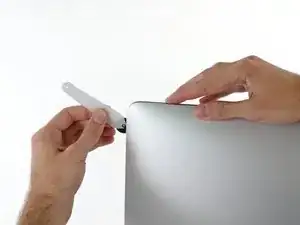
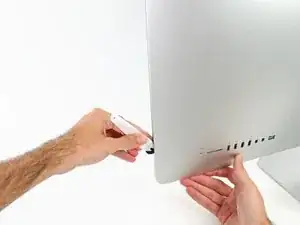
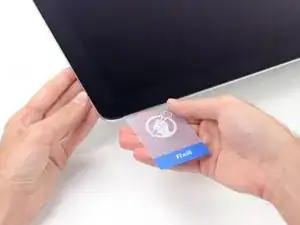
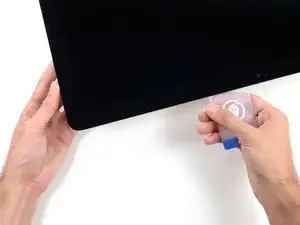
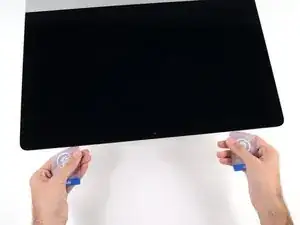
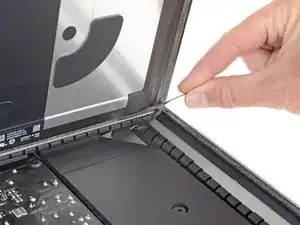
Começando pelo lado esquerdo da tela, próximo ao botão de liga/desliga, introduza a ferramenta de abertura para iMac no vão entre o painel de vidro e o invólucro traseiro.
-
-
-
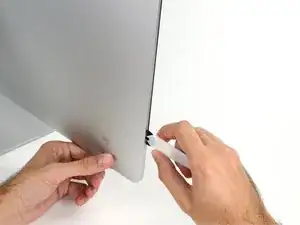
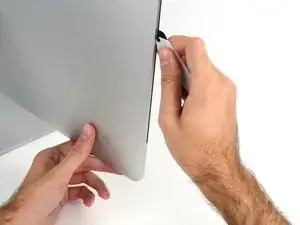
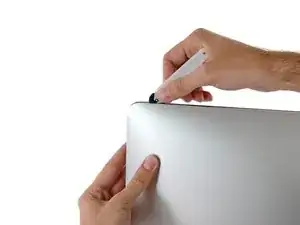
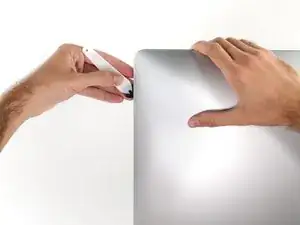
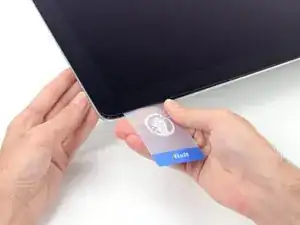
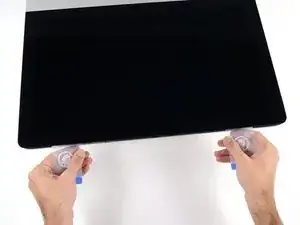
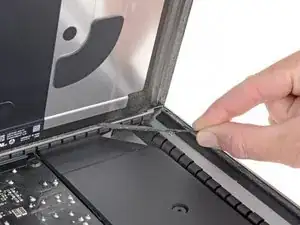
Use a ferramenta como um cortador de pizza - empurre-a por toda a extensão do vão e ela cortará o ponto central do adesivo de espuma.
-
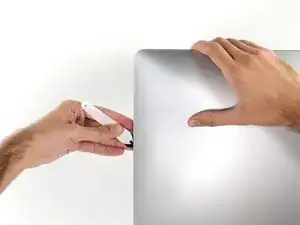
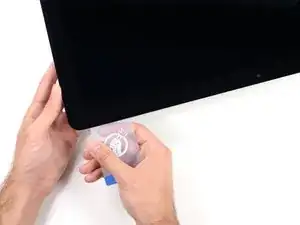
Passe a ferramenta por toda a extensão da lateral esquerda da tela.
-
-
-
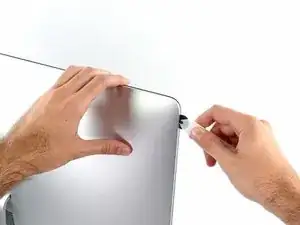
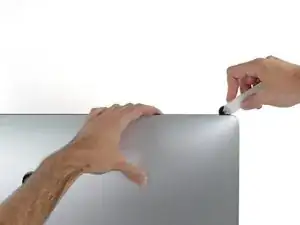
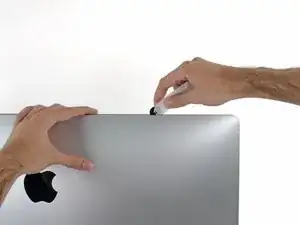
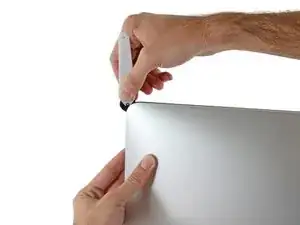
Continue na parte superior da tela.
-
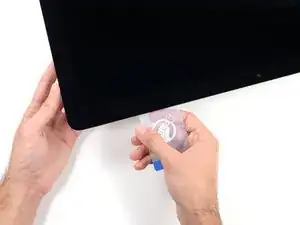
Você precisa passar a ferramenta algumas vezes para trás e para a frente onde já cortou adesivo, para garantir que tenha soltado o máximo possível de adesivo.
-
-
-
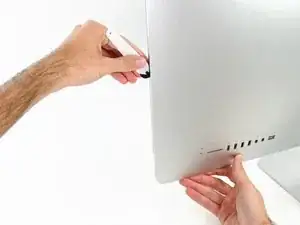
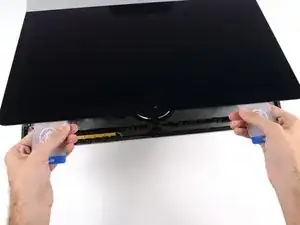
Finalize empurrando a ferramenta de abertura para a parte inferior na lateral direita da tela.
-
-
-
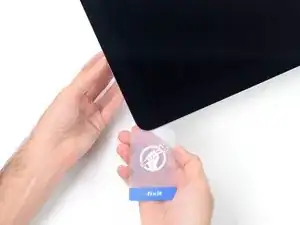
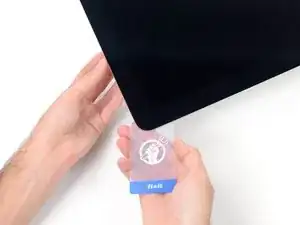
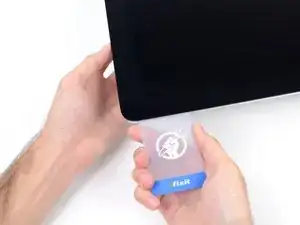
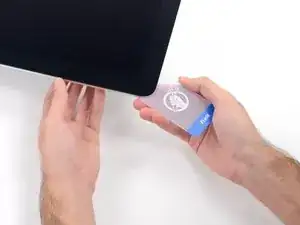
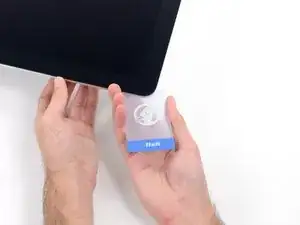
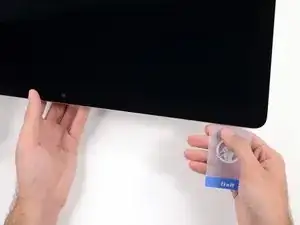
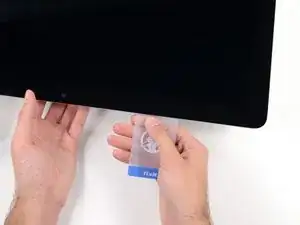
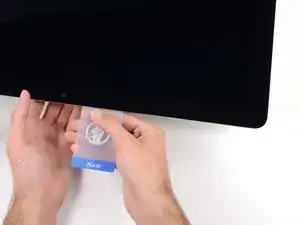
Começando pelo canto direito superior do iMac, force um cartão de plástico por entre a tela e a moldura.
-
-
-
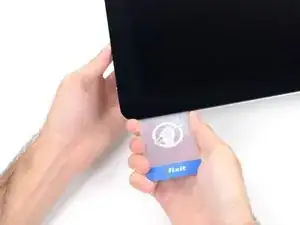
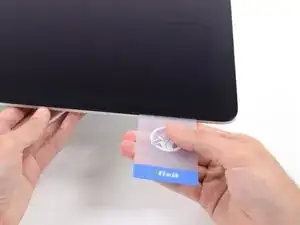
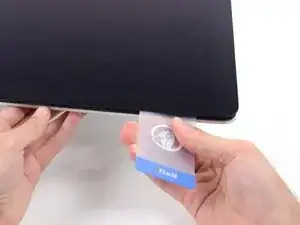
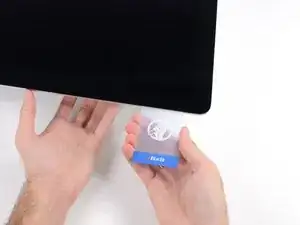
Com cuidado, vire o cartão lateralmente, para formar um espaço entre a tela e a moldura.
-
Mova lentamente e tenha cuidado para não tensionar demais o vidro da tela, você só precisa fazer um vão de aproximadamente 6,3 mm.
-
-
-
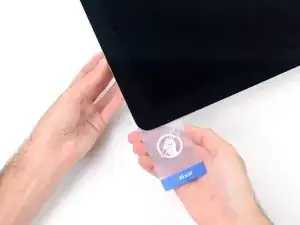
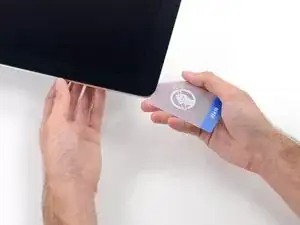
Passe o cartão em direção ao centro da tela, para cortar todo adesivo restante na extensão do canto direito superior do iMac.
-
-
-
Force o cartão novamente no canto direito superior e deixe-o nessa posição para evitar que o adesivo cole novamente.
-
-
-
Introduza um segundo cartão de plástico no vão, por entre a tela e a moldura, localizado no canto esquerdo superior do iMac.
-
-
-
Com um movimento leve, vire o cartão para cima, aumentando ligeiramente o espaço entre a tela e a moldura.
-
-
-
Passe o cartão de plástico na direção do centro, parando novamente um pouco antes da câmera iSight.
-
-
-
Com ambos os cartões de plástico introduzidos próximo aos cantos, como mostra a foto, vire cuidadosamente os cartões lateralmente para aumentar o vão entre a tela e a estrutura.
-
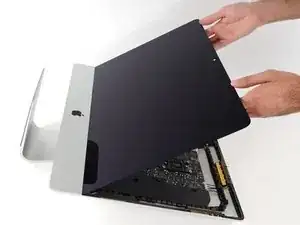
Comece a erguer a parte superior da tela para fora da moldura.
-
-
-
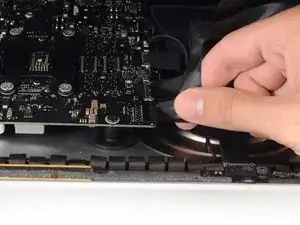
Enquanto segura a tela com uma mão, use a outra mão para desconectar o cabo de alimentação da tela. Certifique-se de que esteja puxando o cabo para fora da aba de plástico e não puxando nos fios coloridos.
-
-
-
Com a ponta pontiaguda de uma espátula, vire para cima o suporte metálico com trava do cabo de dados da tela.
-
Cuidadosamente, puxe o cabo de dados da tela de seu soquete na placa lógica.
-
-
-
Agarre a pequena tira na extremidade de uma das fitas adesivas da tela na borda inferior e puxe o adesivo na direção da parte superior do iMac para removê-lo.
-
Repita esse passo com a outra faixa adesiva e remova-a.
-
-
-
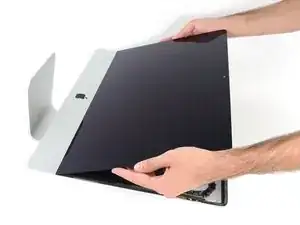
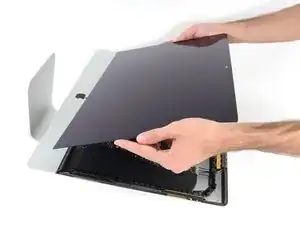
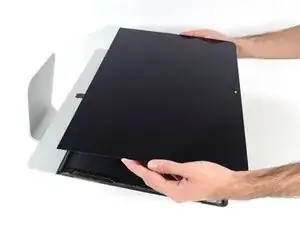
Erga a tela da moldura e remova-a do iMac.
-
Pode ser que seja necessário erguê-la lentamente de um lado, para soltar o adesivo restante.
-
-
-
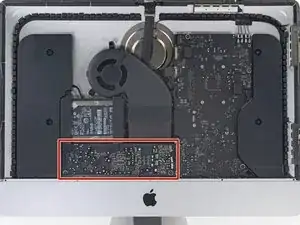
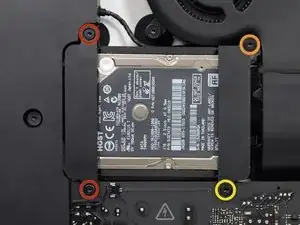
Remova os seguintes parafusos que fixam o suporte do disco rígido no invólucro traseiro:
-
dois parafusos Torx T10 de 21 mm do suporte esquerdo do disco rígido.
-
um parafuso Torx T10 de 9 mm.
-
um parafuso Torx T10 de 27 mm.
-
-
-
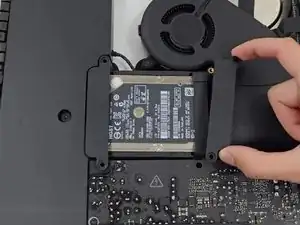
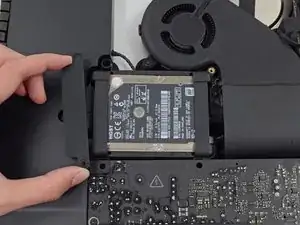
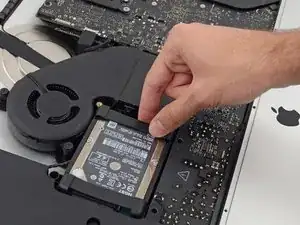
Erga o disco rígido da borda próxima à ventoinha e puxe-o um pouco para fora de seu recesso.
-
-
-
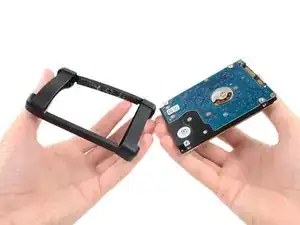
Continue destacando a luva do disco rígido, descolando o adesivo que fixa a luva ao disco rígido.
-
Remova a luva do disco rígido.
-
O que sobra é o disco rígido.
-
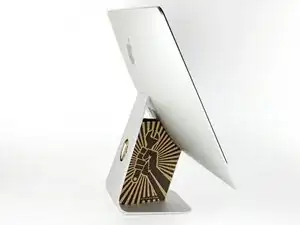

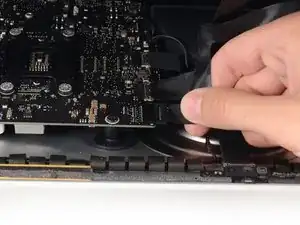
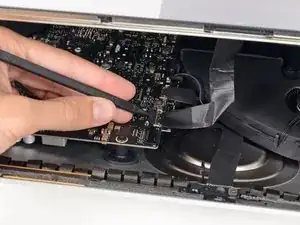
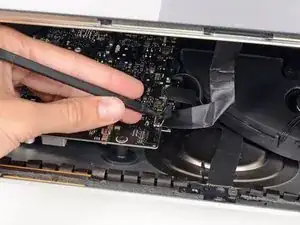
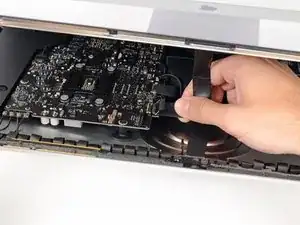
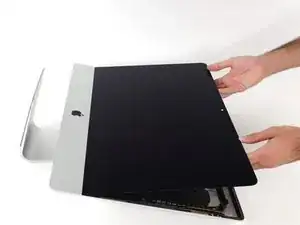
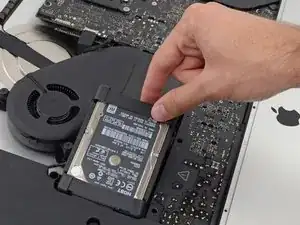
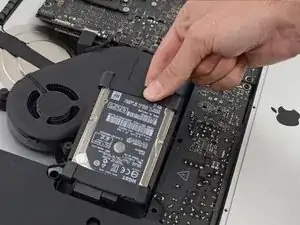
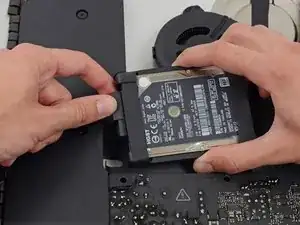
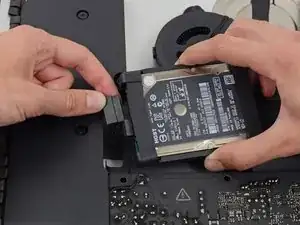
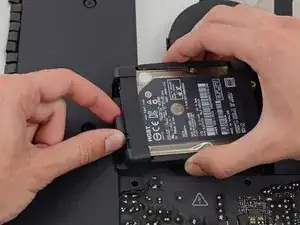
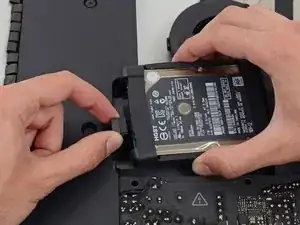
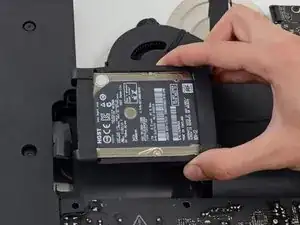
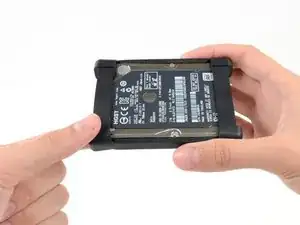
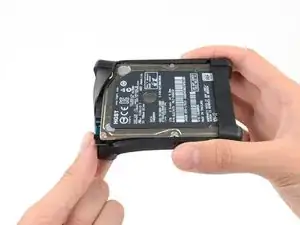
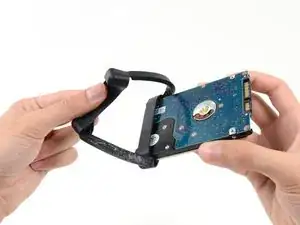
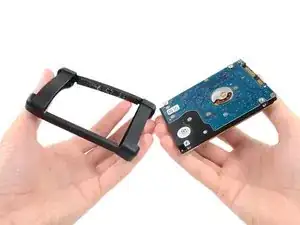
Para a remontagem de seu dispositivo, siga essas instruções na ordem inversa e use nosso guia de tiras adesivas para fixar novamente o vidro da tela.

43 comentários
I used the iMac Opening Tool just as shown in this guide to separate the tape. DISASTER! The screen cracked! I used the tool slowly and carefully and despite this, the screen cracked. I should have simply used a guitar pick. That said, while I was inside my iMac replacing the Harddisk with a SSD, which was pretty easy to do, I decided to also see if I could replaced the 8GB RAM with 16GB RAM WITHOUT removing the logic board, as shown in other instructions on this site. I found that by simply removing the fan assembly, this makes enough room to reach behind the logic board and unclip the 2 memory modules. I installed 2 8GB modules (1600MHz DDR3L SO-DIMM PC12800 204 Pin) without much trouble. I used a plastic stick to reach behind the logic board and unclip the existing memory modules, then carefully inserted the new ones and clipped them into place. This is much easier than removing the power supply and logic board and all of the associated connectors and screws.
gcortesi -
I had to replace the HD as it failed after less than two years. It was a good opportunity to increase the RAM from 8 to 16 GB. So I ordered the RAM chips from Kingston and a 256 GB SSD from Angelbird.
The repair went smoothly: to anyone trying this, please carefully follow the iFixit step-by-step guide. I recommend reading at least twice the whole procedure *before* beginning. Check all the photos. During the operation itself, I had the guide open before my eyes on my iPad and followed it step by step. The opening tool is a bit fragile, the wheel got damaged after the operation, but I guess it was designed to be used only once. After all, the adhesive strips can also be used only once!
For those replacing the hard-disk with an SSD: I highly recommend the Angelbird model "SSD wrk for Mac" (http://www.angelbird.com/en/prod/ssd-wrk...), for several dollars more you spare yourself the need to use additional software to enable TRIM or persuade the fans of your Mac that the HD's temperature is Ok.
lix -
Thanks for the tip on the Angelbird, working smoothly so far!
Elling -
Hi! Thanks for the tip! Do you know if can I put an SSD on an imac 21.5 in late 2012 ?
after changing the hard drive the monitor no longer works. Apple won't fix it because I opened it, and third-part wants to charge me $300-500. Hope you guys have better luck!
max -
I have (21.5 inch, mid 2017, 2.3 ghz) base model same as this but not 4k. How much max ram can I install in my iMac??
Narendra Verma -
This guide contains many extra steps for what should be a straight forward, simple parts replacement without disturbing more than the display, left hand speaker and removal of 4 logic board screws for play. Nothing else except for the left hand speaker wire & iSight cable from logic board, the lower support bracket and loosening the speaker so as to move it around a bit.
For the ram, I bent a pair of cheap tweezers long ago supplied with these replacement kits to the perfect angle for holding, locating and inserting the ram into the slots under the logic bd after moving each retainer w/spudger and popping out the old. Pay attention to the orientation of the ram when removing/inserting the ram! An automotive mirror is handy along with a small flashlight for closeups. Once the ram is aligned properly substitute your fingers for the tweezers, ease it into the slot, push up & engage! Reinstall screws and all else. I have done this job successfully this way countless times. For a tweezers pic contact me!
Ross Elkins -
Additionally, if a blade is present, I install the OSx system on the blade and everything else, apps and home folders on the new SSD. You get the very fast boot off of the blade and the full ssd for all else!
Ross Elkins -