Introdução

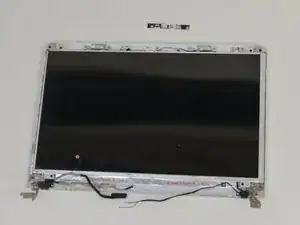
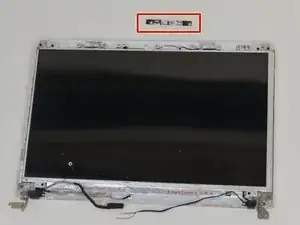
The webcam sits at the top of the display and connects to the motherboard with a small ribbon cable. If the camera is dead, loose, or the cable is damaged, replacing the webcam board can restore video.

This guide shows how to remove the display bezel, disconnect the webcam cable, and lift out the camera board. Shut down the laptop and disconnect the battery before you begin.

  1. 4BAvY21DXIYhbpZp
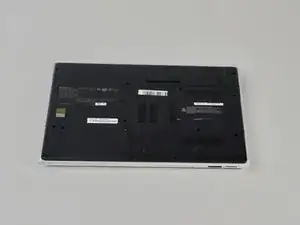
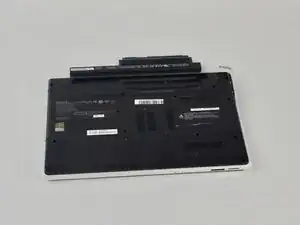
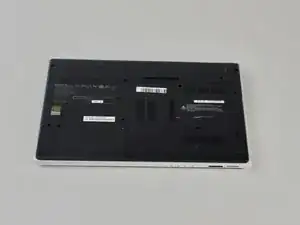
    • Turn the laptop over so its underside is facing upwards and visible.

  2. 1IYh5fEVphulRoHD
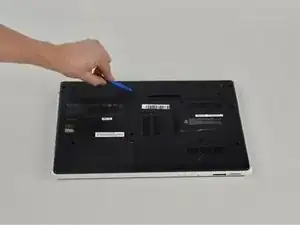
    • Standing so that the barcode and warning labels are upright and legible, push the left tab up and away from yourself.

  3. KpNwH2ROLUfHYKcJ
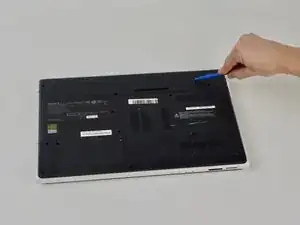
    • Standing so that the barcode and warning labels are upright and legible, push the right tab up and away from yourself.

  4. jEErFnailisjvPO2
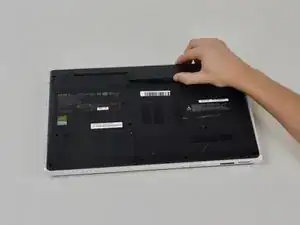
    • Locate the small gap where the battery and the laptop shell meet. Lift from the gap and rotate the battery up and away from yourself.

  5. Ljvxh5qYGL43CKDJ
    • Pull battery away from laptop.

  6. DokyTcoAXrj4rdv4
    • Flip laptop over so the bottom is facing upwards.

    • Remove bottom of laptop.

  7. OrMxosfcCNl6YUYY
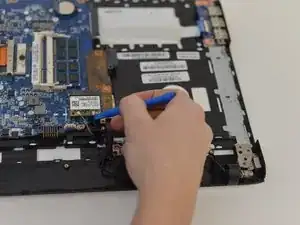
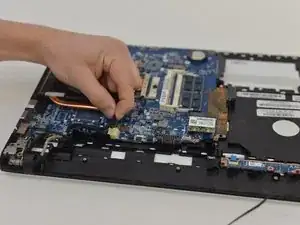
    • Remove antenna wires attached to the WiFi card using a plastic opening tool.

  8. Gl3RVjpaTgCnE1F1
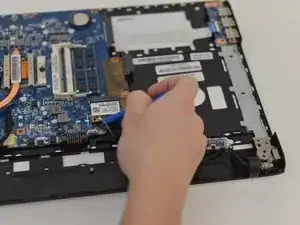
    • Remove the other antenna wire.

  9. eQsoWtf6eDwsLtWw
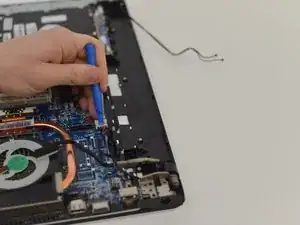
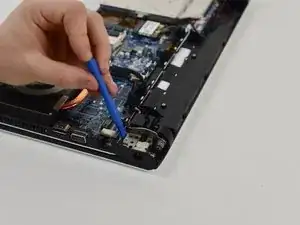
    • Remove the display cable by pulling upwards.

  10. gICjEL1dQ2ewKlBy
    • Remove the power display cable with a plastic opening tool by pushing outwards.

  11. pPRUsmOS53XaLUV4
    pPRUsmOS53XaLUV4
    63c2F1sYDIbq5cVb
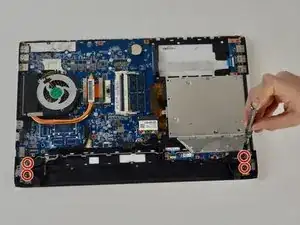
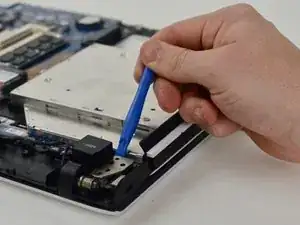
    • Remove 4 hinge screws with a Phillips #0 screwdriver.

  12. Xgh3WCJuFdoDXqDU
    Xgh3WCJuFdoDXqDU
    XfIl3OLFBUFHbUMT
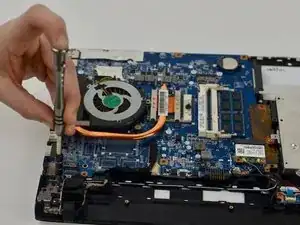
    • Lift upward on the hinges with a plastic opening tool to release them.

  13. OEvSSVGgUKXKoNT6
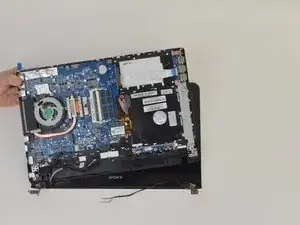
    • Separate the bottom of the laptop from the monitor.

  14. pD4PdaXF46oLBhAJ
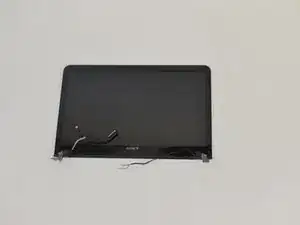
    • Completely detach screen from the laptop.

  15. bPIGkKSqwxZIONLW
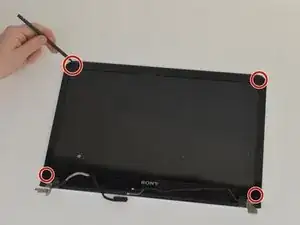
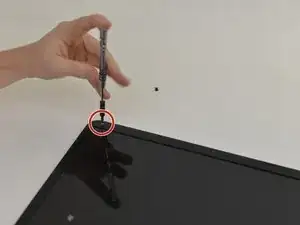
    • Use the pointed tip of a spudger to lift the rubber screw covers along the screen bezel.

    • Set the covers aside for re-use.

  16. Pt6QTTCiVbJgBWjJ
    • Remove the exposed bezel screws with a Phillips #00 screwdriver.

  17. gB1ZcB62TDdw6eHH
    gB1ZcB62TDdw6eHH
    euqCGSPwHYAvERxY
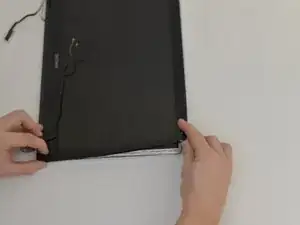
    • Starting at a corner, insert a plastic opening tool between the bezel and the back cover.

    • Work along the edge to pop the plastic clips free.

    • Caution: Do not twist against the LCD panel. Use gentle, even prying to avoid cracking the screen.

  18. lTWlqqVOOQIXPmpO
    lTWlqqVOOQIXPmpO
    ZH3vxnCtLH6MYNrm
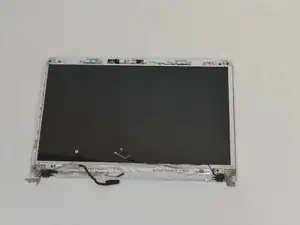
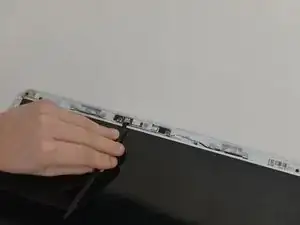
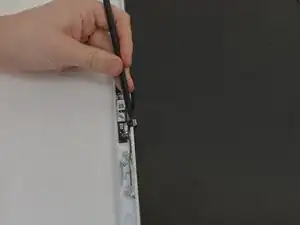
    • At the top of the display, locate the webcam cable connector.

    • Use a spudger to lift the locking tab (if present) and pull the cable straight out of the socket.

    • Caution: Pull on the connector, not the cable, to avoid tearing it.

  19. HApADkklyvIOmHRn
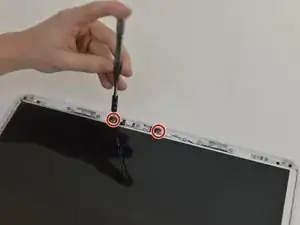
    • Remove the two screws securing the webcam board with a Phillips #00 screwdriver.

    • Support the board while removing the second screw so it doesn’t drop.

  20. qmtBHXBrTUk2BNV3
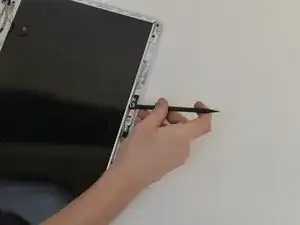
    • Use a spudger to lift the webcam board from its recess.

    • If it feels stuck, check for any remaining screws or tape.

  21. 6hXxPVMDLcJ1ilE3
    • The webcam board is now removed. Transfer any brackets or foam pads to the replacement part before installation.

Conclusão

To reassemble your device, follow these instructions in reverse order. Make sure the webcam cable is fully seated and the bezel clips are engaged along the entire top edge.

Azka Khanani

Membro desde: 17/10/18

313 Reputação

0 comentários