Introdução
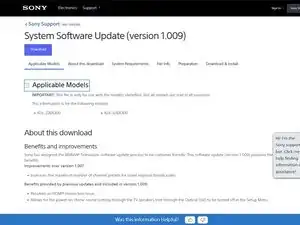
Steps to update the firmware on a Sony Bravia KDL-32BX300. The same technique can be applied to many 2010s Bravia TVs.
Peças

-
-
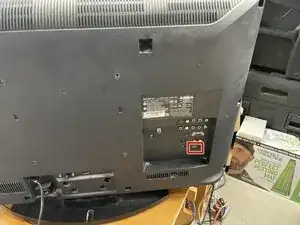
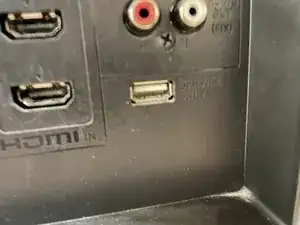
Find the USB Port on the back of the TV labeled "SERVICE ONLY". It is located under the analog (RCA) Audio out and to the right of the HDMI connectors.
-
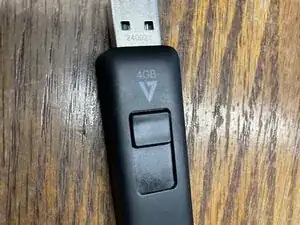
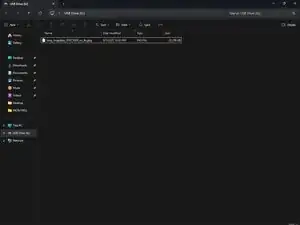
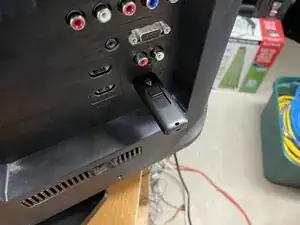
Connect the flash drive with the update file to the USB Port
-
-
-
Turn the TV off, wait around 30 seconds, and turn it back on.
-
The firmware update will start automatically
-
-
-
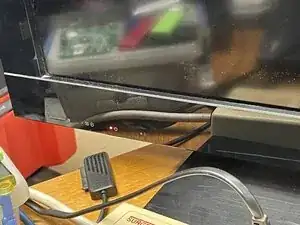
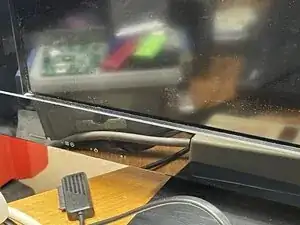
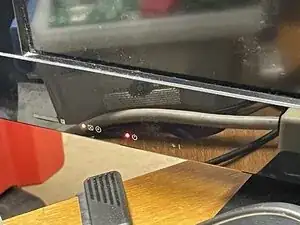
The red LED will stay solid, the amber LED will flash, and the screen will remain off during the firmware update.
-
The TV will turn itself back on after the update has completed
-
-
-
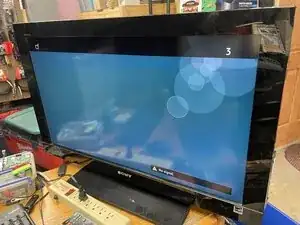
Once the TV restarts, press MENU on the remote
-
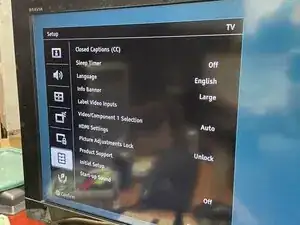
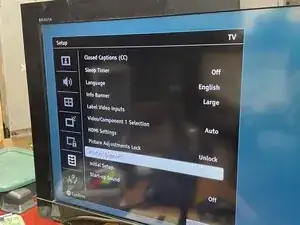
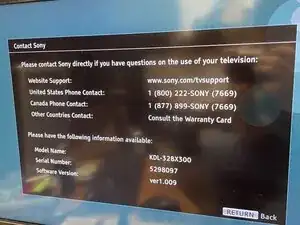
Scroll down to "Setup", then select "Product Support", then select "Contact Sony"
-
If the software version matches the one on the file you downloaded, your update is complete.
-
Your TV's firmware is now updated.