Introdução
Ferramentas

-
-
Place the laptop upside down on a clean, flat surface.
-
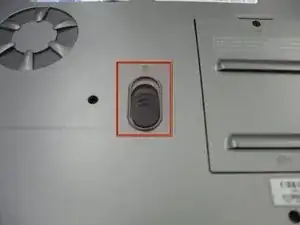
Locate the battery release button with the padlock symbol above it.
-
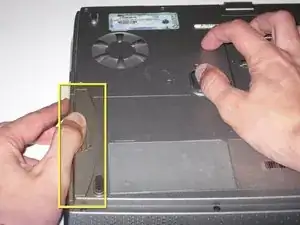
Slide the battery release button towards the padlock symbol and hold it there. Note that the button is spring loaded and will return if released.
-
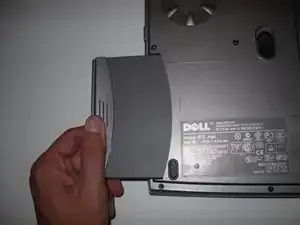
Gently remove the battery from the side of the laptop.
-
-
-
Position the computer upside down on a clean, flat surface.
-
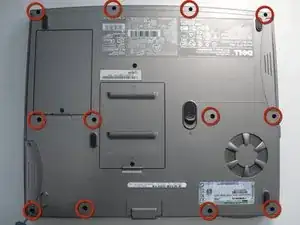
Remove the twelve M2.5 × 8 mm screws from the bottom case.
-
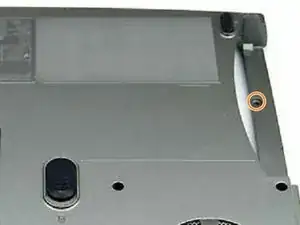
Remove the M2.5 × 4 mm screw from the battery bay.
-
-
-
Position the computer keyboard side up.
-
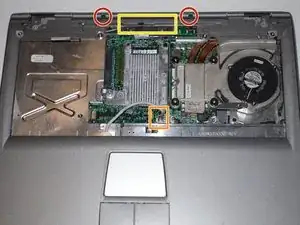
Remove the two M2.5 × 5 mm screws from the top edge of the palm rest.
-
Disconnect the touchpad (mouse-pad) ribbon cable from the main board by lifting the locking bar and pulling the cable straight out.
-
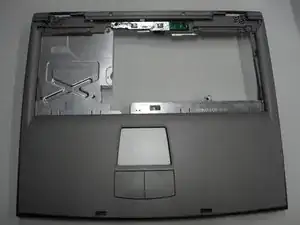
Starting at the back center, lift the inside edge of the palm rest to release the clips, then work toward the sides.
-
-
-
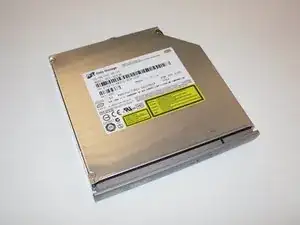
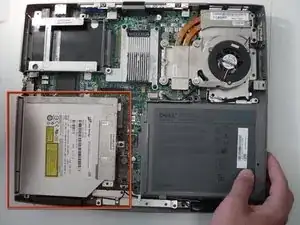
Locate the optical disk drive on the bottom left hand side of the laptop.
-
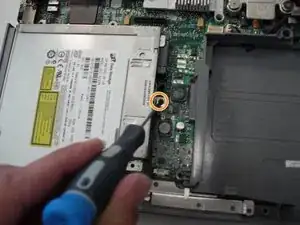
Remove the single screw holding the optical disk drive in the chassis.
-
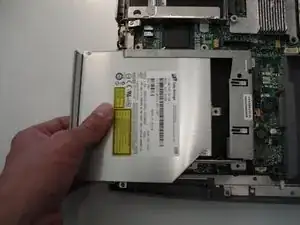
Remove the optical disk drive by gently pulling on the outer edge.
-
To reassemble your device, follow these instructions in reverse order.

Um comentário
This guide is incorrect, please see http://support.dell.com/support/edocs/sy... for a version that will actually take the promised two minutes.
Nick -