Introdução
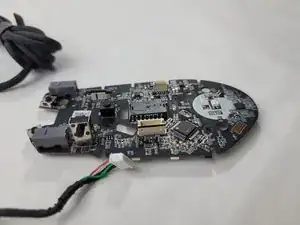
If your Razer Basilisk V3 gaming mouse is no longer responding, showing connection issues, or has suffered liquid or electrical damage, the motherboard may need to be replaced. This guide will walk you through removing and replacing the internal motherboard so you can bring your mouse back to working as intended.
Before starting, unplug the mouse and work on a clean, static-free surface. This repair requires patience and careful handling of small connectors, as well as identifying and detaching ribbon cables without tearing them. Try to get comfortable using precision screwdrivers and prying tools to avoid damaging any components.
Why perform this repair:
- The mouse does not power on or connect via USB
- There is physical damage/burnt components on the motherboard
Warnings:
- Always discharge static before touching internal components
- Be careful when prying clips as they can break easily
Ferramentas


-
-
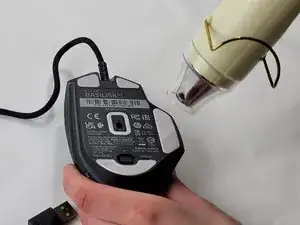
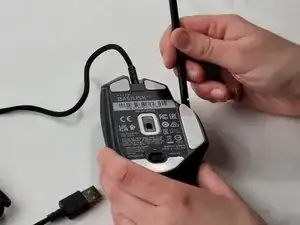
Heat the skate using a heat gun or hair dryer.
-
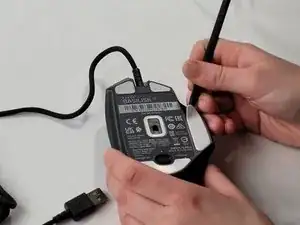
Using the pointy end of the spudger pry away a corner of the skate.
-
Once the corner of the skate comes free use the flat end of the spudger to peel off the rest of the skate.
-
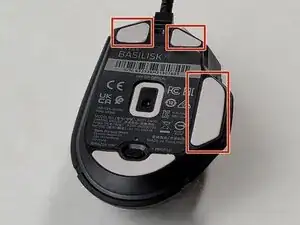
Repeat these steps for each of the skates.
-
-
-
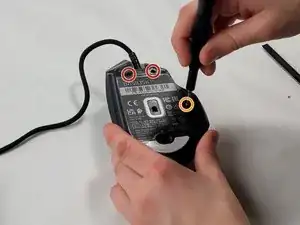
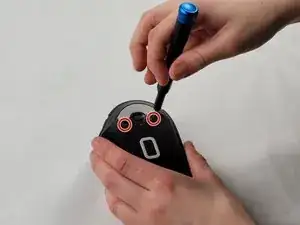
Remove two 4.8 mm screws that were hidden under the front skates using a JIS #1 screwdriver.
-
Remove the single 4 mm screw beneath the thumb grip using a JIS #1 screwdriver.
-
-
-
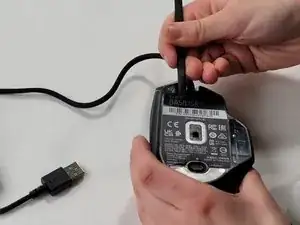
Heat the label gently with a heat gun or hair dryer.
-
Once the adhesive is loosened, use a spudger to peel off the label carefully, revealing two additional screws.
-
Remove the two 4.8 mm screws using a JIS #1 screwdriver.
-
-
-
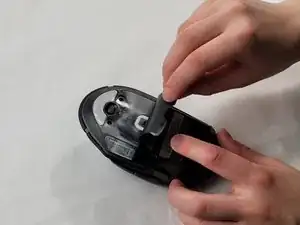
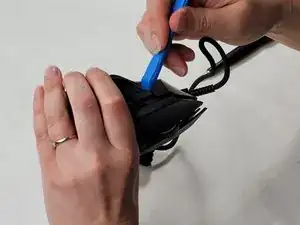
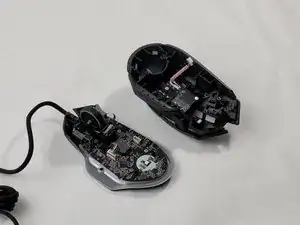
Carefully pry apart the mouse's top and bottom halves. Using the iFixit opening tool, start at one corner and work around the edge.
-
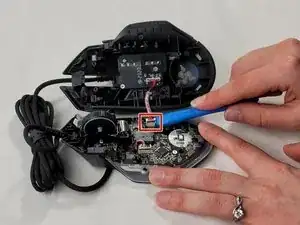
Using a plastic opening tool, gently pry the connector apart by moving side to side to avoid bending the pins.
-
-
-
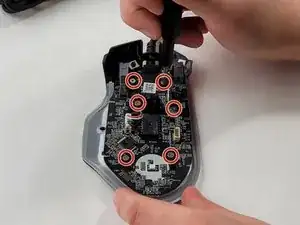
Remove the six 4 mm screws using a JIS #0 screwdriver.
-
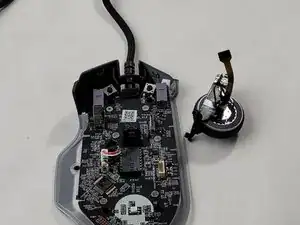
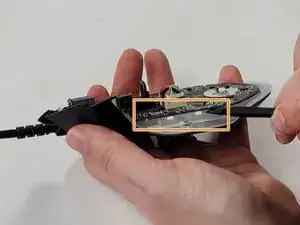
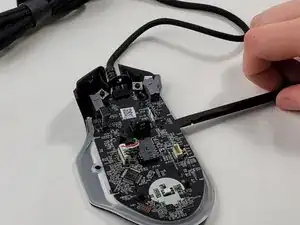
Insert the flat end of a spudger in the gap between the motherboard and the rest of the mouse.
-
Slowly pry up the edge of the board, moving around the mouse slowly in a counterclockwise direction.
-
-
-
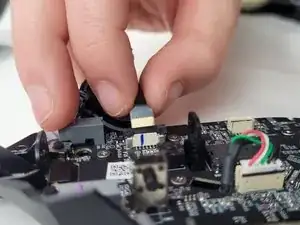
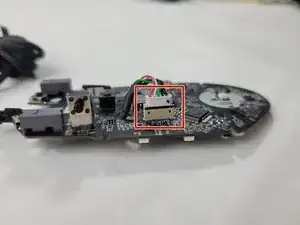
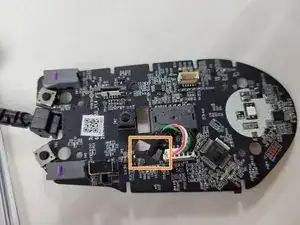
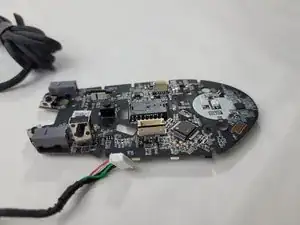
Unplug the white cable connection.
-
Feed the cable through the hole in the motherboard next to the connector.
-
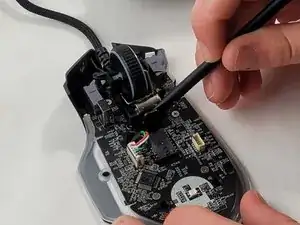
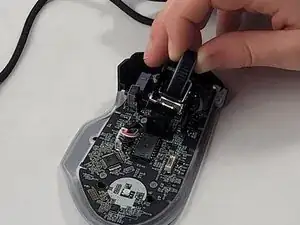
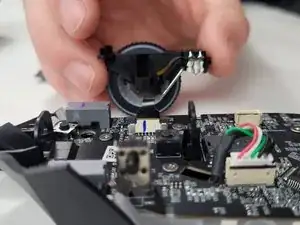
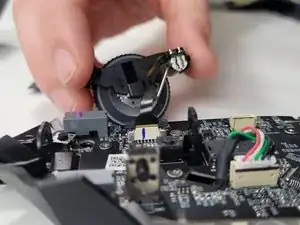
To reassemble your device, follow these instructions in reverse order.