Introdução


-
-
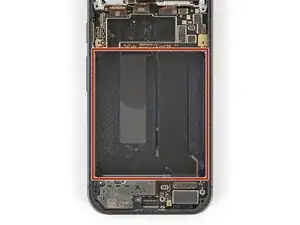
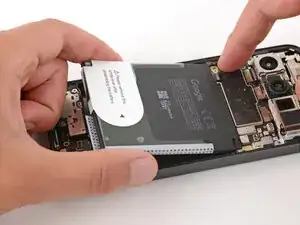
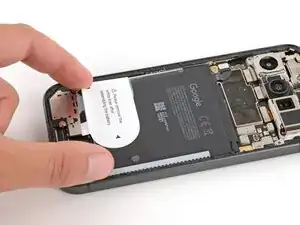
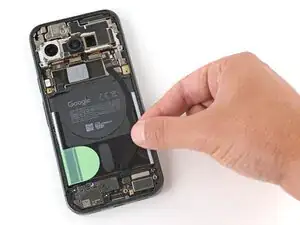
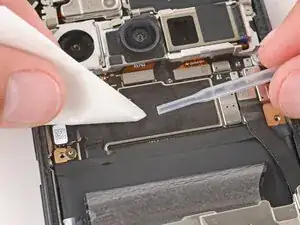
Before installing a new battery, check the recess for leftover bits of plastic, as well as adhesive residue from the battery sleeve.
-
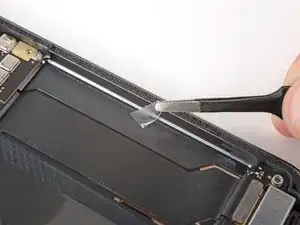
Remove any bits of plastic from the old battery sleeve.
-
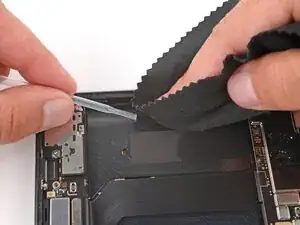
Use one or two drops high‑concentration (>90%) isopropyl alcohol and a microfiber or lint‑free cloth to clean up any adhesive residue.
-
Allow the alcohol to dry completely before continuing.
-
-
-
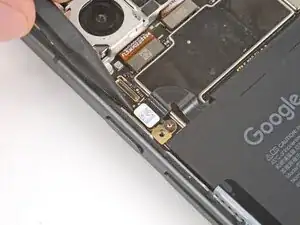
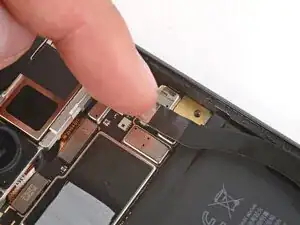
Hold the battery above its recess and use your finger to push down and reconnect the battery press connector.
-
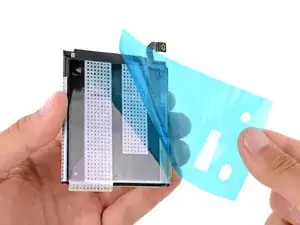
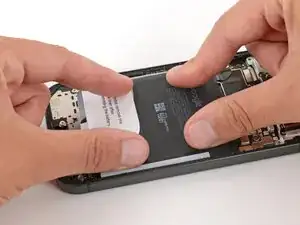
Lay the battery into its recess and press down firmly to secure it.
-
-
-
Lay the interconnect cable back in place, making sure the connectors line up with their sockets.
-
-
-
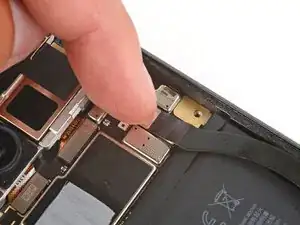
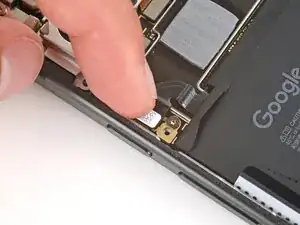
Use your finger to press down and reconnect the interconnect cable press connector to its socket on the motherboard.
-
-
-
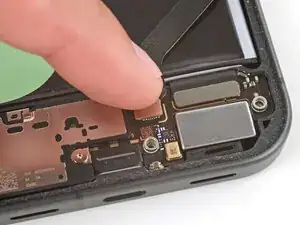
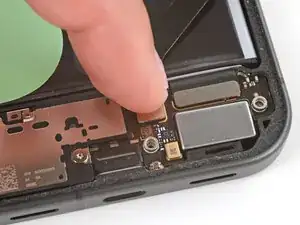
Use your finger to press down and reconnect the interconnect cable press connector to its socket on the USB‑C board.
-
-
-
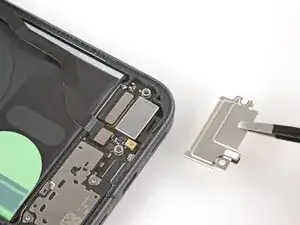
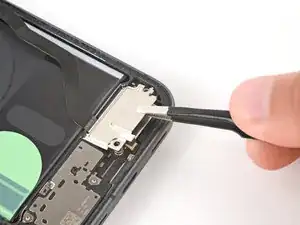
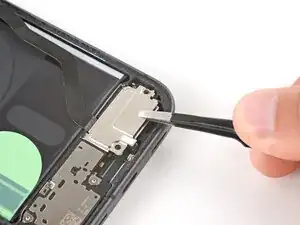
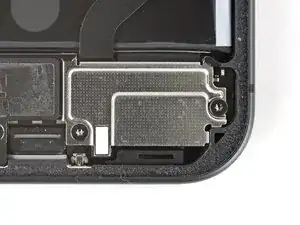
Put the USB‑C board cover back into place, sliding the tabs on the top corners under their hooks.
-
-
-
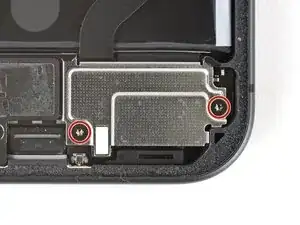
Use a Torx Plus 3IP screwdriver to install the two 5.0 mm‑long screws securing the USB‑C board cover.
-
-
-
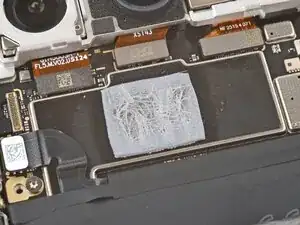
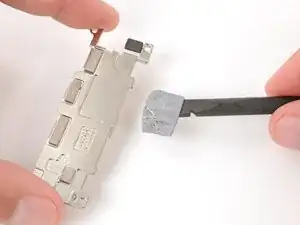
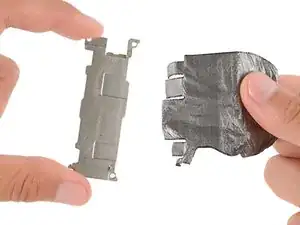
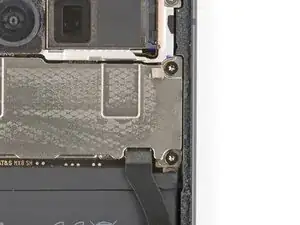
Check the condition of the motherboard thermal pad—it'll either be on the bottom edge of the board or on the underside of the cover.
-
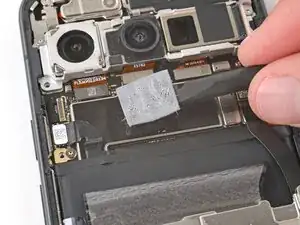
Use the flat end of a spudger to gently scrape up and remove all the old thermal pad from the board and cover.
-
-
-
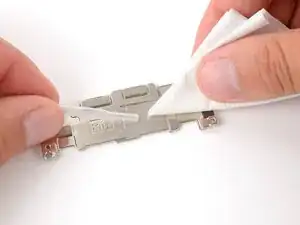
Use high‑concentration (>90%) isopropyl alcohol and a coffee filter (or lint‑free cloth) to clean up any thermal pad residue from the board and cover.
-
Allow the alcohol to dry completely before continuing.
-
-
-
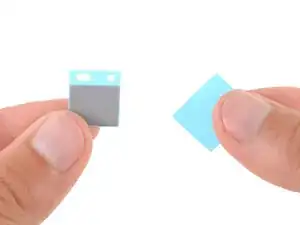
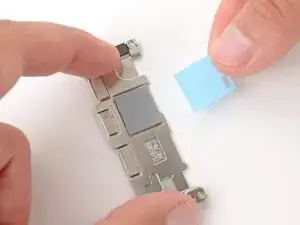
Remove the larger liner (without cutouts) from the thermal pad.
-
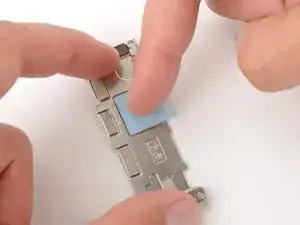
Lay the thermal pad in its square cutout on the underside of the motherboard cover.
-
Press down firmly on the entire surface of the pad with your finger or the flat end of a spudger.
-
Slowly peel up the remaining liner.
-
-
-
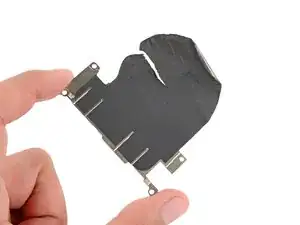
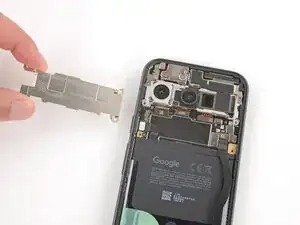
Check the condition of the graphite sheet attached to the motherboard cover.
-
If the sheet is torn or damaged in any way, peel it up and remove it from the cover—you'll apply a new one in a few steps.
-
-
-
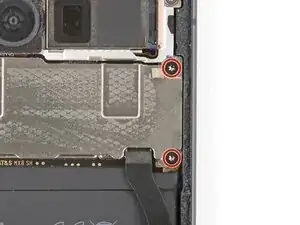
Use a Torx Plus 3IP screwdriver to install the two 5.0 mm‑long screws securing the motherboard cover.
-
-
-
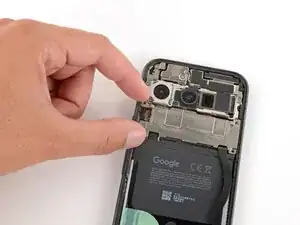
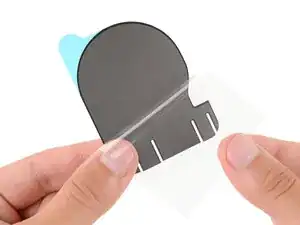
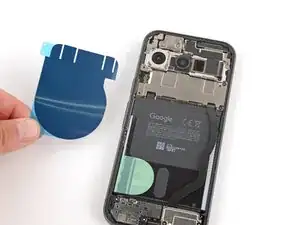
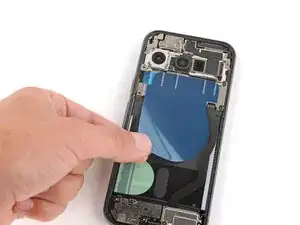
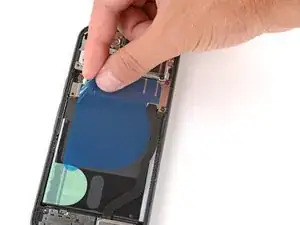
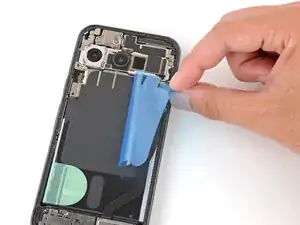
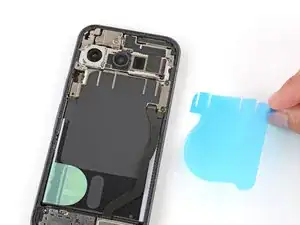
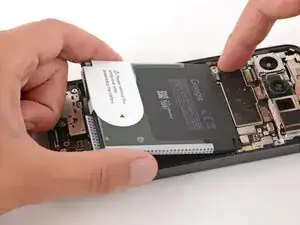
Lay the graphite sheet into place, so the circular portion is over the battery, and the cutouts on the top edge go into the grooves on the motherboard cover.
-
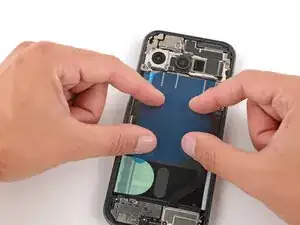
Use your fingers to press down firmly on the entire surface of the sheet to secure it.
-