Introdução
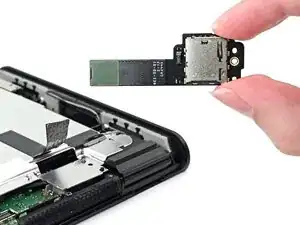
Follow this guide to replace the MicroSD card reader in a Nintendo Switch 2 game console.
The Switch 2 uses JIS screws. If you use a non-iFixit Phillips driver in JIS screws, you'll risk stripping them. iFixit's Phillips bits are designed to be compatible with JIS screws.
You’ll need new thermal putty, not regular thermal paste, to complete this repair.


-
-
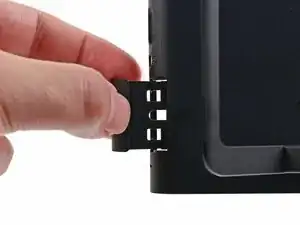
Remove any game cards and disconnect any cables, controllers, or other accessories from the console.
-
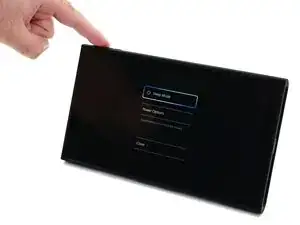
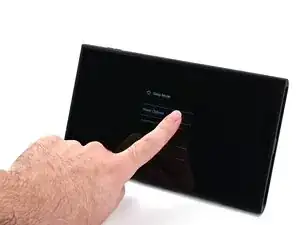
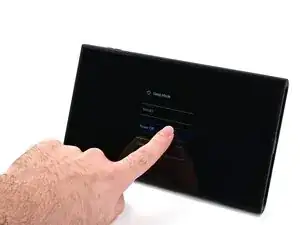
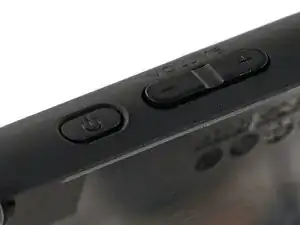
Power off the console by holding down the power button, selecting Power Options, then pressing Power Off.
-
-
-
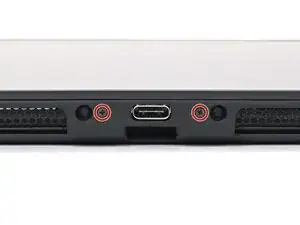
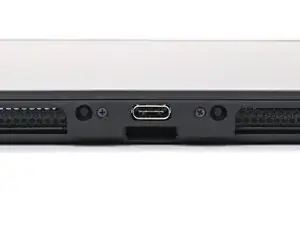
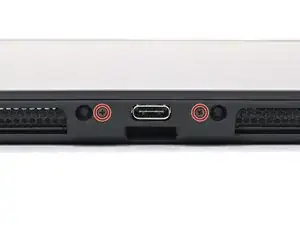
Use a JIS 00 driver to remove the two 3.1 mm‑long screws on either side of the bottom USB-C port.
-
-
-
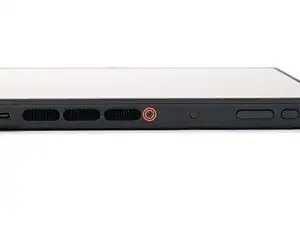
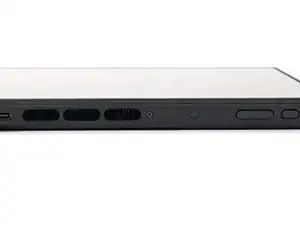
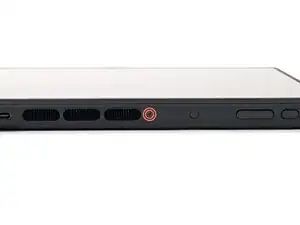
Use a JIS 00 driver to remove the 3.1 mm‑long screw on the top edge of the console (next to the ventilation cutouts).
-
-
-
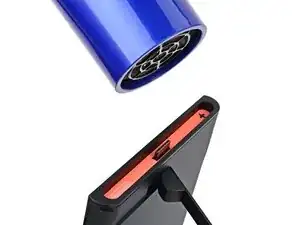
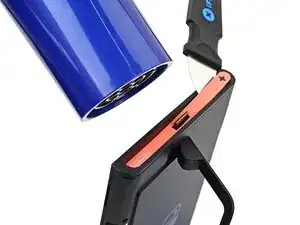
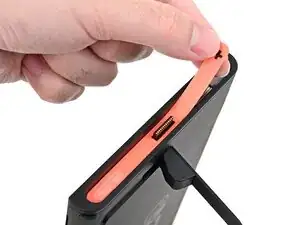
Use a hair dryer or heat gun to heat the sticker on the right side of the console, labeled with a "+" symbol, until it's hot to the touch.
-
-
-
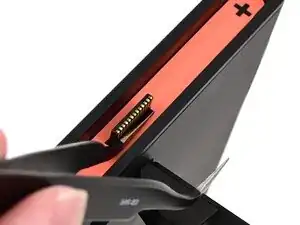
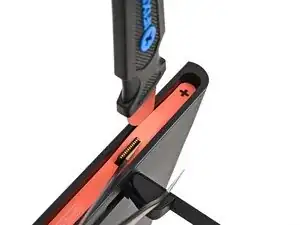
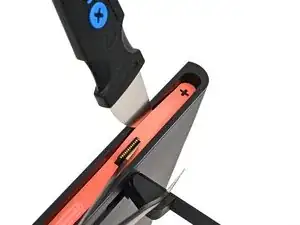
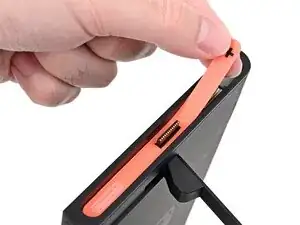
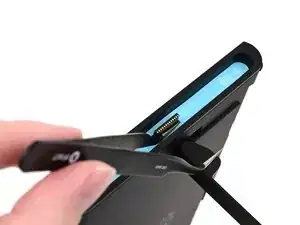
Slide one arm of angled tweezers underneath the sticker from its cutout around the right Joy‑Con 2 connector.
-
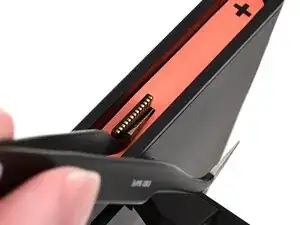
Gently pry up on the sticker until it starts to lift from the console.
-
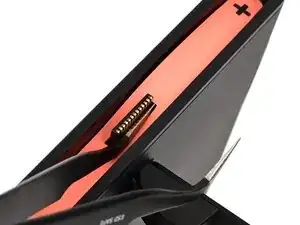
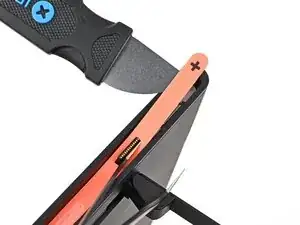
Leave the tweezers in place to keep the sticker lifted.
-
-
-
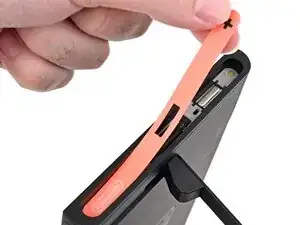
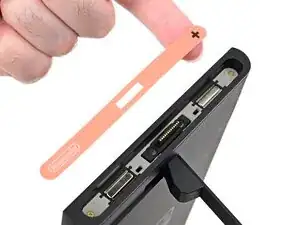
Carefully lift the sticker over the Joy‑Con 2 connector, then peel it up fully to remove it.
-
-
-
Repeat this procedure to remove the sticker along the left side of the console, labeled with a "-" symbol.
-
-
-
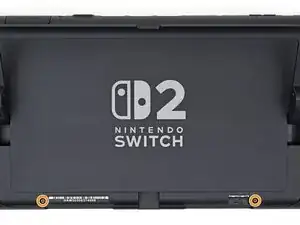
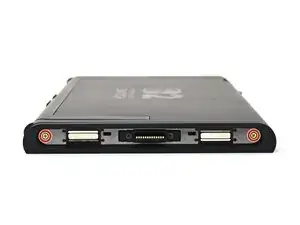
Use a JIS 00 driver to remove the two 3.6 mm‑long gold screws on each side of the console (four in total).
-
-
-
Insert an opening pick into the gap between the back cover and speaker cutout on the bottom edge of the console.
-
-
-
Slide the opening pick towards the USB-C port until it's underneath the screw hole next to the port.
-
-
-
Insert a second opening pick underneath the screw hole on the opposite side of the USB-C port, and slide it to the corner of the console.
-
-
-
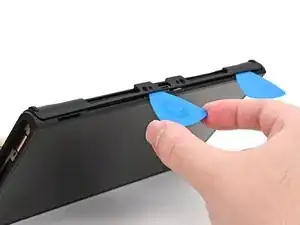
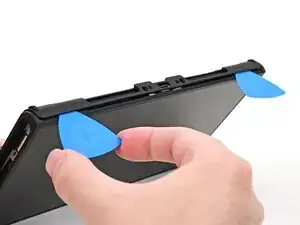
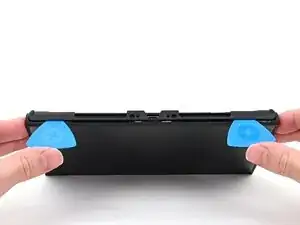
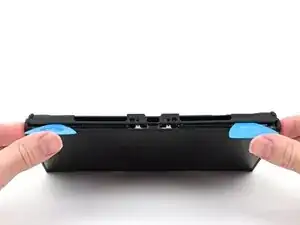
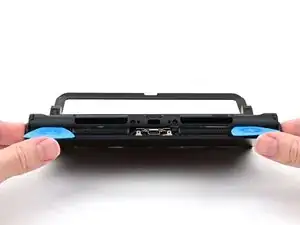
Hold the console with two hands. Rest your thumbs on the opening picks.
-
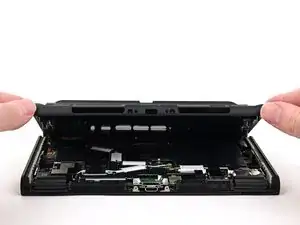
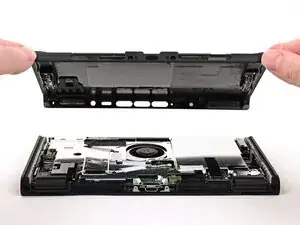
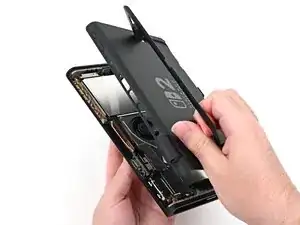
Push up on the opening picks to lift the back cover until it pops up above the USB-C port.
-
-
-
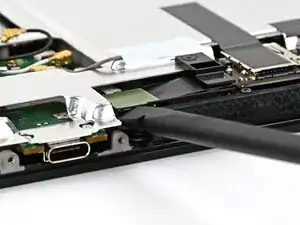
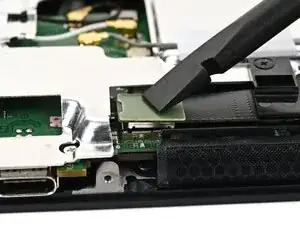
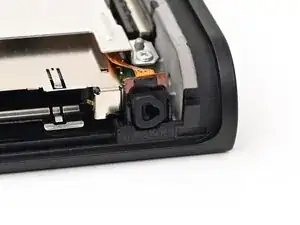
Use the flat end of a spudger to pry up and disconnect the MicroSD card reader press connector, located next to the bottom USB‑C port.
-
-
-
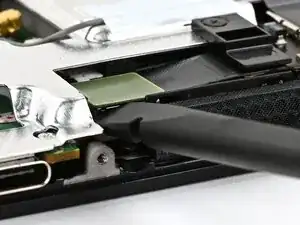
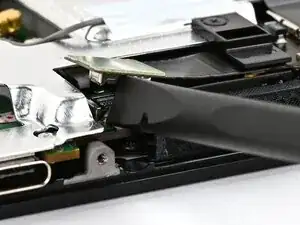
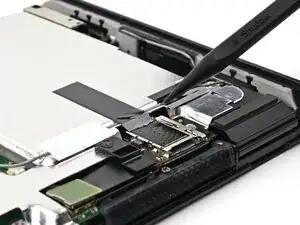
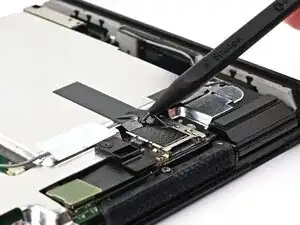
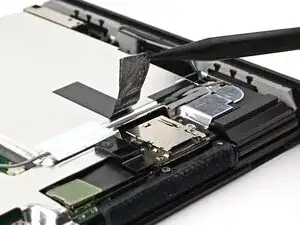
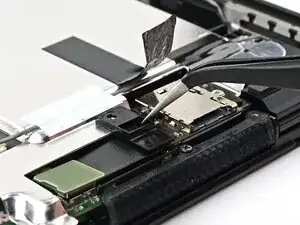
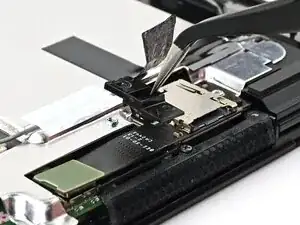
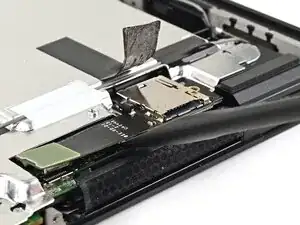
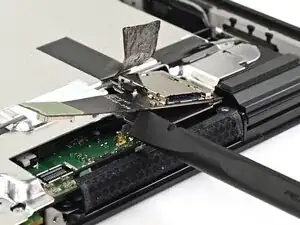
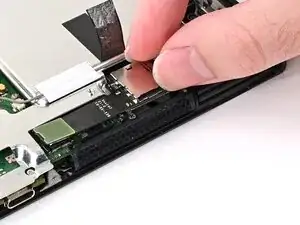
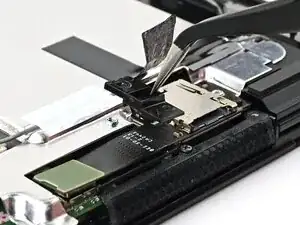
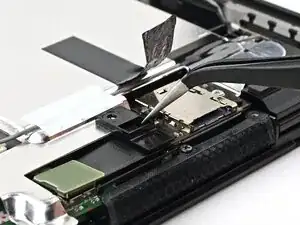
Insert the point of a spudger underneath the black tape securing the MicroSD card reader.
-
Slowly lift the tape off the card reader.
-
-
-
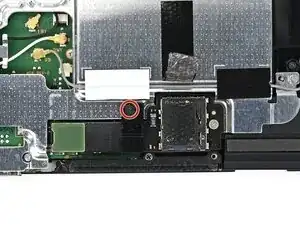
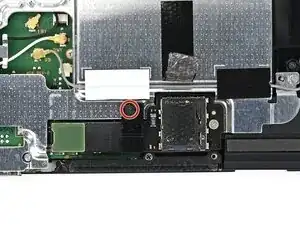
Use a JIS 00 driver to remove the 1.6 mm‑long black screw securing the bracket over the MicroSD card reader's cable.
-
-
-
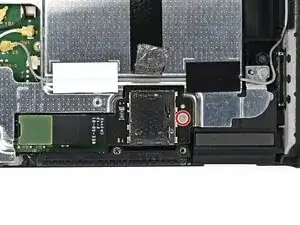
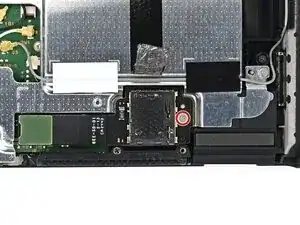
Use a JIS 00 driver to remove the 4.4 mm‑long silver screw securing the MicroSD card reader.
-
-
-
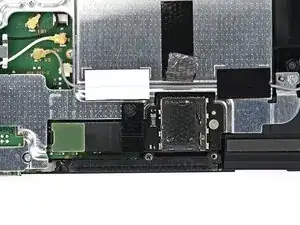
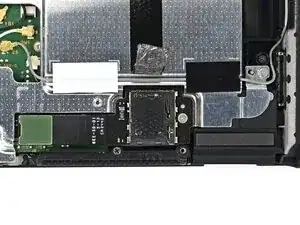
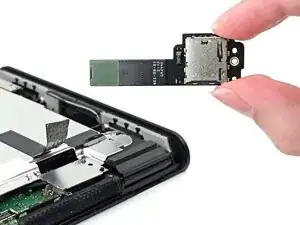
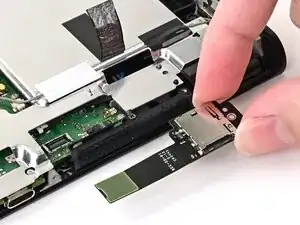
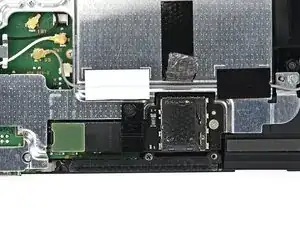
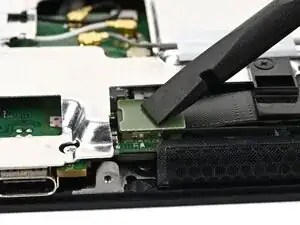
Use your fingers or the flat end of a spudger to lift the MicroSD card reader to separate the adhesive securing it to the shield plate.
-
-
-
Congratulations on completing disassembly! The remaining steps will show how to reassemble your console.
-
-
-
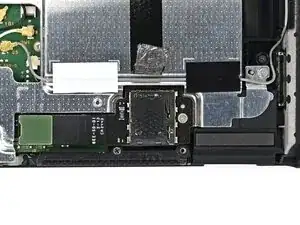
Use a JIS 00 driver to install the 4.4 mm‑long silver screw securing the MicroSD card reader.
-
-
-
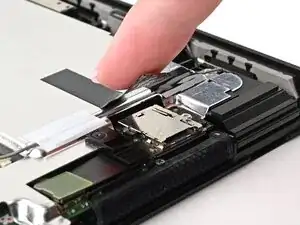
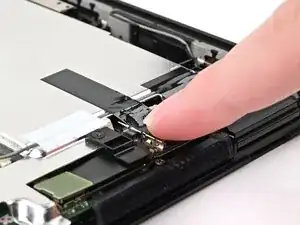
Use your finger or the flat end of a spudger to press the MicroSD card reader press connector onto its socket on the board.
-
-
-
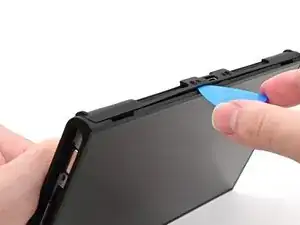
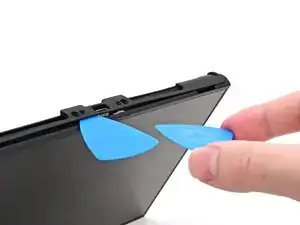
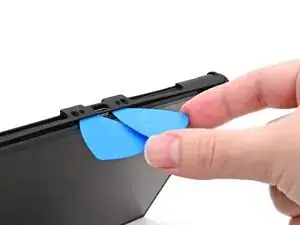
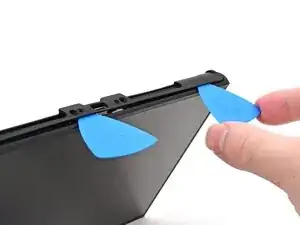
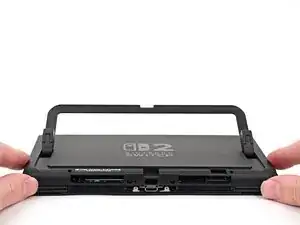
Align the top of the back cover with the top of the console.
-
Set the top edge of the back cover into place, checking the buttons and ports to ensure they're aligned properly. If they aren't, lift the back cover and try again.
-
Press along the top edge to fasten the clips securing the back cover to the console.
-
-
-
Use a JIS 00 driver to install the three 3.1 mm‑long screws securing the back cover: one on the top edge of the console, and two on either side of the bottom USB-C port.
-
Use a Y00 driver to install the two 4.4 mm‑long screws in the kickstand cutout.
-
-
-
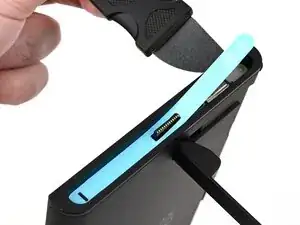
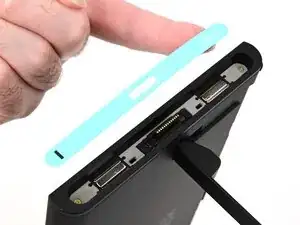
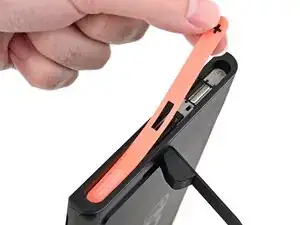
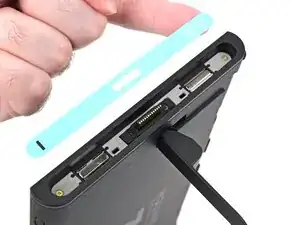
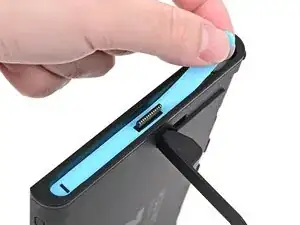
Align the right side sticker with its recess. Ensure the cutout in the sticker is aligned with the Joy-Con connector.
-
Set the sticker into its recess, first on one side, then the other.
-
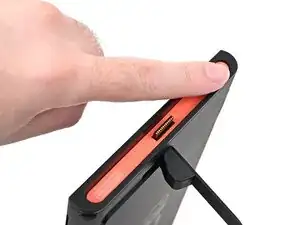
Use your finger or the flat end of a spudger to press the sticker into place.
-
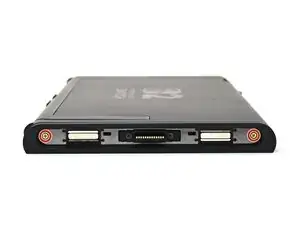
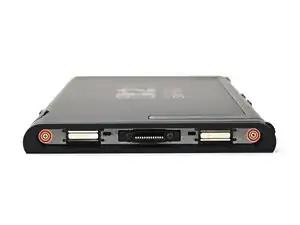
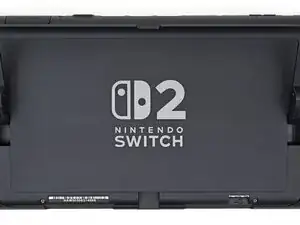
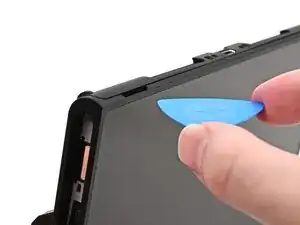
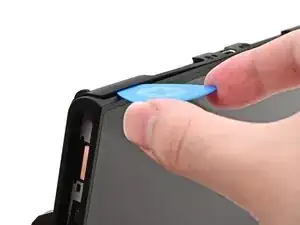
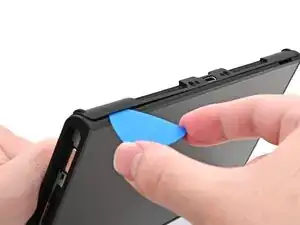
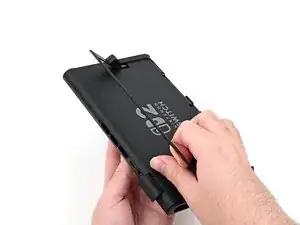
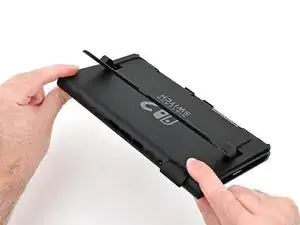
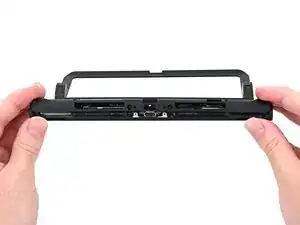
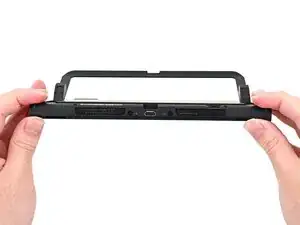
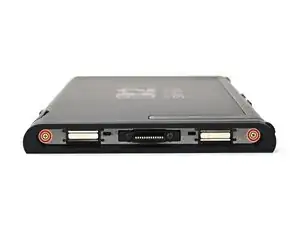
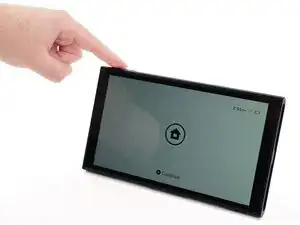
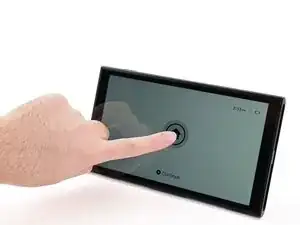
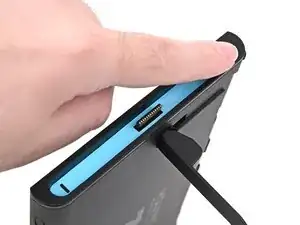
You finished fixing your Switch 2!
Take your e-waste to an R2 or e-Stewards certified recycler.
Repair didn’t go as planned? Try some basic troubleshooting, or ask our Nintendo Switch 2 Answers Community for help.