Introdução

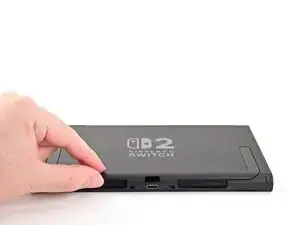
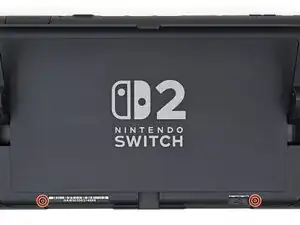
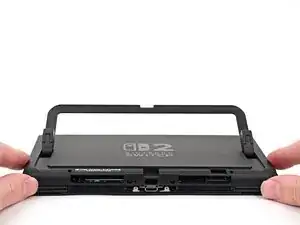
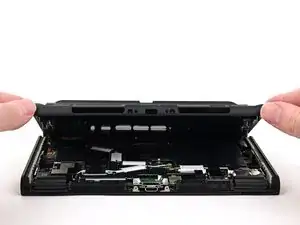
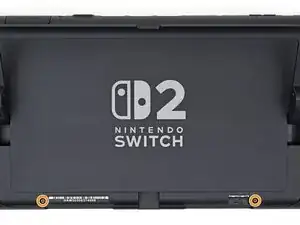
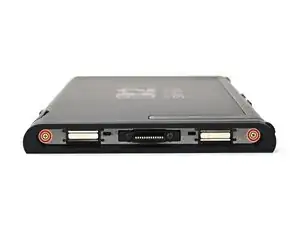
Follow this guide to replace the back cover on a Nintendo Switch 2 game console.

The Switch 2 uses JIS screws. If you use a non-iFixit Phillips driver in JIS screws, you'll risk stripping them. iFixit's Phillips bits are designed to be compatible with JIS screws.

  1. NQsFgQ1fC1wBuILk
    NQsFgQ1fC1wBuILk
    k2pFyTPIZxMXGMcY
    mgVMJXcfpXGxpxvI
    • For your safety, discharge the battery below 25% before disassembling the console. This reduces the risk of a fire if the battery is damaged during the repair. If the battery is swollen, take appropriate precautions.

    • Remove any game cards and disconnect any cables, controllers, or other accessories from the console.

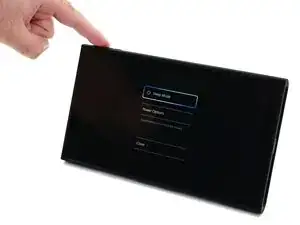
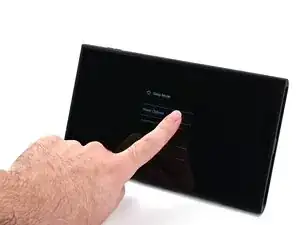
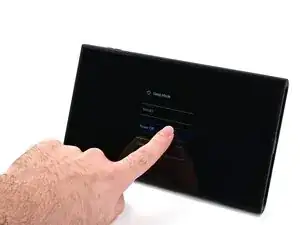
    • Power off the console by holding down the power button, selecting Power Options, then pressing Power Off.

  2. 5YVNpBaCsqgshIAj
    5YVNpBaCsqgshIAj
    GKJalBLCUFb4sFLQ
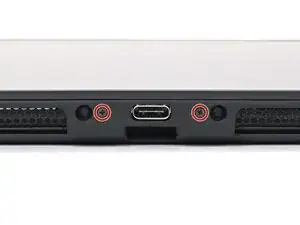
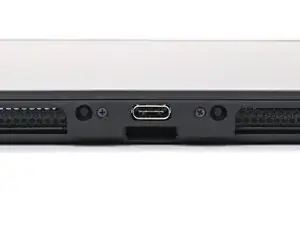
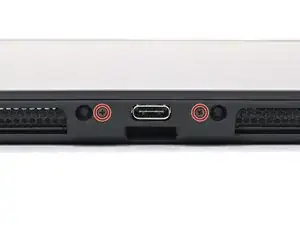
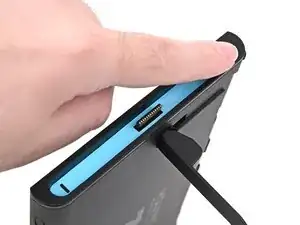
    • Use a JIS 00 driver to remove the two 3.1 mm‑long screws on either side of the bottom USB-C port.

    • You can try a non-iFixit Phillips driver in a pinch, but you risk damaging or stripping the screw. Push down firmly on the driver and twist slowly.

  3. jlL63CHmnGBMytYI
    jlL63CHmnGBMytYI
    we1DAds4sRAvig3L
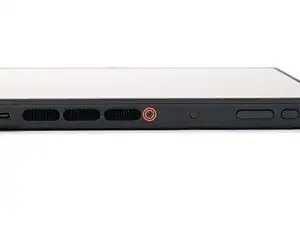
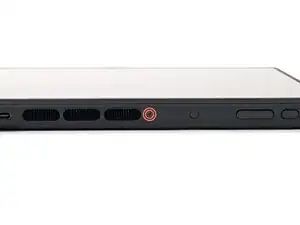
    • Use a JIS 00 driver to remove the 3.1 mm‑long screw on the top edge of the console (next to the ventilation cutouts).

  4. bZVWHoC1W1mgYUh6
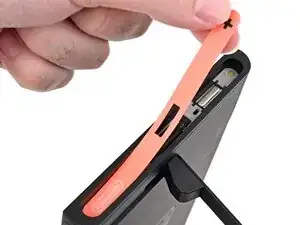
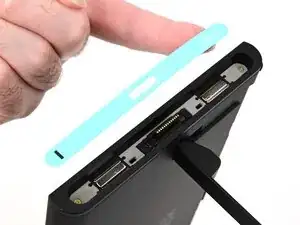
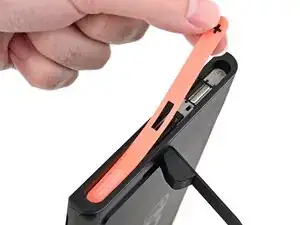
    • The Switch 2 has stickers on either side that need to removed to access the screws securing the back cover. It's easy to damage the stickers during removal, but you can mitigate this by regularly reheating the stickers and working carefully.

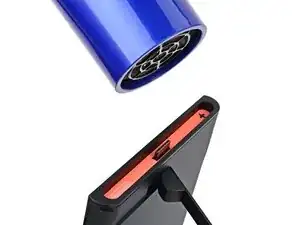
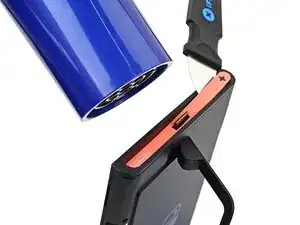
    • Use a hair dryer or heat gun to heat the sticker on the right side of the console, labeled with a "+" symbol, until it's hot to the touch.

    • You can use the kickstand to prop the console up vertically for easier access.

    • If you're using a heat gun, set it to low to avoid melting the plastic edge of the console.

  5. OKUSRtVWgoTdIJHM
    OKUSRtVWgoTdIJHM
    ao4XkPrFUXVEwjnE
    BBVFo3I2R5OkIAaO
    • The pointed end of the tweezers can damage the sticker from the underside, leaving a noticeable mark. If it's difficult to lift, apply more heat instead of using more force.

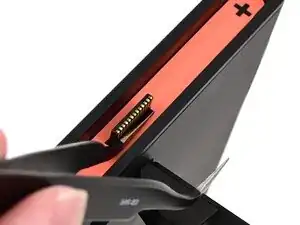
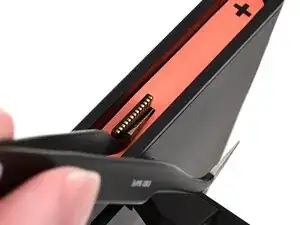
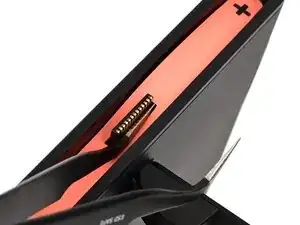
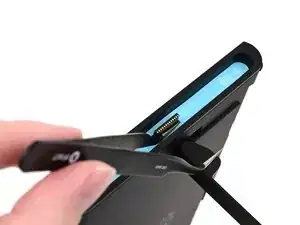
    • Slide one arm of angled tweezers underneath the sticker from its cutout around the right Joy‑Con 2 connector.

    • Gently pry up on the sticker until it starts to lift from the console.

    • Leave the tweezers in place to keep the sticker lifted.

  6. SSHxFVejMfpHGJA2
    SSHxFVejMfpHGJA2
    J1QBmuIPqd6MFrTw
    SXBJ1O1ugK2pY1BA
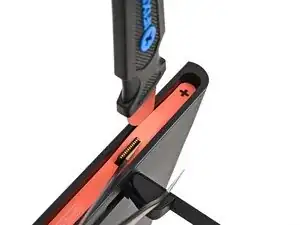
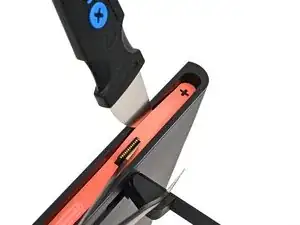
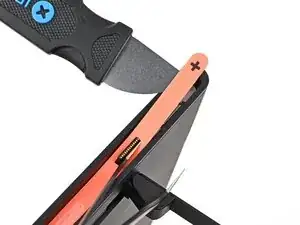
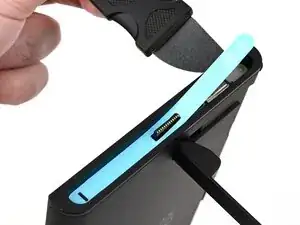
    • Insert the tip of a Jimmy into the gap formed between the long edge of the console and the sticker.

    • Gently pry up the sticker, working your way up the long edge until the top of the sticker is separated from the console.

    • Remove the tweezers once the sticker is lifted.

    • You can leave the Jimmy in place to hold the top of the sticker off the frame—if it falls back into its recess, repeat this procedure to lift it back up.

  7. wjdVrm2URbcSArBQ
    • Reheat the bottom of the right side until it's hot to the touch.

  8. vJxKQYyTutICrubh
    vJxKQYyTutICrubh
    TJPcnDmIZj1EuXPM
    PYVXYyNYBH45MwPn
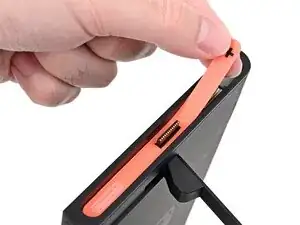
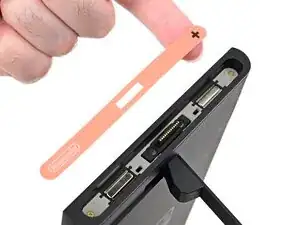
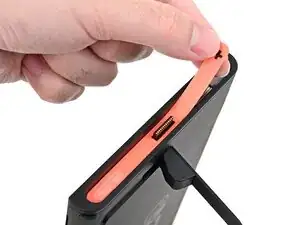
    • Carefully lift the sticker over the Joy‑Con 2 connector, then peel it up fully to remove it.

  9. 4JgLYAUkBPKHYL5N
    4JgLYAUkBPKHYL5N
    QdPU16ygx5WaXIOv
    Xt2DD4nGwtT11WTm
    • Repeat this procedure to remove the sticker along the left side of the console, labeled with a "-" symbol.

  10. QVVJCYqdQNmEJSpX
    QVVJCYqdQNmEJSpX
    scvilok6pD5gCZvZ
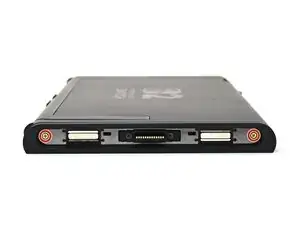
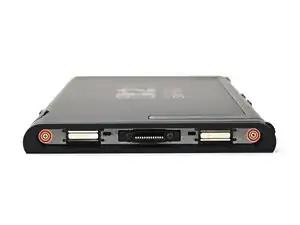
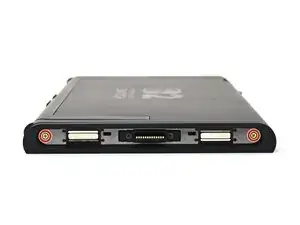
    • Use a JIS 00 driver to remove the two 3.6 mm‑long gold screws on each side of the console (four in total).

  11. 6i3X4ALKCNjQSqSD
    6i3X4ALKCNjQSqSD
    NP4lX6nYvxKhTfTQ
    RaITkR2vdQGZxRiP
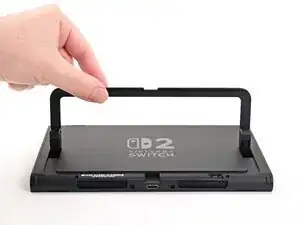
    • Use your fingers to flip up the kickstand on the back of the console.

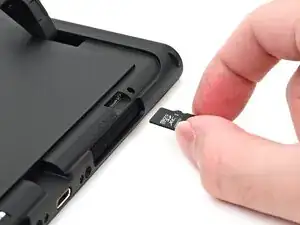
    • If there's a microSD Express card installed, remove it now before you continue to the next step.

  12. lFPPWotqhiCQDcvj
    lFPPWotqhiCQDcvj
    wiEGCoNC1dmsRgIJ
    • Use a Y00 driver to remove the two 4.4 mm‑long screws in the kickstand cutout.

  13. JoHeqQiUYhLrECIv
    JoHeqQiUYhLrECIv
    jUrqv1dwQQCgGxyb
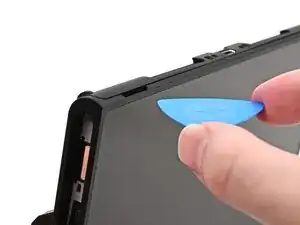
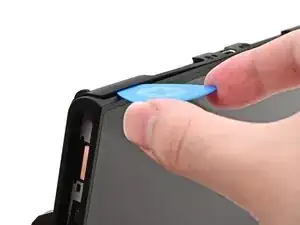
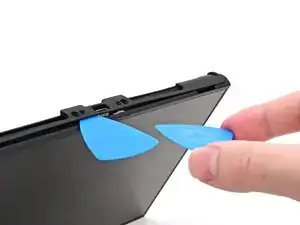
    • Insert an opening pick into the gap between the back cover and speaker cutout on the bottom edge of the console.

  14. cfJBwTZgEEalAn1Q
    cfJBwTZgEEalAn1Q
    IaF3XLZP3SpincUb
    • Slide the opening pick towards the USB-C port until it's underneath the screw hole next to the port.

  15. Ef3HiXgUlqP42rES
    Ef3HiXgUlqP42rES
    ETDCZYoSnOKTK13P
    qThFHMcpbOd31vL1
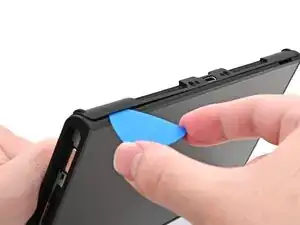
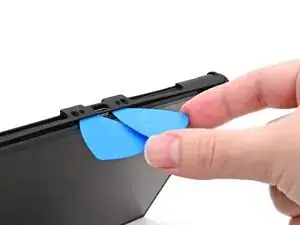
    • Insert a second opening pick underneath the screw hole on the opposite side of the USB-C port, and slide it to the corner of the console.

  16. 1vMRiPFOONkGwlZm
    1vMRiPFOONkGwlZm
    QqNvCOWsKavoX6mC
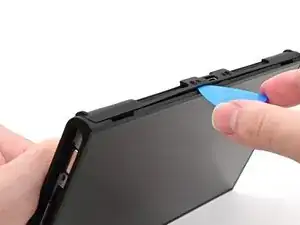
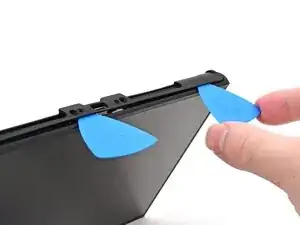
    • Slide the first opening pick back to where it was first inserted.

  17. wrN6QkEAU3sY5CFG
    wrN6QkEAU3sY5CFG
    mUqGchwWQVXF2eXE
    XVWaUHWhVCdPAXTI
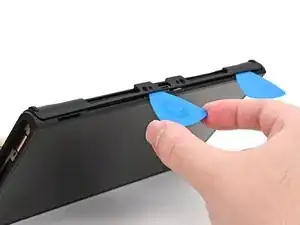
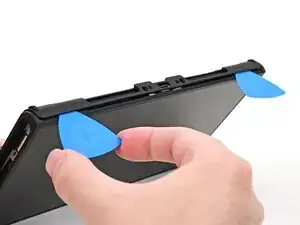
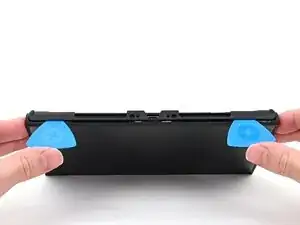
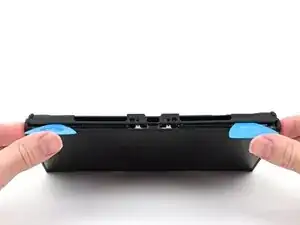
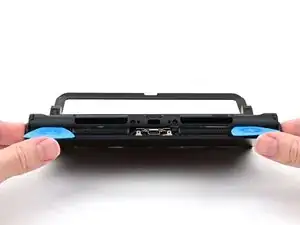
    • Be careful not to drop your console. Once the back cover pops up, the opening picks will fall out of place.

    • Hold the console with two hands. Rest your thumbs on the opening picks.

    • Push up on the opening picks to lift the back cover until it pops up above the USB-C port.

  18. OfZYXVPDOPAdKZpY
    OfZYXVPDOPAdKZpY
    H1krkBLPGZNL4OFd
    by4KabwvvEnPDlPP
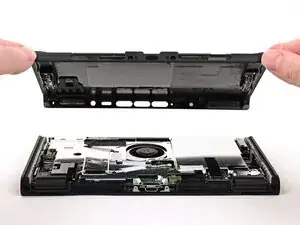
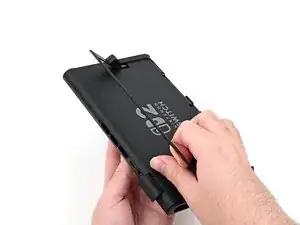
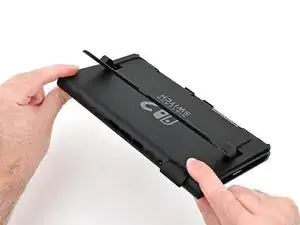
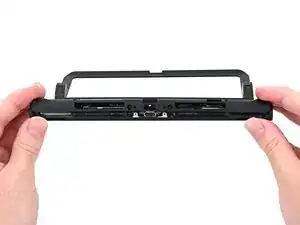
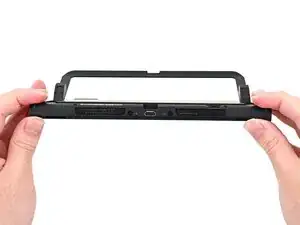
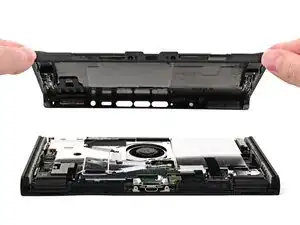
    • Lift the back cover up from the bottom edge and remove it.

  19. joqvyGxvAljqRWdk
    • Congratulations on completing disassembly! The remaining steps will show how to reassemble your console.

  20. pjGoYIMeLVmy1UvQ
    pjGoYIMeLVmy1UvQ
    3QuAVGxoVkLJAutr
    XaA2wtFDKsCKjpGW
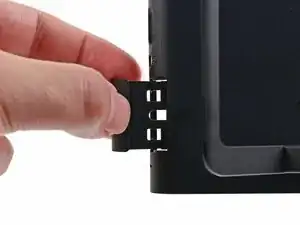
    • Fully pull out the game card tray.

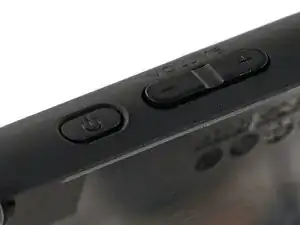
    • Double-check the power and volume buttons to ensure they're seated correctly. If the rubber membrane beneath the buttons is out of place, ensure it's aligned with its pegs.

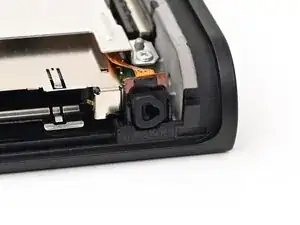
    • Check the microphone to ensure it's fully seated in its slot in the frame.

  21. sSyULZE5yvE6kQLS
    sSyULZE5yvE6kQLS
    aKWKHfsLgGKvrZRp
    LmvcHTVaG3uF1BnZ
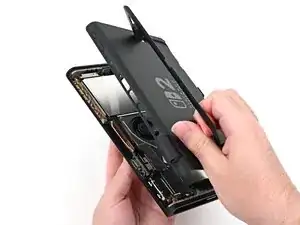
    • Align the top of the back cover with the top of the console.

    • Set the top edge of the back cover into place, checking the buttons and ports to ensure they're aligned properly. If they aren't, lift the back cover and try again.

    • Press along the top edge to fasten the clips securing the back cover to the console.

  22. DT64xZbXdxJfjZYW
    DT64xZbXdxJfjZYW
    PKuZdnNTaT1cvy2V
    • Squeeze the rest of the back cover and console together to fasten the clips.

  23. RnlwvPPTcBxlp3Mc
    RnlwvPPTcBxlp3Mc
    gQEivitJcMgvO6hy
    5R1bMuQkx6bZWrNa
    • Use a JIS 00 driver to install the three 3.1 mm‑long screws securing the back cover: one on the top edge of the console, and two on either side of the bottom USB-C port.

    • Use a Y00 driver to install the two 4.4 mm‑long screws in the kickstand cutout.

  24. cZ2jKSfXSxgXEuQL
    cZ2jKSfXSxgXEuQL
    Aob1o2jGToYPQD1q
    • Install the two 3.6 mm‑long gold screws on each side of the console (four in total).

  25. SAON1nUn2dJvZvWO
    SAON1nUn2dJvZvWO
    YsnER4viWUJvbNV5
    • Power on the console and test functionality to ensure it's working as expected.

  26. x1YrSApBUaLMVSjQ
    x1YrSApBUaLMVSjQ
    yxOooYlXQJgsavwD
    ExwPA1ihlwYNPaQU
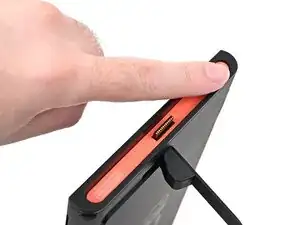
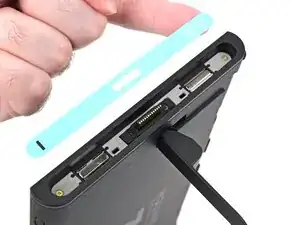
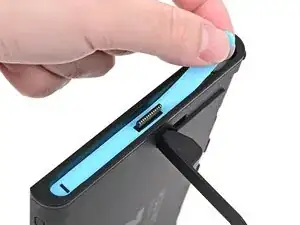
    • Align the right side sticker with its recess. Ensure the cutout in the sticker is aligned with the Joy-Con connector.

    • Set the sticker into its recess, first on one side, then the other.

    • Use your finger or the flat end of a spudger to press the sticker into place.

    • If the sticker isn't sticking well, apply heat after you press it into place.

  27. DMSbsh2jifYxVTYr
    DMSbsh2jifYxVTYr
    UkifYsMS3XLXNjj1
    NrAcZGVWIrSFWsXM
    • Repeat this procedure to install the left side sticker.

Conclusão

You finished fixing your Switch 2!

Repair didn’t go as planned? Try some basic troubleshooting, or ask our Nintendo Switch 2 Answers Community for help.

Nick Schultz

Membro desde: 24/03/24

45909 Reputação

0 comentários